Configurations in Spotlight
Configurations in the Spotlight app can be broadly categorized into the following sections:
Furthermore, to enable the customer creation, certain mandatory fields in the core system must be filled. For example, nationality, street name. Therefore, these fields are updated with default dummy values until the user enter the actual details. For more information about the default values in the core system and how to configure these values, refer to Default values in the Core System.
Business Configurations
As an administrator, you can define business configurations. These configurations reflect in the client app at run-time during the Onboarding process. You can modify the values in the Spotlight, and then refresh the Origination app to see the changes.
Under this section in the Spotlight app, you can configure and manage the Eligibility Criteria of the Origination app to perform the following:
- Add new criteria to add eligibility criteria.
- View the list of criteria already created.
- Edit, delete, or de-activate/activate eligibility criteria.
System Configurations
The system configurations enable you to configure various fields in the Infinity Origination app. These configurations can be made by altering values of various keys associated with their respective fields.
In the Spotlight app, there are several keys defined by default for various fields of the Infinity Origination app. However, you can also create new key to configure other fields of your choice. For more information about creating a new key, refer create a new key.
Configurations using Default Keys
The value set for each key in the Spotlight app reflects in the client app. In case, the client app fails to retrieve details from Spotlight, the default values are displayed.
NOTE: All the configuration keys are available in three app bundles in Infinity Spotlight: Retail_Origination_Infinity, SME_Origination_Infinity, and Retail_Origination_SFDC. In case of the standard Origination app flow (Self-service flow), the configurations are loaded from the Retail Origination_Infinity Bundle. However, if a business product is chosen in the dashboard, then the configurations are loaded from SME_Origination_Infinity bundle. Similarly, for Salesforce integrated Origination app flow (SFDC), the configurations are loaded from the Retail Origination_SFDC bundle. Therefore, to configure any module, ensure that you choose the required Origination app bundle based on the type of the app flow, i.e Self-service Retail flow, Self-service SME flow, or Salesforce integrated Origination flow. Furthermore, for configurations related to Infinity Assist bundle, click here.
Following is the list of the possible configurations and the associated keys and values. You can change the default values to configure the client app.
- Configure Country code
Key Value COUNTRY_CODE United States (Your_value) The default value for this key is United States. If you do not want to see any value in the field by default, set the value to NO_DEFAULT_VALUE. When the value is set to NO_DEFAULT_VALUE, the Country field is not pre-filled with the default value (United States) when the Address and Identification details page appears.
You can modify it to any of the following values:
 see values
- India
- Sri Lanka
- United Kingdom
- United Arab Emirates
- United States of America
- Singapore
- Indonesia
- Italy
- Iran
- Iraq
- Ireland
- Germany
- France
- Spain
- Netherlands
- Greece
- Portugal
- Malta
- Poland
- Sweden
- Austria
- Finland
- Croatia
- Belgium
- Cyprus
- Denmark
- Romania
- Hungary
- Switzerland
- NO_DEFAULT_VALUE
- Enable/disable Google Maps suggestion
Key Value GOOGLE_MAP ON/OFF (Your_value) The default value for this key is ON. If you do not want to see address suggestions, you can set the value to OFF.
- Configure Date Format
The default value for this key is MM/DD/YYYY.Key Value DATE_FORMAT MM/DD/YYYY or DD/MM/YYYY (Your_value)
- Idle timeout Configuration
The default value for this key is 5 minutes. You will be logged out of the Infinity Origination app if you are inactive on the app for 5 minutes continuously.Key Value IDLE_TIMEOUT 5 (Your_value) - Configure Home Address Sequence
If you set the value to GENERIC, the sequence of the Home Address will be: Country, State, City, Zip Code. If you set the value to USA, the sequence of the Home Address will be: City, State, Zip Code.Key Value HOME_ADDRESS_SEQUENCE GENERIC/USA (Your_value)
The default value for this key is GENERIC. - Configuration of Home Address
The default value for this key is SHOW and the country field is displayed in the Infinity Origination app.Key Value HOME_ADDRESS SHOW/HIDE (Your_value) - Configure Eligibility criteria
If you set the value to true, the Eligibility Criteria section appears in the Infinity Origination app. If you set the value to false, the Eligibility Criteria will be hidden.Key Value IS_CREDIT_UNION TRUE/FALSE (Your_value)
The default value for this key is TRUE. - Configure Currency Format
The default value for this key is comma.Key Value CURRENCY_FORMAT_THOUSANDS .(period) / ,(comma) (Your_value)
The default value for this key is period.Key Value CURRENCY_FORMAT_DECIMALS .(period) / ,(comma) (Your_value) - Currency Support Configuration
Key Value CURRENCY_CODE US Dollar (Your_value) The default value is US Dollar. However, you modify it to any of the following values:
see values
- US Dollar
- Euro
- Costa Rican Colon
- British Pound Sterling
- Israeli New Sheqel
- Indian Rupee
- Japanese Yen
- South Korean Won
- Nigerian Naira
- Philippine Peso
- Polish Zloty
- Paraguayan Guarani
- Thai Baht
- Ukrainian Hryvnia
- Vietnamese Dong
This configuration is supported from 2020.07 version onwards.
- Configure Currency Localization
The value of the default locale key determines the currency format. By default, the value is set to en-US.
Key Value DEFAULT_LOCALE en-US(Your_value)
For example, in case of German currency format, groups of 3 digits are separated by full stop. In case of Swiss currency, groups of 3 digits are separated by apostrophe.
You can modify it to any of the following values:- en-GB: The app displays the currency format of United Kingdom
- de-DE: The app displays the currency format of Germany
- en-IN: The app displays the currency format of India
- en-US: The app displays the currency format of United States
- fr: The app displays the currency format of France
This configuration is supported from 2020.07 version onwards.
- Configure Default Product
Key Value DefaultProduct { "id": "SAVINGS.ACCOUNT", "name": "Savings Account", "currency": "USD" }NOTE: The value can change depending on the product groups available in Marketing Catalog microservice.
However, you can change the value to the following to other accounts such as:
{ "id": "PREFER.ACCOUNT", "name": "Current Account(Preferred)", "currency": "USD" } - Default Product Group ID
Key Value DEFAULT_PRODUCT_GROUPID {"DEPOSITS":["DEPOSITS","RETAIL.DEPOSIT"],
"CHECKING":["CURRENT.ACCOUNTS","RETAIL.CURRENT.ACCOUNT"],
"SAVINGS":["SAVINGS.ACCOUNTS","RETAIL.SAVINGS.ACCOUNT"],
"CREDITCARDS":["CREDIT.CARDS"],
"LOANS":["PERSONAL.LOANS","MORTGAGES"]
}
This key value holds the Product Group IDs of the products available in the Marketing Catalog Microservice. The values can be configured as per the requirements.
-
Role types in Card Holder Information section
Key Value CARDHOLDER_TYPE {"Business":[{"Primary Card Holder":"Primary Card Holder"},{"Additional Card Holder":"Additional Card Holder"}]} -
Relationship with the company in Card Holder information section
Key Value CARDHOLDER_RELATIONSHIP_WITH_COMPANY ["Owner", "Partner", "Director"]
- Enable/disable Pre-Fill Details module
The default value for this key is true. This enables you to upload scanned documents. You can modify the value to false if you want to hide the Pre-Fill Details section.Key Value SCAN_UPLOAD_DOC true, false(Your_value) - Configure Reference Data Objects
The ReferenceDataObjects key holds the title of the objects whose master data has to be downloaded. The default value for this key is Legal Identifier Type. The Legal Identifiertype comprises of Passport, Driver License, ID State, Foreign Government ID, and Military ID.Key Value ReferenceDataObjects LegalIdentifierType (Your_value)
If the master data for more than one value is required, you can add the value by adding a comma. Apart from the legal Identifier Type, you can add country and country subdivision. - Configure OTP Resend Limitation
By default, the number of times you can click Resend is limited to 5.Key Value OTP_ResendLimit 5 (Your_value) - Configure OTP Module
The default value for this key is true and the OTP verification section appears in the Infinity Origination app.Key Value OTPModulePresent true, false (Your_value) - Configure OFAC Content
The OFAC value is the content displayed in the app under Important information for procedures for opening a new account. section at the bottom of the Personal Information section. Based on the requirement, you can modify the value of the OFAC key.Key Value OFAC To help the government fight the funding of terrorism and money laundering activites, Federal law requires all financial institutions to obtain, verify and record information that identifies each person who opens an account. In the same instances, we may use outside sources to confirm the information provided by you. The information you provide is protected by our privacy policy and Federal Law. What this means for you: by clicking continue, you authorize us to collect your name, address, date of birth, ID and other information that will allow us to identify you. (Your_value) - Data Validation Configuration
Each field in the Personal Information section, Identity Section, and Address Info section are associated with certain rules to validate the data that you enter in the app. You can choose to configure and remove any of the fields such as the First Name to remove the validation for the selected field.Key Value DATA_VALIDATION_NUO { "PersonalInfo": { "FirstName": "FIRSTNAME", "LastName": "LASTNAME", "Age": "MINOR_AGE", "Email": "EMAIL", "MobileNumber": "MOBILE_NUMBER" }, "IdentityInfo": { "IdNum": "ID_ALPHANUMERIC", "IssuedCountry": "NAME", "IssuedState": "NAME" }, "AddressInfo": { "Country": "NAME", "State": "NAME", "Zipcode": "ZIPCODE" } },
For more information on the concept of data validation by using business rules, commonly used rule sets, and custom rules, refer to Data Validation. - Data Validation Configuration
-
Key Value DATA_VALIDATION_NUO "Collateral": { "CostOfProperty": "AMOUNT_FORMAT", "PropertyType": "MANDATORY", "PropertySubType": [{ "BusinessRuleType": "MANDATORY", "BusinessRule": "" }, { "BusinessRuleType": "VALUE_AMONG", "BusinessRule": "Re-Sale,New" }], "PlotNo": "ID_ALPHANUMERIC", "Size": "NUMBER", "NoOfFloors": "NUMBER", "BuiltUpArea": "NUMBER", "SellerName": "NAME", "DoorNo": "ID_ALPHANUMERIC", "FloorNo": "NUMBER" }Each field in the Collateral Information section, Property Age, Plot Number, Property size, No of Floors, Built up Area, Seller Name, Property Name, Door No, Floor No, Address Line 1, Address Line 2 are associated with certain rules to validate the data that you enter in the app. You can choose to configure and remove any of the fields such as the Property Age to remove the validation for the selected field.
For more information on the concept of data validation by using business rules, commonly used rule sets, and custom rules, refer to Data Validation. - Configure Default Funding Amount
The default value for this key is 5 dollars.Key Value FUNDING_AMOUNT 5 (Your_Funding_Amount) - Payment methods configuration
The default value for this key is "Existent": ["INTER","INTRA","MANUAL"]. In this case, the app displays all the three methods in the Payment Type screen. Otherwise, if the value is set to "Prospect":["INTER","MANUAL"], the app displays only two payment methods. The INTRA payment method is not displayed because a prospect does not have an internal account to perform an Intra-bank tranfer. For more information on the Payment methods, refer to Funding.Key Value PAYMENT_METHOD {"Existent": ["INTER","INTRA","MANUAL"],"Prospect":["INTER","MANUAL"]}(Your_value)
This configuration is supported from the 2020.07 version onwards. - Plaid link
The value of this key is the third party integration link. Currently, this value cannot be modified.Key Value PLAID_ID https://cdn.plaid.com/link/v2/stable/link-initialize.js - Enable/Disable Funding Module
Key Value FUNDING_MODULE SELFSERVICE, BOTH, NONE The default value of the key is SELFSERVICE for standard Origination app. For the Salesforce Integrated Origination application, the default value of the key is NONE. The Funding section can be enabled or disabled based on the value, as follows:
- SELFSERVICE: The Funding option is enabled only when user creates a new application or resumes an application from the Infinity Origination app. The option is disabled when a customer service representative creates a new application or resumes an application the Infinity Spotlight app.
- BOTH: The Funding option is enabled when user creates a new application or resumes an application from the Infinity Origination app, and also when a customer service representative creates a new application from the Infinity Spotlight app.
- NONE: The Funding option is disabled when user creates a new application or resumes an application from the Infinity Origination app. Furthermore, the Funding option is also disabled when a customer service representative creates a new application from the Infinity Spotlight app.
- Product Types for funding
Key Value FUNDING_PRODUCT_GROUPID ["Savings", "Checking", "Deposit"] The value of this key determines the product types to be shown in the Funding section. You can configure the value of this key as per the requirements.
- Recipient bank name
Key Value RECIPIENT_BANK Infinity bank This key specifies the recipient bank's name that is displayed in the app. Using this configuration, you can modify the recipient bank's name.
- Authentication configuration
Key Value AUTHENTICATION_TYPE MFA This key specifies the authentication method used to verify the phone number of the applicant. MFA is the default authentication method used to verify the applicant's phone number with a secure access code.
- Open an account prior to product selection
Key Value OPEN_ACCOUNT_BUTTON ON/OFF The default value of the key is OFF. If the value of this key is set to ON, users will be provided with an option to open a new account in the Product Dashboard pages, without having to select a product in the dashboard. If the value is set to OFF, the option to open a new account is disabled before selecting the product and does not appear in the dashboard pages.
- Start Application from Retail Banking app
Key Value DBP_ONBOARDING_URL <BaseURL>/apps/Origination/#frmlanding NOTE: Value varies based on the environment.
To create a new account for users, users can be navigated from the Retail Banking application to the Infinity Origination app by configuring the deeplink URL against this key. For a Salesforce integrated Origination app, the value can be configured to <BaseURL>/apps/Onboarding/#_frmStartup?BranchRef=GB0010001&BankRef=SFDC
- Save & Leave Option for CSR Mode
Key Value SAVEANDLEAVE_OPTION Hide, Show
The default value of the key is Show. For the Salesforce Integrated Origination application, the default value of the key is Hide. Therefore, If the value of the key is set to Hide, then the Save & Leave option is not displayed throughout the Origination journey. Otherwise, if the value of the key is set to Show, the Save & Leave option is displayed in the app.
- Prospect password expiry date
Key Value PROSPECT_EXPIRY_DATE 30
The default value of this key is 30. It determines the number of days after which password generated for prospect expires. You can modify the password expiry duration by configuring this key.
- Landing Dashboard banner image
Key Value LANDINGDASHBOARD_BANNER initiallanding_image.png
The default value is the name of the image present in the assets folder of the Origination client app. You can modify the banner image by configuring the value of this key.
- Landing Dashboard banner description
Key Value LANDINGDASHBOARD_BANNER_DESCRIPTION save smarter, faster than ever with infinity
The above-mentioned value is the default value of the key. You can modify the Landing dashboard banner description by configuring this key.
- Landing Dashboard banner image for Desktops
Key Value LANDINGDASHBOARD_BANNER_LARGE initiallanding_image_large.png
The default value is the name of the image present in the assets folder of the Origination client app. You can modify the banner image for desktop devices by configuring the value of this key.
- Fetch products based on Purpose
Key Value PURPOSE Onboarding
The value of the Purpose key is used to fetch the specific products from the Marketing Catalog Microservice. The default value of the key, Onboarding, will fetch the products associated with the Origination app.
- Branch Reference
Key Value BRANCH_REF GB0010001
This configuration is used to get Branch reference which is internally used as the request parameter for Marketing Catalog microservice services.
-
Enable/Disable Country code in Personal Information section
Key Value COUNTRY_CODE_STATE Show, Hide This configuration enables you to show the country code field in the Personal Information section, if the value is set to Show. Otherwise, the field is hidden when the value is set to Hide.
- Origination App Deeplink URL in Product Selection section
Key Value APP_URL <BaseURL>/apps/Origination In the Product Group dashboard screen, each product card contains a Learn More button that is deeplinked to the specific Product Details page. Using this configuration, you can configure the Base URL of the deeplink URL.
- Setting the upper limit in the Deposit Amount Range
Key Value CD_DEPOSITAMOUNT_MORE REST Using this configuration, you can configure the upper limit of the last deposit amount range in Terms Deposit section of the Product Selection screen. When the value is set to REST, the upper limit of the deposit amount is more. For example, 10000 + more.
- Upload Document device support
Key Value SCAN_UPLOAD_DOC { "desktop": "false", "mobile": "true", "tablet": "true" } By default, the document upload is maintained breakpoint wise as ID Scan and Selfie Verification only for mobile and tablet devices. However, using this configuration, you can configure the device support for the ID scan and Selfie verification sections.
- Enable/Disable Selfie Verification section
Key Value IS_SELFIE_MANDATORY True, False This key is set to True by default , therefore, after scanning an identity document, the user is navigated to the Selfie Verification section. However, you can skip the Selfie Verification section by configuring the value to False.
- User location popup
Key Value USER_LOCATION_POPUP SHOW, HIDE This configuration allows you to show or hide the location popup in the Identity section. If the value is set to Show, then the current geolocation of the device is accessed. Otherwise, if the value is set to Hide, the popup is not displayed and the geolocation is not accessed.
- RedHat PAM configuration
Key Value ENTITY_ITEM_PAM_CONFIG [ { "eventType": "APPLICATION_SUBMITTED", "entityItemDefinitionName": "MetaData", "fieldName": "", "operand": "", "fieldValue": "", "processDetails": { "processType": "create", "processId": "RetailOnboarding.ApplicationSubmission", "signalName": "" } }, { "eventType": "FUNDING_REQUEST_RAISED", "entityItemDefinitionName": "Funding", "fieldName": "", "operand": "", "fieldValue": "", "processDetails": { "processType": "create", "processId": "RetailOnboarding.FundingRequest", "signalName": "" } }, { "eventType": "USER_ACTION_SUBMITTED", "entityItemDefinitionName": "AccountUsage", "fieldName": "", "operand": "", "fieldValue": "", "processDetails": { "processType": "resume", "processId": "RetailOnboarding.CreateAccounts", "signalName": "accountUsageSignal", "uniqueSignalRequired": false } }, { "eventType": "USER_ACTION_SUBMITTED", "entityItemDefinitionName": "Citizenship", "fieldName": "", "operand": "", "fieldValue": "", "processDetails": { "processType": "resume", "processId": "RetailOnboarding.CreateUserAction", "signalName": "Citizenship", "uniqueSignalRequired": true } }, { "eventType": "USER_ACTION_SUBMITTED", "entityItemDefinitionName": "MobilePhoneNumberConsent", "fieldName": "", "operand": "", "fieldValue": "", "processDetails": { "processType": "resume", "processId": "RetailOnboarding.CreateUserAction", "signalName": "MobilePhoneNumberConsent", "uniqueSignalRequired": true } }, { "eventType": "USER_ACTION_SUBMITTED", "entityItemDefinitionName": "BackupWithholding", "fieldName": "", "operand": "", "fieldValue": "", "processDetails": { "processType": "resume", "processId": "RetailOnboarding.CreateUserAction", "signalName": "BackupWithholding", "uniqueSignalRequired": true } }, { "eventType": "USER_ACTION_SUBMITTED", "entityItemDefinitionName": "EmploymentStatus", "fieldName": "", "operand": "", "fieldValue": "", "processDetails": { "processType": "resume", "processId": "RetailOnboarding.CreateUserAction", "signalName": "EmploymentStatus", "uniqueSignalRequired": true } }, { "eventType": "USER_ACTION_SUBMITTED", "entityItemDefinitionName": "MonthlyGrossIncome", "fieldName": "", "operand": "", "fieldValue": "", "processDetails": { "processType": "resume", "processId": "RetailOnboarding.CreateUserAction", "signalName": "MonthlyGrossIncome", "uniqueSignalRequired": true } }, { "eventType": "USER_ACTION_SUBMITTED", "entityItemDefinitionName": "StartDate", "fieldName": "", "operand": "", "fieldValue": "", "processDetails": { "processType": "resume", "processId": "RetailOnboarding.CreateUserAction", "signalName": "StartDate", "uniqueSignalRequired": true } }, { "eventType": "USER_ACTION_SUBMITTED", "entityItemDefinitionName": "IncomeDocument", "fieldName": "", "operand": "", "fieldValue": "", "processDetails": { "processType": "resume", "processId": "RetailOnboarding.CreateUserAction", "signalName": "IncomeDocument", "uniqueSignalRequired": true } }, { "eventType": "USER_ACTION_SUBMITTED", "entityItemDefinitionName": "ConfirmAddress", "fieldName": "", "operand": "", "fieldValue": "", "processDetails": { "processType": "resume", "processId": "RetailOnboarding.CreateUserAction", "signalName": "ConfirmAddress", "uniqueSignalRequired": true } }, { "eventType": "USER_ACTION_SUBMITTED", "entityItemDefinitionName": "SecondaryCitizenshipCountry", "fieldName": "", "operand": "", "fieldValue": "", "processDetails": { "processType": "resume", "processId": "RetailOnboarding.CreateUserAction", "signalName": "SecondaryCitizenshipCountry", "uniqueSignalRequired": true } }, { "eventType": "USER_ACTION_SUBMITTED", "entityItemDefinitionName": "Age", "fieldName": "", "operand": "", "fieldValue": "", "processDetails": { "processType": "resume", "processId": "RetailOnboarding.CreateUserAction", "signalName": "Age", "uniqueSignalRequired": true } } ]This is the configuration using which the fabric integration service (OnBoardingJavaServices/FilterEventsForPAMOperation) will create or resume a PAM process. You can configure the process type for any event type as per the requirements.
- Driving License customer action
Key Value USER_ACTION_DRIVINGLICENSE_CONFIG { "UserActionName": "DrivingLicense", "Group": "Documents", "Skippable": "false", "ActionLevel": "Entity", "Title": " Please Upload Driving License Document (%FirstName% %LastName%)", "Title_Key": "DrivingLicense_Title", "UserActionType": "DocumentUpload", "Options": "", "OptionsType": "", "Description": "Please submit Driving License for verification purposes", "Description_Key": "DrivingLicense_Description", "DynamicDataDefinition": { "PersonalInfo": [{ "name": "FirstName", "path": "$.FirstName" }, { "name": "LastName", "path": "$.LastName" }] }, "IsAutomatic": "false", "AssistTitle": " Please Upload Driving License", "AssistTitle_Key": "DrivingLicense_AssistTitle", "EntityType": "Person" }The descriptions of the parameters in the value are as follows:
- UUID: Unique identifier generated by the preprocessor which is shared accross ODMS and Origination Processing MS.
- UserActionName: Name of a user action (all predefined user actions have unique names).
- UserActionIdentifier: userActionName_<party_id>_<application_id>
- UserActionType: Specifies the type of the customer action such as Radio button selection, Single-selection dropdown list, Currency, Date, Text, and Document upload.
- Group: Categorizes the customer actions based on the subject.
- Skippable: Specifies whether a customer action is mandatory or can be skipped.
- ActionLevel: Entity and Facility
- IsAutomatic: Determines if a question must be displayed as a user action that a bank user can initiate.
- createdBy: User name of the creator
- createdTime: Show the created time of customer action
- userActionStatus: Status of the customer action, i.e, Pending with customer or Completed
- NeedsDelivery: If marked as false (like in document and disbursement questions), no change happens, otherwise the base entity is updated.
- Title: Specifies the heading of the customer action card displayed in the client app.
- Title_key: A unique key for Title to support internalization.
- InformationText: This forms the tooltip in the userAction document related card displayed to the user.
- InformationText_key: A unique key for tootltip to support internalization.
- OptionsType: There can be two option types - PREDEFINED or GLOBAL_CONFIG. If the Options Type is set as PREDEFINED the options will be provided as an array. If the Options Type is set as GLOBAL_CONFIG, the options will be picked up from the global config available, the name of which will be provided in the options key.
- Options: Specifies either an array of predefined options or the name of the global config.
- Description: Content of the customer action card. This field could be dynamic as per the data provided by the user.
- Description_key: A unique key for Description to support internalization.s
- DynamicDataDefinition: Holds an array of name to which the dynamic values need to be overwritten and the corresponding json path in the ODMS useraction entitiy Item.
- isPrerequirement: Flag to check whether the question is shown on pre-submision or post-submission.
- CategoryMetaData: Holds a json object in which type and identifier is added for particular action level.
- DeliveryConfig: It will hold the path where we need to update the particular entity.
- PartyId: For entity level, partyId is shown.
- TaskId: The task id associated with the customer action raised is displayed.
- Response: Response holds a json object which contains the data provided by the user for a customer action.
This customer action requests uploading a copy of Driving License of the user. The USER_ACTION_DRIVINGLICENSE_CONFIG configuration can be modified as per the requirements.
- Passports customer action
Key Value USER_ACTION_PASSPORTPS_CONFIG { "UserActionName": "PassportPS", "Group": "Documents", "Skippable": "false", "ActionLevel": "Entity", "Title": " Please Upload Passport Document (%FirstName% %LastName%)", "Title_Key": "PassportPS_Title", "UserActionType": "DocumentUpload", "Options": "", "OptionsType": "", "Description": "Please submit Passport for verification purposes", "Description_Key": "PassportPS_Description", "DynamicDataDefinition": { "PersonalInfo": [{ "name": "FirstName", "path": "$.FirstName" }, { "name": "LastName", "path": "$.LastName" }] }, "IsAutomatic": "false", "AssistTitle": " Please Upload Passport", "AssistTitle_Key": "PassportPS_AssistTitle", "EntityType": "Person" }For description about the parameters in the above-mentioned value, click here. This customer action requests the passport copy of the user. The USER_ACTION_PASSPORTPS_CONFIG configuration can be modified as per the requirements.
- Utility Bills customer action
Key Value USER_ACTION_UTILITYBILLS_CONFIG { "UserActionName": "UtilityBills", "Group": "Documents", "Skippable": "false", "ActionLevel": "Entity", "Title": " Please Upload Utility Bills Document (%FirstName% %LastName%)", "Title_Key": "UtilityBills_Title", "UserActionType": "DocumentUpload", "Options": "", "OptionsType": "", "Description": "Please submit Utility bills for verification purposes", "Description_Key": "UtilityBills_Description", "DynamicDataDefinition": { "PersonalInfo": [{ "name": "FirstName", "path": "$.FirstName" }, { "name": "LastName", "path": "$.LastName" }] }, "IsAutomatic": "false", "AssistTitle": " Please Upload Utility Bills", "AssistTitle_Key": "UtilityBills_AssistTitle", "EntityType": "Company" }For description about the parameters in the above-mentioned value, click here. This customer action verifies the utility bills of the user. The USER_ACTION_UTILITYBILLS_CONFIG configuration can be modified as per the requirements.
- Employer or HR Letter customer action
Key Value USER_ACTION_EMPLOYERORHRLETTER_CONFIG { "UserActionName": "EmployerOrHRLetter", "Group": "Documents", "Skippable": "false", "ActionLevel": "Entity", "Title": " Please Upload Employer Or HR Letter Document (%FirstName% %LastName%)", "Title_Key": "EmployerOrHRLetter_Title", "UserActionType": "DocumentUpload", "Options": "", "OptionsType": "", "Description": "Please submit Employer Or HRLetter for verification purposes", "Description_Key": "EmployerOrHRLetter_Description", "DynamicDataDefinition": { "PersonalInfo": [{ "name": "FirstName", "path": "$.FirstName" }, { "name": "LastName", "path": "$.LastName" }] }, "IsAutomatic": "false", "AssistTitle": " Please Upload Employer/HR letter", "AssistTitle_Key": "EmployerOrHRLetter_AssistTitle", "EntityType": "Person" }For description about the parameters in the above-mentioned value, click here. This customer action verifies the HR Letter or Employer Letter of the user. The USER_ACTION_EMPLOYERORHRLETTER_CONFIG configuration can be modified as per the requirements.
- House Rent Document customer action
Key Value USER_ACTION_HOUSERENTCONTRACT_CONFIG { "UserActionName": "HouseRentContract", "Group": "Documents", "Skippable": "false", "ActionLevel": "Entity", "Title": " Please Upload House Rent Contract Document (%FirstName% %LastName%)", "Title_Key": "HouseRentContract_Title", "UserActionType": "DocumentUpload", "Options": "", "OptionsType": "", "Description": "Please submit House Rent Contract for verification purposes", "Description_Key": "HouseRentContract_Description", "DynamicDataDefinition": { "PersonalInfo": [{ "name": "FirstName", "path": "$.FirstName" }, { "name": "LastName", "path": "$.LastName" }] }, "IsAutomatic": "false", "AssistTitle": " Please Upload House Rent Contract", "AssistTitle_Key": "HouseRentContract_AssistTitle", "EntityType": "Person" }For description about the parameters in the above-mentioned value, click here. This customer action verifies the house rent contract of the user. The USER_ACTION_HOUSERENTCONTRACT_CONFIG configuration can be modified as per the requirements.
- Pay slips customer action
Key Value USER_ACTION_PAYSLIPS_CONFIG { "UserActionName": "PaySlips", "Group": "Documents", "Skippable": "false", "ActionLevel": "Entity", "Title": "Please Upload PaySlips Document (%FirstName% %LastName%)", "Title_Key": "PaySlips_Title", "UserActionType": "DocumentUpload", "Options": "", "OptionsType": "", "Description": "Please submit PaySlips for verification purposes", "Description_Key": "PaySlips_Description", "DynamicDataDefinition": { "PersonalInfo": [{ "name": "FirstName", "path": "$.FirstName" }, { "name": "LastName", "path": "$.LastName" }] }, "IsAutomatic": "false", "AssistTitle": "Please Upload PaySlips Document", "AssistTitle_Key": "PaySlips_AssistTitle" }For description about the parameters in the above-mentioned value, click here. This customer action requests the copies of payslips of the user. The USER_ACTION_PAYSLIPS_CONFIG configuration can be modified as per the requirements.
- Tax Return Statements customer action
Key Value USER_ACTION_TAXRETURNSTATEMENTS_CONFIG { "UserActionName": "TaxReturnStatements", "Group": "Documents", "Skippable": "false", "ActionLevel": "Entity", "Title": " Please Upload Tax return statements Document (%FirstName% %LastName%)", "Title_Key": "TaxReturnStatements_Title", "UserActionType": "DocumentUpload", "Options": "", "OptionsType": "", "Description": "Please submit Tax return statements for verification purposes", "Description_Key": "TaxReturnStatements_Description", "IsAutomatic": "false", "AssistTitle": " Please Upload Tax return statements Document", "DynamicDataDefinition": { "PersonalInfo": [{ "name": "FirstName", "path": "$.FirstName" }, { "name": "LastName", "path": "$.LastName" }] }, "AssistTitle_Key": "TaxReturnStatements_AssistTitle", "EntityType": "Company" }For description about the parameters in the above-mentioned value, click here. This customer action requests the tax return statements from the user. The USER_ACTION_TAXRETURNSTATEMENTS_CONFIG configuration can be modified as per the requirements.
- Salary Accounts statements customer action
Key Value USER_ACTION_SALARYACCOUNTSTATEMENTS_CONFIG { "UserActionName": "SalaryAccountStatements", "Group": "Documents", "Skippable": "false", "ActionLevel": "Entity", "Title": "Please Upload Salary Account Statements Document (%FirstName% %LastName%)", "Title_Key": "SalaryAccountStatements_Title", "UserActionType": "DocumentUpload", "Options": "", "OptionsType": "", "Description": "Please submit Salary Account Statements for verification purposes", "Description_Key": "SalaryAccountStatements_Description", "DynamicDataDefinition": { "PersonalInfo": [{ "name": "FirstName", "path": "$.FirstName" }, { "name": "LastName", "path": "$.LastName" }] }, "IsAutomatic": "false", "AssistTitle": "Please Upload Salary Account Statements Document", "AssistTitle_Key": "SalaryAccountStatements_AssistTitle" }For description about the parameters in the above-mentioned value, click here. This customer action requests the salary account statements of the user. The USER_ACTION_SALARYACCOUNTSTATEMENTS_CONFIG configuration can be modified as per the requirements.
- Account Statements customer action
Key Value USER_ACTION_ACCOUNTSTATEMENTS_CONFIG { "UserActionName": "AccountStatements", "Group": "Documents", "Skippable": "false", "ActionLevel": "Entity", "Title": "Please Upload Account Statements Document (%FirstName% %LastName%)", "Title_Key": "AccountStatements_Title", "UserActionType": "DocumentUpload", "Options": "", "OptionsType": "", "Description": "Please submit Account Statements for verification purposes", "Description_Key": "AccountStatements_Description", "DynamicDataDefinition": { "PersonalInfo": [{ "name": "FirstName", "path": "$.FirstName" }, { "name": "LastName", "path": "$.LastName" }] }, "IsAutomatic": "false", "AssistTitle": "Please Upload Account Statements Document", "AssistTitle_Key": "AccountStatements_AssistTitle" }For description about the parameters in the above-mentioned value, click here. This customer action verifies the account statements of the user. If so, the country name is a taken as input. The USER_ACTION_ACCOUNTSTATEMENTS_CONFIG configuration can be modified as per the requirements.
- National ID customer action
Key Value USER_ACTION_NATIONALID_CONFIG { "UserActionName": "NationalID", "Group": "Documents", "Skippable": "false", "ActionLevel": "Entity", "Title": " Please Upload National ID Document (%FirstName% %LastName%)", "Title_Key": "NationalID_Title", "UserActionType": "DocumentUpload", "Options": "", "OptionsType": "", "Description": "Please submit National ID for verification purposes", "Description_Key": "NationalID_Description", "DynamicDataDefinition": { "PersonalInfo": [{ "name": "FirstName", "path": "$.FirstName" }, { "name": "LastName", "path": "$.LastName" }] }, "IsAutomatic": "false", "AssistTitle": " Please Upload National ID", "AssistTitle_Key": "NationalID_AssistTitle", "EntityType": "Person" }For description about the parameters in the above-mentioned value, click here. This customer action requests the National ID of the user. The USER_ACTION_NATIONALID_CONFIG configuration can be modified as per the requirements.
- Tax ID customer action
Key Value USER_ACTION_TAXID_CONFIG { "UserActionName": "TaxID", "Group": "Documents", "Skippable": "false", "ActionLevel": "Entity", "Title": "Please confirm your Tax ID (%FirstName% %LastName%)", "Title_Key": "TaxID_Title", "UserActionType": "DocumentUpload", "Options": "", "OptionsType": "", "Description": "Please submit Tax ID for verification purposes", "Description_Key": "TaxID_Description", "IsAutomatic": "false", "DynamicDataDefinition": { "PersonalInfo": [{ "name": "FirstName", "path": "$.FirstName" }, { "name": "LastName", "path": "$.LastName" }] }, "AssistTitle": "Please confirm your Tax ID", "AssistTitle_Key": "TaxID_AssistTitle", "EntityType": "Company" }For description about the parameters in the above-mentioned value, click here. This customer action requests Tax ID of the user for verification. The Tax ID configuration can be modified as per the requirements.
- Employee ID customer action
Key Value USER_ACTION_EMPLOYEEID_CONFIG { "UserActionName": "EmployeeID", "Group": "Documents", "Skippable": "false", "ActionLevel": "Entity", "Title": " Please Upload Employee ID Document (%FirstName% %LastName%)", "Title_Key": "EmployeeID_Title", "UserActionType": "DocumentUpload", "Options": "", "OptionsType": "", "Description": "Please submit Employee ID for verification purposes", "Description_Key": "EmployeeID_Description", "DynamicDataDefinition": { "PersonalInfo": [{ "name": "FirstName", "path": "$.FirstName" }, { "name": "LastName", "path": "$.LastName" }] }, "IsAutomatic": "false", "AssistTitle": " Please Upload Employee ID", "AssistTitle_Key": "EmployeeID_AssistTitle", "EntityType": "Person" }For description about the parameters in the above-mentioned value, click here. This customer action requests the Employee ID of the user. The USER_ACTION_EMPLOYEEID_CONFIG configuration can be modified as per the requirements.
- Configure Previous address question
Key Value USER_ACTION_PHOTOIDCARD_CONFIG { "UserActionName": "PhotoIDCard", "Group": "Documents", "Skippable": "false", "ActionLevel": "Entity", "Title": " Please Upload Government Issued Photo ID Document (%FirstName% %LastName%)", "Title_Key": "PhotoIDCard_Title", "UserActionType": "DocumentUpload", "Options": "", "OptionsType": "", "Description": "Please submit Government Issued Photo ID Document for verification purposes", "Description_Key": "PhotoIDCard_Description", "DynamicDataDefinition": { "PersonalInfo": [{ "name": "FirstName", "path": "$.FirstName" }, { "name": "LastName", "path": "$.LastName" }] }, "IsAutomatic": "false", "AssistTitle": "Government Issued Photo ID", "AssistTitle_Key": "PhotoIDCard_AssistTitle", "EntityType": "Person" }For description about the parameters in the above-mentioned value, click here. This question requests the photo ID of the user. By using this configuration, the question can be modified as per the requirements.
- Configure time on current address customer action
Key Value USER_ACTION_TIMEONCURRENTADDRESS_CONFIG { "UserActionName": "TimeOnCurrentAddress", "Group": "Verification", "Skippable": "false", "ActionLevel": "Application", "Title": "Time on the current address/home - Staying since?", "Title_Key": "TimeOnCurrentAddress_Title", "UserActionType": "Text", "Options": "", "OptionsType": "", "Description": "Provide staying since, entering the month and year where you moved to this address", "Description_Key": "TimeOnCurrentAddress_Description", "DynamicDataDefinition": {}, "NeedsReview": "false", "isPreRequirement": "true" }For description about the parameters in the above-mentioned value, click here. The Time on current address question requests the period of time since the user is staying in the mentioned address. By using this configuration, the question can be modified as per the requirements.
- Configure Re-upload offer letter customer action
Key Value USER_ACTION_REUPLOADOFFER_CONFIG { "UserActionName": "ReUploadOffer", "Group": "Documents", "Skippable": "false", "ActionLevel": "Facility", "Title": "Please Re-Upload Offer Document (%ProductName%)", "Title_Key": "ReUploadOffer_Title", "UserActionType": "DocumentUpload", "Options": "", "OptionsType": "", "Description": "Please re-upload the offer letter", "Description_Key": "ReUploadOffer_Description", "IsAutomatic": "true", "AssistTitle": "Please Re-Upload Offer Document", "DocumentName": "Offer Document - Reupload", "DynamicDataDefinition": { "ProductSelection": [{ "name": "ProductName", "path": "$.Products[*].ProductName", "type": "List" }] }, "AssistTitle_Key": "ReUploadOffer_AssistTitle" }For description about the parameters in the above-mentioned value, click here. This question requests the user to re-upload the offer letter in a few cases. By using this configuration, the question can be modified as per the requirements.
- Upload Signed Offer letter customer action
Key Value USER_ACTION_UPLOADSIGNEDOFFERDOCUMENT_CONFIG { "UserActionName": "UploadSignedOfferDocument", "Group": "Documents", "Skippable": "false", "ActionLevel": "Facility", "Title": " Please Upload signed Offer Document (%ProductName%)", "Title_Key": "UploadSignedOfferDocument_Title", "UserActionType": "DocumentUpload", "Options": "", "OptionsType": "", "Description": "Read the offer letter fully before you sign", "Description_Key": "UploadSignedOfferDocument_Description", "DynamicDataDefinition": { "ProductSelection": [{ "name": "ProductName", "path": "$.Products[*].ProductName", "type": "List" }] }, "IsAutomatic": "true", "AssistTitle": " Please Upload Signed Offer Document", "AssistTitle_Key": "UploadSignedOfferDocument_AssistTitle" }For description about the parameters in the above-mentioned value, click here. This question requests the signed offer letter document from the user. By using this configuration, the question can be modified as per the requirements.
- Confirm First name customer action
Key Value USER_ACTION_FIRSTNAME_CONFIG { "UserActionName": "FirstName", "Group": "Personal Information", "Skippable": "false", "ActionLevel": "Entity", "Title": "Please confirm your First Name (%FirstName% %LastName%)", "Title_Key": "FirstName_Title", "UserActionType": "Text", "Options": "", "OptionsType": "", "Description": "Previously Submitted data is not matching with the document data", "Description_Key": "FirstName_Description", "DynamicDataDefinition": { "PersonalInfo": [{ "name": "FirstName", "path": "$.FirstName" }, { "name": "LastName", "path": "$.LastName" }] }, "IsAutomatic": "false", "AssistTitle": "Please confirm your First Name", "NeedsDelivery": "true", "DeliveryConfig": { "PersonalInfo": ["FirstName"] }, "AssistTitle_Key": "FirstName_AssistTitle" } }For description about the parameters in the above-mentioned value, click here. This question requests confirmation on the user's first name as entered previously. By using this configuration, the question can be modified as per the requirements.
- Confirm last name customer action
Key Value USER_ACTION_LASTNAME_CONFIG { "UserActionName": "LastName", "Group": "Personal Information", "Skippable": "false", "ActionLevel": "Entity", "Title": "Please confirm your Last Name (%FirstName% %LastName%)", "Title_Key": "LastName_Title", "UserActionType": "Text", "Options": "", "OptionsType": "", "Description": "Previously Submitted data is not matching with the document data", "Description_Key": "LastName_Description", "DynamicDataDefinition": { "PersonalInfo": [{ "name": "FirstName", "path": "$.FirstName" }, { "name": "LastName", "path": "$.LastName" }] }, "IsAutomatic": "false", "AssistTitle": "Please confirm your Last Name", "NeedsDelivery": "true", "DeliveryConfig": { "PersonalInfo": ["LastName"] }, "AssistTitle_Key": "LastName_AssistTitle" } }For description about the parameters in the above-mentioned value, click here. This question requests confirmation on the last name of the user. By using this configuration, the question can be modified as per the requirements.
- Configure the US Nationality question
Key Value USER_ACTION_PREVIOUSADDRESS_CONFIG { "UserActionName": "USNationality", "Group": "FATCA", "Skippable": "false", "ActionLevel": "Application", "Title": "Are you US National or Resident", "Title_Key": "USNationality_Title", "UserActionType": "Radio-ButtonSelection", "Options": [ "National", "Resident" ], "OptionsType": "PREDEFINED", "Description": "Select one value.", "Description_Key": "USNationality_Description", "DynamicDataDefinition": {}, "NeedsReview": "false", "isPreRequirement": "true" }For description about the parameters in the above-mentioned value, click here. This question verifies about the US citizenship of the user: US National or a Resident. By using this configuration, the question can be modified as per the requirements.
- Confirm Date of Birth customer action
Key Value USER_ACTION_DATEOFBIRTH_CONFIG { "UserActionName": "DateOfBirth", "Group": "PersonalInformation", "Skippable": "false", "ActionLevel": "Entity", "Title": "Please confirm your Date of Birth (%FirstName% %LastName%)", "Title_Key": "DateOfBirth_Title", "UserActionType": "Date", "Options": "", "OptionsType": "", "Description": "Previously Submitted data is not matching with the document data", "Description_Key": "DateOfBirth_Description", "DynamicDataDefinition": { "PersonalInfo": [{ "name": "FirstName", "path": "$.FirstName" }, { "name": "LastName", "path": "$.LastName" }] }, "IsAutomatic": "false", "AssistTitle": "Please confirm your Date of Birth", "NeedsDelivery": "true", "DeliveryConfig": { "PersonalInfo": ["DateOfBirth"] }, "AssistTitle_Key": "DateOfBirth_AssistTitle" } }For description about the parameters in the above-mentioned value, click here. This question requests confirmation on the date of birth of the user. By using this configuration, the question can be modified as per the requirements.
- Confirm email address user action
Key Value USER_ACTION_EMAILADDRESS_CONFIG { "UserActionName": "EmailAddress", "Group": "PersonalInformation", "Skippable": "false", "ActionLevel": "Entity", "Title": "Please confirm your Email Address (%FirstName% %LastName%)", "Title_Key": "EmailAddress_Title", "UserActionType": "Text", "Options": "", "OptionsType": "", "Description": "Previously Submitted data is not matching with the document data", "Description_Key": "EmailAddress_Description", "DynamicDataDefinition": { "PersonalInfo": [{ "name": "FirstName", "path": "$.FirstName" }, { "name": "LastName", "path": "$.LastName" }] }, "IsAutomatic": "false", "AssistTitle": "Please confirm your Email Address", "NeedsDelivery": "true", "DeliveryConfig": { "PersonalInfo": ["Email"] }, "AssistTitle_Key": "EmailAddress_AssistTitle" } }For description about the parameters in the above-mentioned value, click here. This question requests confirmation on the email address of the user. By using this configuration, the question can be modified as per the requirements.
- Confirm Phone number customer action
Key Value USER_ACTION_PHONENUMBER_CONFIG { "UserActionName": "PhoneNumber", "Group": "Phone Number", "Skippable": "false", "ActionLevel": "Entity", "Title": "Please confirm your Phone Number(Phone Number and Country Code ) (%FirstName% %LastName%)", "Title_Key": "PhoneNumber_Title", "UserActionType": "multiText", "Options": "", "OptionsType": "", "Description": "Previously Submitted data is not matching with the document data", "Description_Key": "PhoneNumber_Description", "DynamicDataDefinition": { "PersonalInfo": [{ "name": "FirstName", "path": "$.FirstName" }, { "name": "LastName", "path": "$.LastName" }] }, "IsAutomatic": "false", "AssistTitle": "Please confirm your Phone Number(Phone Number and Country Code )", "NeedsDelivery": "true", "DeliveryConfig": { "PersonalInfo": [ ["MobileCountryCode", "MobileNumber"] ] }, "AssistTitle_Key": "PhoneNumber_AssistTitle" } }For description about the parameters in the above-mentioned value, click here. This action card requests confirmation on phone number of the user. By using this configuration, the question can be modified as per the requirements.
- Confirm Tax ID number customer action
Key Value USER_ACTION_TAXIDNUM_CONFIG { "UserActionName": "TaxIdNum", "Group": "Tax Details", "Skippable": "false", "ActionLevel": "Entity", "Title": "Please confirm your Tax ID (%FirstName% %LastName%)", "Title_Key": "TaxIdNum_Title", "UserActionType": "Text", "Options": "", "OptionsType": "", "Description": "Previously Submitted data is not matching with the document data", "Description_Key": "TaxIdNum_Description", "DynamicDataDefinition": { "PersonalInfo": [{ "name": "FirstName", "path": "$.FirstName" }, { "name": "LastName", "path": "$.LastName" }] }, "IsAutomatic": "false", "AssistTitle": "Please confirm your Tax ID", "NeedsDelivery": "true", "DeliveryConfig": { "PersonalInfo": ["TaxIdNum"] }, "AssistTitle_Key": "TaxIdNum_AssistTitle" }For description about the parameters in the above-mentioned value, click here. This action card requests confimration on the tax id number of the user. By using this configuration, the question can be modified as per the requirements.
- Confirm Identity type customer action
Key Value USER_ACTION_IDENTITYTYPE_CONFIG { "UserActionName": "IdentityType", "Group": "Identity Details", "Skippable": "false", "ActionLevel": "Entity", "Title": "Please confirm your Identity Type (%FirstName% %LastName%)", "Title_Key": "IdentityType_Title", "UserActionType": "Single-SelectionDropdownList", "Options": "", "OptionsType": "", "Description": "Previously Submitted data is not matching with the document data", "Description_Key": "IdentityType_Description", "DynamicDataDefinition": { "PersonalInfo": [{ "name": "FirstName", "path": "$.FirstName" }, { "name": "LastName", "path": "$.LastName" }] }, "IsAutomatic": "false", "AssistTitle": "Please confirm your Identity Type", "NeedsDelivery": "true", "DeliveryConfig": { "PersonalInfo": ["IDType"] }, "AssistTitle_Key": "IdentityType_AssistTitle" } }For description about the parameters in the above-mentioned value, click here. This action card requests confirmation on the identity type of the users. By using this configuration, the question can be modified as per the requirements.
- Confirm ID number customer action
Key Value USER_ACTION_IDNUMBER_CONFIG { "UserActionName": "IdNumber", "Group": "Identity Details", "Skippable": "false", "ActionLevel": "Entity", "Title": "Please confirm your ID number (%FirstName% %LastName%)", "Title_Key": "IdNumber_Title", "UserActionType": "Text", "Options": "", "OptionsType": "", "Description": "Previously Submitted data is not matching with the document data", "Description_Key": "IdNumber_Description", "DynamicDataDefinition": { "PersonalInfo": [{ "name": "FirstName", "path": "$.FirstName" }, { "name": "LastName", "path": "$.LastName" }] }, "IsAutomatic": "false", "AssistTitle": "Please confirm your ID number", "NeedsDelivery": "true", "DeliveryConfig": { "PersonalInfo": ["IdNumber"] }, "AssistTitle_Key": "IdNumber_AssistTitle" } }For description about the parameters in the above-mentioned value, click here. This action card requests confirmation on the ID number of the user. By using this configuration, the question can be modified as per the requirements.
- Confirm expiration date customer action
Key Value USER_ACTION_EXPIRATIONDATE_CONFIG { "UserActionName": "ExpirationDate", "Group": "Identity Details", "Skippable": "false", "ActionLevel": "Entity", "Title": "Please confirm your Expiration Date (%FirstName% %LastName%)", "Title_Key": "ExpirationDate_Title", "UserActionType": "Date", "Options": "", "OptionsType": "", "Description": "Previously Submitted data is not matching with the document data", "Description_Key": "ExpirationDate_Description", "DynamicDataDefinition": { "PersonalInfo": [{ "name": "FirstName", "path": "$.FirstName" }, { "name": "LastName", "path": "$.LastName" }] }, "IsAutomatic": "false", "AssistTitle": "Please confirm your Expiration Date", "NeedsDelivery": "true", "DeliveryConfig": { "PersonalInfo": ["ExpirationDate"] }, "AssistTitle_Key": "ExpirationDate_AssistTitle" } }For description about the parameters in the above-mentioned value, click here. This action card requests confirmation on the expiration date of the ID document. By using this configuration, the question can be modified as per the requirements.
- Configure address customer action
Key Value USER_ACTION_ADDRESS_CONFIG { "UserActionName": "Address", "Group": "Address Details", "Skippable": "false", "ActionLevel": "Entity", "Title": "Please Confirm your Address (%FirstName% %LastName%)", "Title_Key": "Address_Title", "UserActionType": "Text", "Options": "", "OptionsType": "", "Description": "Previously Submitted data is not matching with the document data", "Description_Key": "Address_Description", "DynamicDataDefinition": { "PersonalInfo": [{ "name": "FirstName", "path": "$.FirstName" }, { "name": "LastName", "path": "$.LastName" }] }, "IsAutomatic": "false", "AssistTitle": "Please Confirm your Address", "NeedsDelivery": "true", "DeliveryConfig": { "PersonalInfo": ["AddressLine1"] }, "AssistTitle_Key": "Address_AssistTitle" } }For description about the parameters in the above-mentioned value, click here. This action card requests confirmation on the address details of the user. By using this configuration, the question can be modified as per the requirements.
- Confirm city customer action
Key Value USER_ACTION_CITY_CONFIG { "UserActionName": "City", "Group": "Address Details", "Skippable": "false", "ActionLevel": "Entity", "Title": "Please Confirm your Address (%FirstName% %LastName%)", "Title_Key": "City_Title", "UserActionType": "Text", "Options": "", "OptionsType": "", "Description": "Previously Submitted data is not matching with the document data", "Description_Key": "City_Description", "DynamicDataDefinition": { "PersonalInfo": [{ "name": "FirstName", "path": "$.FirstName" }, { "name": "LastName", "path": "$.LastName" }] }, "IsAutomatic": "false", "AssistTitle": "Please Confirm your Address", "NeedsDelivery": "true", "DeliveryConfig": { "PersonalInfo": ["City"] }, "AssistTitle_Key": "City_AssistTitle" } }For description about the parameters in the above-mentioned value, click here. This action card requests confirmation on the city of the user. By using this configuration, the question can be modified as per the requirements.
- Confirm state customer action
Key Value USER_ACTION_STATE_CONFIG { "UserActionName": "State", "Group": "Address Details", "Skippable": "false", "ActionLevel": "Entity", "Title": "Please Confirm your State (%FirstName% %LastName%)", "Title_Key": "State_Title", "UserActionType": "Text", "Options": "", "OptionsType": "", "Description": "Previously Submitted data is not matching with the document data", "Description_Key": "State_Description", "DynamicDataDefinition": { "PersonalInfo": [{ "name": "FirstName", "path": "$.FirstName" }, { "name": "LastName", "path": "$.LastName" }] }, "IsAutomatic": "false", "AssistTitle": "Please Confirm your State", "NeedsDelivery": "true", "DeliveryConfig": { "PersonalInfo": ["State"] }, "AssistTitle_Key": "State_AssistTitle" } }For description about the parameters in the above-mentioned value, click here. This action card requests confirmation on the state of the user. By using this configuration, the question can be modified as per the requirements.
- Confirm zip code customer action
Key Value USER_ACTION_ZIPCODE_CONFIG { "UserActionName": "ZipCode", "Group": "Address Details", "Skippable": "false", "ActionLevel": "Entity", "Title": "Please Confirm your Zip Code (%FirstName% %LastName%)", "Title_Key": "ZipCode_Title", "UserActionType": "Text", "Options": "", "OptionsType": "", "Description": "Previously Submitted data is not matching with the document data", "Description_Key": "ZipCode_Description", "DynamicDataDefinition": { "PersonalInfo": [{ "name": "FirstName", "path": "$.FirstName" }, { "name": "LastName", "path": "$.LastName" }] }, "IsAutomatic": "false", "AssistTitle": "Please Confirm your Zip Code", "NeedsDelivery": "true", "DeliveryConfig": { "PersonalInfo": ["Zipcode"] }, "AssistTitle_Key": "ZipCode_AssistTitle" } }For description about the parameters in the above-mentioned value, click here. This action card requests confirmation on the zip code details of the user. By using this configuration, the question can be modified as per the requirements.
- Confirm occupation customer action
Key Value USER_ACTION_OCCUPATION_CONFIG { "UserActionName": "Occupation", "Group": "Income & Employment Details", "Skippable": "false", "ActionLevel": "Entity", "Title": "Please Confirm your Occupation (%FirstName% %LastName%)", "Title_Key": "Occupation_Title", "UserActionType": "Text", "Options": "", "OptionsType": "", "Description": "Previously Submitted data is not matching with the document data", "Description_Key": "Occupation_Description", "DynamicDataDefinition": { "PersonalInfo": [{ "name": "FirstName", "path": "$.FirstName" }, { "name": "LastName", "path": "$.LastName" }] }, "IsAutomatic": "false", "AssistTitle": "Please Confirm your Occupation", "NeedsDelivery": "true", "DeliveryConfig": { "PersonalInfo": ["Occupation"] }, "AssistTitle_Key": "Occupation_AssistTitle" } }For description about the parameters in the above-mentioned value, click here. This action card requests confirmation on the occupation of the user. By using this configuration, the question can be modified as per the requirements.
- Confirm employment status customer action
Key Value USER_ACTION_EMPLOYMENTSTATUS_CONFIG { "UserActionName": "EmploymentStatus", "Group": "Income & Employment Details", "Skippable": "false", "ActionLevel": "Entity", "Title": "Please Confirm your Employment Status (%FirstName% %LastName%)", "Title_Key": "EmploymentStatus_Title", "UserActionType": "Text", "Options": "", "OptionsType": "", "Description": "Previously Submitted data is not matching with the document data", "Description_Key": "EmploymentStatus_Description", "DynamicDataDefinition": { "PersonalInfo": [{ "name": "FirstName", "path": "$.FirstName" }, { "name": "LastName", "path": "$.LastName" }] }, "IsAutomatic": "false", "AssistTitle": "Please Confirm your Employment Status", "NeedsDelivery": "true", "DeliveryConfig": { "PersonalInfo": ["EmploymentStatus"] }, "AssistTitle_Key": "EmploymentStatus_AssistTitle" } }For description about the parameters in the above-mentioned value, click here. This action card requests confirmation on the employment status of the user. By using this configuration, the question can be modified as per the requirements.
- Confirm income period customer action
Key Value USER_ACTION_INCOMEPERIOD_CONFIG { "UserActionName": "IncomePeriod", "Group": "Income & Employment Details", "Skippable": "false", "ActionLevel": "Entity", "Title": "Please Confirm your Income Period (%FirstName% %LastName%)", "Title_Key": "IncomePeriod_Title", "UserActionType": "Text", "Options": "", "OptionsType": "", "Description": "Previously Submitted data is not matching with the document data", "Description_Key": "IncomePeriod_Description", "DynamicDataDefinition": { "PersonalInfo": [{ "name": "FirstName", "path": "$.FirstName" }, { "name": "LastName", "path": "$.LastName" }] }, "IsAutomatic": "false", "AssistTitle": "Please Confirm your Income Period", "NeedsDelivery": "true", "DeliveryConfig": { "PersonalInfo": ["IncomePeriod"] }, "AssistTitle_Key": "IncomePeriod_AssistTitle" } }For description about the parameters in the above-mentioned value, click here. This action card requests confirmation on the income period of the user. By using this configuration, the question can be modified as per the requirements.
- Confirm organization name customer action
Key Value USER_ACTION_ORIGANIZATIONNAME_CONFIG { "UserActionName": "OriganizationName", "Group": "Income & Employment Details", "Skippable": "false", "ActionLevel": "Entity", "Title": "Please Confirm your Organization Name (%FirstName% %LastName%)", "Title_Key": "OriganizationName_Title", "UserActionType": "Text", "Options": "", "OptionsType": "", "Description": "Previously Submitted data is not matching with the document data", "Description_Key": "OriganizationName_Description", "DynamicDataDefinition": { "PersonalInfo": [{ "name": "FirstName", "path": "$.FirstName" }, { "name": "LastName", "path": "$.LastName" }] }, "IsAutomatic": "false", "AssistTitle": "Please Confirm your Organization Name", "NeedsDelivery": "true", "DeliveryConfig": { "PersonalInfo": ["OrganizationName"] }, "AssistTitle_Key": "OriganizationName_AssistTitle" } }For description about the parameters in the above-mentioned value, click here. This action card requests confirmation on the organization name of the user. By using this configuration, the question can be modified as per the requirements.
- Confirm employer address line1 customer action
Key Value USER_ACTION_ADDRESSLINE1_CONFIG { "UserActionName": "AddressLine1", "Group": "Income & Employment Details", "Skippable": "false", "ActionLevel": "Entity", "Title": "Please Confirm your Address Line 1 (%FirstName% %LastName%)", "Title_Key": "AddressLine1_Title", "UserActionType": "Text", "Options": "", "OptionsType": "", "Description": "Previously Submitted data is not matching with the document data", "Description_Key": "AddressLine1_Description", "DynamicDataDefinition": { "PersonalInfo": [{ "name": "FirstName", "path": "$.FirstName" }, { "name": "LastName", "path": "$.LastName" }] }, "IsAutomatic": "false", "AssistTitle": "Please Confirm your Address Line 1", "NeedsDelivery": "true", "DeliveryConfig": { "PersonalInfo": ["AddressLine1"] }, "AssistTitle_Key": "AddressLine1_AssistTitle" } }For description about the parameters in the above-mentioned value, click here. This action card requests confirmation on the address details of the employer. By using this configuration, the question can be modified as per the requirements.
- Confirm employer country customer action
Key Value USER_ACTION_INCOMEEMPLOYMENTCOUNTRY_CONFIG { "UserActionName": "IncomeEmploymentCountry", "Group": "Income & Employment Details", "Skippable": "false", "ActionLevel": "Entity", "Title": "Please Confirm your Country (%FirstName% %LastName%)", "Title_Key": "IncomeEmploymentCountry_Title", "UserActionType": "Single-SelectionDropdownList", "Options": "", "OptionsType": "", "Description": "Previously Submitted data is not matching with the document data", "Description_Key": "IncomeEmploymentCountry_Description", "DynamicDataDefinition": { "PersonalInfo": [{ "name": "FirstName", "path": "$.FirstName" }, { "name": "LastName", "path": "$.LastName" }] }, "IsAutomatic": "false", "AssistTitle": "Please Confirm your Country", "NeedsDelivery": "true", "DeliveryConfig": { "PersonalInfo": ["Country"] }, "AssistTitle_Key": "IncomeEmploymentCountry_AssistTitle" } }For description about the parameters in the above-mentioned value, click here. This action card requests confirmation on the country of the employer. By using this configuration, the question can be modified as per the requirements.
- Confirm employer city customer action
Key Value USER_ACTION_INCOMEEMPLOYMENTCITY_CONFIG { "UserActionName": "IncomeEmploymentCity", "Group": "Income & Employment Details", "Skippable": "false", "ActionLevel": "Entity", "Title": "Please Confirm your City (%FirstName% %LastName%)", "Title_Key": "IncomeEmploymentCity_Title", "UserActionType": "Text", "Options": "", "OptionsType": "", "Description": "Previously Submitted data is not matching with the document data", "Description_Key": "IncomeEmploymentCity_Description", "DynamicDataDefinition": { "PersonalInfo": [{ "name": "FirstName", "path": "$.FirstName" }, { "name": "LastName", "path": "$.LastName" }] }, "IsAutomatic": "false", "AssistTitle": "Please Confirm your City", "NeedsDelivery": "true", "DeliveryConfig": { "PersonalInfo": ["City"] }, "AssistTitle_Key": "IncomeEmploymentCity_AssistTitle" } }For description about the parameters in the above-mentioned value, click here. This action card requests confirmation on the city of the employer. By using this configuration, the question can be modified as per the requirements.
- Confirm employer state customer action
Key Value USER_ACTION_INCOMEEMPLOYMENTSTATE_CONFIG { "UserActionName": "IncomeEmploymentState", "Group": "Income & Employment Details", "Skippable": "false", "ActionLevel": "Entity", "Title": "Please Confirm your State (%FirstName% %LastName%)", "Title_Key": "IncomeEmploymentState_Title", "UserActionType": "Text", "Options": "", "OptionsType": "", "Description": "Previously Submitted data is not matching with the document data", "Description_Key": "IncomeEmploymentState_Description", "DynamicDataDefinition": { "PersonalInfo": [{ "name": "FirstName", "path": "$.FirstName" }, { "name": "LastName", "path": "$.LastName" }] }, "IsAutomatic": "false", "AssistTitle": "Please Confirm your State", "NeedsDelivery": "true", "DeliveryConfig": { "PersonalInfo": ["State"] }, "AssistTitle_Key": "IncomeEmploymentState_AssistTitle" } }For description about the parameters in the above-mentioned value, click here. This action card requests confirmation on the state of the employer. By using this configuration, the question can be modified as per the requirements.
- Confirm employer zip code customer action
Key Value USER_ACTION_INCOMEEMPLOYMENTZIPCODE_CONFIG { "UserActionName": "IncomeEmploymentZipCode", "Group": "Income & Employment Details", "Skippable": "false", "ActionLevel": "Entity", "Title": "Please Confirm your Zip Code (%FirstName% %LastName%)", "Title_Key": "IncomeEmploymentZipCode_Title", "UserActionType": "Text", "Options": "", "OptionsType": "", "Description": "Previously Submitted data is not matching with the document data", "Description_Key": "IncomeEmploymentZipCode_Description", "DynamicDataDefinition": { "PersonalInfo": [{ "name": "FirstName", "path": "$.FirstName" }, { "name": "LastName", "path": "$.LastName" }] }, "IsAutomatic": "false", "AssistTitle": "Please Confirm your Zip Code", "NeedsDelivery": "true", "DeliveryConfig": { "PersonalInfo": ["ZipCode"] }, "AssistTitle_Key": "IncomeEmploymentZipCode_AssistTitle" } }For description about the parameters in the above-mentioned value, click here. This action card requests confirmation on the zip code details of the employer. By using this configuration, the question can be modified as per the requirements.
- Confirm employer country code customer action
Key Value USER_ACTION_INCOMEEMPLOYMENTCOUNTRYCODE_CONFIG { "UserActionName": "IncomeEmploymentCountryCode", "Group": "Income & Employment Details", "Skippable": "false", "ActionLevel": "Entity", "Title": "Please Confirm your Country Code (%FirstName% %LastName%)", "Title_Key": "IncomeEmploymentCountryCode_Title", "UserActionType": "Text", "Options": "", "OptionsType": "", "Description": "Previously Submitted data is not matching with the document data", "Description_Key": "IncomeEmploymentCountryCode_Description", "DynamicDataDefinition": { "PersonalInfo": [{ "name": "FirstName", "path": "$.FirstName" }, { "name": "LastName", "path": "$.LastName" }] }, "IsAutomatic": "false", "AssistTitle": "Please Confirm your Country Code", "NeedsDelivery": "true", "DeliveryConfig": { "PersonalInfo": ["CountryCode"] }, "AssistTitle_Key": "IncomeEmploymentCountryCode_AssistTitle" } }For description about the parameters in the above-mentioned value, click here. This action card requests confirmation on the country code of the employer. By using this configuration, the question can be modified as per the requirements.
- Confirm employer phone number customer action
Key Value USER_ACTION_INCOMEEMPLOYMENTPHONENUMBER_CONFIG { "UserActionName": "IncomeEmploymentPhoneNumber", "Group": "Income & Employment Details", "Skippable": "false", "ActionLevel": "Entity", "Title": "Please Confirm your Phone Number (%FirstName% %LastName%)", "Title_Key": "IncomeEmploymentPhoneNumber_Title", "UserActionType": "multiText", "Options": "", "OptionsType": "", "Description": "Previously Submitted data is not matching with the document data", "Description_Key": "IncomeEmploymentPhoneNumber_Description", "DynamicDataDefinition": { "PersonalInfo": [{ "name": "FirstName", "path": "$.FirstName" }, { "name": "LastName", "path": "$.LastName" }] }, "IsAutomatic": "false", "AssistTitle": "Please Confirm your Phone Number", "NeedsDelivery": "true", "DeliveryConfig": { "PersonalInfo": ["PhoneNumber"] }, "AssistTitle_Key": "IncomeEmploymentPhoneNumber_AssistTitle" } }For description about the parameters in the above-mentioned value, click here. This action card requests confirmation on the address details of the user. By using this configuration, the question can be modified as per the requirements.
- Confirm account number customer action
Key Value USER_ACTION_ACCOUNTNUMBER_CONFIG { "UserActionName": "AccountNumber", "Group": "Disbursement Instructions", "Skippable": "false", "ActionLevel": "Facility", "Title": "Please Confirm Account Number (%ProductName%)", "Title_Key": "AccountNumber_Title", "UserActionType": "multiText", "Options": "", "OptionsType": "", "Description": "Previously submitted data is not Clear", "Description_Key": "AccountNumber_Description", "DynamicDataDefinition": { "ProductSelection": [{ "name": "ProductName", "path": "$.Products[*].ProductName", "type": "List" }] }, "IsAutomatic": "true", "AssistTitle": "Please Confirm Account Number", "NeedsDelivery": "true", "DeliveryConfig": { "DisbursementInstructions": ["AccountNumber"] }, "AssistTitle_Key": "AccountNumber_AssistTitle" } }For description about the parameters in the above-mentioned value, click here. This action card requests confirmation on the address details of the user. By using this configuration, the question can be modified as per the requirements.
- Confirm payee name customer action
Key Value USER_ACTION_PAYEENAME_CONFIG { "UserActionName": "PayeeName", "Group": "Disbursement Instructions", "Skippable": "false", "ActionLevel": "Facility", "Title": "Please Confirm Payee Name (%ProductName%)", "Title_Key": "PayeeName_Title", "UserActionType": "Text", "Options": "", "OptionsType": "", "Description": "Please Confirm Payee Name", "Description_Key": "PayeeName_Description", "DynamicDataDefinition": { "ProductSelection": [{ "name": "ProductName", "path": "$.Products[*].ProductName", "type": "List" }] }, "IsAutomatic": "true", "AssistTitle": "Please Confirm Payee Name", "NeedsDelivery": "true", "DeliveryConfig": { "DisbursementInstructions": ["PayeeName"] }, "AssistTitle_Key": "PayeeName_AssistTitle" } }For description about the parameters in the above-mentioned value, click here. This action card requests confirmation on the address details of the user. By using this configuration, the question can be modified as per the requirements.
- Registration certificate customer action
Key Value USER_ACTION_REGISTRATIONCERTIFICATE_CONFIG { "UserActionName": "RegistrationCertificate", "Group": "Documents", "Skippable": "false", "ActionLevel": "Entity", "Title": " Please Upload Registration Certificate Document (%FirstName% %LastName%)", "Title_Key": "RegistrationCertificate_Title", "UserActionType": "DocumentUpload", "Options": "", "OptionsType": "", "Description": "Please submit Registration Certificate for verification purposes", "Description_Key": "RegistrationCertificate_Description", "IsAutomatic": "false", "AssistTitle": " Please Upload Registration Certificate", "DynamicDataDefinition": { "PersonalInfo": [{ "name": "FirstName", "path": "$.FirstName" }, { "name": "LastName", "path": "$.LastName" }] }, "AssistTitle_Key": "RegistrationCertificate_AssistTitle", "EntityType": "Company" }For description about the parameters in the above-mentioned value, click here. This action card requests the upload of the proof of registration certificate document of the company. By using this configuration, the question can be modified as per the requirements. This is applicable to SME Origination only.
- Factory establishment certificate customer action
Key Value USER_ACTION_FACTORYESTABLISHMENTCERTIFICATE_CONFIG { "UserActionName": "FactoryEstablishmentCertificate", "Group": "Documents", "Skippable": "false", "ActionLevel": "Entity", "Title": " Please Upload Factory establishment Certificate Document (%FirstName% %LastName%)", "Title_Key": "FactoryEstablishmentCertificate_Title", "UserActionType": "DocumentUpload", "Options": "", "OptionsType": "", "Description": "Please submit Factory establishment Certificate for verification purposes", "Description_Key": "FactoryEstablishmentCertificate_Description", "IsAutomatic": "false", "AssistTitle": " Please Upload Factory establishment Certificate", "DynamicDataDefinition": { "PersonalInfo": [{ "name": "FirstName", "path": "$.FirstName" }, { "name": "LastName", "path": "$.LastName" }] }, "AssistTitle_Key": "FactoryEstablishmentCertificate_AssistTitle", "EntityType": "Company" }For description about the parameters in the above-mentioned value, click here. This action card requests the upload of the proof of Factory establishment certificate document of the company. By using this configuration, the question can be modified as per the requirements. This is applicable to SME Origination only.
- Shop establishment customer action
Key Value USER_ACTION_SHOPESTABLISHMENTCERTIFICATE_CONFIG { "UserActionName": "ShopEstablishmentCertificate", "Group": "Documents", "Skippable": "false", "ActionLevel": "Entity", "Title": " Please Upload Shop establishment Certificate Document (%FirstName% %LastName%)", "Title_Key": "ShopEstablishmentCertificate_Title", "UserActionType": "DocumentUpload", "Options": "", "OptionsType": "", "Description": "Please submit Shop establishment for verification purposes Certificate for verification purposes", "Description_Key": "ShopEstablishmentCertificate_Description", "IsAutomatic": "false", "AssistTitle": " Please Upload Shop establishment Certificate Document", "DynamicDataDefinition": { "PersonalInfo": [{ "name": "FirstName", "path": "$.FirstName" }, { "name": "LastName", "path": "$.LastName" }] }, "AssistTitle_Key": "ShopEstablishmentCertificate_AssistTitle", "EntityType": "Company" }For description about the parameters in the above-mentioned value, click here. This action card requests the upload of the shop establishment certificate. By using this configuration, the question can be modified as per the requirements. This is applicable to SME Origination only.
- Trade license customer action
Key Value USER_ACTION_TRADELICENSECERTIFICATE_CONFIG { "UserActionName": "TradeLicenseCertificate", "Group": "Documents", "Skippable": "false", "ActionLevel": "Entity", "Title": " Please Upload Trade License Certificate Document (%FirstName% %LastName%)", "Title_Key": "TradeLicenseCertificate_Title", "UserActionType": "DocumentUpload", "Options": "", "OptionsType": "", "Description": "Please submit Trade License Certificate for verification purposes", "Description_Key": "TradeLicenseCertificate_Description", "IsAutomatic": "false", "AssistTitle": " Please Upload Trade License Certificate", "DynamicDataDefinition": { "PersonalInfo": [{ "name": "FirstName", "path": "$.FirstName" }, { "name": "LastName", "path": "$.LastName" }] }, "AssistTitle_Key": "TradeLicenseCertificate_AssistTitle", "EntityType": "Company" }For description about the parameters in the above-mentioned value, click here. This action card requests the upload of the trade license certificate of the business. By using this configuration, the question can be modified as per the requirements. This is applicable to SME Origination only.
- Company utility bills customer action
Key Value USER_ACTION_COMPANYUTILITYBILLS_CONFIG { "UserActionName": "CompanyUtilityBills", "Group": "Documents", "Skippable": "false", "ActionLevel": "Entity", "Title": " Please Upload Utility Bills Document (%FirstName% %LastName%)", "Title_Key": "CompanyUtilityBills_Title", "UserActionType": "DocumentUpload", "Options": "", "OptionsType": "", "Description": "Please submit Utility bills for verification purposes", "Description_Key": "CompanyUtilityBills_Description", "DynamicDataDefinition": { "PersonalInfo": [{ "name": "FirstName", "path": "$.FirstName" }, { "name": "LastName", "path": "$.LastName" }] }, "IsAutomatic": "false", "AssistTitle": " Please Upload Utility Bills", "AssistTitle_Key": "CompanyUtilityBills_AssistTitle", "EntityType": "Person" }For description about the parameters in the above-mentioned value, click here. This action card requests the upload of the company utility bills. By using this configuration, the question can be modified as per the requirements. This is applicable to SME Origination only.
- Individual Tax ID customer action
Key Value USER_ACTION_INDIVIDUALTAXID_CONFIG { "UserActionName": "IndividualTaxID", "Group": "Documents", "Skippable": "false", "ActionLevel": "Entity", "Title": "Please confirm your Tax ID (%FirstName% %LastName%)", "Title_Key": "IndividualTaxID_Title", "UserActionType": "DocumentUpload", "Options": "", "OptionsType": "", "Description": "Please submit Tax ID for verification purposes", "Description_Key": "IndividualTaxID_Description", "IsAutomatic": "false", "DynamicDataDefinition": { "PersonalInfo": [{ "name": "FirstName", "path": "$.FirstName" }, { "name": "LastName", "path": "$.LastName" }] }, "AssistTitle": "Please confirm your Tax ID", "AssistTitle_Key": "IndividualTaxID_AssistTitle", "EntityType": "Person" }For description about the parameters in the above-mentioned value, click here. This action card requests the upload of the Tax ID for confirmation. By using this configuration, the question can be modified as per the requirements. This is applicable to SME Origination only.
- Articles of incorporation customer action
Key Value USER_ACTION_ARTICLESOFINCORPORATION_CONFIG { "UserActionName": "ArticlesOfIncorporation", "Group": "Documents", "Skippable": "false", "ActionLevel": "Entity", "Title": " Please Upload Articles of Incorporation Document (%FirstName% %LastName%)", "Title_Key": "ArticlesOfIncorporation_Title", "UserActionType": "DocumentUpload", "Options": "", "OptionsType": "", "Description": "Please submit Articles of Incorporation for verification purposes", "Description_Key": "ArticlesOfIncorporation_Description", "IsAutomatic": "false", "AssistTitle": " Please Upload Articles of Incorporation", "DynamicDataDefinition": { "PersonalInfo": [{ "name": "FirstName", "path": "$.FirstName" }, { "name": "LastName", "path": "$.LastName" }] }, "AssistTitle_Key": "ArticlesOfIncorporation_AssistTitle", "EntityType": "Company" }For description about the parameters in the above-mentioned value, click here. This action card requests the upload of the Articles of Incorporation document. By using this configuration, the question can be modified as per the requirements. This is applicable to SME Origination only.
- Partnership agreements customer action
Key Value USER_ACTION_PARTNERSHIPAGREEMENTPS_CONFIG { "UserActionName": "PartnershipAgreementPS", "Group": "Documents", "Skippable": "false", "ActionLevel": "Entity", "Title": " Please Upload Partnership Agreement Document (%FirstName% %LastName%)", "Title_Key": "PartnershipAgreementPS_Title", "UserActionType": "DocumentUpload", "Options": "", "OptionsType": "", "Description": "Please submit Partnership Agreement for verification purposes", "Description_Key": "PartnershipAgreementPS_Description", "IsAutomatic": "false", "AssistTitle": " Please Upload Partnership Agreement", "DynamicDataDefinition": { "PersonalInfo": [{ "name": "FirstName", "path": "$.FirstName" }, { "name": "LastName", "path": "$.LastName" }] }, "AssistTitle_Key": "PartnershipAgreementPS_AssistTitle", "EntityType": "Company" }For description about the parameters in the above-mentioned value, click here. This action card requests the upload of the Partnership agreement document. By using this configuration, the question can be modified as per the requirements. This is applicable to SME Origination only.
- Articles of association customer action
Key Value USER_ACTION_ARTICLESOFASSOCIATION_CONFIG { "UserActionName": "ArticlesOfAssociation", "Group": "Documents", "Skippable": "false", "ActionLevel": "Entity", "Title": " Please Upload Articles of Association Document (%FirstName% %LastName%)", "Title_Key": "ArticlesOfAssociation_Title", "UserActionType": "DocumentUpload", "Options": "", "OptionsType": "", "Description": "Please submit Articles of Association for verification purposes", "Description_Key": "ArticlesOfAssociation_Description", "IsAutomatic": "false", "AssistTitle": " Please Upload Articles of Association", "DynamicDataDefinition": { "PersonalInfo": [{ "name": "FirstName", "path": "$.FirstName" }, { "name": "LastName", "path": "$.LastName" }] }, "AssistTitle_Key": "ArticlesOfAssociation_AssistTitle", "EntityType": "Company" }For description about the parameters in the above-mentioned value, click here. This action card requests the upload of the Articles of Association document. By using this configuration, the question can be modified as per the requirements. This is applicable to SME Origination only.
- Memorandum of association customer action
Key Value USER_ACTION_MEMORANDUMOFASSOCIATION_CONFIG { "UserActionName": "MemorandumOfAssociation", "Group": "Documents", "Skippable": "false", "ActionLevel": "Entity", "Title": " Please Upload Memorandum of Association Document (%FirstName% %LastName%)", "Title_Key": "MemorandumOfAssociation_Title", "UserActionType": "DocumentUpload", "Options": "", "OptionsType": "", "Description": "Please submit Memorandum of Association for verification purposes", "Description_Key": "MemorandumOfAssociation_Description", "IsAutomatic": "false", "AssistTitle": " Please Upload Memorandum of Association", "DynamicDataDefinition": { "PersonalInfo": [{ "name": "FirstName", "path": "$.FirstName" }, { "name": "LastName", "path": "$.LastName" }] }, "AssistTitle_Key": "MemorandumOfAssociation_AssistTitle", "EntityType": "Company" }For description about the parameters in the above-mentioned value, click here. This action card requests the upload of the memorandum of association document. By using this configuration, the question can be modified as per the requirements. This is applicable to SME Origination only.
- Trust agreement customer action
Key Value USER_ACTION_TRUSTAGREEMENTPS_CONFIG { "UserActionName": "TrustAgreementPS", "Group": "Documents", "Skippable": "false", "ActionLevel": "Entity", "Title": " Please Upload Trust Agreement Document (%FirstName% %LastName%)", "Title_Key": "TrustAgreementPS_Title", "UserActionType": "DocumentUpload", "Options": "", "OptionsType": "", "Description": "Please submit Trust Agreement for verification", "Description_Key": "TrustAgreementPS_Description", "IsAutomatic": "false", "AssistTitle": " Please Upload Trust Agreement Document Document", "DynamicDataDefinition": { "PersonalInfo": [{ "name": "FirstName", "path": "$.FirstName" }, { "name": "LastName", "path": "$.LastName" }] }, "AssistTitle_Key": "TrustAgreementPS_AssistTitle", "EntityType": "Company" }For description about the parameters in the above-mentioned value, click here. This action card requests the upload of the trust agreement document. By using this configuration, the question can be modified as per the requirements. This is applicable to SME Origination only.
- Stock statement customer action
Key Value USER_ACTION_STOCKSTATEMENT_CONFIG { "UserActionName": "StockStatement", "Group": "Documents", "Skippable": "false", "ActionLevel": "Entity", "Title": " Please Upload Stock statement Document (%FirstName% %LastName%)", "Title_Key": "StockStatement_Title", "UserActionType": "DocumentUpload", "Options": "", "OptionsType": "", "Description": "Please submit Stock statement for verification purposes", "Description_Key": "StockStatement_Description", "IsAutomatic": "false", "AssistTitle": " Please Upload Stock statement Document", "DynamicDataDefinition": { "PersonalInfo": [{ "name": "FirstName", "path": "$.FirstName" }, { "name": "LastName", "path": "$.LastName" }] }, "AssistTitle_Key": "StockStatement_AssistTitle", "EntityType": "Company" }For description about the parameters in the above-mentioned value, click here. This action card requests the upload of the stock statement document. By using this configuration, the question can be modified as per the requirements. This is applicable to SME Origination only.
- Financial Statements customer action
Key Value USER_ACTION_FINANCIALSTATEMENTSPS_CONFIG { "UserActionName": "FinancialStatementsPS", "Group": "Documents", "Skippable": "false", "ActionLevel": "Entity", "Title": " Please Upload Financial Statements Document (%FirstName% %LastName%)", "Title_Key": "FinancialStatementsPS_Title", "UserActionType": "DocumentUpload", "Options": "", "OptionsType": "", "Description": "Please submit Financial Statements for verification purposes", "Description_Key": "FinancialStatementsPS_Description", "IsAutomatic": "false", "AssistTitle": " Please Upload Financial Statements Document", "DynamicDataDefinition": { "PersonalInfo": [{ "name": "FirstName", "path": "$.FirstName" }, { "name": "LastName", "path": "$.LastName" }] }, "AssistTitle_Key": "FinancialStatementsPS_AssistTitle", "EntityType": "Company" }For description about the parameters in the above-mentioned value, click here. This action card requests the upload of the Financial Statements. By using this configuration, the question can be modified as per the requirements. This is applicable to SME Origination only.
- Tax returns customer action
Key Value USER_ACTION_TAXRETURNSTATEMENTS_CONFIG { "UserActionName": "TaxReturnStatements", "Group": "Documents", "Skippable": "false", "ActionLevel": "Entity", "Title": " Please Upload Tax return statements Document (%FirstName% %LastName%)", "Title_Key": "TaxReturnStatements_Title", "UserActionType": "DocumentUpload", "Options": "", "OptionsType": "", "Description": "Please submit Tax return statements for verification purposes", "Description_Key": "TaxReturnStatements_Description", "IsAutomatic": "false", "AssistTitle": " Please Upload Tax return statements Document", "DynamicDataDefinition": { "PersonalInfo": [{ "name": "FirstName", "path": "$.FirstName" }, { "name": "LastName", "path": "$.LastName" }] }, "AssistTitle_Key": "TaxReturnStatements_AssistTitle", "EntityType": "Company" }For description about the parameters in the above-mentioned value, click here. This action card requests the upload of the Tax return statement document. By using this configuration, the question can be modified as per the requirements. This is applicable to SME Origination only.
- Balance Sheet customer action
Key Value USER_ACTION_BALANCESHEET_CONFIG { "UserActionName": "BalanceSheet", "Group": "Documents", "Skippable": "false", "ActionLevel": "Entity", "Title": " Please Upload Balance Sheet Document (%FirstName% %LastName%)", "Title_Key": "BalanceSheet_Title", "UserActionType": "DocumentUpload", "Options": "", "OptionsType": "", "Description": "Please submit Balance Sheet for verification purposes", "Description_Key": "BalanceSheet_Description", "IsAutomatic": "false", "AssistTitle": "Please Upload Balance Sheet Document", "DynamicDataDefinition": { "PersonalInfo": [{ "name": "FirstName", "path": "$.FirstName" }, { "name": "LastName", "path": "$.LastName" }] }, "AssistTitle_Key": "BalanceSheet_AssistTitle", "EntityType": "Company" }For description about the parameters in the above-mentioned value, click here. This action card requests the upload of the Balance sheet of the company. By using this configuration, the question can be modified as per the requirements. This is applicable to SME Origination only.
- Profit and loss statement customer action
Key Value USER_ACTION_PROFITANDLOSSSTATEMENT_CONFIG { "UserActionName": "ProfitAndLossStatement", "Group": "Documents", "Skippable": "false", "ActionLevel": "Entity", "Title": " Please Upload Profit & Loss Statement Document (%FirstName% %LastName%)", "Title_Key": "ProfitAndLossStatement_Title", "UserActionType": "DocumentUpload", "Options": "", "OptionsType": "", "Description": "Please submit Profit & Loss Statement for verification purposes", "Description_Key": "ProfitAndLossStatement_Description", "IsAutomatic": "false", "AssistTitle": " Please Upload Profit & Loss Statement Document", "DynamicDataDefinition": { "PersonalInfo": [{ "name": "FirstName", "path": "$.FirstName" }, { "name": "LastName", "path": "$.LastName" }] }, "AssistTitle_Key": "ProfitAndLossStatement_AssistTitle", "EntityType": "Company" }For description about the parameters in the above-mentioned value, click here. This action card requests the upload of the profit and loss statement. By using this configuration, the question can be modified as per the requirements. This is applicable to SME Origination only.
- Cash flow statement customer action
Key Value USER_ACTION_CASHFLOWSTATEMENT_CONFIG { "UserActionName": "CashFlowStatement", "Group": "Documents", "Skippable": "false", "ActionLevel": "Entity", "Title": " Please Upload Cash flow statement Document (%FirstName% %LastName%)", "Title_Key": "CashFlowStatement_Title", "UserActionType": "DocumentUpload", "Options": "", "OptionsType": "", "Description": "Please submit Cash flow statement for verification purposes", "Description_Key": "CashFlowStatement_Description", "IsAutomatic": "false", "AssistTitle": " Please Upload Cash flow statement", "DynamicDataDefinition": { "PersonalInfo": [{ "name": "FirstName", "path": "$.FirstName" }, { "name": "LastName", "path": "$.LastName" }] }, "AssistTitle_Key": "CashFlowStatement_AssistTitle", "EntityType": "Company" }For description about the parameters in the above-mentioned value, click here. This action card requests the upload of the cash flow statements for verification. By using this configuration, the question can be modified as per the requirements. This is applicable to SME Origination only.
- Customer consent on offer customer action
Key Value USER_ACTION_CUSTOMERCONSENTONOFFER_CONFIG { "UserActionName": "CustomerConsentOnOffer", "Group": "Documents", "Skippable": "false", "ActionLevel": "Facility", "Title": " upload Offer Acceptance (%ProductName%)", "Title_Key": "CustomerConsentOnOffer_Title", "UserActionType": "Radio-Button Selection", "Options": ["Accept", "Reject"], "OptionsType": "PREDEFINED", "Description": "Please read the offer letter fully before you Accept or Reject", "Description_Key": "CustomerConsentOnOffer_Description", "DynamicDataDefinition": { "ProductSelection": [{ "name": "ProductName", "path": "$.Products[*].ProductName", "type": "List" }] }, "IsAutomatic": "true", "AssistTitle": " Please Upload Offer Acceptance", "AssistTitle_Key": "CustomerConsentOnOffer_AssistTitle" }For description about the parameters in the above-mentioned value, click here. This action card requests the upload of the customer consent on offer. By using this configuration, the question can be modified as per the requirements. This is applicable to SME Origination only.
- Boards resolution customer action
Key Value USER_ACTION_BOARDSRESOLUTION_CONFIG { "UserActionName": "BoardsResolution", "Group": "Documents", "Skippable": "false", "ActionLevel": "Facility", "Title": " Please Upload Boards Resolution Document (%ProductName%)", "Title_Key": "BoardsResolution_Title", "UserActionType": "DocumentUpload", "Options": "", "OptionsType": "", "Description": "Please submit Boards Resolution for verification purposes", "Description_Key": "BoardsResolution_Description", "DynamicDataDefinition": { "ProductSelection": [{ "name": "ProductName", "path": "$.Products[*].ProductName", "type": "List" }] }, "IsAutomatic": "true", "AssistTitle": " Please Upload Boards resolution Document", "AssistTitle_Key": "BoardsResolution_AssistTitle" }For description about the parameters in the above-mentioned value, click here. This action card requests the upload of the Boards resolution document. By using this configuration, the question can be modified as per the requirements. This is applicable to SME Origination only.
-
( 31 TO 53)
- Confirm Industry and Sub-Industry type customer action
Key Value USER_ACTION_INDUSTRYSUBINDUSTRYTYPE_CONFIG { "UserActionName": "IndustrySubIndustryType", "Group": "Company Information", "Skippable": "false", "ActionLevel": "Entity", "Title": "Please confirm your Industry & Sub-Industry Type (%CompanyName% %CompanyType%)", "Title_Key": "IndustrySubIndustryType_Title", "UserActionType": "Date", "Options": "", "OptionsType": "", "Description": "Previously Submitted data is not matching with the document data", "Description_Key": "IndustrySubIndustryType_Description", "IsAutomatic": "false", "AssistTitle": "Please confirm your Industry & Sub-Industry Type", "DynamicDataDefinition": { "PersonalInfo": [{ "name": "CompanyName", "path": "$.CompanyName" }, { "name": "CompanyType", "path": "$.CompanyType" }] }, "EntityType": "Company", "NeedsDelivery": "true", "DeliveryConfig": { "PersonalInfo": ["SubIndustryType"] }, "AssistTitle_Key": "IndustrySubIndustryType_AssistTitle" }For description about the parameters in the above-mentioned value, click here. This action card requests the confirmation of the industry and sub-industry type. By using this configuration, the question can be modified as per the requirements. This is applicable to SME Origination only.
- Confirm company name customer action
Key Value USER_ACTION_COMPANYNAME_CONFIG { "UserActionName": "CompanyName", "Group": " Company Information", "Skippable": "false", "ActionLevel": "Entity", "Title": "Please confirm your Company Name (%CompanyName% %CompanyType%)", "Title_Key": "CompanyName_Title", "UserActionType": "Text", "Options": "", "OptionsType": "", "Description": "Previously Submitted data is not matching with the document data", "Description_Key": "CompanyName_Description", "IsAutomatic": "false", "AssistTitle": "Please confirm your Company Name", "DynamicDataDefinition": { "PersonalInfo": [{ "name": "CompanyName", "path": "$.CompanyName" }, { "name": "CompanyType", "path": "$.CompanyType" }] }, "EntityType": "Company", "NeedsDelivery": "true", "DeliveryConfig": { "PersonalInfo": ["CompanyName"] }, "AssistTitle_Key": "CompanyName_AssistTitle" }For description about the parameters in the above-mentioned value, click here. This action card requests confirmation on the company name. By using this configuration, the question can be modified as per the requirements. This is applicable to SME Origination only.
- Confirm company type customer action
Key Value USER_ACTION_COMPANYTYPE_CONFIG { "UserActionName": "CompanyType", "Group": "Company Information", "Skippable": "false", "ActionLevel": "Entity", "Title": "Please confirm your Company Type (%CompanyName% %CompanyType%)", "Title_Key": "CompanyType_Title", "UserActionType": "Text", "Options": "", "OptionsType": "", "Description": "Previously Submitted data is not matching with the document data", "Description_Key": "CompanyType_Description", "IsAutomatic": "false", "AssistTitle": " Please confirm your Company Type", "DynamicDataDefinition": { "PersonalInfo": [{ "name": "CompanyName", "path": "$.CompanyName" }, { "name": "CompanyType", "path": "$.CompanyType" }] }, "EntityType": "Company", "NeedsDelivery": "true", "DeliveryConfig": { "PersonalInfo": ["CompanyType"] }, "AssistTitle_Key": "CompanyType_AssistTitle" }For description about the parameters in the above-mentioned value, click here. This action card requests confirmation on the company type. By using this configuration, the question can be modified as per the requirements. This is applicable to SME Origination only.
- Confirm country of incorporation customer action
Key Value USER_ACTION_COUNTRYOFCORPORATION_CONFIG { "UserActionName": "CountryOfCorporation", "Group": "Company Information", "Skippable": "false", "ActionLevel": "Entity", "Title": "Please confirm your Country of Incorporation (%CompanyName% %CompanyType%)", "Title_Key": "CountryOfCorporations_Title", "UserActionType": "Text", "Options": "", "OptionsType": "", "Description": "Previously Submitted data is not matching with the document data", "Description_Key": "CountryOfCorporation_Description", "IsAutomatic": "false", "AssistTitle": "Please confirm your Country of Incorporation", "DynamicDataDefinition": { "PersonalInfo": [{ "name": "CompanyName", "path": "$.CompanyName" }, { "name": "CompanyType", "path": "$.CompanyType" }] }, "EntityType": "Company", "NeedsDelivery": "true", "DeliveryConfig": { "PersonalInfo": ["CountryIncorporation"] }, "AssistTitle_Key": "CountryOfCorporation_AssistTitle" }For description about the parameters in the above-mentioned value, click here. This action card requests confirmation on the country of incorporation. By using this configuration, the question can be modified as per the requirements. This is applicable to SME Origination only.
- Confirm registration ID customer action
Key Value USER_ACTION_REGISTRATIONID_CONFIG { "UserActionName": "RegistrationId", "Group": "Registration Information", "Skippable": "false", "ActionLevel": "Entity", "Title": "Please confirm your Registration ID Number (%CompanyName% %CompanyType%)", "Title_Key": "RegistrationId_Title", "UserActionType": "Text", "Options": "", "OptionsType": "", "Description": "Previously Submitted data is not matching with the document data", "Description_Key": "RegistrationId_Description", "IsAutomatic": "false", "AssistTitle": " Please confirm your Registration ID Number", "DynamicDataDefinition": { "PersonalInfo": [{ "name": "CompanyName", "path": "$.CompanyName" }, { "name": "CompanyType", "path": "$.CompanyType" }] }, "EntityType": "Company", "NeedsDelivery": "true", "DeliveryConfig": { "PersonalInfo": ["RegistrationNumber"] }, "AssistTitle_Key": "RegistrationId_AssistTitle" }For description about the parameters in the above-mentioned value, click here. This action card requests confirmation of Registration ID number. By using this configuration, the question can be modified as per the requirements. This is applicable to SME Origination only.
- Registration Date customer action
Key Value USER_ACTION_REGISTRATIONDATE_CONFIG { "UserActionName": "RegistrationDate", "Group": "Registration Information", "Skippable": "false", "ActionLevel": "Entity", "Title": "Please confirm your Registration Date (%CompanyName% %CompanyType%)", "Title_Key": "RegistrationDate_Title", "UserActionType": "Text", "Options": "", "OptionsType": "", "Description": "Previously Submitted data is not matching with the document data", "Description_Key": "RegistrationDate_Description", "IsAutomatic": "false", "AssistTitle": " Please confirm your Registration Date", "DynamicDataDefinition": { "PersonalInfo": [{ "name": "CompanyName", "path": "$.CompanyName" }, { "name": "CompanyType", "path": "$.CompanyType" }] }, "EntityType": "Company", "NeedsDelivery": "true", "DeliveryConfig": { "PersonalInfo": ["RegistrationDate"] }, "AssistTitle_Key": "RegistrationDate_AssistTitle" }For description about the parameters in the above-mentioned value, click here. This action card requests confirmation of registration date. By using this configuration, the question can be modified as per the requirements. This is applicable to SME Origination only.
- Expiry Date customer action
Key Value USER_ACTION_EXPIRYDATE_CONFIG { "UserActionName": "ExpiryDate", "Group": "Registration Information", "Skippable": "false", "ActionLevel": "Entity", "Title": "Please confirm your Expiry Date (%CompanyName% %CompanyType%)", "Title_Key": "ExpiryDate_Title", "UserActionType": "Single-SelectionDropdownList", "Options": "", "OptionsType": "", "Description": "Previously Submitted data is not matching with the document data", "Description_Key": "ExpiryDate_Description", "IsAutomatic": "false", "AssistTitle": " Please confirm your Expiry Date", "DynamicDataDefinition": { "PersonalInfo": [{ "name": "CompanyName", "path": "$.CompanyName" }, { "name": "CompanyType", "path": "$.CompanyType" }] }, "EntityType": "Company", "NeedsDelivery": "true", "DeliveryConfig": { "PersonalInfo": ["ExpiryDate"] }, "AssistTitle_Key": "ExpiryDate_AssistTitle" }For description about the parameters in the above-mentioned value, click here. This action card requests confirmation of expiry date. By using this configuration, the question can be modified as per the requirements. This is applicable to SME Origination only.
- Company tax ID customer action
Key Value USER_ACTION_CompanyTaxId_CONFIG { "UserActionName": "CompanyTaxId", "Group": "Registration Information", "Skippable": "false", "ActionLevel": "Entity", "Title": "Please confirm your Tax ID (%CompanyName% %CompanyType%)", "Title_Key": "CompanyTaxId_Title", "UserActionType": "Text", "Options": "", "OptionsType": "", "Description": "Previously Submitted data is not matching with the document data", "Description_Key": "CompanyTaxId_Description", "IsAutomatic": "false", "AssistTitle": " Please confirm your Tax ID", "DynamicDataDefinition": { "PersonalInfo": [{ "name": "CompanyName", "path": "$.CompanyName" }, { "name": "CompanyType", "path": "$.CompanyType" }] }, "EntityType": "Company", "NeedsDelivery": "true", "DeliveryConfig": { "PersonalInfo": ["TaxIdNumber"] }, "AssistTitle_Key": "CompanyTaxId_AssistTitle" }For description about the parameters in the above-mentioned value, click here. This action card requests confirmation of company tax ID. By using this configuration, the question can be modified as per the requirements. This is applicable to SME Origination only.
- Confirm company address customer action
Key Value USER_ACTION_COMPANYADDRESS_CONFIG { "UserActionName": "CompanyAddress", "Group": "Company Address", "Skippable": "false", "ActionLevel": "Entity", "Title": "Please confirm your Company''s Address (%CompanyName% %CompanyType%)", "Title_Key": "CompanyAddress_Title", "UserActionType": "Date", "Options": "", "OptionsType": "", "Description": "Previously Submitted data is not matching with the document data", "Description_Key": "CompanyAddress_Description", "IsAutomatic": "false", "AssistTitle": " Please confirm your Company''s Address", "DynamicDataDefinition": { "PersonalInfo": [{ "name": "CompanyName", "path": "$.CompanyName" }, { "name": "CompanyType", "path": "$.CompanyType" }] }, "EntityType": "Company", "NeedsDelivery": "true", "DeliveryConfig": { "PersonalInfo": ["AddressLine1"] }, "AssistTitle_Key": "CompanyAddress_AssistTitle" }For description about the parameters in the above-mentioned value, click here. This action card requests the upload of the . By using this configuration, the question can be modified as per the requirements. This is applicable to SME Origination only.
- Confirm company country customer action
Key Value USER_ACTION_COMPANYCOUNTRY_CONFIG { "UserActionName": "CompanyCountry", "Group": "Company Address", "Skippable": "false", "ActionLevel": "Entity", "Title": "Please confirm your Country (%CompanyName% %CompanyType%)", "Title_Key": "CompanyCountry_Title", "UserActionType": "Text", "Options": "", "OptionsType": "", "Description": "Previously Submitted data is not matching with the document data", "Description_Key": "CompanyCountry_Description", "IsAutomatic": "false", "AssistTitle": " Please confirm your Country", "DynamicDataDefinition": { "PersonalInfo": [{ "name": "CompanyName", "path": "$.CompanyName" }, { "name": "CompanyType", "path": "$.CompanyType" }] }, "EntityType": "Company", "NeedsDelivery": "true", "DeliveryConfig": { "PersonalInfo": ["Country"] }, "AssistTitle_Key": "CompanyCountry_AssistTitle" }For description about the parameters in the above-mentioned value, click here. This action card requests the confirmation of company's country. By using this configuration, the question can be modified as per the requirements. This is applicable to SME Origination only.
- Confirm company city customer action
Key Value USER_ACTION_COMPANYCITY_CONFIG { "UserActionName": "CompanyCity", "Group": "Company Address", "Skippable": "false", "ActionLevel": "Entity", "Title": "Please Confirm your Address (%CompanyName% %CompanyType%)", "Title_Key": "CompanyCity_Title", "UserActionType": "Text", "Options": "", "OptionsType": "", "Description": "Previously Submitted data is not matching with the document data", "Description_Key": "CompanyCity_Description", "IsAutomatic": "false", "AssistTitle": "Please confirm your City ", "DynamicDataDefinition": { "PersonalInfo": [{ "name": "CompanyName", "path": "$.CompanyName" }, { "name": "CompanyType", "path": "$.CompanyType" }] }, "EntityType": "Company", "NeedsDelivery": "true", "DeliveryConfig": { "PersonalInfo": ["City"] }, "AssistTitle_Key": "CompanyCity_AssistTitle" }For description about the parameters in the above-mentioned value, click here. This action card requests confirmation of company's city. By using this configuration, the question can be modified as per the requirements. This is applicable to SME Origination only.
- Confirm company state customer action
Key Value USER_ACTION_COMPANYSTATE_CONFIG { "UserActionName": "CompanyState", "Group": "Company Address", "Skippable": "false", "ActionLevel": "Entity", "Title": "Please Confirm your State (%CompanyName% %CompanyType%)", "Title_Key": "CompanyState_Title", "UserActionType": "Text", "Options": "", "OptionsType": "", "Description": "Previously Submitted data is not matching with the document data", "Description_Key": "CompanyState_Description", "IsAutomatic": "false", "AssistTitle": " Please confirm your State", "DynamicDataDefinition": { "PersonalInfo": [{ "name": "CompanyName", "path": "$.CompanyName" }, { "name": "CompanyType", "path": "$.CompanyType" }] }, "EntityType": "Company", "NeedsDelivery": "true", "DeliveryConfig": { "PersonalInfo": ["State"] }, "AssistTitle_Key": "CompanyState_AssistTitle" }For description about the parameters in the above-mentioned value, click here. This action card requests the confirmation of company's state. By using this configuration, the question can be modified as per the requirements. This is applicable to SME Origination only.
- Company zip code customer action
Key Value USER_ACTION_COMPANYZIPCODE_CONFIG { "UserActionName": "CompanyZipCode", "Group": "Copany Address", "Skippable": "false", "ActionLevel": "Entity", "Title": "Please Confirm your Zip Code (%CompanyName% %CompanyType%)", "Title_Key": "CompanyZipCode_Title", "UserActionType": "Text", "Options": "", "OptionsType": "", "Description": "Previously Submitted data is not matching with the document data", "Description_Key": "CompanyZipCode_Description", "IsAutomatic": "false", "AssistTitle": " Please confirm your Zipcode", "DynamicDataDefinition": { "PersonalInfo": [{ "name": "CompanyName", "path": "$.CompanyName" }, { "name": "CompanyType", "path": "$.CompanyType" }] }, "EntityType": "Company", "NeedsDelivery": "true", "DeliveryConfig": { "PersonalInfo": ["Zipcode"] }, "AssistTitle_Key": "CompanyZipCode_AssistTitle" }For description about the parameters in the above-mentioned value, click here. This action card requests confirmation of the company's zip code. By using this configuration, the question can be modified as per the requirements. This is applicable to SME Origination only.
- Confirm contact person's name customer action
Key Value USER_ACTION_CONTACTPERSONNAME_CONFIG { "UserActionName": "ContactPersonName", "Group": "Company Address", "Skippable": "false", "ActionLevel": "Entity", "Title": "Please confirm your Contact Person's Name (%CompanyName% %CompanyType%)", "Title_Key": "ContactPersonName_Title", "UserActionType": "Text", "Options": "", "OptionsType": "", "Description": "Previously Submitted data is not matching with the document data", "Description_Key": "ContactPersonName_Description", "IsAutomatic": "false", "AssistTitle": "Please confirm your Contact Person''s Name", "DynamicDataDefinition": { "PersonalInfo": [{ "name": "CompanyName", "path": "$.CompanyName" }, { "name": "CompanyType", "path": "$.CompanyType" }] }, "EntityType": "Company", "NeedsDelivery": "true", "DeliveryConfig": { "PersonalInfo": ["ContactPerson"] }, "AssistTitle_Key": "ContactPersonName_AssistTitle" }For description about the parameters in the above-mentioned value, click here. This action card requests confirmation on the contact person's name for the company. By using this configuration, the question can be modified as per the requirements. This is applicable to SME Origination only.
- Confirm company's annual revenue customer action
Key Value USER_ACTION_ANNUALREVENUE_CONFIG { "UserActionName": "AnnualRevenue", "Group": "Financial Information", "Skippable": "false", "ActionLevel": "Entity", "Title": "Please confirm your Company''s Estimated Annual Revenue (%CompanyName% %CompanyType%)", "Title_Key": "AnnualRevenue_Title", "UserActionType": "Text", "Options": "", "OptionsType": "", "Description": "Previously Submitted data is not matching with the document data", "Description_Key": "AnnualRevenue_Description", "IsAutomatic": "false", "EntityType": "Company", "AssistTitle": "Please confirm your Company''s Estimated Annual Revenue", "DynamicDataDefinition": { "PersonalInfo": [{ "name": "CompanyName", "path": "$.CompanyName" }, { "name": "CompanyType", "path": "$.CompanyType" }] }, "NeedsDelivery": "true", "DeliveryConfig": { "PersonalInfo": ["AnnualRevenue"] }, "AssistTitle_Key": "AnnualRevenue_AssistTitle" }For description about the parameters in the above-mentioned value, click here. This action card requests confirmation on the company's annual revenue. By using this configuration, the question can be modified as per the requirements. This is applicable to SME Origination only.
- Confirm company's paid-in capital
Key Value USER_ACTION_CAPITAL_CONFIG { "UserActionName": "Capital", "Group": "Financial Information", "Skippable": "false", "ActionLevel": "Entity", "Title": "Please confirm your Company''s Paid in Capital (%CompanyName% %CompanyType%)", "Title_Key": "Capital_Title", "UserActionType": "Text", "Options": "", "OptionsType": "", "Description": "Previously Submitted data is not matching with the document data", "Description_Key": "Capital_Description", "IsAutomatic": "false", "EntityType": "Company", "AssistTitle": "Please confirm your Company''s Paid in Capital", "DynamicDataDefinition": { "PersonalInfo": [{ "name": "CompanyName", "path": "$.CompanyName" }, { "name": "CompanyType", "path": "$.CompanyType" }] }, "NeedsDelivery": "true", "DeliveryConfig": { "PersonalInfo": ["paidCapital"] }, "AssistTitle_Key": "Capital_AssistTitle" }For description about the parameters in the above-mentioned value, click here. This action card requests confirmation on the company's paid-in capital. By using this configuration, the question can be modified as per the requirements. This is applicable to SME Origination only.
- Confirm role
Key Value USER_ACTION_ROLE_CONFIG { "UserActionName": "Role", "Group": "Related Parties - Personal Information", "Skippable": "false", "ActionLevel": "Entity", "Title": "Please confirm your Role with the company (%FirstName% %LastName%)", "Title_Key": "Role_Title", "UserActionType": "Text", "Options": "", "OptionsType": "", "Description": "Previously Submitted data is not matching with the document data", "Description_Key": "Role_Description", "IsAutomatic": "false", "EntityType": "Person", "AssistTitle": "Please confirm your Role with the company", "DynamicDataDefinition": { "PersonalInfo": [{ "name": "FirstName", "path": "$.FirstName" }, { "name": "LastName", "path": "$.LastName" }] }, "NeedsDelivery": "true", "DeliveryConfig": { "ApplicantMetaData": ["Type"] }, "AssistTitle_Key": "Role_AssistTitle" }For description about the parameters in the above-mentioned value, click here. This action card requests confirmation on the user's role with the company. By using this configuration, the question can be modified as per the requirements. This is applicable to SME Origination only.
- Confirm Relationship with the company
Key Value USER_ACTION_RELATIONSHIP_CONFIG { "UserActionName": "Relationship", "Group": "Related Parties - Personal Information", "Skippable": "false", "ActionLevel": "Entity", "Title": "Please confirm your Relationship with the company (%FirstName% %LastName%)", "Title_Key": "Relationship_Title", "UserActionType": "Text", "Options": "", "OptionsType": "", "Description": "Previously Submitted data is not matching with the document data", "Description_Key": "Relationship_Description", "IsAutomatic": "false", "EntityType": "Person", "AssistTitle": "Please confirm your Relationship with the company", "DynamicDataDefinition": { "PersonalInfo": [{ "name": "FirstName", "path": "$.FirstName" }, { "name": "LastName", "path": "$.LastName" }] }, "NeedsDelivery": "true", "DeliveryConfig": { "PersonalInfo": ["RelationshipWithCompany"] }, "AssistTitle_Key": "Relationship_AssistTitle" }For description about the parameters in the above-mentioned value, click here. This action card requests confirmation on the user's relationship with the company. By using this configuration, the question can be modified as per the requirements. This is applicable to SME Origination only.
- Confirm percentage of ownership customer action
Key Value USER_ACTION_OWNERSHIP_CONFIG { "UserActionName": "ownership", "Group": "Related Parties - Personal Information", "Skippable": "false", "ActionLevel": "Entity", "Title": "Please confirm your percentage of ownership with the company (%FirstName% %LastName%)", "Title_Key": "ownership_Title", "UserActionType": "Text", "Options": "", "OptionsType": "", "Description": "Previously Submitted data is not matching with the document data", "Description_Key": "ownership_Description", "IsAutomatic": "false", "EntityType": "Person", "AssistTitle": "Please confirm your percentage of ownership with the company", "DynamicDataDefinition": { "PersonalInfo": [{ "name": "FirstName", "path": "$.FirstName" }, { "name": "LastName", "path": "$.LastName" }] }, "NeedsDelivery": "true", "DeliveryConfig": { "PersonalInfo": ["PercentageOfOwnership"] }, "AssistTitle_Key": "ownership_AssistTitle" }For description about the parameters in the above-mentioned value, click here. This action card requests confirmation on percentage of ownership with the company. This is an optional question that can can be skipped by the user. By using this configuration, the question can be modified as per the requirements.
- Confirm National ID number customer action
Key Value USER_ACTION_PARTYNATIONALID_CONFIG { "UserActionName": "PartyNationalID", "Group": "Related Parties - ID & Address Information", "Skippable": "false", "ActionLevel": "Entity", "Title": "Please confirm your National ID Number (%FirstName% %LastName%)", "Title_Key": "PartyNationalID_Title", "UserActionType": "Text", "Options": "", "OptionsType": "", "Description": "Previously Submitted data is not matching with the document data", "Description_Key": "PartyNationalID_Description", "IsAutomatic": "false", "EntityType": "Person", "AssistTitle": "Please confirm your National ID Number", "DynamicDataDefinition": { "PersonalInfo": [{ "name": "FirstName", "path": "$.FirstName" }, { "name": "LastName", "path": "$.LastName" }] }, "NeedsDelivery": "true", "DeliveryConfig": { "PersonalInfo": ["TaxIdNum"] }, "AssistTitle_Key": "PartyNationalID_AssistTitle" }For description about the parameters in the above-mentioned value, click here. This action card requests confirmation on national ID number. This is an optional question that can can be skipped by the user. By using this configuration, the question can be modified as per the requirements.
- Confirm contact person's email address
Key Value USER_ACTION_CONTACTEMAILADDRESS_CONFIG { "UserActionName": "ContactEmailAddress", "Group": "Company Address", "Skippable": "false", "ActionLevel": "Entity", "Title": "Please confirm your Contact Person''s Email Address (%CompanyName% %CompanyType%)", "Title_Key": "ContactEmailAddress_Title", "UserActionType": "Text", "Options": "", "OptionsType": "", "Description": "Previously Submitted data is not matching with the document data", "Description_Key": "ContactEmailAddress_Description", "IsAutomatic": "false", "EntityType": "Company", "AssistTitle": "Please confirm your Contact Person''s Email Address", "DynamicDataDefinition": { "PersonalInfo": [{ "name": "CompanyName", "path": "$.CompanyName" }, { "name": "CompanyType", "path": "$.CompanyType" }] }, "NeedsDelivery": "true", "DeliveryConfig": { "PersonalInfo": ["ContactEmail"] }, "AssistTitle_Key": "ContactEmailAddress_AssistTitle" }For description about the parameters in the above-mentioned value, click here. This action card requests confirmation on contact person's email address. This is an optional question that can can be skipped by the user. By using this configuration, the question can be modified as per the requirements.
- Confirm contact person's phone number
Key Value USER_ACTION_CONTACTPHONENUMBER_CONFIG { "UserActionName": "ContactPhoneNumber", "Group": "Company Address", "Skippable": "false", "ActionLevel": "Entity", "Title": "Please confirm your Contact Person''s Phone Number (Phone Number and Country Code) (%CompanyName% %CompanyType%)", "Title_Key": "ContactPhoneNumber_Title", "UserActionType": "multiText", "Options": "", "OptionsType": "", "Description": "Previously Submitted data is not matching with the document data", "Description_Key": "ContactPhoneNumber_Description", "IsAutomatic": "false", "EntityType": "Company", "AssistTitle": "Please confirm your Contact Person''s Phone Number (Phone Number and Country Code)", "DynamicDataDefinition": { "PersonalInfo": [{ "name": "CompanyName", "path": "$.CompanyName" }, { "name": "CompanyType", "path": "$.CompanyType" }] }, "NeedsDelivery": "true", "DeliveryConfig": { "PersonalInfo": ["ContactCode", "ContactNumber"] }, "AssistTitle_Key": "ContactPhoneNumber_AssistTitle" }For description about the parameters in the above-mentioned value, click here. This action card requests confirmation on contact person's phone number. This is an optional question that can can be skipped by the user. By using this configuration, the question can be modified as per the requirements.
- Configure Income and Employment Status
Key Value INCOME_EMPLOYMENT_STATUS ["Casual Employee","Full-Time Employee","Part-Time Employee","Contract Employee","Trainee","Self-Employed","Retired","Unemployed"] The value of this key contains the list of employment statuses that are displayed in the Employment status dropdown in the Income and Employment Section. By using this configuration, you can add a new entry to the list or remove an entry from the list.
- Configure Occupation
Key Value INCOME_OCCUPATION ["Accountant","Architect","Artist","Chef","Designer","Dietitian","Economist","Electrician","Engineer","Doctor","Geologist","Hairdresser","Mechanic","Midwife","Musician","Paramedic","Pharmacist","Physician","Physiotherapist","Pilot","Plumber","Psychologist","Scientist","Social Worker","Software Developer","Surgeon","Teacher","Technician","Veterinarian","Firefighter","Military Personnel","Military Veteran","Police Officer","Sailor"] The value of this key contains the list of occupations that are displayed in the Occupation dropdown in the Income and Employment Section. By using this configuration, you can add a new entry to the list or remove an entry from the list.
- Configure Income and Employment support
Key Value INCOME_EMPLOYMENT_REQUIRED CREDIT.CARDS,CURRENT.ACCOUNTS,DEPOSITS The value of this key determines the list of the Product types that support the Income and Employment Section. By using this configuration, you can enable or disable the Income and Employment section support to the desired product types.
- Configure Income Validations
Key Value INCOMEVALIDATIONS EmploymentDetails : MANDATORY , IncomeInfo : MANDATORY , EmployerDetails : OPTIONAL The value of this key determines if the validations for various types of details are mandatory or optional. By using this configuration, you can configure the data validations for various details as per the requirements.
- Configure Loan Amount and Loan Term Ranges
Key Value LOAN_RANGE [
{"PERSONAL.LOAN":{"minAmount":"1000","maxAmount":"50000","minTerm":"6","maxTerm":"60"}},
{"MORTGAGE.OFFER":{"minAmount":"25000","maxAmount":"750000","minTerm":"6","maxTerm":"60"}}
]
This configuration specifies minimum and maximum values of loan amount and loan term. Based on the bank's requirements, the loan amount and loan term ranges can be changed accordingly. This configuration is applicable only to Retail Lending.
- Configure Lending Product Groups List
Key Value LENDING_PRODUCT_GROUPS - [CREDIT.CARDS,OVERDRAFT.ACCOUNTS,PERSONAL.LOANS,MORTGAGES]
This configuration enables listing of the group IDs for lending products. Use this configuration to modify the list of lending products based on your requirements. To change the list of lending products in the Retail Lending flow, configure the LENDING_PRODUCT_GROUPS key value in the Retail_Origination_Infinity bundle. Whereas to change the list of the products in the SME Lending flow, configure the LENDING_PRODUCT_GROUPS key value in the SME_Origination_Infinity bundle.
- Configure Loan Purpose
Key Value LOAN_PURPOSE {
-
"PERSONAL.LOANS" :{ "loanPurpose": ["Home Improvement", "Home Repairs", "Medical Expenses", "Business"]},
-
"MORTGAGES": {"mortgageType": ["First time buyer"]}
}
This configuration enlists various purposes for taking a loan, from which the end-customer can choose an applicable purpose. Use this configuration to modify the loan purposes based on your requirements. To change the list of loan purposes for Retail Loans, configure the LOAN_PURPOSE key value in the Retail_Origination_Infinity bundle. Whereas to change the list of loan purposes for SME Loans, configure the LOAN_PURPOSE key value in the SME_Origination_Infinity bundle.
-
- Configure Overdraft product mapping
Key Value MCMS_T24_MAPPING {"OVERDRAFT.ACCOUNT":"CURRENT.ACCOUNT","OVERDRAFT.ACCOUNT.SME":"CURRENT.ACCOUNT.GEN"} This configuration enables mapping of the Retail and business Overdraft accounts between Marketing Catalog microservice and Temenos Transact. The mapping can be modified as per the requirements.
- Enable/ Disable Summary module
Key Value IS_SUMMARY_MANDATORY True, False (Your_Value) This configuration allows you to enable or disable the Summary module. The default value is set to True. If you set the value to True, the summary module is displayed in the Origination app. If the value is set to False, the Summary module is not displayed in the Origination app.
- Enable/ Disable Co-Applicant Section
Key Value COAPPLICANT_MANDATORY True, False (Your_Value) This configuration allows you to enable or disable the Co-Applicant section. The default value is set to True. If you set the value to True, the Co-Applicant section is displayed in the Origination app. If the value is set to False, the Co-Applicant section is skipped in the Origination app.
- Configure maximum number of Co-Applicants
Key Value COAPPLICANTS_MAX_COUNT 5 This configuration allows you to set the maximum number of co-applicants allowed while creating an application. This configuration is applicable to Retail Origination and is created under the Retail Origination_Infinity and Retail Origination_SFDC bundles.
The default value of this configuration is 5. Based the maximum value, the remaining number of the co-applicants allowed for the application changes on the User interface. - Configure maximum number of additional addresses
Key Value COMPANY_ADDITIONALADDRESS_MAX_COUNT 2 (Your_Value) This configuration is applicable to SME Origination only. The configuration enables you to modify the maximum limit for adding additional addresses in the Company Information section.
The default value is set to 2. You can modify the limit based on the requirements. - Configure maximum number of bank accounts
Key Value BANKACCOUNTS_MAX_COUNT 3 (Your_Value) This configuration is applicable to SME Onboarding only. This configuration enables you to modify the maximum limit for adding bank accounts in the Other Information section of the Company Information module.
The default value is set to 3. You can modify the limit based on the requirements. -
Configure Product Group selection
| Key | Value |
|---|---|
| COLLATERAL_REQUIRED | MORTGAGES |
This configuration is applicable to Retail Lending only. This configuration enables you to modify collateral required type in the Product selection module. The default value is set to Mortgages. You can modify the value based on the requirements.
-
Configure Fields in Collateral Details
| Key | Value |
|---|---|
| COLLATERAL.DETAILS.CONFIG | {"COLLATERAL.TYPE":{"Real Estate":[{"COLLATERAL.SUBTYPE":["Residential"]}]},"PROPERTY.TYPE":["Individual House","Flat/Apartment","Row House","Bungalow","Penthouse"],"PROPERTY.SUBTYPE":{"Re-Sale":{"Furnished":["Fully Furnished","Partially Furnished","Not Furnished"]},"New":{"Property Status":["Fully Constructed","Partially Constructed","Not Started"]}},"PROPERTY.USAGE":["Self-Occupied","Investment"]} |
This configuration is applicable to Retail Lending only. This configuration enables you to modify collateral fields( collateral type & collateral Sub-type) in the Collateral screen. The default value is set to Real estate. You can modify the value based on the requirements.
- Configure Mortgage Composition
| Key | Value |
|---|---|
| MORTGAGE_COMPOSITION_CONFIG | {"MORTGAGE.TYPE":{"Annuity":{"ProductGroup":"MORTGAGES","Product":"MORTGAGE.OFFER"},"Linear":{"ProductGroup":"MORTGAGES","Product":"MORTGAGE.LINEAR"},"Interest only":{"ProductGroup":"MORTGAGES","Product":"MORTGAGE.INTONLY"}},"ProspectCustomerId":"100100","NumberOfParts":"3","DefaultProduct":{"ProductLineId":"PL21335ZLWB4","ProductLineRef":"FACILITY","ProductLineDisplayName":"Facility","ProductGroupId":"PG213350ZGWQ","ProductGroupRef":"MORTGAGE.FACILITIES","ProductCurrencyId":"USD","ProductGroupDisplayName":"Mortgage","ProductName":"Mortgage Facility","ProductId":"PR21335OM44E","ProductRef":"MORTGAGE.FACILITY"}} |
This configuration is applicable for Mortgage Composition. This configuration enables you to modify the mortgage type and product group based on the requirements.
- Configure Mortgage Purpose
| Key | Value |
|---|---|
| MORTGAGE_PURPOSE | { "ProductGroup": [ { "productName": "First Time Buyer", "productRef": "FIRST.TIME.BUYER", "productDescription": { "notes": "You can make overpayments so you can reduce the size of your mortgage.|+|Choose your length of term – up to 30 years, so your monthly payments can suit you." }, "imageDetails": [ { "imageUrl": "mortgage_lending.png", "imageType": "Icon" } ] } ], "ProductDetail": [ { "ProductName": "First Time Buyer", "ProductDescription": "First Time Buyer", "ProductDetailedDescription": "Steping onto mortgage ladder,Find out how to buy a home and take out a mortgage.", "desc": " Deposit: We usually ask for 10% of the amount you want to borrow as a deposit.", "ProductNotes": "You can make overpayments so you can reduce the size of your mortgage.|+|Choose your length of term – up to 30 years, so your monthly payments can suit you.", "imageDetails": [ { "imageUrl": "mortgages.png", "imageType": "Icon" } ], "ProductTermsAndConditions": "1 Estimate obtained based on the information provided by the user. It does not constitute an offer for the application for a mortgage loan.<br>2 The application, granting and amount of the mortgage Loan will be subject to subsequent approval by our risks department.<br>3 Provided that you fulfil all our eligibilty requirements for a mortgage Loan.<br>4 Actual loan eligible amount depends on various factors such as credit history, prevailing interest rates and bank''s credit policy." } ], "purposeName": "First time buyer" } |
This configuration is applicable for Mortgage Purpose used to get Mortgage - First time buyer purpose’s name, description, key benefits and image details
- Configure Mortgage Loan
| Key | Value |
|---|---|
| MORTGAGE_LOAN_CONFIG | { "First time buyer": { "dtiPercentage": "36 ", "downpaymentPercentage": "10 ", "maxRepaymentTerm": "30 ", "maxRepaymentAllowedAge": "70 ", "minAge": "18 ", "maxAge": "60 " } } |
This configuration is applicable for Mortgage loan. This configuration enables you to modify the parameters required for the calculation of mortgage loan.
- Configure Maximum number of Failure Attempts
| Key | Value |
|---|---|
| MAX_INVITE_FAILURE_ATTEMPTS | 5 ((Your_Value) |
This configuration is applicable for Retail Co-applicant invite. This configuration enables you to modify the maximum number of failure attempts(to send email) that a user can make in a current session.
- Configure Unique Identifier
| Key | Value |
|---|---|
| UNIQUE_CUSTOMER_IDENTIFIER | Customer_id |
This configuration is applicable for Retail Co-applicant invite. This configuration enables you to maintain the unique identifier of customer.
- Configure Funding Position Selection
| Key | Value |
|---|---|
| FUNDING_POSITION_REQUIRED | MORTGAGE.OFFER |
This configuration is applicable to Retail Lending only. This configuration enables you to modify Funding Position required to display or hide the screen based on the requirement. By default, Funding screen is visible for all Mortgage loan Products.
- Configure Funding Position Selection
| Key | Value |
|---|---|
| CURRENCY_CODE | $(Your_value) |
This configuration is applicable to Retail Lending only. This configuration enables you to modify the amount based on the spotlight configuration.
- Configure maximum number of Previous Employment Details
| Key | Value |
|---|---|
| MAX_EMP_DETAILS_COUNT | 3 (Your_Value) |
This configuration is applicable to Retail Lending only. This configuration enables you to modify the maximum limit for adding previous employment details in the Employment details section of the Financial Information module.
The default value is set to 3. You can modify the limit based on the requirements.
- Configure maximum number of Previous Business Details
| Key | Value |
|---|---|
| MAX_BUSINESS_DETAILS_COUNT | 3 (Your_Value) |
This configuration is applicable to Retail Lending only. This configuration enables you to modify the maximum limit for adding previous business details in the Business details section of the Financial Information module.
The default value is set to 3. You can modify the limit based on the requirements.
| Key | Value |
|---|---|
| RETAIL_OFAC_CHECK_REPORT_WITHIN_DAYS | 5 (Your_Value) |
Configurations in Infinity Assist bundle
- Configure OFAC check report validity
Key Value RETAIL_OFAC_CHECK_REPORT_WITHIN_DAYS 5 (Your_Value) This configuration enables you to configure the validity of the OFAC report in days. The default value is set to 5. You can modify the limit based on the requirements.
- Configure Blacklist check report validity
Key Value RETAIL_BLACKLIST_CHECK_REPORT_WITHIN_DAYS 5 (Your_Value) This configuration enables you to configure the validity of the Blacklist report in days. The default value is set to 5. You can modify the limit based on the requirements.
- Configure provider name and validity for Bureau check
Key Value RETAIL_BUREAU_CHECK {“provider”:”07”,”withinDays”:30} This configuration enables you to configure the provider name and validity of the Bureau check in days. You can modify the provider name with any name as required. Similarly, the withinDays can be modified with any integer, as required.
- Configure offer acceptance mode
Key Value RETAIL_OFFER_ACCEPTANCE_MODE Offline This configuration enables you to modify the value of the offer acceptance mode to Online or Offline.
The default value is set to Offline. You can modify the limit based on the requirements. - Configure Retail RM Supervisor
Key Value RETAIL_RM_SUPERVISOR rmautouser This configuration enables you to set a value to the Retail RM Supervisor. The default value is set to rmautouser. You can modify it to any rm user based on the requirements.
- Configure mock service status
Key Value ASSESSMENT_MOCK_SERVICE_STATUS { "blacklist_mock_flag": "true", "ofac_mock_flag": "true", "ofac_status": "failed", "blacklist_status": "failed", "bureau_mock_flag": "true", "mock_bureau_eventType": "Business Bureau", "mock_bureau_level": "package1", "mock_bureau_score": "520", "mock_bureau_status": "Pending" } This configuration enables you to configure the values of various mock status keys. You can modify the blacklist_mock_flag, ofac_mock_flag, and bureau_mock_flag to true/ false, and ofac_status and blacklist_status to pass/ failed, based on the requirements.
Create a New Key
Apart from the existing keys, you can also create a new key to configure a field or a section of the client app.
The process of creating a new key includes running a script in the database and making some changes in your Visualizer project.
To make the required changes in the database, follow these steps:
- Open the required database.
- Generate a script with the following format in your database.
INSERT INTO dbxdb.configurations (configuration_id, bundle_id, config_type, config_key, description, config_value, target, isPreLoginConfiguration)
With values, the script must look like this:
INSERT INTO dbxdb.configurations ('NUO_CONFIG_BUNDLE','NUO_CONFIG_BUNDLE','PREFERENCE','YOUR_KEY','YOUR_DESCRIPTION', 'YOUR_VALUE','CLIENT/SERVER','1'); - Run the script. After running the script, open the Spotlight app.
Navigate to Configuration > System Configuration > APP ID: NUO. You will see the newly created key.
NOTE: Using the isPreLoginConfiguration boolean flag, you can determine if a configuration can be accessed prior to the login.
You have successfully added a new key to the System Configurations in the Spotlight app.
After adding the key to the Spotlight app, you must ensure that the client app retrieves the values of these keys from Spotlight successfully. To do so, follow these steps:
- In Visualizer, open your Infinity Origination project.
- From the Project Explorer, navigate to Reference Architecture Extensions > ConfigurationManager > BusinessControllers > BusinessController.
- Write the following code.
this.systemConfiguration = { "YOUR_KEY" : "YOUR_VALUE" }; - From the Project Explorer, navigate to Controllers and then to the required form Controller.
- Write the following code.
var configManager = applicationManager.getConfigurationManager().getSystemConfig("Your key")
The value of the new key that you created now reflects in the client app. In case the client app fails to retrieve the details set in the Spotlight app, it displays the default value defined in the System Configurations.
Terms and Conditions
All the disclosures and the terms and conditions can be configured from the Application Content Management > Terms & Conditions module.
Configuring Terms and Conditions
Here are the steps to configure a disclosure or terms and conditions from Spotlight:
- Open the Spotlight app.
- Navigate to Application Content Management > Terms and Conditions.

- From the list of titles, select the row that you want to modify. The details of the selected title are displayed.

- If you want to modify the title and description, click Edit. Modify the name and click Save.

- If you want to modify the content, go to the Content Versions section and click Create New Version. Modify the description, content type, or content.

- Click Save and Publish.

- The new version that you just created becomes active.

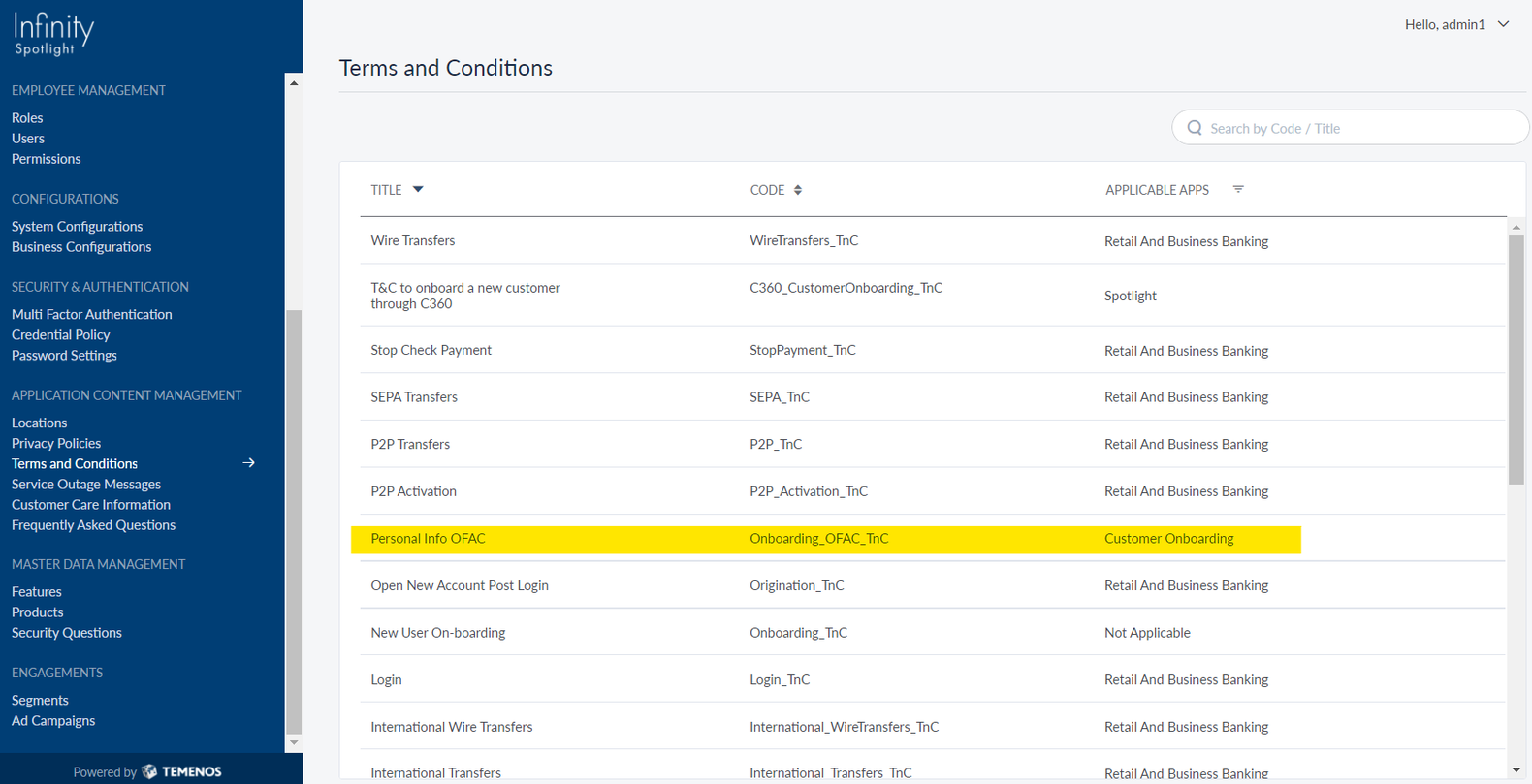
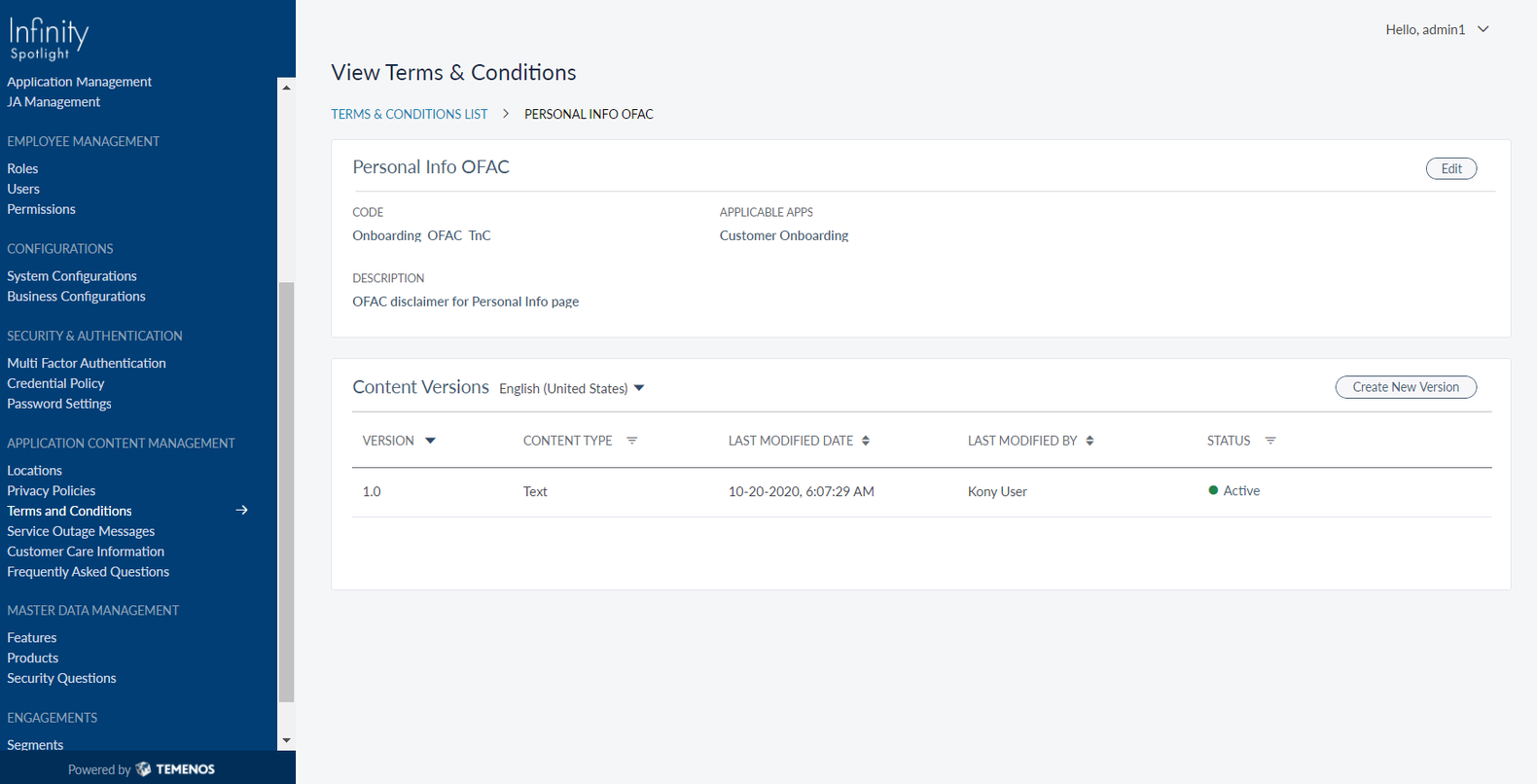
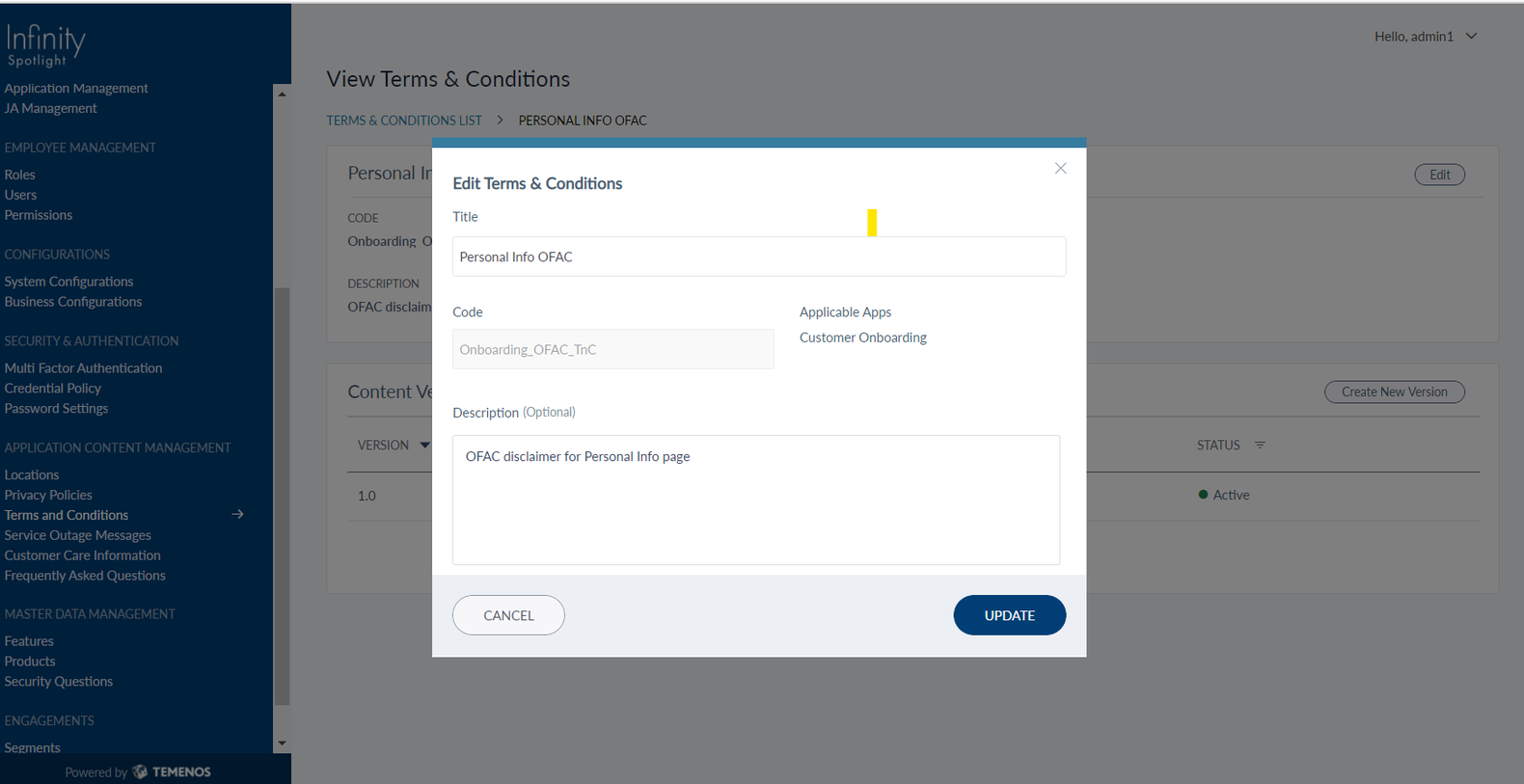
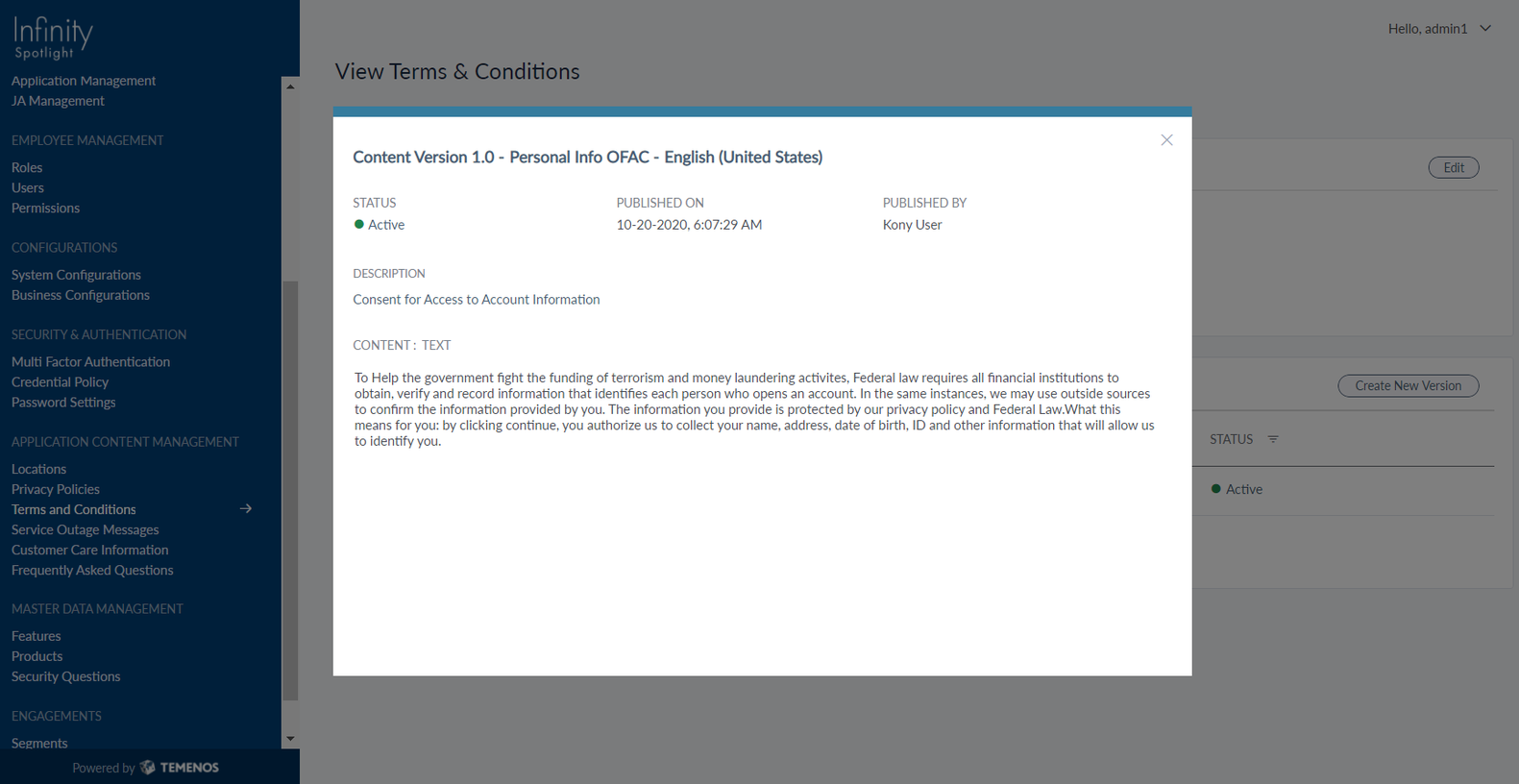
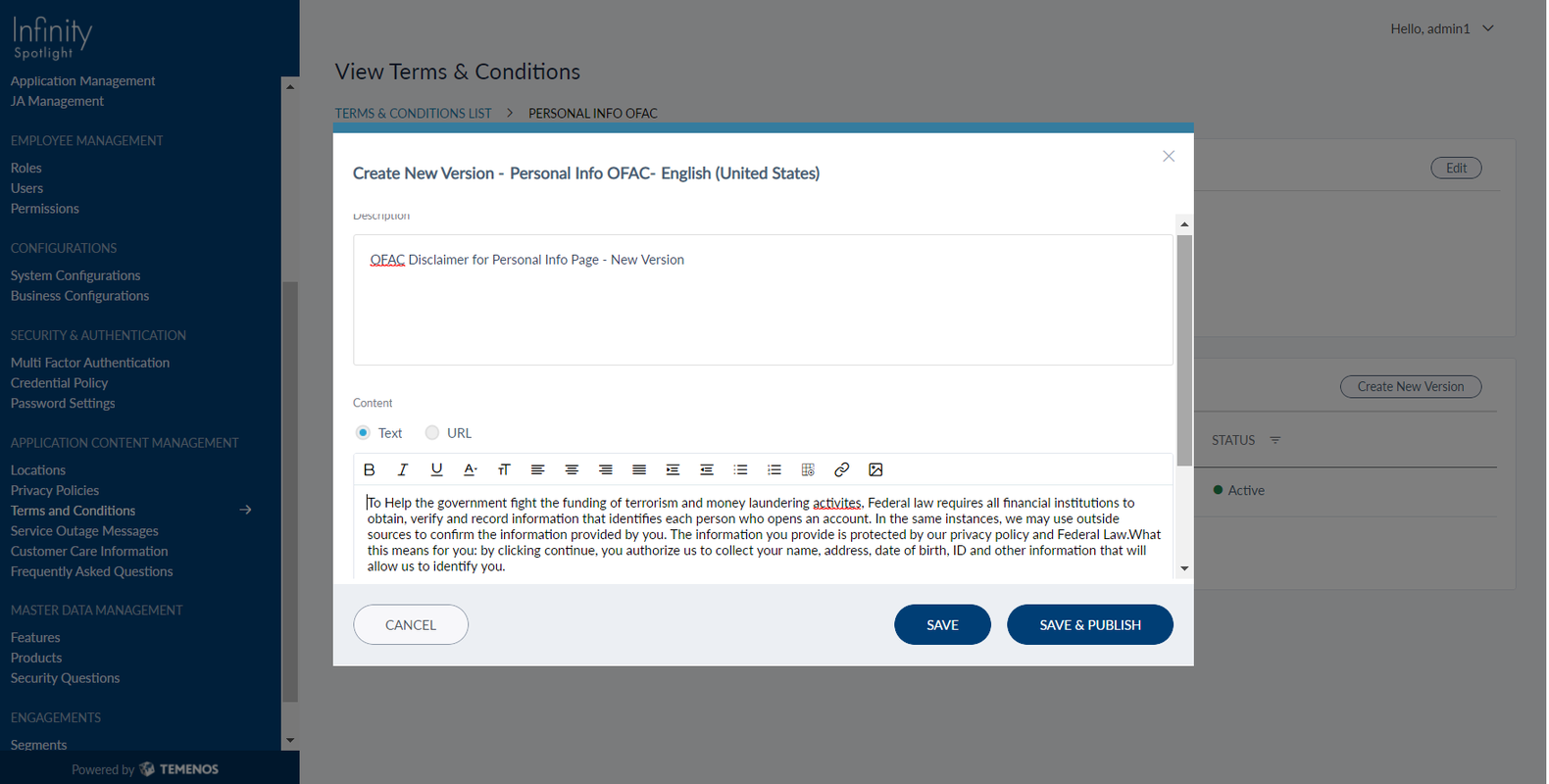
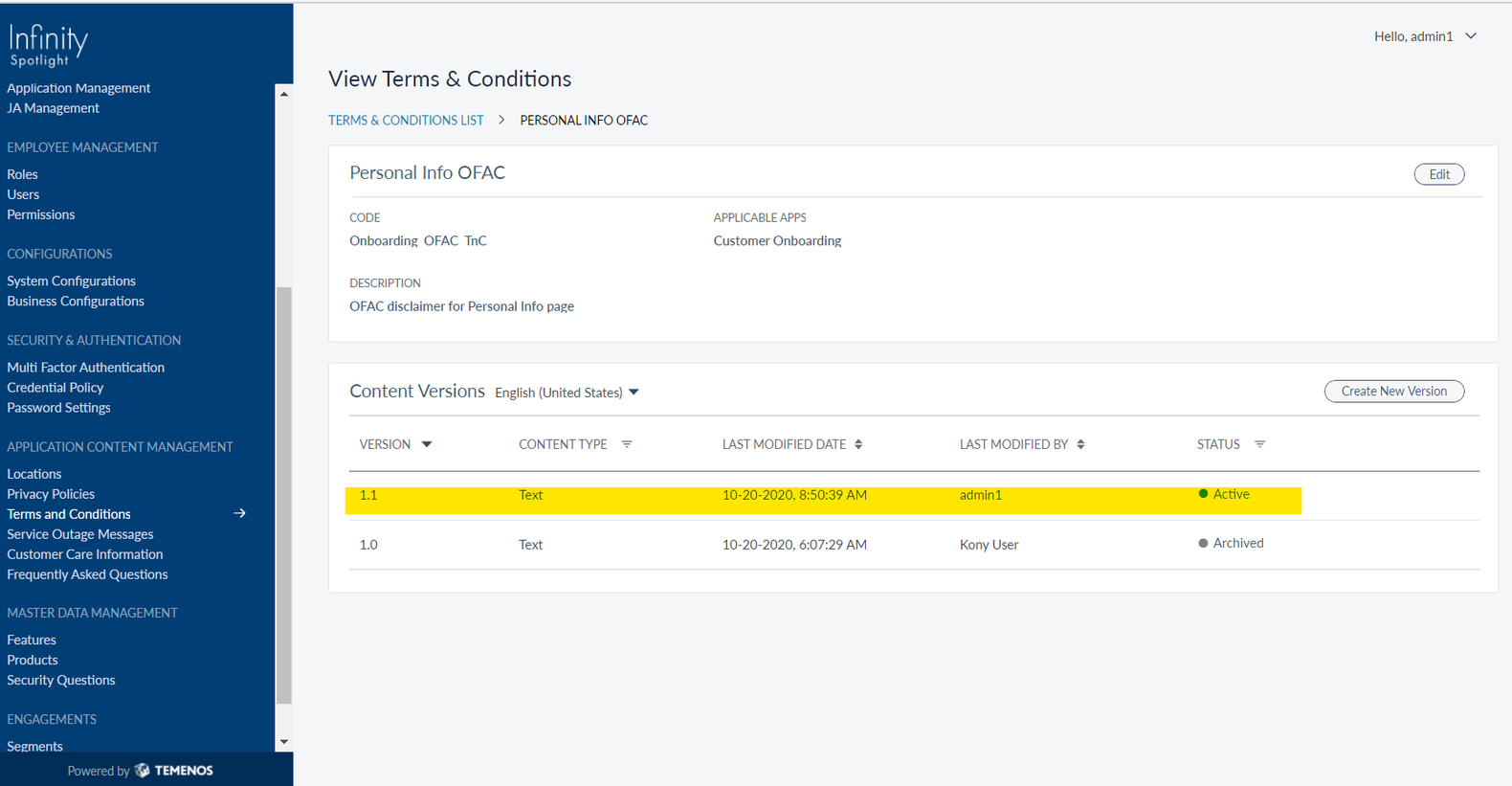
List of Configurations
Here is the list of configurations that are available in the Terms and Conditions module:
- OFAC Content
Title Code Value Personal Info OFAC Onboarding_OFAC_TnC To Help the government fight the funding of terrorism and money laundering activites, Federal law requires all financial institutions to obtain, verify and record information that identifies each person who opens an account. In the same instances, we may use outside sources to confirm the information provided by you. The information you provide is protected by our privacy policy and Federal Law.What this means for you: by clicking continue, you authorize us to collect your name, address, date of birth, ID and other information that will allow us to identify you. - e-Sign Agreement
Title Code Value Existing Member e-Sign Agreement Onboarding_eSign_Agreement https://apply.usbank.com/api/documents/disclosures/ESIGN_Consent_Agreement_Auth.pdf - Google Maps disclosure
Title Code Value Address & ID Google Maps disclosure Onboarding_GoogleMaps_Disclosure By providing your address in this application, you agree to and are bound by Google's Terms of Service and the Google Privacy Policy. Additionally, you are bound by our privacy policy and any and all data retention requirements imposed by law. - Payment Type/ OTP disclaimer
Title Code Value Funding - Payment Type/ OTP disclaimer Onboarding_FundingDisclaimer1 You can choose to fund your account either using same bank account or an account from a different bank. You will have to provide authenticated account information once your account is created in our record, thus we will use to fund your account. - Existing Accounts/Manual Accounts disclaimer
Title Code Value Funding - Existing Accounts/Manual Accounts disclaimer Onboarding_FundingDisclaimer2 Not all accounts are eligible for funds transfer.
- Funds transfer completed through Infinity online banking before the cut-off time on a business day will be posted to your eligible account the same day.
- Credit card, line of credit loan and mortgage transactions may take up to 3 business days to process, but will be posted on the business date when the transaction was made.
- Acknowledgement disclaimer
Title Code Value Funding - Acknowledgement disclaimer Onboarding_FundingDisclaimer3 Auto approval of the application does not guarantee the creation of account. When account gets created, we will send an acknowledgement mail to you. - ID Scan disclaimer
Title Code Value ID Scan disclaimer Onboarding_IDScan_Disclaimer The scan your ID document retrieves information used only on the context of this application. The bank stores the scanned document as a proof of identity and in accordance to local regulations. - Product Dashboard disclaimer
Title Code Value Product Dashboard disclaimer Onboarding_ProductDashboard_Disclaimer Investing involves risks, and there is always the potential of losing money when you invest in securities. You should review any planned financial transactions that may have tax or legal implications with your personal tax or legal advisor.
Create a new Configuration
To create a new entry in the list of configurations under the Terms and Conditions module, the following three tables must be updated:
- termandcondition: This table stores ids and codes for list of configs to be displayed in Spotlight T&C module.
- termandconditiontext: This table stores the content, content type, and version id of each config stored in the termandcondition table.
- termandconditionapp: This table stores mapping of config id to app id.
Here is the procedure to create a new entry in the Terms and Conditions module:
- Open the required database.
- Generate a script to update the three tables in database. The script to update the Personal Info OFAC T&C database, for example:
INSERT INTO `dbxdb`.`termandcondition` (`id`, `Code`, `Title`, `Description`) VALUES ('1920026', 'Onboarding_OFAC_TnC', 'Personal Info OFAC', 'OFAC disclaimer for Personal Info page'); INSERT INTO `dbxdb`.`termandconditiontext` (`id`, `TermAndConditionId`, `LanguageCode`, `Version_Id`, `Description`, `ContentType_id`, `ContentModifiedBy`, `Status_id`) VALUES ('3450026', '1920026', 'en-US', '1.0', 'Consent for Access to Account Information', 'TEXT', 'Kony User', 'SID_TANDC_ACTIVE'); INSERT INTO `dbxdb`.`termandconditionapp` (`id`, `TermAndConditionId`, `AppId`, `createdby`) VALUES ('2312353', '1920026', 'ONBOARDING', 'Kony user'); - Run the script. After running the script, open the Spotlight app.
Navigate to Application Content Management > Terms and Conditions. The newly created key is displayed.
Default values in the Core System
To enable the customer creation, it is mandatory to fill in certain fields in the core system. Thus, these fields are updated with default values. The default values updated in the core system are listed below.
| Transact (Customer Table) |
Default Value | Fabric Parameter |
|---|---|---|
| LANGUAGE | 1 (English) | language |
| CUSTOMER.STATUS | 4 (Retail client Standard) | customerStatus |
| TARGET | 4 (Retail client Standard) | target |
| ACCOUNT.OFFICER | 26 (Retail Banking) | accountOfficerId |
| INDUSTRY | 1000 (Private Person) | industryId |
| SECTOR | 1000 (Individuals) | sectorId |
| STREET | Street | street |
| POST.CODE | postCode | 500021 |
| GENDER | gender | MALE |
| NATIONALITY | US | nationalityId |
| RESIDENCE | US | residenceId |
If you want to modify the default values in the core system, you can do so by configuring these values from Quantum Fabric. Follow these steps to modify the default values:
- Login to Quantum Fabric.
- From the list of apps, select DbpLocalServices.
- In the ConfigureServices section, navigate to the Integration tab.
- In the Search bar, type createCoreProspectOperation and select the service that appears.
- Navigate to Request Input > Body.
- From the list of parameters, navigate to parameter that you want to modify and enter the desired value.
- Click Save.
- Navigate to the Publish tab and publish the app.
The default value of the parameter is now updated.
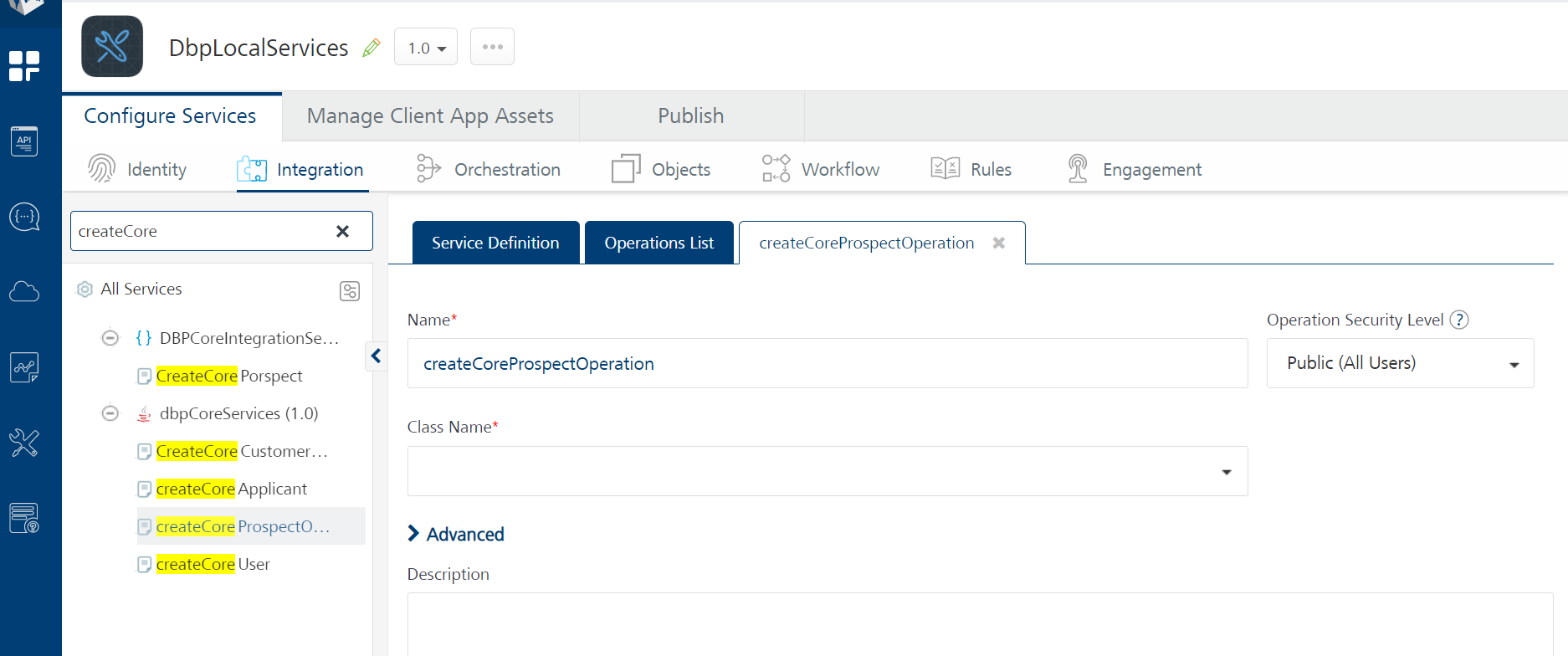
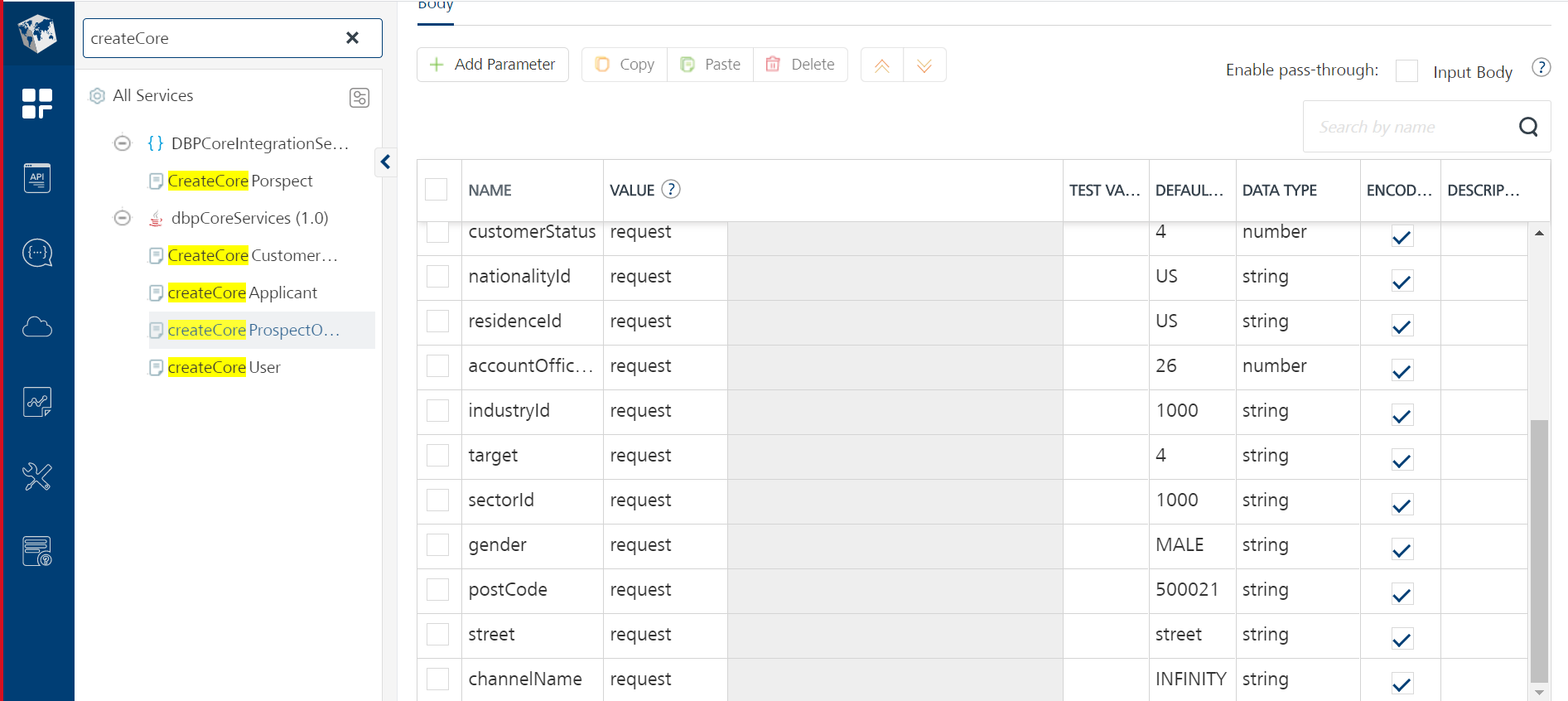
In this topic
