User Type
The User Type section enables the applicant to start a new application or Sign in to the app, depending on whether the applicant is a new user or an existing user.
In the Retail Origination app flow, when you click Open Account in the Product Group Dashboard or Open a New Account in the Product Details Dashboard, the User Type section appears.
Similarly, in the SME Origination app flow, when you click Apply Now in the Product Group Dashboard or Product Details Dashboard, the User Type section appears.
UX Overview
This section provides an overview about the User Type screen.

Firstly, ensure that you select the eSign Agreement check box. Then, choose the applicable option to create a new application depending on whether or not you are an existing customer.
- If you are a new user, click Start New Application. The next section that appears depends on the device channel that you are using.
- In case of Desktop, the Personal Information/ Basic Information section appears for Retail/ SME applications respectively, where you must enter your details manually.
- In case of Mobile and Tablet devices, the ID Scan section appears (for retail applications).
- If you are an existing customer, click Sign in to Continue. The Login screen appears. After you login with your credentials, the Personal Information/ Basic Information section appears with the pre-populated details, for Retail/ SME applications respectively.
If you don't remember your password, you can select Can't Sign In? to reset your password.
 Reset Password as an existing user with credentials
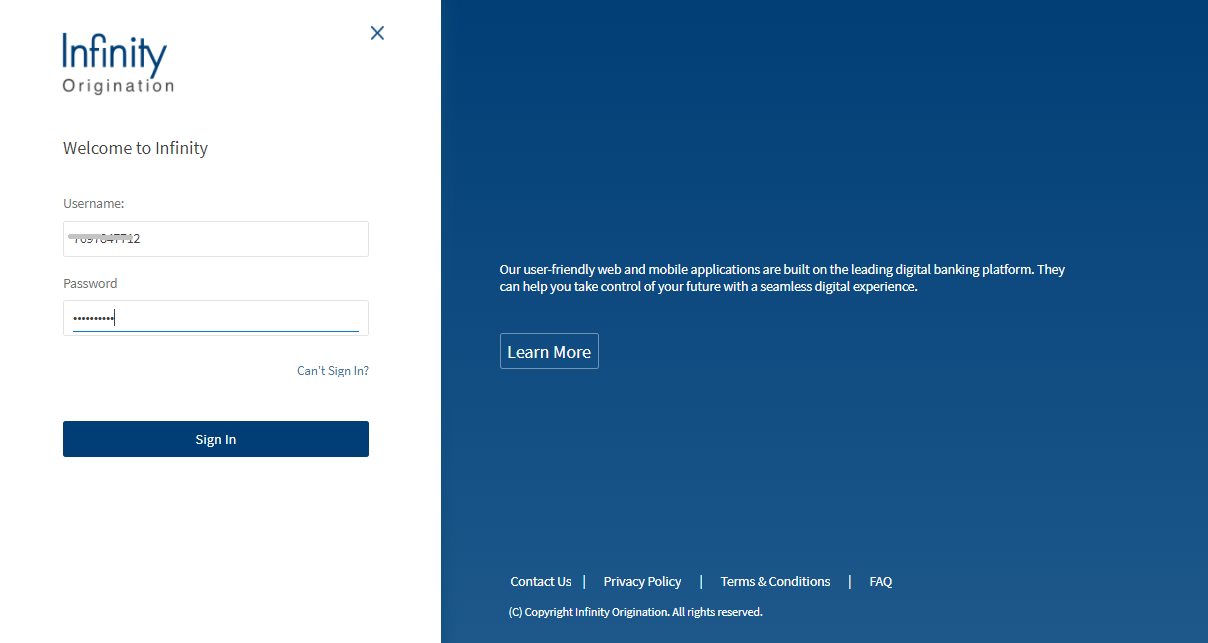
- On the Login screen, click Can't Sign In?
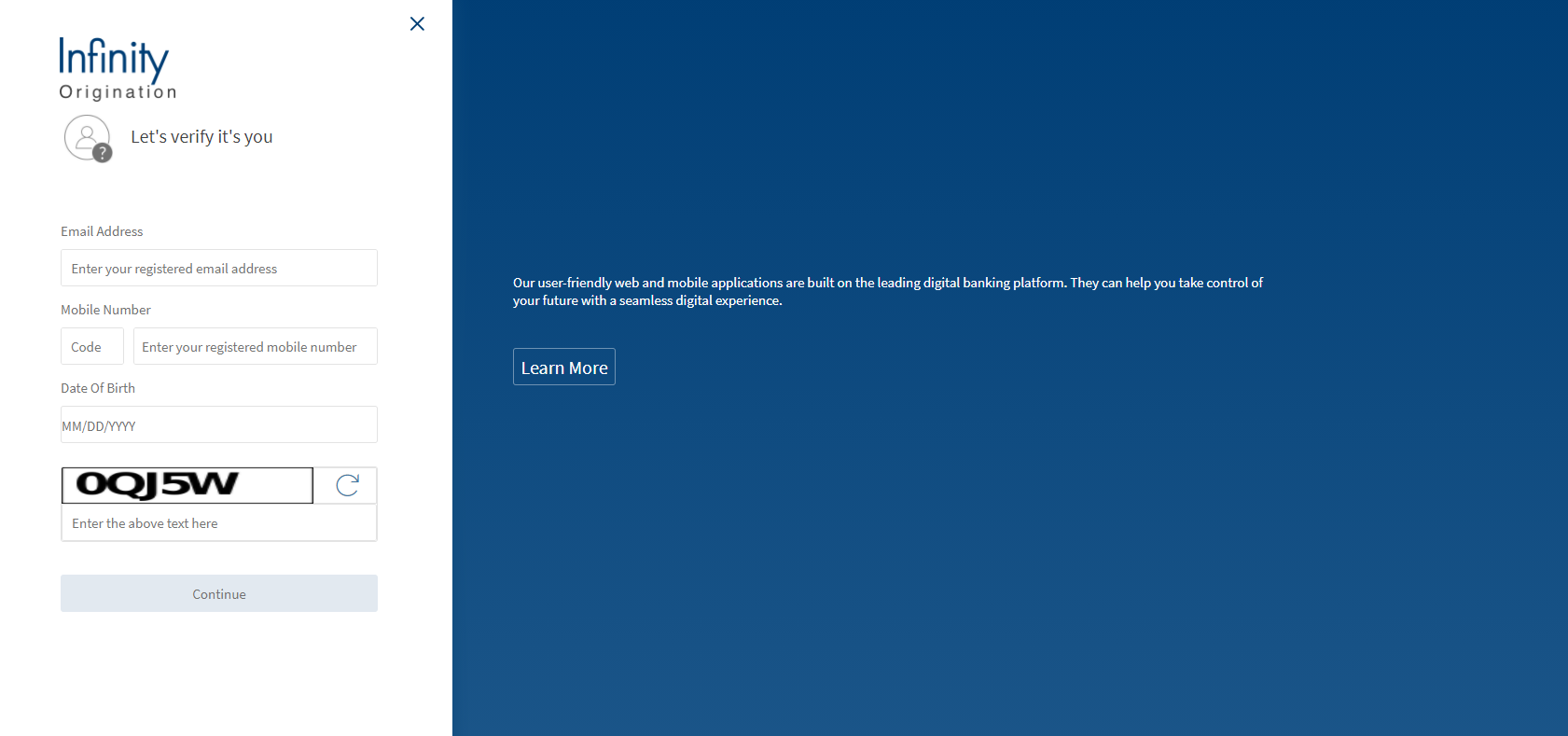
A Verification screen appears.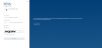
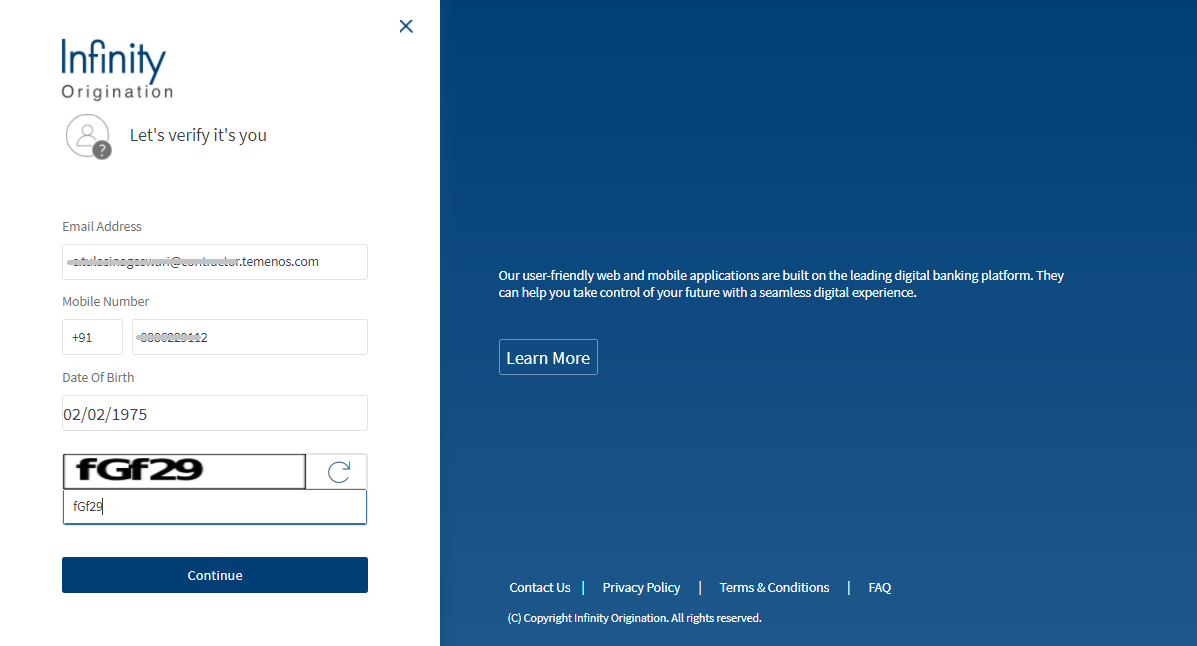
- Enter your Email Address, Mobile Number, Date of Birth, Captcha Verification Code and click Continue.

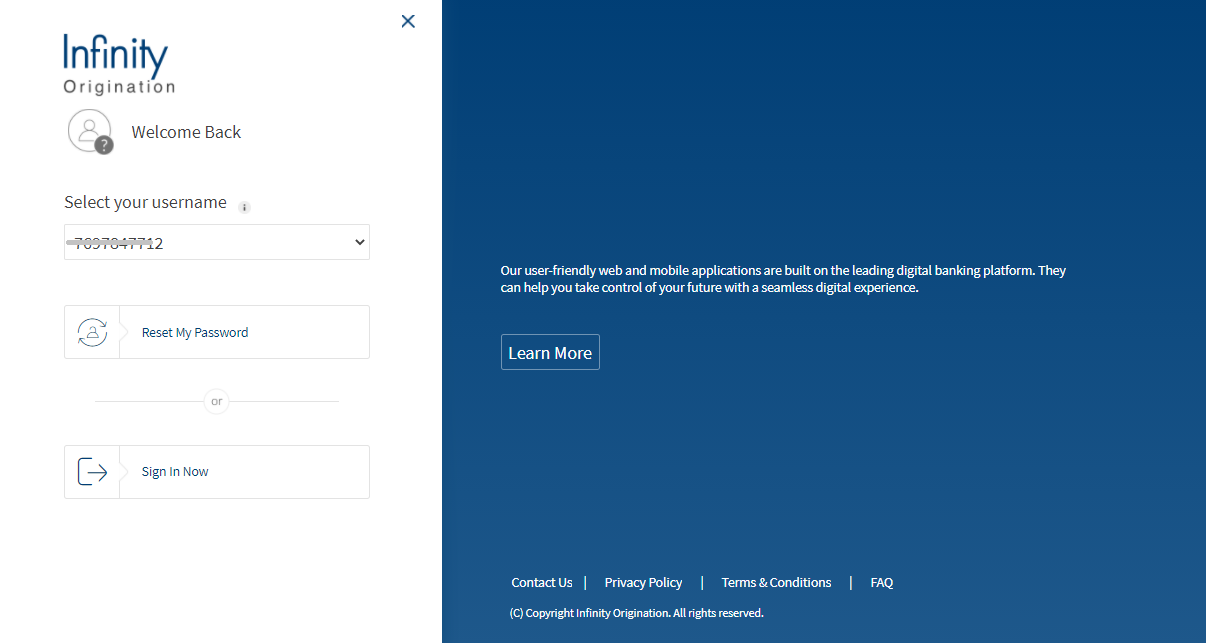
The app displays your username and provides an option to reset password.

- Click Reset My Password.
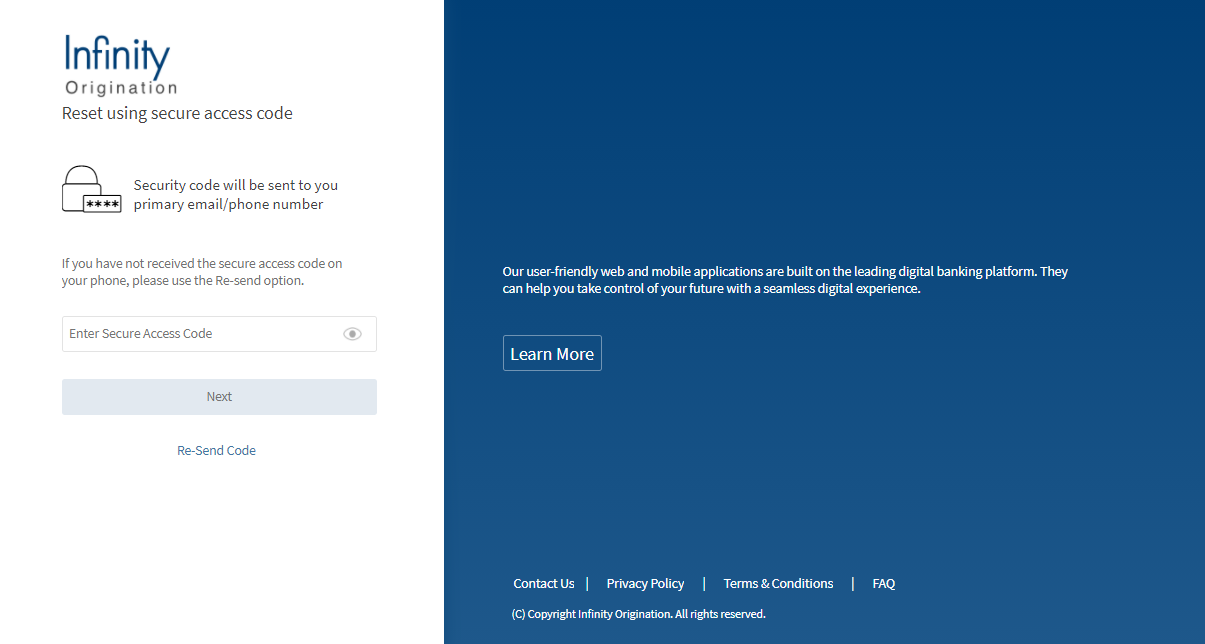
An OTP is sent to your registered phone number and the following OT Verification screen appears.
- Enter the OTP received on your phone and click Next.The Set Your Password screen appears.

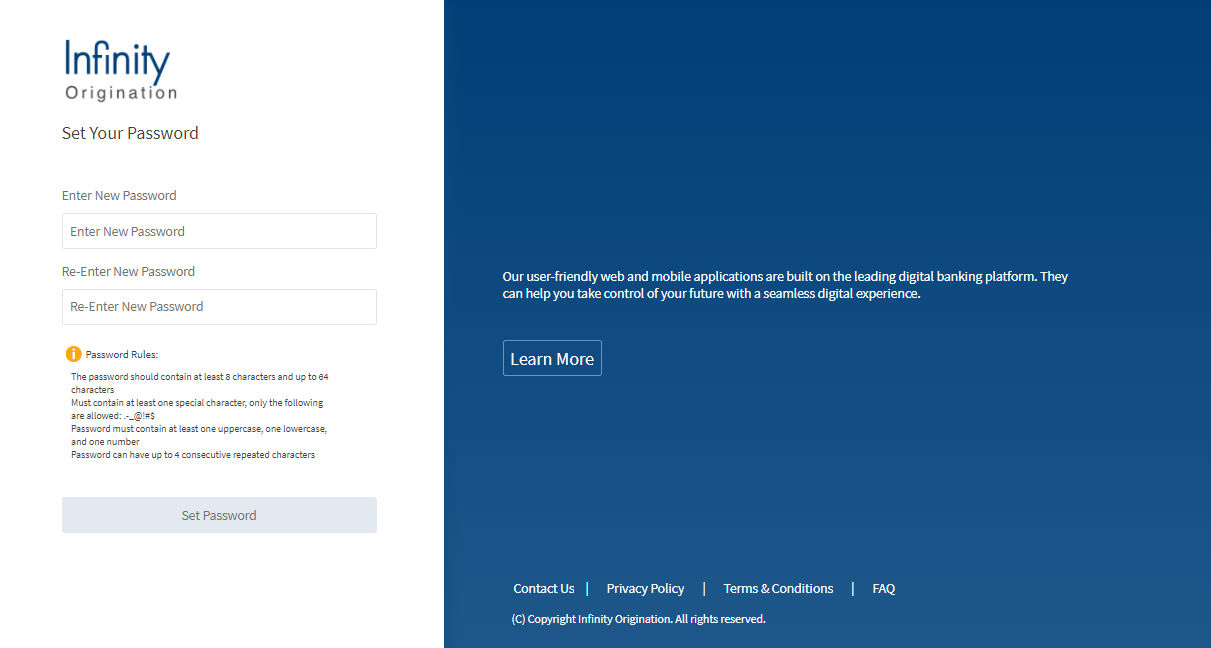
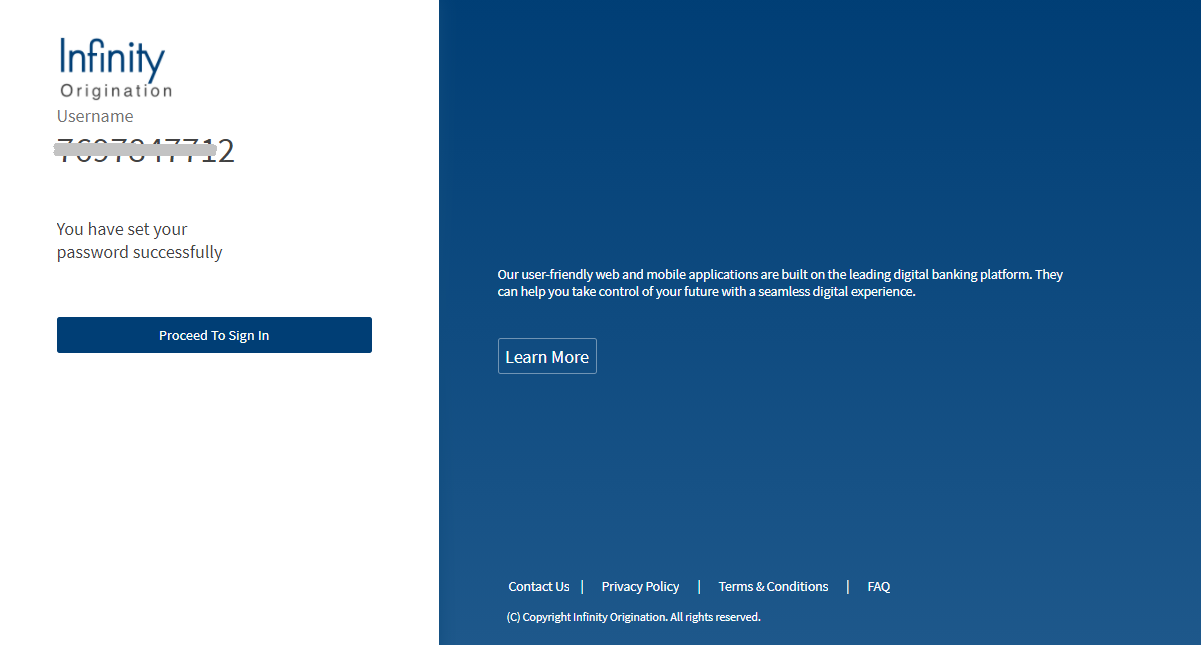
- Set your password using the displayed Password rules and then click Set Password. A confirmation screen appears that you have set your password successfully.

- Click Proceed to Sign In. You will be navigated to the login screen. Login using your newly set credentials.

If you tried signing-in from the Product dashboard, the Dashboard screen appears. Otherwise, if you tried signing-in after selecting a product, the Personal Information screen appears with the details auto-filled.
Reset Password as an existing user without credentials- On the Login screen, click Can't Sign In?
A Verification screen appears. - Enter your Email Address, Mobile Number, Date of Birth, Captcha Verification Code and click Continue.
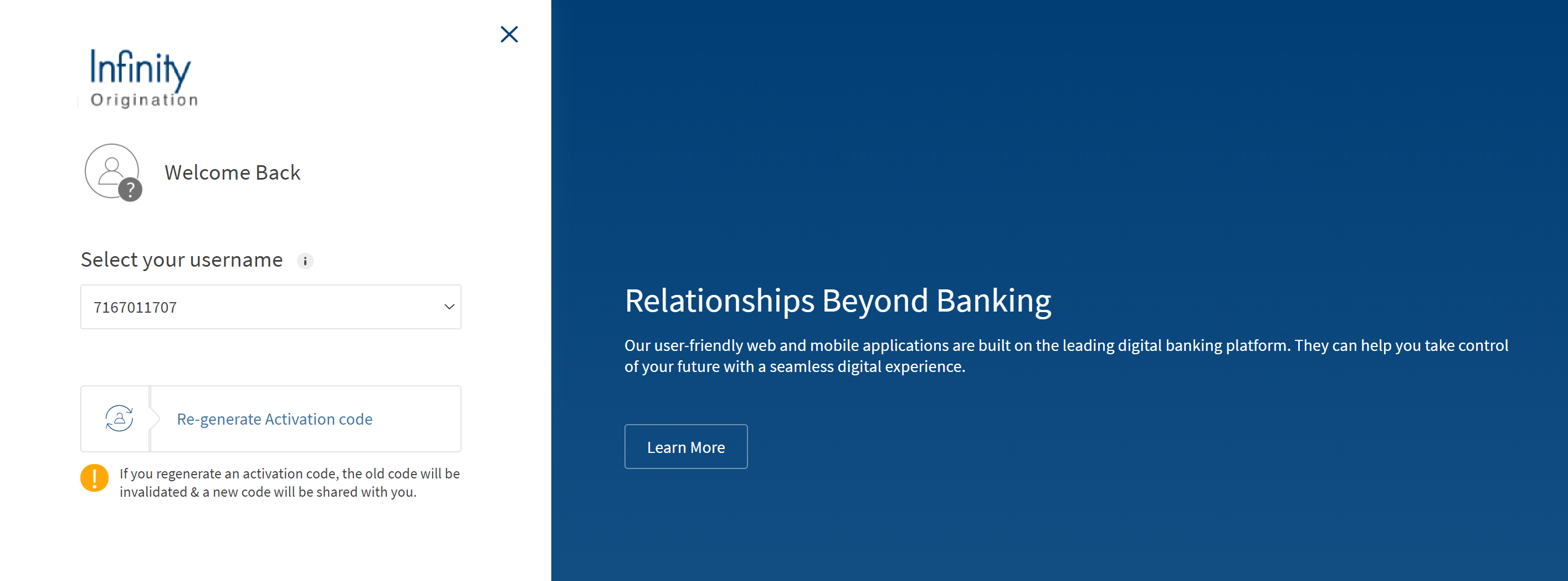
The app displays your username and provides an option to request a new activation code.
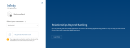
- Click Re-generate Activation Code.
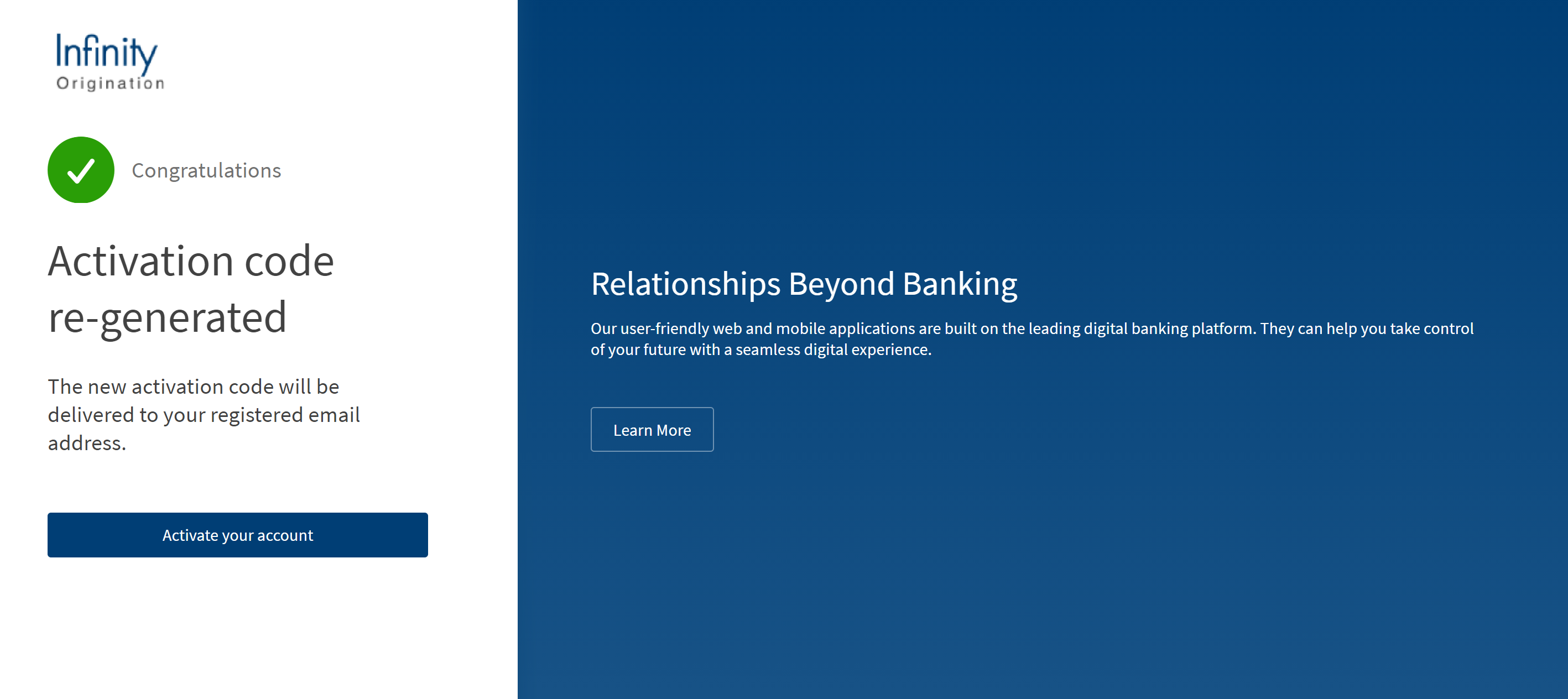
A new activation code is sent to your registered email address and the screen displays that the Activation code is re-generated.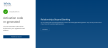
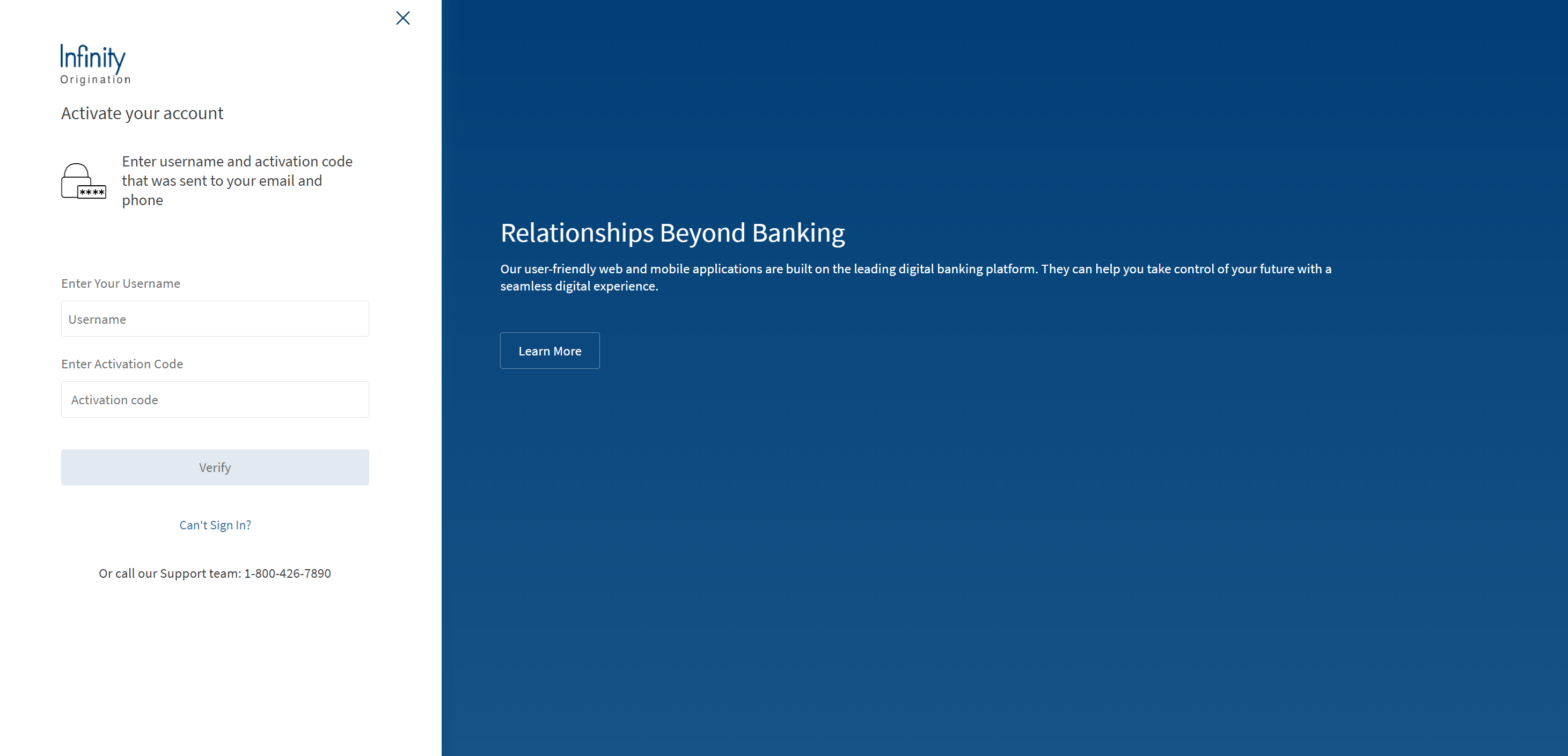
- Click Activate your account. Then, enter your username and the activation code, and click Verify.
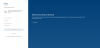
After verification, set your password using the displayed Password rules and then click Set Password. A confirmation screen appears that you have set your password successfully.
- Click Proceed to Sign In. You will be navigated to the login screen. Login using your newly set credentials.
If you tried signing-in from the Product dashboard, the Dashboard screen appears. Otherwise, if you tried signing-in after selecting a product, the Personal Information screen appears with the details auto-filled.
NOTE: If you are an existing customer and you have already signed in to the application, you will not see the User Type section. When you click OpenAccount, you will be navigated to the Personal Information/ BasicInformation section for Retail/ SME applications respectively.
- On the Login screen, click Can't Sign In?
Components
The User Type section contains the following list of components:
ExistingMemberModule
| Component Name | Instance Name |
|---|---|
| com.olb.common.BrowserCheckPopup | BrowserCheckPopup |
| com.dbx.bannerError | bannerError |
| com.dbx.customheaderNUOV2 | customheaderNUOV2 |
| com.dbx.customfooter | customfooter |
| com.dbx.usefulInfo | usefulInfo |
Auth module
| Component Name | Instance Name |
|---|---|
| com.dbx.popup | popup |
In this topic
