Terms and Conditions
Use to the feature to view the legal terms and conditions for using the Online Banking application. The terms and conditions are the latest in accordance with the one that you accepted before you installed or upgraded the application.
Menu path: Online Banking
From the side menu, you can click Terms & Conditions. Alternatively, you can click the Terms and Conditions from the footer of the login page and any page displayed after you login to the application.
Menu path: Mobile Banking
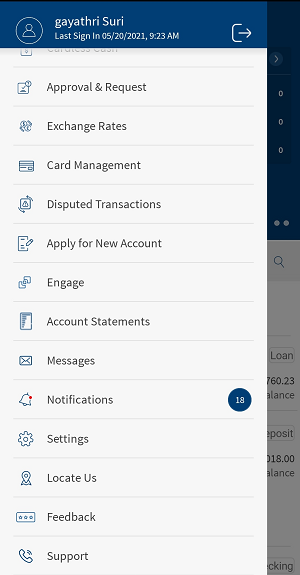
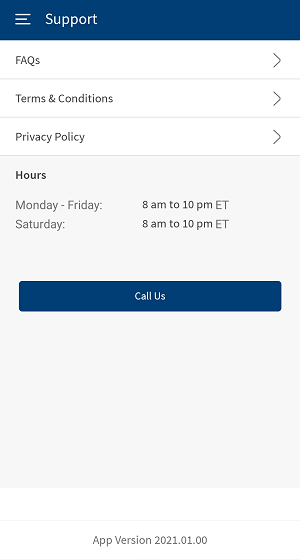
From the bottom menu, tap Menu > Support. Alternatively, you can tap Support from the footer of the login page.
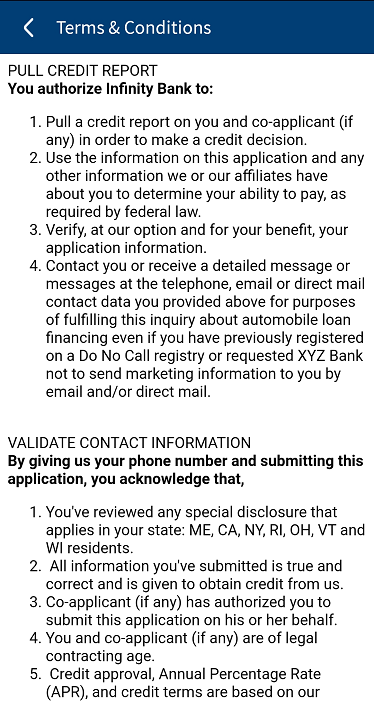
The app displays Support screen with FAQs, Terms and Conditions, Privacy Policy and Bank Timings. Tap Terms and Conditions, the app displays Terms and Conditions screen.
The app displays the Terms & Conditions page with the updated terms and conditions.
Terms and Conditions for Accessing Features
An admin can configure the new terms and conditions for different features or can reconfigure the existing terms and conditions in the Retail Banking application from Spotlight (Customer 360). When Users (new or existing) try to login to Retail Banking Application after such reconfiguration, they are expected to accept the new terms and conditions to proceed further. when the terms and conditions have been reconfigured, upon accepting, the acceptance details provided by the user are saved in the Infinity.
Following features are integrated with Spotlight (Customer 360) for configuring the terms and conditions:
| Features | |
|---|---|
| Online Banking | Common T&C (Footer Links on Responsive Web and application menu). |
| Authentication |
Login Enroll |
| Customer Onboarding and Enrollment |
Enroll New User Onboarding |
| Transfers |
P2P Activation P2P Transfers Bill Pay Activation Bill Pay Transfers International Wire Transfers SEPA Transfers One-time P2P/ Bill payments /Wire Transfers |
| Accounts and Transactions |
Stop Check Payment Enable E-Statements Open New Account Add External Accounts via Account Aggregation Verify Own accounts from External Banks |
| Card Management |
Lock Card Cancel Card |
NOTE: You will not be allowed to proceed further without accepting the terms and conditions.
A new version can be added to the existing terms and conditions by providing the new content and description from Spotlight application. Only one terms and conditions can be active at a time. You can publish the new version created or save the content as a draft. Once the content is published, it cannot be edited. A version number is auto-generated by the system for the new version of terms and conditions. The old version of terms and conditions can be viewed from Spotlight application.
A user must accept the terms and conditions for the first-time login or when the admin changes terms and conditions from the Spotlight. Upon entering the credentials, the user will be forced to accept the latest terms and conditions.
The user will not be allowed to use the online banking and mobile banking applications without accepting the terms and conditions. The acceptance details are saved in the Infinity.
In this topic
