Account Details and Transactions
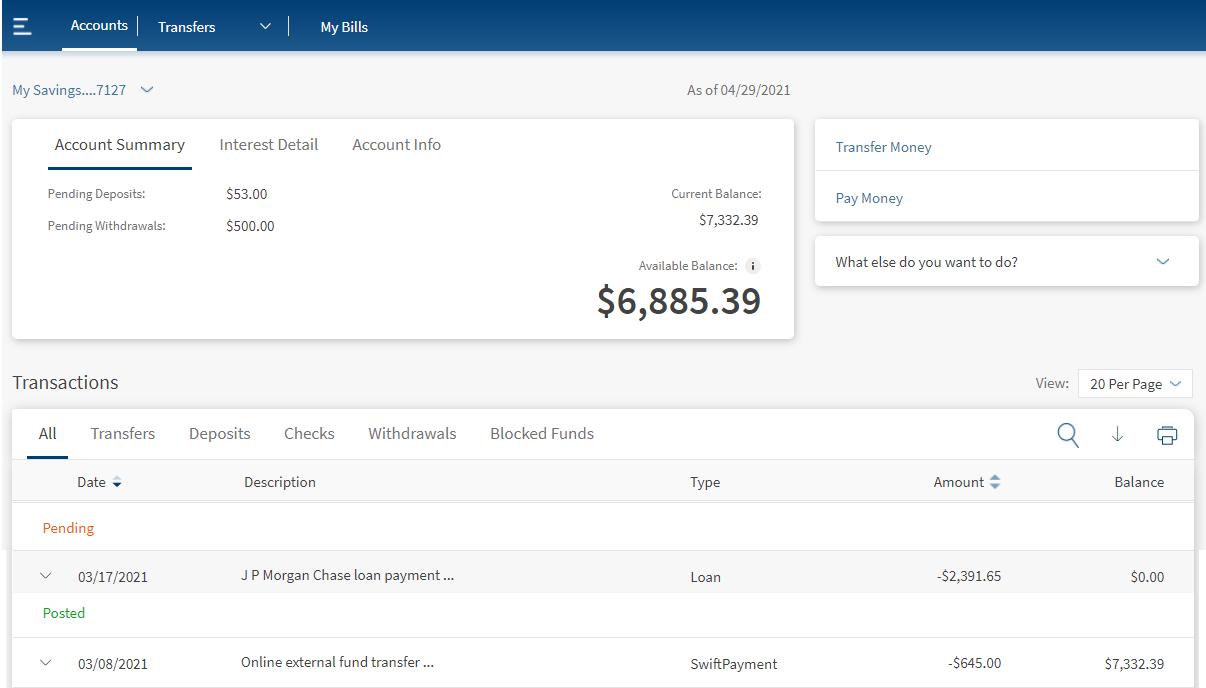
Use the feature to view the details of the selected account and manage transactions. From the accounts dashboard screen, tap any account row (for example, Checking account) to view the account details and get the required information.
UX Overview
Business Process Diagram - View and Manage Accounts and Transaction Details
Feature Description
Responsive Web
The app displays the details of the selected account and you can do the following:
- Edit the account name on the contextual actions.
- View the account information (eCheck), account summary, and the balance details of the selected account.
- View recent, pending, and scheduled transaction details.
- Perform quick actions such as make a transfer, pay a bill and more.
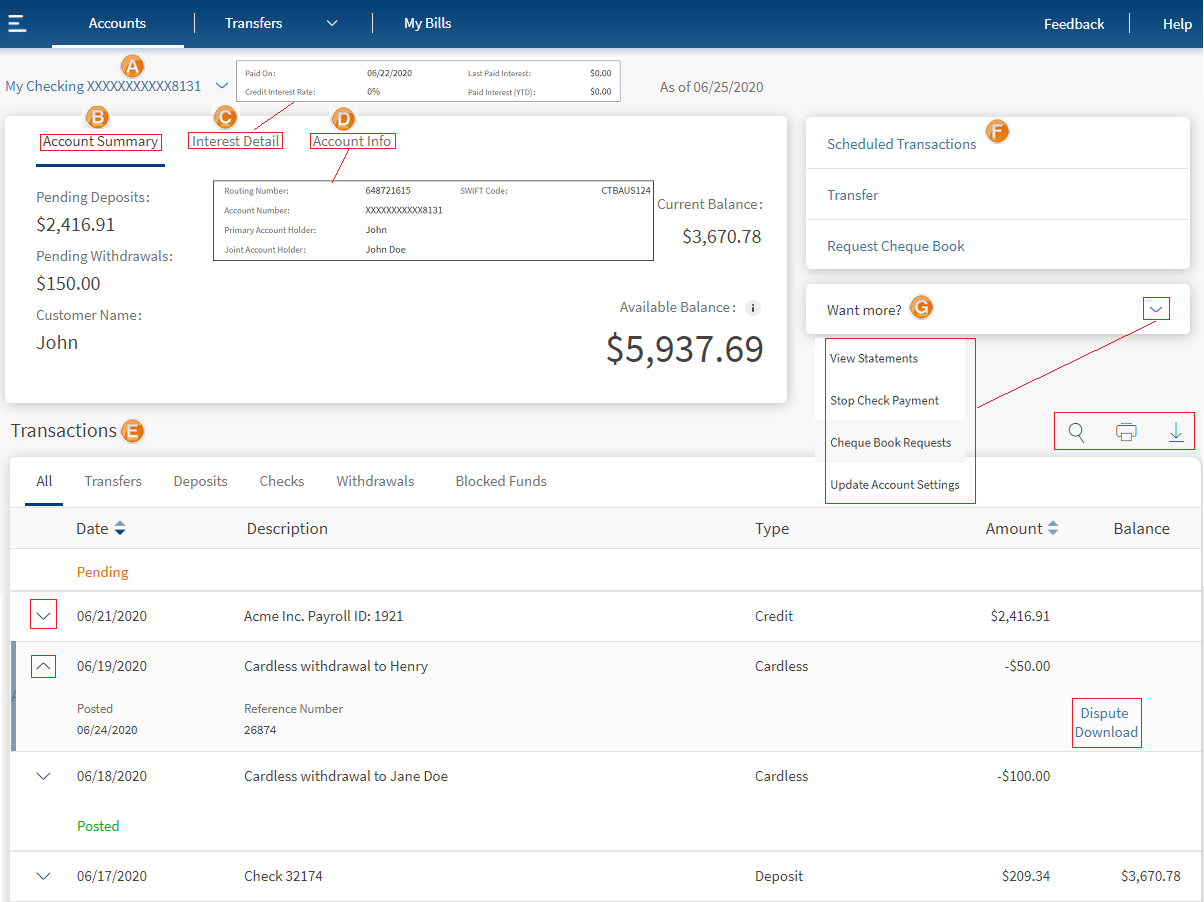
- Accounts list
- Account summary
- Interest Detail
- Account Information (eCheck)
- Transactions
- All Transactions (Posted, Pending, and Scheduled)
- Transfers
- Deposits
- Checks
- Withdrawals
- Blocked Funds
- Loan Schedule
- All Transactions (Posted, Pending, and Scheduled)
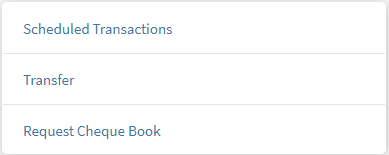
- Quick links
- Scheduled Transactions
- Transfer
- Request Cheque Book
- Other actions you can do (Want More?)
- View Statements
- Stop Cheque Payment
- Cheque Book Requests
- Update Account Settings
- Installment Detail (applicable only for Loan Accounts)
Accounts list
Displays all your accounts held with the bank in a list. Click the down-arrow and select the required account from the list to view the details - Account Summary, Interest details, and Account information.
Account Summary Tab
View the account summary tab with the following details. The fields change based on the selected account type.
In the OLB app, the Account Summary tab is implemented using the Account Summary component. This component supports the different types of account types. Savings, Checking, Loan, Deposit, and Credit card account types. The fields inside the component varies according to the selected account.
| Account Type | Summary Details |
|---|---|
| Savings |
|
| Checking |
|
| Credit Card |
|
| Loan/Mortgage |
|
| Deposits, IRA, Certificate Share/Deposits |
|
Interest Detail Tab
View the Interest details with the following details. The fields change based on the selected account type.
| Account Type | Interest Details |
|---|---|
| Savings/Checking |
|
| Credit Card |
|
| Loan/Mortgage |
|
| Deposits, IRA, Certificate Share/Deposits |
|
Account Information (eCheck)
The Account Info tab displays the following details/ The fields vary depending on the account type:
| Account Type | Account Info |
|---|---|
| Savings/Checking |
|
| Credit Card |
|
| Loan/Mortgage |
|
| Deposits, IRA, Certificate Share/Deposits |
|
Transaction Details
All Transactions
Displays the list of recent and pending transactions linked with the account, grouped by the transaction type (Transfer, Deposits, Checks, withdrawals, and blocked funds are represented as tabs) with date, description, type, category, transaction amount, and account balance details. The list is sorted by date (most recent transaction on top) by default, and all the fields have the sorting option. The tabs change based on the selected account type.
The transaction list inside the OLB app is implemented using the Transaction List component. The component displays the list of transactions based on the selected account type. The displayed transaction list are grouped as Pending and Posted. When any transaction inside the list is clicked/ tapped, the details of the transaction are also displayed. For more information about this component, refer the Infinity Component guide here.
| Account Type | Transaction Details |
|---|---|
| Savings |
|
| Checking |
|
| Credit Card |
|
| Loan/Mortgage |
|
| Deposits, IRA, Certificate Share/Deposits |
|
You can easily navigate to first, next, previous, and last pages of the transactions list. You can view the current page number and total number of pages available for transactions list.
Blocked Funds
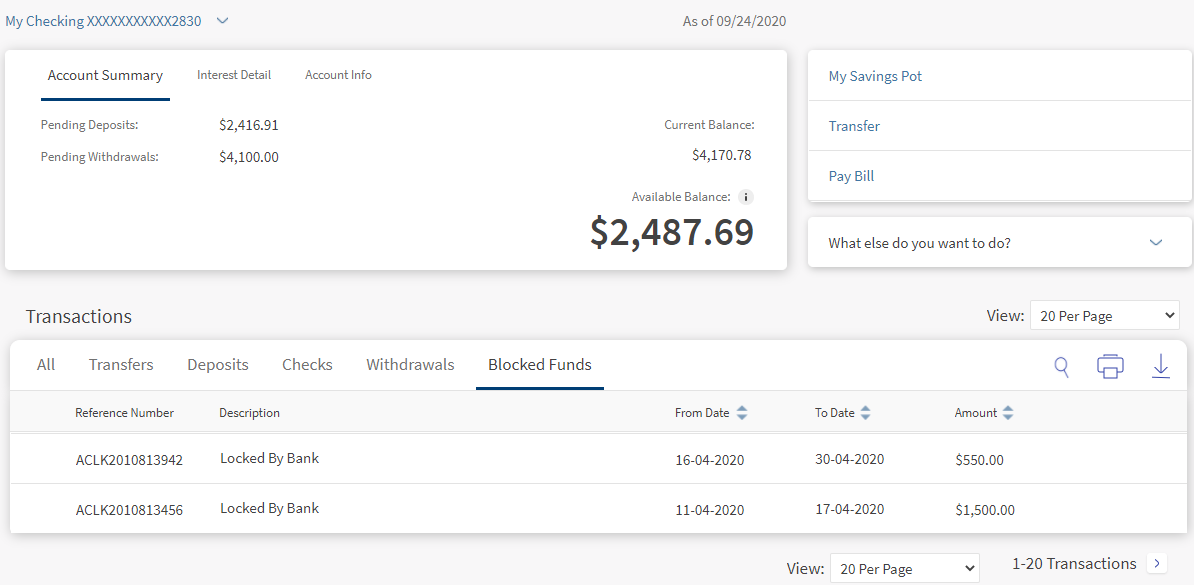
The blocked amount refers to the funds that are blocked by the government or external organizations in the customer's account. This amount cannot be accessed by the customer. The blocked amount can be lifted only by the external organization which placed it. The customer can only view the blocked amount.
- Select a particular account from the accounts dashboard.
- Under Transactions list, click the Blocked Funds tab. The application displays the list of blocked transactions for the selected account.
The following details are displayed
- Reference Number
- From Date
- To Date
- Blocked Reason
- Blocked Amount
You can do the following:
- Click any of the tabs to view the corresponding transactions.
- Click the Search
 icon to search and filter transactions.
 - Click the Print
 icon to print the transactions list.
 - Click the Download
 icon to download the transactions list.
See Recent and Scheduled Transactions for more information.
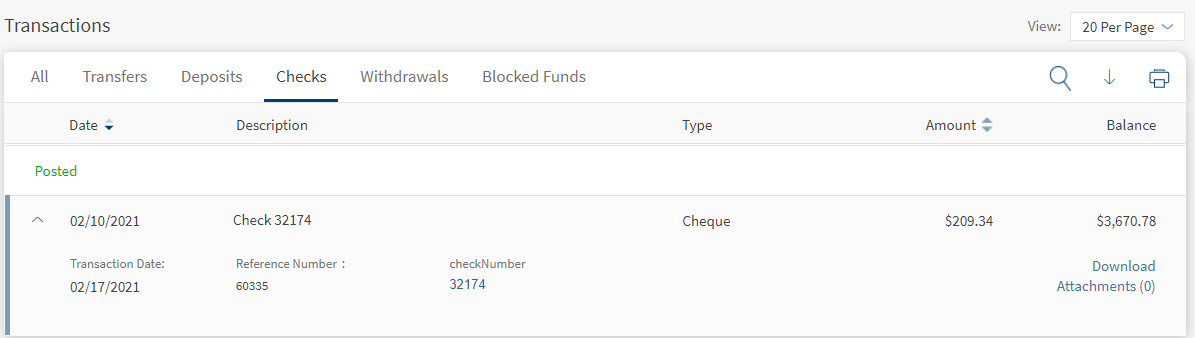
For View Checks, Bank Drafts, and SWIFT Payments
You can view the Checks, Demand Drafts, Swift MT103 messages as part of the transaction details so that you can quickly identify the beneficiary/payer for that transaction as well as act as a proof of payment.
You can do the following:
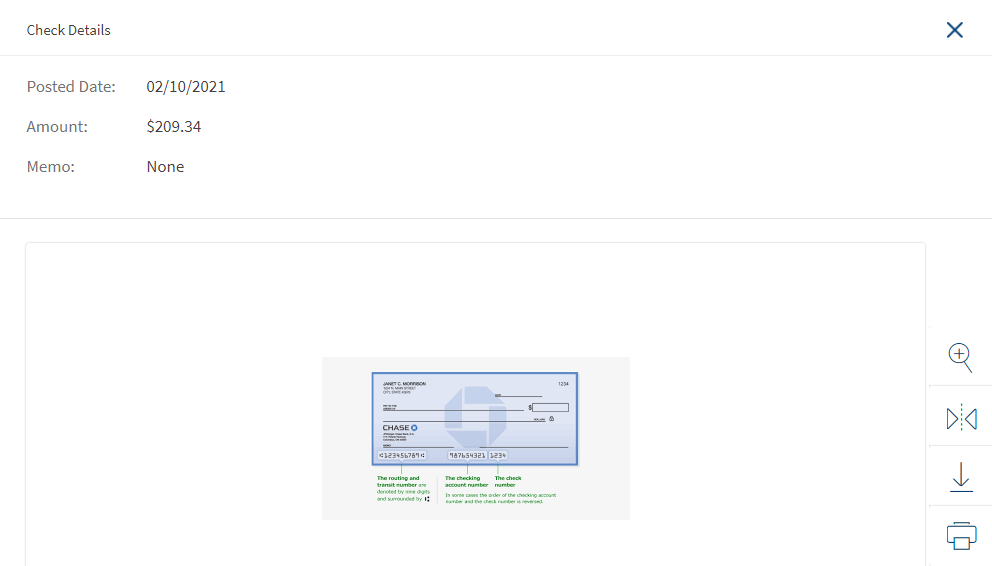
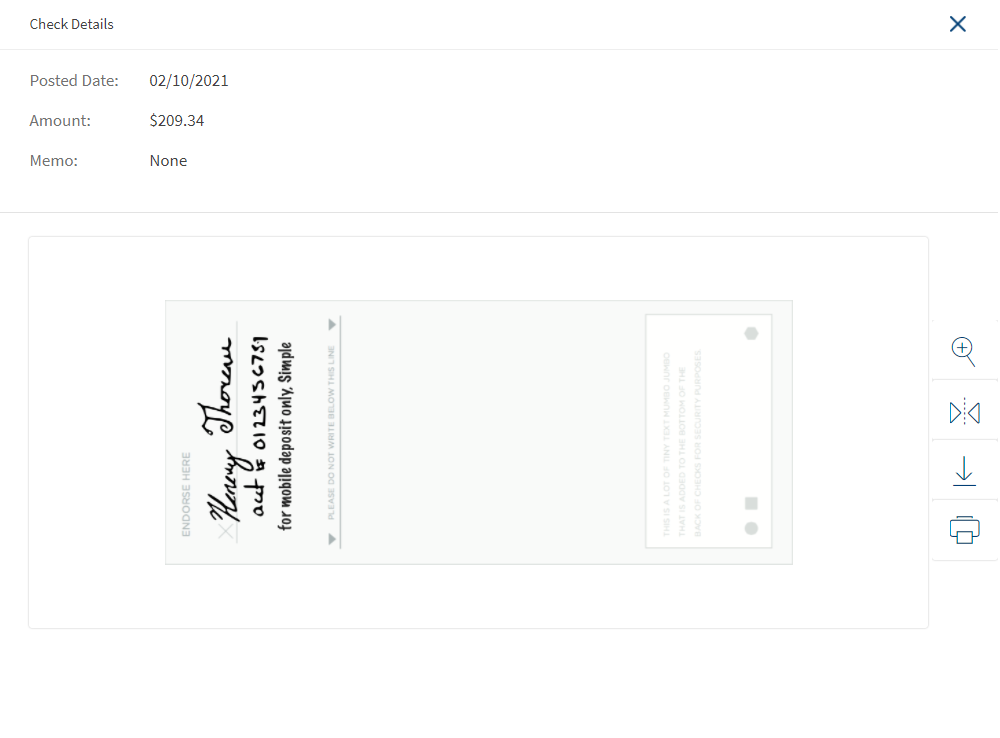
- Click the check number or draft number to view the corresponding check image (front and back) and bank draft image (front and back).
- Click Swift MT103 Message transaction reference number to view the SWIFT payment details.
- In the image window, you can perform the following actions:
- Click the Print icon to print the check or bank draft image.
- Click the Download icon to download the check or bank draft image.
- Click the Download icon to download the Swift MT103 message in the PDF format.
- Click X to close the image.


- Click the Print
Loan Schedule
The loan schedule tab displays the loan/amortization schedule that includes the previously paid installments, past overdue installments, summary of the future payments. The advantage of the loan schedule feature is to provide the customers a clear view on past as well as future payments for the loan account.
You can view the following from the Loan schedule feature:
- The list of previously paid installments on your loan account to keep a track of the paid payments towards the principal, interest, tax, or charges.
- The list of installments that are overdue on my loan account to keep a track of payments that need to be paid and avoid further charges. You can also check how much money needs to be paid towards the principal, interest, tax, or charges.
- Summary of installments paid in the past, overdue Installments, and the installments to be paid in future to get a clear view on the status of your loan account.
NOTE: You will not be able to view the loan schedule if you do not have the permissions enabled at the account level. These permissions are configured in Spotlight.
Paid Installments. You can view the list of installments (with the count) that are paid against the selected loan account. The paid installments are displayed in the descending order of the payment date.
The following details are displayed in the Loan Schedule for paid installments.
- Payment Date
- Amount paid
- Principal amount paid
- Interest amount paid
- Outstanding Balance
Click the down arrow displayed beside each row to view the additional details of an installment. The following additional details are displayed:
- Charges paid
- Property tax paid (applicable only for mortgage accounts)
- Property insurance paid
Error Messages. If there are no paid installments to be displayed, a message is displayed as "No payment schedule available for the selected account".
Overdue Installments. You can view the list of installments (with count) that are overdue on your loan account. The following details are displayed:
- Payment Due Date
- Installment amount to be paid
- Pending principal amount to be paid
- Interest amount to be paid
- Outstanding Balance
The list is sorted by date (most recent transaction on top) by default.
Click the down arrow displayed beside each row to view the additional details of an installment. The following additional details are displayed:
- Charges - pending amount to be paid towards the charges of the loan
- Tax - pending amount to be paid towards property tax (applicable only for mortgage accounts).
- Insurance - pending amount to be paid towards the property insurance (applicable only for mortgage accounts).
You can perform the following actions in this screen:
- Click the Print icon to print the loan schedule that is currently displayed on the screen.
- Click the Download icon to download or export the loan schedule to CSV or PDF format.
- Download the complete list of paid and overdue installments.
- Download only the Overdue, Paid or Future Installments separately or All of them together.
- Configure the number of rows to view at a time.
- Click the drop-down list displayed on the top right corner of the transactions list.
- Select 10, 25, 50, or 100 rows to be displayed at once.
- Easily navigate to first, next, previous, and next pages.
If there is only page, the option to navigate between pages is not displayed.
Installment Detail (for Loan Accounts)
This section is applicable only for loan account.
You can view the summary of paid installments, overdue installments, and the installments you must pay in the future on your loan account.
This tab displays the following details:
- The total summary of all the installments (paid, overdue, and future) is represented in the form of a pie chart with the count.
- Each type of installment is represented in a different color.
For example, if charles has an active loan account of total 240 installments out of which 37 are paid, 03 overdue, and 200 for the future. The pie chart is represented in three colors with each color representing the type of installment.
Installment Type Color code Paid Green Overdue Pink Future White
Quick Access Links
A one-stop section that contains logically grouped actions that you can perform from here. The actions change based on the selected account type.
Other actions you can do
Lists that contain the actions that you can perform from this screen. The actions change based on the selected account type:
- Edit the account nickname
- Pay a person
- Order a check
- Manage your profile, account, and alert settings
Quick links and other actions available for each account type.
| Account Type | Available Quick Links | Available Other Actions |
|---|---|---|
| Savings |
|
|
| Gold Interest Checking |
|
|
| Titanium Credit Card |
|
|
| 3 Years Deposit |
|
|
| Home Loan |
|
|
| Savings Max |
|
|
| Checking Account |
|
|
| Auto Loan |
|
|
| Study Loan |
|
|
| Car Loan |
|
|
| Secured Loan |
|
|
| Personal Loan |
|
|
Mobile Banking
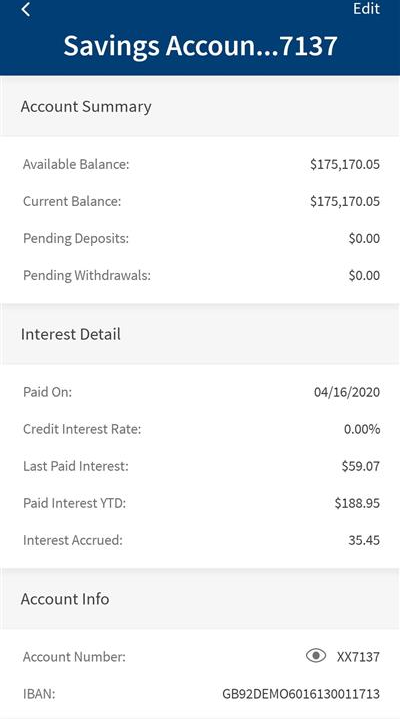
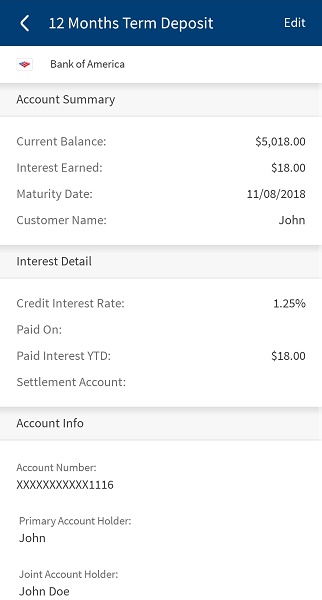
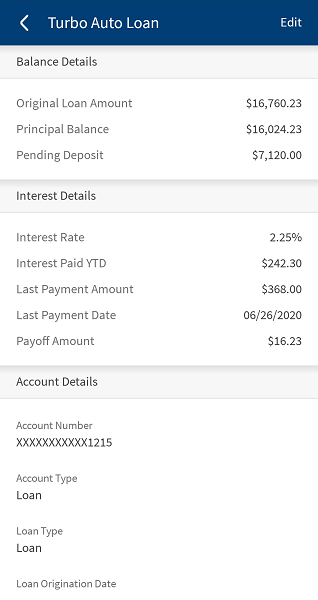
Use the feature to view the account summary of the selected account. From the accounts dashboard screen, tap any account row (for example, Savings account) to view the summary details.
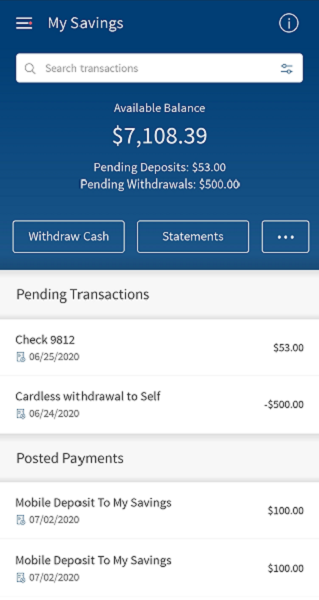
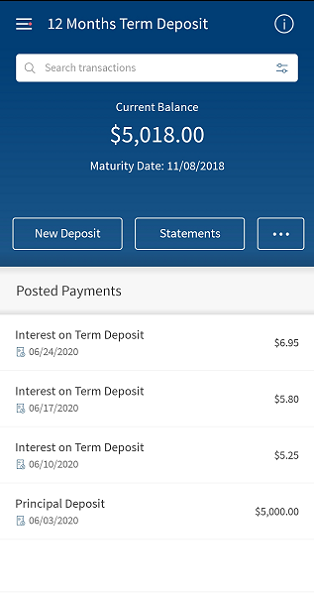
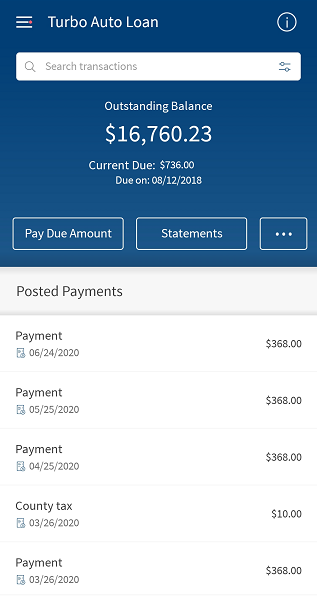
The summary screen displays the balances or relevant details of the selected account as on date on top of the screen, based on the account type.
You can do the following in the account summary screen:
- Tap < to return to the accounts dashboard.
- Tap Search to search for transactions using filter criteria in the selected account.
- Tap
 to view and edit the account details.
 - Tap Statements to view the monthly account statements. The account statements are available for all account types (checking, savings, investment, credit card, and loan) except external accounts and does not have any restrictions in the product, but if a bank does not want to offer statements for a specific account type, the bank can do so by hiding the Statements button for that specific account type.
- Tap withdraw cash to perform a cardless cash withdrawal. This option changes as per the selected account type and it is not available for the external accounts. For example, for Credit card accounts, it is Make a Payment, for Term Deposit accounts it is New Deposit.
- Tap any recent or scheduled transaction row (record) to view the transaction details.
- Tap Loan Schedule to view the loan details for the selected loan account.
The summary screen displays the list of Recent and Scheduled transactions in the selected account with date, transaction notes, and amount. The list is sorted by date (most recent transaction on top). Tap any row (transaction record) to view the transaction details.
Account Summary Screens for different Account Types
Account Details
Use the feature to view in-depth information of the selected account. This page also provides options to contact the bank if you want to clarify any queries.
You can change the nickname to be used to identify the account. You can do the following:
- Tap Edit, and select Edit Nickname.
- Edit the nickname and Tap Save. The change will be reflected across all devices wherever the account name is displayed.
Tap < to return to the account summary.
Account Details
Sequence Diagram
This sequence diagram depicts the interaction of object calls and services of account details in a sequential order.
Experience APIs
Transaction Advice API
| Name | Description |
|---|---|
| loginAndDownload | This API is used to to sign in to AutoForm and download the document file based on the provided input parameters. The input parameters include keys such as customerId, accountId, transactionType, page, transactionRef, and mediaType. |
| loginAndView | This API is used to login to AutoForm and download the document file based on the provided input parameters. The downloaded file is returned as response in a base64 encoded string format. The input parameters include keys such as customerId, accountId, transactionType, page, transactionRef, and mediaType. |
In this topic
