View Statements
The Statements display the list of all the transactions you have made in the selected time period.
The app contains View Statements feature enabled for all the eligible accounts. You can view the statements for the selected account instantly.
Menu path for View Statements: Online Banking
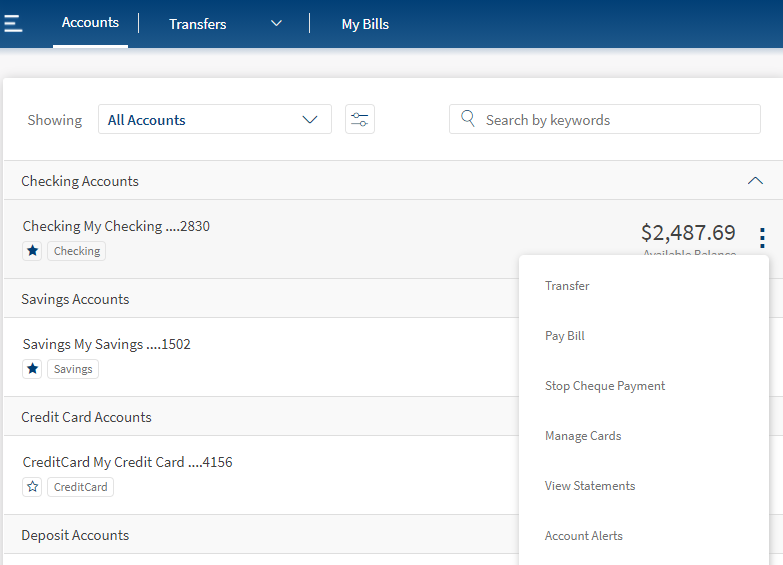
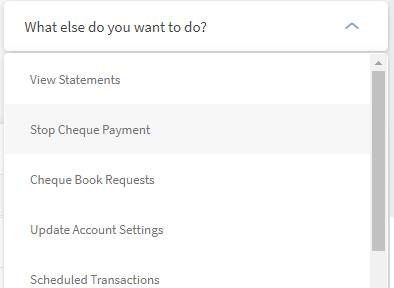
From the accounts dashboard screen, click on the required accounts contextual menu  > View Statements or click on the required account ,and click View Statements from the What else do you want to do? list. The app displays the View Statements screen.
Menu path for View Statements: Mobile Banking
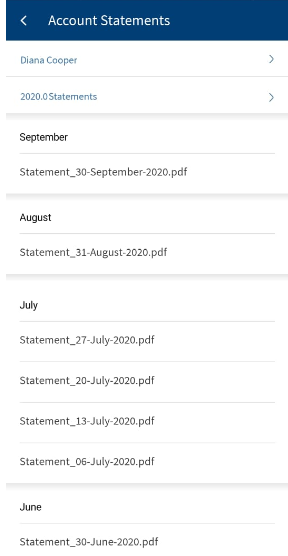
From the account dashboard screen, tap on the required account. The app displays account summary screen with Statements as one of the contextual buttons.
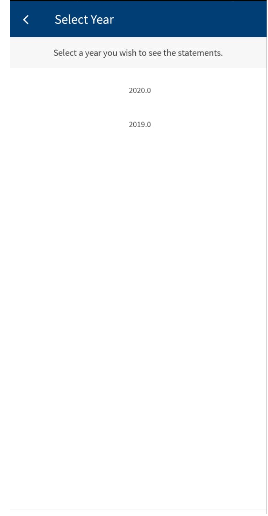
You can view all the statements generated and archived in the document management system for that particular month. For each month there could be more than one statement based on the frequency in which the statements are generated. For example, Daily, Weekly, Bi-monthly, or Consolidated statement is generated Quarterly or Annually. All the statements generated in a month are grouped under that month. You can switch between years to view statements for a particular year.
These statements are displayed with the document name or the statement generated date as the display name. The name of the document is retrieved from the document management system.
Online Banking
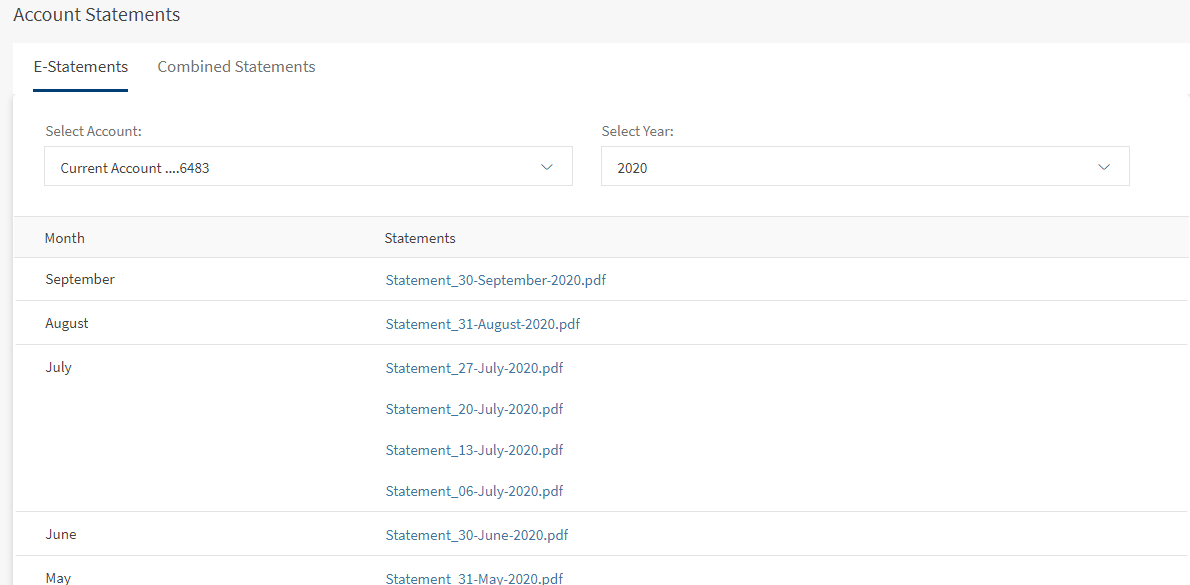
Use the Statements feature to download the statement of the required month for the selected account.
You must specify the following:
- Select Account: By default the selected account is displayed in Select Account list.
- Select Year: Select the required year from the list.
- Click on a statement to view/download the PDF format of the statement generated for the selected month.
Online Banking
Mobile Banking
In case you are using online banking application, Click Go to Account Summary if you want to navigate to the online banking dashboard screen or click Back to Account Details to navigate to the account details screen of the selected account.
In mobile banking application, you can view/download the PDF statement on the device. Tap the back < icon to return to Account Statements screen.
Enabling E-Statements
Enable the e-statements feature for any account from account settings. When you enable e-statements, you will stop receiving the hard copy of statements to the registered address. Instead, you will receive the soft copy of the statements to your registered email ID.
Combined Statements
You can download the consolidated statement across your multiple accounts. You can perform the following to download a consolidated statement:
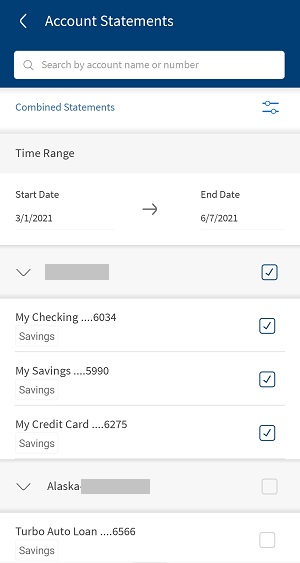
- Select multiple accounts to generate a combined statement
- Accounts can be grouped by account type
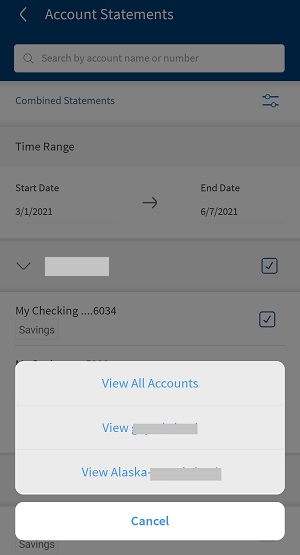
- Filter the accounts using the default filters
- Download the reports within the selected time range
- Modify or change the accounts or time range
- View the statement generated
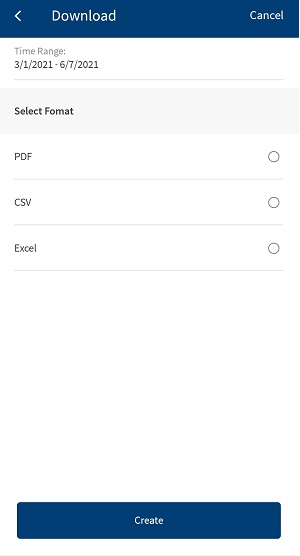
- Download the statement (PDF/Excel/CSV)
Menu path:
- OLB: Side menu > Account Services > Account Statements
- MB: Hamburger menu > Account Services > Account Statements
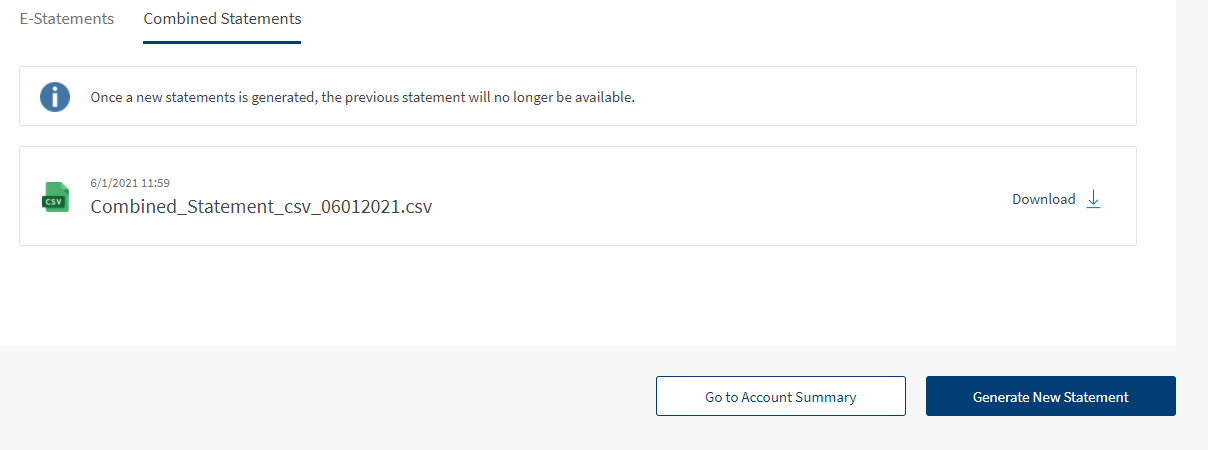
The Account Statements screen displays the E-Statements tab by default. Click Combined Statements to generate a consolidated statement for the selected account.
To generate a consolidated statement, follow these steps:
- Click Generate New Statement.
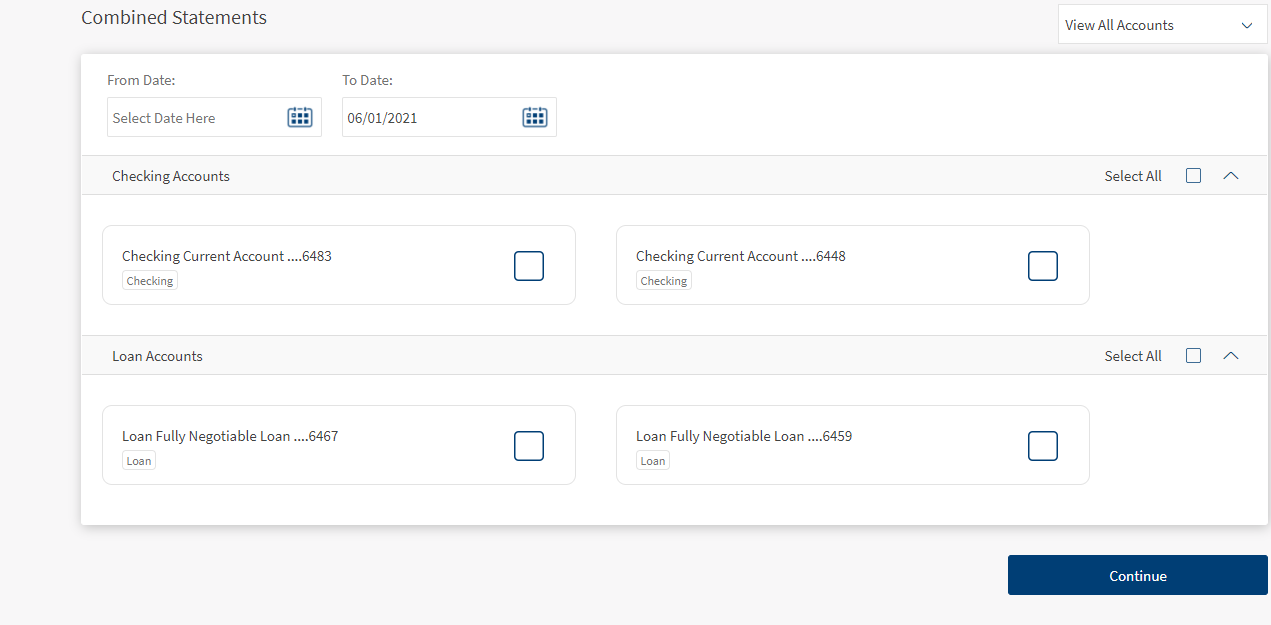
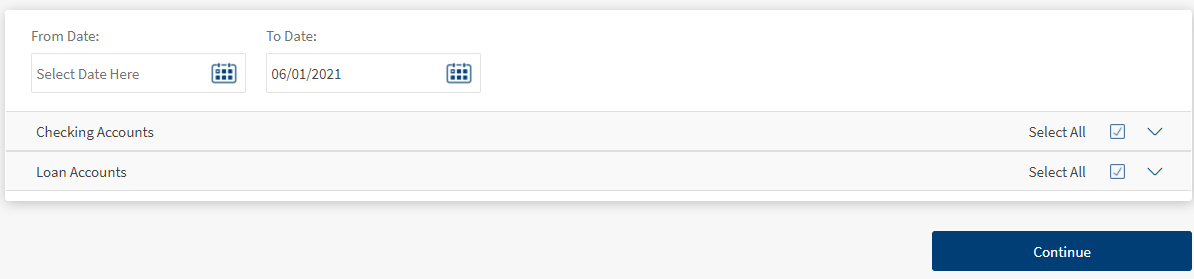
- Select the time range for which the statement to be generated. Select the From and Date.
NOTE: The consolidated statements can be generated only for the past six months of transaction. However, this can be configured in Spotlight under System Configurations. If you select the time range greater than six months, an error message is displayed.
- Personal Bank Accounts. All the accounts of the logged in user are displayed. The accounts are grouped based on the account type or customer ID.
- Click Select All to select all the accounts of the user.
- Based on the selected account type, the list of accounts with the account name, nickname, and last four digits of the account number are displayed. Select a particular account by clicking the checkbox.
- Click the list on the top to filter the different account types. The available filter options are:
- Preferred accounts
- Personal accounts
- Customer ID
NOTE: All accounts are displayed by default. You can filter the accounts based on your requirement.
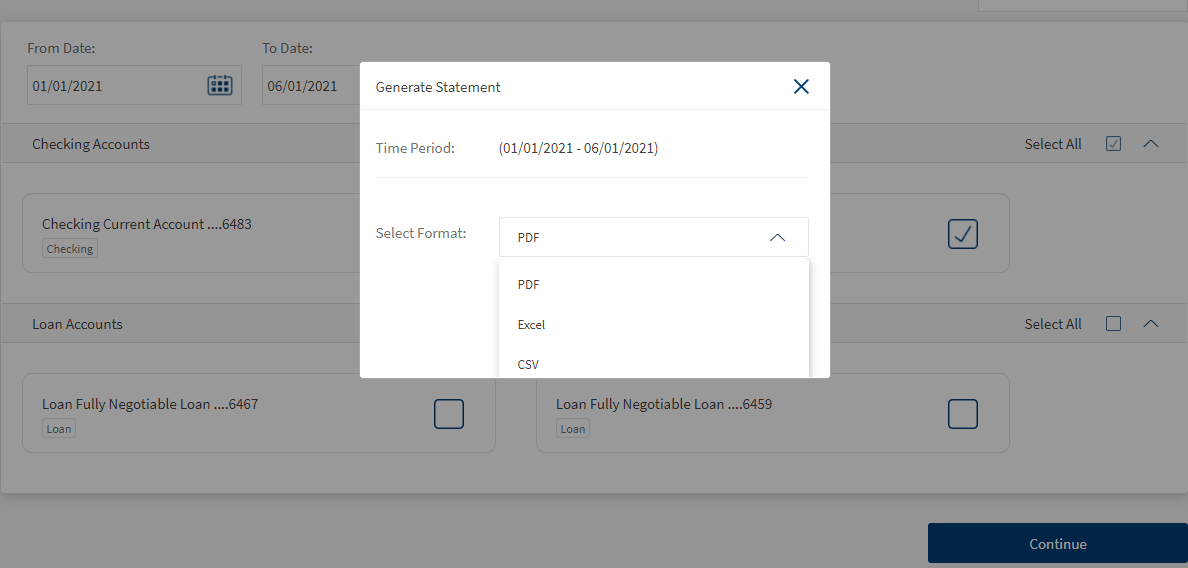
- Click Continue. A pop-up is displayed with the selected time range and the format to generate the statement. The available formats are:
- Excel
- CSV
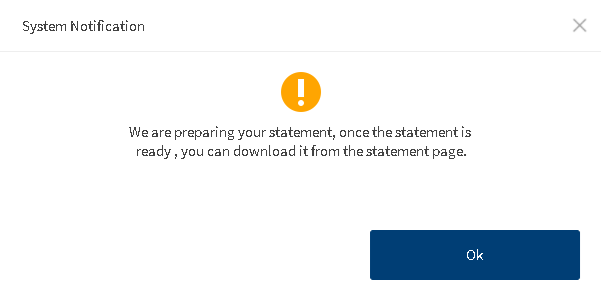
- Select the option from the list and click Generate. A system notification is displayed when the statement is prepared.
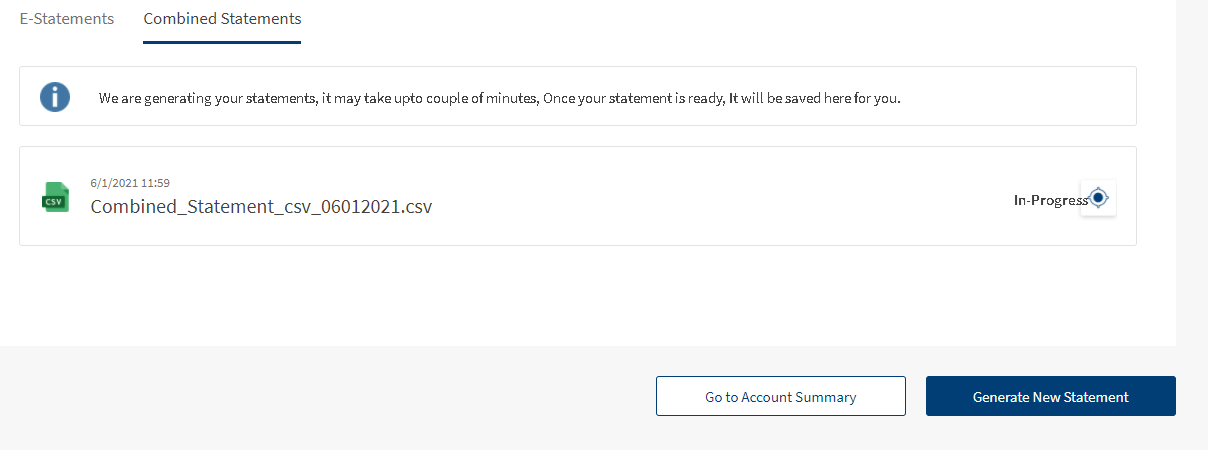
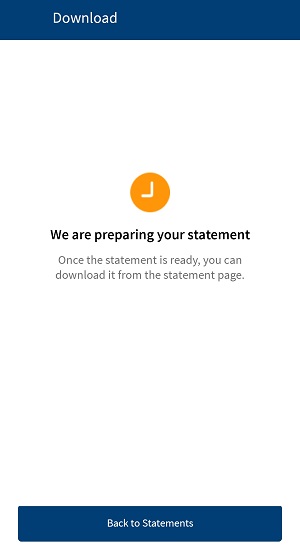
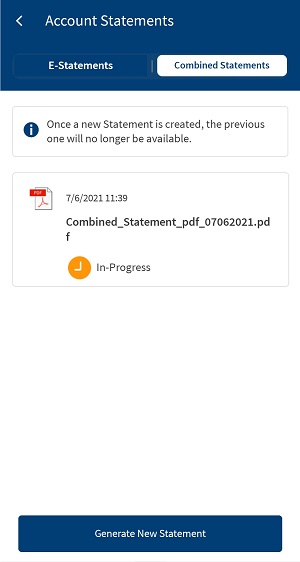
- Click Ok. The status of the statement generated will be In progress and a message is displayed at the top of the screen.
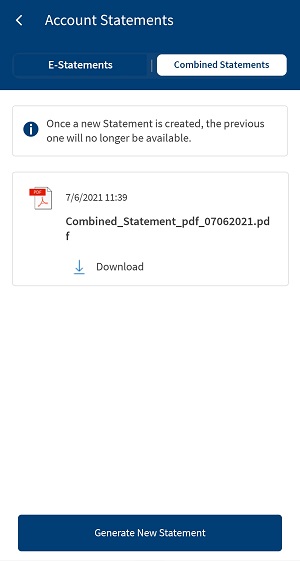
- Once the statement is generated successfully, the status In Progress is changed to Download.
- Click Download to download the generated statement. The generated statement is downloaded and saved into your local system.
NOTE: You can download only the last combined statement and the previously generated statement will not be available.
- Once the combined statement is generated successfully, the previously generated statement will be automatically deleted. The generated statement will be stored in Infinity Spotlight database.
- You can view the following details in the generated combined statement.
- Transaction Date
- Transaction Reference Number
- Transaction Description
- Amount
- Balance
- Transactions/statements grouped by the account
- Account Name or Nick Name followed by the last four digits of the account number
The combined statement can be fetched by integrating with Transact and Holdings micro service.




User Permissions in Spotlight
A few user permissions at the system level must be configured in Spotlight. The following configurations must be performed in Spotlight under Master Data Management to access E-Statements in OLB or MB. Only the features and actions that are enabled and assigned to customer roles by the bank user in Spotlight are accessed by the customers in the Retail Banking application.
NOTE: The features and actions can be enabled or disabled from the master data management of Spotlight at FI level. The features and actions that are enabled can only be accessed in Retail Banking application.
To activate/inactivate Account Statements, follow these steps:
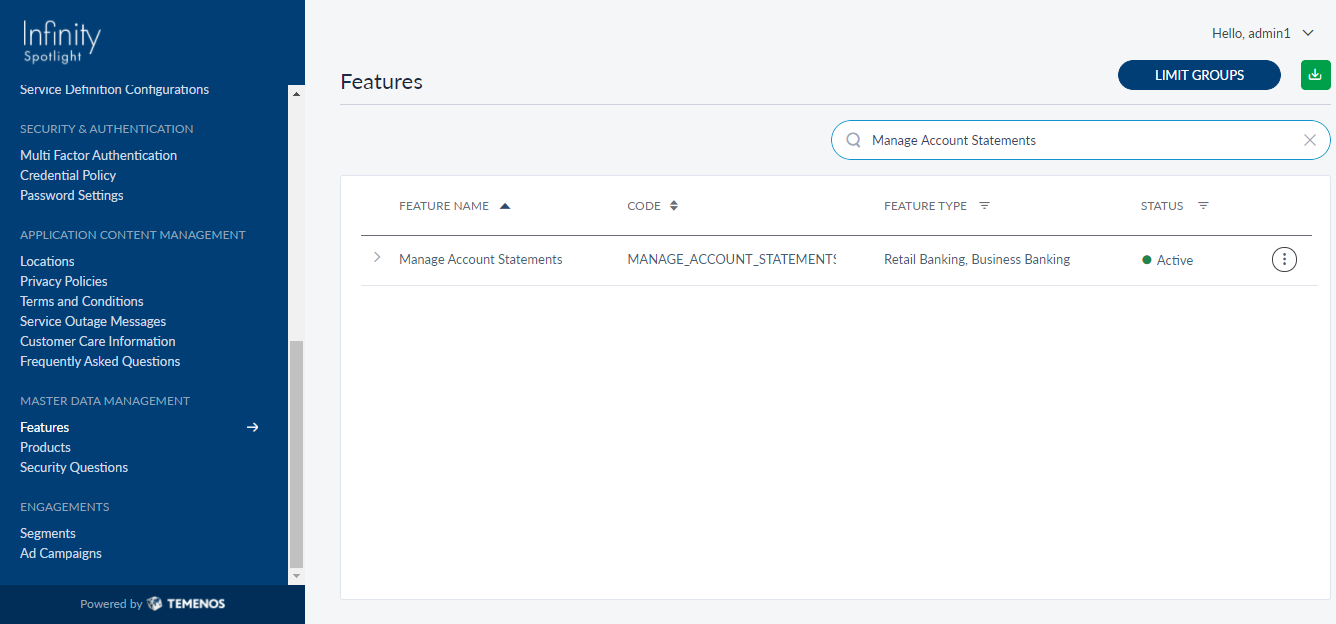
- In Master Data Management > Features > Search for Manage Account Statements. The direct debit feature must be active to access the feature in Retail Banking application.
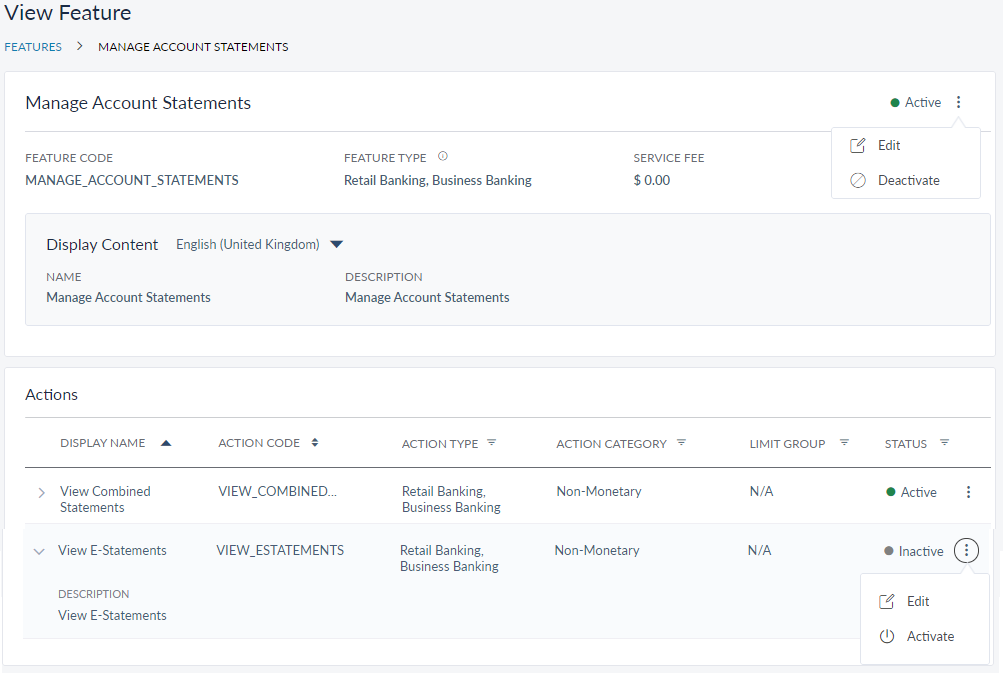
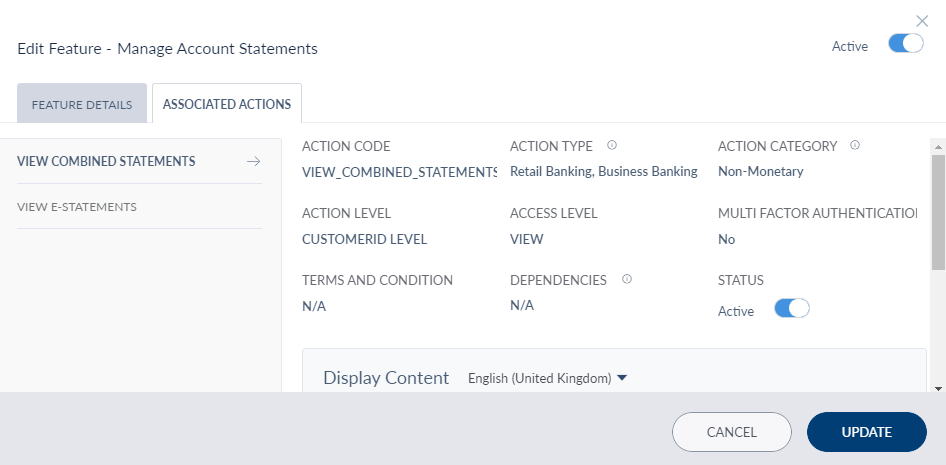
- Click the feature to view the feature details and associated actions.
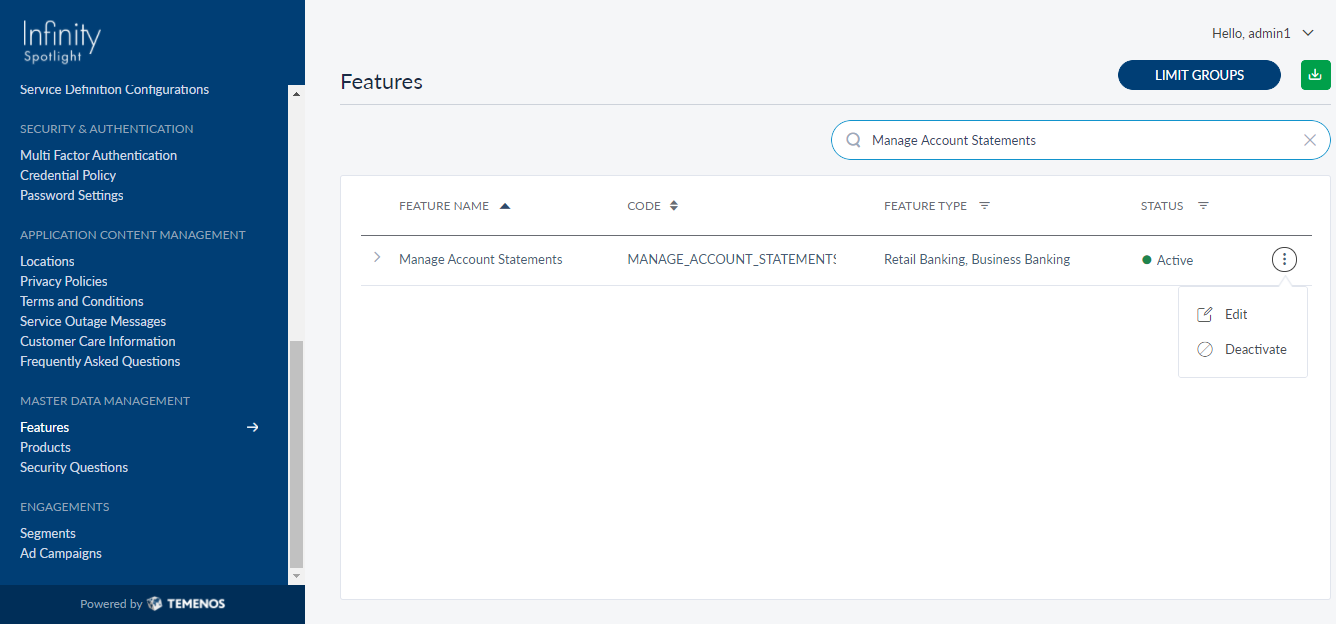
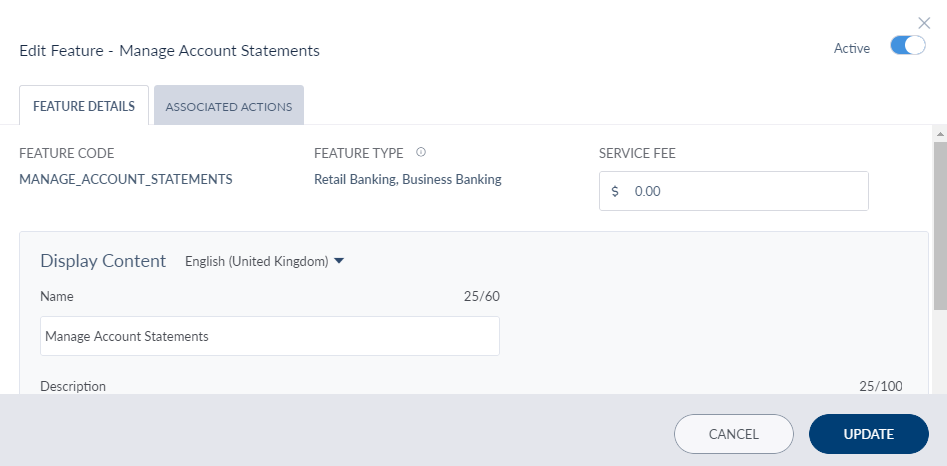
- Click the Contextual menu (three dots) on the right corner to activate/deactivate the feature. You can also edit the feature and activate/deactivate the feature.

- You can activate/deactivate the associated actions by clicking the contextual menu available besides each action. You can also edit the associated actions.


In this topic
