Service Request
Service Request Dashboard displays the history of service requests submitted by the users through Digital Banking, with their status. Activate Card, Cheque Book Request, Update Phone Number, Add New Address, Statement Preference, and so on are examples of service requests.
A list of a user's Service Requests are fetched by the Service Request Microservice. Users can look for any service request by performing a search using Reference ID, Status, Service Request Name, within a certain time.
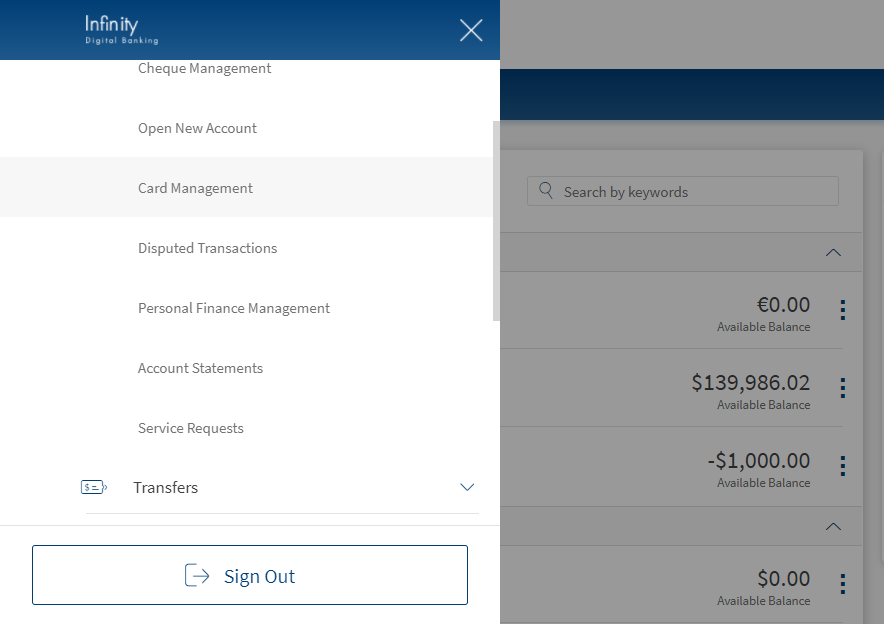
Menu path: Online Banking > Accounts and Services > Service Request
Mobile Banking > Accounts and Services > Service Request
The application displays the list of service requests fetched from the Service Request Microservice (10 transactions by default).
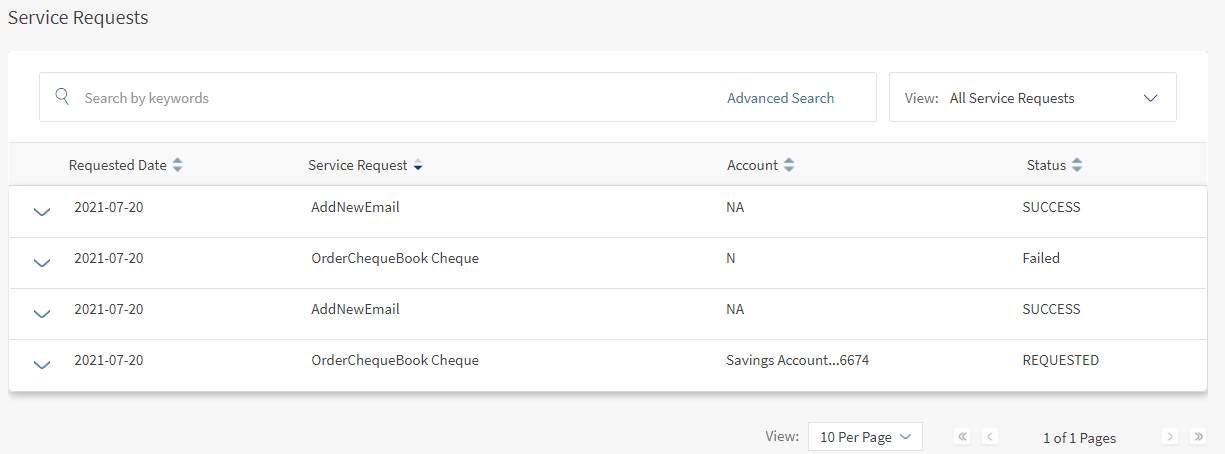
NOTE: If no requests are retrieved from the banking service, the app displays a relevant message. The following details are displayed:
- Requested Date
- Service Request
- Reference Number
- Status of the service request
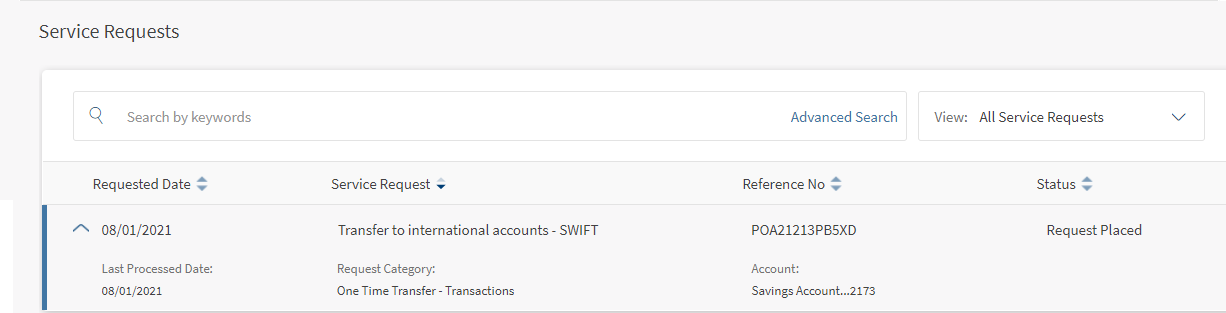
You can select any request to view further details such as
- Processed Date
- Request Category
- Account ID
- Signatory Approval (if applicable)
The list is sorted by Request Date by default, but you can sort the list based on any of the columns by using the sort  icon (
 denotes sorted by that column).
You can do the following in this screen:
Business Process Diagram - Service Request
Search for a Service Request
Use the feature to search for a service request using mentioned keyword and view the list of service requests for the provided search criteria.
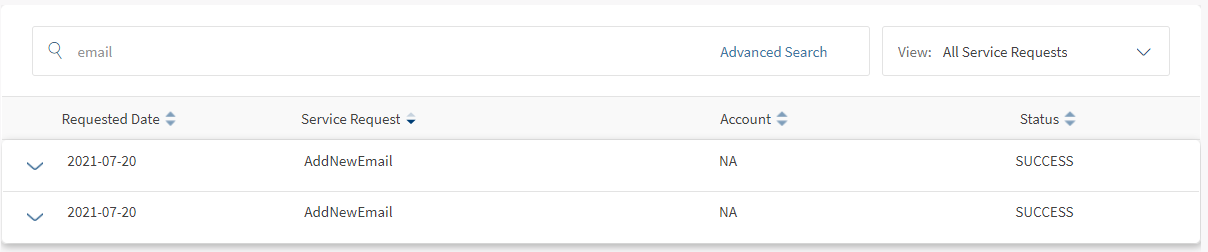
You can search for service requests by providing the following keywords:
- Request Subtype
- Reference ID
- Account ID
- Service Request Status
Filter Service Requests
Use the feature to filter the service requests from the list.
Click View from the top right to filter the service requests. Based on the selected filter, you can view the list of service requests.
For example, if you select Request Category as 'Manage Address', then the Service Request options displayed the request subtype under 'Manage Address' such as Add New Address, Update Address, Rename Address, and so on.
NOTE: If no record is found for the selected criteria, an appropriate message is displayed.
Advanced Search
In the advanced search criteria section, you can specify the combine criteria or single criteria using these attributes:
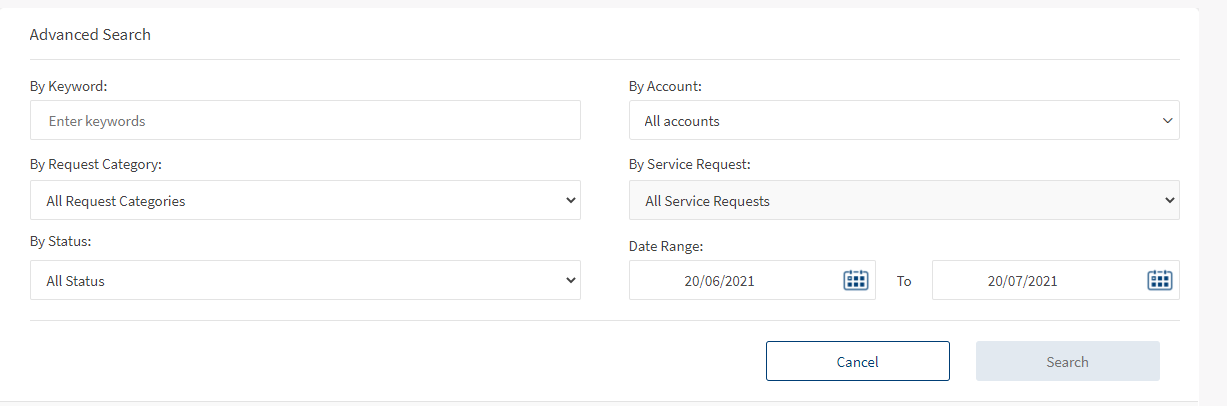
- By Keyword. Enter an appropriate keyword such as credit card, cheque book, and so on in this field.
- By Account. Select an account from the list of your accounts to search for the service requests created for an account.
- By Request Category. Select the required category type from the list to search based on types of categories such as cheque, recurring transfers, and so on.
- By Service Request. The service request options are listed based on the selected request category. Select a service request from the list to search based on the selected request category.
- By Status. Select the status from the list to search based on the status type.
- Date Range (requested date). Select the required date range in the Start date and End date fields to search for service requests based on a certain time. The service requests displayed is configured to three months, currently. You can configure the time based on the requirement.
Click Search to search for the records and the app displays all the service requests based on the specified search criteria. The app displays an appropriate message in case there are no service requests to retrieve.
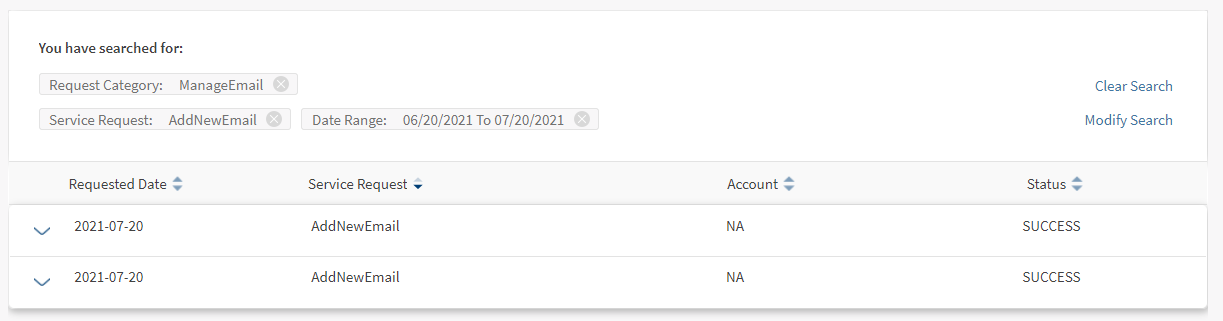
Once the results are displayed, you can do the following:
- Click Clear Search if you want to clear the current search. The app removes the current search criteria.
- Click Modify Search to modify the current search. The app navigates you to the advanced search criteria section.
Integration of Service Request Microservice
- List of service requests created by the user are fetched by the service request microservice. The following details are fetched from SRMS.
- Requested Date
- Service Request ( Service Request name is the Request Sub Type of the request)
- Account ID
- Status
- Reference ID
- Request Category (Request Category is the Request Type of the request)
- Signatory Approval (if applicable
- Last Processed Date (If, it is available)
Configuration
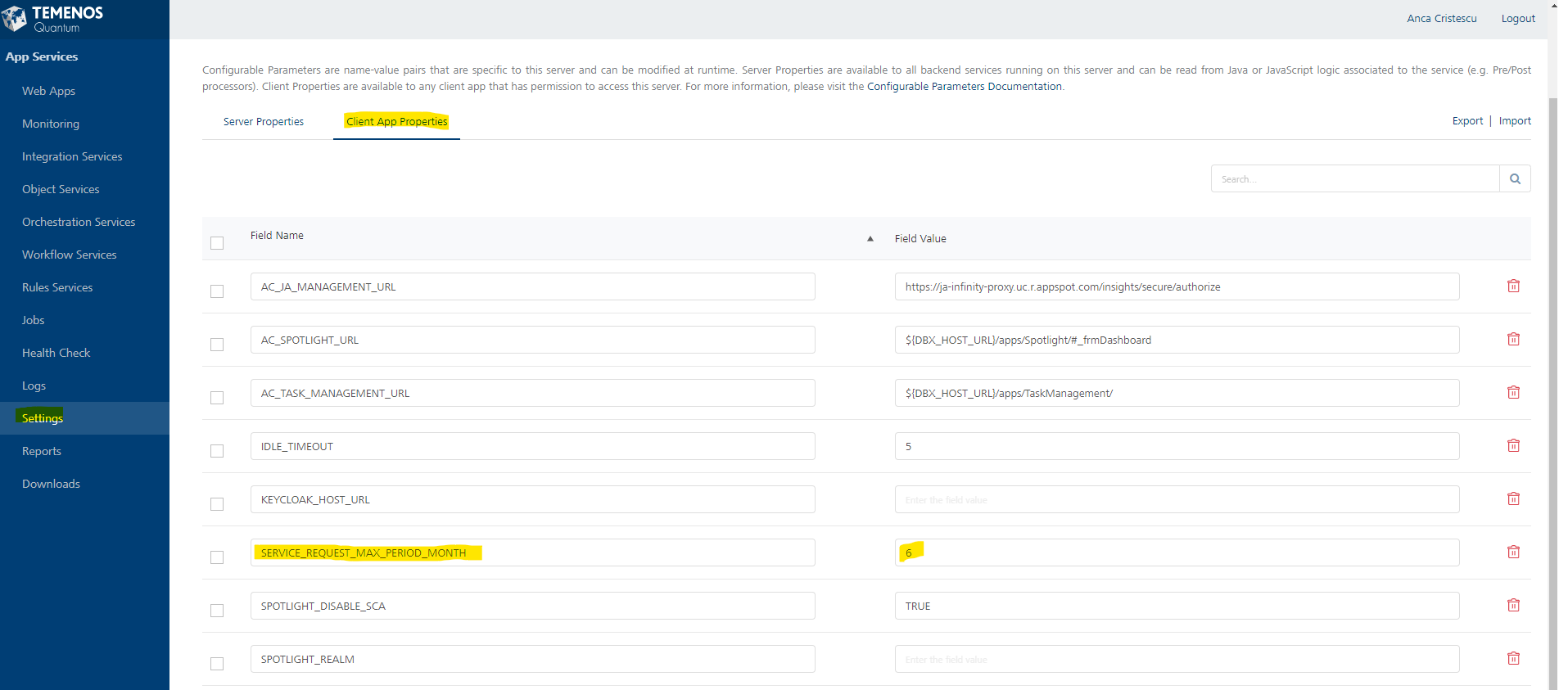
- The number of service requests to be displayed on the screen is configured to one month, currently.
- You can configure the SERVICE_REQUEST_MAX_PERIOD_MONTH property from Client App Properties screen.
In this topic
