Chatbot (Conversational Banking Platform)
Use the feature to view your account balance, Transactions, view your card details, block any of your registered cards, view your payments, update your profile, and more. Conversational Banking Platform (CBP) supports the conversations through auditory and textual methods. CBP is NLP-capable, therefore, you need not write explicit commands such as “Account Balance”, every time you use the Chatbot; you can speak your mind, choose the predefined items, or enter your text. This feature is available only in mobile banking application.
The Chatbot feature can be launched from the Hamburger menu. Tap Chatbot from Hamburger menu. The app displays the Chatbot screen with the list of predefined items that you can request the bot to assist you with. These items can be configured at the back end.
You can either tap any item from the configured list, enter your query in the box, or tap the microphone icon and speak. The Ask Finco bot can assist you in answering your queries. We have explained a few broad categories:
- Account Balance
- High valued Transactions
- Show Last Transaction
- Card Summary
- Card Lock
- Card Unlock
- Report Lost Card
- Card Pin Change
- Card Activation
- Update Profile - Contact Number
- Update Profile - Email
To chat with Ask Finco, the Chatbot, use the predefined items, enter text in the box, or tap the microphone icon and speak.
- The specific requests that you type in the text field are not case-sensitive.
- If you want to exit the Chatbot screen at any time, tap Close.
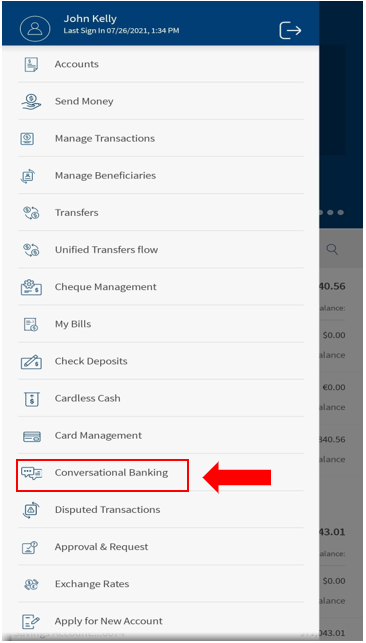
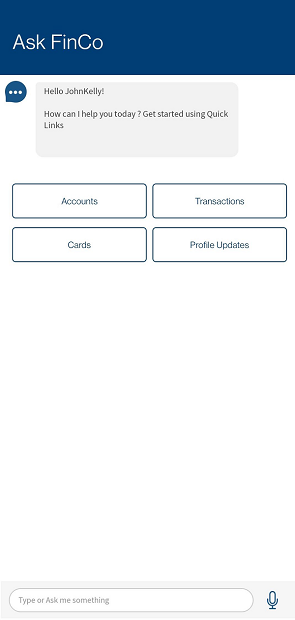
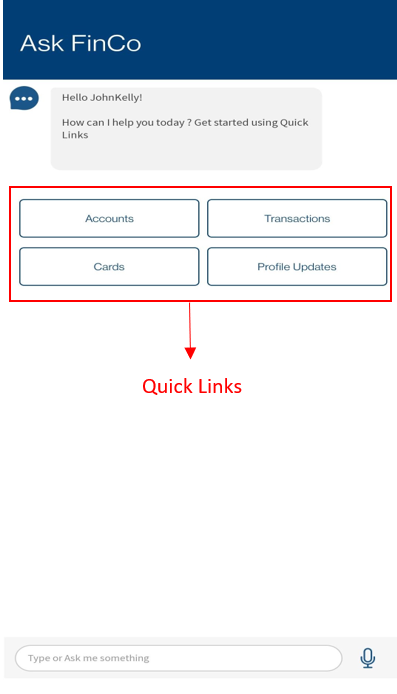
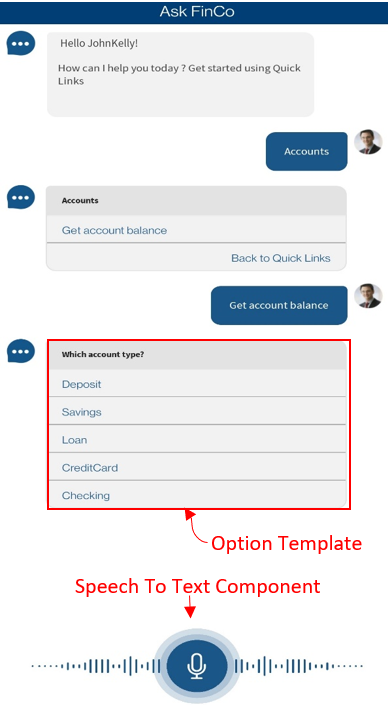
Business Process Diagram - Chatbot
View Balance
You can either tap Account Balance or enter "Account Balance" in the text field. The app displays the list of your accounts - Checking, Savings, Deposit and more.
Tap the required account. If you have multiple accounts, the app follows these criteria:
- If you have multiple types of accounts, the app displays all of these account types.
- If there are multiple accounts for any account type, the app displays all the accounts to select the required account.
Select the account to view the balance of that account.
In addition, you can type specific requests that refer to a specific field in the account. The following are some specific requests that you can enter in the text field and the app displays the appropriate account information:
- Show my account summary
- Show my account details
- Show my account balance
High Valued Transactions
You can either tap High Value Transactions or enter "Show High Value Transactions" in the text field. The app displays the list of your accounts - Checking, Savings, Deposit and more.
Tap the required account.
If you have multiple accounts, the app follows these criteria:
- If you have multiple types of accounts, the app displays all of these account types.
- If there are multiple accounts for any account type, the app displays all the accounts to select the required account.
Select the number of transactions to view.
For example, if you select the number of transactions to view as 3, the last 3 high volume transactions are displayed with the graph.
In addition, you can type specific requests that refer to a specific transaction in the account. The following are some specific requests that you can enter in the text field and the app displays the appropriate information:
- Show five high volume transactions
- Show expensive transactions
Card Details
You can either tap Card Summary or enter "Card Summary" in the text field. The app displays the list of all your registered credit and debit cards.
For any card, the app displays details such as whether it is a debit or credit card, the card number, and the cardholder name. For example, the app displays a sample card details as follows:
Summary of the card
Card Number: XX.......3210
Card Holder Name: Jane Doe
Card Status: Active
Card Product Name: My Platinum Card
Available Credit: 8513
The following are some specific requests that you can enter in the text field and the app displays the appropriate information:
- Show card summary
- Show my card details
Card Activation
If you have a new card issued from your bank and you want to activate it, you can either tap "Card Activation"or enter "Card Activation" in the text field. The app displays the list of your issued credit and debit cards that are pending for activation.
Tap the card that you want to activate. If you have multiple cards for a card type, the app displays the list of issued cards with the card numbers. Select the card you want to activate.
The app asks you to enter the CVV number. An OTP will be successfully sent to your primary email and mobile number. Verify and enter the OTP. A confirmation message is displayed that the card has been successfully activated and displays an appropriate message on the Manage Cards screen.
The following are some specific requests that you can enter in the text field and the app displays the appropriate information:
- Activate my card
In this topic
