Sign In
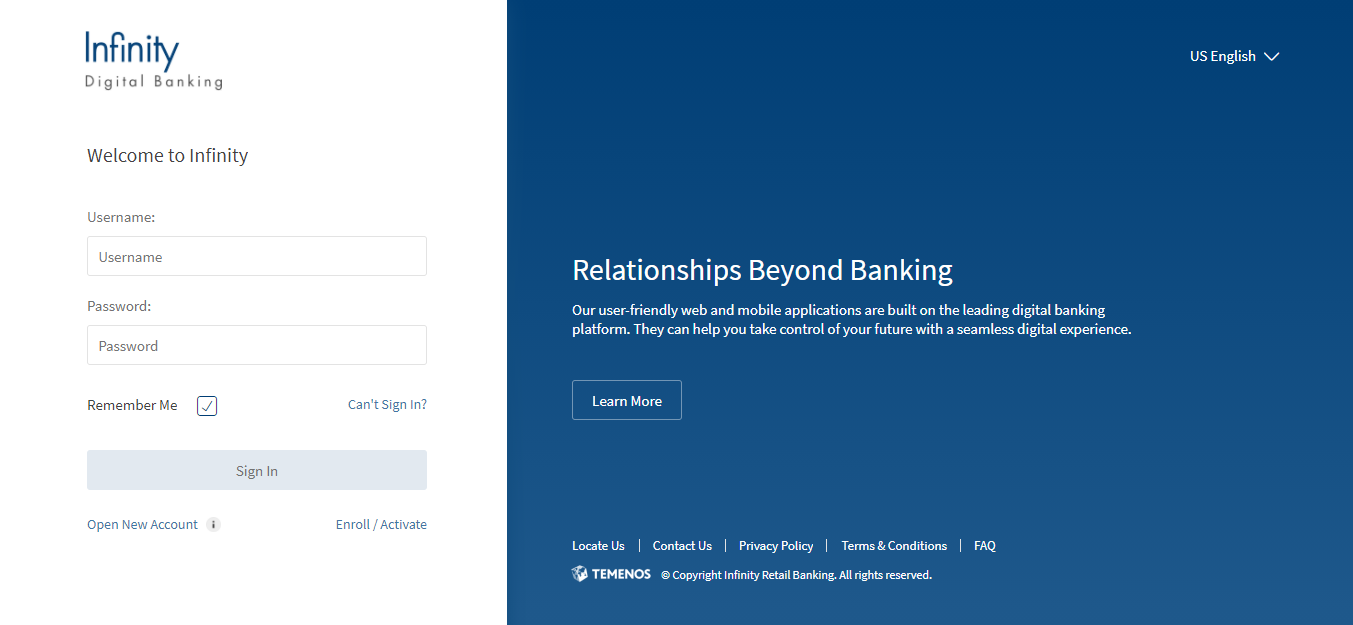
After you open the application, the app displays the Sign In screen. Use the feature to sign in to the application securely.
If you are not an existing customer of the bank and want to get started, select Open New Account. When you click on Open New Account in the sign in page, the page redirects to onboarding application. You must enter the username and password. Login credentials can be set up using the Enroll flow if you already have an account with the bank. You have to enroll only once and use the same credentials for digital banking.
- The on-boarding process is specifically meant for Retail customers. Business customers cannot be on-boarded using this process.
- You can enroll only Retail and Micro Business users. Business enrolment is restricted to Micro business users only.
Personal Banking
Username
The username is a mandatory field. If the username field is left blank, the Sign In button remains inactive. The field is case-insensitive; the application will convert the username to uppercase before transmitting to the back-end for authentication. The web browser's auto-suggest is disabled for this field in online banking.
Password
The password is a mandatory field. If the password field is left blank, the Sign In button remains inactive. The field is case-sensitive and masked while typing, but you can view the password on selecting the eye icon. If maximum allowed password length is 'n', the password entry field does not accept more than 'n' characters. In case you enter an incorrect password, the app displays an appropriate error message. The web browser's auto-save for passwords is disabled to prevent auto-fill of passwords in case you are using online banking.
Remember Me
Select Remember Me checkbox for the app to remember the username and display during subsequent logins. In case more than one username is saved, you can choose your username for logging on. The application will retain the username on a previously used device and will be masked and non-editable while being displayed on next login (for example, abcxxxxxxx). Multiple people can use the Remember Me feature on the same device/browser.
In online banking, a user can choose the username from the list of usernames prompted by the browser. After the username is selected, the user can enter the password for the account and log in. A user can disable Remember Me for own account to remove it from the list.
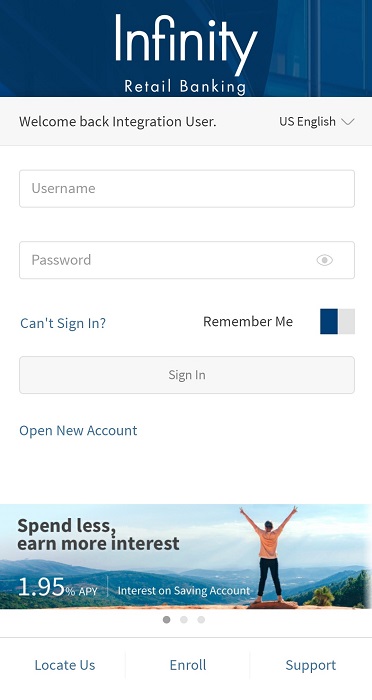
In mobile banking, it is mandatory to turn on Remember Me if the user wants to enable the quick account preview.
Sign In
Select Sign In.
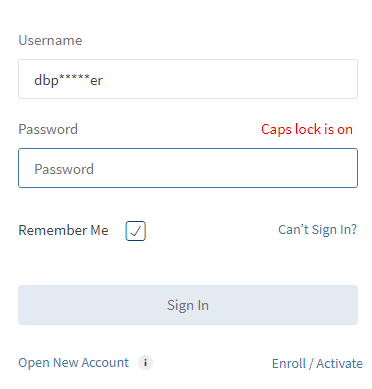
NOTE: While logging in the application if the keypad caps lock is on, the application indicates with a message.
Terms and Conditions : Terms and conditions appear if you are trying to log in for the first time or if the existing terms and conditions are reconfigured in the backend. You must accept the terms and conditions to proceed further.
MFA Authentication: Depending on the bank configuration, you must provide additional authentication such as providing the secure access code or answering the security questions to sign in to the application.
For OTP
- Select the mode of contacts such as the registered phone or the registered email ID for receiving the secure access code. You can either select both or any one mode of contact to receive the secure access code. The secure access code is sent to your registered mobile number and email ID or anyone based on your selection.
- Enter the secure access code received to your mobile or email ID. Verify the OTP entered.
In case you have not received the OTP, you can use the OTP resend option to receive the OTP again. - If you enter an incorrect OTP or do not provide any OTP response, the app requests you enter the correct OTP. If you enter an incorrect response more than five times (configurable), the app displays an error message and navigates you back to the Sign In screen.
- Once the OTP is verified successfully, the app displays the account summary dashboard screen.
For Security Questions
- A set of security questions are displayed. Answer the security questions and click Continue to proceed further.
- If you enter an incorrect answer or do not provide any answer, the app requests you provide the correct answer. If you enter an incorrect answer more than two times (configurable), the app displays an error message and navigates you back to the Sign In screen.
- If the answers provided are correct, the app displays the account summary dashboard screen.
- The account will be locked in case of multiple incorrect password entries. When the allowed attempts are exceeded then, the following message is displayed "Your profile has been locked. It will be unlocked after some time". The lock is applicable to all channels at a user level in case of multiple incorrect entries on any channel within a specified duration.
- In case a user account is locked, the app displays an appropriate message.
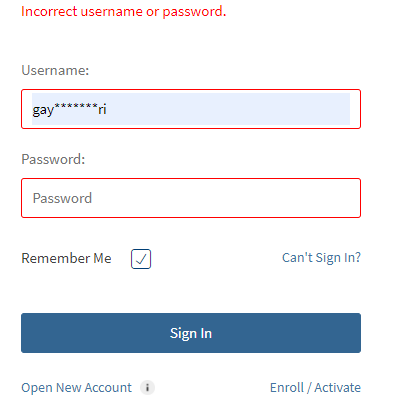
- The app displays an error message if the information provided is incorrect, or if you are not registered/enrolled for banking. In that case, do any of the following:
- Select Can't Sign In? to retrieve the username or reset the password in case you have forgotten.
- Select Enroll for enrolling to digital banking.
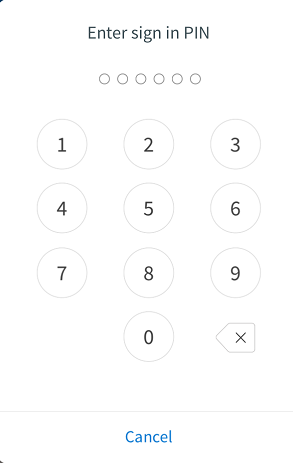
- For mobile banking: You can set up a default login for all your subsequent sign in by defining the default sign in method during the device registration process or anytime from application settings. The different sign in methods available are - Authentication using Finger Print, Face, and Pin based login.
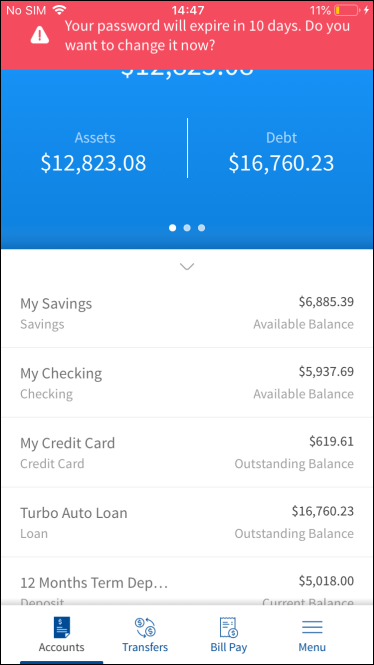
- If the Sign In password is about to expire, a message appears immediately after you Sign in to the application. The password expiry warning threshold is managed within Spotlight application.
You can also do the following on the Sign In screen:
- Retrieve the username or reset the password in case you have forgotten.
- Enroll if you do not have the access to the application already.
- Locate the nearest ATM or branch based on your current location or call your banking service for any queries.
- View the privacy policy of the bank.
- View the terms and conditions to use the banking application.
- Access FAQs and Help pages to use the application features.
- For mobile banking, open Support to access FAQs, terms and conditions, privacy policy, and contact information.
- Start the New User Account Opening (Onboarding) process.
- Change the language of the application.
Online Banking Application
Validation for Incorrect User Name
Caps Lock On
Mobile Banking Application
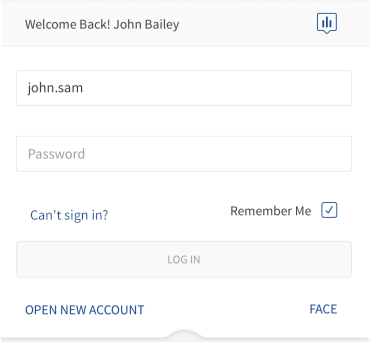
Face ID based Sign In screen
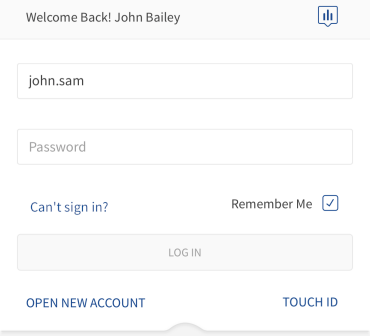
Touch ID based Sign In screen
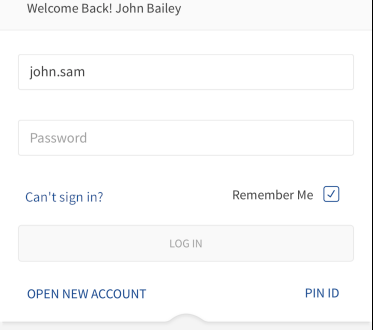
Pin based Sign In screen
Password Expiry Warning
Configuration
- In the case of multiple unsuccessful login attempts, the user's account is locked. The account is unlocked after the predetermined time period or when the customer resets the password.
- The credential policies for updating username and password are managed within Spotlight application.
- The terms and conditions are configured and managed within the Spotlight application.
- The multi-factor authentication during login is configured within the Spotlight application.
APIs
| API | URL |
|---|---|
| checkUserEnrolled | /services/data/v1/RBObjects/operations/User/checkUserEnrolled |
| requestEnrollOTP | /services/data/v1/RBObjects/operations/DbxUser/requestEnrollOTP |
| verifyOTPPreLogin | /services/data/v1/RBObjects/operations/DbxUser/verifyOTPPreLogin |
| lockCard | /services/data/v1/RBObjects/operations/Cards/lockCard |
| createOrganization | /services/data/v1/RBObjects/operations/DbxOrganization/createOrganization |
| updateOrganization | /services/data/v1/RBObjects/operations/DbxOrganization/updateOrganization |
| getCustomerActionLimits | /services/data/v1/RBObjects/operations/CustomerLimits/getCustomerActionLimits |
| getOrganizationGroupActionLimits | /services/data/v1/RBObjects/operations/Organization/getOrganizationGroupActionLimits |
| getAccountActionCustomerApproverList | /services/data/v1/RBObjects/operations/DbxUser/getAccountActionCustomerApproverList |
| updateDBXUserName | /services/data/v1/RBObjects/operations/DbxUser/updateDBXUserName |
| updateDBXUserPassword | /services/data/v1/RBObjects/operations/DbxUser/updateDBXUserPassword |
In this topic
