Manage Cards
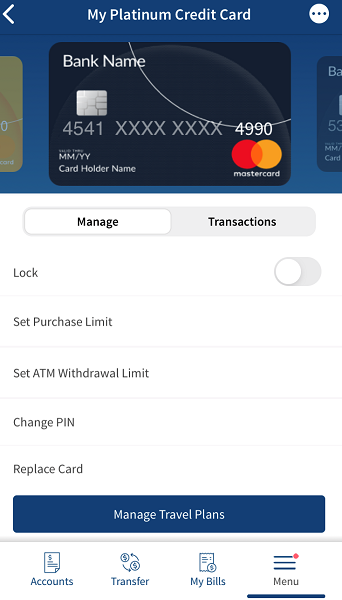
You can perform the following actions from the Card Management screen:
- Replace a Card
- Lock or Unlock a Card
- Report the Card Lost or Stolen
- Change a Card Pin
- Stop or Cancel Card
- View Statements
- Card Details (for mobile only)
- Request a New Card
- Set Limits
- Add Card to Digital Wallet
Replace Card
Use the feature to request a replacement for any of your saved debit or credit card. The feature is applicable only for active cards.
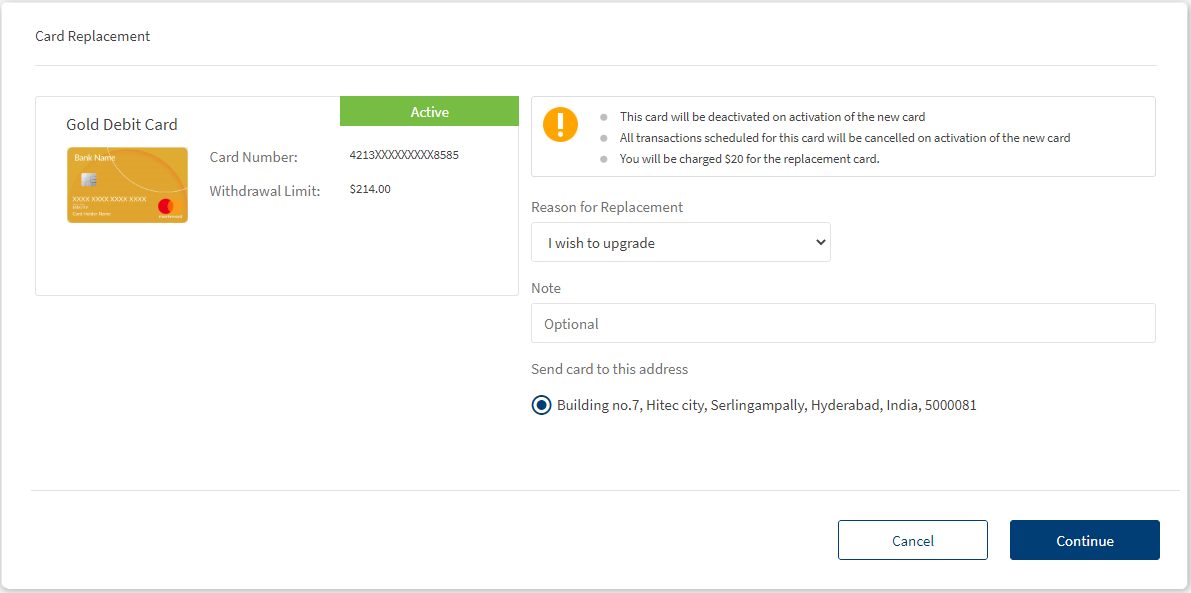
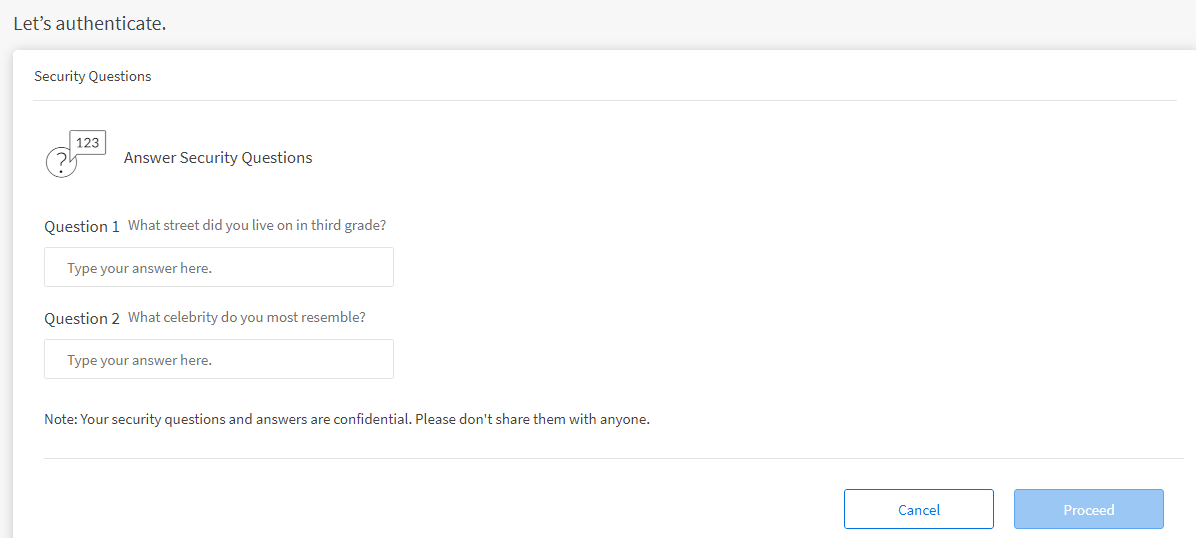
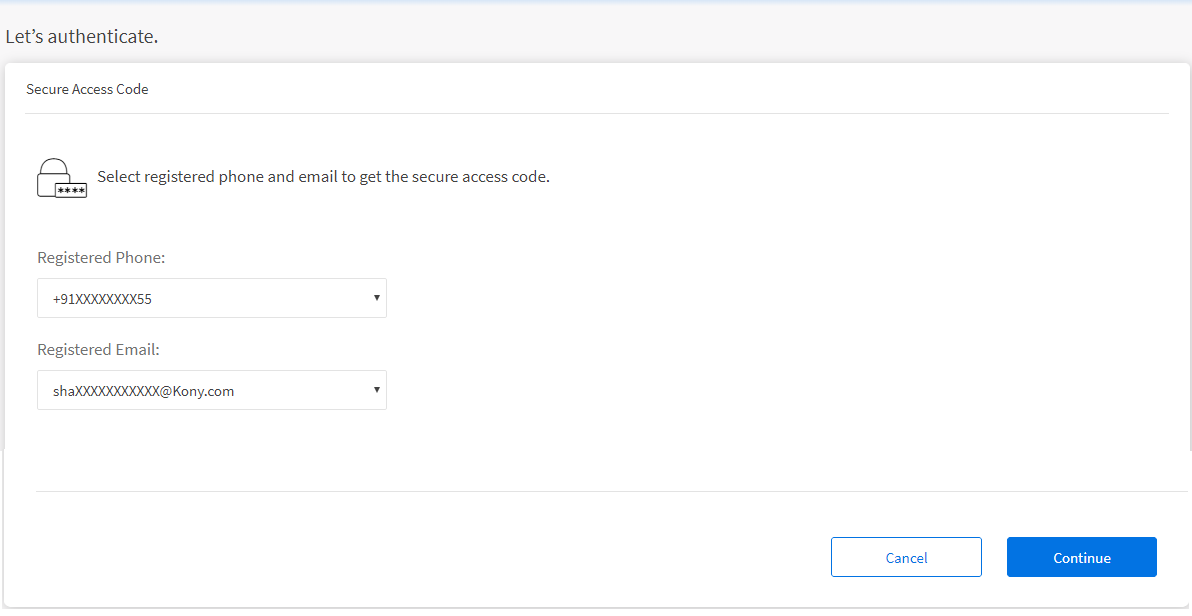
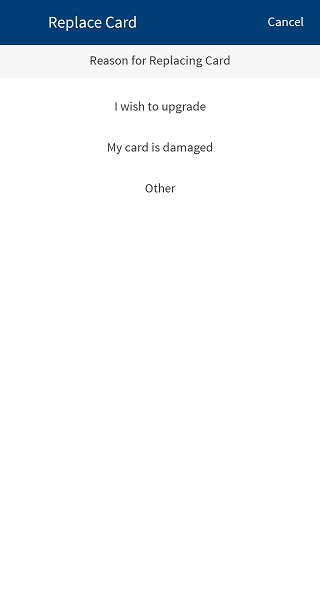
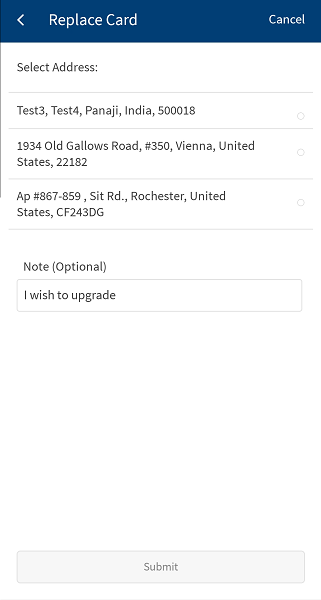
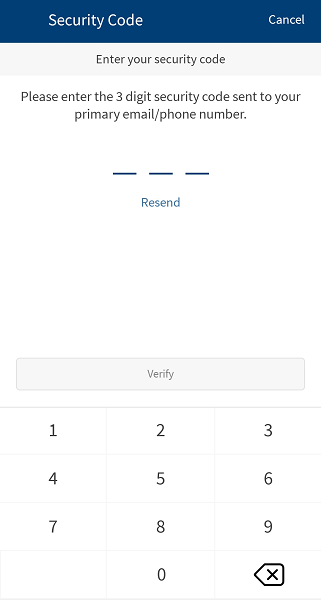
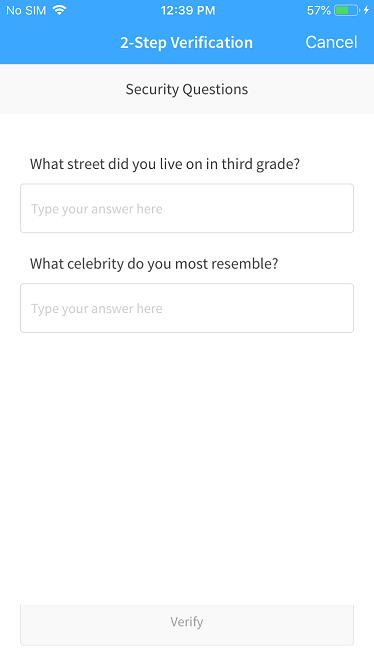
From the Card Management screen, select replace card option available at the required card and do the following:
- Provide reason or specify any comments regarding the change of PIN.
- Select the required delivery address. These addresses are those which are registered with the bank.
- MFA Authentication: Depending on the bank configuration, you must provide additional authentication such as providing the secure access code or answering the security questions to manage your cards.
For OTP
- Select the mode of contacts such as the registered phone or the registered email ID for receiving the secure access code. You can either select both or any one mode of contact to receive the secure access code. The secure access code is sent to your registered mobile number and email ID or anyone based on your selection.
- Enter the secure access code received to your mobile or email ID. Verify the OTP entered.
In case you have not received the OTP, you can use the OTP resend option to receive the OTP again. - If you enter an incorrect OTP or do not provide any OTP response, the app requests you enter the correct OTP. If you enter an incorrect response more than five times (configurable), the app displays an error message and navigates you back to the Sign In screen.
- Once the OTP is verified successfully, the request for replacement is confirmed and the app displays the acknowledgment screen with request details.
For Security Questions
- A set of security questions are displayed. enter the required answer for the questions displayed and click Continue to proceed further.
- If you enter an incorrect answer or do not provide any answer, the app requests you provide the correct answer. If you enter an incorrect answer more than two times (configurable), the app displays an error message and navigates you back to the Sign In screen.
- Once the entered answers are correct, the request for replacement is confirmed and the app displays the acknowledgment screen with request details.
The status of the card changes to Replace Request Sent.
Lock Card
Use the feature to temporarily lock or disable any debit or credit card. This will temporarily block the card and would not allow to process any transaction on the card. You can unlock or switch the card on at any time.
Any scheduled transactions for a card will be put on hold till the card is unlocked. Transactions scheduled before unlocking will not be executed. Transactions scheduled after unlocking will be executed. For example, the user locks his card on 25th Jan. He has transactions scheduled from this card for 26th Jan and 1st Feb. He unlocks the card on 29th Jan. The transaction for 26th Jan will not be executed, but the one for 1st Feb will be executed as planned.
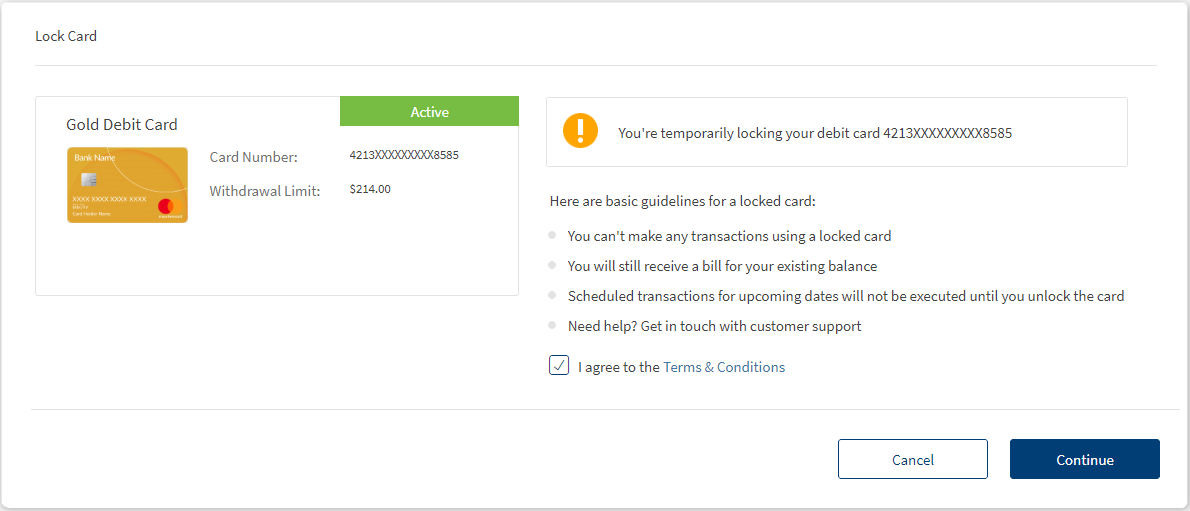
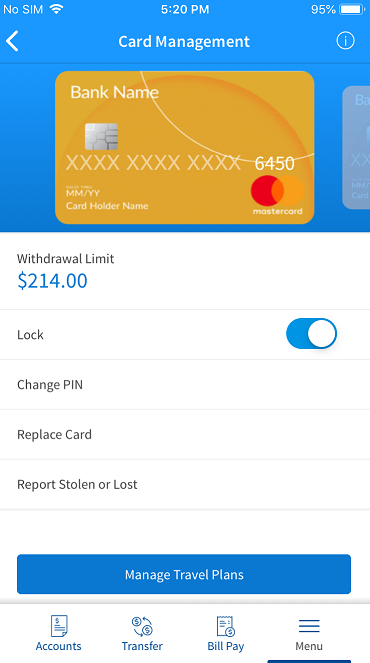
From the Card Management screen, select lock card option available at the required card and do the following:
- Go through the terms and conditions and select I agree with all the terms and conditions, and proceed. This is not applicable for a mobile banking application.
- MFA Authentication: Depending on the bank configuration, you must provide additional authentication such as providing the secure access code or answering the security questions to manage your cards.
For OTP
- Select the mode of contacts such as the registered phone or the registered email ID for receiving the secure access code. You can either select both or any one mode of contact to receive the secure access code. The secure access code is sent to your registered mobile number and email ID or anyone based on your selection.
- Enter the secure access code received to your mobile or email ID. Verify the OTP entered.
In case you have not received the OTP, you can use the OTP resend option to receive the OTP again. - If you enter an incorrect OTP or do not provide any OTP response, the app requests you enter the correct OTP. If you enter an incorrect response more than five times (configurable), the app displays an error message and navigates you back to the Sign In screen.
- Once the OTP is verified successfully, the app displays the acknowledgment screen and the card would be locked.
For Security Questions
- A set of security questions are displayed. enter the required answer for the questions displayed and click Continue to proceed further.
- If you enter an incorrect answer or do not provide any answer, the app requests you provide the correct answer. If you enter an incorrect answer more than two times (configurable), the app displays an error message and navigates you back to the Sign In screen.
- Once the entered answers are correct, the app displays the acknowledgment screen and the card would be locked.
The status of the card changes showing that it is locked. Follow a similar process to unlock a card.
Report Card
Use the feature to report a lost or stolen card, and block it to prevent any fraudulent transactions. This action cannot be reversed.
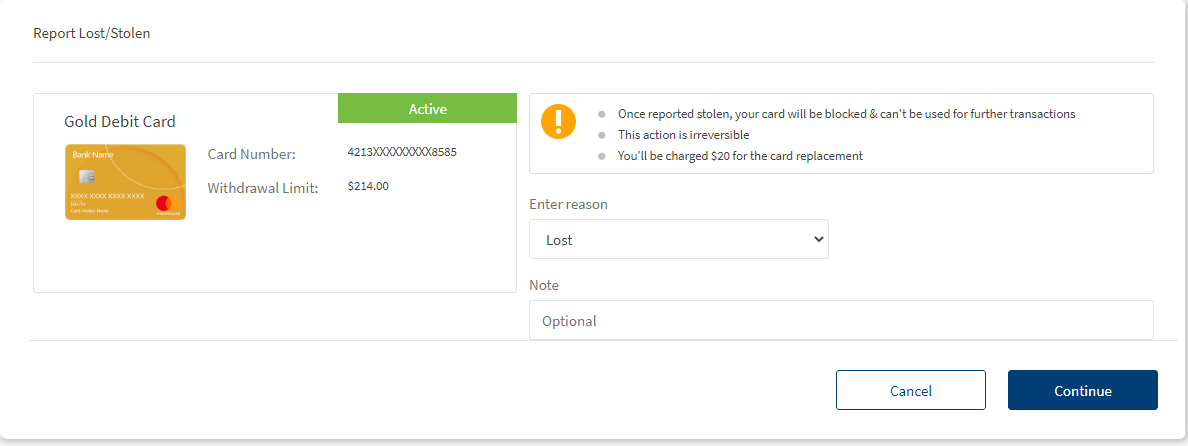
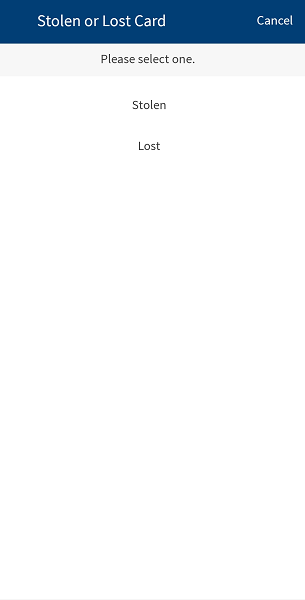
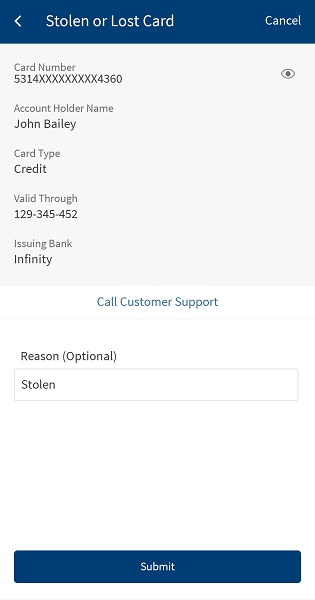
From the Card Management screen, select report lost option available at the required card and do the following:
- Provide the reason from the list to report the loss.
- MFA Authentication: Depending on the bank configuration, you must provide additional authentication such as providing the secure access code or answering the security questions to manage your cards.
For OTP
- Select the mode of contacts such as the registered phone or the registered email ID for receiving the secure access code. You can either select both or any one mode of contact to receive the secure access code. The secure access code is sent to your registered mobile number and email ID or anyone based on your selection.
- Enter the secure access code received to your mobile or email ID. Verify the OTP entered.
In case you have not received the OTP, you can use the OTP resend option to receive the OTP again. - If you enter an incorrect OTP or do not provide any OTP response, the app requests you enter the correct OTP. If you enter an incorrect response more than five times (configurable), the app displays an error message and navigates you back to the Sign In screen.
- Once the OTP is verified successfully, the app displays the acknowledgment screen with request details, and the card is blocked immediately.
For Security Questions
- A set of security questions are displayed. enter the required answer for the questions displayed and click Continue to proceed further.
- If you enter an incorrect answer or do not provide any answer, the app requests you provide the correct answer. If you enter an incorrect answer more than two times (configurable), the app displays an error message and navigates you back to the Sign In screen.
- Once the entered answers are correct, the app displays the acknowledgment screen with request details, and the card is blocked immediately.
All the scheduled transactions which use the blocked card details are effected. Once the card is blocked, the status cannot be reversed. You can raise a replacement request for the same if required.
Change PIN
Use the feature to change your debit card PIN online. However, for changing the credit card pin, you have to send a request to the bank or credit union.
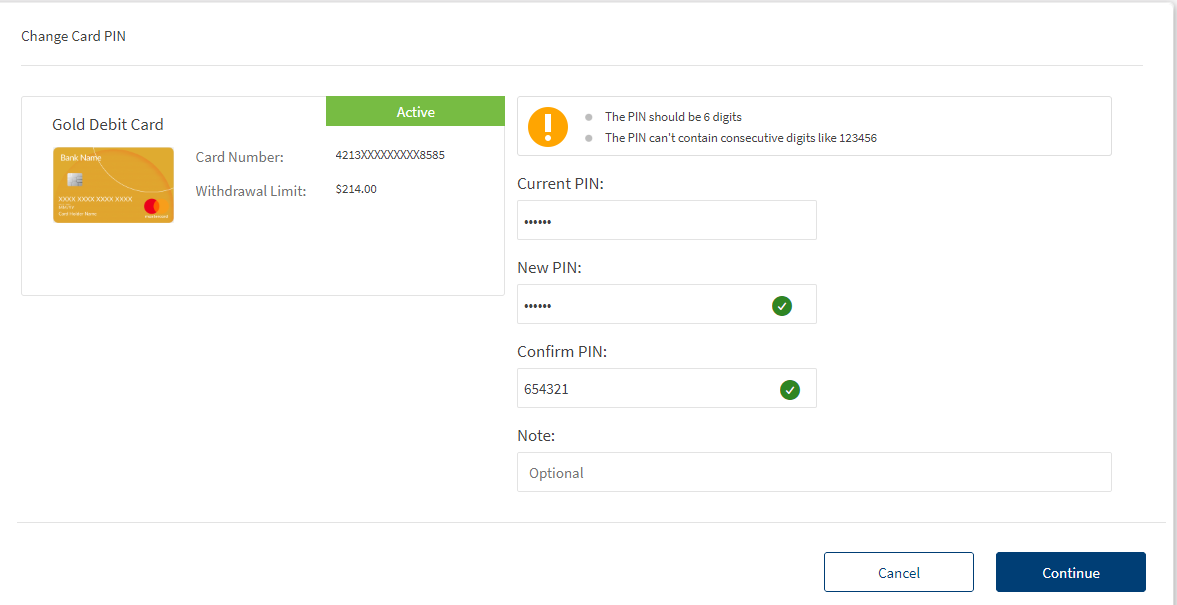
Mobile - Credit Card
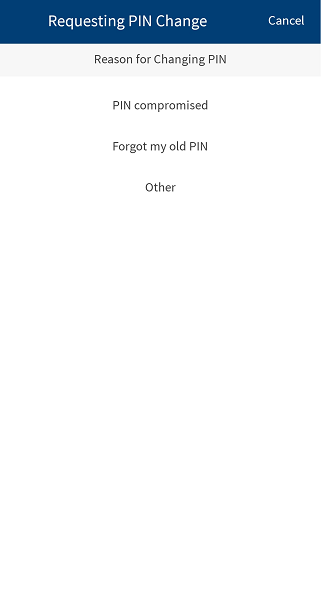
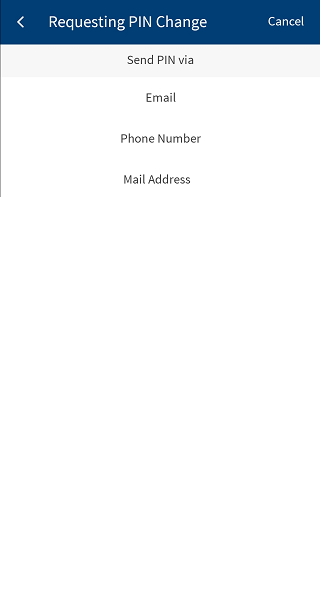
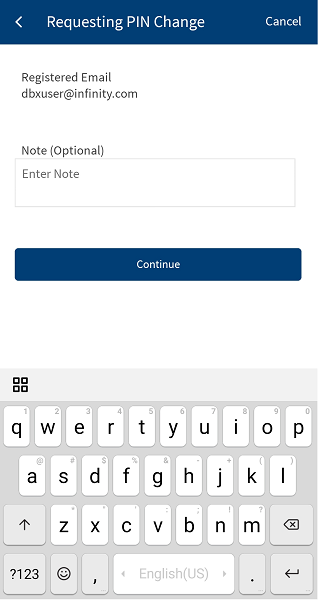
From the Card Management screen, select change pin option available at the required card and do the following:
- Provide the reason from the list to report the loss.
- For credit cards, enter your current PIN, and new PIN in the respective fields.
- Confirm the new PIN and provide a reason or specify any comments regarding the change of PIN in Notes (optional).
- For debit cards, you can request the bank to send the new PIN to the required address. The delivery options are registered email, registered mobile number, and registered home address. Select the required delivery option.
- MFA Authentication: Depending on the bank configuration, you must provide additional authentication such as providing the secure access code or answering the security questions to manage your cards.
For OTP
- Select the mode of contacts such as the registered phone or the registered email ID for receiving the secure access code. You can either select both or any one mode of contact to receive the secure access code. The secure access code is sent to your registered mobile number and email ID or anyone based on your selection.
- Enter the secure access code received to your mobile or email ID. Verify the OTP entered.
In case you have not received the OTP, you can use the OTP resend option to receive the OTP again. - If you enter an incorrect OTP or do not provide any OTP response, the app requests you enter the correct OTP. If you enter an incorrect response more than five times (configurable), the app displays an error message and navigates you back to the Sign In screen.
- Once the OTP is verified successfully, the app displays the acknowledgment screen.
For Security Questions
- A set of security questions are displayed. enter the required answer for the questions displayed and click Continue to proceed further.
- If you enter an incorrect answer or do not provide any answer, the app requests you provide the correct answer. If you enter an incorrect answer more than two times (configurable), the app displays an error message and navigates you back to the Sign In screen.
- Once the entered answers are correct, the app displays the acknowledgment screen.
Cancel Card
Use the feature to stop or cancel the use of any of your saved cards.
For Online Banking
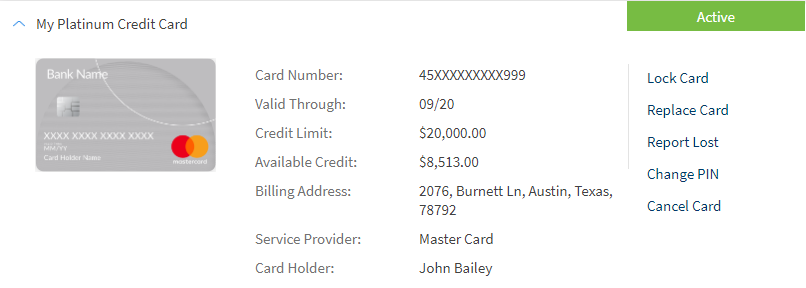
- From My Cards screen, click
 displayed beside a card to expand the features of the selected card.
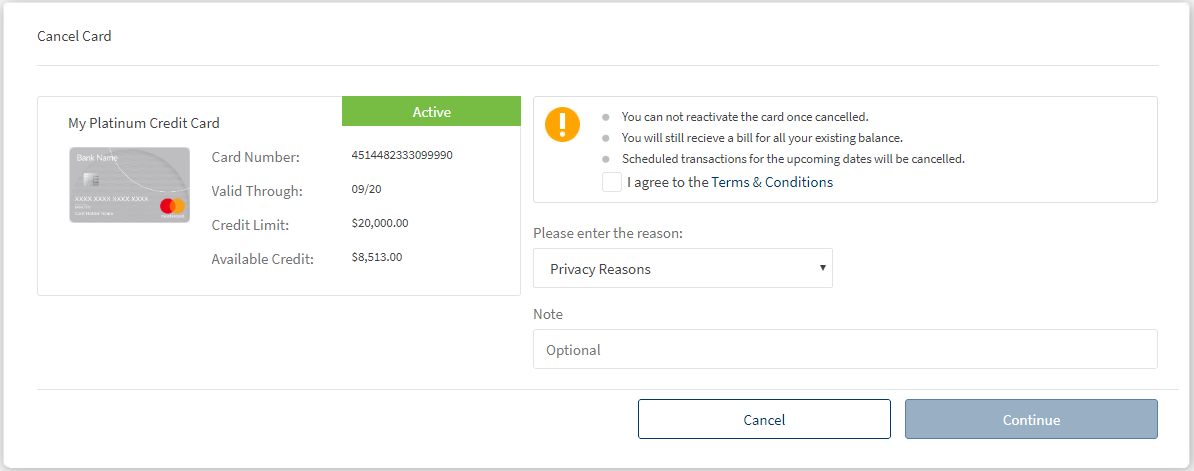
 - Click Cancel Card from the list of options displayed beside the card name. The Cancel Card screen appears with the card details.
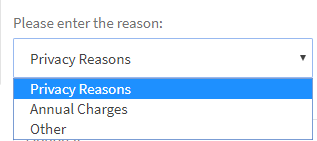
- Select the reason for canceling the card, accept the terms and conditions, and enter notes, if any.
- Click Continue to cancel the card else click Cancel to abort.

For Mobile Banking
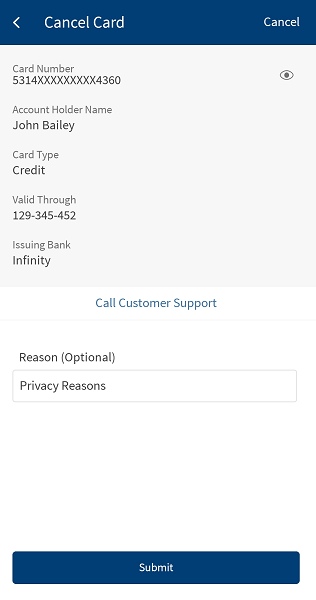
- From the Card Management screen, swipe left or right on the cards list to select the card which you want to stop or cancel.
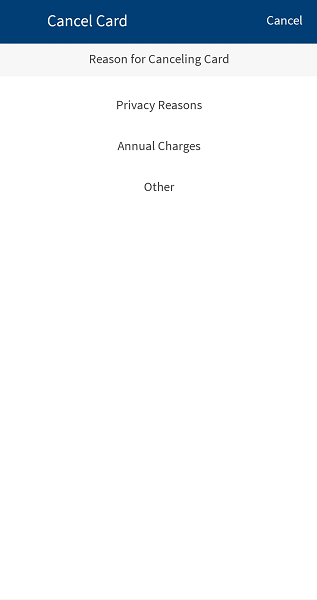
- Tap Cancel Card. The app displays the Cancel Card screen with the card number, card validity, and cardholder name details.
- Do the following:
- Provide the reason from the list to cancel the card.
- Provide notes or comments on card cancellation. This is an optional field.
- Tap Submit to cancel the card.
- MFA Authentication: Depending on the bank configuration, you must provide additional authentication such as providing the secure access code or answering the security questions to manage your cards.
For OTP
- Select the mode of contacts such as the registered phone or the registered email ID for receiving the secure access code. You can either select both or any one mode of contact to receive the secure access code. The secure access code is sent to your registered mobile number and email ID or anyone based on your selection.
- Enter the secure access code received to your mobile or email ID. Verify the OTP entered.
In case you have not received the OTP, you can use the OTP resend option to receive the OTP again. - If you enter an incorrect OTP or do not provide any OTP response, the app requests you enter the correct OTP. If you enter an incorrect response more than five times (configurable), the app displays an error message and navigates you back to the Sign In screen.
- Once the OTP is verified successfully, the app displays the acknowledgment screen.
For Security Questions
- A set of security questions are displayed. Enter the required answer for the questions displayed and click Continue to proceed further.
- If you enter an incorrect answer or do not provide any answer, the app requests you provide the correct answer. If you enter an incorrect answer more than two times (configurable), the app displays an error message and navigates you back to the Sign In screen.
- Once the entered answers are correct, the app displays the acknowledgment screen.
Once the card is canceled, the app displays a message saying that you have canceled this card when you select that particular card.
View Statements
You can view the statements and transaction details of the selected card from the Card Management screen.
To view the transactions and statements for a card, follow these steps:
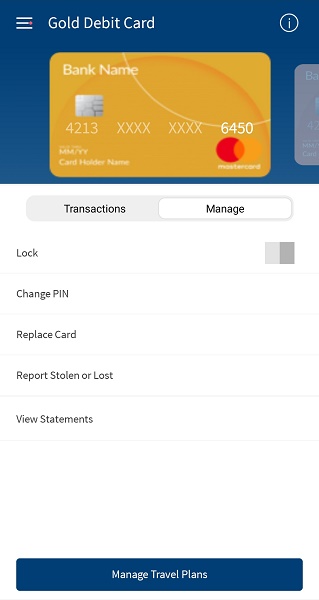
- In the Card Management screen, tap the manage tab. The list of manage card options are displayed.
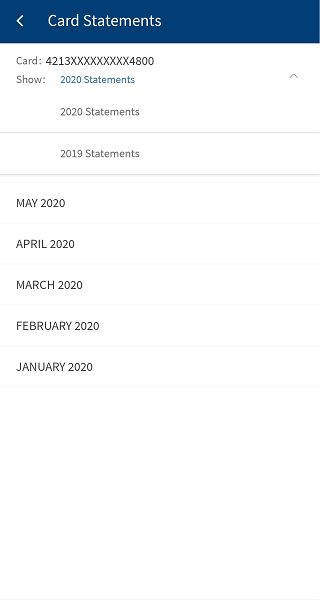
- Tap View Statements to view the statements for the selected card. The screen displays the list of statements available for the year.
- The list displays for the completed month in the current year. For example, if you view the statement in the month of May 2020 the list contains the statement month from January 2020 to April 2020.
You can also view the statements for the previous year by selecting the specific year.
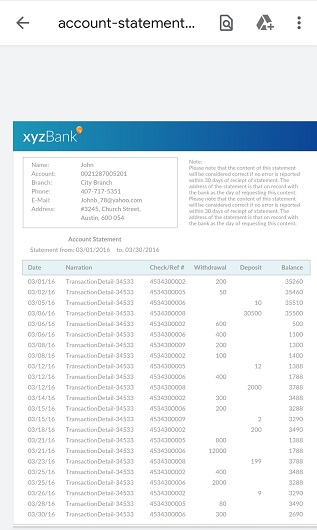
- Select a specific month to view the transaction details for the selected month. The statement is exported into a PDF file.
- The list displays the statement month for the current year by default.
Card Details
You can view the details of the selected card from the Card Management screen.
NOTE: This feature is currently applicable for mobile only. To view the card details, follow these steps:
- In the Card Management screen, tap the manage tab. The list of manage card options are displayed.
- Tap Card Details. The details of the selected card are displayed.
Request New Card
You can apply for a new Debit Card through the Card management system in the Online Banking and the Mobile Banking Platform.
Menu path:
- OLB: Card Management > Request a new card
- MB: Card Management > Tap Contextual menu > Apply for a card
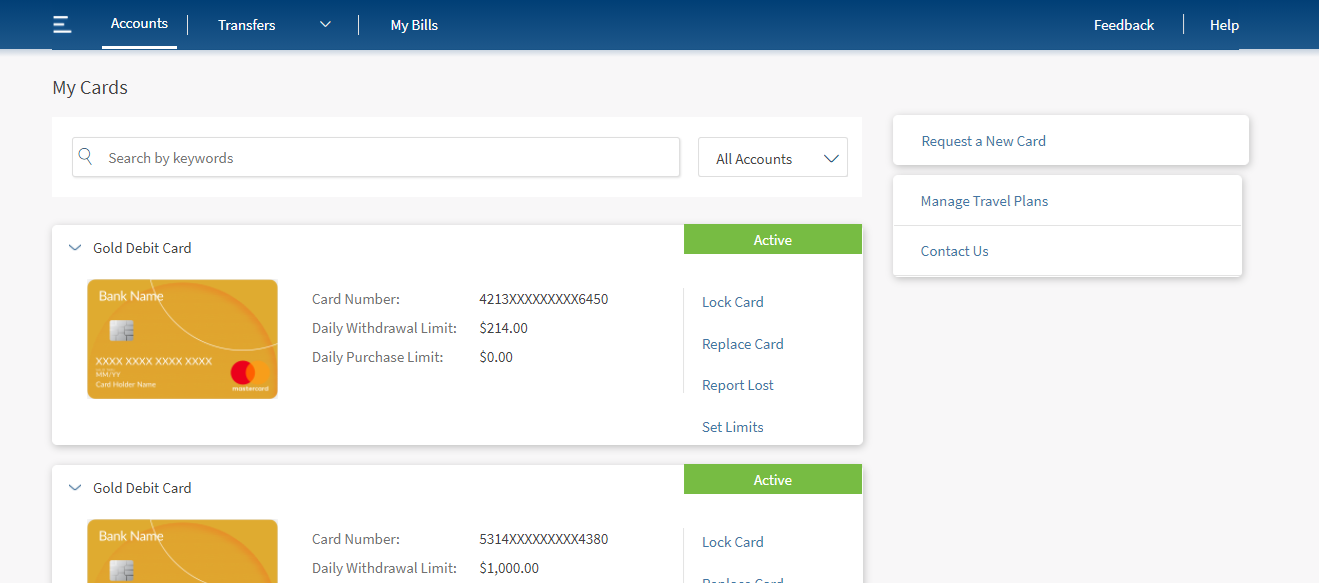
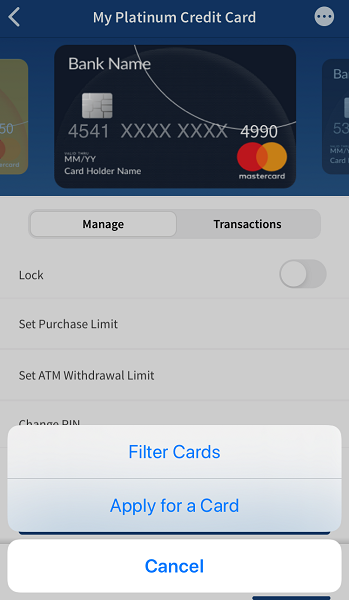
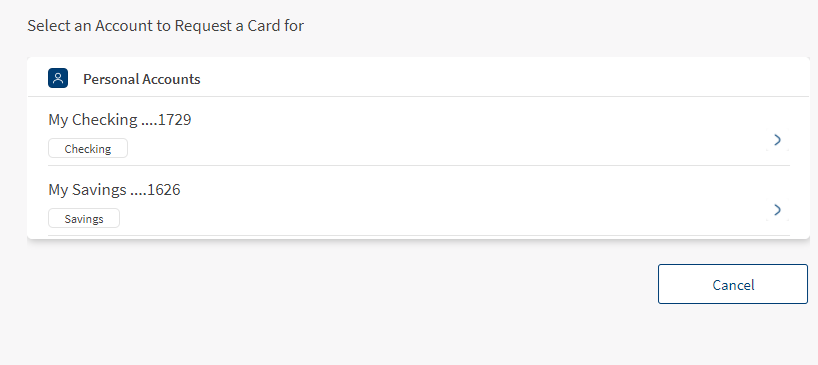
The application displays the following details:
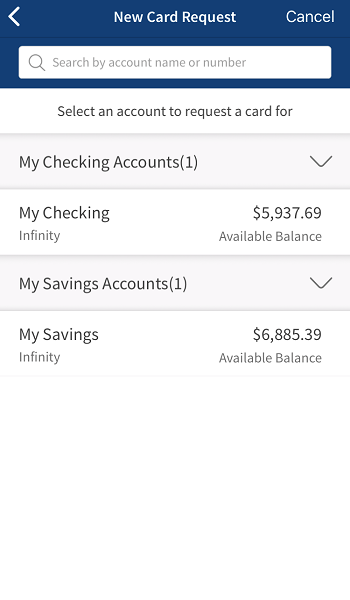
- Select Account. The application displays a list of your personal accounts (only Savings and Checking accounts). Select an account from the list of accounts to request a new card.
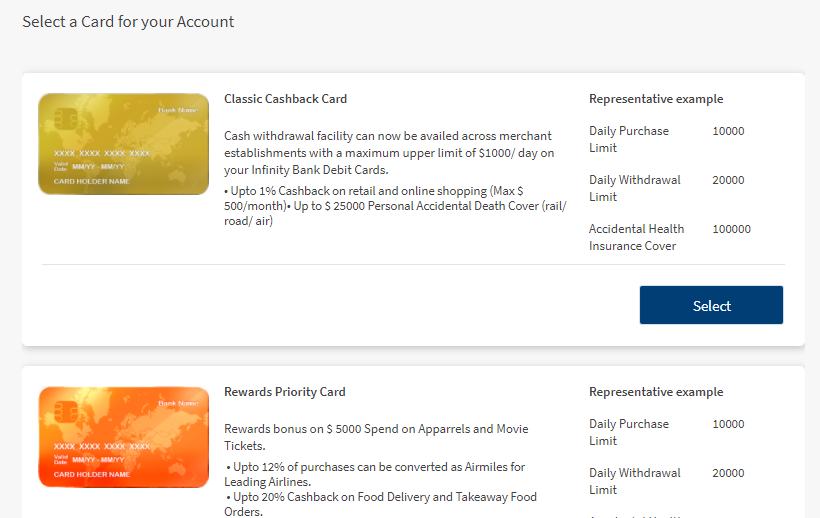
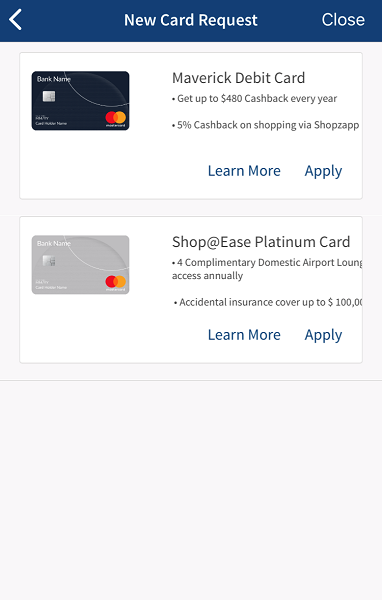
- Select a card. The application displays the list of different cards applicable for the selected account. Select the type of card from the list (such as VISA, Mastercard and so on).
NOTE: The type of cards is displayed based on the bank that offers for the selected account.
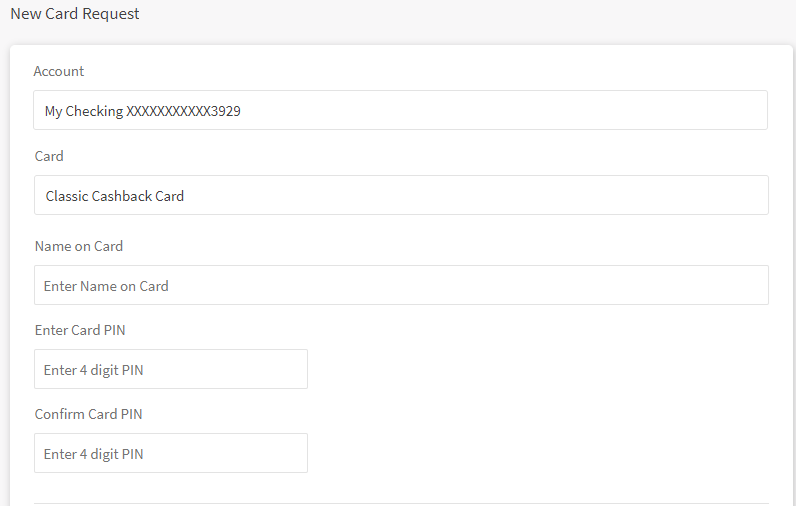
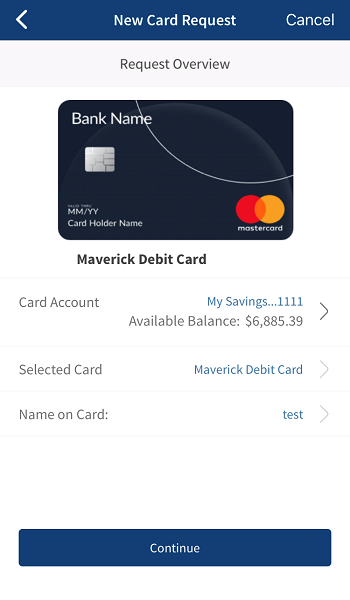
- The New Card Request screen is displayed with Account Number and type of card selected. You can do the following in this screen:
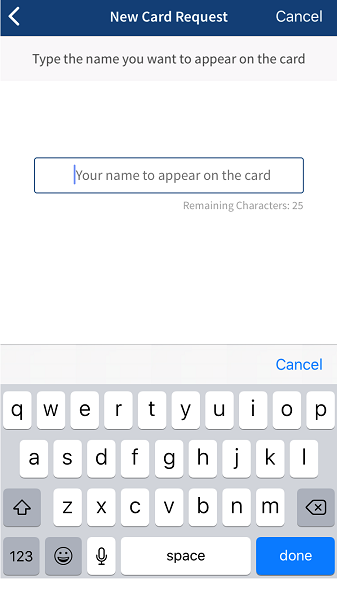
- Name. Enter the name to be displayed on the card. The name should not be more than 25 characters, including spaces and must be alphabets only.
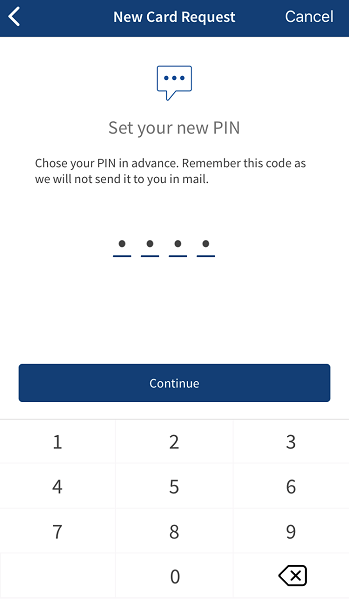
- Enter the PIN for the requested card (must be either four or six characters only).
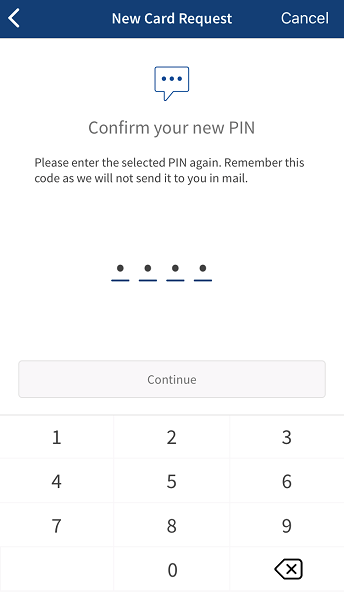
- Confirm the pin by reentering the pin number.
- Click Continue to proceed further.
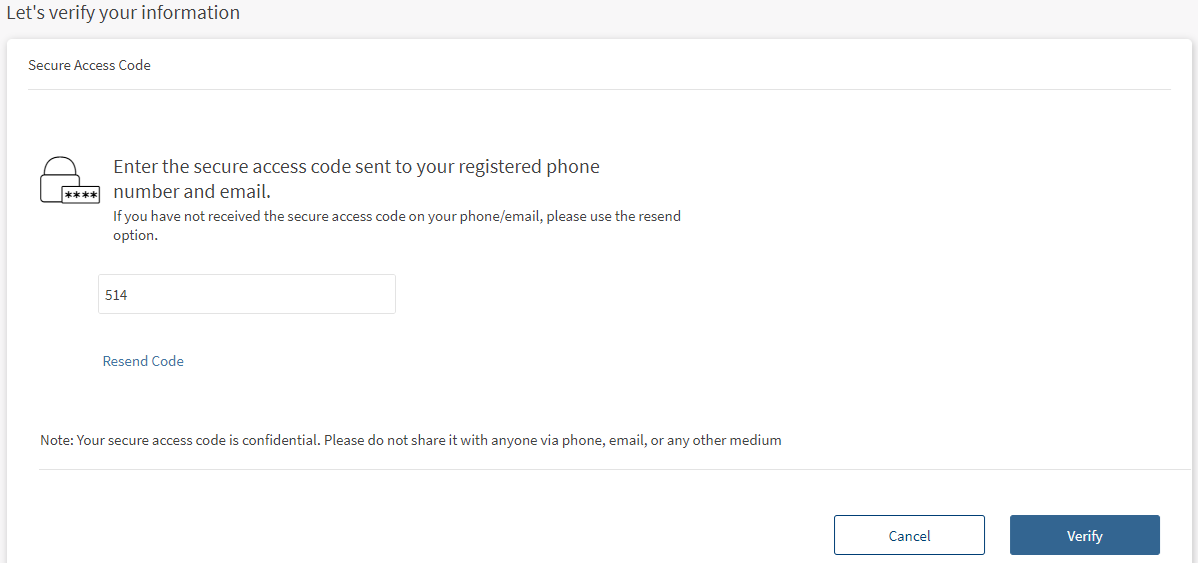
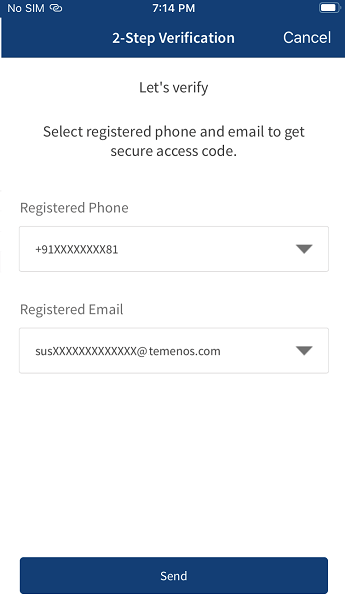
- MFA Authentication: Depending on the bank configuration, you must provide additional authentication such as providing the secure access code or answering the security questions to manage your cards.
For OTP
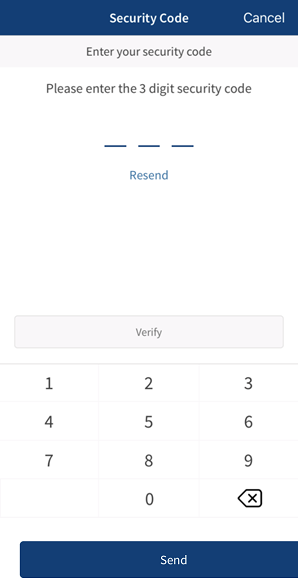
- Enter the secure access code received to your mobile or email ID. Verify the OTP entered.
In case you have not received the OTP, you can use the OTP resend option to receive the OTP again. - If you enter an incorrect OTP or do not provide any OTP response, the app requests you enter the correct OTP. If you enter an incorrect response more than five times (configurable), the app displays an error message and navigates you back to the Sign In screen.
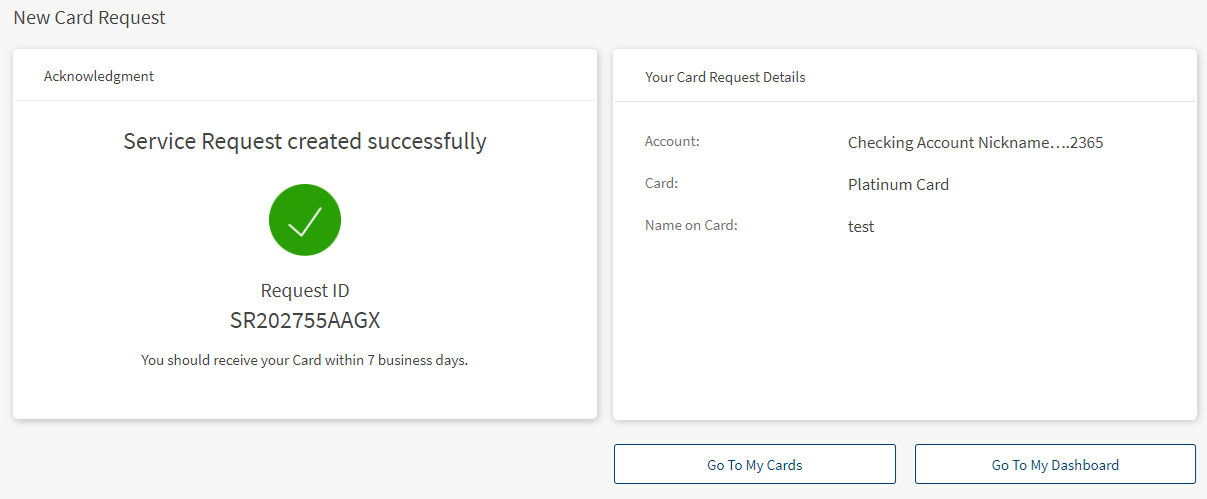
- Once the OTP is verified successfully, the app displays the acknowledgment screen.
For Security Questions
- A set of security questions are displayed. enter the required answer for the questions displayed and click Continue to proceed further.
- If you enter an incorrect answer or do not provide any answer, the app requests you provide the correct answer. If you enter an incorrect answer more than two times (configurable), the app displays an error message and navigates you back to the Sign In screen.
- Once the entered answers are correct, the app displays the acknowledgment screen.
- Enter the secure access code received to your mobile or email ID. Verify the OTP entered.
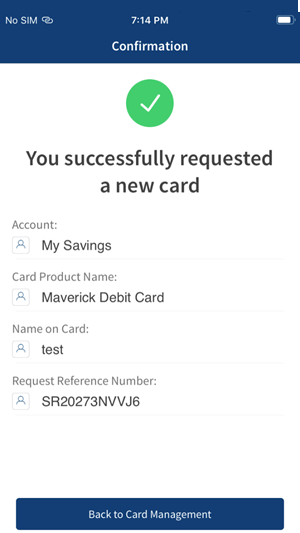
- Verify the entered details and click Submit. An Acknowledgment screen is displayed with the request reference number.
Error Scenarios. In the following scenarios if the entered information does not match with the system requirements, an error message is displayed. You cannot proceed further with applying for the debit card.
- The name on the card is more than 25 characters.
- Mismatch in PIN and Confirm PIN fields.
- Incorrect MFA authentication.
Set Limits
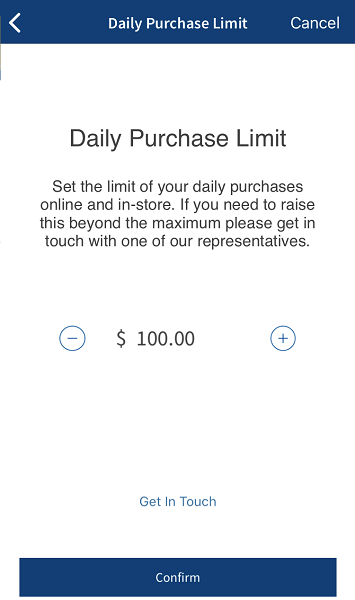
You can set a daily purchase and withdrawal limit for your cards in online banking and mobile banking applications.
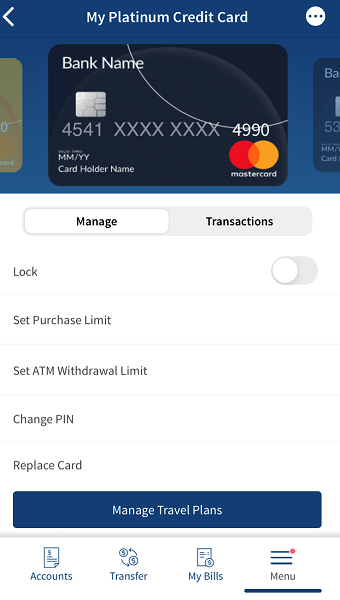
To set a daily limit, follow these steps:
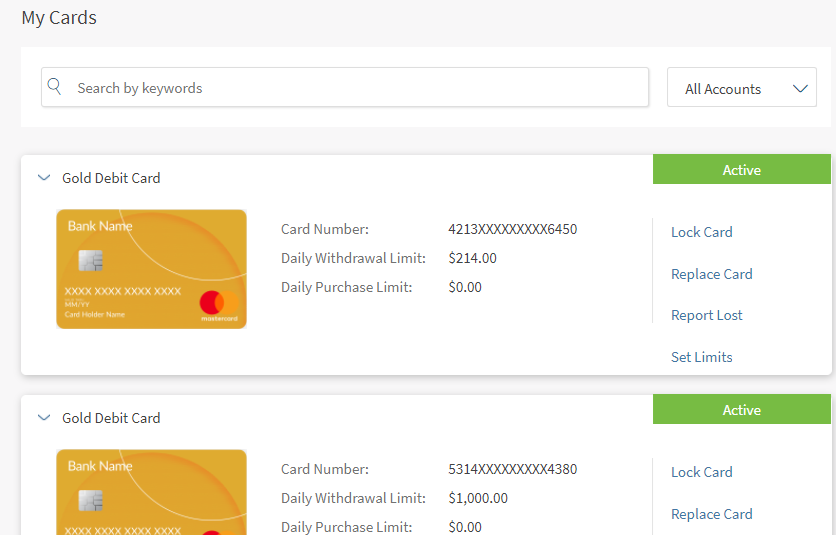
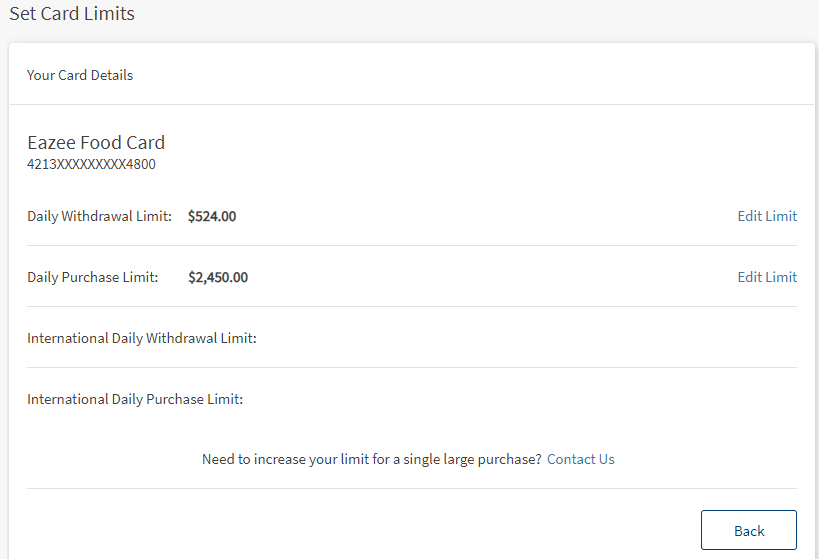
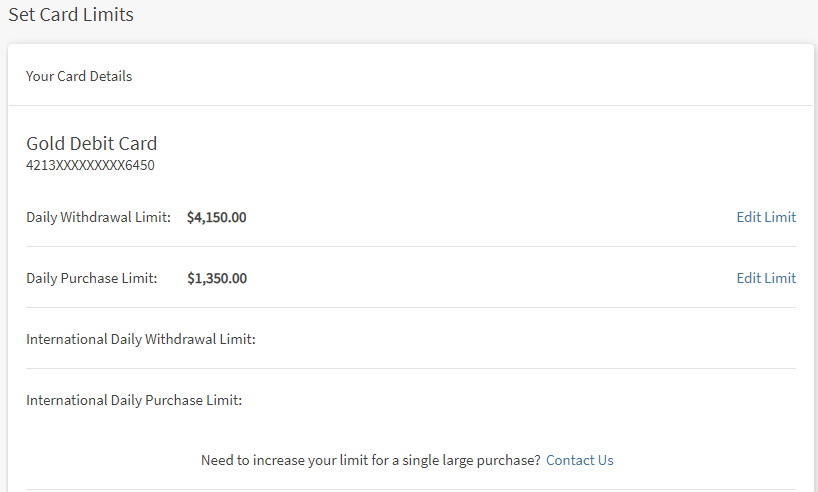
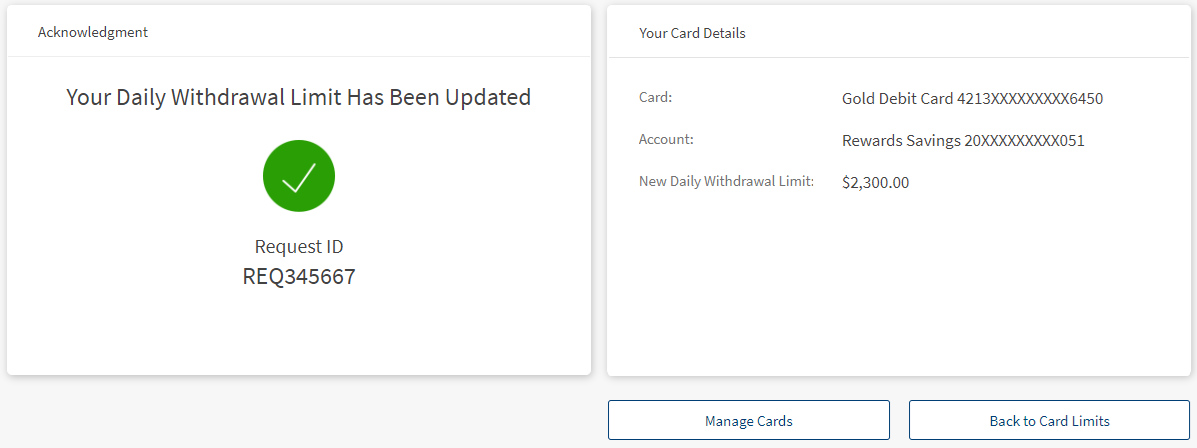
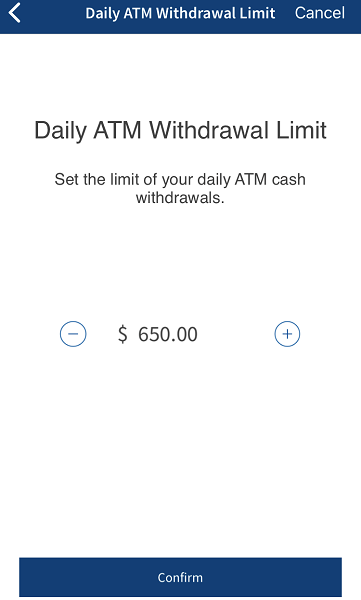
- From the Card Management screen, click Set Limits available beside the selected card. The application redirects to Set Card Limits screen to set the daily purchase and withdrawal limit.
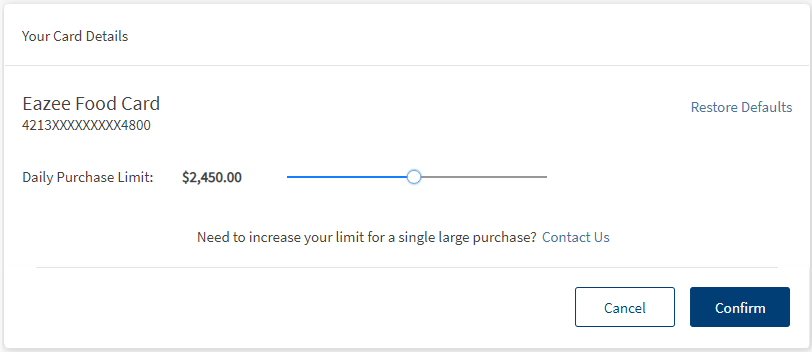
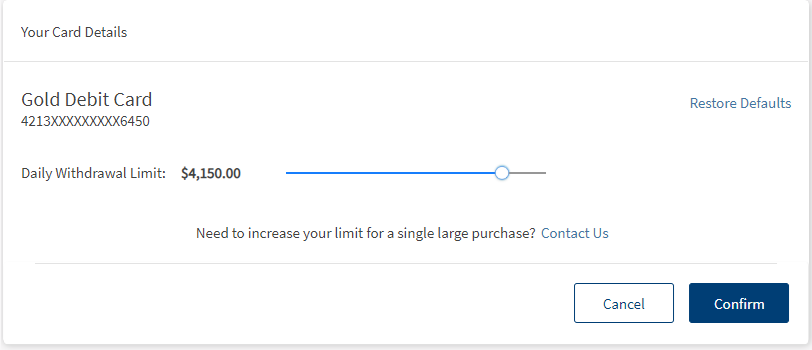
- Move the slider to set the Daily Purchase limit and Daily Withdrawal limit (multiples of the amount is configured by the bank. For example, multiples of 500, 1000, and so on).
- If the daily purchase limit and daily withdrawal limit are already set, you can modify by clicking on Edit Limit.
NOTE: To increase your purchase limit for a single large purchase, click Contact Us to contact your bank.
- Click Confirm to proceed further.
- MFA Authentication: Depending on the bank configuration, you must provide additional authentication such as providing the secure access code or answering the security questions to manage your cards.
For OTP
- Enter the secure access code received to your mobile or email ID. Verify the OTP entered.
In case you have not received the OTP, you can use the OTP resend option to receive the OTP again. - If you enter an incorrect OTP or do not provide any OTP response, the app requests you enter the correct OTP. If you enter an incorrect response more than five times (configurable), the app displays an error message and navigates you back to the Sign In screen.
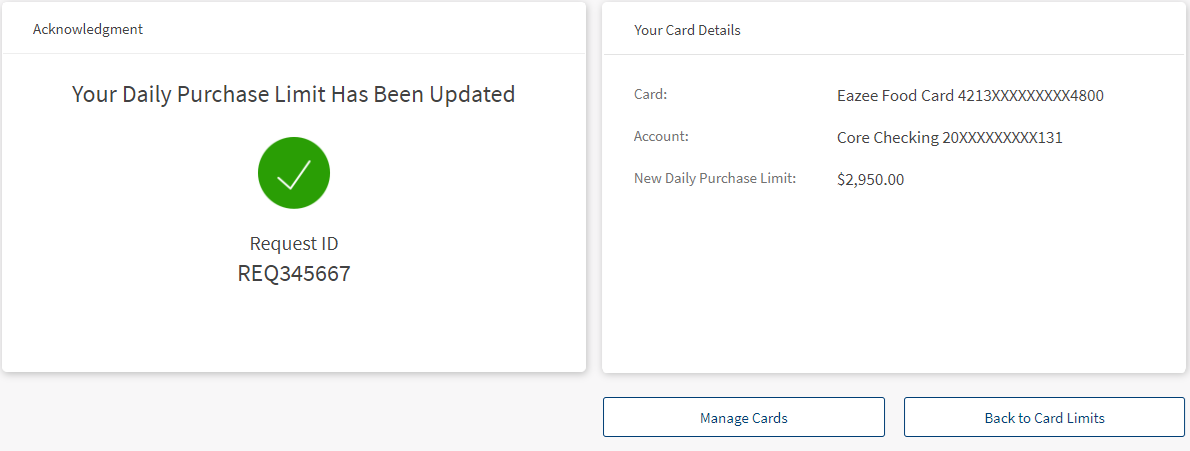
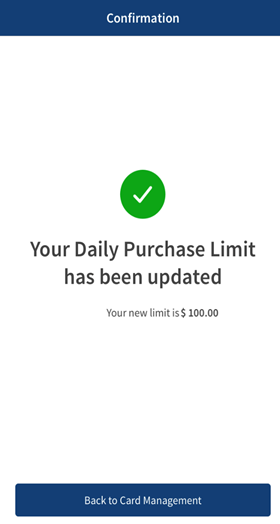
- Once the OTP is verified successfully, the app displays the acknowledgment screen.
For Security Questions
- A set of security questions are displayed. enter the required answer for the questions displayed and click Continue to proceed further.
- If you enter an incorrect answer or do not provide any answer, the app requests you provide the correct answer. If you enter an incorrect answer more than two times (configurable), the app displays an error message and navigates you back to the Sign In screen.
- Once the entered answers are correct, the app displays the acknowledgment screen.
- Enter the secure access code received to your mobile or email ID. Verify the OTP entered.
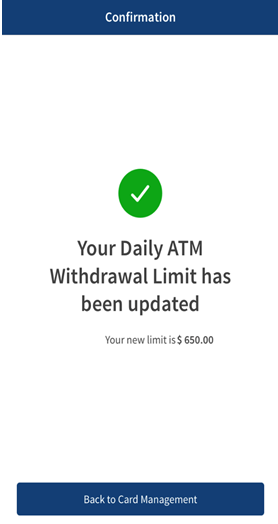
- Upon successful validation, the following confirmation message "Card Limit updated Successfully".
Add Card to Digital Wallets (Mobile banking only)
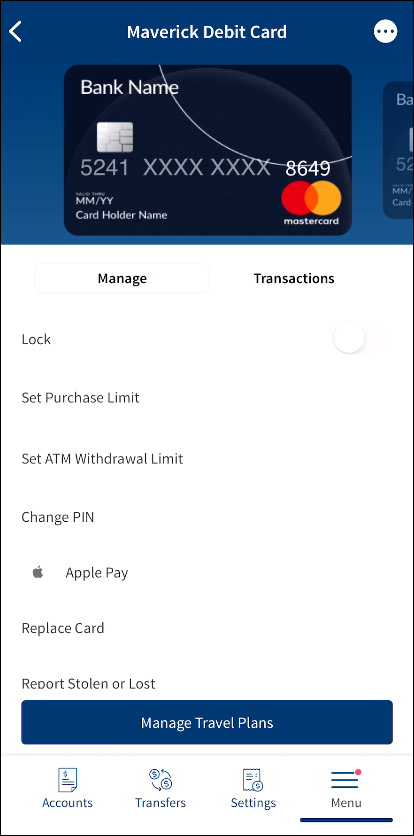
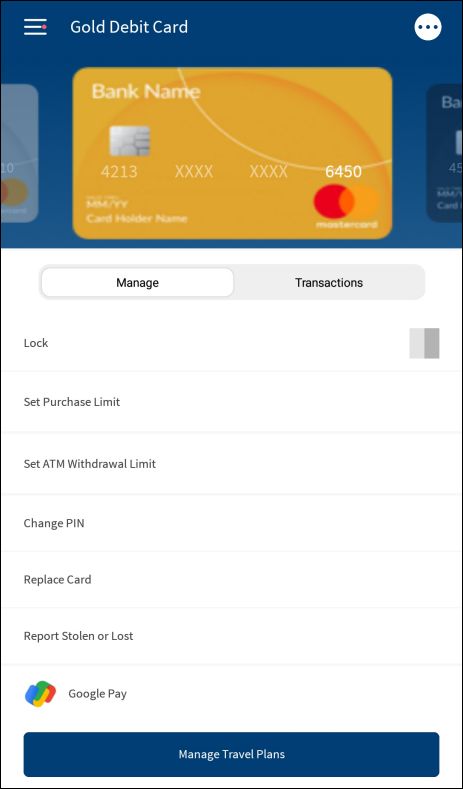
This feature enables customers to push their debit and credit cards from mobile banking application into digital wallets (Apple Pay, Google Pay, and Samsung Pay) to make secure payments. This feature is currently available for mobile banking only.
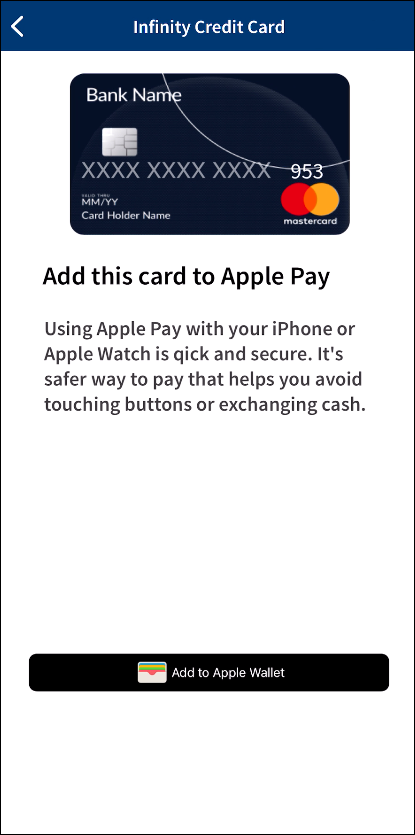
- Add Cards to Apple Wallet from iOS devices to make payments via Apple Pay using debit and credit cards.
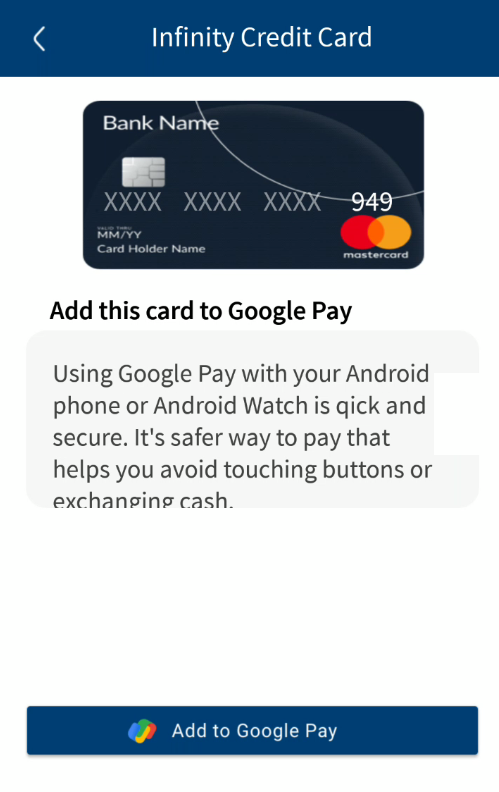
- Add Cards to Google Pay from Android devices to make payments via Google Pay using debit and credit cards.
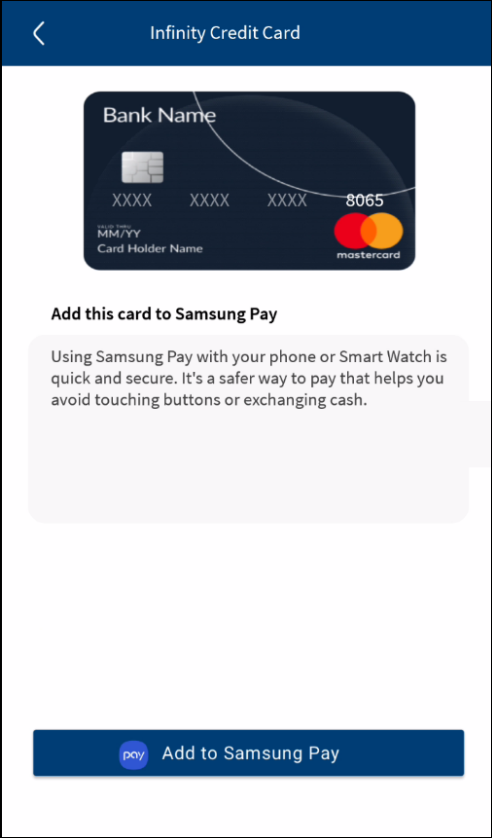
- Add Cards to Samsung Pay from Samsung devices to make payments via Samsung Pay using debit and credit cards.
- The current capability provided is an MVP version with required components built into the infinity layer for pushing cards into native wallet applications. An end-to-end testing can be done only during implementation for a specific project as this requires certificates from Apple, Google, and Samsung, and access to the APIs provided by the Card Provider for tokenization of card information.
- For technical information on integrating cards to digital wallets, refer to the technical documentation.
- For a quick preview of the feature, watch the functional flow video.
- A configurable option to turn on/off the add to wallet feature is available as actions in the Card Management feature of the Spotlight application.
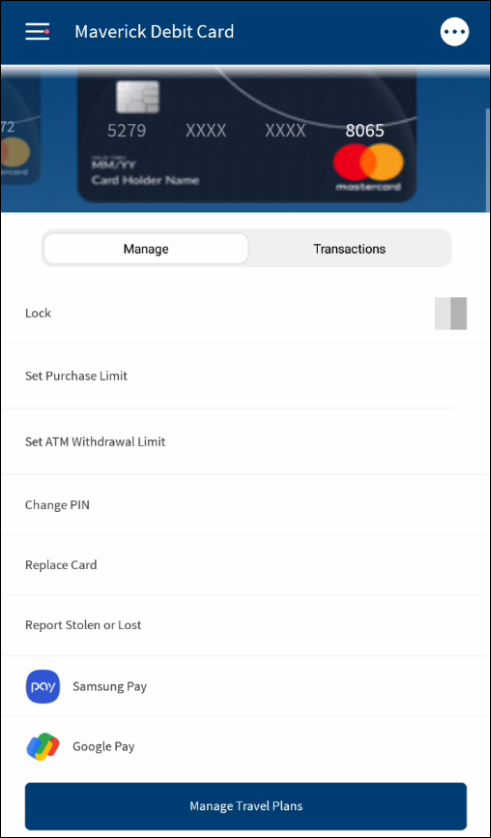
Add a Card to Digital Wallet
To add a credit or debit card to respective digital wallet (Apple Pay, Google Pay, or Samsung Pay), follow these steps:
- On the Card Management screen, tap the Manage tab.


- Select the required credit or debit card. The list of activities that you can perform including the provision to add a credit or debit card to digital wallet is displayed.NOTE:
The option to add a debit or a credit card to the wallet is displayed only in the following circumstances:
- The device is compatible.
- Apple Pay compatible (iOS 9 and above)
- Google Pay compatible (supported android versions
- Samsung Pay compatible (supported Android versions)
- The debit or a credit card is supported for payments using Apple Pay/Google Pay/Samsung Pay.
- The selected card is active.
- The card is not already added to the wallet.
- Apple Wallet on user's iPhone or the Apple Watch
- Google Pay on user's Android Phone or the Android Wear
- Samsung Pay on user's Samsung Phone or the Samsung Watch.
- The device is compatible.
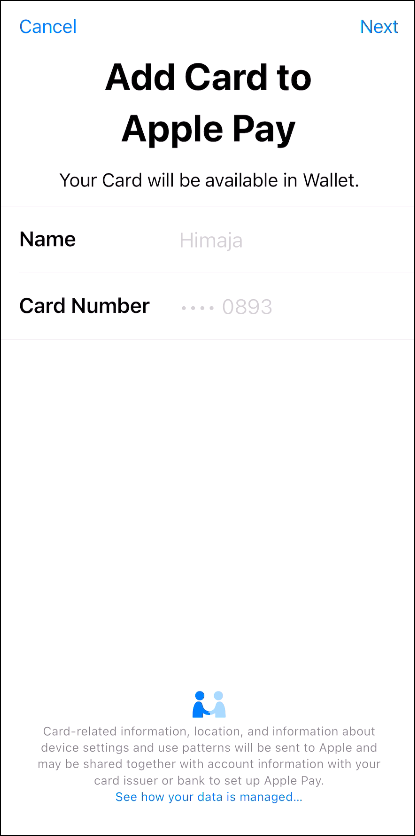
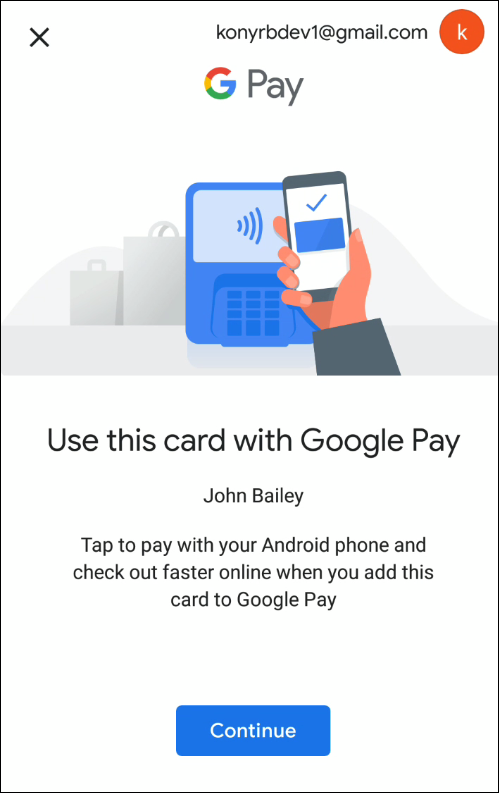
- Tap Apple Pay/Google Pay/Samsung Pay depending on the mobile device being used. The application displays a screen to add the selected card to the wallet.NOTE:
- The text is displayed in English irrespective of the language that the application supports.
- Tap the button to add the card to wallet and go through the wallet in-app provisioning flow and complete the process of adding the card to the wallet. The button text depends on the mobile device being used.
- iOS device: Add to Apple Wallet
- Android phone: Add to Google Pay
- Samsung phone: Add to Samsung Pay


- The user is redirected to the native wallet application on the device and displays the wallet native wallet screen with prepopulated information such as the name of the user and card number.

 NOTE:
NOTE:It is mandatory to agree to the terms and conditions before adding the card to the wallet. The terms and conditions are provided by the Issuing Bank and displayed on Wallet Interface. These cannot be configured from Spotlight.
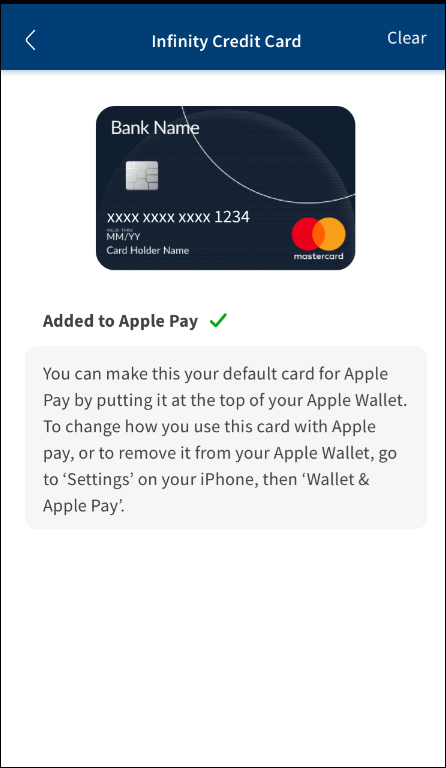
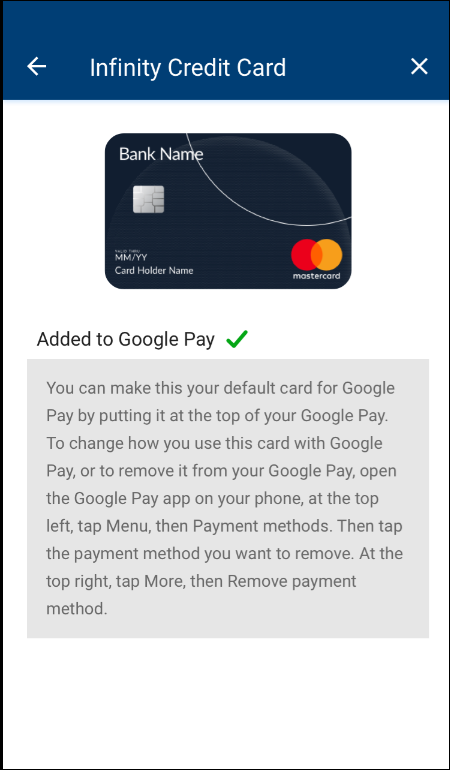
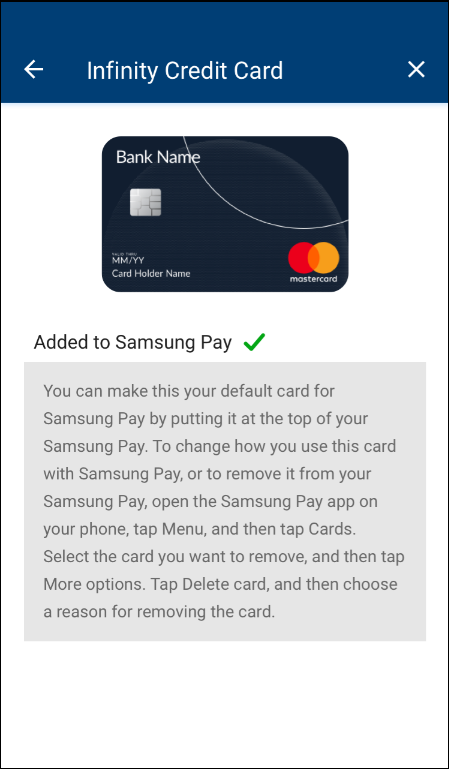
- After the validation checks are done at the wallet server post the wallet in-app provisioning flow, a confirmation on completion of adding the card to the wallet is displayed and redirected to the card management module to that respective card.
- The application displays a confirmation screen that the card is added to the wallet.


Reference Documents
- Technical documentation on integrating cards to digital wallets
- Apple Guidelines
- Samsung Guidelines
- Apple In-App Provisioning Getting Started Guide
- Apple Pay In-App Provisioning Security Guidelines
 Apple Wallet functional flow video
Configuration
Integration with Spotlight (Customer 360)
- A configurable option to turn off "Add to Apple Wallet", "Add to Google Pay", and "Add to Samsung Pay" is available as actions in the Card Management feature of the Spotlight application.
- If multi-factor authentication (MFA) is enabled for a feature, MFA is triggered, and the application displays an MFA screen. Depending on the bank configuration, provide either the secure access code that is sent to the registered mobile number and email ID or answer the security questions. After the authentication details are entered, verify the details. The authentication type is configured and can be turned on or off in the Spotlight application.
In this topic
