Approvals and Requests
A user having approval privileges can view and act on transactions requiring approval and can view the requests on the dashboard that are pending approval and monitor the status. The visibility of each feature is controlled through the permissions defined for the user. In case the user does not have enough permissions to access any of the features, that option will not be visible on the form, list, or on the menus.
Use the feature to view the list of pending transactions that requires your approval and the transaction requests you raised that needs approval.
 More information on approval management
Approval Types
A Financial Institution (FI) and authorized user (Business Owner) can set three types of approvals for transactions at pre-approved level (0-$500 transactions do not require approval), a range of approval threshold for which approval is required from a designated user or approval group, and auto denied amounts (anything over an amount is denied). These are applicable at User Level / Account level / Feature Level.
Revoke Approval Permissions
A Financial Institution (FI) can revoke the approval permissions from a user to use a certain feature. The FI can remove a feature that requires approvers to authorize certain actions. The application handles the requests that are already approved or pending approval by such users. When approval permissions are revoked from the user role for a certain feature,
- By default, permissions on all the accounts that the user has access is affected
- Approval permission on all those accounts are revoked as well.
Handling Approve, Reject, and Withdraw Actions
This section explains the handling of approve, reject, and withdraw actions in alignment with the signatory group format of setting up the approval matrix. See Processing Transaction Limits to understand how transactions are handled in the Approvals Engine.
The following first few steps of processing a transfer for a user remain the same:
- Per Transaction, Daily and Weekly Transaction Limit checks are made on the initiated transfer.
- The Per Transaction, Daily and Weekly Auto-Denial limits are checked for the User on the specific account and feature action.
- Transactions that fall under the Pre-Approval limits (Per Transaction, Daily and Weekly) are executed immediately without the need for processing through the Approvals Engine.
Only transactions that have passed the first two pre-conditions but failed the pre-approval limit check are processed by the Approvals Engine.
These conditions are:
- Pre-Approval based on Per Transaction Limit
- Pre-Approval based on Daily Limit
- Pre-Approval based on Weekly Limit
Consider the following cases:
- Failure of a single pre-approval condition.
- Failure of more than one pre-approval condition (two/three).
Handling Approvals
- When a request is sent to a list of approvers from the signatory groups based on the following rules, the transfer stays in the Pending Approval status until the required number of approvals to meet all the approval rules from the groups have been received.
- Simple rule: Approval actions are counted to resolve simple rules set in the approval matrix of the format X signatures required from ABCDE group.
- Compound rule: Approval actions are counted to resolve compound rules set in the approval matrix of the format X signatures required from ABCDE group and Y signatures required from FGHIJ group.
- Complex rule: Approval actions are counted to resolve complex rules set in the approval matrix of the format, (X signatures required from ABCDE group and Y signatures required from FGHIJ group) or (M signatures required from KPLOY group and N signatures required from group JKLMN group) or (K signatures required from EGHTD group and L signatures required from GNDBA group) and so on.
- If all conditions are met there is no failure, the approval is processed and executed.
- In case of a failure in meeting the limit conditions,
- The application alerts the user that the weekly or daily limits set by the FI for the Role and the Company is not being met and hence the transaction cannot be executed.
- The confirmation is taken from the user to auto-reject.
- The request stays in the My Requests queue as rejected and can be submitted again by the user.
Handling Rejections
- When a request is sent to a list of approvers, the request stays in the Pending Approval Status until the required number of approvals to meet all the approval rules have been received.
- Once any approver from any of the groups mentioned in the relevant Signatory Group rejects a particular request, it is no longer surfaced in the pending requests tab for all the other approvers as well.
- Even if one approver rejects the transaction, the transaction is directly rejected. It is taken out of the approval queue and shown in the My Requests queue with rejected status.
Handling Withdrawal
-
When a request is withdrawn by the initiator on the Request Dashboard, the request is no longer surfaced in the Pending Approvals queue of the approvers for simple/complex/compound transactions.
Handling Approvals when Signatory Groups are Updated Affecting a Pending Transaction
Whenever Signatory Groups are updated in the application and there are pending transactions that reference those updated Signatory Groups, the application handles those pending requests appropriately and honors the new signatories.
Consider the scenario of an approver X being removed from a signatory Group 1. There can be two possible scenarios for the removal.
- Scenario 1: The removed approver of G1 has already approved a pending transaction that was available in the queue.
- Scenario 2: The removed approver of G1 has not yet approved the pending transaction.
Scenario 1
- The signature of approver X is considered valid and is counted in the resolution of the Approval Rule Expression.
- The Approvals Engine seeks the approval of the other set of approvers to resolve the expression.
- Consider the scenario where signatory X has been removed from Group 1 and added to another Group 2, and Group 2 is also one of the Signatory Groups set in the Approval rule for a particular pending transaction. Under such circumstances, honoring X’s signature as part of G2 can be considered fraud. Hence, X is excluded from the list of valid approvers on G2 for this particular pending transaction and this request is sent to X again. The Approvals Engine tries and seeks the approvals of other approvers from Group 2 to meet the Approval Rules Condition.
- If there are not sufficient approvers in the system for the Approval Rules Expression to be resolved, then the transaction is considered stale and an appropriate handling is done for this transaction.
Scenario 2
- The Approvals Engine honors the new set of approvers from the revised Signatory Groups.
- Consider the scenario where signatory X has been removed from Group 1 and added to another Group 2, and Group 2 is also one of the Signatory Groups set in the Approval rule for a particular pending transaction. Under such circumstances, X’s signature is honored as X is part of G2 . The Approvals Engine seeks the approval of the new set of approvers resolve the expression including G2 if X is a valid approver.
- If there are not sufficient approvers in the system for the Approval Rules Expression to be resolved, then the transaction is considered stale and an appropriate handling is done for this transaction.
NOTE: The rule changes are not honored in the approval matrix.
Set Up Multiple Approvals
Any authorized user with permissions to manage approvals can set up multiple approvals by group or user for approval thresholds. An authorized user can specify different groups or specific users for multiple approvals.
Straight-through Processing - Alerts for Transfers and Approval Flows
If the initiator is also the approver of the same transaction, the authorization on transaction is implicitly counted. In such cases, the initiator will not receive an Approver type alert. This applies to Euro payment flows as well. The following are the two scenarios for straight-through processing:
- There are other approvals required on that specific transaction: In such cases, all the other approvers receive the notification of the request and the initiator who is also an approver, receives only the Initiator type alert.
- There are no other approvals required on that specific transaction: In such cases, the transaction is directly submitted and neither the approver or the initiator (who are the same) receives any Approver type alerts. An alert that the request has been submitted only is triggered.
Approval Alert Notification for Transaction
Applies to transfer, bill payment, wire transfer, ACH collection/payment request, or an ACH file.
- The initiator is notified whenever a transaction is submitted for approval through a Global type of alert. Bank agents can configure the Alerts from Spotlight for this specific event.
- The initiator receives a Global type of alert whenever an approval is received on a transaction that the initiator has initiated and submitted for approvals. The use case is providing an alert notification to the initiator when a user approves a transaction, but transaction is not submitted for execution. Bank agents can configure the Alerts from Spotlight for this specific event.
- The initiator receives a Global type of alert whenever a transaction that the initiator has initiated has received the requisite number of approvals and it is submitted for execution. All the approvers receive an alert notification indicating that the transaction that was in their bucket for approval has now been authorized and is submitted for execution. Bank agents can configure the Alerts from Spotlight for this specific event.
- The initiator receives a Global type of alert whenever a transaction that the initiator has initiated has been rejected by any one of the approvers. Bank agents can configure the Alerts from Spotlight for this specific event.
- A Global type of alert notification is sent to all the approvers of a specific transaction when the transaction has been rejected by any one of the approvers. The approver who has rejected a transaction, receives an alert indicated that the specific transaction has been rejected.
Self Approval - Straight-through Processing of Financial and Non-financial Requests
A design-time configuration is maintained to allow the turning on of Counting Self-Signature of any approval requests raised. When this configuration has been set to "count self-signature" in the scenarios where the Approvals Engine has worked out that the initiator of a transaction is also one of the approvers for the transaction, the Engine implicitly counts the initiation action of the user to also be an approval. This implies that one of the X approvals required for the execution of the said transaction has already been received. The initiator who is also the approver in this case is not required to perform any additional actions on the said transaction and it does not appear in the user's Pending Approvals list. As soon as the transaction is submitted for approval, the initiator sees this request in the Pending Requests list with the state appropriately marked as one out of X approvals received and with all relevant details as-is in the current application. The state then appropriately changes as and when other approvals are received. This is reflected in the Approval History as well that the transaction has been created and approved.
- The transactions are sent to the other approvers with the state appropriately marked as 1 out of X approvals. The status is updated upon receiving further approvals.
- The application then waits for X-1 explicit approvals to be received and only after the requisite number of approvals are received, the transaction is executed.
- If there are no other approvals required, the transaction is submitted for execution and the acknowledgment page shows that the transaction has been submitted.
Cheque Book Request Flow
- In the banking application, an authorized user with requisite permissions can raise cheque book requests for own accounts. Currently, the bank can decide at the design-time to turn on an approval process for cheque book requests. When a customer submits a request for a new cheque book, the request is queried in the Approvals Engine to check if approval is required. If approvals are required as defined through “Create Cheque Book Requests” rules in the approval matrix, then after the request is submitted, the user is shown a message that the create cheque book request has now been submitted for approval. The request is processed and after the approval of required approvers, the cheque book request is submitted to the bank.
- Approvals Engine Handling: The application queries the approvals engine to deduce all the number of approvals required to authorize the request and send an approval request to all authorized approvals as set up in the approval matrix. The straight-through processing scenarios are also taken care where the initiator is also the approver on a particular transaction.
- Submit and handling of create cheque book requests: The submitted request shows under the Pending Requests list of the user (Requests dashboard) with the state appropriately updated as and when approvals on the request are received. The user can withdraw the submitted request and can also see the updated approval states of the request. A cheque book request that has received the required number of approvals is sent to the core banking system for execution.
- Approve and handling of create cheque book requests: The submitted request shows under the Pending Approvals list of an approver (approvals dashboard) with the state appropriately updated as and when other approvals on the request are received. The approver can view the details of the request and reject or approve the request.
- Action to support approvals on cheque book requests: The surfacing of the cheque request feature on the application is controlled by mandates. Approvals are added to the Create Cheque Book Request Feature action to provide the privileges of approving Create Cheque Book Requests to identified individuals.
- Handling the History tab details of a cheque book request: If a cheque book request has been approved/rejected, then and appropriate entry is shown on the History tab approvals and requests dashboard) as well with all the details as shown for a pending request.
Approvals Dashboard
Use the feature to approve or reject the transactions assigned to you provided you have the appropriate permissions. Also, view the history of all approved transactions.
Menu Path:
- Online Banking:
- Dashboard > Approvals widget > View All
- Side Menu > Approvals & Requests > Pending Approvals
- Mobile Banking:
- Dashboard > Approvals widget > View All
- Side Menu > Approval & Request
The approvals dashboard screen lists the transactions pending for your approval and the approval history on the following tabs:
The Pending tab is selected by default.

Pending Approvals (Pending Tab)
View the list of transactions pending for your approval or rejection. Transactions are seen here because you were set as an approver in the approval matrix for the contract, feature, account, and transaction value. The application lists only those transactions that have been explicitly sent to you for approval. If there are no pending transactions that require your approval, the application displays an appropriate message. The transactions pending for approval can be of the following types:
- Transfers including transfer between own accounts, inter bank, intra bank and international transfers.
- Domestic and international wire transfers
- Bulk payments
- ACH payments
- Bill payments
- Other transactions such as check management related.
The application displays the following information and the list is sorted by Transaction Type by default. You can sort the list based on the Sent Date, Sent By, or Request Type columns by using the sort icon (
 denotes sorted by that column).
- Transaction Type
- Sent Date
- Sent By
- Request Type
- Actions (Approve)
You can do the following on the Pending tab:
- Approve a transaction.
- Click the down arrow to do few actions:
- Click to view the following details: Debit account, transaction amount, payee, reference number, customer name, frequency of transaction, if it is a recurring transaction, and the number of approvals required for the transaction to execute and the number of approvals received.
- Reject a transaction.
- View Details: Click to view the transaction details and view the supporting documents, approve transaction, or reject the transaction.
- Search
 : Use the search option to look for specific transactions by using the keywords such as the transaction type.
 - View filter: Use the View list to filter the list by features. By default, the All option is applied. A user who has the required permissions, can see the Features listed when applying transaction type filters on the Pending tab of Approvals Dashboard.


Click View Details to view the transaction details and approve or reject the transaction as required.


Transaction details in European banks flow

Do any one of the following:
- Supporting Documents: Applicable only for transfers and payments with Request Type as "Create/Edit Transfer". Click to download and view the supporting documents uploaded by the request initiator while submitting the payment transaction. The initiator can upload up to five attachments per transaction. At the back end, on clicking the document, the DOC ID or the document identifier parameter is passed document management system (DMS) or any third-party provider, and the document is retrieved. In case the transaction requires multiple approvals, all the approvers can view the uploaded document.
- Click to approve the transaction.
- Click to reject the transaction by entering the reason for rejection.
- Back to Approvals: Click to go back to the list of transactions pending approval.
Use the feature to approve a transaction. When a request is sent to a list of approvers, the transfer stays in the Pending Approval status until the required number of approvals to meet all of the approval rules have been received. When all the approvals are received, then the application assesses if the transaction meets the daily limit and weekly limit for the current period and checks the various limit conditions. If all conditions are met and there is no failure, the approval is processed and executed.
- On the Pending tab, click the Approve link of the transaction that you want to approve.

- Click Yes to approve the transaction.
- The application displays an acknowledgment screen.

- Click Back to Approvals to go back to the list of transactions pending approval.


Use the feature to reject a transaction. When a request is sent to a list of approvers, the transfer stays in the Pending Approval Status until the required number of approvals to meet all the approval rules have been received. However, even if one approver rejects the transaction, the transaction is directly rejected. It is taken out of the approval queue and shown in the Requests queue with rejected status.
- On the Pending tab, select the required transaction and click Reject.

- The application displays an acknowledgment screen.

- Click Back to Approvals to go back to the list of transactions pending approval.


Approvals History (History Tab)
View the transaction history of approved, rejected, and pending transactions that require additional approval (multiple approvers). If there are no transactions to display on this tab, the application displays an appropriate message. The transactions can be of the following types:
- Transfers including transfer between own accounts, inter bank, intra bank and international transfers.
- Domestic and international wire transfers
- Bulk payments
- ACH payments
- Bill payments
On the approvals dashboard screen, click the History tab.

The application displays the following information and the list is sorted by Transaction Type by default. You can sort the list based on the Sent Date, Sent By, Approval Date, or Status columns by using the sorticon (denotes sorted by that column).
- Transaction Type
- Sent Date
- Sent By
- Approval Date
- Status
- Actions (View Details)
You can do the following on the History tab:
- View Details: Click to view the transaction history details.
- Click the down arrow to view the following details: Debit account, transaction amount, payee, transaction ID, customer name, frequency of transaction, if it is a recurring transaction, and the number of approvals required for the transaction to execute and the number of approvals received.
- View filter: Use the View list to filter the list by single transaction or bulk transactions. By default, the All option is applied.
- Search : Use the search option to look for specific transactions by using the keywords such as the transaction type.


View Details of a Transaction History
Click View Details to view the transaction history details of the approved, rejected, and pending transactions that require additional approval (multiple approvers).

Click Back to Approvals to go back to the list of transaction history.
Use the View list to filter the list by status, approval type, and time period as required. By default, the All option is applied.

Use the following filter options and click Apply for the filter to take effect:
- Status: Approved and Rejected. By default, all statuses are displayed irrespective of the status.
- Approval Type: All, Single Transaction, and Bulk Transaction. By default, All is selected. A user who has the required permissions, can see the Features listed when applying transaction type filters on the History tab of Approvals Dashboard.
- Time Period: Last One Tear, Last 6 Months, Last Month, Last One Week, and Today. By default, Last One Year is selected.
Click Apply to apply the filter.
Approvals - Mobile Banking
Use the feature to approve or reject the transactions assigned to you provided you have the appropriate permissions. Also, view the history of all approved transactions.
Menu path:
- Dashboard > Approvals widget > View All
- Side Menu > Approval & Request
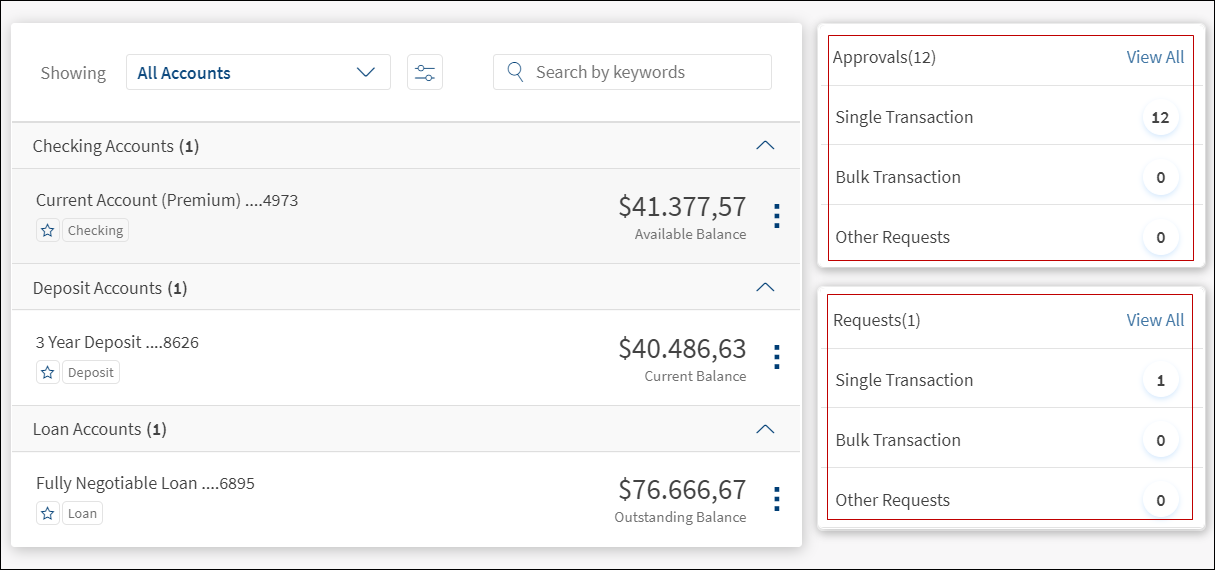
On the application dashboard, the application displays the Approvals section on top section of the screen. If the user has permission to approve transactions, this section is displayed with the count. The count is updated for single transactions, bulk transactions, and other requests. On tapping Approvals, the application displays the page with details of the approvals and the user can complete the action. The individual line items cannot be clicked and are for visual representation only. If the count is zero, still the Approval section is displayed with count as zero. If the user does not have access to approvals, the section is not displayed.
The application displays the Approvals and Requests dashboard with the following information:
- Approvals. Tap to view the list of transactions that requires approval and transaction history as required.
- Requests. Tap to view the list of requests and transaction request history as required.


The approvals dashboard screen lists the transactions pending for your approval and the approval history on the following tabs:
- Pending
- History
Pending Approvals
View the list of transactions pending for your approval or rejection. Transactions are seen here because you were set as an approver in the approval matrix for the contract, feature, account, and transaction value. The application lists only those transactions that have been explicitly sent to you for approval. If there are no pending transactions that require your approval, the application displays an appropriate message.


The application displays the list of transactions for approval.
You can do the following:
- Use the filter option: Select a specific type of transaction from the filter initiated by the signed in user that is pending for approval and view all the transactions under that bucket.
- On the Pending Approvals landing page, Filter option with the count of all the pending transaction is displayed. The default value is All transactions.
- Use the filter and select the transaction type which are categorized as Single, Bulk, and Other Requests. It is not a multi select option and therefore can select only one option from the filter.
- Under each classification, the Transaction type is displayed with count. This count denotes the number of pending entries under that transaction type.
- In case no approval/request is pending for a particular type of transaction, then that will not be listed in the filter list.
- Search for required transaction. Use the search option to search for a transaction using the search criteria. Enter the search keyword such as the transaction name in full or in part.
- View basic details of the transaction. For easy identification of transaction, the following fields are displayed in the list view:
- Transaction Type: The transaction type is displayed, for example, Bulk Payments. The feature name is mapped to the transaction type and displayed under this column.
- Sent Date: The date on which the transaction was created/initiated is displayed. This field is mapped with the Created On field available on the transaction.
- Sent By: The name of the user who has initiated the transaction and submitted for approval is displayed. The First and Last Name of the user is concatenated and displayed.
- Request Type: When a user initiates a transaction and based on the amount, limit engine, and approval matrix, the transaction goes to the respective approver for approval. The approval request can have the create, edit, and delete request and the approver is notified with the request type for which action is required.
- View detailed information on transaction. Tap any row to view the detailed information on the transaction and approve or reject as required.
- The following information is displayed for a bulk transaction: Payment Description, Initiated By, Transfer Initiated on, Execution Date, Value Date, Total Amount, From Account, Number of Transactions, Bulk Payment ID, Payment File, Processing Mode, Customer Name, Transaction Type, and Request Type.
- When the transaction is pending for approval it can have only three statuses: Submitted for Approval, Approval Pending, and Approved. The approved status appears if the logged in user is intermediate approver in the transaction and therefore, details of approval by previous user will be available for the transaction.
- In case the user has access to retail and business customer IDs, then next to the debit account, an appropriate icon is displayed to differentiate between retail or business accounts. In case the user has access to only one customer ID or multiple customer IDs of same type, then icon next to debit account is not displayed.
- Approve a transaction. Swipe from right to left to approve. Alternatively, tap the transaction row to view the details and then tap to approve the transaction. On completion of the action, a confirmation message is displayed that the transaction has been approved. The screen is refreshed and the count is updated.
- Approve all transactions based on the transaction type. Select a particular type of transaction from the filter and approve all the transactions under that bucket.
- Reject a transaction. Swipe from right to left to approve. Alternatively, tap the transaction row to view the details and then tap to reject the transaction. On completion of the action, a confirmation message is displayed that the transaction has been rejected. The screen is refreshed and the count is updated.
Approvals History
View the transaction history of approved, rejected, and pending transactions that require additional approval (multiple approvers). If there are no transactions to display on this tab, the application displays an appropriate message.


The application displays the transactions history.
You can do the following:
- Search for required transaction. Use the search option to search for a transaction using the search criteria. Enter the search keyword such as the transaction type in full or in part.
- View basic details of the transaction. For easy identification of the transaction, the following fields are displayed in the list view:
- Transaction Type: The transaction type is displayed, for example, Bulk Payments.
- Sent By: The name of the user who has initiated the transaction and submitted for approval is displayed. The First and Last Name of the user is concatenated and displayed.
- Approval Date: The date on which the transaction was approved is displayed. This field is mapped with the Approved On field available on the approval history. In case the transaction requires multiple approval, this date is updated as and when it is approved by all the required approvers, and the latest date is displayed.
- Transaction Status: The overall status of the transaction is displayed as icons - Pending Others Approval (orange), Approved (green), and Rejected (red). If the transaction requires multiple approvals (more than one approval) and after the logged-in user approves the transaction and others have not approved it, in the intermediate stage, the transaction status is Pending Others Approval. After all the approvers approves the transaction, the status moves to Approved. If the transaction is rejected by the logged-in user or by any other approver, the transaction status is Rejected. Note that all the transactions in which the logged-in user is one of the approvers and the request was rejected by other users will also be listed with status as Rejected.
- View detailed information on transaction details. Tap any row to view the detailed information on the transaction. In the detailed view, the fields are displayed based on the transaction type.
- The approval status of transactions in history can be Submitted for Approval, Approval Pending, Approved, and Rejected.
- In case the user has access to retail and business customer IDs, then next to the debit account, an appropriate icon is displayed to differentiate between retail or business accounts. In case the user has access to only one customer ID or multiple customer IDs of same type, then icon next to debit account is not displayed.
- Use the filter. Select a particular type of transaction from the filter based on the transaction status and view all the transactions under that bucket. The default value is All transactions. The filter has the following four sections:
- Transaction Type: The transactions are classified as Single, Bulk, and Other Requests. In case no history is available for a particular type of transaction, then that will not be listed in the filter list. Only one transaction type can be selected at a time.
- Sort By: Sort by Approval Date, Status, and Transaction Type. The sort by date is latest to oldest, A to Z in case of transaction, and status by Pending Other Approvals, Approved, and Rejected.
- View by Status: Select the transaction status - Pending Other Approvals, Approved, and Rejected. Multiple status can be selected at a time.
- View by Duration: Denotes for which time range the transaction history is to be queried from DBX DB and displayed. The following time periods are available: Last One Year, Last 6 Months, Last Month, Last One Week, and Today. By default, Last 6 Months is selected.
After all the filter criteria are selected, click Apply.


Requests Dashboard
Use the feature to view the transaction requests that were raised by you and needs approval to complete the transaction. Transactions are put into an approval queue due to the following:
- If the transaction exceeds the pre-approval limit of the user.
- The transaction does not meet the auto denial limit for the user.
- The approval matrix has approval rules specified.
In these cases, the transaction is sent for approval to the designated approvers.
NOTE: After a transaction is rejected, it will not be listed in the Pending list.
Menu Path:
- Online Banking:
- Dashboard > Requests widget > View All
- Side menu > Approvals and Requests > Pending Requests
- Mobile Banking:
- Dashboard > Requests widget >View All
- Side Menu > Approval & Request
The requests dashboard screen lists the transactions raised by you and the requests history on the following tabs:
The Pending tab is selected by default.

Conditions seen in pending transactions when approver permissions are changed
A Financial Institution can revoke the approval permissions from a user role to use a certain feature. The application handles the requests seamlessly that are already approved or pending approval by such users. When approval permissions are revoked from the user role for a certain feature,
- By default, permissions on all the accounts that the user has access is affected
- Approval permission on all those accounts are revoked as well.
When the permission of a user who had been added as an approver for the company earlier is changed, the following conditions are met for pending transactions based on the approval rule.
Pending transactions if the Approval Rule is set to "Any One"
The following validation is performed if the user whose access has been revoked as X and Approval Rule = Any One.
- If there are one or more active approvers besides X
- Transaction is removed from the approval queue for X
- Count of required approver is equal to 1
- If X is the only active user
- The transaction is rejected
- Status is displayed as Rejected in the My Requests screen
- Transaction is removed from approver queue in the My Approvals screen
Pending transactions if the Approval Rule has set up to "Any Two"
The following validation is performed if the user whose access has been revoked as X and Approval Rule = Any Two.
- If there are two or more active approvers besides X
- Transaction is removed from the approval queue for X
- Count of required approver is equal to 2
- If there is only one other active approver besides X
- The transaction is rejected
- Status is displayed as Rejected in the My Requests screen
- Transaction is removed from approver queue in the My Approvals screen
Pending transactions if the Approval Rule has set up to "Any Three"
The following validation is performed if the user whose access has been revoked as X and Approval Rule = Any Three.
- If there are three or more active approvers besides X
- Transaction is removed from the approval queue for X
- Count of required approver is equal to 3
- If there are only two other active approvers besides X
- The transaction is rejected
- Status is displayed as Rejected in the My Requests screen
- Transaction is removed from approver queue in the My Approvals screen
Pending transactions if the Approval Rule has set up to "All"
The following validation is performed if the user whose access has been revoked as X and Approval Rule = All.
- If X is the only active user
- Transaction is removed from approver queue in the My Approvals screen
- The transaction is rejected
- Status is displayed as Rejected in the My Requests screen
- If there are other approvers besides X
- The transaction is rejected
- Status is displayed as Rejected in the My Requests screen
- Count of the approvers is changed based on the remaining approvers
Approval count is calculated based on the following formula:
- If sum of (required approvals for each rule) > Number of approvers, then
Required Approvals count = Number of approvers - If sum of (required approvals for each rule) <= Number of approvers, then
Required Approvals count = Sum of (required approvals for each rule)
Pending Requests (Pending Tab)
View the list of transaction requests raised by you and needs approval to complete the transaction. If there are no transactions requests raised by you that require approval, the application displays an appropriate message. The transaction requests can be of the following types:
- Transfers including transfer between own accounts, inter bank, intra bank and international transfers.
- Domestic and international wire transfers
- Bulk payments
- ACH payments
- Bill payments
- Other transactions such as check management related.
The application displays the following information and the list is sorted by Transaction Type by default. You can sort the list based on the Sent Date, Status, or Request Type columns by using the sorticon (denotes sorted by that column).
- Transaction Type
- Sent Date
- Status
- Request Type
- Actions (View Details)
You can do the following on the Pending tab:
- View Details: Click to view the request details.
- Click the down arrow to do few actions:
- Click to view the following details: Debit account, transaction amount with charges, payee, reference number, customer name, frequency of transaction, and if it is a recurring transaction.
- Withdraw a request.
- Search : Use the search option to look for specific requests by using the keywords such as the transaction type,
- View filter: Use the View list to filter the list by single transaction or bulk transactions. By default, the All option is applied. A user who has the required permissions, can see the Features listed when applying transaction type filters on the Pending tab of Requests Dashboard.


Click View Details to view the request details and withdraw the request if required.

Do any one of the following:
- Click Withdraw Transaction to withdraw the request after entering the reason for withdrawal.
- Click Back to Requests to go back to the list of requests raised by you.
Use the feature to withdraw a transaction request.
- On the Pending tab, select the required transaction and click Withdraw.

- Enter a reason for withdrawal of the transaction.
- Click Yes to withdraw the transaction.
- The application displays an acknowledgment screen that the request has been successfully withdrawn.
- Click Back to Requests to go back to the list of requests raised by you.

Request History (History Tab)
View the transaction request history of approved, rejected, and withdrawn transactions. If there are no transactions to display on this tab, the application displays an appropriate message. The transactions can be of the following types:
- Transfers including transfer between own accounts, inter bank, intra bank and international transfers.
- Domestic and international wire transfers
- Bulk payments
- ACH payments
- Bill payments
On the requests dashboard screen, click the History tab.

The application displays the following information and the list is sorted by Transaction Type by default. You can sort the list based on the Sent Date, Approval Date, or Status columns by using the sorticon (denotes sorted by that column).
- Transaction Type
- Sent Date
- Approval Date
- Status
- Actions (View Details)
You can do the following on the History tab:
- View Details: Click to view the transaction history details.
- Click the down arrow to view the following details: Debit account, transaction amount, payee, reference number, customer name, frequency of transaction, and if it is a recurring transaction.
- View filter: Use the View list to filter the list by single transaction or bulk transactions. By default, the All option is applied.
- Search : Use the search option to look for specific transactions by using the keywords such as the transaction type.


View Details of a Transaction Request History
Click View Details to view the transaction request history details of the approved, rejected, and withdrawn transactions.

Click Back to Request History to go back to the list of requests raised by you.
View Request History Filter List
Use the View list to filter the list by status, approval type, and time period as required.

Use the following filter options and click Apply for the filter to take effect:
- Status: Approved, Rejected, and Withdrawn. By default, all statuses are displayed irrespective of the status.
- Approval Type: All, Single Transaction, and Bulk Transaction. By default, All is selected. A user who has the required permissions, can see the Features listed when applying transaction type filters on the History tab of Requests Dashboard.
- Time Period: Last One Tear, Last 6 Months, Last Month, Last One Week, and Today. By default, Last One Year is selected.
Click Apply to apply the filter.
Requests - Mobile Banking
Use the feature to view the transaction requests that were raised by you and needs approval to complete the transaction. Transactions are put into an approval queue due to the following:
- If the transaction exceeds the pre-approval limit of the user.
- The transaction does not meet the auto denial limit for the user.
- The approval matrix has approval rules specified.
Menu Path:
- Dashboard > Requests widget > View All
- Side Menu > Approval & Request
On the application dashboard, the application displays the Requests section on top section of the screen. If the user has raised few requests, this section is displayed with the count in parenthesis. The count is updated for single and bulk transactions, and other requests. On tapping Requests, the application displays the page with details of the requests. The individual line items cannot be clicked and are for visual representation only. If the count is zero, still the Requests section is displayed with count as zero. If the user does not have access to raise requests, the section is not displayed.
The application displays the Approvals and Requests dashboard with the following information:
- Approvals. Tap to view the list of transactions that requires approval and transactions history as required.
- Requests. Tap to view the list of requests and transaction request history as required.


The requests dashboard screen lists the transaction requests and request history on the following tabs:
- Pending
- History
Pending Requests
View the list of transaction requests raised by you (logged-in user) and needs approval to complete the transaction. If there are no transactions requests raised by you that require approval, the application displays an appropriate message.


The application displays the list of transactions with the number count.
You can do the following:
- Search for the required transaction. Use the search option to search for a transaction using the search criteria. Enter the search keyword such as the transaction name in full or in part.
- Use the filter option: Select a specific type of transaction from the filter initiated by the signed in user that is pending with approver for approval and view all the transactions under that bucket.
- On the Pending Requests landing page, Filter option with the count of all the pending transaction is displayed. The default value is All transactions.
- Use the filter and select the transaction type which are categorized as Single, Bulk, and Other Requests. It is not a multi select option and therefore can select only one option from the filter.
- Under each classification, the Transaction type is displayed with count. This count denotes the number of pending entries under that transaction type.
- In case no request is pending with the approver for a particular type of transaction, then that will not be listed in the filter list.
- View basic details of the transaction. For easy identification of the transaction, the following fields are displayed in the list view:
- Transaction Type: The transaction type is displayed, for example, Bulk Payments.
- Sent Date: The date on which the transaction was created/initiated by the logged-in user is displayed. This field is mapped with the Created On field available on the transaction.
- Status: The current pending approval count is updated under the status. This field is dynamically updated as and when the approver updates the transaction. For instance, if a transaction initiated by the logged in user requires three approvals, when the request is submitted, the status field value will have value as 0 of 3 approved. When one of the approvers approve, then it is updated to 1 of 3 approved and so on. When all the three approvers approve the transaction, it moves to the History list with status as Approved.
- Request Type: When the logged-in user initiates a transaction and based on the amount, limit engine, and approval matrix, the transaction goes to the respective approver for approval. The transaction can of create, edit, and delete type.
- View detailed information on transaction. Tap any row to view the detailed information on the transaction and withdraw the request if required. For Bulk payment transaction, Withdraw button will not be available. In the detailed view, the fields are displayed based on the transaction type.
- The following information is displayed for a bulk transaction: Payment Description, Initiated By, Transfer Initiated on, Execution Date, Value Date, Total Amount, From Account, Number of Transactions, Bulk Payment ID, Payment File, Processing Mode, Customer Name, Transaction Type, Request Type, and Approval History Information.
- In case the user has access to retail and business customer IDs, then next to the debit account, an appropriate icon is displayed to differentiate between retail or business accounts. In case the user has access to only one customer ID or multiple customer IDs of same type, then icon next to debit account is not displayed..
- Withdraw a transaction. Swipe from right to left to withdraw. Alternatively, tap the transaction row to view the details and then tap to withdraw the transaction before it is approved or rejected. For Bulk payment transaction, Withdraw button will not be available. On completion of the action (withdraw), a confirmation message is displayed. The screen is refreshed and the count is updated.
Request History
View the transaction request history of all transactions initiated by the logged-in user. The transaction status can be approved, rejected, and withdrawn transactions. If there are no transactions to display on this tab, the application displays an appropriate message.

The application displays the transactions history with the transaction status - Approved, Rejected, or Withdrawn.
You can do the following:
- Search for the required transaction. Use the search option to search for a transaction using the search criteria. Enter the search keyword such as the transaction name in full or in part.
- View basic details of the transaction. For the easy identification of the transaction the following fields are displayed in the list view:
- Transaction Type: The transaction type is displayed, for example, Bulk Payments.
- Approval Date: The date on which the transaction was approved is displayed. This field is mapped with the Approved On field available on the approval history. In case the transaction requires multiple approval, this date is updated as and when it is approved by all the required approvers, and the latest date is displayed.
- Transaction Status: The overall status of the transaction is displayed as icons - Approved (green), Rejected (red), Withdrawn (gray), Executed, Canceled, and Failed. The status items are retrieved from Transact.
- View detailed information on transaction. Tap any row to view the detailed information on the transaction. In the detailed view, the fields are displayed based on the transaction type. Tap any row to view the transaction details.
- The following information is displayed for a bulk transaction: Payment Description, Initiated By, Transfer Initiated on, Execution Date, Value Date, Total Amount, From Account, Number of Transactions, Bulk Payment ID, Payment File, Processing Mode, Customer Name, Transaction Type, Request Type, and Approval History Information.
- Approval History Information. When the transaction is in history, the approval status can be Submitted for Approval, Approval Pending, Approved, or Rejected.
- In case the user has access to retail and business customer IDs, then next to the debit account, an appropriate icon is displayed to differentiate between retail or business accounts. In case the user has access to only one customer ID or multiple customer IDs of same type, then icon next to debit account is not displayed.
- Use filter option. Select a particular type of transaction from the filter based on the transaction status and view all the transactions under that bucket. The default value is All transactions. The filter has the following four sections:
- Transaction Type: The transactions are classified as Single, Bulk, and Other Requests. In case no history is available for a particular type of transaction, then that will not be listed in the filter list. Only one transaction type can be selected at a time.
- Sort By: Sort by Approval Date, Status, and Transaction Type. The sort by date is latest to oldest, A to Z in case of transaction, and status by Approved, Rejected, Executed and more.
- View by Status: Select the transaction status - Approved, Rejected, Executed and more. Multiple status can be selected at a time.
- View by Duration: Denotes for which time range the transaction history is to be queried from DBX DB and displayed. The following time periods are available: Last One Year, Last 6 Months, Last Month, Last One Week, and Today. By default, Last 6 Months is selected.
-
After all the filter criteria are selected, click Apply.


Configuration
- The visibility of each feature is controlled through the permissions defined for the user. See permissions for more information. The permissions at user levels are defined during user creation and while editing the user details after the user is created.
- In case the user does not have access to any of the features, that option will not be visible on the form and on the menus.
- The permissions at the company level and role level are defined in the Spotlight application.
- Feature and action names. A user who has access to the Approvals and Requests dashboard can see the Features listed when applying transaction type filters on the Pending and History tabs of Approvals Dashboard and Requests Dashboard. See Feature and action names for the complete list of features and actions.
- Straight-through processing
- Introduced a new field "isSelfApprovalEnabled" in the application table to indicate whether the self-signature to be considered for the transactions initiated by self.
- if "isSelfApprovalEnabled" is true, then the system considers self-signature (if initiator is one of the valid approver) and one of the approvals is fulfilled for the initiated transaction.
- If "isSelfApprovalEnabled" is false, then the system awaits for other user approvals for further processing of the initiated transaction.
APIs
The following APIs are shipped as part of this feature. For the complete list of APIs with more information, see Experience APIs documentation.
| API | Description |
|---|---|
| getCampaignSpecifications | Fetches a list of campaigns and their specifications (image URLs, destination URLs) for a bank customer. This is an authenticated service and invoked in post-login scenarios. |
| getGeneralTransactions | Fetches all the transactions from billpaytransfers, p2ptransfers, wiretransfers, internaltransfers, and externaltransfers tables that are pending for approval and the logged user is in the approver list. |
| getGeneralTransactionsRequestedByMe | Fetches all the transactions from billpaytransfers, p2ptransfers, wiretransfers, internaltransfers, and externaltransfers tables that are pending for approval and created by the logged in user. |
In this topic
