Security Settings
Use the feature to manage your security settings. The changes made in this section are at a user level, and not at an individual account level. This feature is available only in an online banking application.
On the Settings screen, click to expand Security Settings. By default, the app displays the Personal Details section.
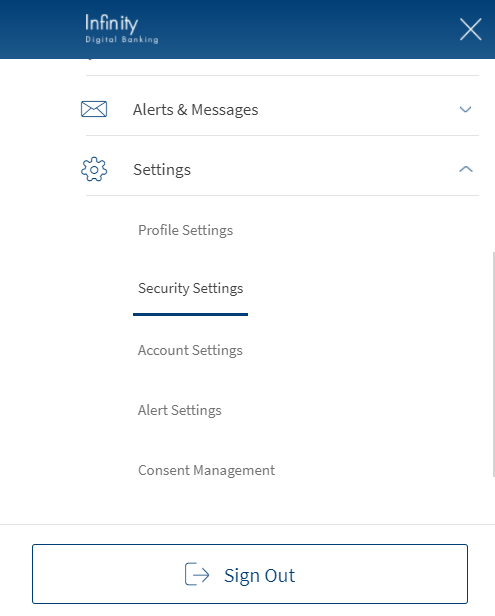
You can add or modify the security questions:
Security Questions
Use the feature to set up or reset your security challenge questions.
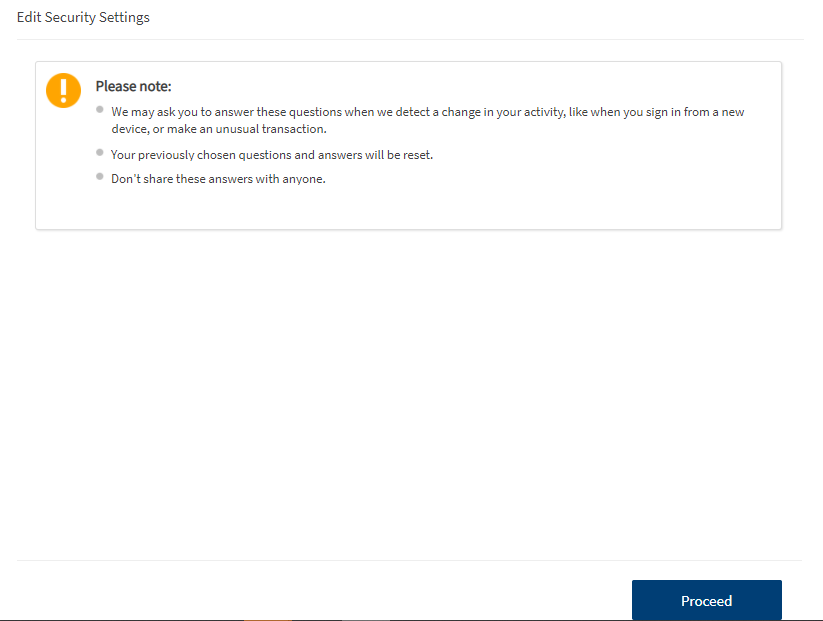
- Under the Security Settings section, click Security Questions. The app displays the Edit Security Settings screen.
- Click Proceed to set the security questions.
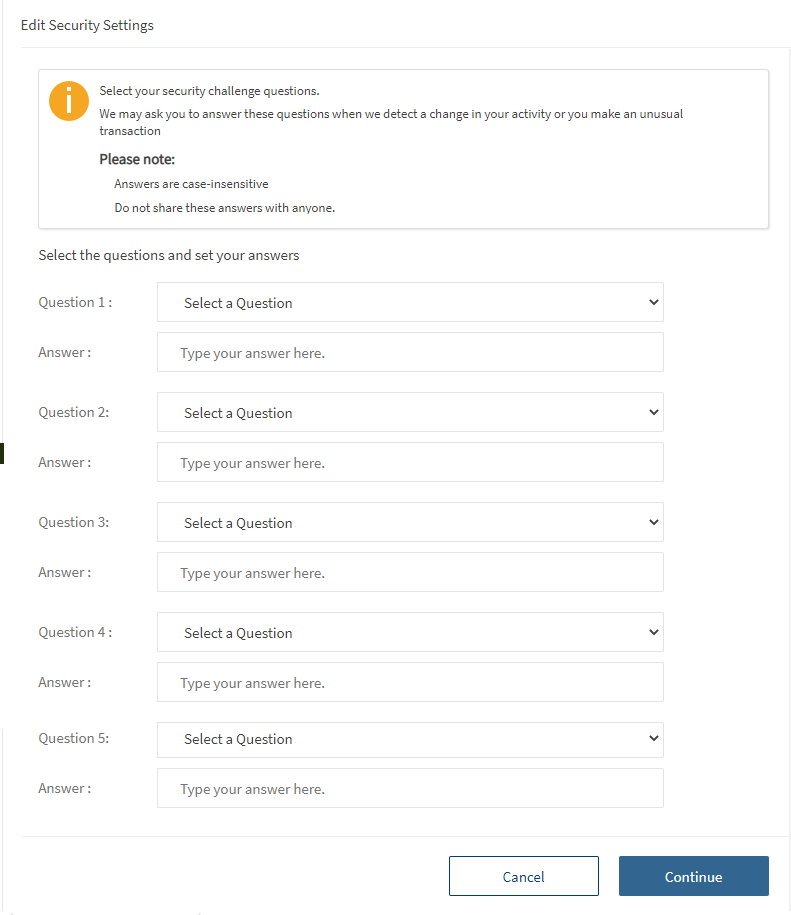
- Select five questions of your choice and enter their respective answers. Click Continue. The secure access code page is displayed.
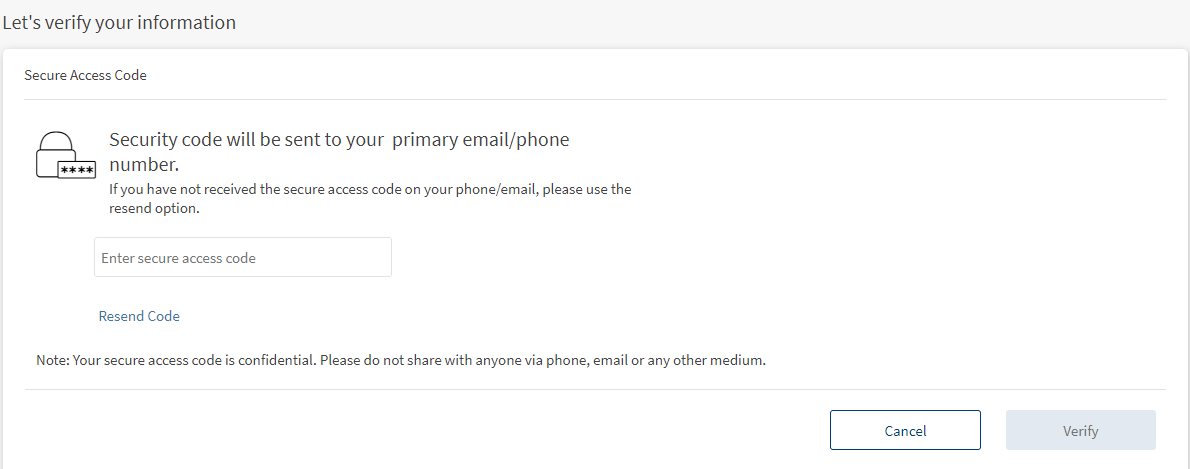
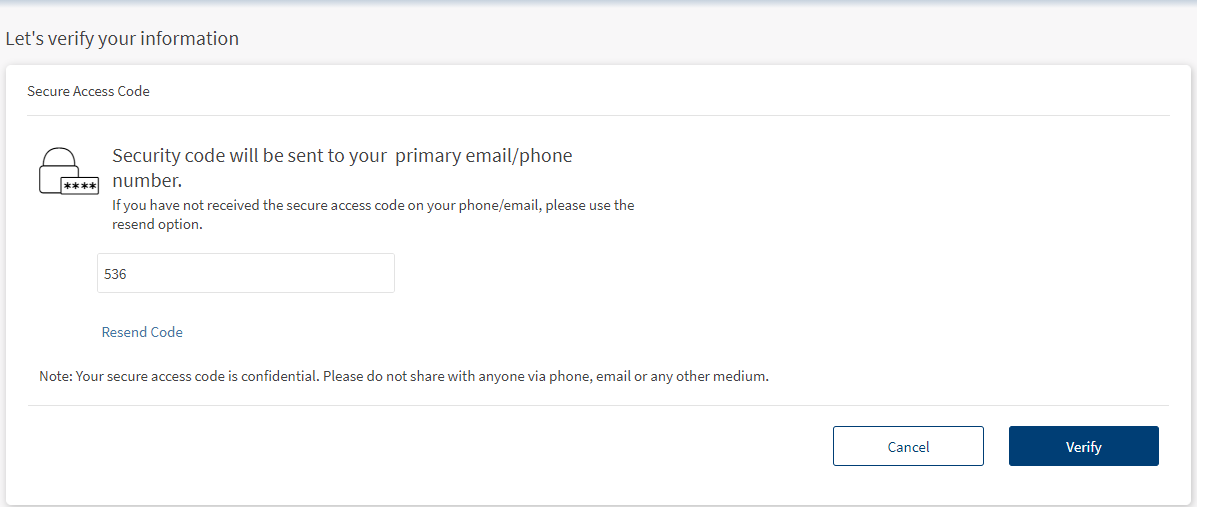
NOTE: The app sends the pre-defined secure access code/random one-time password to your registered mobile number. If you did not receive any OTP, click Re-Send Code.
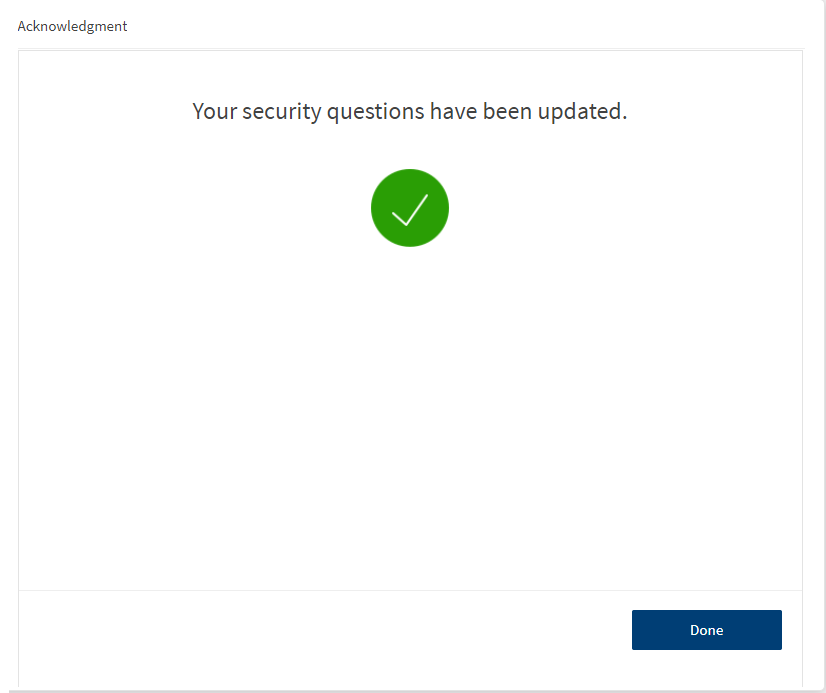
- Enter the secure access code (that you have received) in the provided field. Click Verify. On successful update of your security questions, the app displays the Acknowledgment screen with an appropriate message.
- Click Done.
- In case your bank provides the option of either using a secure access code or a one-time password, you can update the delivery method for the same if required. You will have to authenticate yourself again before you can modify them. The delivery options include:
- via email
- via mobile phone
- both
- You can only select a mobile number/email id registered for your profile for this process. You cannot add any new contact detail here.
Integration with Spotlight (Customer 360)
The security questions that the user can choose from and an individual user's preferred questions are managed by Spotlight.
In this topic
