Manage Beneficiaries
In the OLB app, the list of beneficiaries inside the Make Payment module, is displayed using the Beneficiary Management component. This component displays the list of beneficiaries based on the beneficiary type.
Use this feature to manage the beneficiaries added to your account.
Menu path: Accounts Dashboard > Payments and Transfers > Manage Beneficiaries
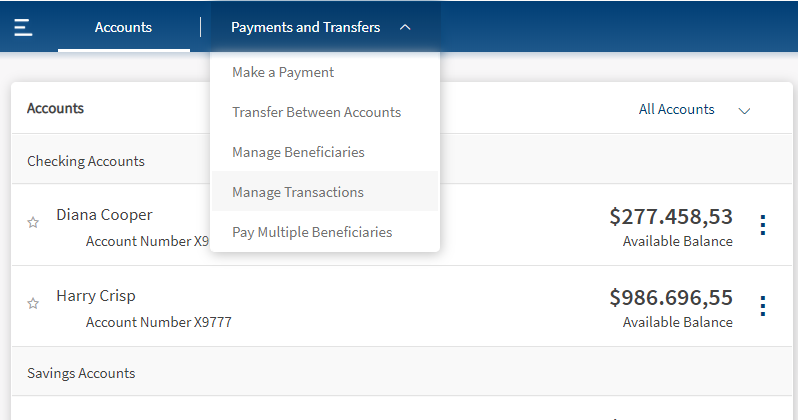
The Manage Beneficiaries screen appears. The following primary details are displayed in this screen:
- Beneficiary name
- Bank Name
- Status
- Actions that can be performed - Make Payment
Click the arrow displayed besides each row to view the additional details such as
- Account Number
- SWIFT Code
- Nick Name
- Address
- Payment Method (International, Domestic, or Eurobank Internal)
- Actions that can be performed such as
- View Activity
- Edit
- Remove
You can perform the following actions in this screen:
- Search for the beneficiary
- Make Payment to the existing beneficiaries
- Add a beneficiary
- Edit a beneficiary
- Remove a beneficiary
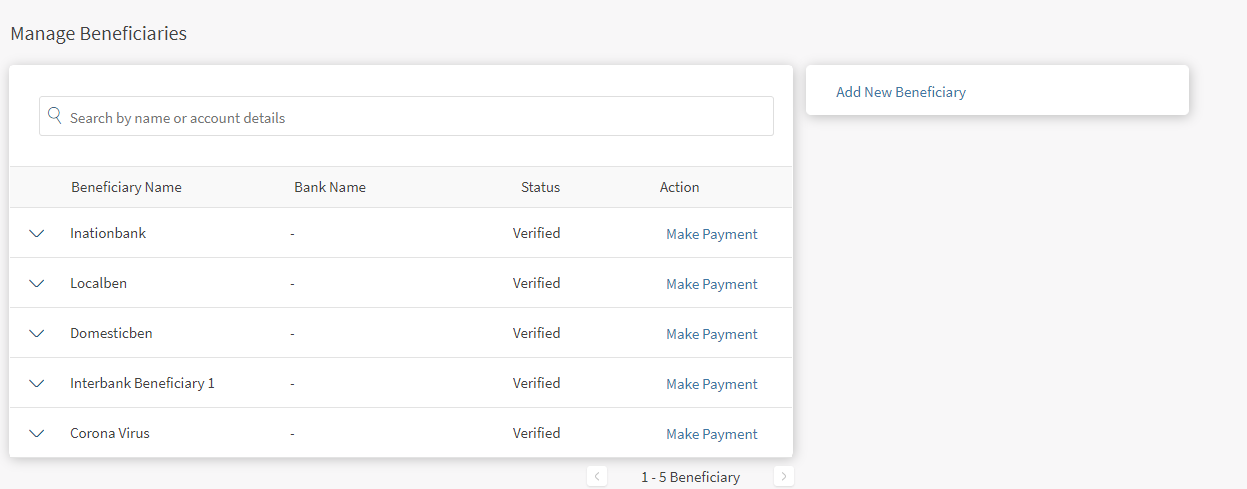
Make Payment
Use the feature to make the payment for the selected beneficiary. To make the payment from Manage Beneficiaries screen, follow these steps:
- Click Make Payment from Manage Beneficiaries screen displayed beside each beneficiary row.
- The application redirects to Make Payment screen to make the payment for the selected beneficiary.
- In the Make Payment screen, the beneficiary's name, account number, SWIFT/BIC, and beneficiary nick name.
For more information, refer Make Payments.

Add a Beneficiary
The Add Beneficiary/ Recipient feature in the Make Payment module is implemented using the Add Beneficiary component in the OLB app. This component contains mainly two flow types. One for adding beneficiary and second for editing the details of an existing beneficiary.
Use the feature to add a new beneficiary. To add a new beneficiary, follow these steps:
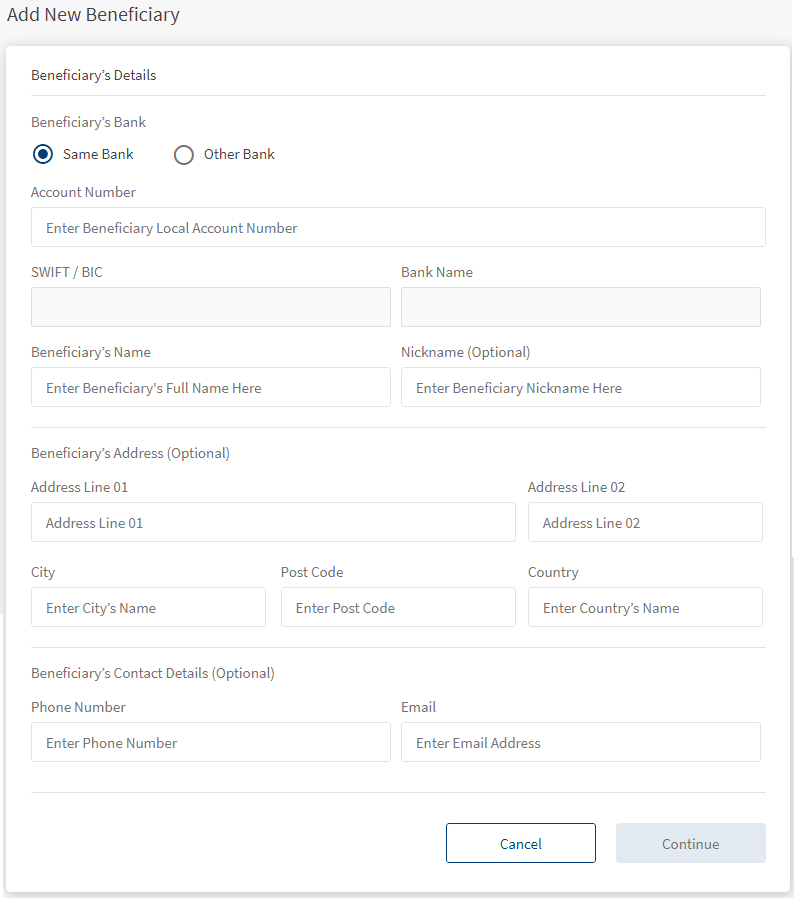
- Click Add New Beneficiary from the right pane of the Manage Beneficiaries screen. The Add New Beneficiary screen appears.
- Enter the following details to add a beneficiary:
- Beneficiary's Bank- This field has two options.
- The account is with us
- The account is with another bank
- Account Number/IBAN.
- You can provide the IBAN details in the account number field. The details associated to entered IBAN such as BIC/Bank name/Bank address details are auto-populated in the respective fields.
- SWIFT/BIC
- Bank Name
- Beneficiary's Name.
- NickName (Optional)
- Beneficiary's Address. The address section includes the following details:
- Address Line
- City
- Post Code
- Country
- Beneficiary's Contact Details. The contact details includes:
- Phone Number
- Beneficiary's Bank- This field has two options.
- Click Continue to proceed further. The Confirmation screen displays the details entered while adding the beneficiary.
NOTE: Cancel the process at any time. The changes are not saved.
- Click Continue to add the beneficiary.
- Click Modify to edit the entered details.
Cancel the process at any time. The changes are not saved.
- Depending on the bank configuration, you must provide the secure access code that is sent to your registered mobile number and email ID. Enter the OTP and click Verify.
If the entered OTP is correct, the Acknowledgment screen appears.
- The Acknowledgment screen displays a unique reference number and the beneficiary's details.
NOTE: You can add a new beneficiary by providing the existing beneficiary name and a different account number.
You can perform the following actions in this screen:
- Redirect to Accounts screen
- Redirect to Manage Beneficiaries
- Add Another Beneficiary
Error Scenarios:
In the following scenarios, an error message is displayed while adding a beneficiary.
- Entering the incorrect account number.
- Entering an existing account number on different beneficiary's name.
Edit Beneficiary
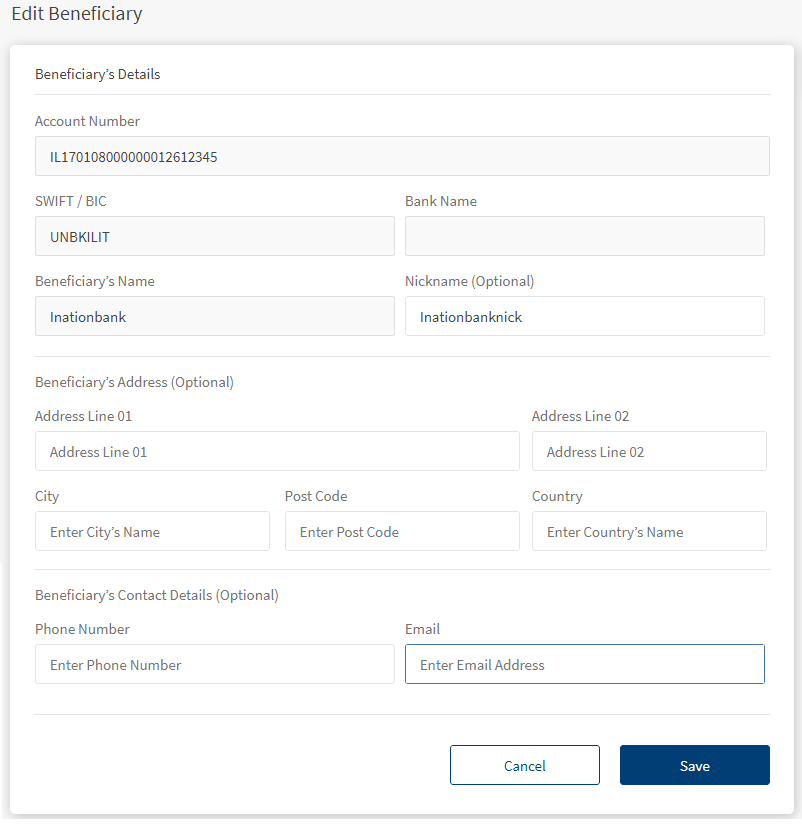
Use the feature to modify the details of the selected beneficiary.
To edit a beneficiary, follow these steps:
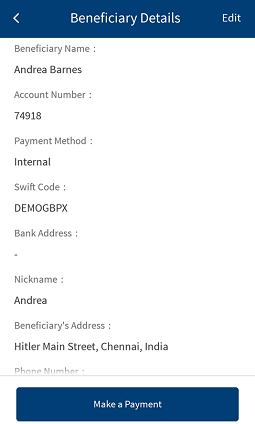
- Click the down arrow beside a beneficiary name from Manage Beneficiaries screen. The beneficiary account details are displayed.
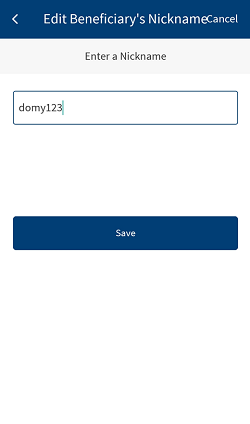
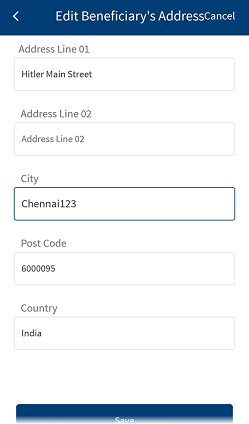
- Click Edit to edit the beneficiary details.
- You can modify only the recipient's nickname, address, and contact details.
- Make the necessary changes and click Save. The acknowledgment screen appears.
- You can do the following in this screen:
- Redirect to Accounts screen.
- Redirect to Manage Recipients screen.


Delete Beneficiary
Use the feature to delete a recipient.
To delete a beneficiary, follow these steps:
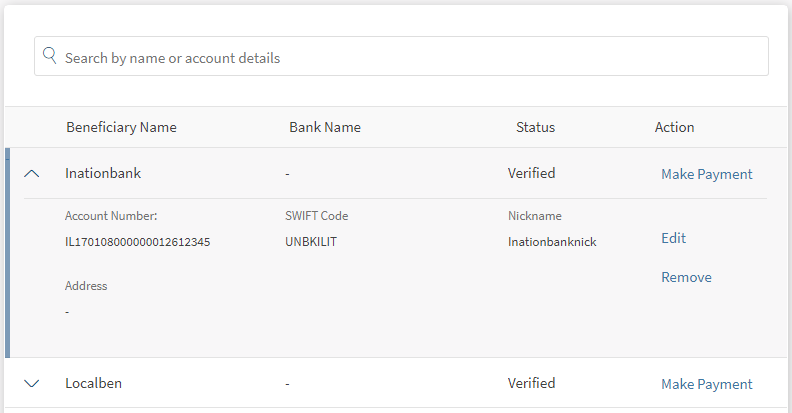
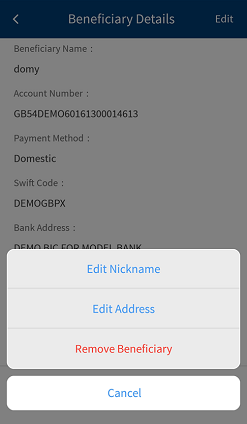
- Click the down arrow beside a recipient name from Manage Beneficiaries screen. The beneficiary account details are displayed.
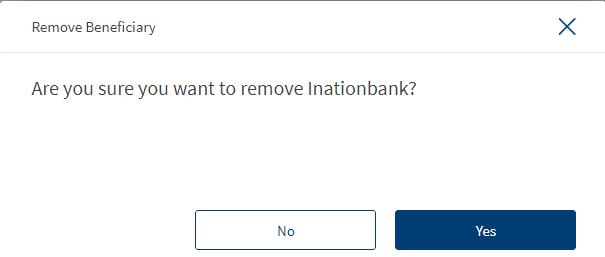
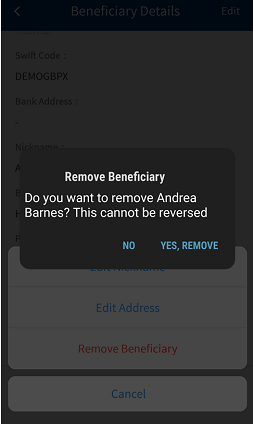
- Click Remove to delete the selected beneficiary account.
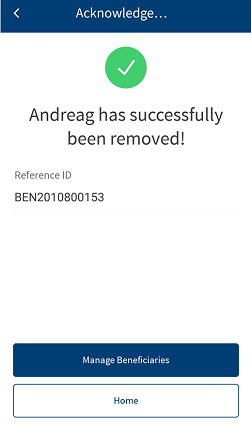
- Click Yes to confirm the deletion.
Search Beneficiary
Use the feature to search for the recipients added to the list.
In the manage beneficiaries list screen, enter a keyword in the search bar and hit Enter. The beneficiary matching the provided search criteria is shortlisted and displayed.
The following keywords can be provided to filter the records based on the search criteria.
- Beneficiary name
- Beneficiary nick name
- Account number/IBAN
- SWIFT Code
- Bank name
You can also enter a partial phrase to search for a beneficiary. Search is not case sensitive.
Error Scenario:
If you perform an invalid search by entering the special characters or the beneficiary name which is not existing in the beneficiaries list, an error message is displayed.
In this topic
