Recent Transfer
Use the feature to view the consolidated list of completed transfers on the Transfers screen.
Menu path: Online Banking > Transfers > Transfer Activities
Menu path: Mobile Banking > Hamburger menu > Transfers Activity > Past Transfers > Tap any transaction (in Past Transfers)
You can also access from Mobile Banking > Transfer > View Transfer Activities > Posted Payments > Tap any transaction (in Posted transaction)
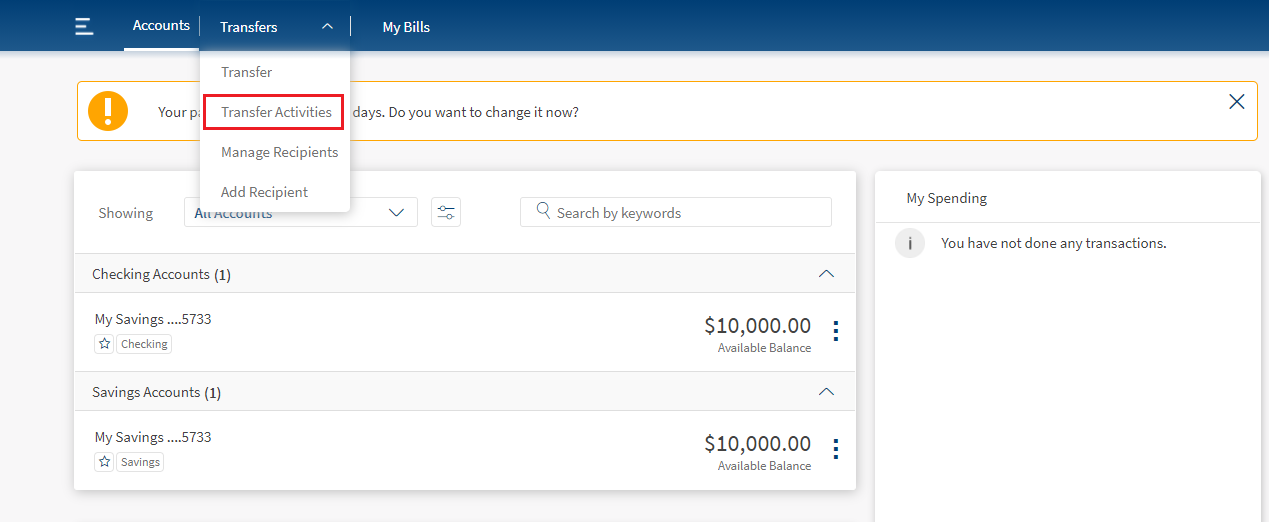
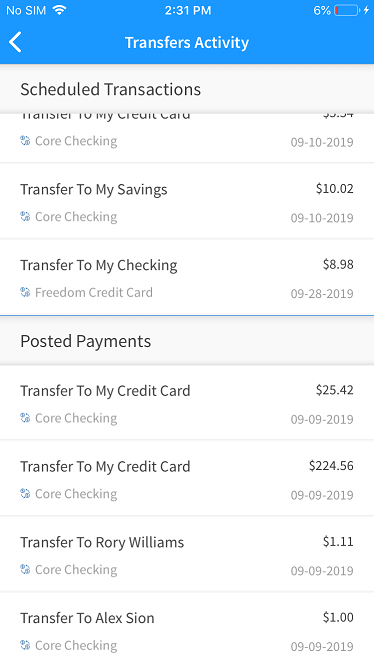
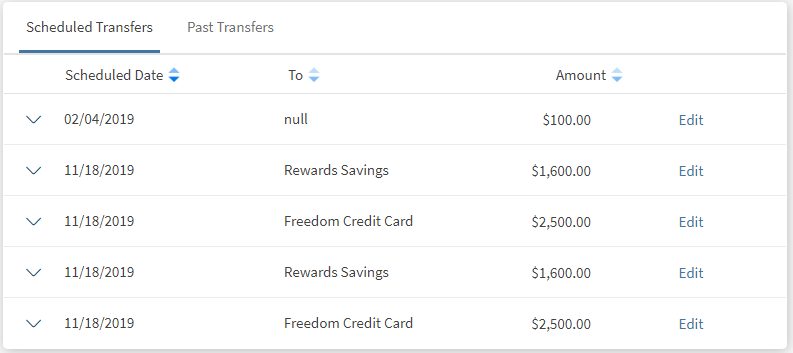
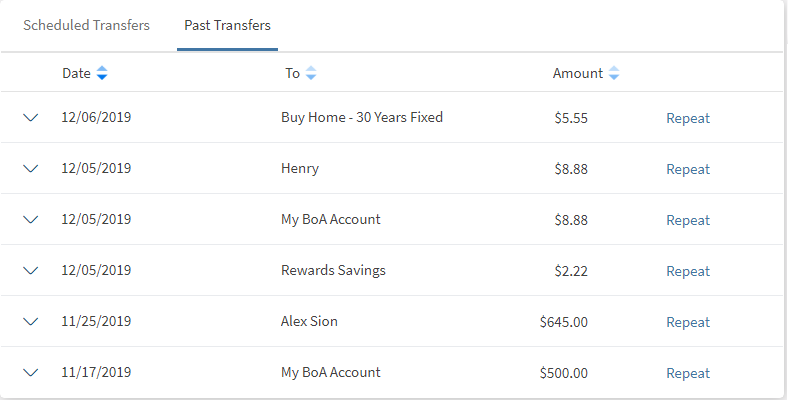
The application displays the list of scheduled and past transactions (10 transactions by default). The following details are displayed in the transaction list:
- Transaction Date
- Sent To (recipient nickname)
- Amount
- Actions that you can perform on a transaction - View Report (applicable for online banking application)
The list is sorted by Transaction Date by default, but you can sort the list based on any of the columns by using the sort  icon (
 denotes sorted by that column).
If no transactions are retrieved from the banking service, the app displays a relevant message.
You can do the following:
- View transaction details
- Repeat a specific transaction as a new transaction
- Download transaction report
View Transaction Details
Use the feature to view the detailed information for a completed transaction.
Click a transaction under Past Transfers to view the transaction details.
Online Banking - Scheduled Transfers
Past Transfers
Transaction Details
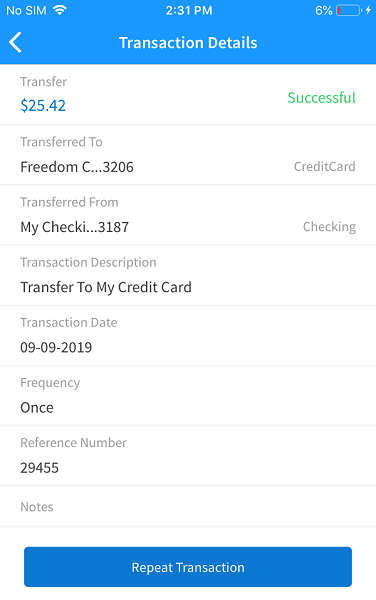
Mobile Banking
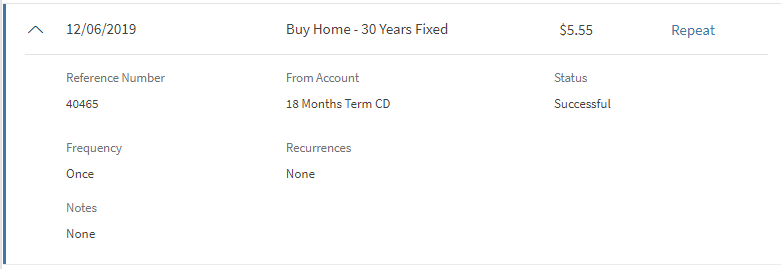
Click  icon beside a transaction to view the transaction details. The following details are displayed:
- Reference number
- From account (nickname)
- Status of the transaction
- Frequency
- Recurrences
- Notes if any
For a recurring transaction, the app displays the following details: frequency, number of runs pending, and next scheduled date if applicable.
Repeat a Recent Transaction
Use the feature to repeat a completed transaction.
Click Repeat to recreate the same transaction. The app navigates to the Transfers screen.
For mobile banking, tap a transaction under Past Transfers and tap Repeat Transaction to recreate the same transaction.
Online Banking
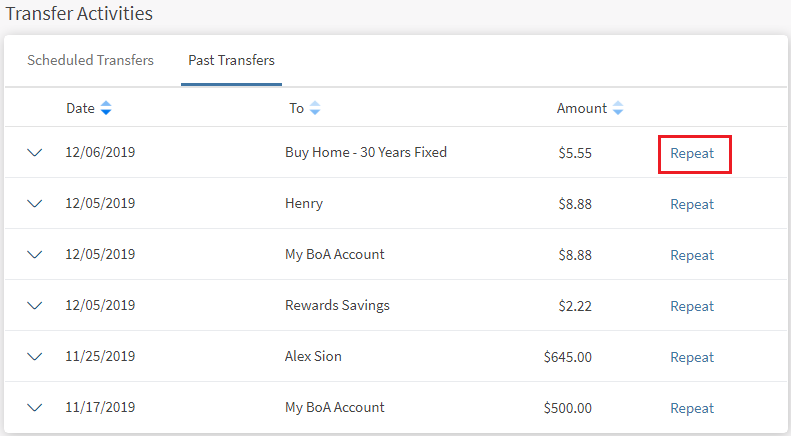
The app auto-fills the field descriptions for the new transaction as the original transaction. You can modify any of the fields for the new transaction, and confirm the transaction.
Download Report
Use the feature to download the report of a completed transaction. This feature is applicable only for an online banking application.
To download the report, follow these steps:
- Click icon beside a transaction to view the transaction details.
The transaction details appears for the selected transaction.
- Click Download Report to download the transaction report.
A PDF is generated with the transaction details.
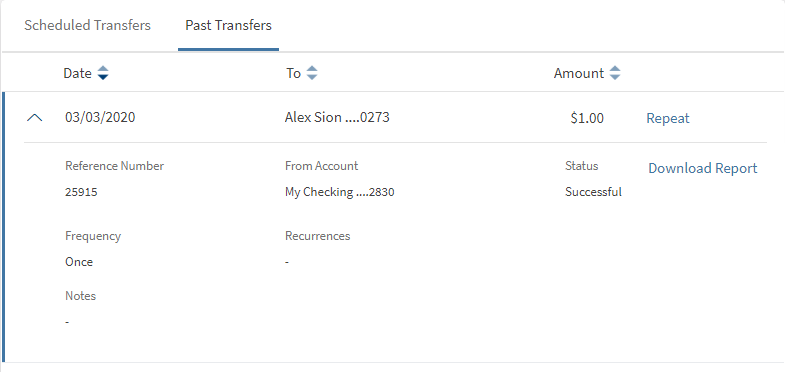
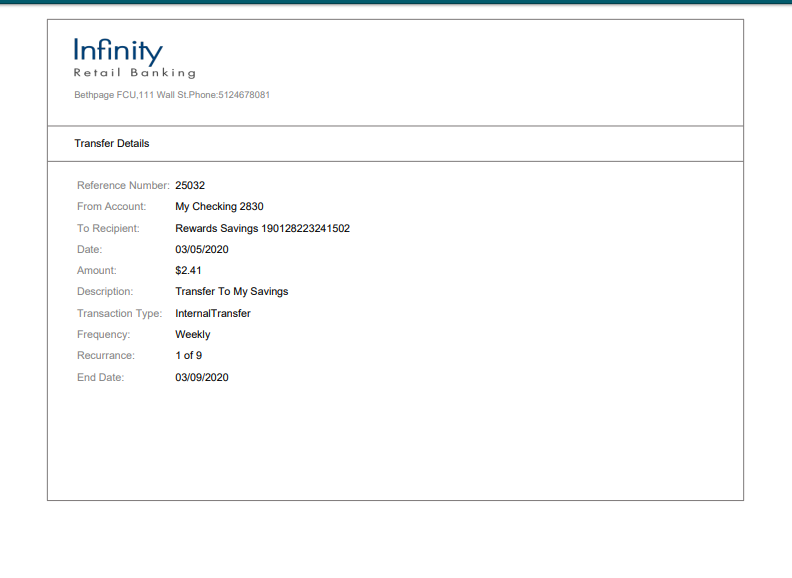
The following details are displayed:
- Reference Number
- Transferred From account
- Date of Transaction
- Transferred To Recipient account
- Transferred Amount
- Note
- Frequency
- Recurrence (For a recurring transaction)
- Start Date and End Date (For a recurring transaction)
Configuration
This feature is not configurable but the banks or FIs can hide this feature from the back end.
Customization
The service used for download report feature is ReportGenerator – Business Delegate. This is a pass-through output service built on top of the new architecture and it helps in generating the report in the prescribed format.
We can extend this service to include additional fields and images in the report.
For example, for a recurring transaction, if the customer wants to view the details such as the number of recurrences, frequency of each transaction and so on.
If the report must be generated in the new format (other than the prescribed format), a new ReportGenerator – Business Delegate must be created.
For example: If the customer wants the change the format of the report being generated such as Excel, CSV or any other format.
API
DownloadTransactionReport
In this topic
