UTF Transfer
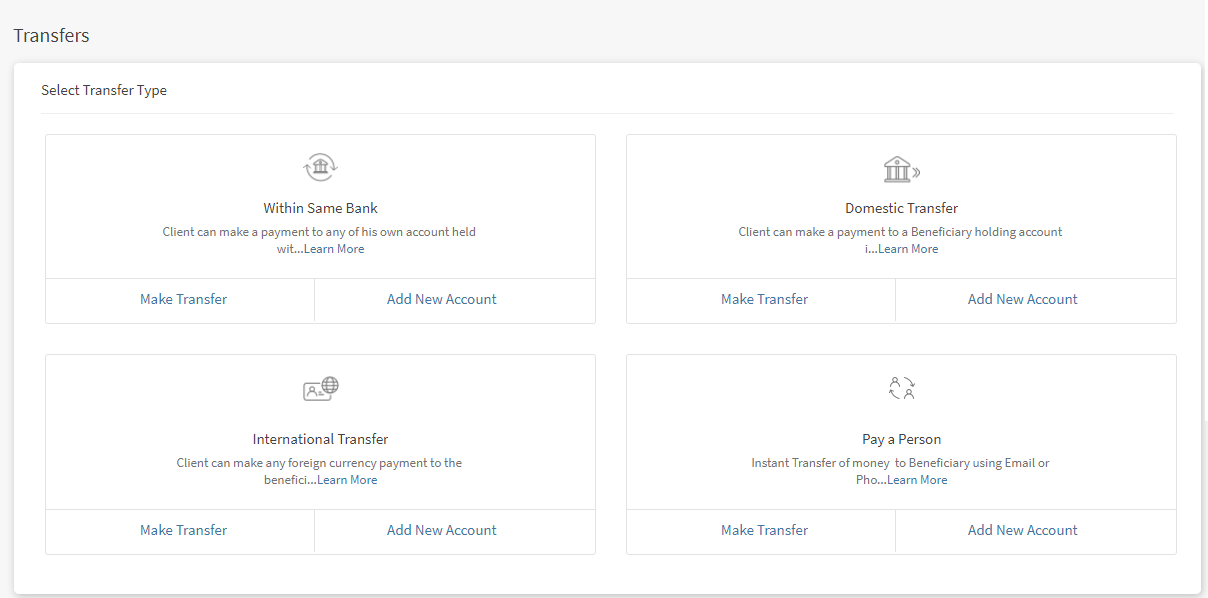
The Create Transfers feature is used for unified transfers flow. You can initiate a new fund transfer to your own account in the same bank, recipients in the same bank, recipients in other banks that you have added, recipients in international banks, and P2P recipients.
Menu path: Online Banking
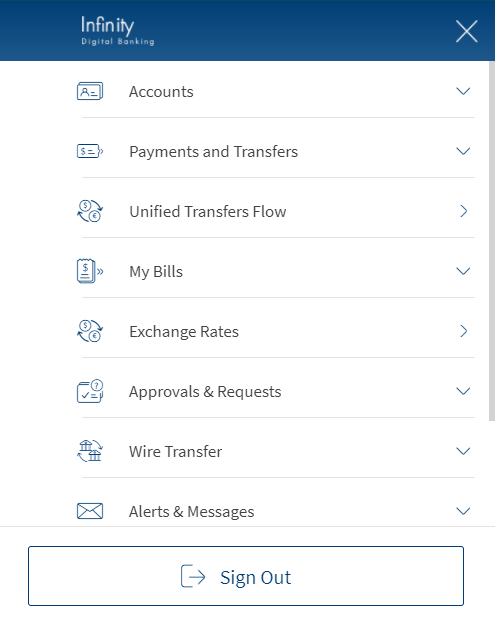
Click Side menu > Unified Transfer Flow. The transfers screen appears with the list of transfer types. Select Make Transfer for a transfer type to perform a transfer.
Menu path: Mobile Banking > Unified Transfers Flow
The app displays the Transfers screen.
NOTE: Funds can be transferred to eligible accounts only. Eligibility is decided by the account type maintained by the bank and is controlled from the core banking system.
Same Bank Transfer
You can initiate a fund transfer within a same bank to your own account or to recipients within the same bank.
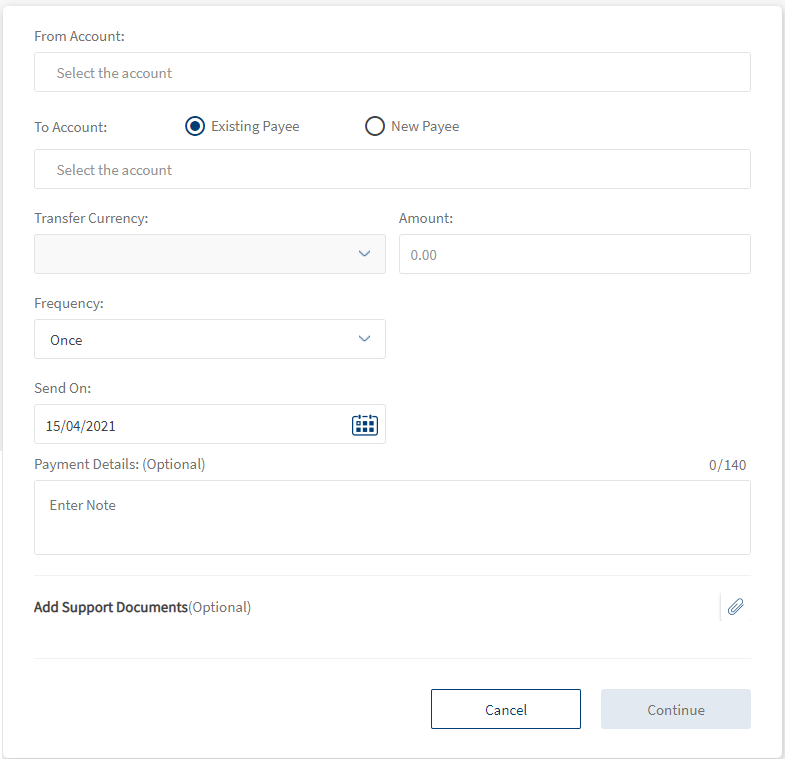
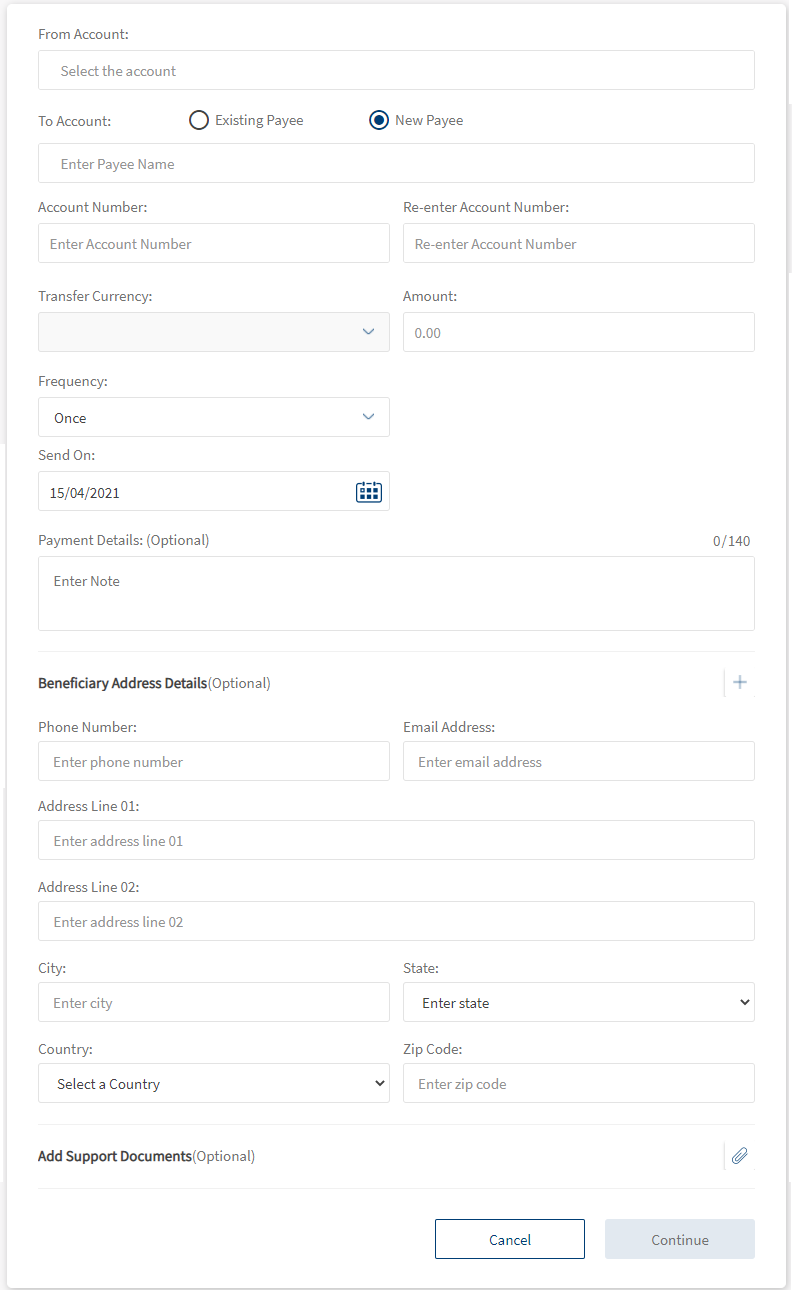
Enter the following details to initiate a fund transfer:
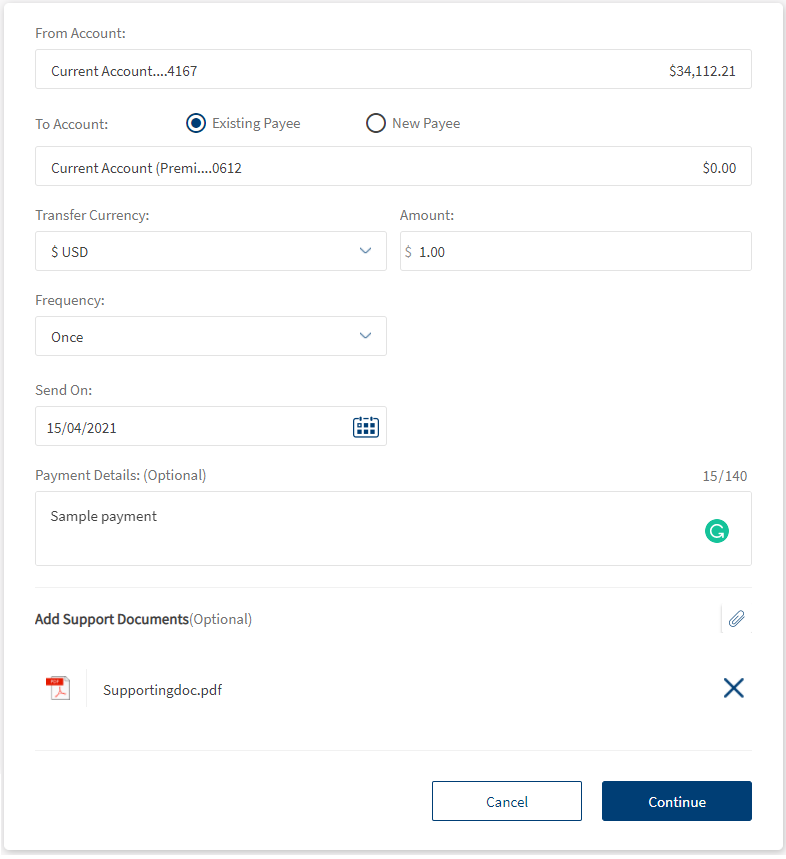
- From account. Select an account from the list. Only eligible accounts are displayed in the list. The app displays an appropriate message if the list is empty.
- To account. Select if you want to transfer to an existing payee in your list or to a new payee.
- Existing Payee. Select the account from the list. Only eligible accounts are displayed in the list. The app displays an appropriate message if the list is empty.
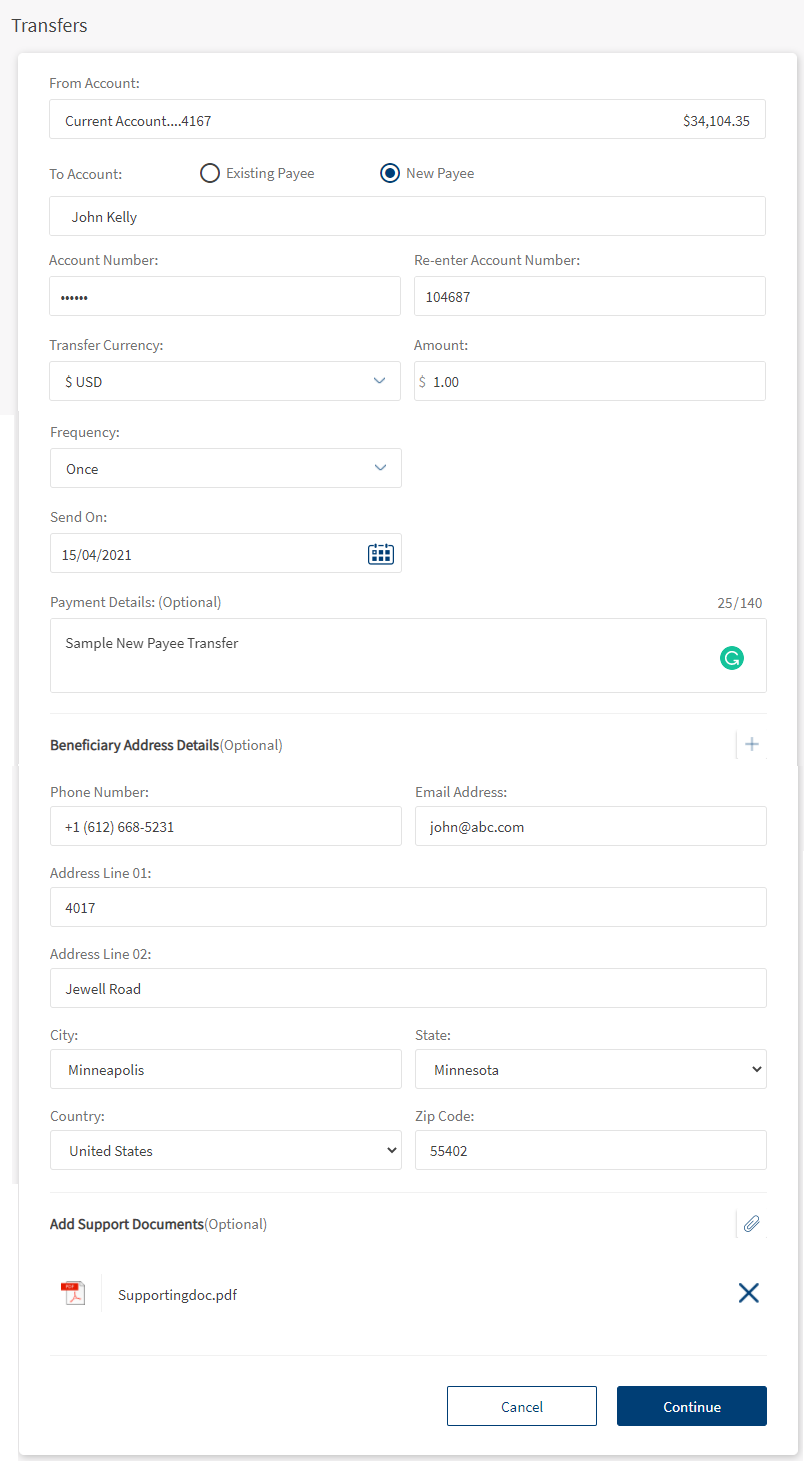
- New Payee. Select this option if you want to transfer to a new payee whose account details are not saved in your list. The following options are displayed:
- Account Number. Enter the account number of the new payee.
- Re-enter Account Number. Re-enter the account number of the payee.
- Name: When you select New Payee, the ‘To Account’ becomes the name field. Once you enter a valid account#, this will populate the name of same bank beneficiary from Transact.
- Credit Card. Select this option to transfer amount to your credit card account.
- Loan Account. You can also make a transfer to your loan account. The list of loan accounts is displayed. Select the loan account to perform a transfer.
- Transfer Currency. Select the currency type to make the payment. Choose a currency type from the list of currency types. Depending on the selection, the currency symbol is displayed next to the amount field.
- If the From and To accounts are currencies are same, then the currency type of that account is displayed by default.
- if the 'From account' currency and 'To account' currency is different, both the currencies are displayed while performing a transfer. You can select the currency type from the displayed options.
- This option is not applicable if you have selected your credit card account or the loan account in the 'To account' field.
- Amount. Enter the amount to be transferred. You cannot enter an amount greater than the available balance. This field is not applicable if you have selected a credit card account or loan account in To account.
- For Credit Card, The following options are displayed:
- Current Balance. Select this option to transfer current balance amount to the credit card from the selected account.
- Statement Balance: Select this option to transfer the monthly statement balance amount to the credit card.
- Minimum Due Balance. Select this option to transfer the minimum due balance amount to the credit card.
- Other Amount. Select this option to transfer other amount to the credit card.
- For loan account, the following options are displayed
- Outstanding Due. The Outstanding due amount is pre-populated, by default. Select this option to pay the complete loan outstanding amount.
- Statement Due. Select this option to pay the monthly due amount.
- Minimum Due. Select this option to pay the minimum due amount.
- Others. Select this option to Pay Other Amount.
- For Credit Card, The following options are displayed:
- Frequency. Select the frequency from the list.
- By default, the app selects the frequency as once and the current date. You can change the frequency and the date if the transfer is a scheduled or a recurring transfer.
- This field is not applicable if you have selected a credit card account or a loan account in the 'To account' field. The app selects the frequency as Once, by default.
- Scheduled Transfer or Recurring Transfer. You can choose to set the transfer as a recurring transfer (for example, daily, weekly, monthly, and so on). In that case, select if the recurrence has to be on a specific date and select a date from the calendar, or if it is the number of occurrences and enter the occurrence value (for example, 24 times). The current date is selected as the recurring transfer start date, by default. The other frequency options are:
- Daily
- Weekly (every 7th day from the selected start date)
- Bi-Weekly or every Two Weeks (every 14 days from the selected start date)
- Monthly (every month on the selected date, cannot select 31st of the month in this case)
- Quarterly
- Half Yearly
- Yearly
- Send On. Select the transfer date from the calendar. The current date is selected as the transfer date, by default.
- Payment Details (Optional). Add any notes if required. You can enter up to 140 characters.
- Beneficiary Address Details. Enter the personal information (such as Phone, Email) and address details (such as Address, Country, City, State, and Zip). This section is applicable only when you have selected 'New Payee' in the 'To account' field.
- Add Support documents (Optional). You can add an attachment for future reference.
 To add an attachment, follow these steps:
- Click + icon and select the file to add as an attachment.
The attached file is displayed along with the Cancel (X) option.
- Click Cancel (X) to remove the attachment. A pop-up is displayed asking for confirmation.
- Click Yes to confirm. The attachment will be removed.
NOTE: You can attach up to five PDF/JPEG files only. Adding an attachment is mandatory based on the payment/transfer amount. The threshold amount is configured by the bank.
- Click + icon and select the file to add as an attachment.
- Click Continue to proceed further.
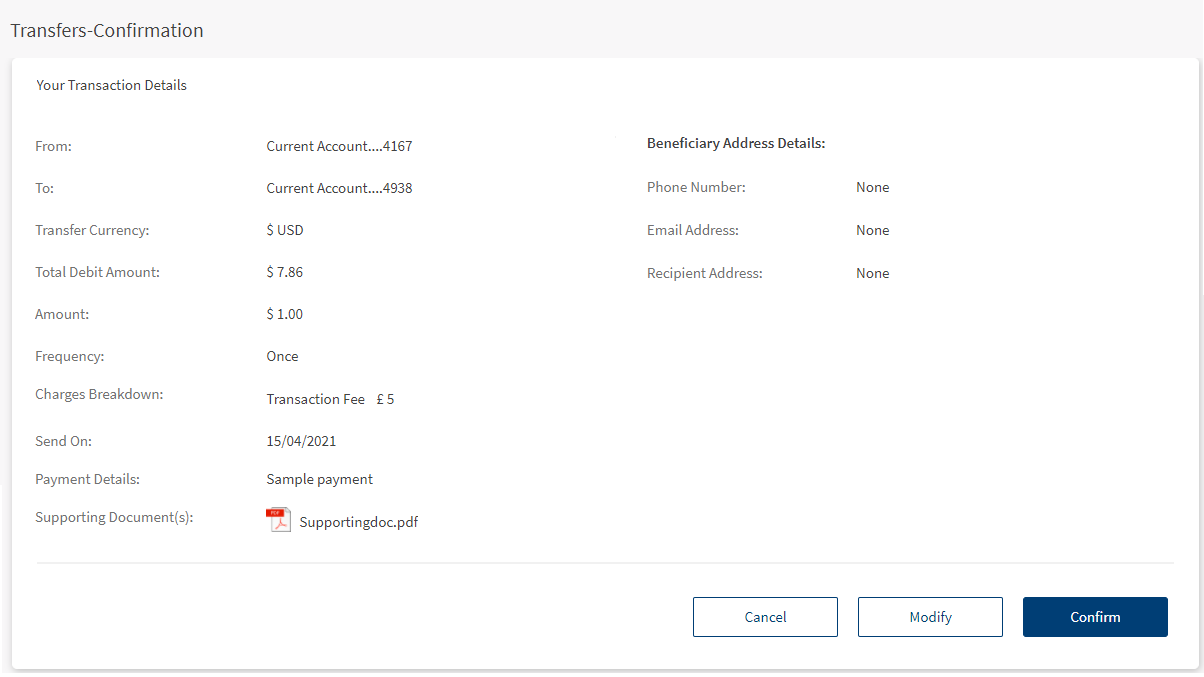
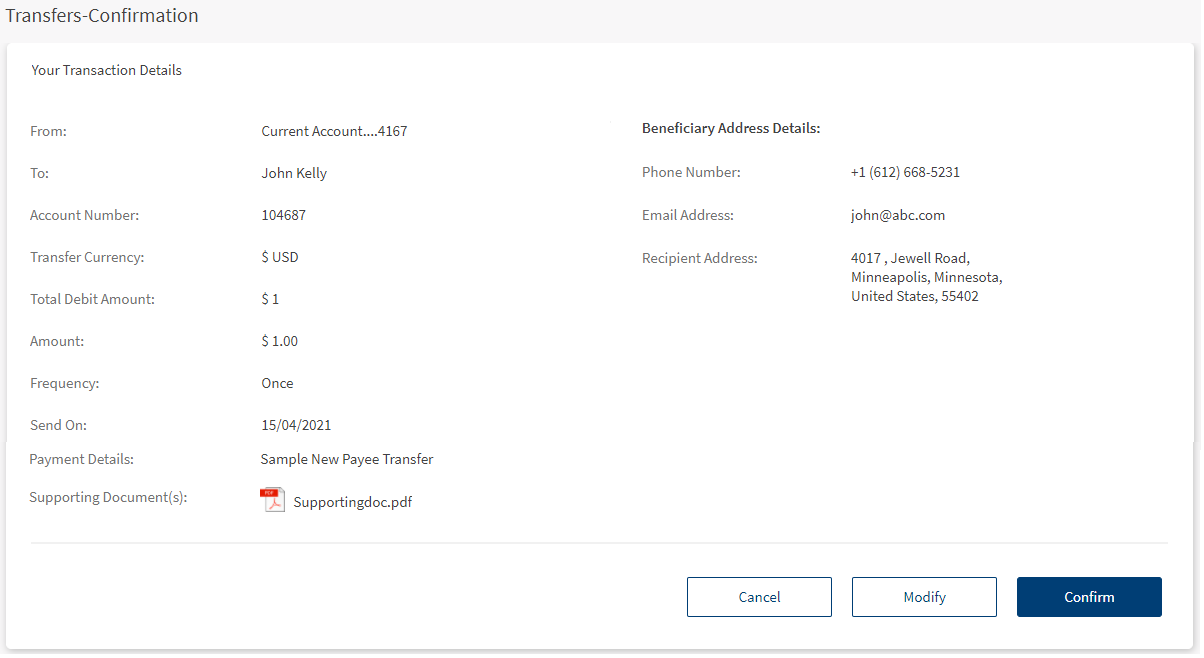
- Verify Transfer Details. If you have specified valid data in all the fields, the app displays the Confirmation screen with provision to modify the details, if required.
- Click Modify to modify the details. Once the details are confirmed, click Confirm.
- Click Cancel to cancel the transaction.
- Depending on the bank configuration, you must either provide the secure access code that is sent to your registered mobile number and email ID or must answer the security questions.
NOTE: Only one OTP resend request is allowed per transaction.
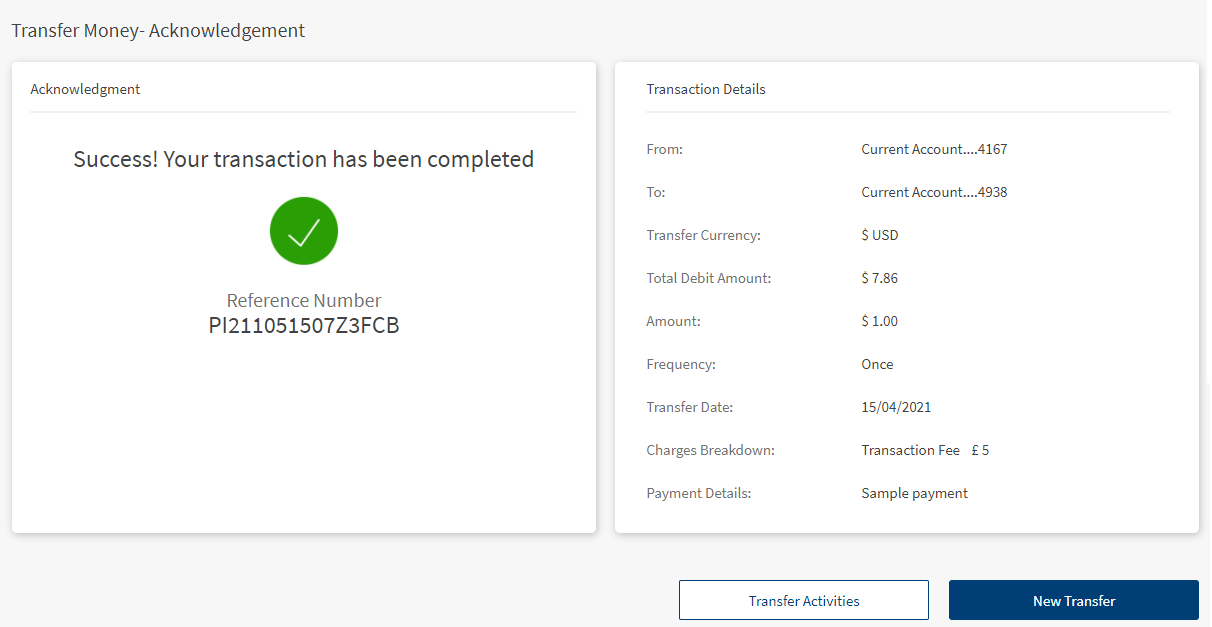
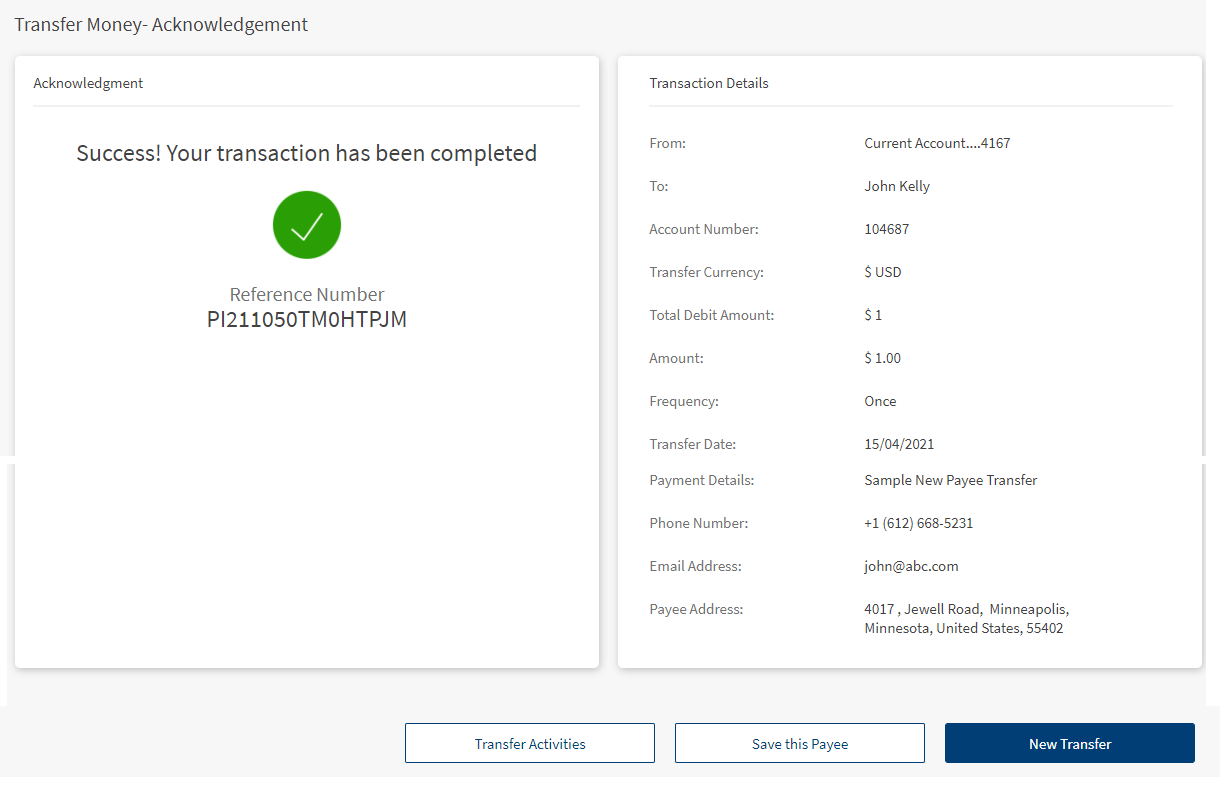
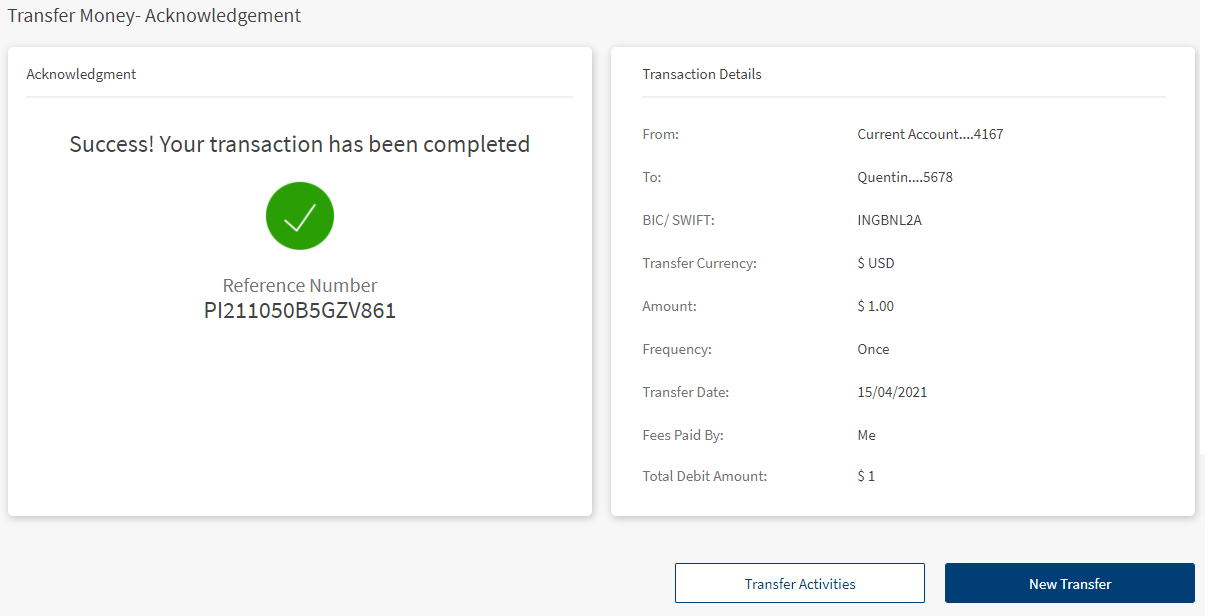
- Once the entered details are correct, an acknowledgment screen is displayed with a reference number.
- The app displays the acknowledgment screen with transaction details, unique reference number to the transaction, and provision to do the following:
- Make a new transfer
- Transfer View Activities
- Save this Payee - This option appears when a new payee is selected in To field.
Existing Payee
New Payee
Domestic/International Transfer
You can initiate a fund transfer to the recipients in other banks that you have added, and recipients in international banks.
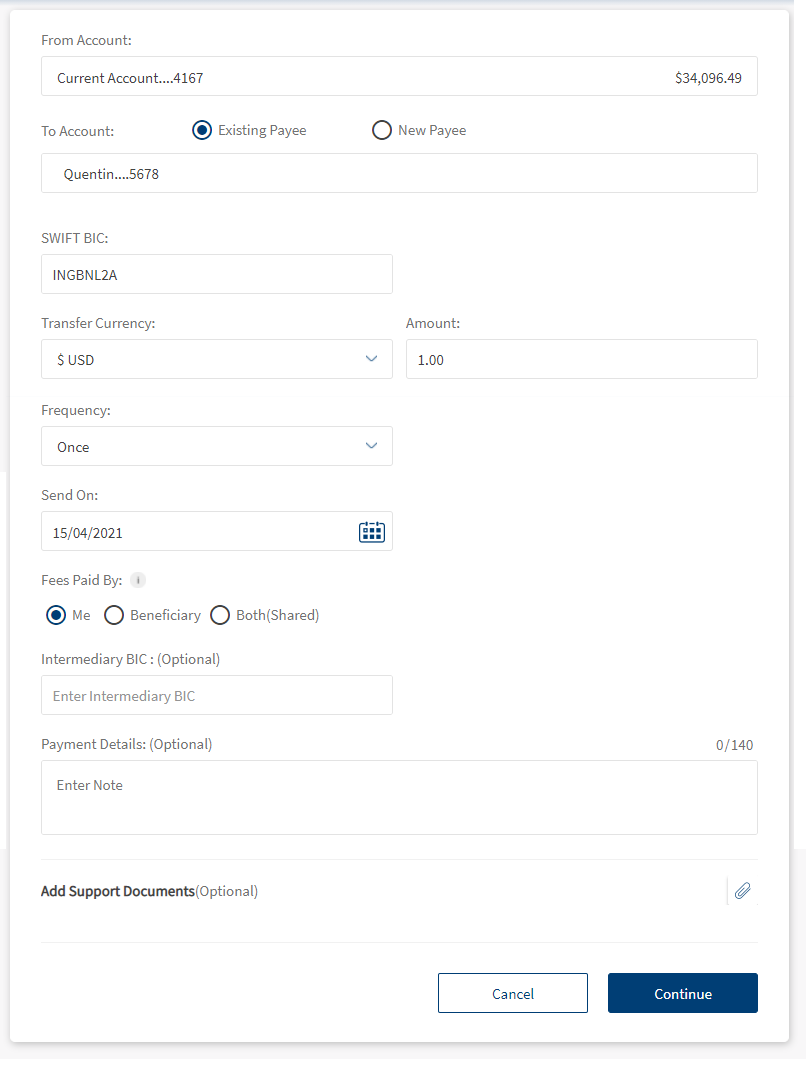
- From: You can view only the eligible Checking and Saving accounts displayed in this field. Select one of your accounts from the list.
- To account. Select if you want to transfer to an existing payee in your list or to a new payee.
- Existing Payee. Select the account from the list. Only eligible accounts are displayed in the list. The app displays an appropriate message if the list is empty.
- New Payee. Select this option if you want to transfer to a new payee whose account details are not saved in your list. The following options are displayed:
- Account Number. Enter the account number of the new payee.
- Re-enter Account Number. Re-enter the account number.
- Name: When you select New Payee, the ‘To Account’ becomes the name field. Enter the name of the beneficiary
NOTE: Enter any one of the following three fields.
- SWIFT/BIC: If the provided account number is part of cross border or international payment, then you must enter the SWIFT/BIC number that contains alphanumeric characters. SWIFT/BIC field does have a format and structure validations.
BIC must be either 8 or 11 characters only.
- Bank code (A-Z): 4 letter code
- Country code (A-Z): 2 letter code
- Location Code (0-9 or A-Z): 2 digit code – either letters or numbers
- Branch Code (0-9 or A-Z): optional 3 digit code – either letters or numbers
NOTE: BIC is non-editable if it is derived from IBAN.
- Click on Look Up to automatically detect the SWIFT/BIC. Clicking on Look Up will display a pop up with the privilege to search the SWIFT/BIC details. Search by providing the following details to pick the right SWIFT/BIC:
- Bank Name
- Branch code
- Country
- City
For same bank payments this option is disabled by default.
- Clearing Code. Enter the clearing code.
- Clearing code is the bank code that is used to perform the domestic transfer.
- For cross-border payments to countries such as UK and US, you must add this code in addition to SWIFT/BIC of the beneficiary bank. Alternatively, you can also enter this code without providing the SWIFT/BIC.
- Transfer Currency. Select the transfer currency from the Currency list. The Currency list displays the currency code with symbol.
- Amount. Enter the amount.
- Payment Method. The payment method varies based on the selected currency type in 'Transfer Currency'. Select the payment method from the following options.
- SEPA
- INSTANT - Urgent payment and it incur additional charges.
- SWIFT
- Local Domestic Clearing (BGN)
NOTE: Payment method is not applicable for an International payment.
Currency Type Payment Method USD ($) FEDWIRE (Default)
ACH
EUR (€) - SEPA (Default)
- INSTANT
BGN (Лв) - RINGS (Default)
- BISERA
GBP CHAPS (Default)
FASTER PAYMENT
- Frequency. Specify the payment frequency details.
- By default, the app selects the frequency as once and the current date. You can change the frequency and the date if the transfer is a scheduled or a recurring transfer.
- Scheduled Transfer or Recurring Transfer. You can choose to set the transfer as a recurring transfer (for example, daily, weekly, monthly, and so on). In that case, select if the recurrence has to be on a specific date and select a date from the calendar, or if it is the number of occurrences and enter the occurrence value (for example, 24 times). The current date is selected as the recurring transfer start date, by default. The other frequency options are:
- Once
- Daily
- Weekly
- Bi-Weekly or Every two weeks
- Monthly
- Quarterly
- Half Yearly or Every six months
- Annually
- Send On. Enter the send on date of payment/transfer details. By default, the app displays the current date. For future dated/recurring payment/transfer, you can schedule the future date.
- Fees paid by. Select the who will pay the charges in Fees paid by field. The available options are:
- Me - The Payer (sender of the payment) will bear the payment transaction fees. The beneficiary will receive the full amount of the payment.
- Beneficiary - The Payee (recipient of the payment) will incur the payment transaction fees. In this scenario, the payee will receive the payment excluding the transfer charges.
- Both (Shared) - The Payer (sender of the payment) will pay all fees charged by the sending bank. The Payee (recipient of the payment) will pay all fees charged by the receiving bank. The beneficiary will receive the payment excluding the charges.
- Intermediary (BIC) (Optional). Enter the Intermediary BIC number that is alphanumeric with 8 or 11 characters length. This is mostly used in cross-border payments.
- It is the bank which holds the Nostro account of the beneficiary bank. The Intermediary and beneficiary banks will be in different countries. Nostro account currency is of the country in which the Intermediary bank is located.
- If the invalid BIC is provided, an error is displayed as “Invalid BIC provided”.
- E2E Ref (Optional) is the reference used to track payments for reconciliation purpose.
NOTE: E2E reference is not applicable for an International payment. This field is displayed only for SEPA and INSTANT payment methods only.
- Payment Details (Optional). Enter the Payment Reference details. You can enter up to 140 characters.
- Beneficiary's Address. Enter the beneficiary's address that includes Address Line 01, Address Line 02, City, State, Post Code, and Country.
- Add Support Documents. You can add an attachment for future reference. To add an attachment, follow these steps:
- Click + icon and select the file to add as an attachment.
The attached file is displayed along with the Cancel (X) option.
- Click Cancel (X) to remove the attachment. A pop-up is displayed asking for confirmation.
- Click Yes to confirm. The attachment will be removed.
NOTE: You can attach up to five PDF/JPEG files only. Adding an attachment is mandatory based on the payment/transfer amount. The threshold amount is configured by the bank.
- Click + icon and select the file to add as an attachment.
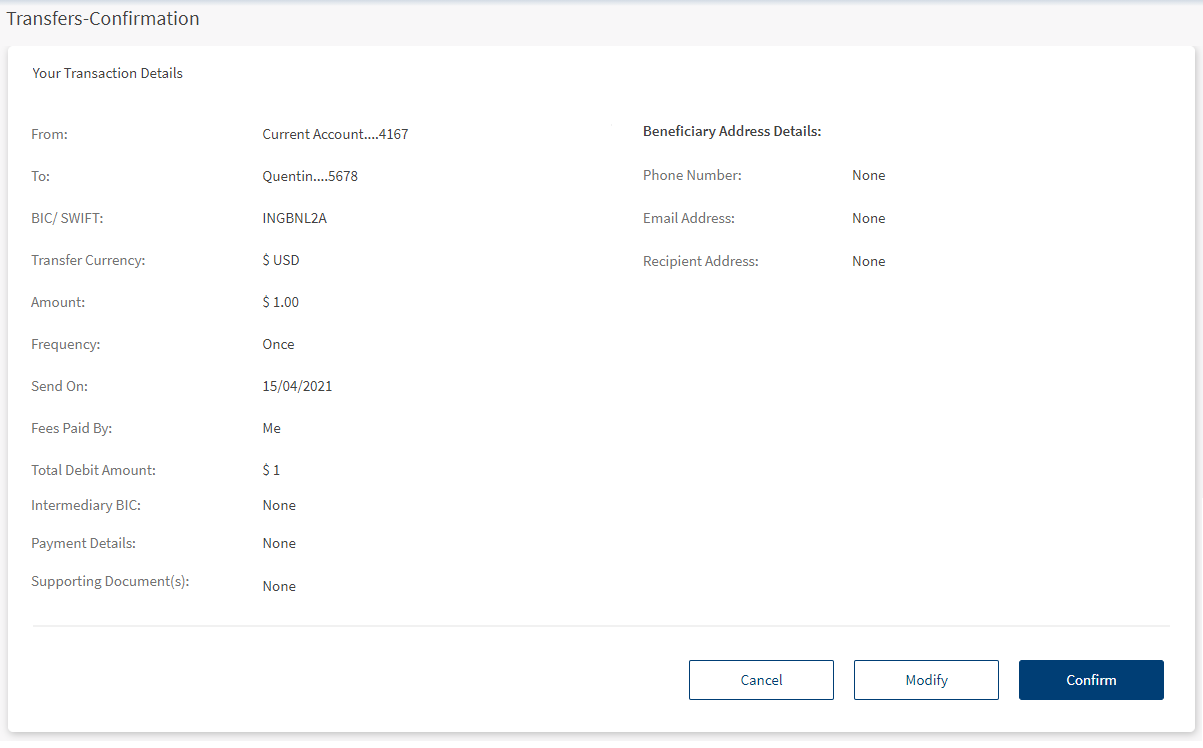
- Click Continue to proceed with the payment. The Confirmation screen appears.
- You can perform the following actions in the Confirmation screen.
- Click Continue to proceed with the payment.
- Click Modify to edit the details.
- Click Cancel to cancel the transaction.
NOTE: Credit value date is displayed for the user in the Confirmation and Acknowledgment screens.
- Depending on the bank configuration, you must either provide the secure access code that is sent to your registered mobile number and email ID or must answer the security questions.
NOTE: Only one OTP resend request is allowed per transaction.
- Once the entered details are correct, an acknowledgment screen is displayed with a reference number.
- The app displays the acknowledgment screen with transaction details, unique reference number to the transaction, and provision to do the following:
- Make a new transfer
- View Transfer Activities
NOTE: This field not applicable for same bank payment.
InternationalTransfer - Existing Payee
P2P Transfer
Person-to-Person transfer is an electronic fund transfer made from one person to another person. Use the feature to initiate a P2P transfer (for example, to send money to a friend) by using the recipient's mobile number, email ID, or National ID. You can initiate P2P transfer to the list of eligible P2P recipients. Select a P2P recipient to perform a transfer.
Activate P2P Transfer
When you open the P2P screen for the first time, the app displays the terms and conditions for you to activate the P2P payment service.
You must specify the following details:
- Click Activate Person-to-Person from Unified Transfers landing screen.
- Enter the following information:
- Registered Name
- Select Contact Type (Phone/Email/National ID) - Select the preferred contact type and enter the details.
- Default Deposit Account. Select the preferred account for using the P2P payment service (for receiving money).
- Transfer Limit. Select the transfer currency and add a limit to your transfers.
- Click Continue. The app displays the terms and conditions for you to activate the P2P payment service.
- Click the check box to accept terms and conditions.
- Click Activate to enable P2P for your account. Once P2P is activated, you can send and receive money via your email ID, mobile number, or national ID by using the OLB application.
NOTE: In case you do not have an account eligible for P2P payments, you will not be able to activate the P2P payment service and the same will be conveyed to you with an appropriate message.
Send Money
To initiate a fund transfer using P2P payment service, click Make a Transfer under P2P Transfer section from UTF landing screen.
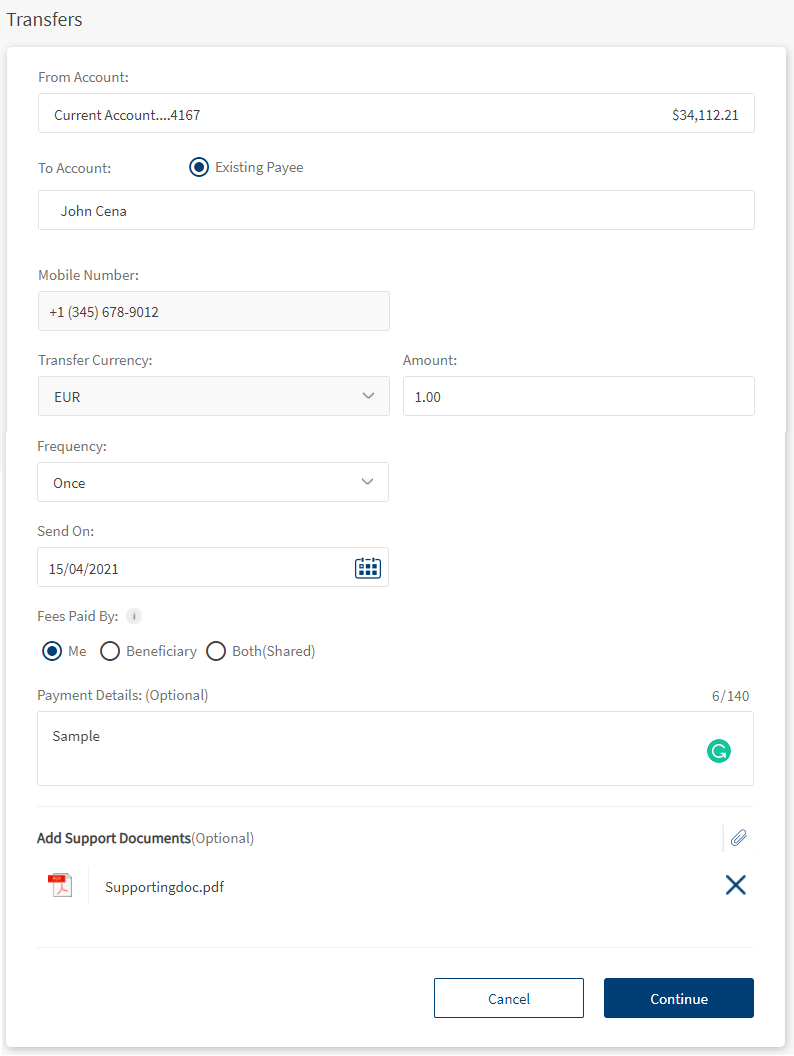
Enter the following details to initiate a P2P transfer:
- From: Select the source account from the list of eligible P2P accounts.
- To account. You can transfer only to the existing payees. Select a P2P payee to initiate a transfer. You can select any one of the payee's saved phone number, email ID, or national ID. By default, the payee's primary contact details is selected.
- Transfer Currency. The Currency field displays the (Euro) currency code with symbol, by default.
- Amount. Enter the amount of money to be sent.
- Frequency. Specify the payment frequency details.
- By default, the app selects the frequency as once and the current date. You can change the frequency and the date if the transfer is a scheduled or a recurring transfer.
- Scheduled Transfer or Recurring Transfer. You can choose to set the transfer as a recurring transfer (for example, daily, weekly, monthly, and so on). In that case, select if the recurrence has to be on a specific date and select a date from the calendar, or if it is the number of occurrences and enter the occurrence value (for example, 24 times). The current date is selected as the recurring transfer start date, by default. The other frequency options are:
- Once
- Daily
- Weekly
- Bi-Weekly or Every two weeks
- Monthly
- Quarterly
- Half Yearly or Every six months
- Annually
- Send On. Enter the send on date of payment/transfer details. By default, the app displays the current date. For future dated/recurring payment/transfer, you can schedule the future date.
- Fees paid by. Select who will pay the charges in Fees paid by field. The available options are:
- Me - The Payer (sender of the payment) will bear the payment transaction fees. The beneficiary will receive the full amount of the payment.
- Beneficiary - The Payee (recipient of the payment) will incur the payment transaction fees. In this scenario, the payee will receive the payment excluding the transfer charges.
- Both (Shared) - The Payer (sender of the payment) will pay all fees charged by the sending bank. The Payee (recipient of the payment) will pay all fees charged by the receiving bank. The beneficiary will receive the payment excluding the charges.
- Payment Details (Optional). Enter the Payment Reference details. You can enter up to 140 characters.
- Add Support Documents. You can add an attachment for future reference. To add an attachment, follow these steps:
- Click + icon and select the file to add as an attachment.
The attached file is displayed along with the Cancel (X) option.
- Click Cancel (X) to remove the attachment. A pop-up is displayed asking for confirmation.
- Click Yes to confirm. The attachment will be removed.
NOTE: You can attach up to five PDF/JPEG files only. Adding an attachment is mandatory based on the payment/transfer amount. The threshold amount is configured by the bank.
- Click + icon and select the file to add as an attachment.
- Click Continue to proceed with the payment. The Confirmation screen appears.
- You can perform the following actions in the Confirmation screen.
- Click Continue to proceed with the payment.
- Click Modify to edit the details.
- Click Cancel to cancel the transaction.
- Depending on the bank configuration, you must either provide the secure access code that is sent to your registered mobile number and email ID or must answer the security questions.
NOTE: Only one OTP resend request is allowed per transaction.
- Once the entered details are correct, an acknowledgment screen is displayed with a reference number.
- The app displays the acknowledgment screen with transaction details, unique reference number to the transaction, and provision to do the following:
- Make a new transfer
- View Transfer Activities
Error Scenarios and Validations
- If the transfer fails due to some reason (for example, if you have insufficient funds in the selected account), the app displays an alert along with an appropriate message.
- If the session is timed-out during a transfer and leaves the window open, you have to reinitiate the transfer.
- The Bank/FI's can add a limit on the number of transfers or maximum amount that can be made/transferred to a loan account in a month.
- If the "From" account does not have the enough balance to make the payment an error or warning is displayed. The message can be configured in Transact for override.
- Loan Payments. In the following scenarios, the error messages are displayed.
- The payment may not be reflected immediately in the loan details or transaction section. It may take 2-3 business days to be reflected in your loan account.
- When the transfer to a loan is initiated, the next due amount is pre-filled in the "Amount" field. You cannot modify the due amount.
- In case the due amount is zero, the following message is displayed, "Currently there are no pending dues on your account".
- In case the selected date is later than the "Next Payment Date" associated with the loan account, the following message is displayed "The scheduled date is later than the due date. Making payments after the due date may incur penalty. Do you wish to continue?"
- You cannot make a payment more than the total over due amount. If you select "Pay Other Amount" and enter the overdue amount, the following message is displayed "Your account balance isn't sufficient to make this payment."
- Add Attachments. In the following scenarios the error messages are displayed.
- If you try uploading an invalid file format (PNG, TXT, CSV).
- If you try uploading a file more than the allowed size (i.e. 5MB).
- If you try uploading files more than the allowed file limit (max. five files).
SRMS Integration
- The request type and request subtype for a onetime transfer is configured in Service Request Microservice.
- The following are the configuration details saved in SRMS:
- Product: Account
- Request Type: OnetimeTransfer
- Request Sub type: ownAccounTransfer/sameBank Transfer/SWIFTTransfer/P2PTransfer
- Order Style: Near time
- SEPA Transfer
- Instant Transfer
- Fedwire Transfer
- ACH Transfer
- CHAPS Transfer
- Faster Transfer
- RINGS Transfer
- BISERA Transfer
NOTE:For Domestic Transfer, the request sub-type are configured based on the payment method.
- The customer does not have mandate definition for a submitted transfer request (without Signatory(s) approval).
- Once a transfer request is initiated, the application saves/persists the request in SRMS with the complete transfer data and displays the SRMS generated reference number on the acknowledgment screen. The status of the transaction is Request Initiated as the request is captured.
- The SRMS is integrated to Transact for all transfer types except P2P.
- In Transfer Activities page, the one-time transfer details are read from SRMS.
- For Recurring transfer the flow is integrated to Transact, where the recurring payment is stored and executed on the respective dates (except P2P).
- For recurring transfers, the request type is configured as “RecurringTransfer” in SRMS while the names of the sub-types are identical to the ones in one-time transfers.
- In Transfer Activities page, the recurring transfer details are read directly from Transact.
In this topic
