Canadian Model Bank Installer
The purpose of the installation guide is to explain the process and technical workflow of the CMB installer tool for DS package deployments. FIs can use this CMB installer tool as a handy process to install the DS packages that are delivered by Canadian Model Bank. This process is only applicable for Cpack developments which will process the DS packaging mechanism in a sequential order.
The intended audience for this document is the bank IT staff and IT administrators deploying the package delivered to them.
The CMB Installer tools is used to install the packages delivered as part of Canadian Model Bank. This tool will allow the FIs to install the new modules, fixes and reinstall of existing packages in a handy way by minimising the time. This tool is used for packages that are under Cpack delivery mechanism process. The CMB installer tool will install the packages in a sequential order for easy tracking.
Below are the list of item the package does.
- Installation of the package in a sequential order.
- Auto installation of an old package while installing the latest package.
- Auto authorisation of data records.
- Produce a log report upon the installation of the packages.
First Time Installation
FIs using the CMB installer tool for the first time have to perform the below steps to install the packages in a smoother way.
 Step 1: Download the Packages from the FTP Server
- Login to the FTP server.
- Select all the packages available.
- While transferring the pack via FTP, the transport method must be set to binary.
Step 2: Download the CMB.PRODUCTS File
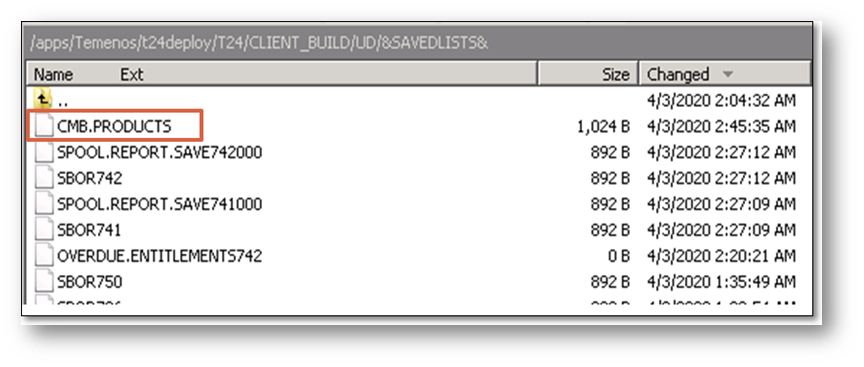
- Download the CMB.PRODUCTS file from the Common_RoutinesAndLt stream under the FTP folder.
- Place it under the &SAVEDLISTS& folder in the environment.
- A sample screen shot is provided below.
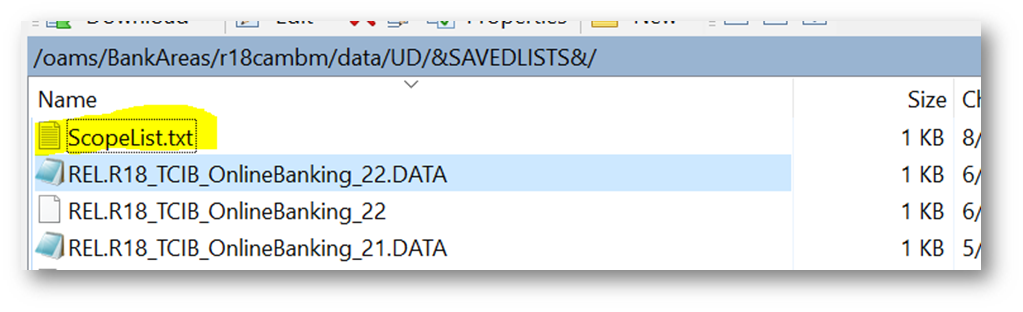
 Step 3: Place the ‘ScopeList.txt’ under &SAVEDLISTS&
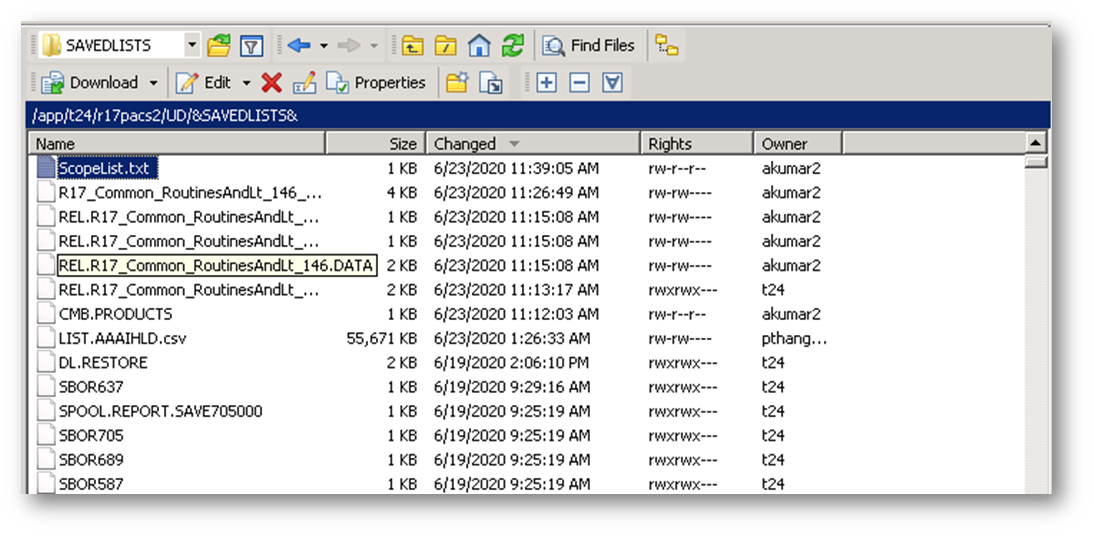
- Place the ‘ScopeList.txt’ under &SAVEDLISTS&.
- A sample screen shot is provided below.

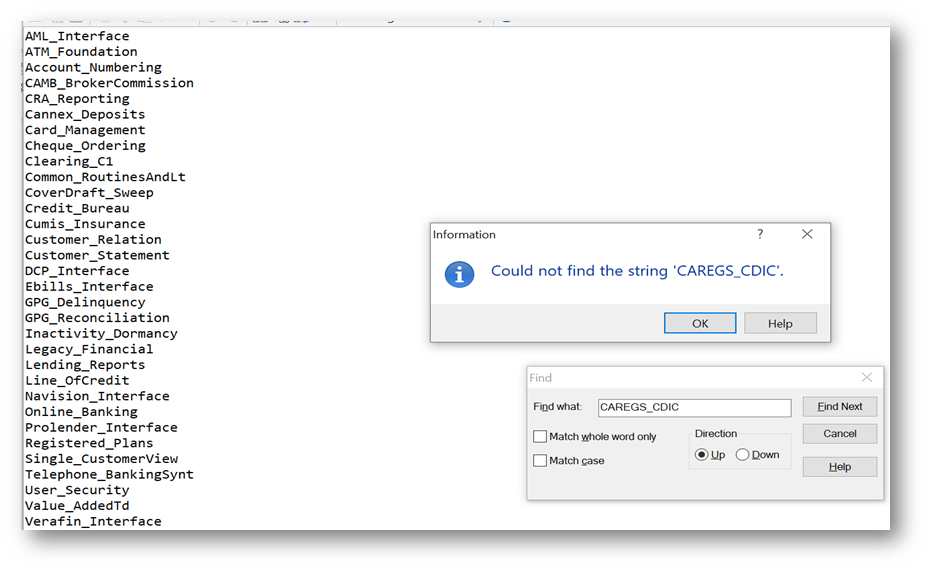
- A sample ScopeList.txt file is provided below.
 Step 4: Configure the Temenos Transact Home Path in the Temenos Transact Environment
- Set T24_HOME=D:\CAMB\R17\Temenos\T24\Data\UD.
Step 5: Create a Folder for Processing the DS Packages
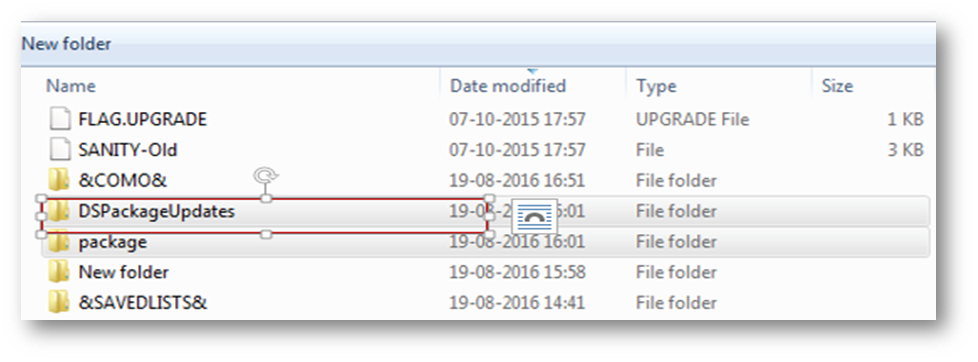
- Create a folder under t24 home called DSPackageUpdates as shown below.
 Step 6: Process the DS Package
Below are the steps for installation of the CMB installer tool.
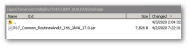
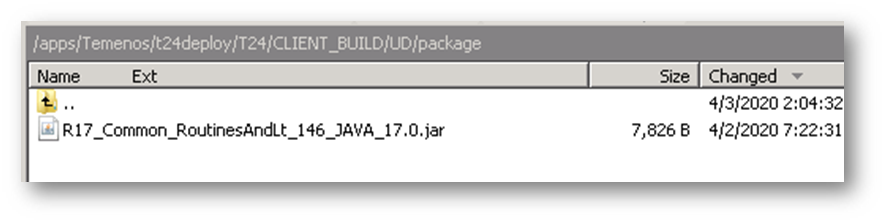
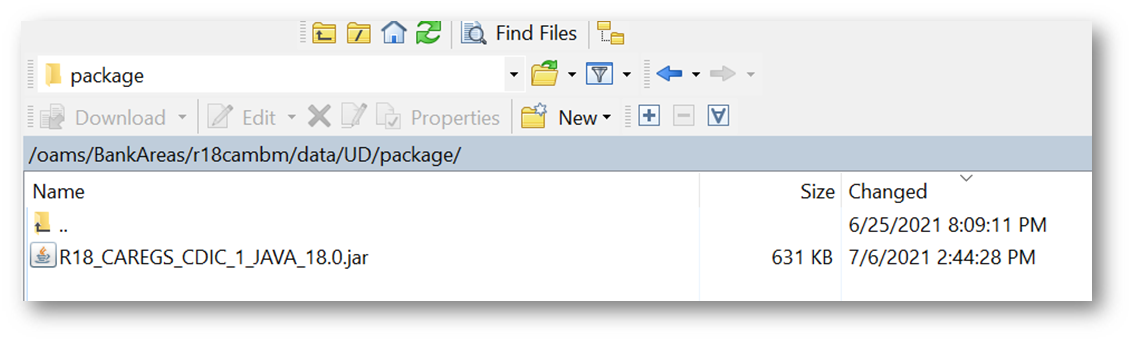
- Create folder called packages under the UD directory and place the DS pack as shown below.
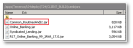
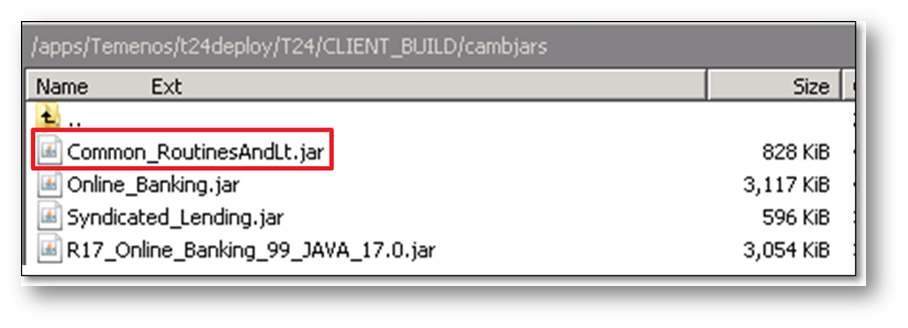
- Manually place the jar file under the camnjars folder as shown below.
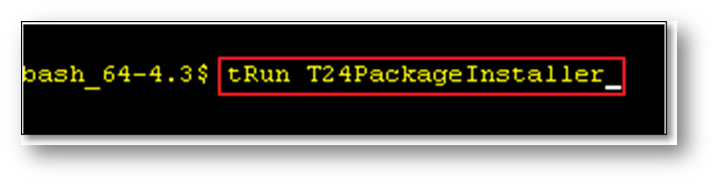
- Once the DS pack and jars are placed in the respective paths, execute the tRun T24PackageInstaller (copy and past the highlighted command) from tafj_shell as shown below.
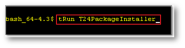
- Upon executing the above command, the system will display the process successful message as shown below.

 Step 7: Release the Data Record
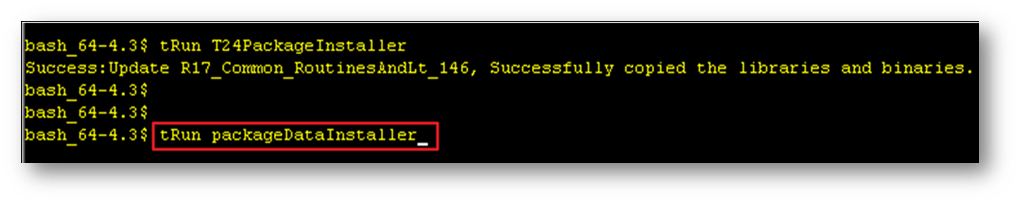
- Execute the command tRun packageDataInstaller (copy and past the highlighted command) from tafj_shell to release data records.
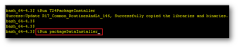
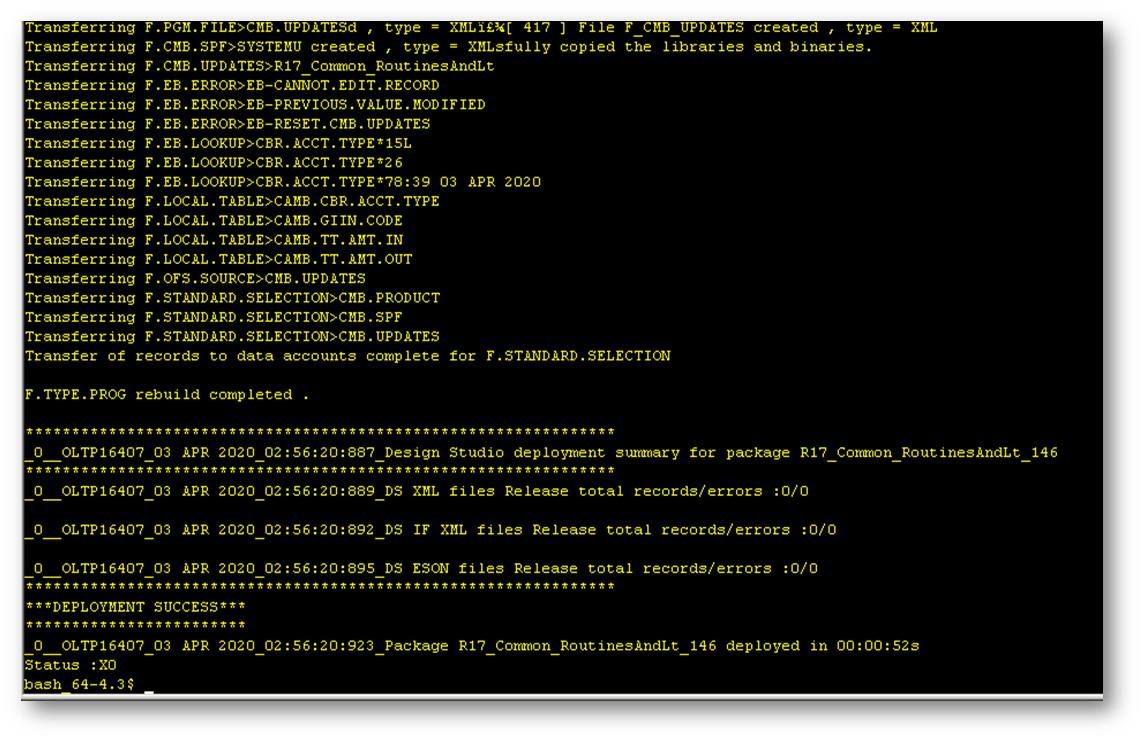
- Upon executing the above command, the system will release the data records as shown below.

- Once executed, the data records will be placed in INAU.
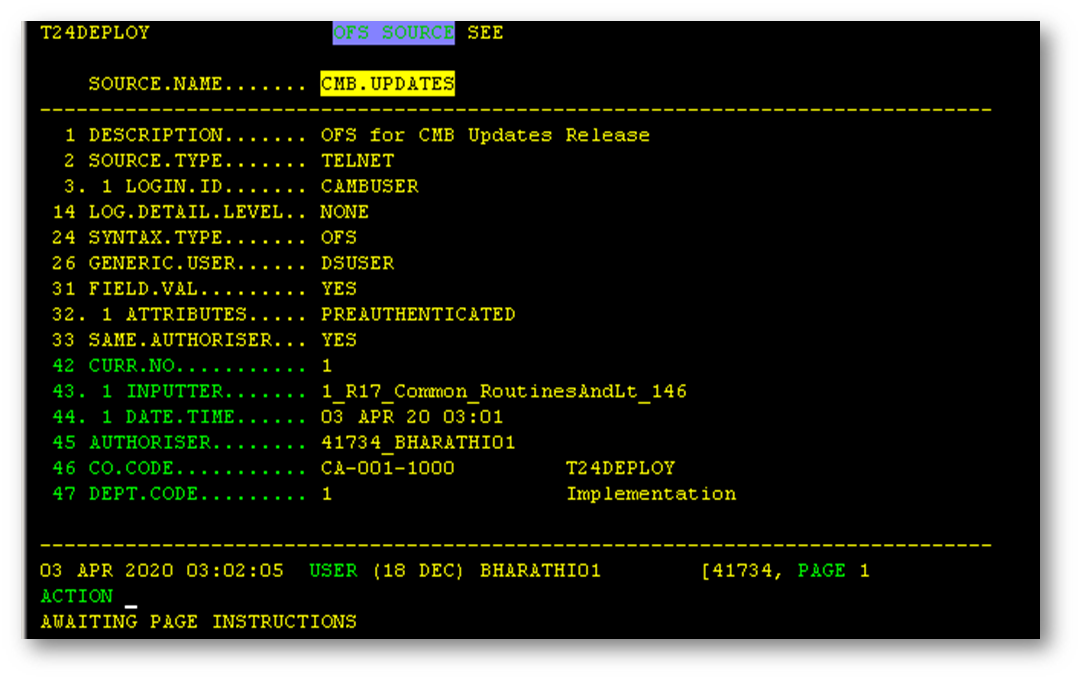
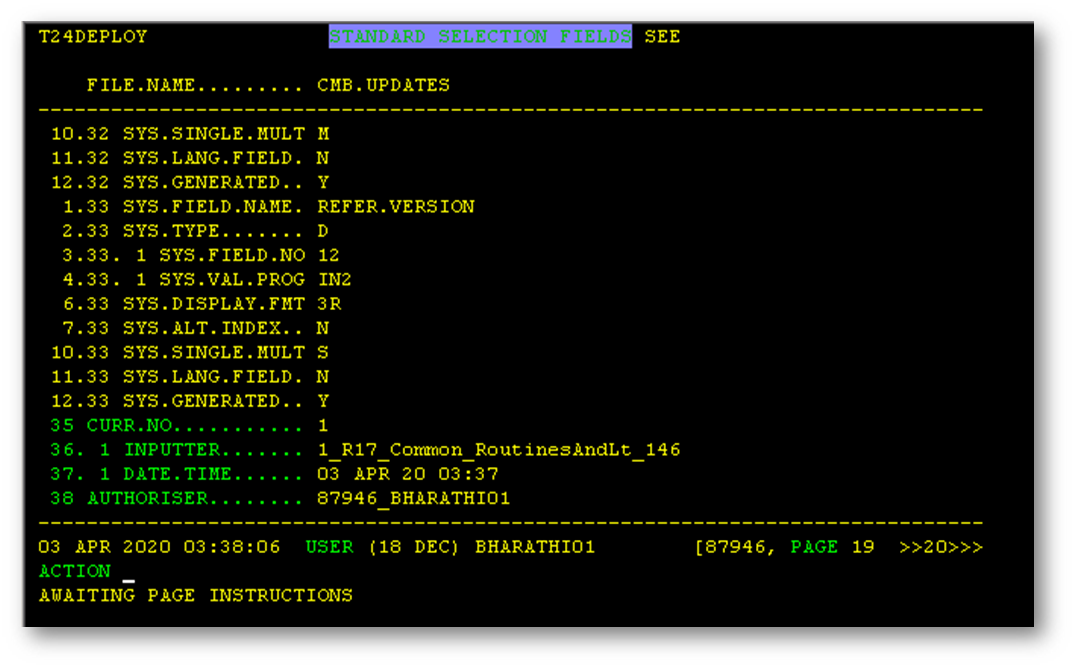
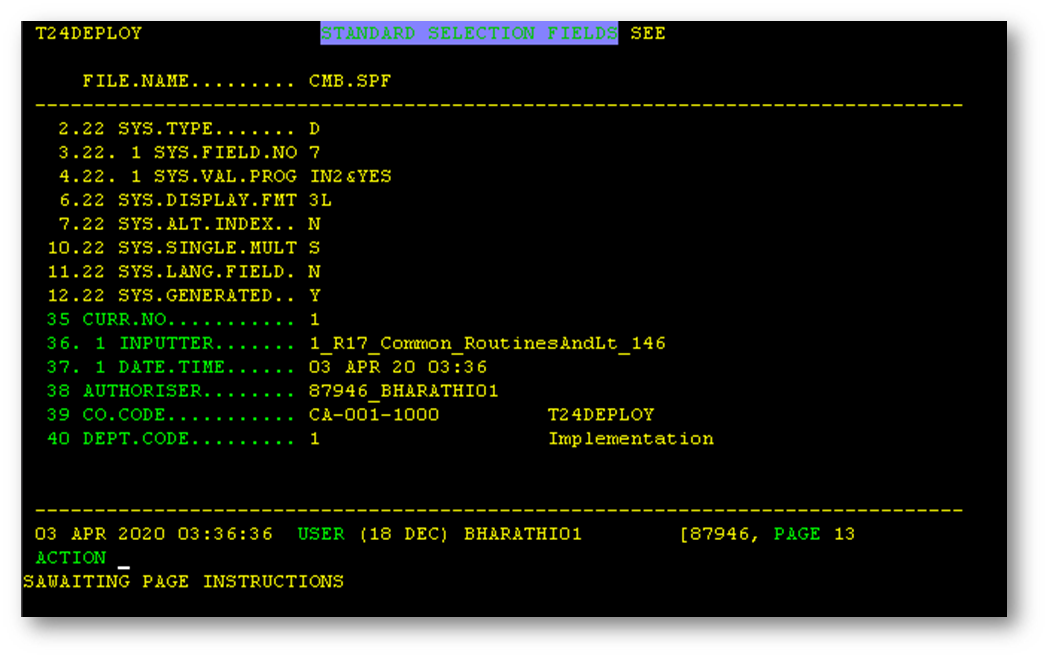
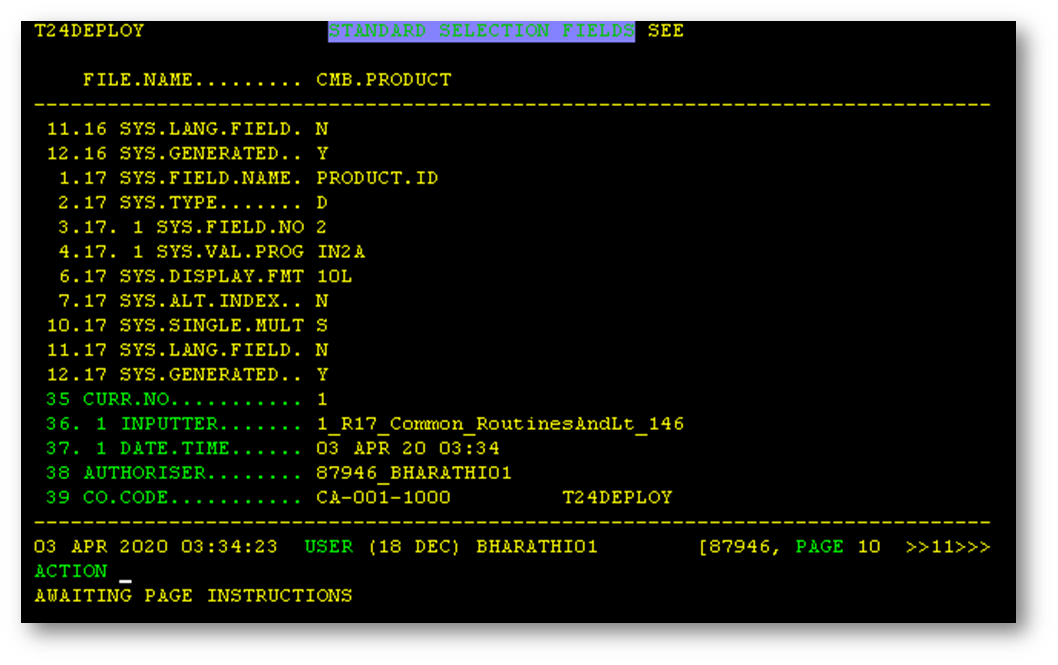
- Authorise the below record manually to proceed with the CMB installer tools.
- OFS.SOURCE>CMB.UPDATES.
- STANDARD.SELECTION>CMB.SPF.
- STANDARD.SELECTION>CMB.UPDATES.
- STANDARD.SELECTION>CMB.PRODUCT.
NOTE: This is one time setup and hence it needs to be manually authorised for the tool implementation. - A sample screen shot for OFS.SOURCE>CMB.UPDATES is provided below.

- A sample screen shot for STANDARD.SELECTION>CMB.UPDATES is provided below.

- A sample screen shot for STANDARD.SELECTION>CMB.SPF is provided below.

- A sample screen shot for STANDARD.SELECTION>CMB.PRODUCT is provided below.

 Step 8: Authorise the Data Record
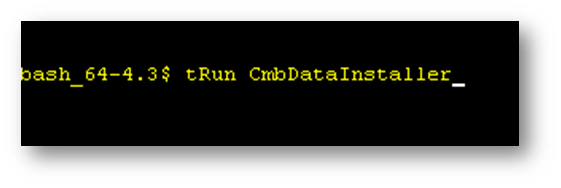
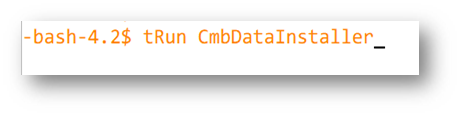
- Execute the tRun CmbDataInstaller command (copy and paste the highlighted command) in the tafj_shell as shown below.
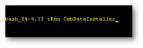
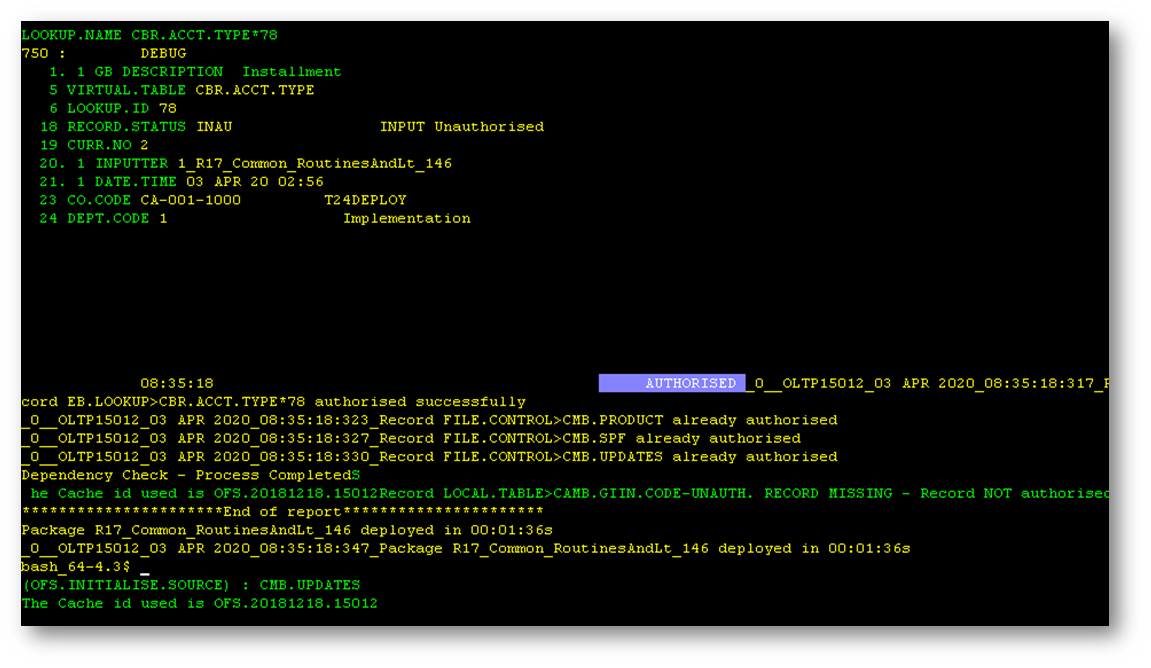
- Upon executing the above command the record will be auto authorised as shown below.
 NOTE: After completing this process all the records will be auto authorised. Please check the logs for any exceptions raised during authorisation.
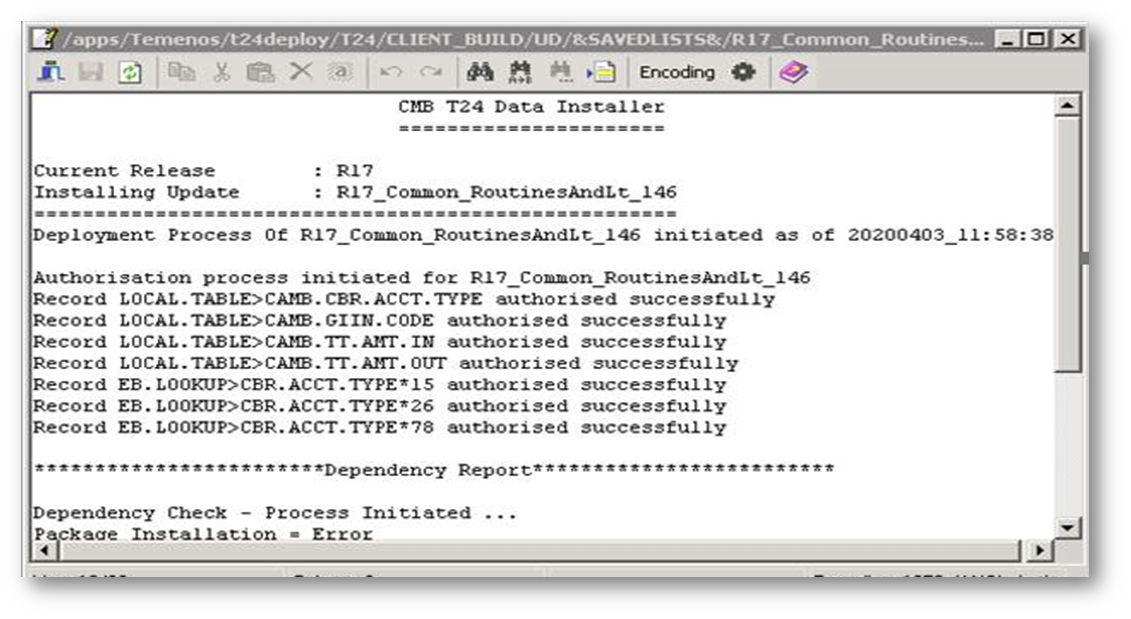
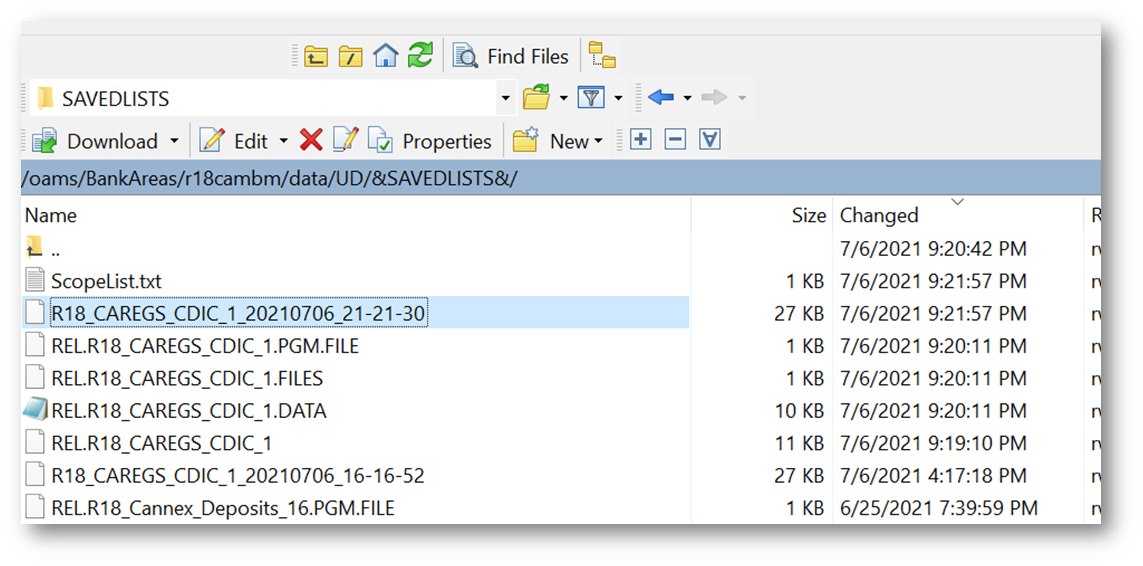
 - Once the data installer is completed, the system will generate a logfile in the &SAVEDLIST& folder as shown below.NOTE: The log report will be named with the package name along with the release date and time.
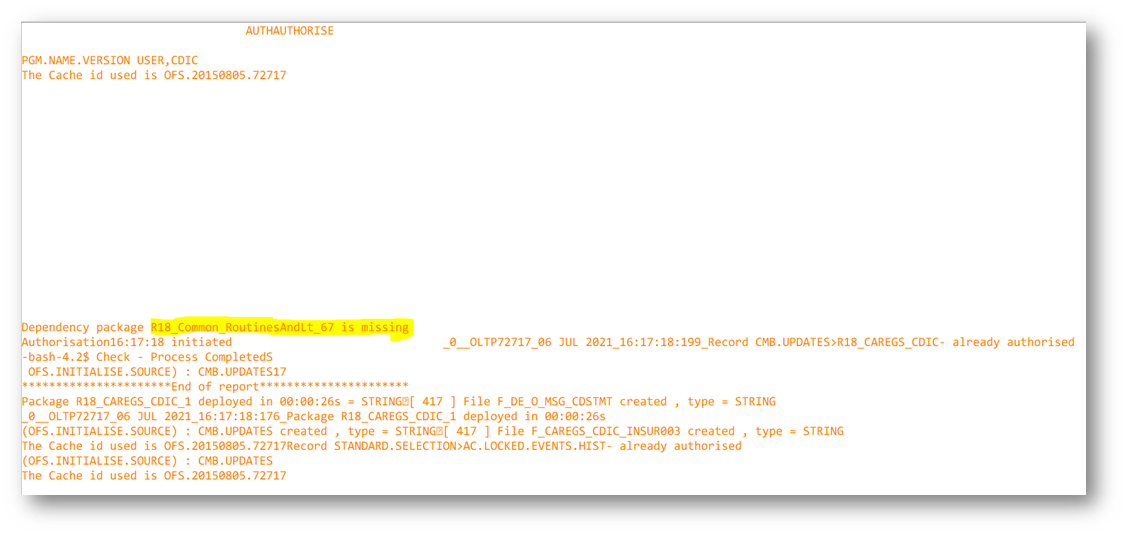
 NOTE: In case, if any dependency pack missing error is shown in the report, then take the dependent pack from the FTP server provided and follow the deployment steps mentioned above.
 Step 9: Final Processing of the CMB Installer
- Login into Temenos Transactand input the CMB.SPF>SYSTEM record and commit the sameNOTE: This is an one time process and it has to be done only during the tool installation process.
- Once the above steps are completed, validate the CMB.SPF record to make sure the latest version has been updated (Common_RoutinesAndLt – Version 146) in the Camb Updates field.
- Once the common package is successfully installed, download all the other packages (except common) and do the installation process by following the above procedure.
Package Deployment Regular Process
FI require an ability to deploy the package in a sequential order. Below are the steps involved in deployment the DS package.
Before deploying the package, the package version needs to be verified:
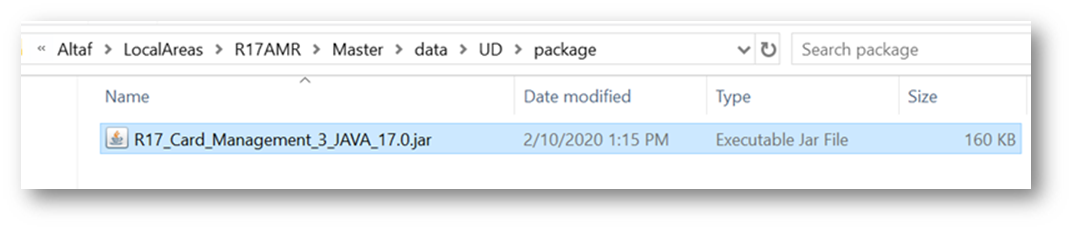
- Package deployment of R17_Card_Management_1_Java.jar.
Step 1: tRun T24PackageInstaller (Existing Process)
- Place the DS pack and the jar file in the respective paths and execute the below command. The below command is used to extract the DS pack in the environment for installation.

- Once the above command is executed, the system will copy the libraries and binaries in to the respective folders.


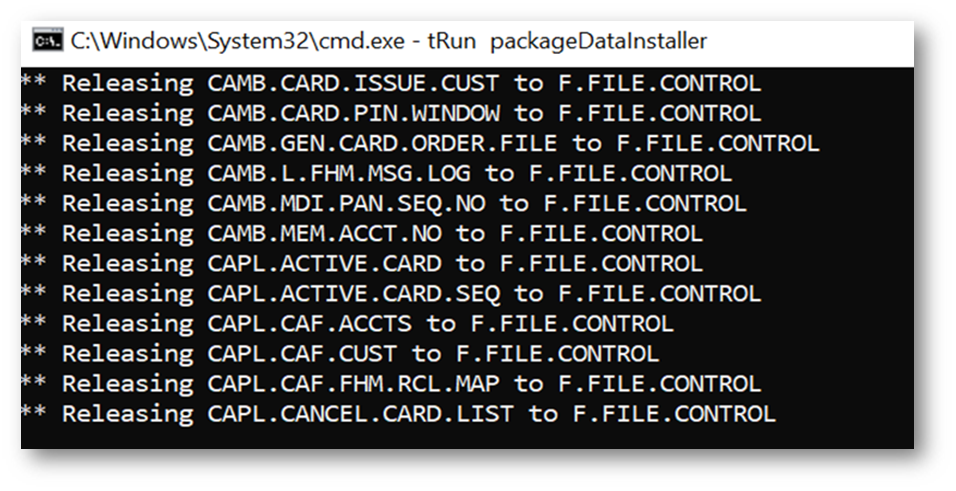
 Step 2: tRun packageDataInstaller (Existing Process)
- Execute the below command to release the data records to the system. This process will fetch the data records from the DB pack and release them in the environment.

- Once the above command is executed the data records will be released as shown below.
 NOTE: The data records will be release in INAU status.

 Step 3: tRun CmbDataInstaller (New Process)
- The below command is used to auto authorise the data record released in the above step.

- Upon executing the above command, the system will authorise the data record into the environment as shown below.

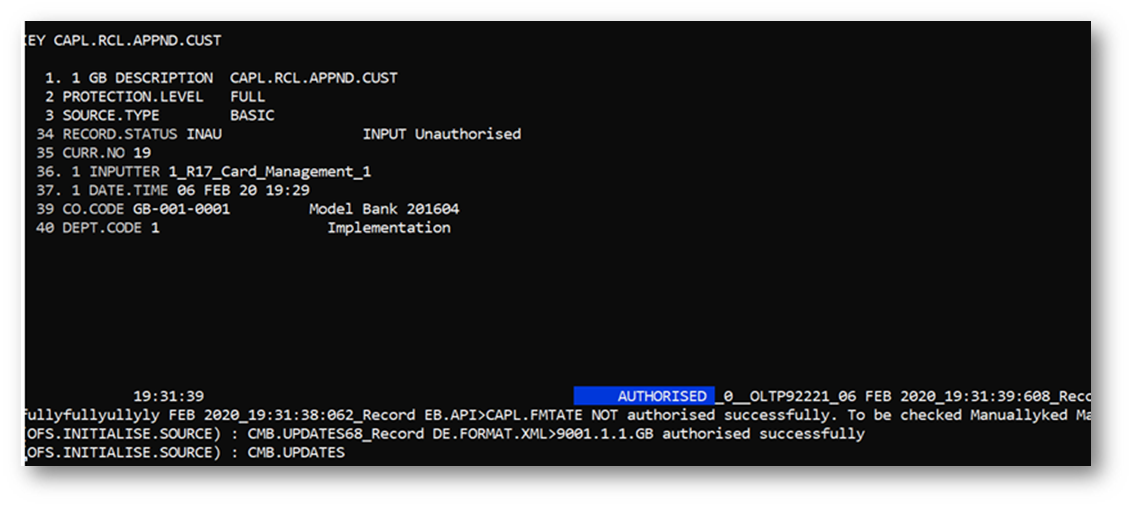 Step 4: Log Report and Dependencies Report
- Once the data records are authorised, a log file will be captured for the Cmb.DataInstaller as shown below.


- Upon successful completion of the installation, the respective jar file will be updated with the latest version number as shown below.
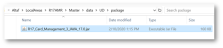
- Initial package: Package deployment of R17_Card_Management_1_Java.jar
- Latest package: Package deployment of R17_Card_Management_3_Java.jar
- Initially, the environment has only version 1 installed, now the latest version 3 is being installed (version 2 will be auto installed).
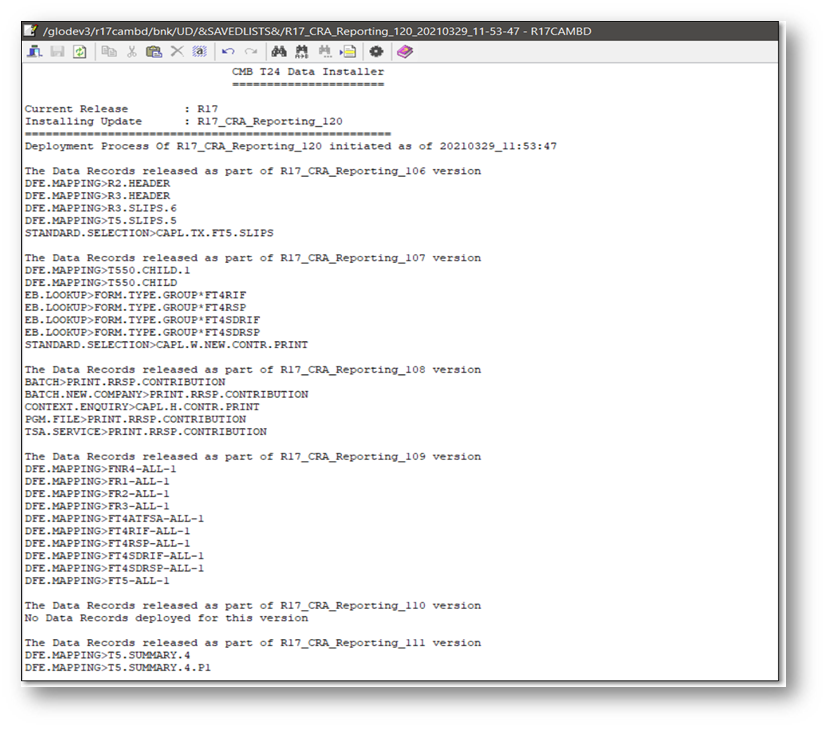
 Step 5 Update Applications
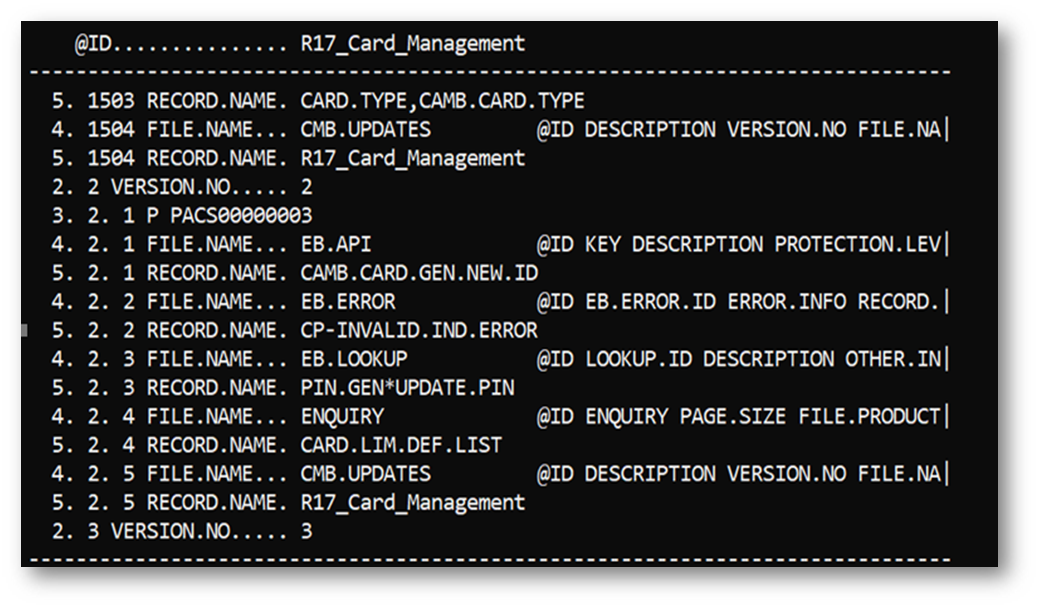
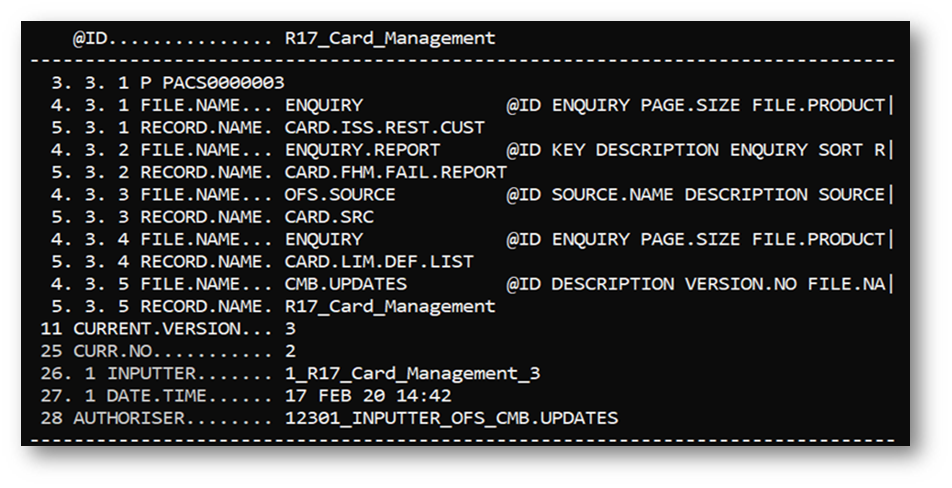
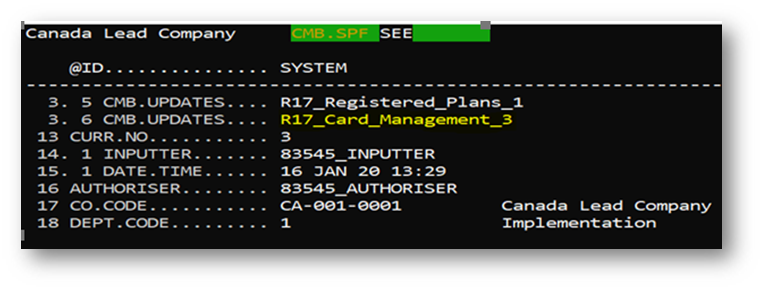
- Once the installation process is complete, the system will update the CMB.UPDATES application as shown below with the version details and data record information.


- The CMB.SPF application is updated with the latest version number and development reference as shown below.
Dependency Report
FI have the flexibility to produce a dependency report even when no packages are installed. The system will report the error in the log file, and the package will not be installed.
Users can execute the tRun CmbDataInstaller command directly and check the dependency report generated.
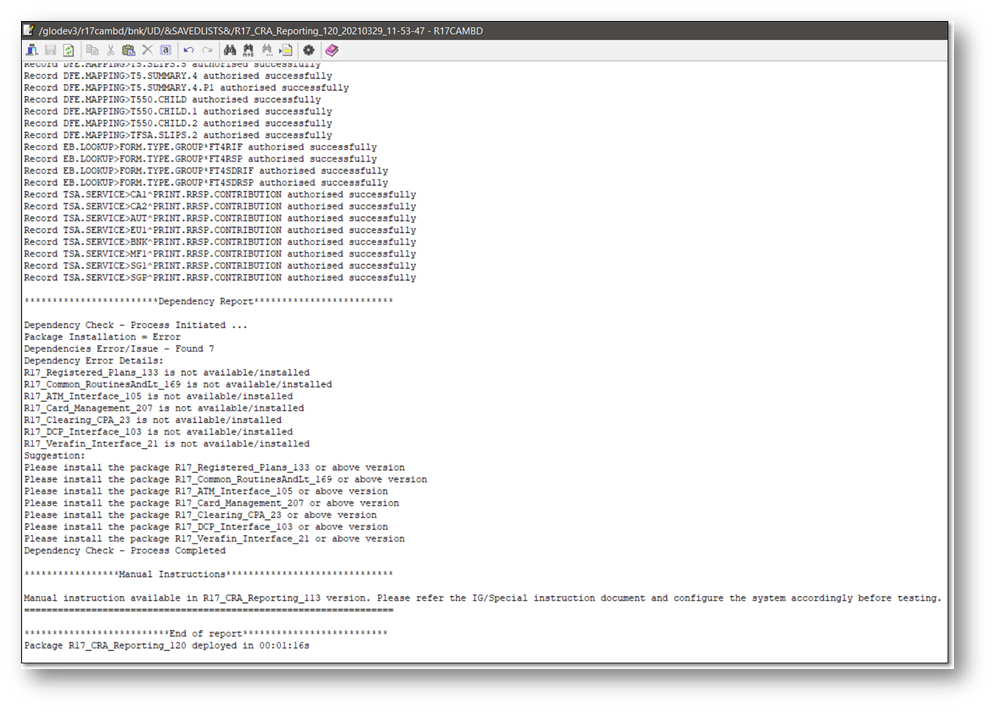
When packages are not installed, the system will scan the dependency report so see whether there are installed packages already without any dependency.
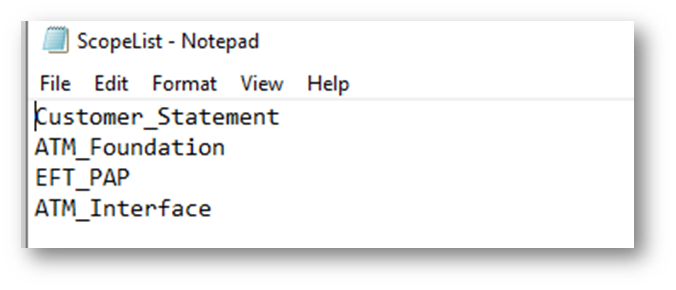
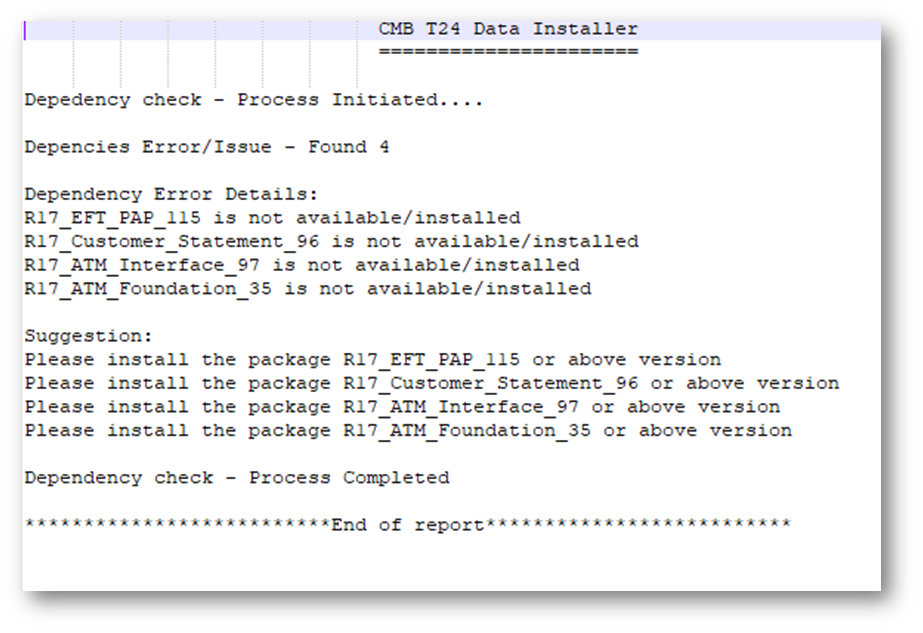
In the below example, the system scans and produces the given four packages and lets us whether all the latest updates are installed.
A sample screenshot for the dependency report (ScopeList) is provided below.
- Execute the tRun CmbDataInstaller command as shown below.

- Upon executing the above command, the dependency report is generated as shown below.
- The dependency report will display the missing stream with the latest version of it and suggestions will be provided as shown below.


 Manual Instructions
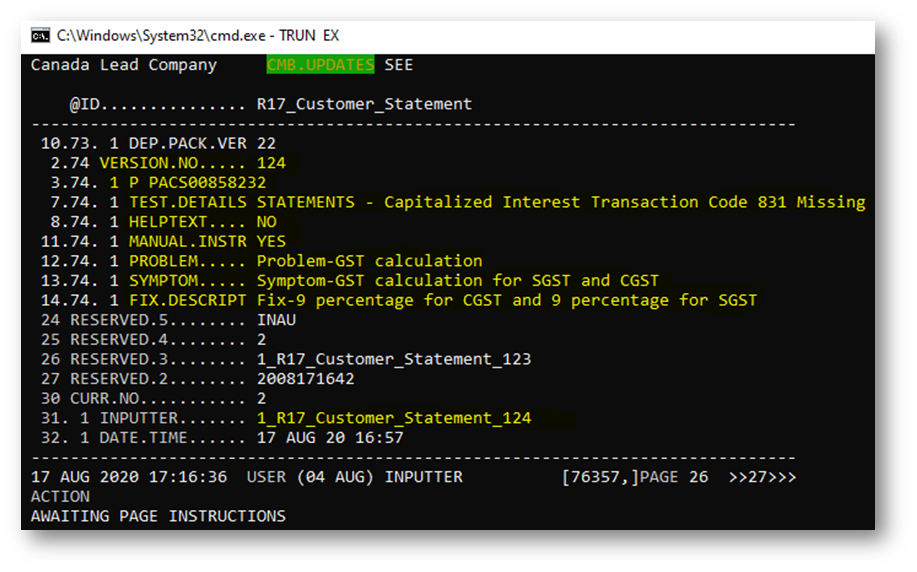
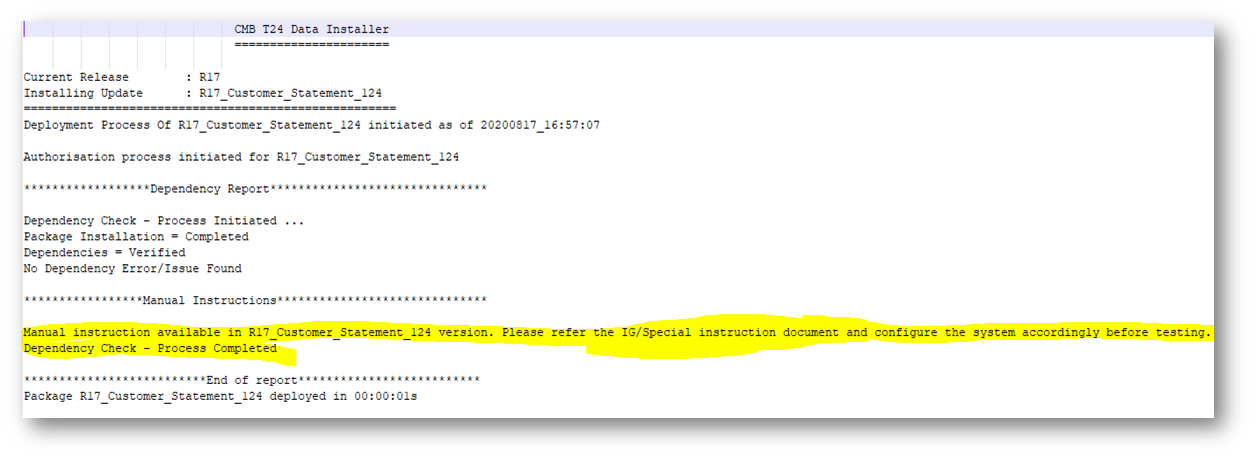
During the package installation if there are any dependencies, the system will update the manual instruction in the dependency report while installing the DSPackages. To validate the manual instruction in the dependency report, the Manual Instruction field from the CMB.UPDATES application must be configured.
- A sample screenshot for the validation of the manual instruction is provided below.
- View the current version of the package as per below.

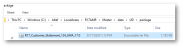
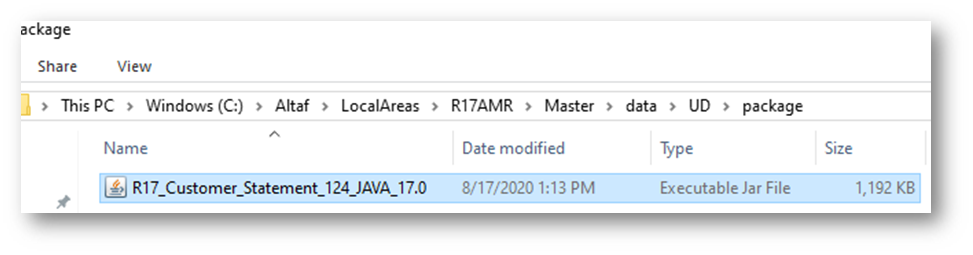
- Place the DSPackage in the path as per below.
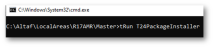
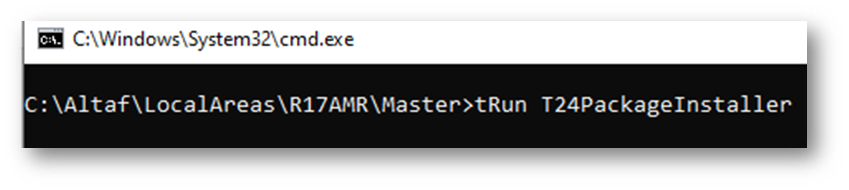
- Execute the tRun T24PackageInstaller command as per below.
- Libraries and binaries are released successfully as per below.

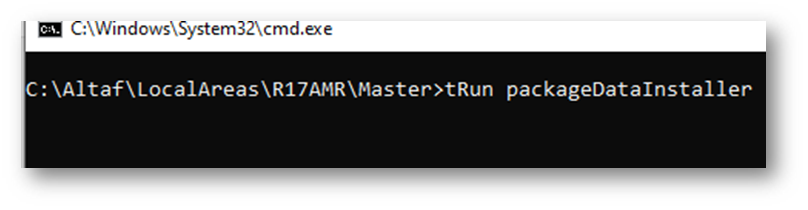
- Execute the tRun packageDataInstaller command as per below.
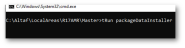
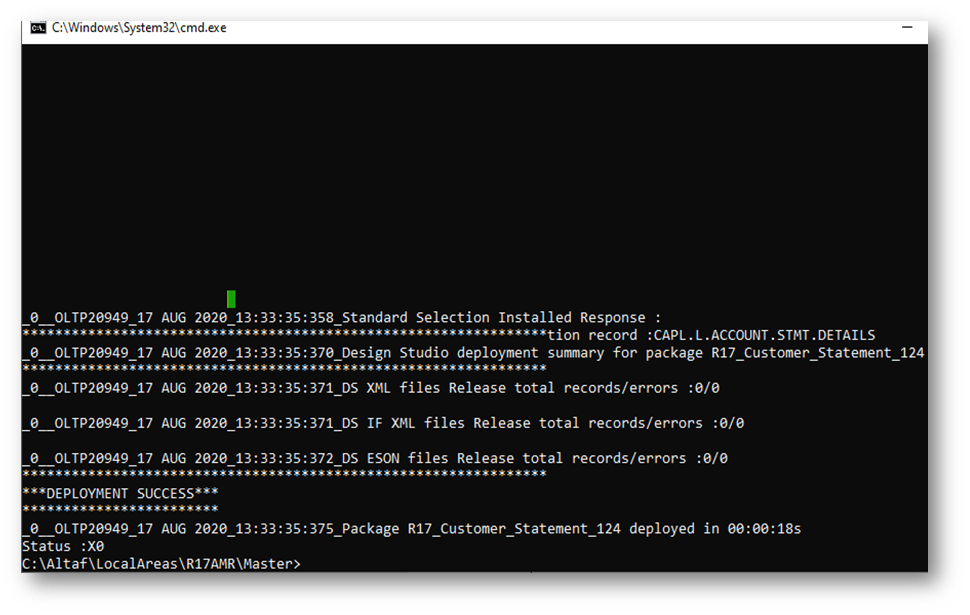
- Packages are deployed successfully as per below.

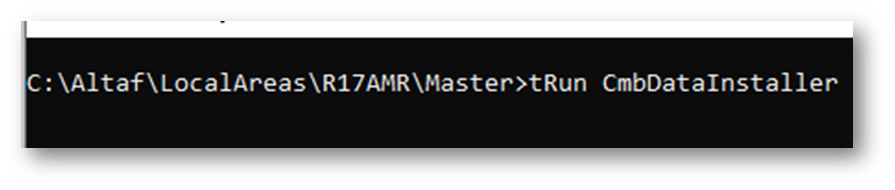
- Execute the tRun CmbDataInstaller command to install the data record.
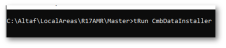
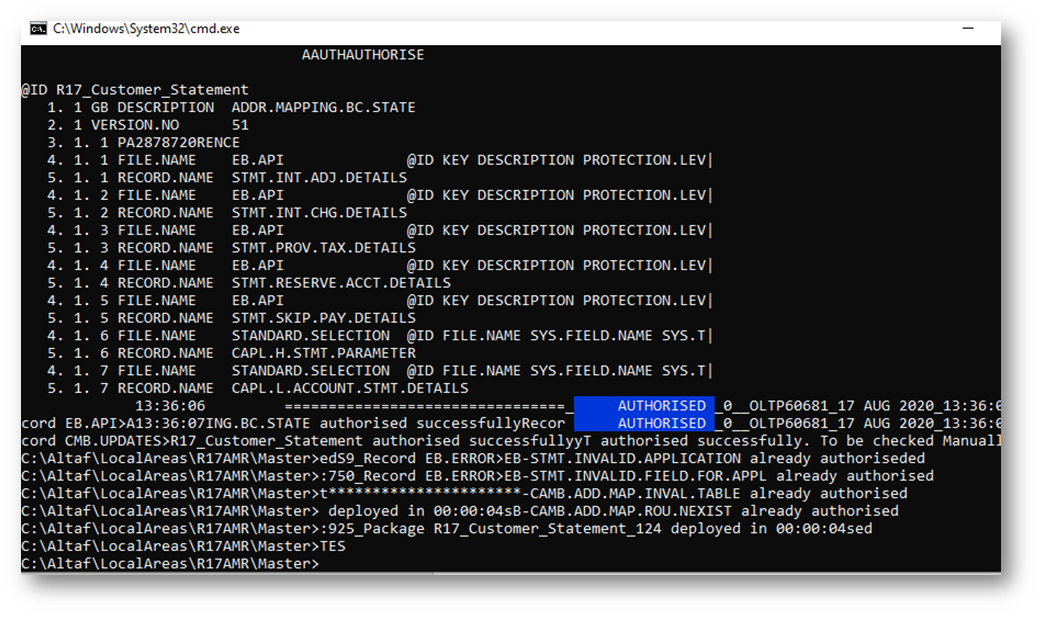
- Data records are installer and authorised successfully as per below.

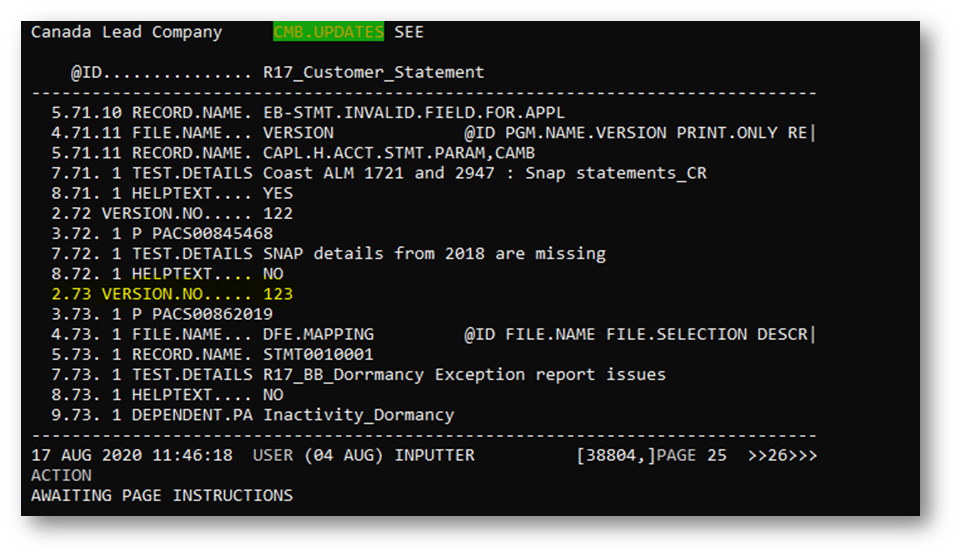
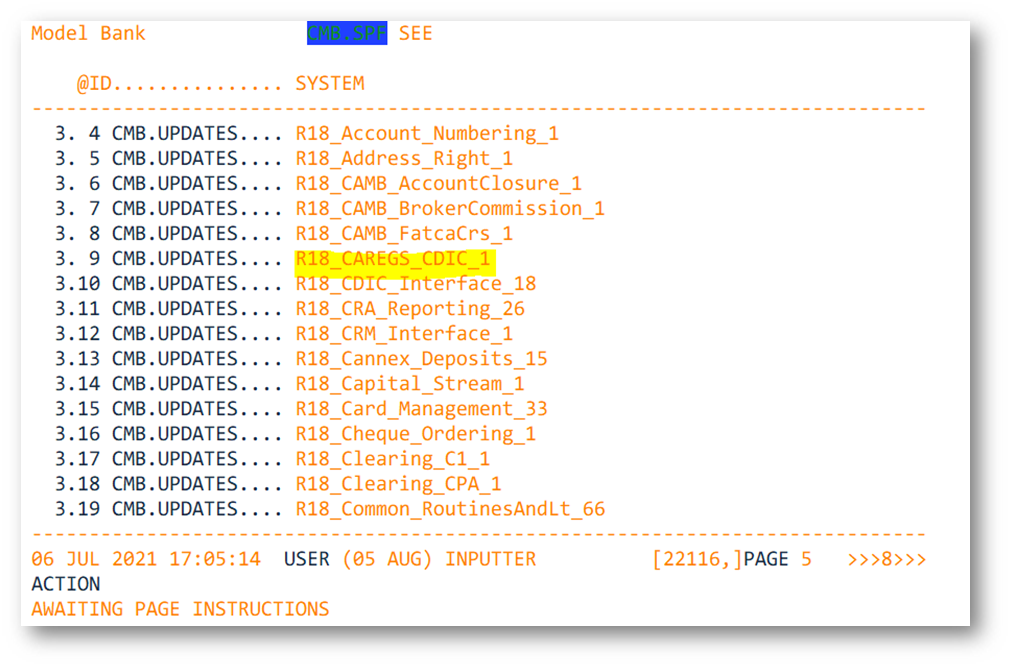
- View the CMB.UPDATES application after installing the DSPakage.
- Old version = 123.
- New version = 124.
- Manual instruction = Yes.

- View the log file generated with manual instruction as per below.
 NOTE: If the Manual Instruction field from the CMB.UPDATES aplication is not defined, then the system will not update the manual instruction in the log file.

Install a New Module
FI have the flexibility to install new modules when the CMB installer tool is present in the system.
- Place the DS package in the below path.
- The ScopeList.txt is placed in the &SAVEDLISTS& folder as per below.
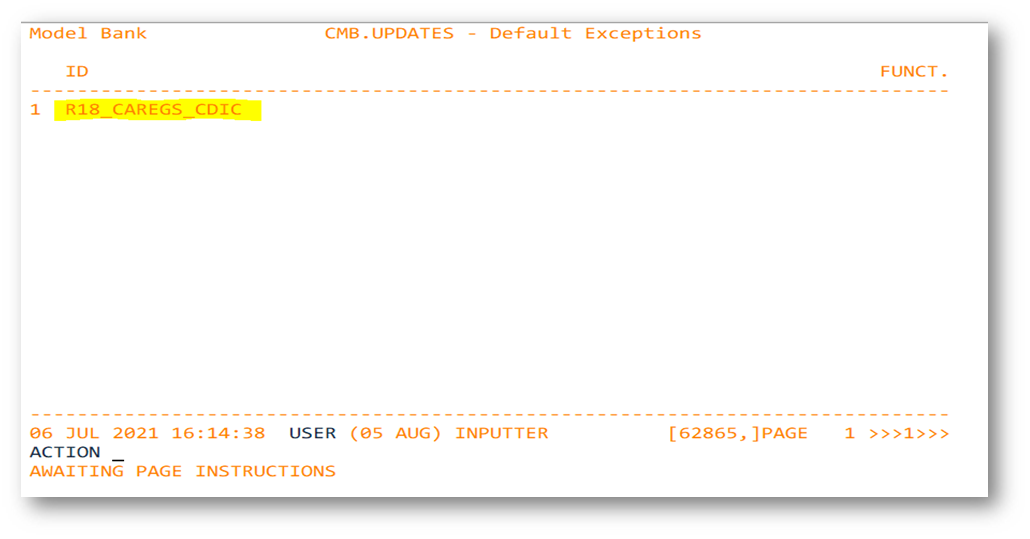
- A new product is not present in the scope list as per below.

- A new product will not be available in the below applications as well.
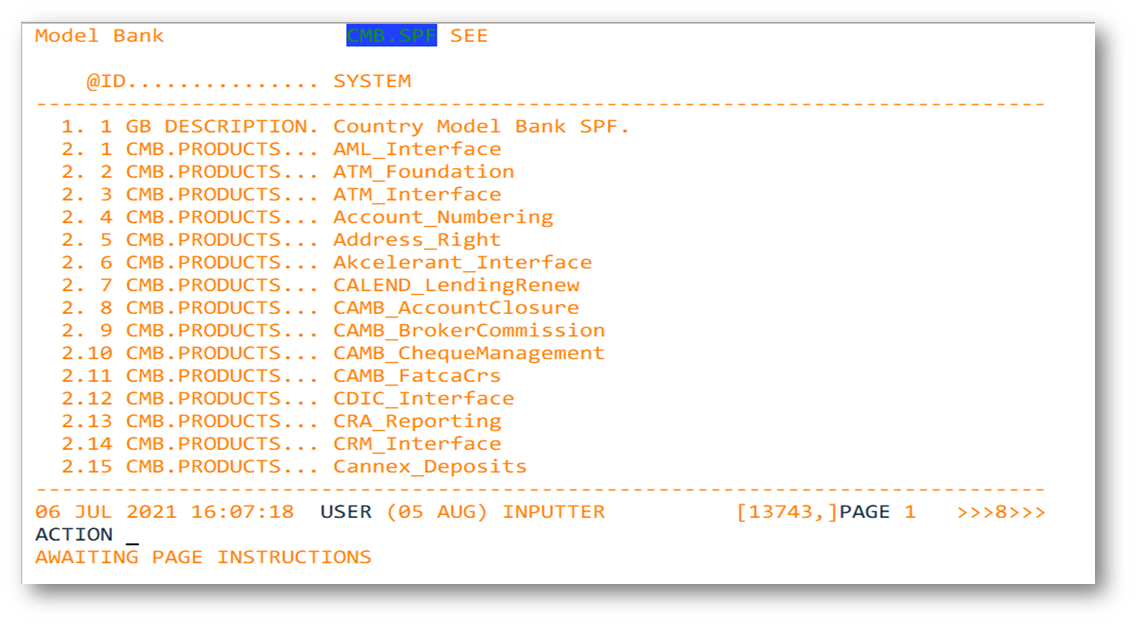
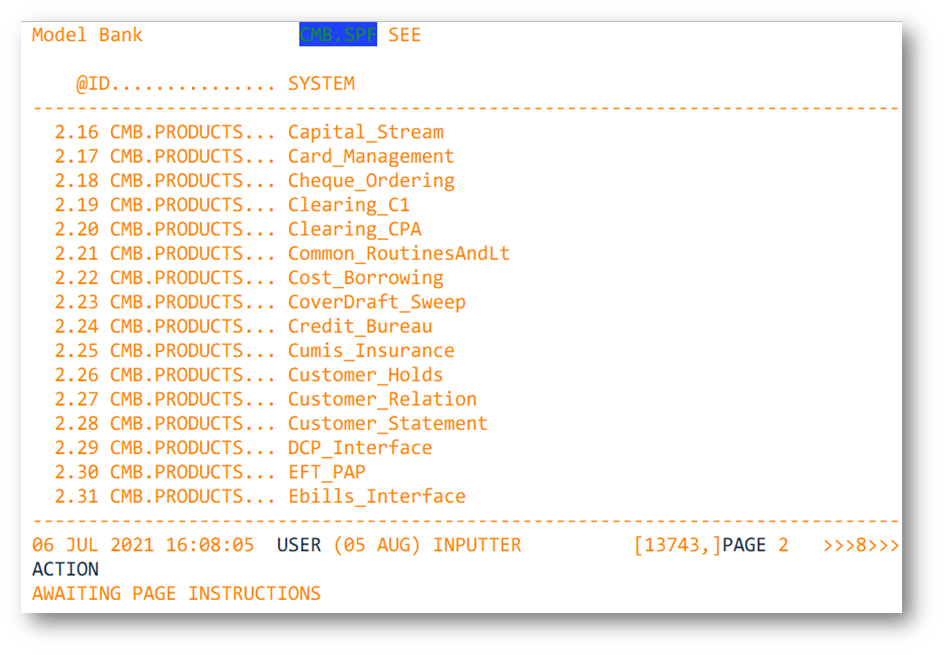
- The details of the CMB.SPF > SYSTEM are provided below.


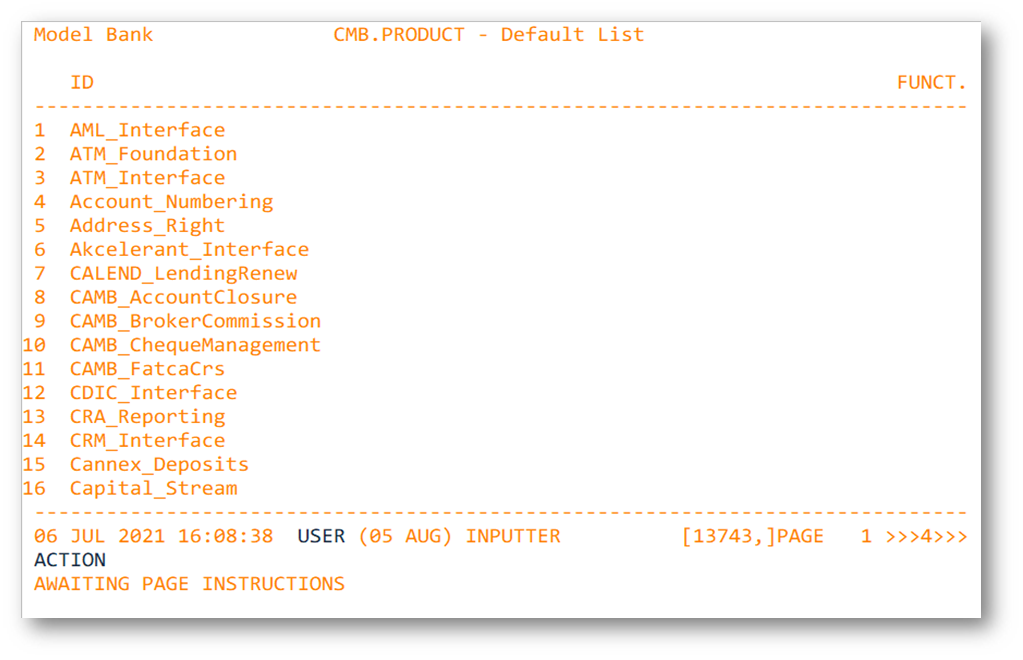
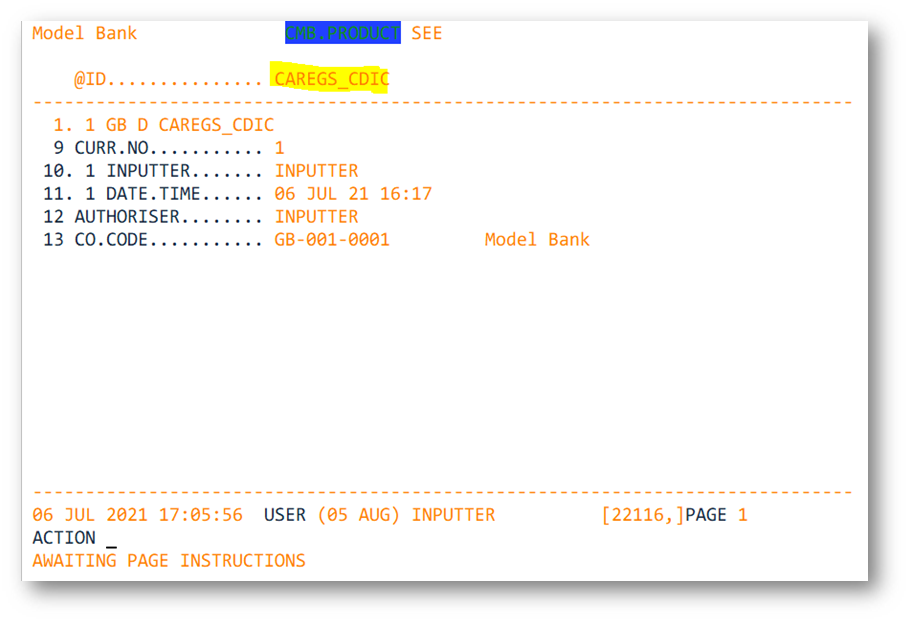
- The details of the CMB.PRODUCT are provided below.


- Execute the tRun T24PackageInstaller.
- The system will release the new modules binaries successfully.

- Execute the tRun packageDataInstaller.

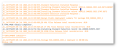
- The package is installed with exception in the CMB.UPDATES application as per below.

- Execute the tRun CmbDataInstaller.
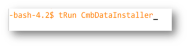
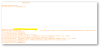
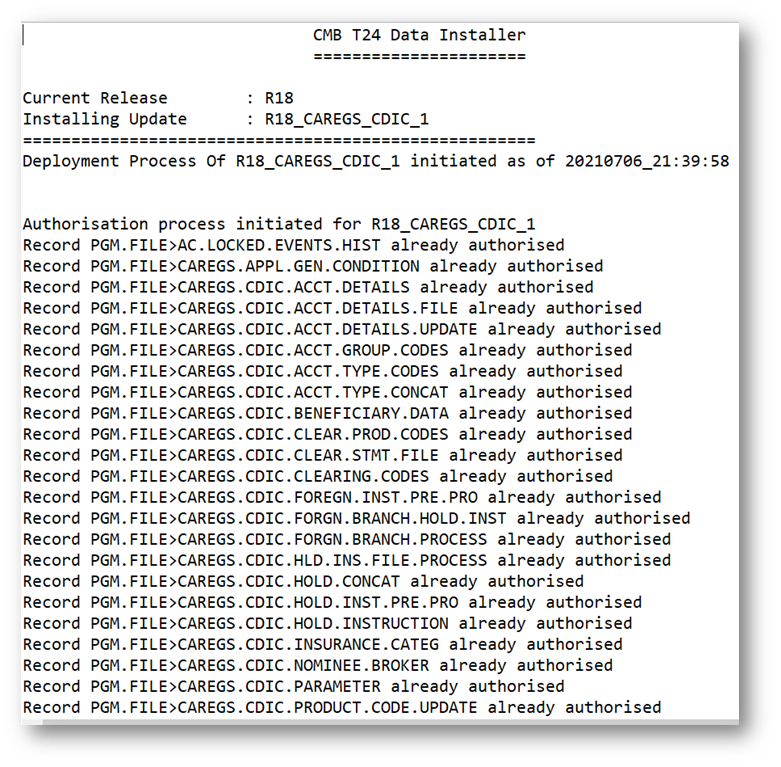
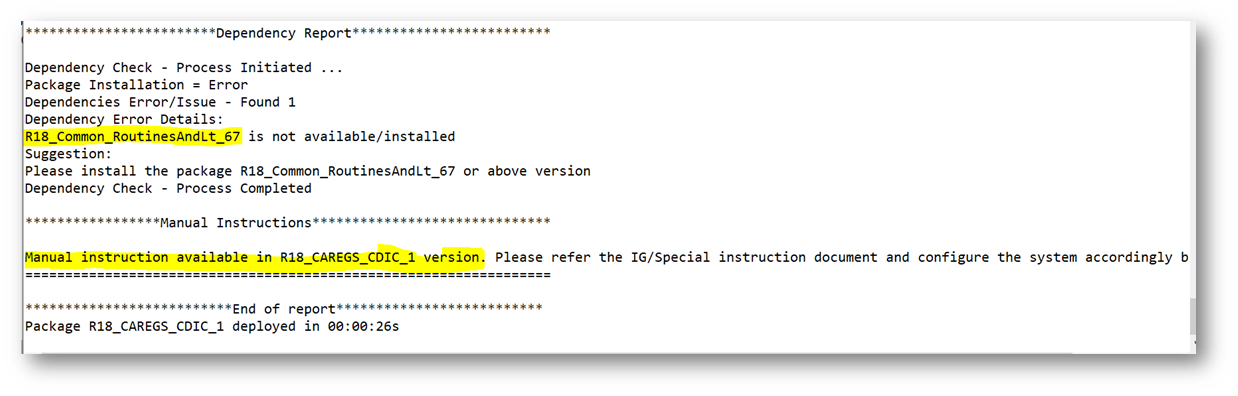
- The system displays the dependency exception for the new module as highlighted above.
- Once the packages are installed, view the log file to check that the data records are authorised.

- View the log file.
- Data records are authorised.

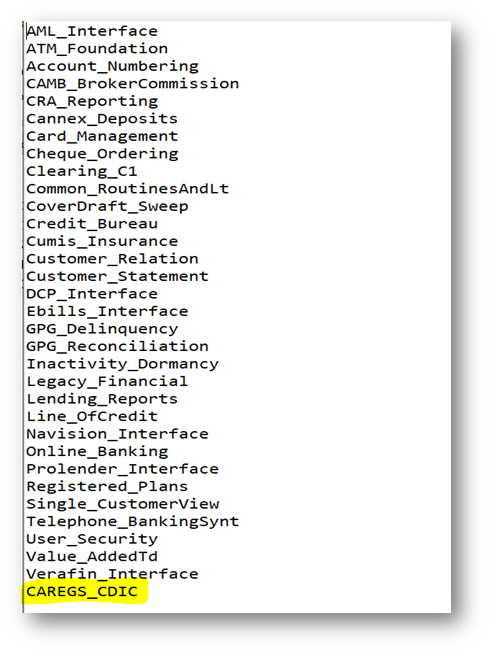
- View the ScopeList.txt upon installing the new module.
- The new module is updated to the scope list as highlighted below.

- View the manual instruction details as per below.
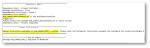
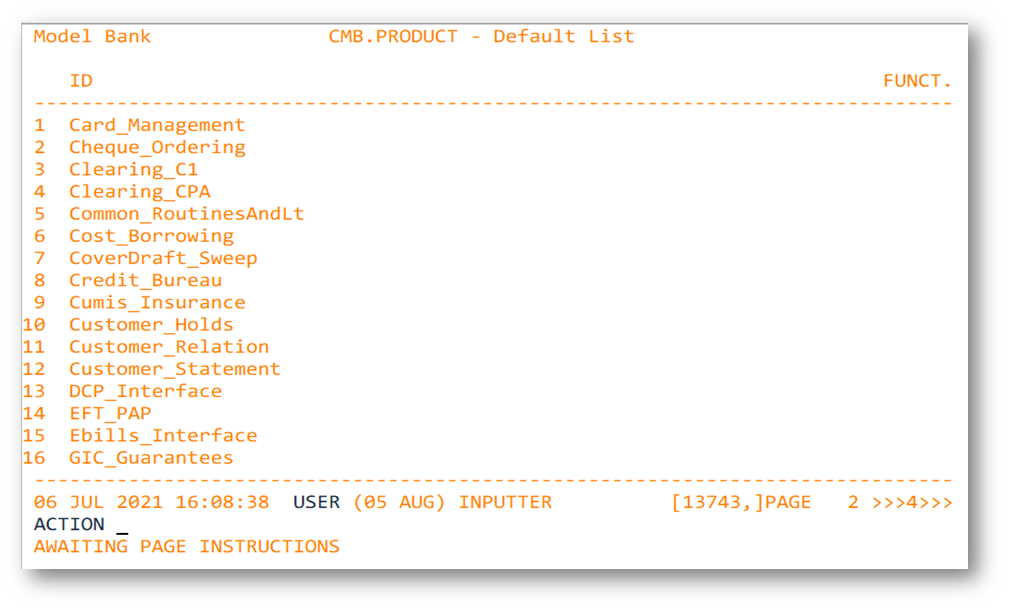
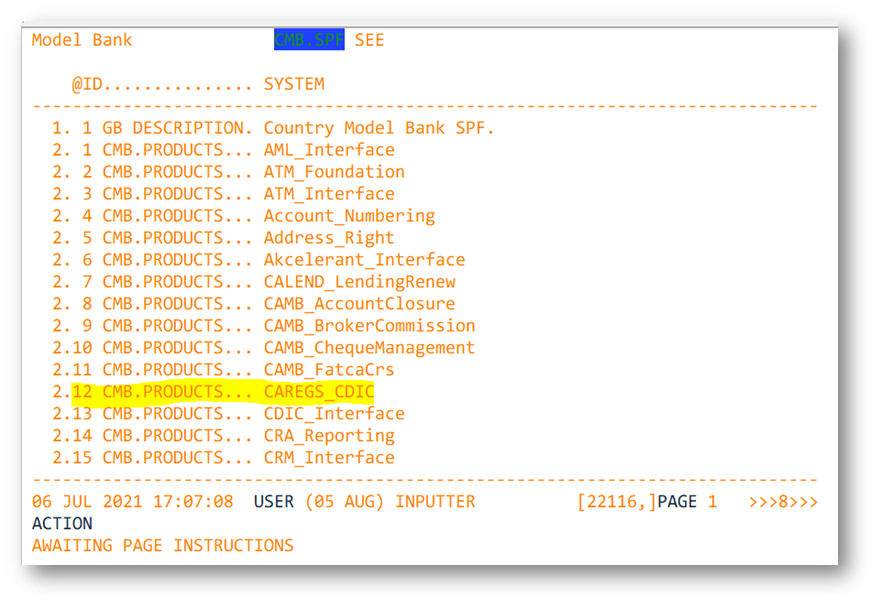
- View the SPF > SYSTEM record as per below. The new modules installed are updated.


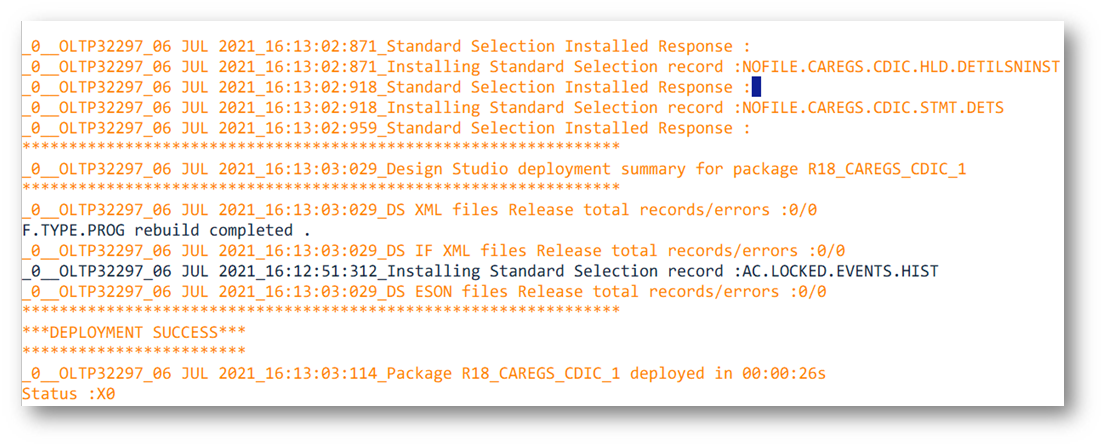
- View the CMB.PRODUCT application after installing the new module.

- Upon installing the new module, the system automatically updates the details in the system.


No Authorisation
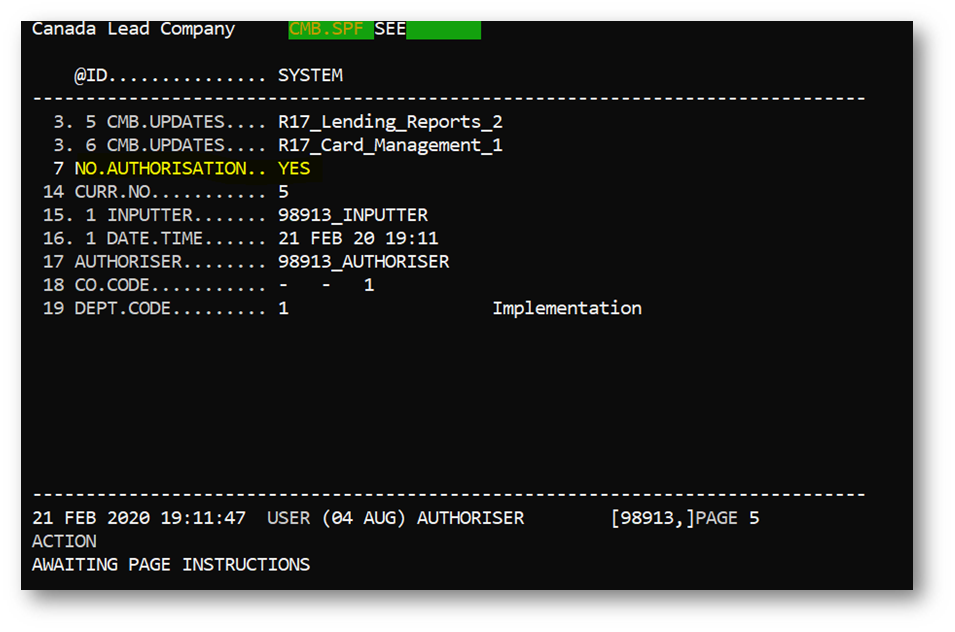
During the package installation, FI can decide whether the data record needs to be authorised or not. To achieve this, the No Authorization field from the CMB.SPF application needs to be configured as per below.
The purpose of the No Authorization field is to decide whether data records need to be authorised or not. Allowed values are Yes, No or Blank.
- Yes: Data records will not be authorised and placed in INAU status.
- No or Blank: Data records will be authorised.
- View the CMB.SPF application as per below.

- Place the package in the updates folder and execute the below commands
- tRun T24PackageInstaller (existing Process).
- tRun packageDataInstaller (existing process).
- tRun CmbDataInstaller (existing process).
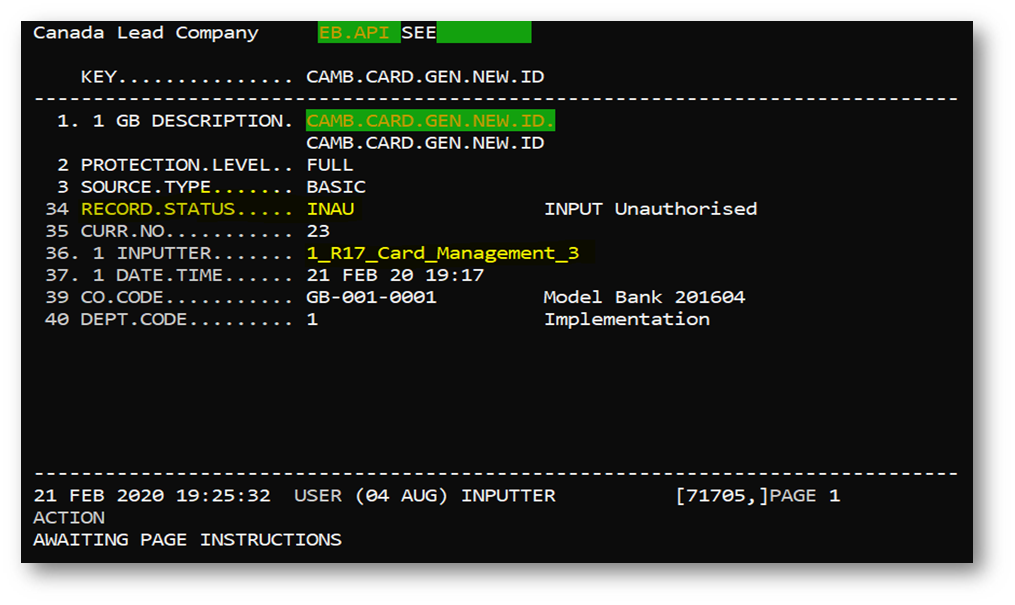
- Upon successful processing of the CmbDataInstaller the data record were placed in INAU as per below.

Install the Package with the Same Version
The installation of the DS package with the same version will allow to install the package and will overwrite the same details.
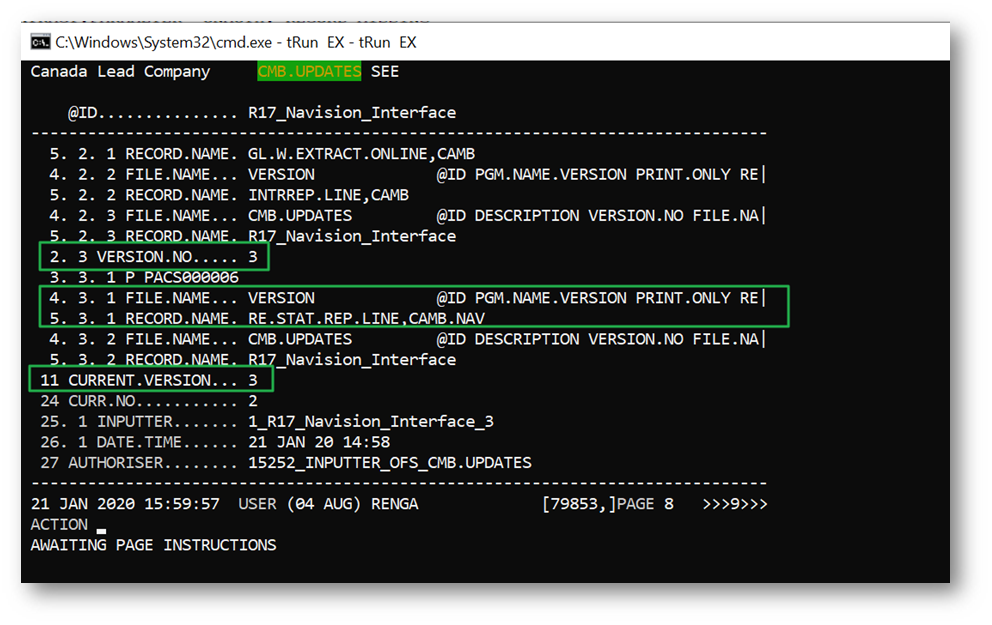
- View the CMB.UPDATES application as per below.

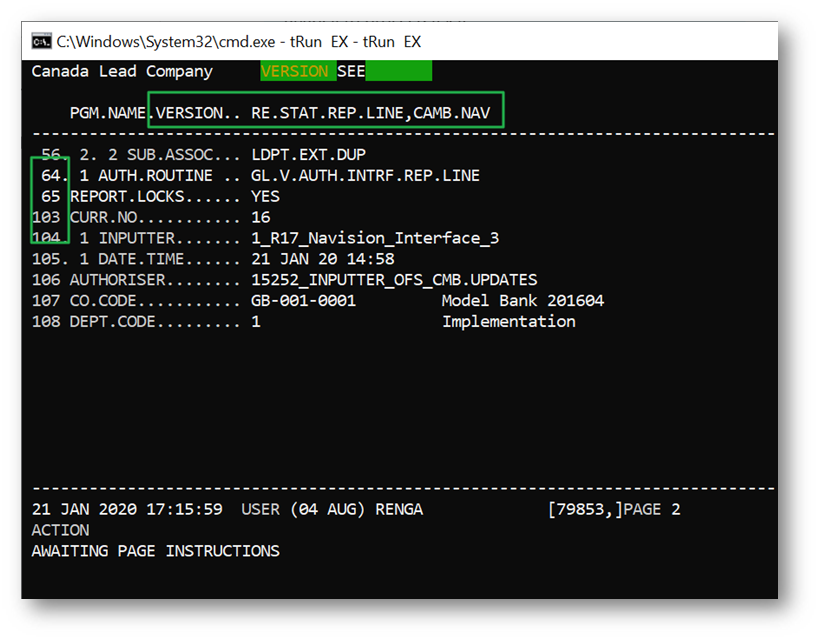
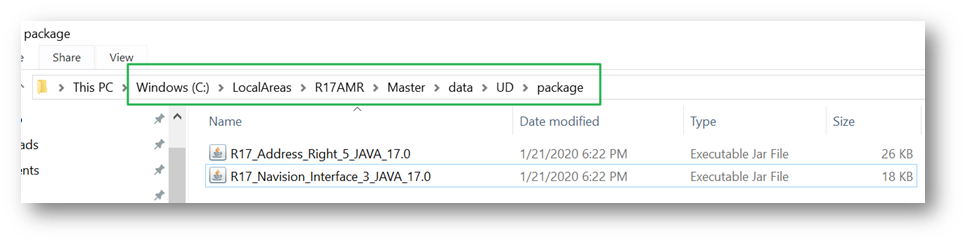
- View the fix provided in version 3 of the Navision packages.

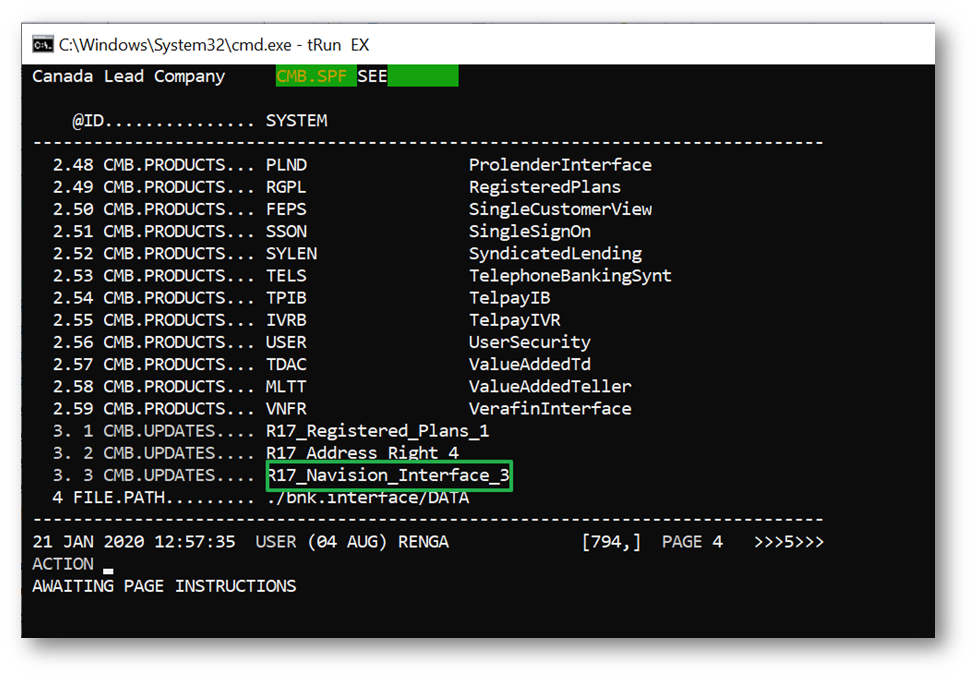
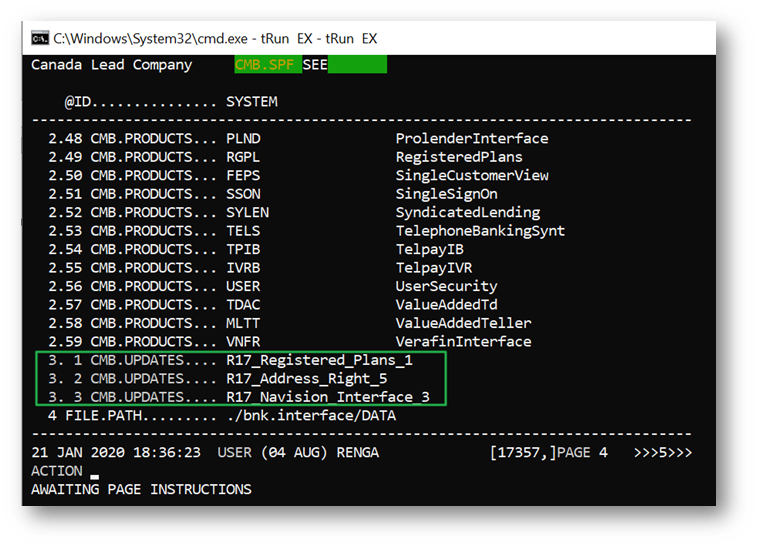
- View the CMB.SPF application as per below.

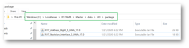
- Place the same version DS package in the path below.
- Execute the commands below:
- tRun T24PackageInstaller (existing Process).
- tRun packageDataInstaller (existing process).
- tRun CmbDataInstaller (existing process).
- Upon installing the same version, view the CMB.SPF record as per below.

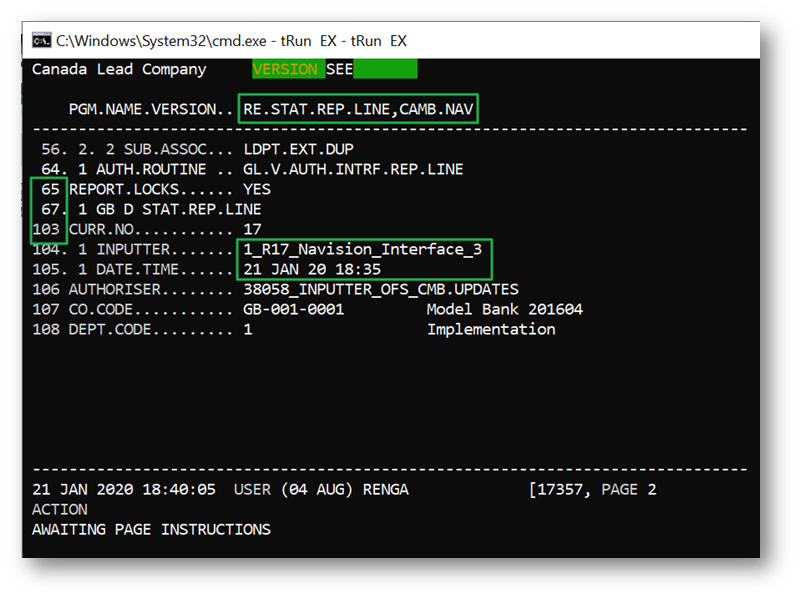
- View the fix below. No change, only the audit field changes are updated as per below.

Download Packages
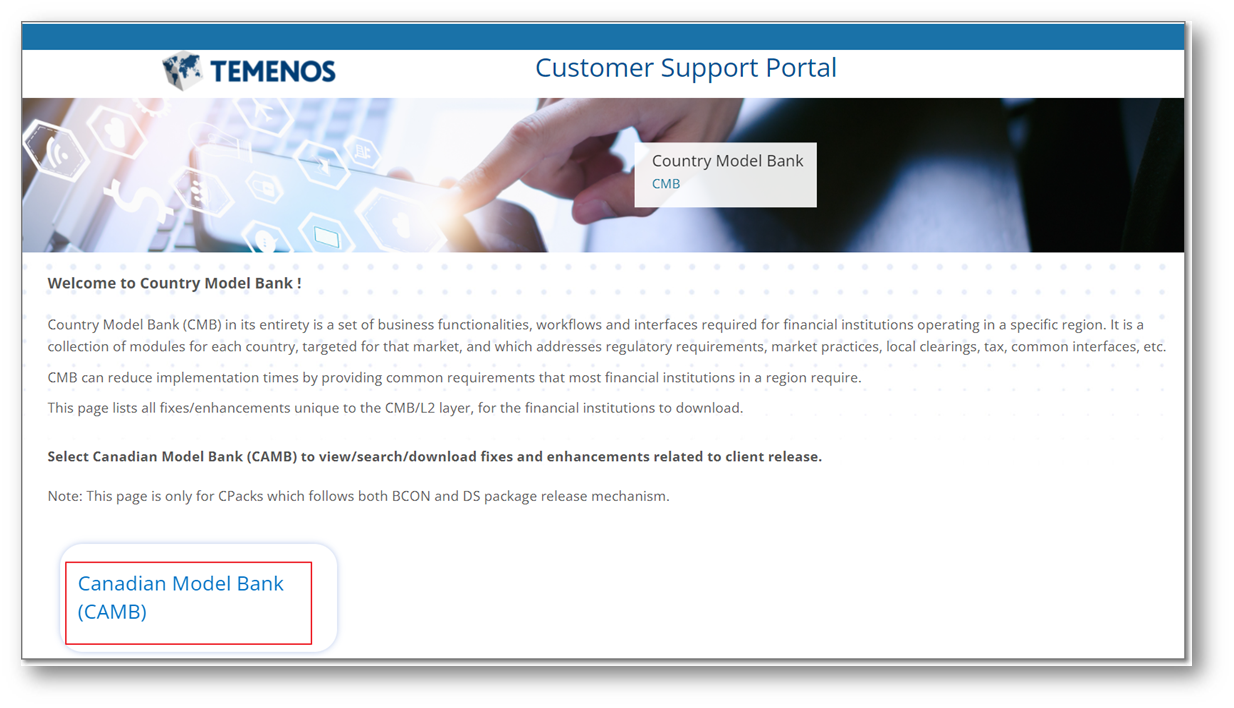
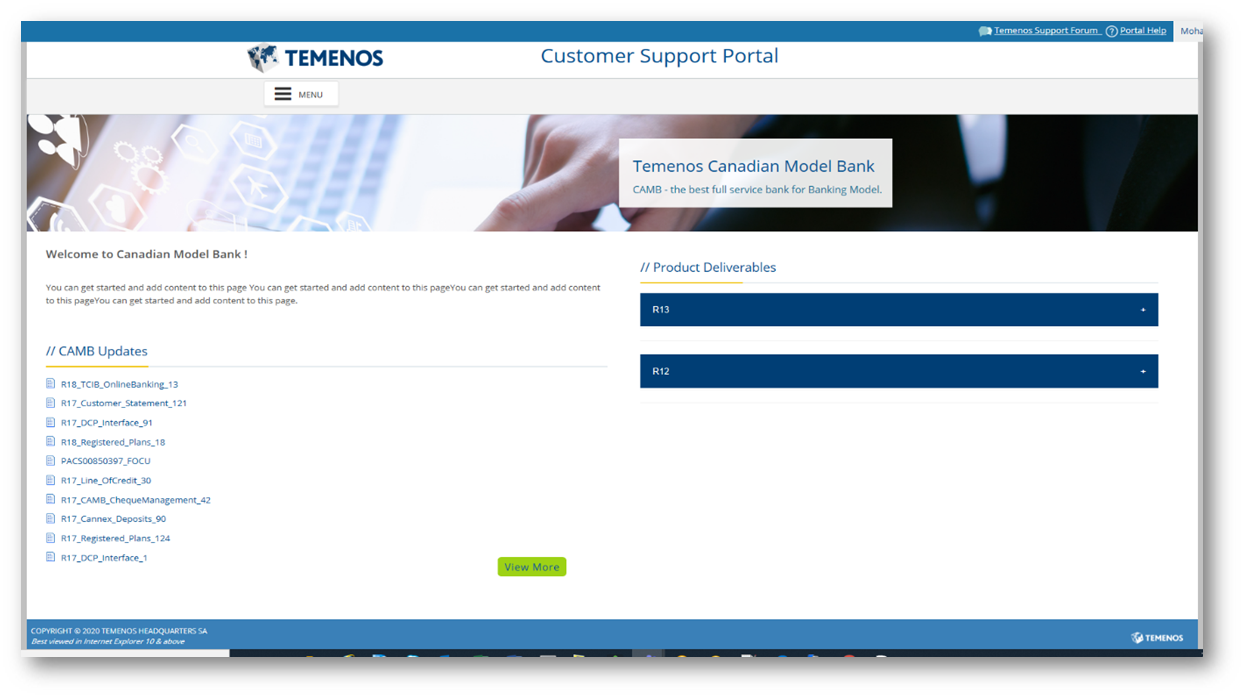
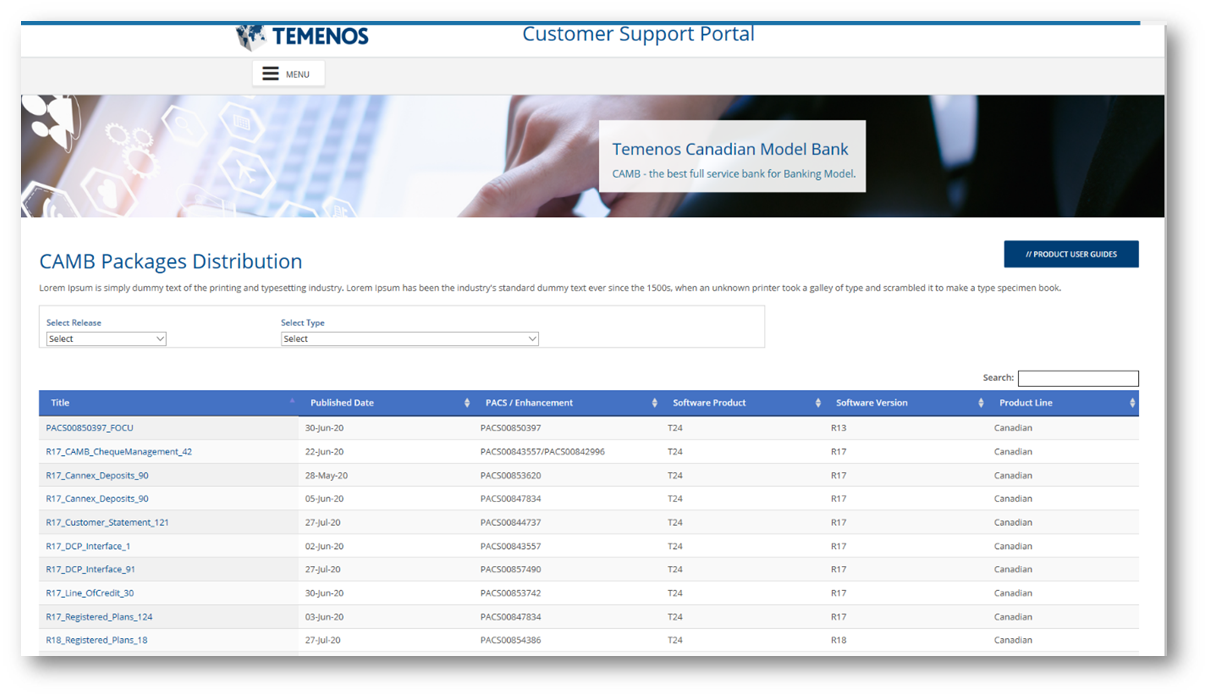
FI must download the package from the below TCSP portal, where the DS package will be available in the respective streamwise.
- Login to the portal.

- Navigate to CAMB Updates.

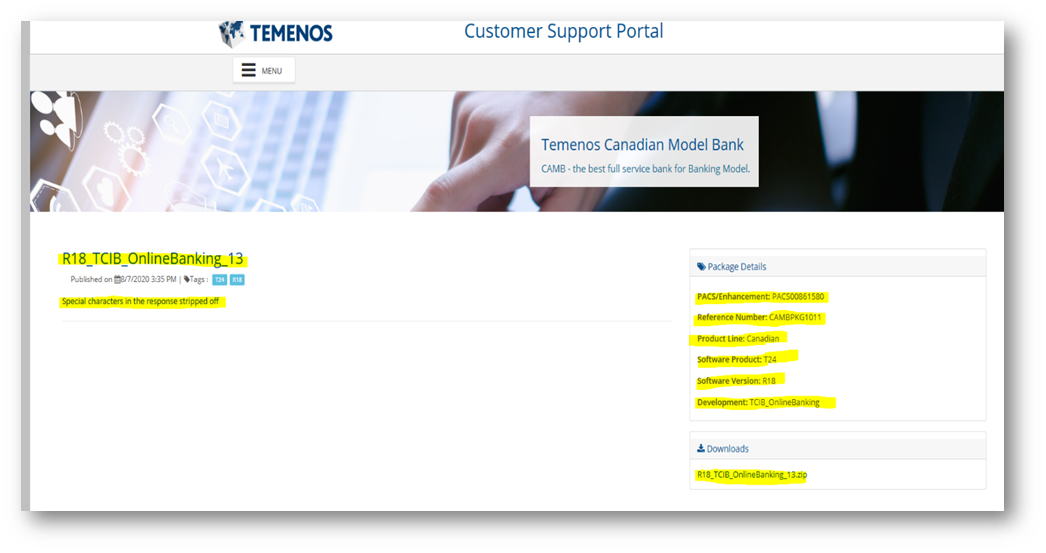
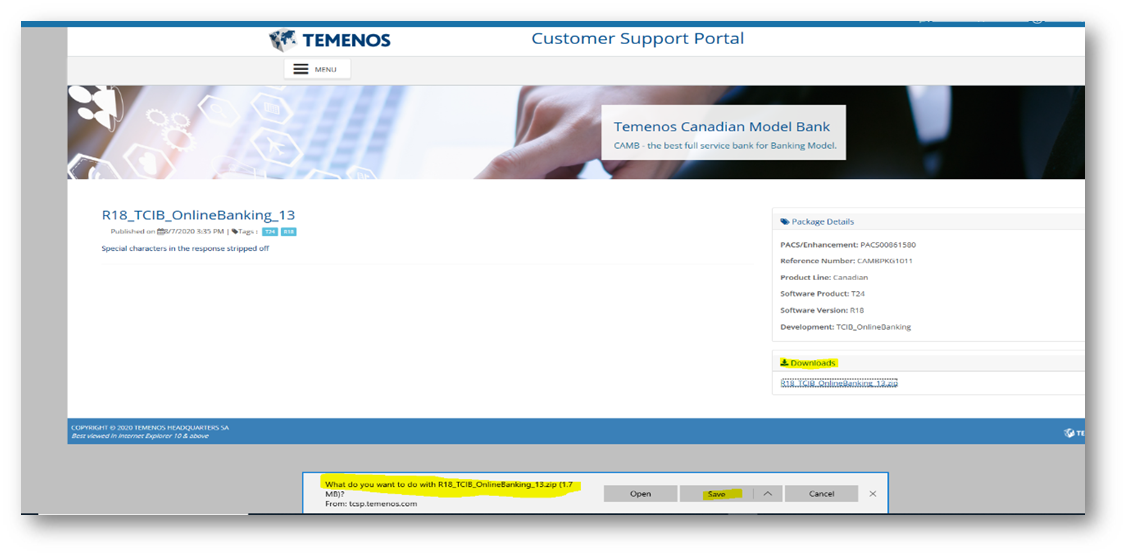
- Download the required package.


- Click on the download zip file as per below.

In this topic
