Working with Adapter Framework
Adapter framework provides standard adapter functionality as service to Temenos Enterprise applications to interface with external applications that do not support event-based integration. To keep the business microservice independently scalable, the adapter service provides a scalable interface to meet the integration-related requirements.
Process Steps
Process Steps are camel routes, which specify the data transformation and routing steps for processing input data file or request. This section shows how to search, add, or edit a process step and add process steps to package.
Creating Process Step
To create process step:
- Login as <<Role>>. From the Transact Standard dashboard’s left pane, click Adapters > Process Steps
- Click Add New from the home page.
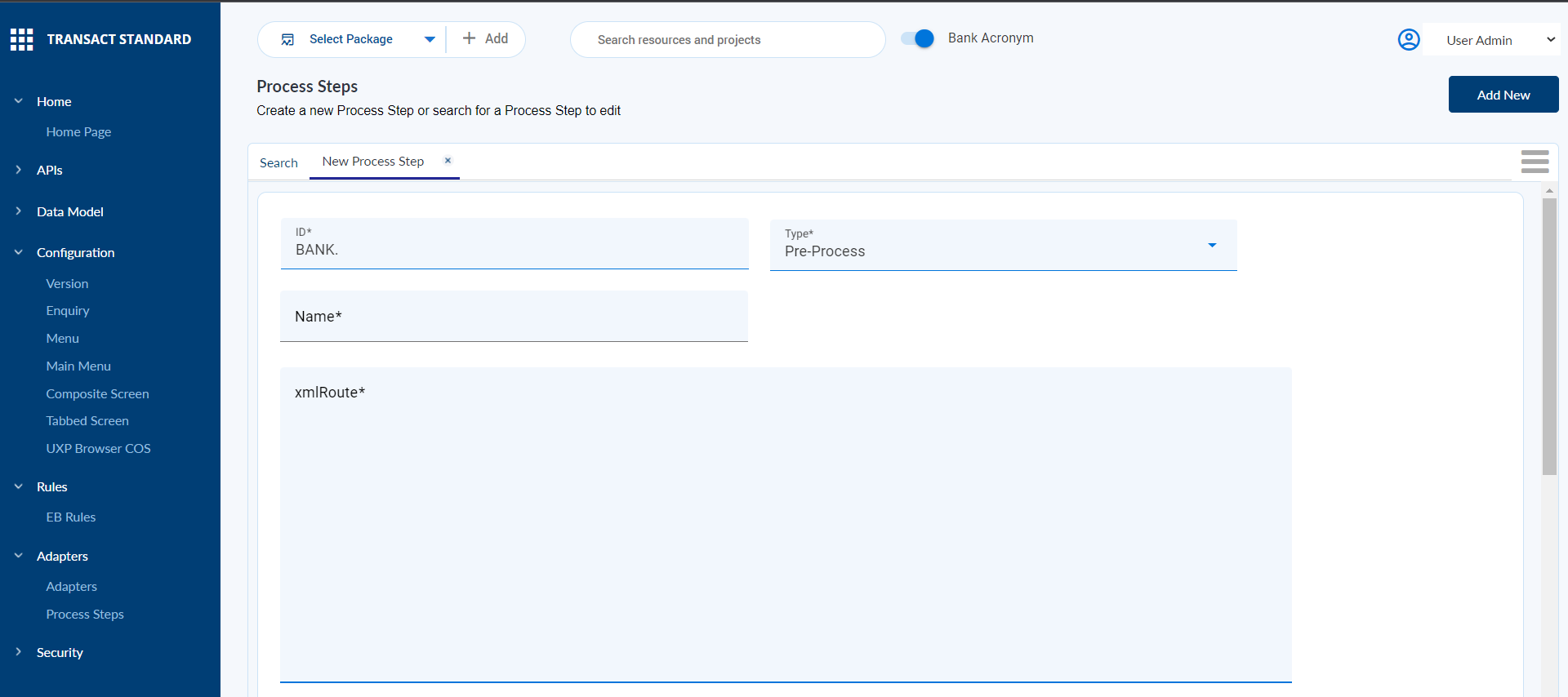
- Enter ID, Name, and xmlRoute. For now, there is no validation on the xml content.
- ID - Process step id
- Name – A meaningful name of the process step id
- Xmlroute – Camel XML route string that defines transformation and routing logic of adapter
- Select the type of process from the Type drop-down. The default value is Pre-Process.
- Enter the input and default parameters for the process step.
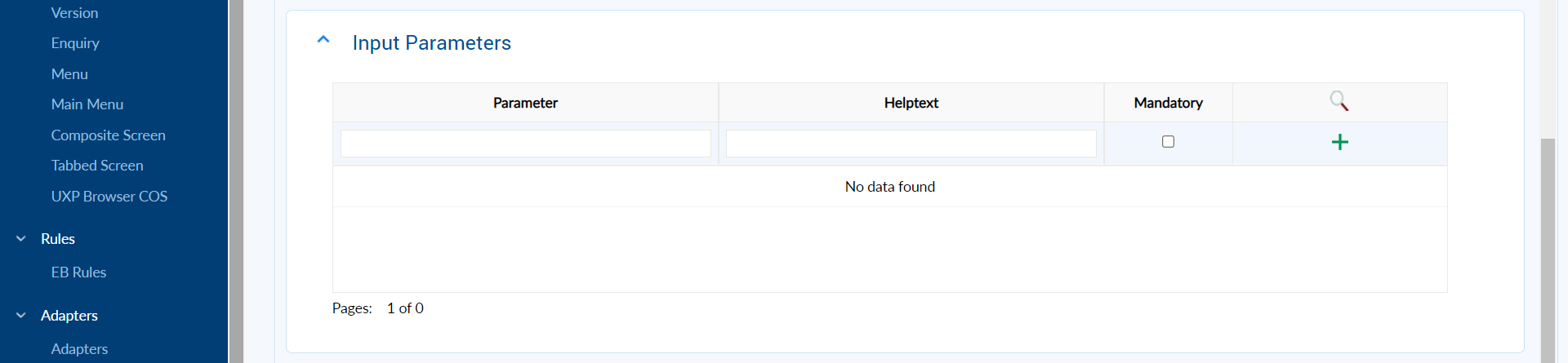
- Input Parameters for the process step
- Enter the name of the parameter in Parameter and add corresponding Helptext.
- Enable Mandatory checkbox if the parameter is mandatory for the process step.
- Click
 icon to add the parameter. You can edit or delete the input parameter based on the record.
If the parameter is marked as mandatory, then it is mandatory to input the value at the adapter level.

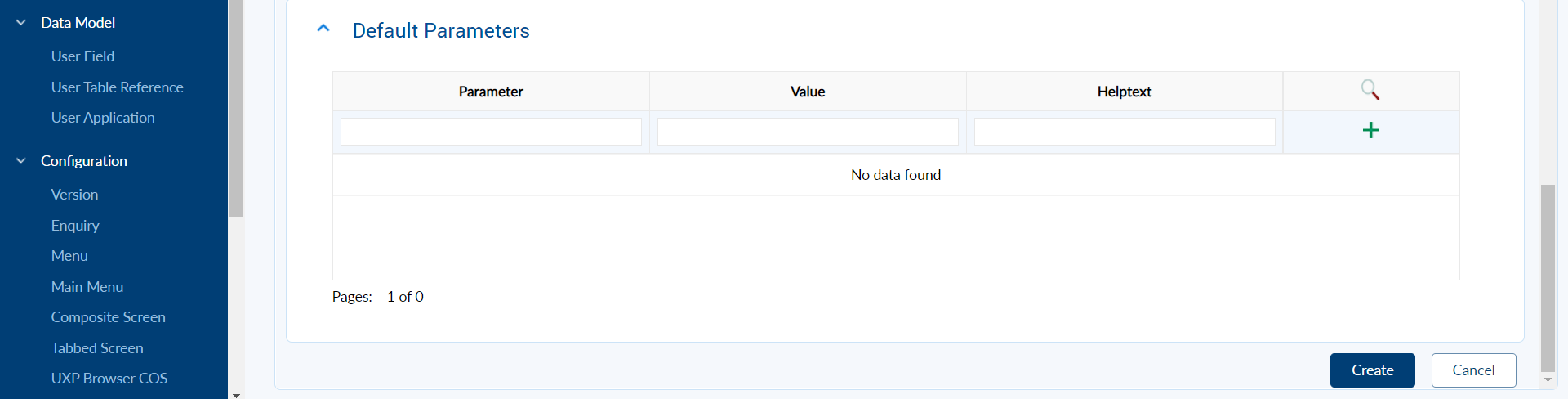
- Default Parameters
- Enter the name and value of the parameter in Parameter and Value, respectively and add corresponding Helptext.
- Click icon to add the parameter. You can edit or delete a default parameter based on a record. However, you cannot update or delete default parameters at the adapter level.

- Input Parameters for the process step
- Click Create to create the process step and save the record in Temenos Transact.
Under What's Next section, the tasks such as Create a New Adapter and Add to Existing Adapter are available to guide you for the next steps.
Editing Process Step
To edit an existing process step:
- Login as <<Role>>. From the Transact Standard dashboard’s left pane, click Adapters > Process Steps.
- Search for the process step and make the necessary changes.
- Validate and commit the changes to the database.
Adapter
Temenos Adapter helps Temenos products to interface with external products applications using adapter functions supported.
This section explains how to search, add or edit an adapter and add adapters to package.
Creating Adapter
To create adapter:
- Login as <<Role>>. From the Transact Standard dashboard’s left pane, click Adapters > Adapters
- Click Add New from the home page.
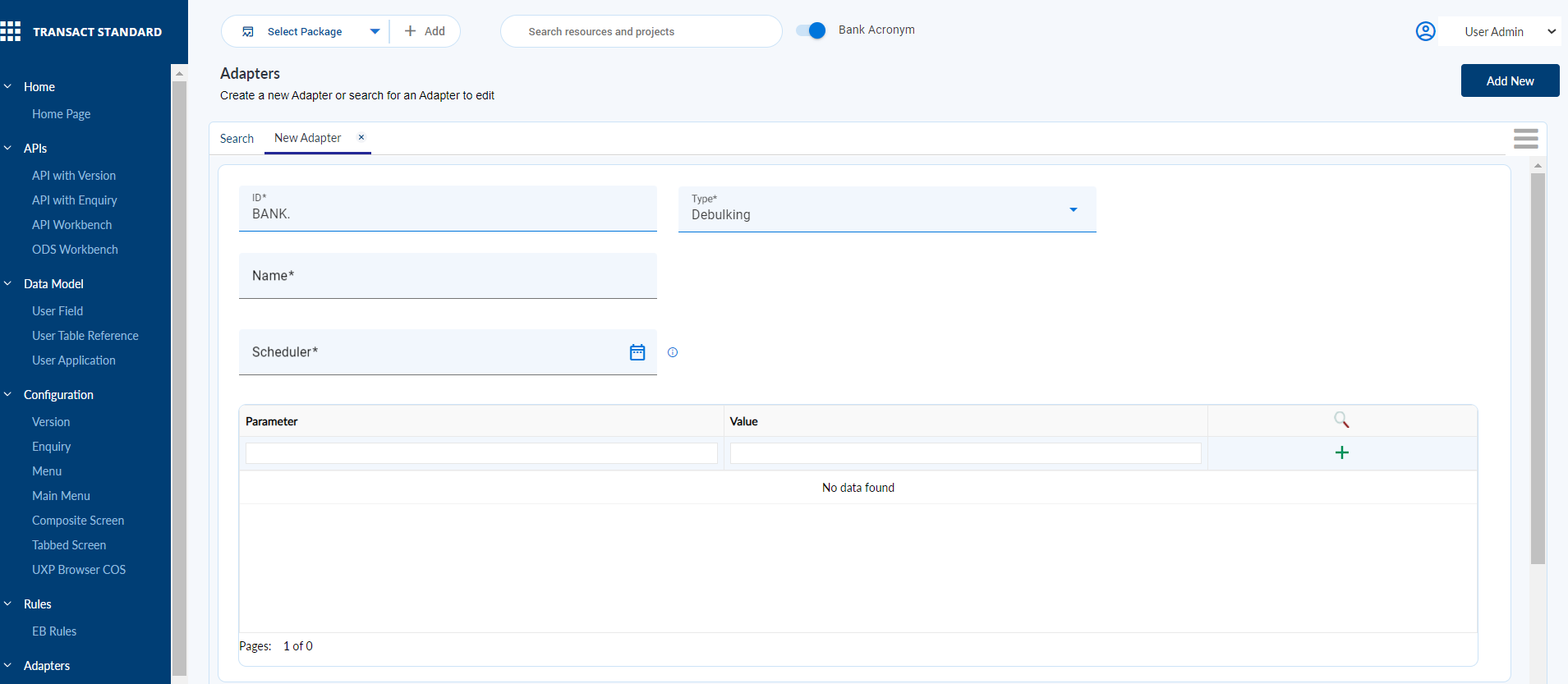
- Enter ID and Name of the adapter. The ID can be alphanumeric and supports special characters.
- Select the type of adapter from the Type drop-down. The default value is Debulking.
- For Generic Type, you must enter Route Xml. The adapter configuration parameters and options for process steps are not displayed.
- Click
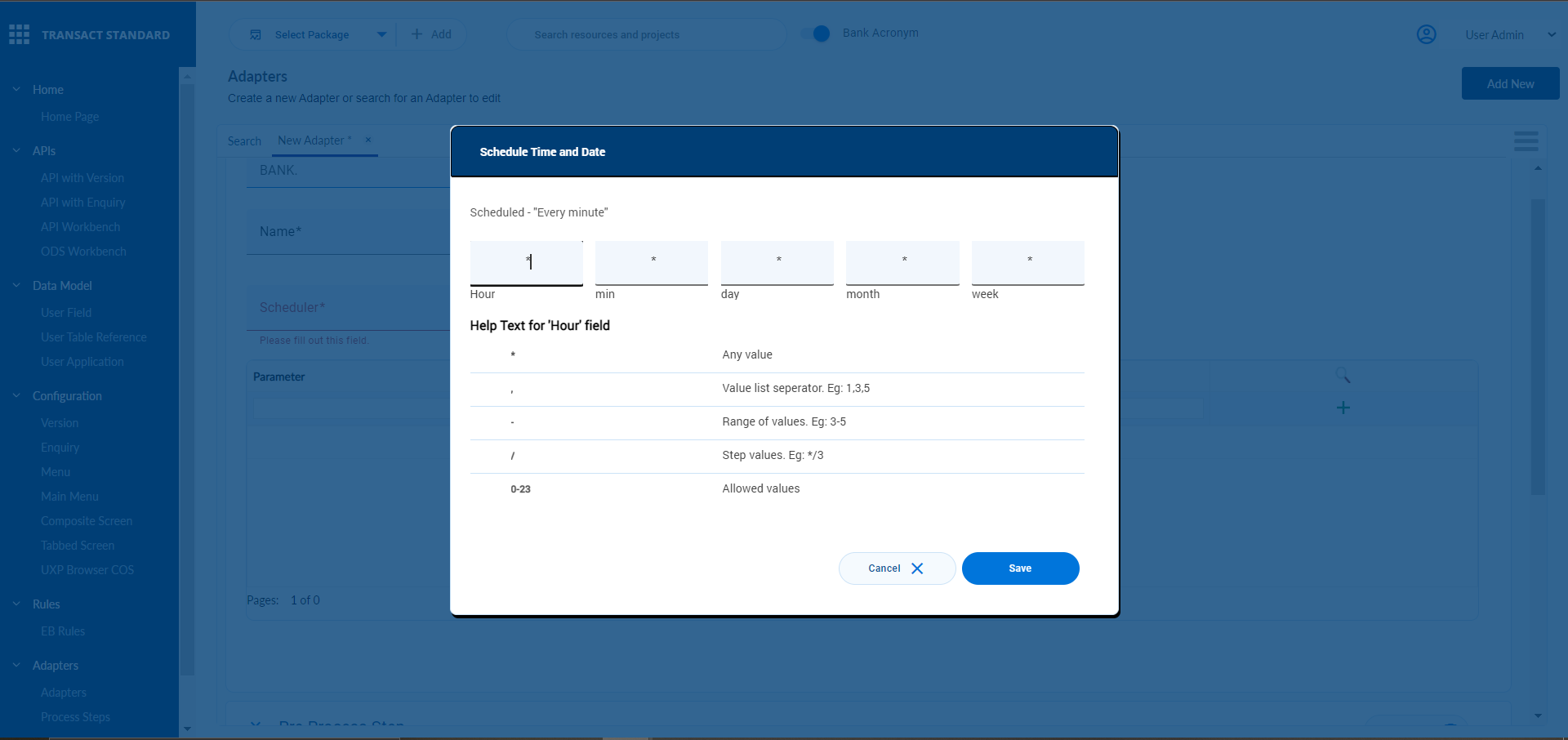
 icon in Scheduler to schedule time and date. This field is mandatory for Debulking and Bulking adapter types.
CRON syntax helps user tto define scehdluer frequency CRON pattern is displayed next to the Scheduler field.

- Enter the name of the parameter in Parameter and add corresponding Helptext.
- Click icon to add the parameter. You can edit or delete adapter parameters.

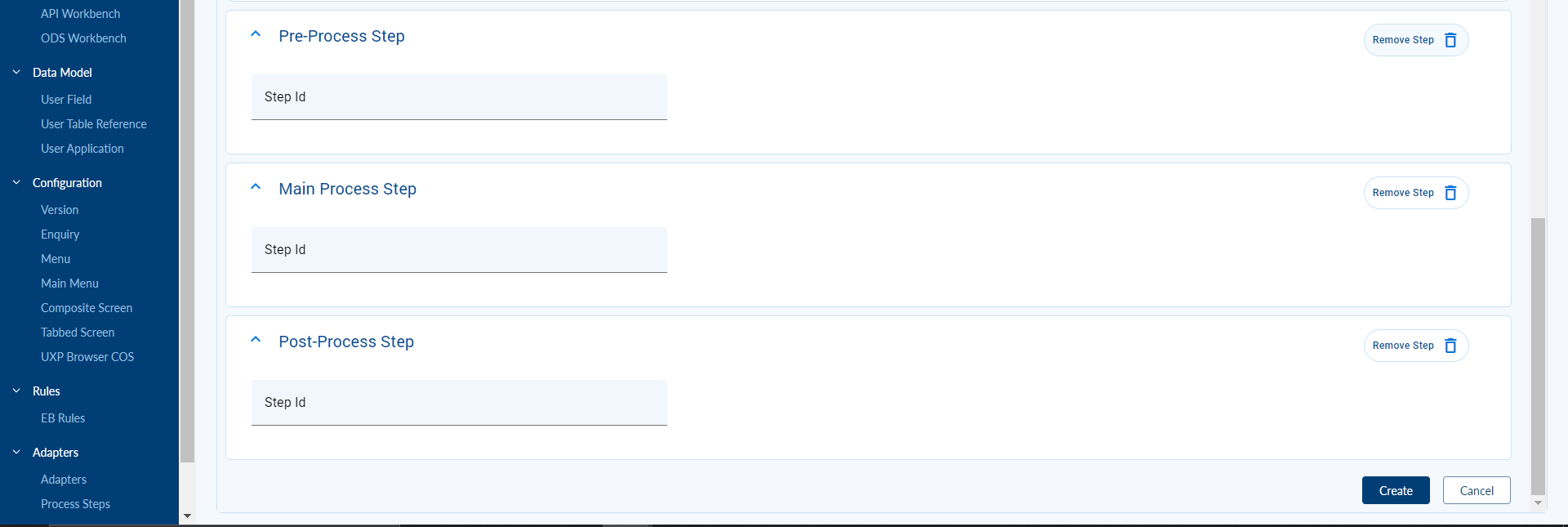
- Enter the process step Step ID for the required process step (pre-process, main process, and /or post-process)
- Enter the corresponding mandatory parameters under Input Parameters. Display parameters are display-only fields.NOTE: You need to create at least one process step for an adapter.

- Click Create to create the adapter and save the record in Temenos Transact.

Under What's Next section, the tasks such as Create a New Adapter and Create a New Process Step are available to guide you for the next steps.
Editing Adapter
To edit an existing adapter:
- Login as <<Role>>. From the Transact Standard dashboard’s left pane, click Adapters > Adapters.
- Search for the process step and make the necessary changes.
- Validate and commit the changes to the database.
Packaging Process Step and Adapter
This section provides the steps to add process steps and adapter to a package.
Adding Process Step to Package
To add a process step:
- Login as <<Role>>. From the Transact Standard dashboard’s left pane, click Adapters > Process Steps
- Search for the process step and select the same from the displayed search results.
- Do either of the following to add the process step to a package.
- Click Add to Package and select the package to which the process step(s) must be added.
- Select a package from the Select Package dropdown to which the process step(s) must be added and click
 icon to add steps to the package.
Adding Adapter to Package
To add an adapter:
- Login as <<Role>>. From the Transact Standard dashboard’s left pane, click Adapters > Adapters
- Search for the adapter and select the same from the displayed search results.
- Do either of the following to add the adapter to a package.
- Click Add to Package and select the package to which the adapter must be added.
- Select a package from the Select Package dropdown to which the adapter must be added and click icon to add steps to the package.
In this topic
