Configuring Version
This feature enables the users to design screens for any Transact model. This section provides the steps to create a new version, search and edit an existing version.
Creating Version
Version is created in four stages—core definition, field selection, adding field details, and version associations. To create a new version,
- Login as <<Role>>. From the Transact Standard dashboard’s left pane, click Configuration > Version.
- Click Add New from the home page.
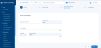
- Enter the Application Name, Screen Name, and Description
- Screen Name is alphanumeric with special characters “-“ and “.”.
- Application Name provides content assistance using which you can select a value.
- Version Full Name is formed automatically using the values in the Application Name and Screen Name fields in the format <Application>,<Screen name>. This name is used as the ID for the version screen. The maximum number of characters allowed for version full name is 54.
- Select the number of authorisers from the No Of Auth dropdown.
- Click Continue to proceed to the next screen.
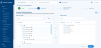
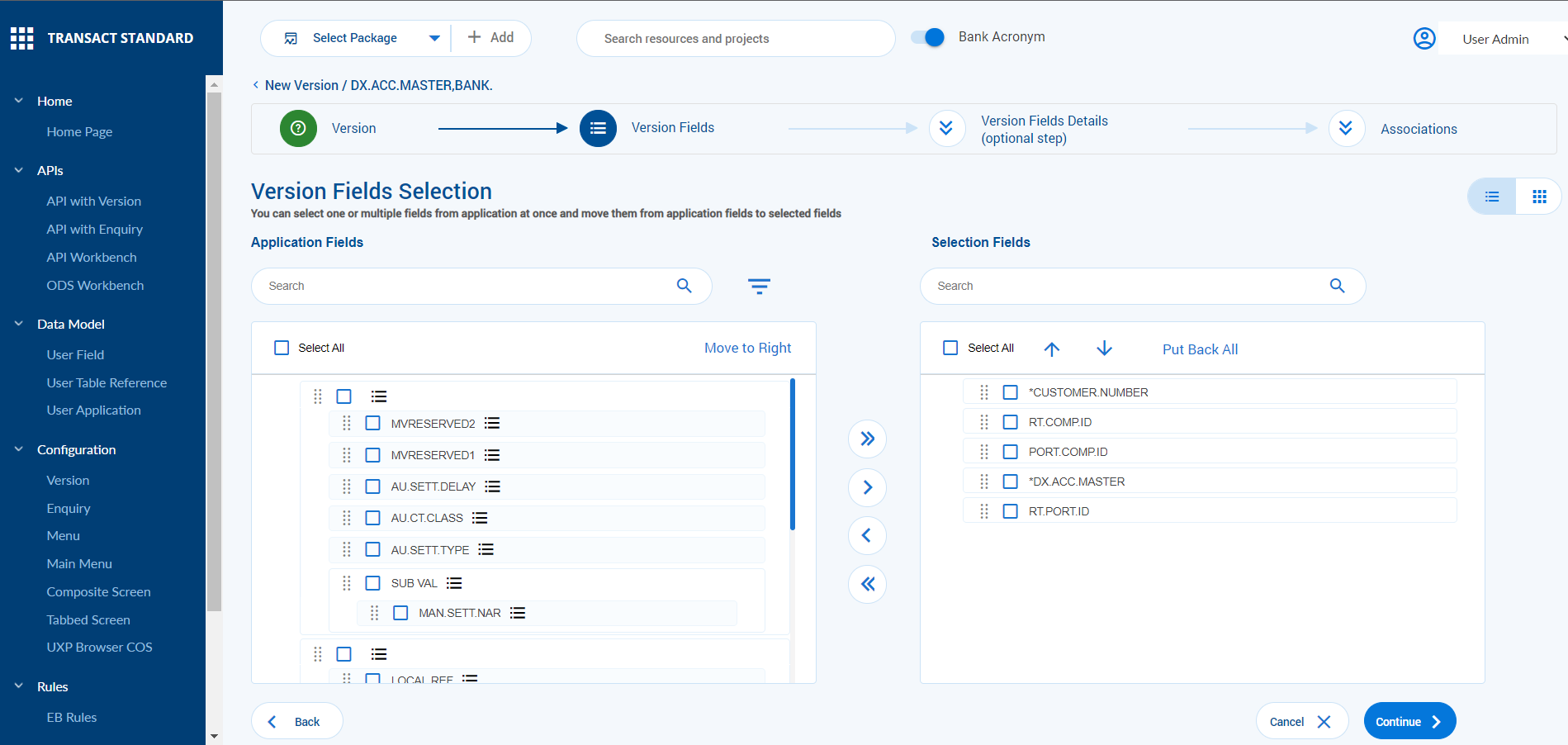
- Select the required fields from the left pane and move them to the right pane to include one or multiple fields in the new version.
- Click Continue to proceed to the next screen.
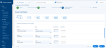
- Select the layout in which the version needs to be created. Label is defaulted from Field No and Text Char Max is defaulted from Label, which is the minimum length of the Label field.
- Enter the value in the Enrich Char to which the Version field must be enhanced.
- Click either of the following:
- Create to create the version
- Continue to proceed to the next screen to associate versions.
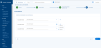
- Click
 to add a new version.
 - Enter the field names for the associated version. You can reposition the field names as required.
- Click Create to create the version.



Editing Version
To edit an existing version,
- Login as <<Role>>. From the Transact Standard dashboard’s left pane, click Configuration > Version.
- Search for the version and make the necessary changes.
- Validate and commit the changes to the database.

In this topic
