MSSQL
The Temenos Transact Microsoft SQL Server Direct Connect driver is a middleware component between Temenos Transact and MSSQL server database. It enables Temenos Transact to send to and retrieve data from MSSQL server database storage. The data is stored in MSSQL server as either XML columns or BLOBs (Binary Large Objects) for internal or work files. This section provides details about the database configuration, commands, transactions and driver environment variables involved in multiple database access and table details.
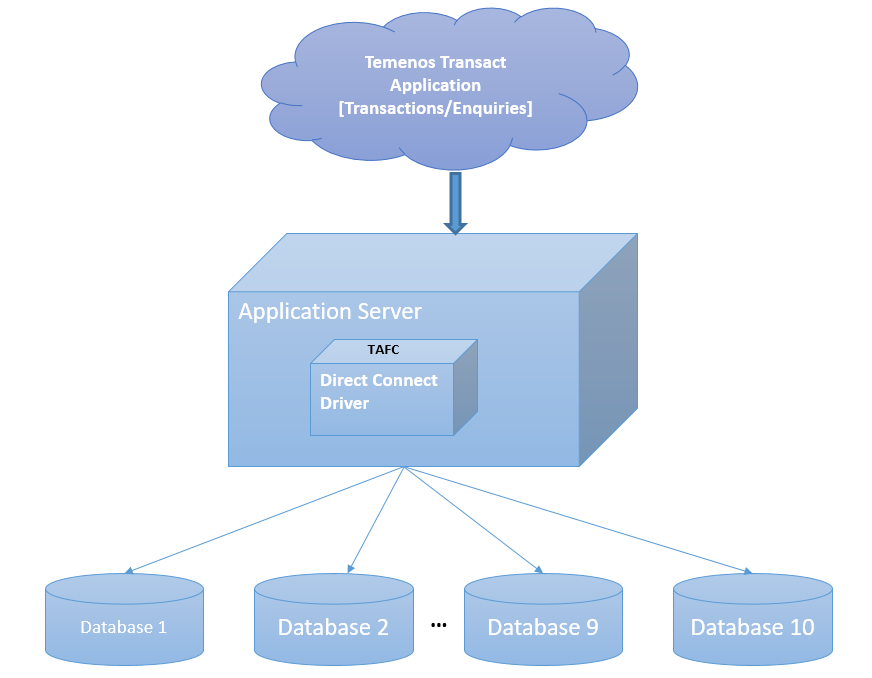
Having huge Temenos Transact data in single server or database hinders the performance of the database in both transactional and reporting services. Therefore, this data need to be separated categorically as per the business needs.
The Temenos Transact data is classified into volatile (transactional) and non-volatile (read-only) data. The data is separated and stored in different databases, which:
- Boosts the performance of the transactional processing
- Enables timely retrieval of the historical (non-volatile) data for the reports
The MS SQL Server Direct Connect Driver (DCD) enables you to configure and access maximum of ten databases. Each database can be configured with its own credentials. A table can be created in a specific database for an easier and accurate access. Each table has two columns as listed in the following table.
|
Column |
Description |
|---|---|
|
RECID |
Holds the primary key of the table |
|
XMLRECORD |
Holds the table data |
If the XMLRECORD is of XML type, the data will be converted from the internal dynamic array format into an XML sequence for insertion into the MSSQL server database. If the record is of BLOB type, the data will be stored directly in the XMLRECORD column in binary format.
On retrieval of data, the row information from the XMLRECORD column is converted back from an XML sequence into the internal dynamic array format for use by the application.
Database Configuration
You can get the MSSQL server home path and add the following in remote.cmd.
- SET SQL_HOME=C:\Program Files (x86)\Microsoft SQL Server\100\Tools
- SET PATH=%PATH%;%SQL_HOME%\Binn
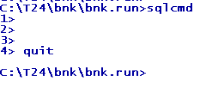
To access the database, you need to use the MSSQL command line tool sqlcmd.
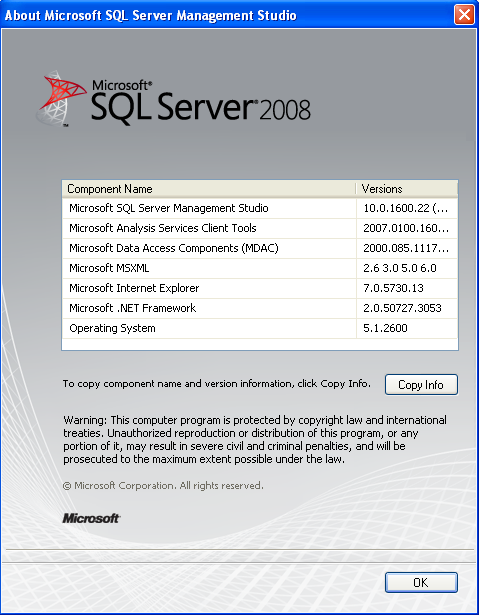
You can check the version of MSSQL server in the About option in the drop down from the Help in MSSQL Server Management Studio.
SQL Server 2008’s server authentication must be set to SQL Server and Windows Authentication mode for the Temenos Transact user to access to the database. You can set this either during the initial installation of SQL Server 2008 or at a later stage.
The XMLMSSQLDriver is located in %TAFC_HOME%\XMLMSSQL folder. The following table lists the libraries and executables available in the driver.
|
Libraries |
Executable |
|---|---|
|
config.XMLMSSQL.dll config-XMLMSSQL.dll |
Dynamic linked library for MSSQL server Driver |
|
config.XMLMSSQL.exe config-XMLMSSQL.exe |
Executable used for the MSSQL server driver configuration |
|
libTAFCTransformer.dll |
Dynamic linked library from TAFC. |
|
libTAFCmssqlutils.dll |
Dynamic linked library for TAFC utils |
The following commands enable you to edit remote.cmd.
- SET DRIVER_HOME=%TAFC_HOME%\XMLMSSQL
- SET JBCOBJECTLIST=%JBCOBJECTLIST%;%DRIVER_HOME%\lib
- SET PATH=%PATH;%TAFC_HOME%\bin;%DRIVER_HOME%\bin
- SET JEDI_XMLMSSQL_SQLNCLIPROGID=SQLNCLI11
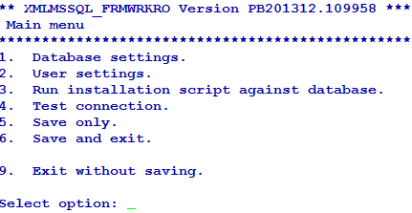
You can configure the MSSQL Server Direct connect driver using the config-XMLMSSQL executable. This creates the jedi_config driver configuration file at %TAFC_HOME%\config, which stores all the data entered through this executable.
 Database Settings
You can configure the server for the database by entering the machine name or IP address of the MSSQL Server.
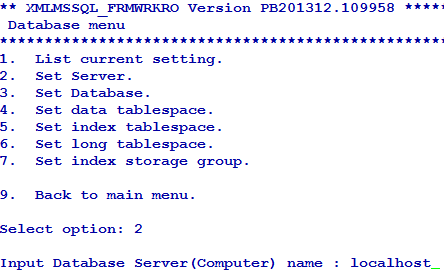
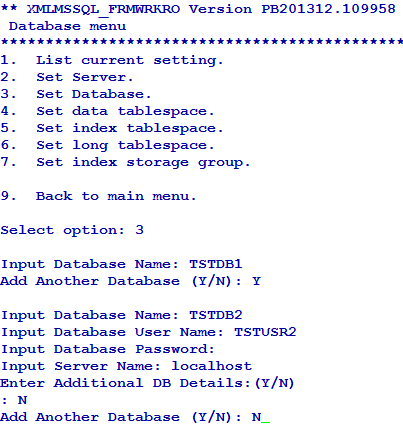
The first database is considered the default database. You can configure a maximum of ten databases with its own (server and user) credentials.
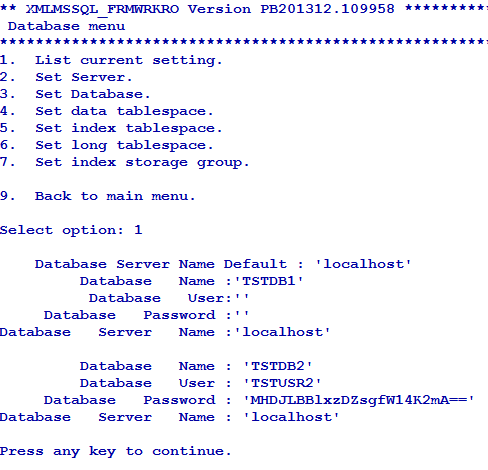
You can list or change the current settings using the options in Database menu.
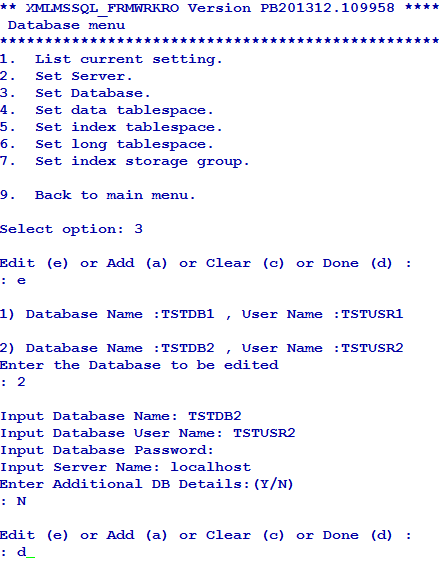
You can add or edit the database settings as required using the Set Database option in Database menu.
User Settings
You can use this option only for the configuration of the default database.
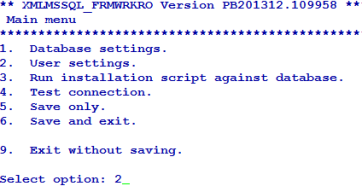
You can configure the user credentials of the first (default) database using the Set DB login user name and Set DB login password options in User menu. If you do not configure the user credentials for other databases, the user credentials of the first database is made available for all the databases.
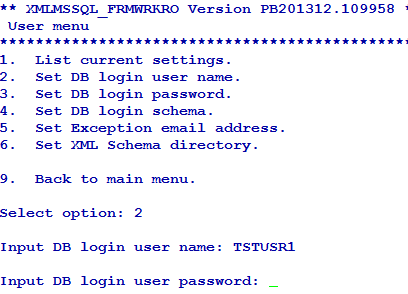
You can list or change the current settings using the options in User menu.
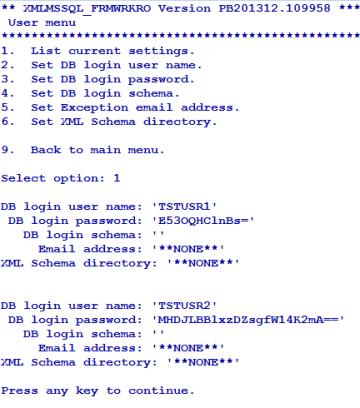
By default, all the database objects created are stored in dbo schema.
Installation Script
The install.sql script is available at %DRIVER_HOME%\sql. When the path is given, config-XMLMSSQL loads the scripts, invokes sqlcmd at the command prompt and executes the script.
The install.sql script does the following.
- Creates the database according to the specified database names
- Creates the user logins with specified passwords
- Specify the user role as DB owner of the database
- Grants create, insert, update and select permissions to the user
- Creates STUBFILES table for table creation cross reference
- Creates T24LOCKTABLE to store the locks
- Creates ASSEMBLY numsort
- Creates functions like numsort, numcast
- Creates a stored procedure WRITEJOBLIST
- Creates a view for the stubfiles.
The script repeats these steps for all the databases that are configured using Database Settings.
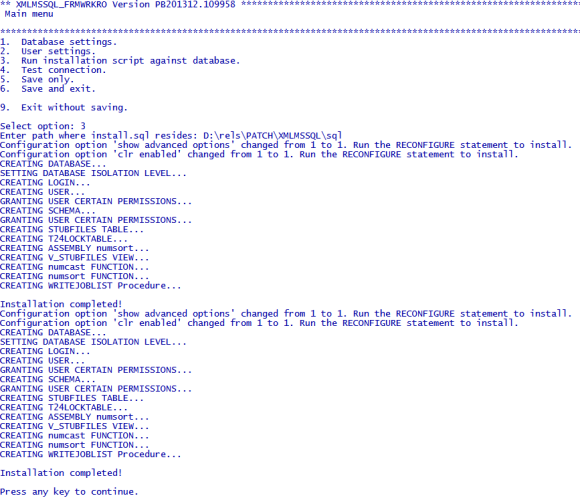
Connection Testing
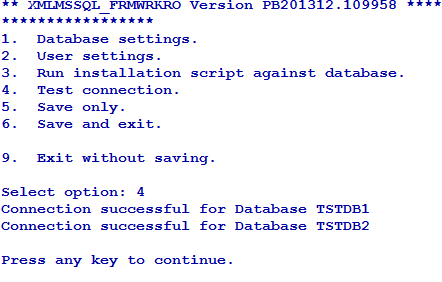
The driver tries to connect to all the configured databases. If the Connection successful… message appears for all the databases, the driver will be able to connect to MSSQL. If the connection fails, you need to check the database and its credentials.
Commands for Multi-Database Access
This section provides examples of commands that can be used with the MSSQL driver and expected output. These commands are mostly built in the Temenos Transact environment, which you can execute with the necessary options when required.
Create File
You can use the CREATE-FILE command with a type qualifier (TYPE) to define the file to be created as a table in the MSSQL server database. For example, TYPE=XMLMSSQL.

The above command generates the following tables in the MSSQL server database.
|
Table |
Description |
|---|---|
|
D_EXAMPLE_TABLE |
This table equates to the dictionary section |
|
EXAMPLE_TABLE |
This table equates to the data section. The naming convention shows that the dots in the file name are converted to underscores in table name. |
Both the tables have two columns as listed in the following table.
|
Column |
Description |
|---|---|
|
RECID |
Holds the primary key of the table |
|
XMLRECORD |
Holds the table data. |
Generally, the dictionary files are held as NOXMLSCHEMA types (BLOB) as these files are not usually queried.
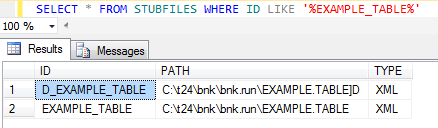
For each table a cross reference entry is created in the STUBFILES table with the MSSQL server RDBMS database. In addition, a native file stub is also created for each table in the specified file path (in the above example, it is the current directory). The stub files are used to locate and invoke the correct driver for the corresponding table.
Based on the conversion, the stub file information may alternatively be contained within VOC, (which in turn can also be an RDBMS table), ensuring that all the related information is completely contained within the database.
l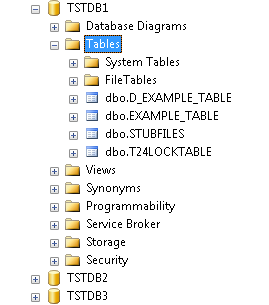
The file is created in the default database, in the dbo schema.
File Creation in a Different Database
You can create a file in any other database using the DATABASE qualifier. The following table lists the options that can be used in CREATE-FILE.
|
Qualifier |
Value |
Description |
|---|---|---|
|
TYPE |
XMLMSSQL |
Indicates the type of the file to be created. |
|
DATABASE |
User specified |
Indicates the name of the pre-existing database in which the table needs to be created |
|
TABLE |
User specified |
Indicates the name of the table |
|
READONLY |
YES |
Indicates if the table is to be considered as read-only (applicable only for the data file). |
|
NOXMLSCHEMA |
YES |
Uses BLOB data type instead of XML data type to write the XML data |
|
XSDSCHEMAREG |
YES |
Registers XSD SCHEMA in the database. |
|
XSDSCHEMA |
User Specified |
Uses XSD schema to describe the data layout required for long tag XML format data. |
|
KEY |
VARCHAR[User specified length in integer] or INTEGER |
Indicates the key to alter the data type and length of RECID |
|
ASSOCIATE |
YES |
Indicates if the table has an associated read only table. |
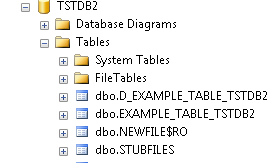
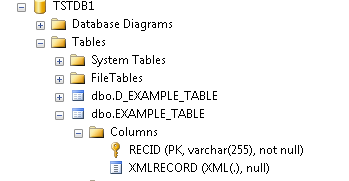
The following example shows a table created in the TSTDB2 database.

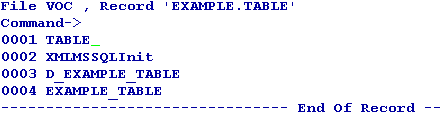
The VOC of the table gives the information about the location of the table as follows.
VOC of EXAMPLE.TABLE
VOC of EXAMPLE.TABLE.TSTDB2
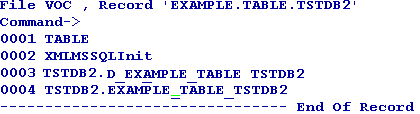
Location of EXAMPLE. TABLE in MSSQL Server
The two cross reference table entries are created in the RDBMS STUBFILE table.
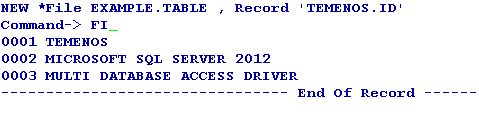
After the table is created, you can add the sample data to the table using standard tools like the command line editor ED or screen editor JED.
You can then view the sample XML data using the MSSQL Server SQL select statement with the XMLRECORD column.

Delete File
You can use the DELETE-FILE command to delete the file. This command deletes both the DICT and DATA parts of the corresponding table in the database and deletes the reference from the stub.
The MSSQL driver detects the table in any of the database and deletes the table, cross reference and even the stub file entry.

The STUBFILE table update is as follows.
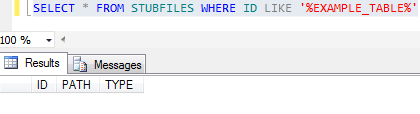
File Deletion in a Different Database
There is no change in the deletion of the file. The driver picks up the name of the database in which the database resides from VOC and deletes it.
Create View
The CREATE-VIEW command enables you to create a view of the table such that, the column names can be used within SQL statements to refer the underlying XML. The command will process all the extended dictionary entries related to the file and generates the appropriate view in the MSSQL Server RDBMS database. You need to use the verbose option (-v) to output the generated view to the terminal. This command will be executed against the table on a rebuild of the Temenos Transaction Standard Selection.

If the corresponding file is not the default file in another database, VOC is used to resolve the location of the table.
Create Extindex
The CREATE-EXTINDEX command enables you to create indexes in the MSSQL Server RDBMS tables. You need to execute this command manually from the command line, as it is not invoked by any Temenos Transact action.
The MSSQL Server has a limitation, whereby the primary XML indexes can be created only if the key field is less than 128 characters. Temenos Transact creates tables with primary key fields of 255 characters, by default. However, the primary key field must be limited to 128 characters when creating a table. An additional qualifier (KEY) for the CREATE-FILE command is provided.
To limit the primary key field to 128 characters, you need to append the following qualifier to the CREATE-FILE command line.
KEY=VARCHAR[128]

The following table lists the options to be used with the CREATE-EXTINDEX command.
|
Options |
Description |
|---|---|
|
x |
Creates an XML index |
|
v |
Displays the scripts used to create the index |
|
PRIMARY |
Creates only the primary index |
|
PATH |
Creates a secondary XML index on PATH |
|
VALUE |
Creates a secondary XML index on VALUE |
|
PROPERTY |
Creates a secondary XML index on PROPERTY |
|
ALL |
Creates all the primary and secondary XML indexes |
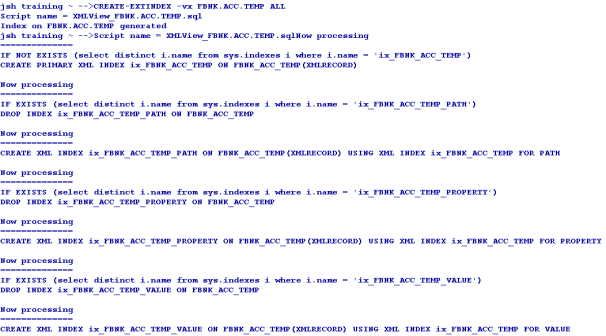
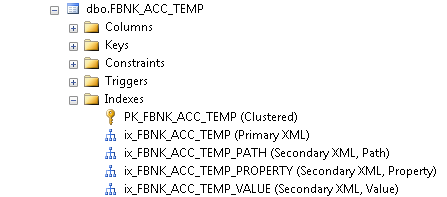
You can use the CREATE-EXTINDEX command to create index on tables of the other databases as well in the similar way.
List Extindex
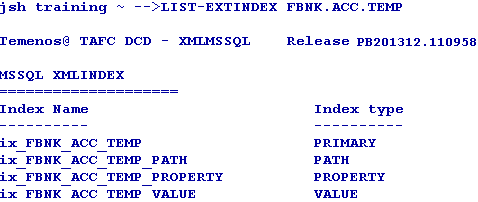
The LIST-EXTINDEX command enables you to display all the indexes created on a table. You can use this command on any table irrespective of the location of their database.
Delete Extindex
The DELETE-EXTINDEX command enables you to delete all the indexes created on a table. You can use this command on any table irrespective of the location of their database.
Table Creation Using Long Tag XML
Generally, the XML Schema Definition document (.xsd) is not required for MSSQL Server and XML Schema Definition is not registered, by default. However, you can use the long tag elements as per the Temenos Transact XML Schema Definition (.xsd) document and store the definition within the table. The short tag XML is the default format.
You can invoke the long tag table XML format by specifying the XSDSCHEMA qualifier when creating the table.
The XML Schema Definition (ACCOUNT in this case) must be:
- Generated by the Temenos Transact Standard Selection Rebuild (See XSD Schema Generation User Guide)
- Placed in the MSSQL Server Driver schema directory

By default, the XML Schema Definition is not registered in the MSSQL Server RDBMS Database. To register the XML Schema Definition manually, you can add the additional qualifier XSDSCHEMAREG with the CREATE-FILE command line set to YES. For example, XSDSCHEMAREG=YES.
The following screen capture displays the following.
- A MSSQL Server describe, which shows the table type to be the same as short tag table description
- A select of the XML data shows the Long Tag format

MSSQL allows creation of PRIMARY and SECONDARY XML indexes. The PRIMARY XML index must be created prior to any SECONDARY XML index.
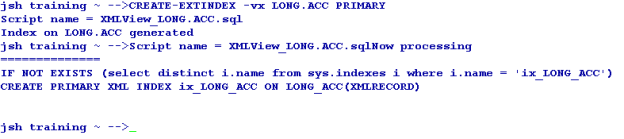
The SECONDARY XML indexes can be created on PROPERTY, VALUE or PATH. The SECONDARY INDEX created with any of these values automatically creates a PRIMARY INDEX, by default. If the keyword ALL is specified, all four indexes are created in one command.
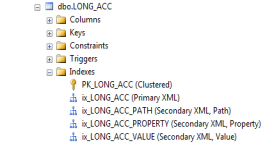
Table Querying
You can use the general jBase Query Language (JQL) queries used to query a J4/JR file, to query the tables as well. The driver converts these queries to the corresponding underlying database query and fetches the data. The translated query is logged in the log file. If the translated query is to be displayed on the standard output, you need to set JEDI_XMLDRIVER_DEBUG_DISPLAY. The following are the different commands involved in querying tables.
Select
The following format is used for the select command.
Select <filename> [WITH <ATTR> = <VALUE>]
The following sample shows @ID (Right justified) comparing with a number.

The following sample shows ACCOUNT.TITLE.1 (left justfied) comparing with a string.

Count
The following format is used for the count command.
Count <filename>

List
The following format is used for the select command.
List <filename> [ATTR1] [ATTR2]….. [ATTRN] [WITH <ATTR>= <VALUE>]

Read-Only Associate Tables
The Temenos Transact data is classified into volatile (transactional) and non-volatile (read-only) data. The volatile data is retained in LIVE or default database. The non-volatile data is moved to the second database referred to as non-volatile DB.
You can create read-only tables in any of the configured database. However, you cannot do the following.
- Create a DICT file for the read-only table
- Write, clear or delete a record from the READ-ONLY table. It results in a coredump and generates a log


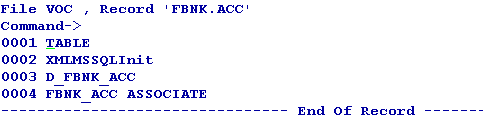
The Temenos Transact table will have an associated RO table if the LIVE file contains an ASSOCIATE flag in VOC. This RO table can reside in any of the configured databases.

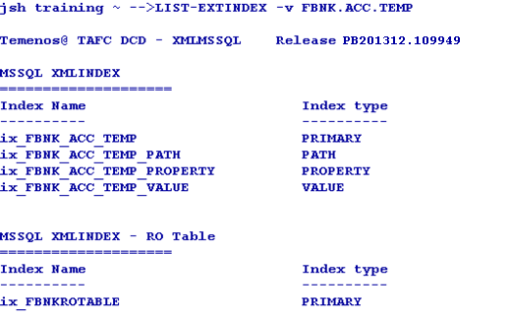
The LIST-EXTINDEX command on the LIVE table gives the details about the indexes created on the associate RO table as well.
If the LIVE database has an associated RO table in non-volatile DB, the driver queries both the tables and displays the data.
The RO table can be of any name. However, the RO file created should be <“live” file$RO>. A synonym has to be created in the LIVE database as <RO table name> for the RO table.
The user of the first database should have the permission to access and run the scripts on the second database.

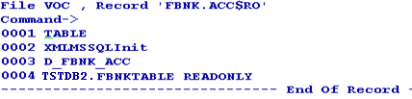
When a query is executed on the LIVE file, the records are displayed from both the LIVE file and associated file avoiding the duplicates, by default. If you want to change the default functionality, you need to set the JEDI_XMLDRIVER_ASSOCIATE_FILE variable to any of the following values, as required.
|
Value |
Functionality |
|---|---|
|
1 |
Disables the redirection and query to the ASSOCIATE table |
|
2 |
Disables query for ASSOCIATE table, but redirection is active |
|
4 |
Disables PDATE in the query, but redirection and ASSOCIATE table query with UNION will be active |
The following screen captures display querying with search criteria on a left and right justified field, respectively.


Transaction in Multi-Databases
When a WRITE or UPDATE action is performed within the transaction boundary (between TRANSTART and TRANSEND), it is termed a transaction. When a transaction involves files from multi-databases, the transaction starts in WRITE. The transaction can also read a file from one database and write to another file from a different database.
Updating or writing data to the files of multi-databases results in a coredump.
Mirrored Configuration Failover
The MSSQL Server Direct Connect Driver now supports the Fail over condition on Mirrored MSSQL Server Database configuration by specifying the Failover Partner server name in an environment variable.
This change allows the driver to be specified with an optional FailoverPartner connection parameter when the SQL Server database(s) are operating in mirror mode (High Availability or High Protection mode) with automatic failover. This configuration will have both the principal and mirror databases. During failover, the mirror will become the principal database.
You can optionally specify the FailoverPartner connection parameter to the driver using the following environment variable.
SET JEDI_XMLMSSQL_FAILOVERPARTNER=<server\instance name>
When the primary server (defined as Server Name in jedi_config) and its mirrored partner (specified in the above environment variable) are available and if a failover condition occurs, the driver will automatically connect to the appropriate principal server.
The driver does not handle the error conditions, which occur during failover and reconnect automatically. In this scenario, Temenos Transact exits the connection from the primary server and establish a new connection with the mirrored server. The driver will connect to the appropriate principal server only in the latter case.
Driver Environment Variables
You need to configure the following environment variables to be used with the MSSQL Server Direct Connect Driver.
Internationalisation
- JBASE_I18N=1 (Mandatory)
- JBASE_CODEPAGE=utf8
- JBASE_LOCALE=en_US
- JBASE_TIMEZONE=Europe/London
MSSQL Server (Mandatory)
- JEDI_XMLMSSQL_SQLNCLIPROGID=SQLNCLI10 (for MS SQL SERVER 2008)
- JEDI_XMLMSSQL_SQLNCLIPROGID=SQLNCLI11 (for MS SQL SERVER 2012)
Optional
The following table lists the optional variables and their functionality.
|
Command |
Functionality |
|---|---|
|
JEDI_XMLDRIVER_TRACE=1 |
Traces all driver functions |
|
JEDI_XMLDRIVER_DEBUG_DISPLAY=1 |
Traces only query translations |
|
JEDI_XMLDRIVER_NO_SPACE_PRESERVE=1 |
Indicates that the white space is not preserved in xml Trace |
|
JEDI_XMLDRIVER_PREFETCH_ROWS = n |
Indicates the number of rows to be pre-fetched in each fetch. The default value is 500. |
|
JEDI_XMLDRIVER_ENABLE_DB_SORT=1 |
Enables the DB sort instead of JQL Sort |
|
JEDI_XMLDRIVER_DISABLE_RECID_NUMSORT=1 |
Ignores the data type of the RECID while sorting on RECID |
|
JEDI_XMLDRIVER_ENABLE_EDICT_TYPE=1 |
Enables the EDICT data type detection |
|
JEDI_XMLDRIVER_DISABLE_DATABASE_LOCKS=1 |
Disables the DB row locks |
JOB.LIST Processing
The enhancement to JOB.LIST processing now splits records in F.JOB.LIST file (Temenos Transact contract IDs delimited by attribute markers) and write each contract as separate record into the database with an original key-attribute number, which is a unique key. This will be the default behaviour for F.JOB.LIST files, which can be disabled, if required, by setting an environment variable JEDI_XMLDRIVER_DISABLE_JOBLIST_SPLIT.
The IOCTL command JEDI_IOCTL_SPLITWRITE can be used by application to enable or disable the split write functionality. The following table lists the IOCTL commands available and their functionality.
|
Command |
Functionality |
|---|---|
|
IOCTL (file descriptor, JEDI_IOCTL_SPLITWRITE, 1) |
Disables split write functionality for F.JOB.LIST files |
|
IOCTL(file descriptor, JEDI_IOCTL_SPLITWRITE, 0) |
Enables split write functionality for F.JOB.LIST files |
If the environment variable JEDI_XMLDRIVER_DISABLE_JOBLIST_SPLIT is set, the IOCTL command JEDI_IOCTL_SPLITWRITE will have void effect.
The following example shows how write is performed with and without JEDI_XMLDRIVER_DISABLE_JOBLIST_SPLIT environment variable set.
-
JEDI_XMLDRIVER_DISABLE_JOBLIST_SPLIT=1
Write data to the file
-->JED F.JOB.LIST record1
NEW *File F.JOB.LIST , Record 'record1'
Command->
0001 100
0002 200
-------------------------------------------------------------------------- End Of Record
LIST F.JOB.LIST *A1
F.JOB.LIST....  *A1...........
record1      100
 1 Records Listed
-
JEDI_XMLDRIVER_DISABLE_JOBLIST_SPLIT=0
Write data to the file
-->JED F.JOB.LIST record1
NEW *File F.JOB.LIST , Record 'record1'
Command->
0001 100
0002 200
-------------------------------------------------------------------------- End Of Record
LIST F.JOB.LIST *A1
F.JOB.LIST....  *A1...........
record1-001    100
record1-002    200
2 Records Listed
As shown in the above output of the LIST command, the records are split to two each with record id as original record id – attribute number.
Extended Dictionary
This section describes the implementation of the extended dictionary changes for DCD. This enables you to utilise the description present in an extended dictionary part of an attribute. Prior to this enhancement, DCD used the justification of the attributes to determine its SQL translation—an attribute with left justification was translated to string compare in the SQL translation and attribute with right justification was translated to both numeric compare and string compare in the SQL translation.
This enhancement bypasses the justification of the attributes if extended dictionary is available for the attribute. If the numeric value 101 is present in the extended dictionary, it will either do a numeric compare or string compare.
This enhancement is available for all the ORACLE, DB2 and MSSQL direct connect drivers. In addition, to see the extended dictionary used in the translation, you need to set the following environment variables.
- JEDI_XMLDRIVER_ENABLE_EDICT_TYPE=1
- JEDI_XMLDRIVER_ENABLE_ALL_COLUMNS=1
On creating the file and specifying the attributes, you need to use the use numeric value 101 in the extended dict to enable numeric comparison and 108 or any other number for string comparison. Though any valid integer number can be used in the extended dict part for string comparison, it is recommended to use 108, as it has been tested.
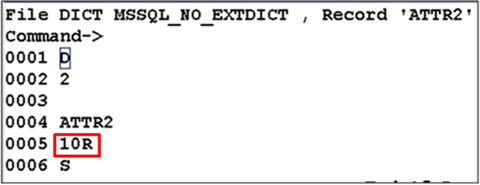
In the following sample, a file with two attributes ATTR1 and ATTR2 is created, where ATTR1 is specified with a value of 101 in the Extended Dict and ATTR2 is specified with a value of 108.
File Creation
You need to create a MSSQL type file (MSSQL_NO_EXTDICT) using XMLMSSQL TYPE in CREATE-FILE to create the correct driver file.

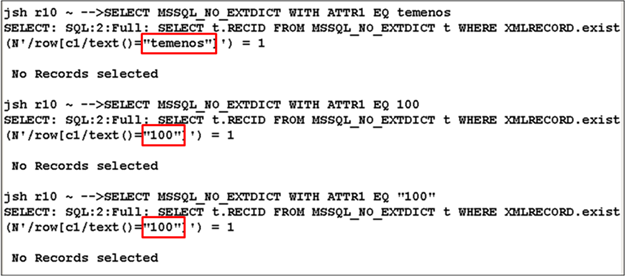
You need to create three DICT record IDs namely @ID, ATTR1, ATTR2. The justification of ATTR1 and ATTR2 is left and right, respectively.
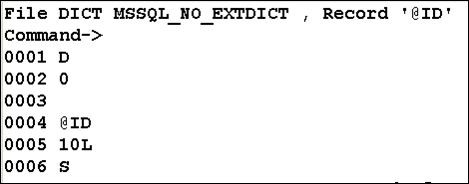
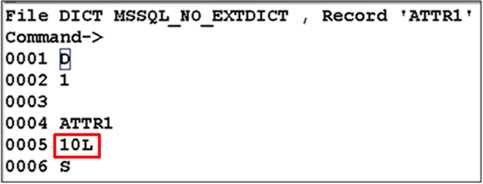
On issuing a select on ATTR1 (left aligned), the translated commands do a string comparison.
On issuing a select on ATTR2 (right aligned), the translated commands do both string and numeric comparisons.
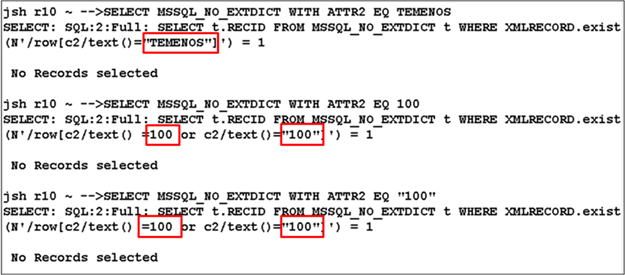
This enhancement bypasses the justification of the attributes if extended dictionary is available for the attribute. If the numeric value 101 is present in the extended dictionary, it will either do a numeric compare.
This enhancement is available for all the ORACLE, DB2 and MSSQL direct connect drivers. In addition, to see the extended dictionary used in the translation, you need to set the following environment variables in .profile or remote.cmd based on the operating system used.
- JEDI_XMLDRIVER_ENABLE_EDICT_TYPE=1
- JEDI_XMLDRIVER_ENABLE_ALL_COLUMNS=1
On creating the file and specifying the attributes, you need to use the use numeric value 101 in the extended dict to enable numeric comparison and 108 or any other number for string comparison. Though any valid integer number can be used in the extended dict part for string comparison, it is recommended to use 108, as it has been tested.
Environment Variables
Before you start working with the created file, you need to set up the following environment variables to utilise the extended dictionary.
You need to use export command to enable these environment variables in AS5, AIX, Solaris, HP-Unix and all other UNIX clones.
export JEDI_XMLDRIVER_ENABLE_ALL_COLUMNS=1
export JEDI_XMLDRIVER_ENABLE_EDICT_TYPE=1
You need to use set command to enable these environment variables in Windows based systems.
set JEDI_XMLDRIVER_ENABLE_ALL_COLUMNS=1
set JEDI_XMLDRIVER_ENABLE_EDICT_TYPE=1
Without these two environment variables, DCD will not use the correct comparison function in the SQL translation.
Promoted Columns
This section describes the implementation of promoted columns in the MSSQL server database. The promoted columns improve the performance of expensive queries by reducing the response time.
The principle is that the fields in the XML document corresponding to single value attributes in Temenos Transact, can be promoted, that is, duplicated into a separate relational column, so that it can be retrieved more quickly. In addition, an index can be created on the individual column to increase the performance further.
The driver will translate the JQL query accordingly, that is, the driver will create a SQL column expression instead of an XPATH query, which would have been used before to select the field from within the XML document column.
Currently this is implemented as a manual modification to the database, and will normally be done by Temenos technical personnel or in liaison with them at client sites.
A single value field or even a specific value of a multi-valued field, which is part of XMLRECORD, can be promoted as computed column of the table and be used in relational search conditions. Further, a relational index can be created on the computed column to improve the query performance.
The promotion of a single value XML field as a column involves the creation of the following.
- Function, which evaluates the value of the field based on this XML element. For example, c2, that is, attribute 2 of the file
- Persisted column for the specific field to hold the data for that field
- Non-clustered index on the promoted column
Function Creation
As the first step to promote a value, a user defined function should be created to evaluate the value of the field. The return value of the function should be a single scalar value. You need to use this function, to add the computed column to the table and persist the same.
The data type has to be consistent with the existing data in the table. If the data is numeric only, the function must return numeric type and for string type, the return type must be varchar. The DC Driver can recognise the column's data type and translate the SQL accordingly irrespective of the column's justification.
Example 1
In the following example, element c2 in table F_HOLD_CONTROL has a function created for it named udf_HOLD_CONTROL_C2. The data type is string, hence the return type is varchar() and results in scalar promotion of single valued field.
CREATE FUNCTION udf_HOLD_CONTROL_C2(@xmlrecord XML)
RETURNS nvarchar
WITH SCHEMABINDING
BEGIN
   RETURN @xmlrecord.value('(/row/c2/text())[1]', 'nvarchar(35)')
END
Example 2
In the following example element c14, mv8 in table FBNK_CARD_ISSUE has a function created for it named udf_CARD_ISSUE_CUSTOMER_C14_8. The data type is numeric, hence the return type is integer and results in scalar promotion of specific multi-valued field.
CREATE FUNCTION udf_CARD_ISSUE_CUSTOMER_C14_8 (@xmlrecord XML)
RETURNS integer
WITH SCHEMABINDING
BEGIN
RETURN @xmlrecord.value('(/row/c14[@m="8"]/text())[1]', 'integer')
END
If c14 is a local-ref column, the function return value will be as follows.
Local-ref<1,1>  -----  RETURN @xmlrecord.value('(/row/c14[not(@m)]/text())[1]', 'integer')
Local-ref<1,2>  -----  RETURN @xmlrecord.value('(/row/c4[@m=2]/text())[1]', 'integer')
Persisted Column Creation
You need to run a script on the database to alter the table and add the new column.
For the example 1 discussed in the Function Creation section, the script is as follows.
ALTER TABLE F_HOLD_CONTROL
ADD ColumnName AS dbo.udf_HOLD_CONTROL_C2(XMLRECORD) PERSISTED
For the example 2 discussed in the Function Creation section, the script is as follows.
ALTER TABLE FBNK_CARD_ISSUE
ADD ColumnName AS dbo.udf_CARD_ISSUE_CUSTOMER_C14_8(XMLRECORD) PERSISTED
Non-clustered Index Creation
After creating the persisted computed column, you need to create an index for this column.
For the example 1 discussed in the Function Creation section, the script is as follows.
CREATE INDEX ix_HOLD_CONTROL_C2 ON F_HOLD_CONTROL(C2)
For the example 2 discussed in the Function Creation section, the script is as follows.
CREATE INDEX ix_CARD_ISSUE_CUSTOMER ON FBNK_CARD_ISSUE(C14_8)
After a promoted column is created for a specific field in the table, the DC driver will automatically translate the queries to use that column relational in the WHERE clause, if there is a search condition on that field.
Configuration of Promoted Columns
The following example shows promoting ACCOUNT.OFFICER in ACCOUNT. The dictionary entry shows the attribute as 11, that is, c11.
File DICT ACCOUNT , Record 'ACCOUNT.OFFICER'
Command->
0001 D
0002 11
0003
0004 ACCOUNT.OFFICER
0005 4R
0006 S
0007
0008
0009
0010
Create the function to extract from XML node:
CREATE FUNCTION [dbo].[udf_ACCOUNTOFFICER](@xmlrecord XML)
RETURNS integer
WITH SCHEMABINDING
BEGIN
    RETURN @xmlrecord.value('(/row/c11/text())[1]','integer')
END
Create a persisted column in the table:
ALTER TABLE ACCOUNT ADD ACCOUNT_OFFICER AS dbo.ACCOUNTOFFICER(XMLRECORD) persisted
Some example translations from the XMLdriver.log:
JQL: SELECT ACCOUNT WITH ACCOUNT.OFFICER EQ ''
SQL:SELECT t.RECID FROM ACCOUNT t WHERE ACCOUNT_OFFICER IS NULL
JQL: SELECT ACCOUNT WITH ACCOUNT.OFFICER EQ 25
SQL:SELECT t.RECID FROM ACCOUNT t WHERE ACCOUNT_OFFICER=25
JQL: SELECT ACCOUNT WITH ACCOUNT.OFFICER EQ 45
SQL:SELECT t.RECID FROM ACCOUNT t WHERE ACCOUNT_OFFICER=45
JQL: SELECT ACCOUNT WITH ACCOUNT.OFFICER > 25 AND ACCOUNT.OFFICER < 45
SQL:1:Part: SELECT t.RECID,t.XMLRECORD FROM ACCOUNT t WHERE ACCOUNT_OFFICER>25 and (ACCOUNT_OFFICER<45 OR ACCOUNT_OFFICER IS NULL )
JQL: SELECT ACCOUNT WITH ACCOUNT.OFFICER NE ''
SQL:SELECT t.RECID FROM ACCOUNT t WHERE ACCOUNT_OFFICER IS NOT NULL
The following example shows promoting the local reference field Inp Rtn Fld in ACCOUNT. This dictionary entry is of I type on attribute c20.
File DICT ACCOUNT , Record 'INP.RTN.FLD'
Command->
0001 I
0002 LOCAL.REF<1,3>
0003
0004 INP.RTN.FLD
0005 30L
0006 S
0007
0008
0009
0010
0011
0012
0013
0014 LOCAL.REF<1,3>
0015
Create the function to extract from XML node:
CREATE FUNCTION [dbo].[udf_localref_C20_M3](@xmlrecord XML)
RETURNS varchar(20)
WITH SCHEMABINDING
BEGIN
    RETURN @xmlrecord.value('(/row/c20[@m=3]/text())[1]','varchar(20)')
END
Some example translations from the XMLdriver.log:
JQL: SELECT ACCOUNT WITH INP.RTN.FLD NE ''
SELECT t.RECID FROM ACCOUNT t WHERE INP_RTN_FLD IS NOT NULL
JQL: SELECT ACCOUNT WITH INP.RTN.FLD EQ ''
SELECT t.RECID FROM ACCOUNT t WHERE INP_RTN_FLD IS NULL
JQL: SELECT ACCOUNT WITH INP.RTN.FLD NE ''
SELECT t.RECID FROM ACCOUNT t WHERE INP_RTN_FLD IS NOT NULL
JQL: SELECT ACCOUNT WITH INP.RTN.FLD='INPUT.ROUTINE CALLED'
SELECT t.RECID FROM ACCOUNT t WHERE INP_RTN_FLD='INPUT.ROUTINE CALLED'
Table Compression
Table compression is implemented using the following command to reduce data tablespace requirements and network traffic. The compress/decompress is done automatically at the client site.
CREATE-FILE DATA TSTBLOB TYPE=XMLMSSQL NOXMLSCHEMA=YES COMPRESSION=YES
XML Mapper
This functionality is a development of promoted columns for multivalued fields. This allows you to map them so logically, which improves the query performance. It is a joint development between MS and Temenos, with modifications made to the SQL server and DCD Driver. It will be part of the next MSSQL release, but for now it is a downloadable add on for SQL Server 2008 R2.
You need to do the following to install and use this feature.
- Set the JEDI_XMLDRIVER_ENABLE_XML_MAPPER environment variable to 1. The Client and Server MSI Files are the Microsoft components, which can be downloaded.
- Run the MSI files on the client and server.
- Run the supplied script on the target database using Management Studio, to set up all of the stored procedures required for Mapper.
- Execute the XmlMapper_Temenos.sql script supplied with the Server Component.
- Configure the XML Mapper with the chosen record fields.
- Call the Initialise function (initialize_secondary_table ) once per table by executing xmlmapper.sp_xmlmapper_initialize_secondary_table 'MAPPER_ACCOUNT'
- Put in a call to Add Node for each field to be mapped. The parameters include the Table name, attribute no, column type, value type, and index flag.
Field Name and Type
Command
Category, single valued field
xmlmapper.sp_add_node_to_secondary_table 'MAPPER_ACCOUNT', '/row/c2', 'string', 'single', 'idx'
Alt Acct Type, multi valued alphabetic field
xmlmapper.sp_add_node_to_secondary_table 'MAPPER_ACCOUNT', '/row/c99', 'string', 'multi-value', 'idx'
Accr Dr Trans, multi valued numeric field
xmlmapper.sp_add_node_to_secondary_table 'MAPPER_ACCOUNT', '/row/c65', 'integer', 'multi-value-sub', 'idx'
- Call the rebuild function to populate the secondary table, generate indices and so on.
- Run xml mapper to build the secondary table, populating data
- Execute xmlmapper.sp_rebuild_secondary_table 'MAPPER_ACCOUNT'
Other functions do exist to inspect the current config, remove nodes and so on. The following infographic shows how the fields are handled by calling the functions.
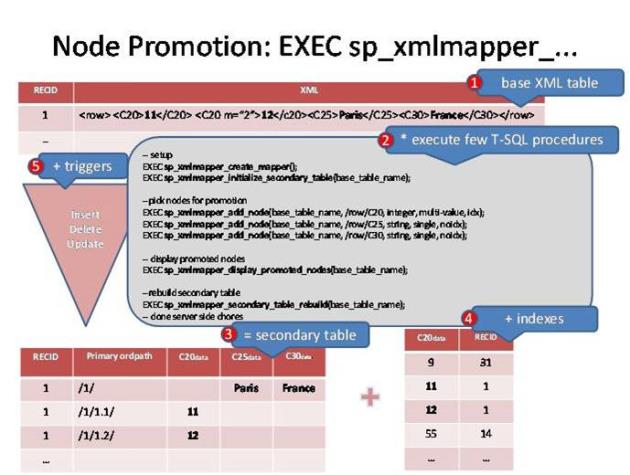
The following are the explanation points from the infographic.
1 - Original XML record
2 - Execute functions to process the desired record fields
3 - Call the rebuild function to generate the secondary table
4 - Call the index if required
5 - Supporting triggers and so on are also generated to maintain the data relationships
MSSQL Data Encryption
The Temenos Transact is banking data, which is highly critical and sensitive. These data must be protected from unauthorised access when stored in public cloud. The simple way to protect data is to enable encryption functionality to the data. The data has to be encrypted in the client application server before getting stored in the database server.
Encryption is the conversion of data into a form that cannot be understood at ease by unauthorized people. Decryption is the process of converting encrypted data back into its original form. This conversion happens through different algorithms or keys, which are standardised and accepted by the financial community.
A base encryption key is configured and maintained in the client server. This key is held outside the database, which protects against removal of the database or integration of an image of the database. Without access to the client, the key remains hidden. Removal of this record from the client system would disable the base encryption key.
The next level of security is given by adding an encryption key to the table. Tables are encrypted with different keys so that the decryption each table completely differs from the other. When the data is entered, the base key and encryption key are taken together processed, encrypted and stored in the database. When the data is queried, the same encryption key and base key has to be used to decrypt the data and given back to the user.
When the table is queried with criteria using JQL, the translation from JQL to SQL is suppressed. All the data in the table is sent and jQL executes the criteria on the result set, which may have some performance hiccups.
You need to configure the database server name, database name, and user credentials for the driver and check if the database gets connected using config-XMLMSSQL utility.
Base Key Encryption
This base key is used for the encryption algorithm along with the user provided encryption key to encrypt the user data. This is the secret key of Temenos. However, the user can configure the base key using the config-XMLMSSQL utility. It is stored in jedi_config in encrypted format. This forms from the first level of security for the database. Removal of this base key from jedi_config corrupts the database.
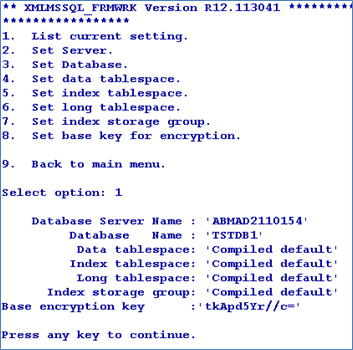
You can also configure the base key using the command line arguments of config-XMLMSSQL utility.

The jedi_config file will have the XMLMSSQL_FRMWRK record with the details of the server, database, user credentials and base key in encrypted form.
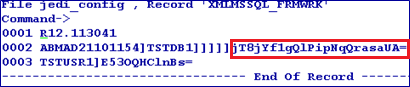
ENCRYPT Qualifier
The ENCRYPT qualifier defines the encryption key for the table. This encryption key is stored in stub/VOC entry of the table in encrypted format. This functionality is available for both XML and BLOB types.
Data Tables
The following screen captures show tables with different types of data.
XML Type


BLOB Type


Promoted Column
A file having promoted column is also encrypted if the file is created using the ENCRYPT keyword.
Real Column
The data encryption is not available for the real column. Hence, the real column maintains the performance benefits of the indices.
Insert/Update Function
You can insert or update the data using either JED editor or WRITE/WRITEU functions of JBC. The data entered will be encrypted and stored in the database.
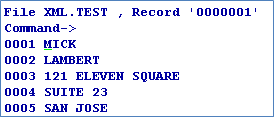
When queried, the record is displayed in the encrypted form.
Data Encryption
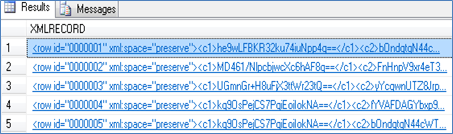
The following screen captures show tables with different types of data in encrypted form.
XML Data
BLOB Data
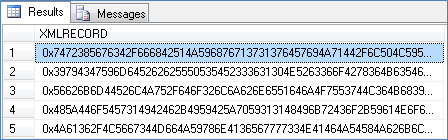
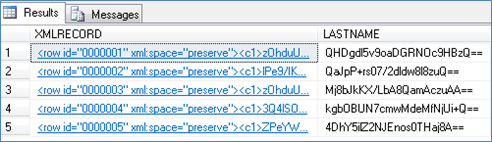
Promoted Column Data
The LASTNAME attribute is converted into promoted columns.
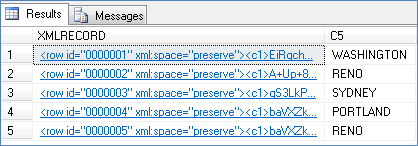
Real Column Data
The CITY (Attribute 5) of the file is converted into real column. The real column is not encrypted. Hence, indexes can be created and used.
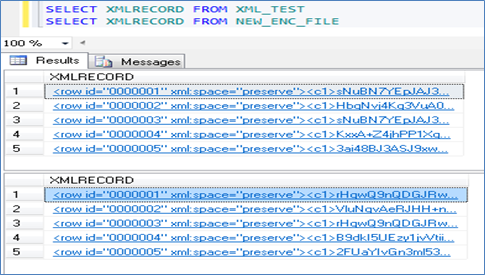
Duplicating Encrypted data
You can copy data from one encrypted file to another. Encrypt key of the first file is used to decrypt the data and encrypt key of the second file is used to re-encrypt and store it in the table.

Query
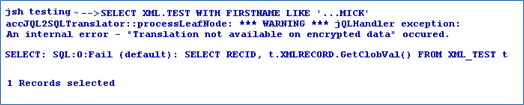
When the data is queried through JQL, the query is translated into SQL. This translation enables you to use all the database performance improvement functionalities including index.
However, when the data is queried using a criteria, this functionality is suppressed because of the encryption. The stored data is encrypted and hence cannot be compared with the user-supplied data. Therefore, a default translation occurs bringing up all the data from the database and then filtering it in jBASE.
Without Criteria

With Criteria
Customisation
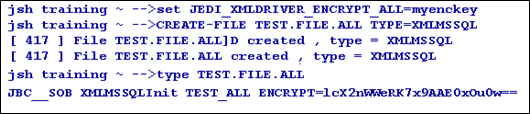
You can enable table encryption on all the tables to be created in future using the following environment variable.
set/export JEDI_XMLDRIVER_ENCRYPT_ALL=key
Restriction
You can rename or copy the encrypted table only through jBASE and never from the backend. Also, you should not change the base key after creating the encrypted tables, else, the tables get corrupted.
In this topic
