jBASE Licensing Administration
This section lists the necessary commands to work with the licensing servers.
Installing servers as services (jBASE 4.1.5 or Windows only)
On jBASE 4.1.5 and above, both the license server and the slim server are designed to be able to run as services on Windows platforms. The installation of these services should happen automatically at install time. Should the services need to be installed manually,
Installing jLicenseServer
jLicServer install
Installing jSlimServer
jSlimServer install
Removing jLicenseServer
jLicServer remove
Removing jSlimServer
jSlimServer remove
Starting the servers
Scripts are provided to start up both the license server and the slim server. These can be found in the $JBCRELEASEDIR/bin folder on the machine where jBASE has been installed. There are four such scripts, two for Unix / Linux installations and two for Windows. The syntax for starting the jLicenseServer is as follows;
Starting jLicenseServer (Windows)
jLicServer [start | run] {-v}
Starting jLicenseServer (Unix / Linux)
jLicServer [start | run] {-v}
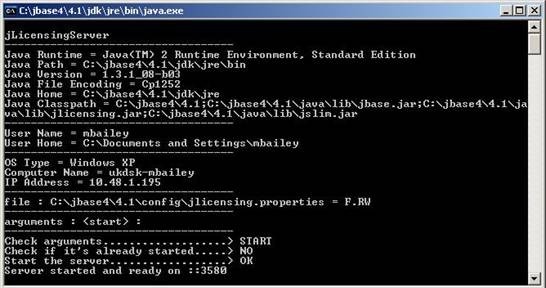
Using a start option, you can start the server in another process. If the run option is specified, the server starts in the same process. In either case, the -v option is for verbose output to the console. It is recommended that the license server is started prior to starting the jSLIM server.
Once the license server is started, the jSlim server can be started in a similar way.
Starting jSlimServer (Windows)
jSlimServer [start | run] {-v}
Starting jLicenseServer (Unix / Linux)
jSlimServer [start | run] {-v}
Stopping the servers
Scripts have been provided to stop both the license server and the slim server. The syntax for stopping the servers is similar to starting them. Once the jSLIM server has been stopped, jBASE processes on that machine will no longer be able to function and will report that no license is available.
Stopping jLicenseServer (Windows)
jLicServer stop
Stopping jLicenseServer (Unix / Linux)
jLicServer stop
License Server Console
A command line interface to an active license server can be activated using the following syntax.
Starting the console (Windows)
jLicServer console
Starting the console (Unix / Linux)
jLicServer console
The following commands are available in the console;
|
Command |
Description |
|---|---|
|
Help |
List all console commands |
|
InputKey |
Input a license key |
|
Status |
Shows the status of licenses installed |
|
View |
Show details of licenses in use |
|
Exit |
Leave the console |
Starting the Client
The license client can be started on a graphical console (will not work over telnet) using the following command.
Starting the client (Windows)
jLicClient
Starting the console (Unix / Linux)
jLicClient
When the graphical client is started, it is not connected to a license server by default, even if the client is started on the same machine as the license server. In order to administer a license server, one must first connect to it using the connect option under the file menu.
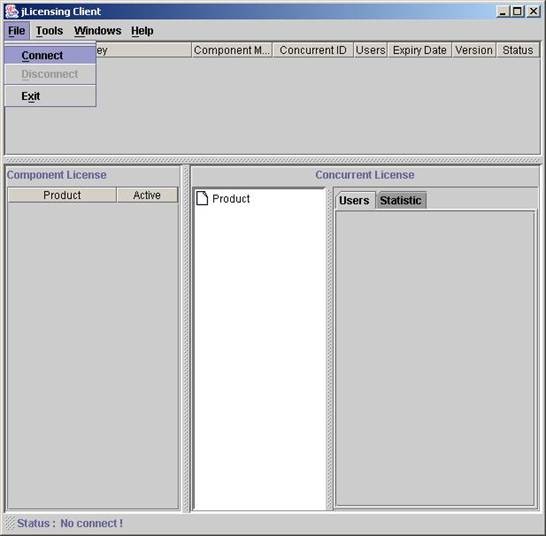
There are three panes in the client view. The topmost pane displays details of any license keys that have been installed. The component license pane in the bottom left displays details of which components are licensed. The concurrent license pane in the bottom right displays details of any licenses that are currently in use.
To install a license key using the client, you can use the add key option under the tools menu, and then enter the key together with the supplied expiry date.
To administer a server that exists on a different machine to the license client, use the settings option under the tools menu, and enter the IP address together with the port that the license server is listening on.
In this topic
