Setting up SSL at Websphere MQ and Weblogic Level
The SSL configuration defines the requirement for each endpoint in a communicating system. This enables elements in the application-serving environment for secured communication. This section provides the steps to manage SSL certificates at Websphere MQ and Weblogic level, which are used by the JMS resources
Websphere MQ Level
Procedure
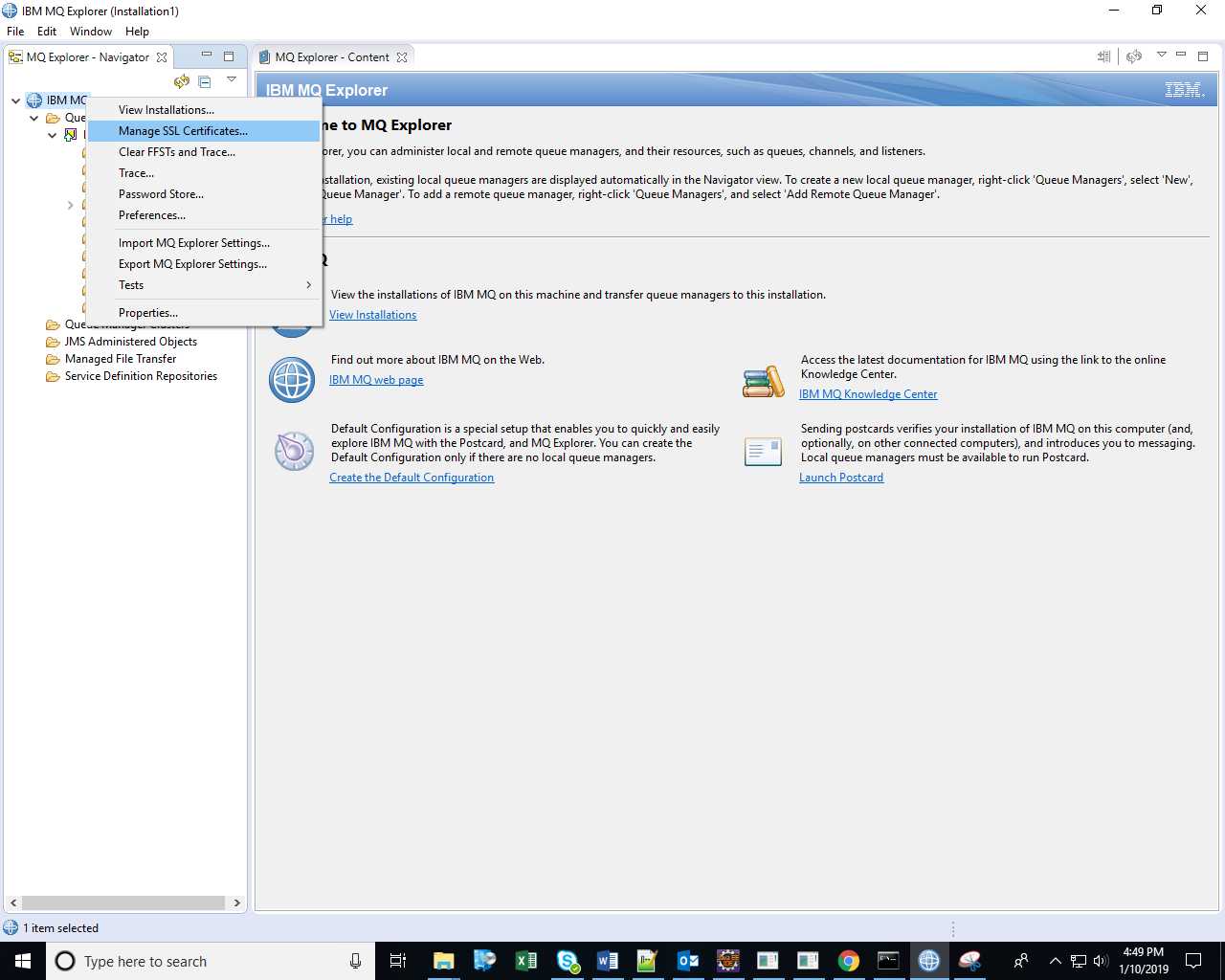
- Open IBM MQ Explorer.
- Right click on IBM MQ and click Manage SSL certificates. The IBM Key Management dialog box appears.

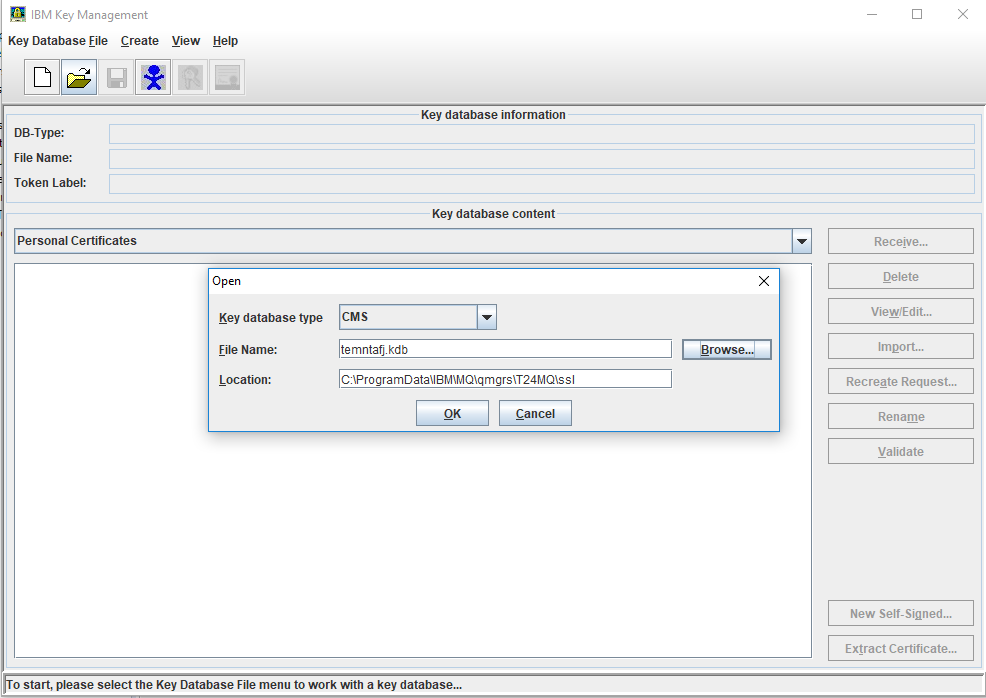
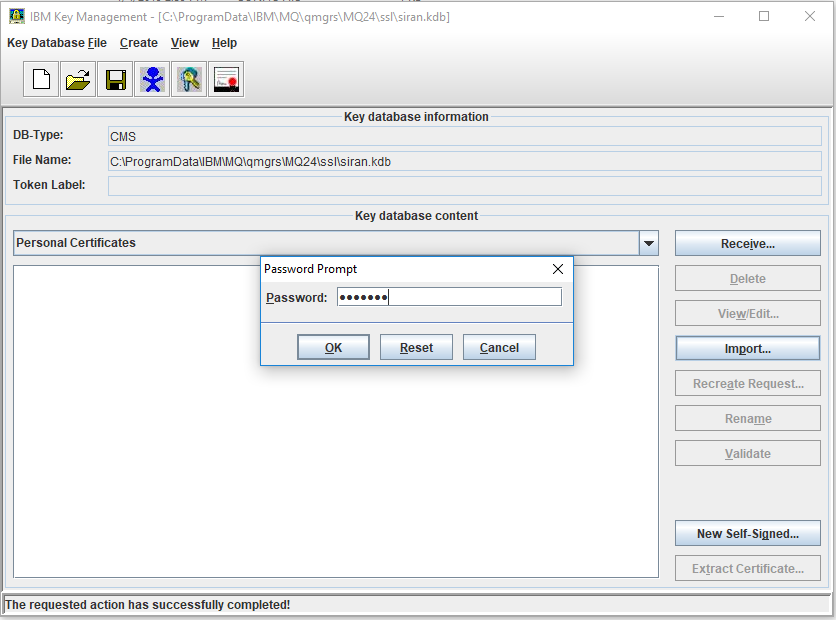
- Set the Key database type to CMS, enter the File Name: and Location: in the Open prompt and click OK.

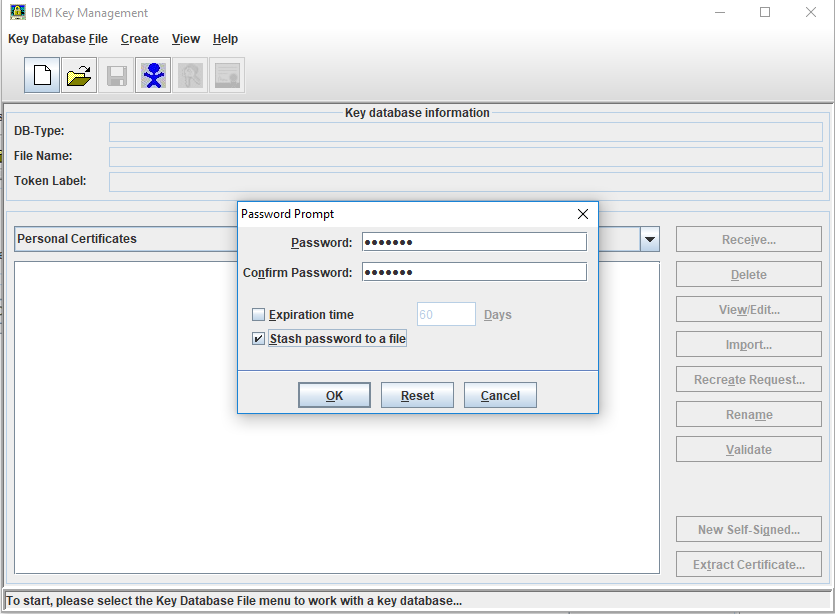
- Enter the password used to create keystore (temenos), enable the Stash password to a file checkbox in the Password Prompt and click OK.

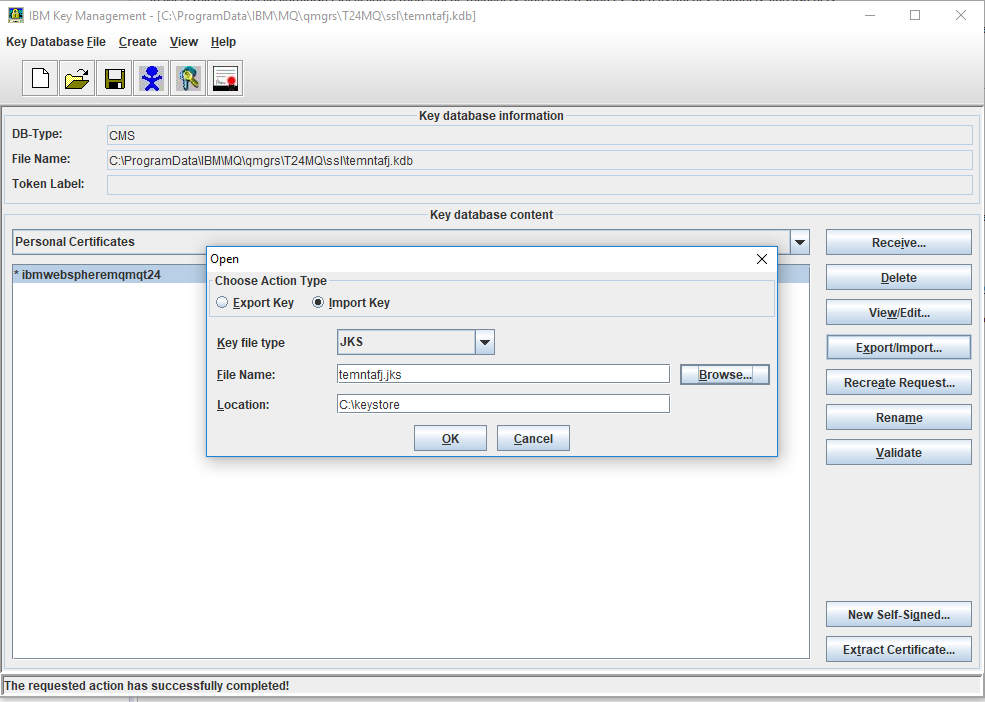
- Select Import Key, set the Key file type to JKS, enter the keystore File Name: (temntafj.jks) and Location: in the Open prompt and click OK in the Personal Certificates panel.


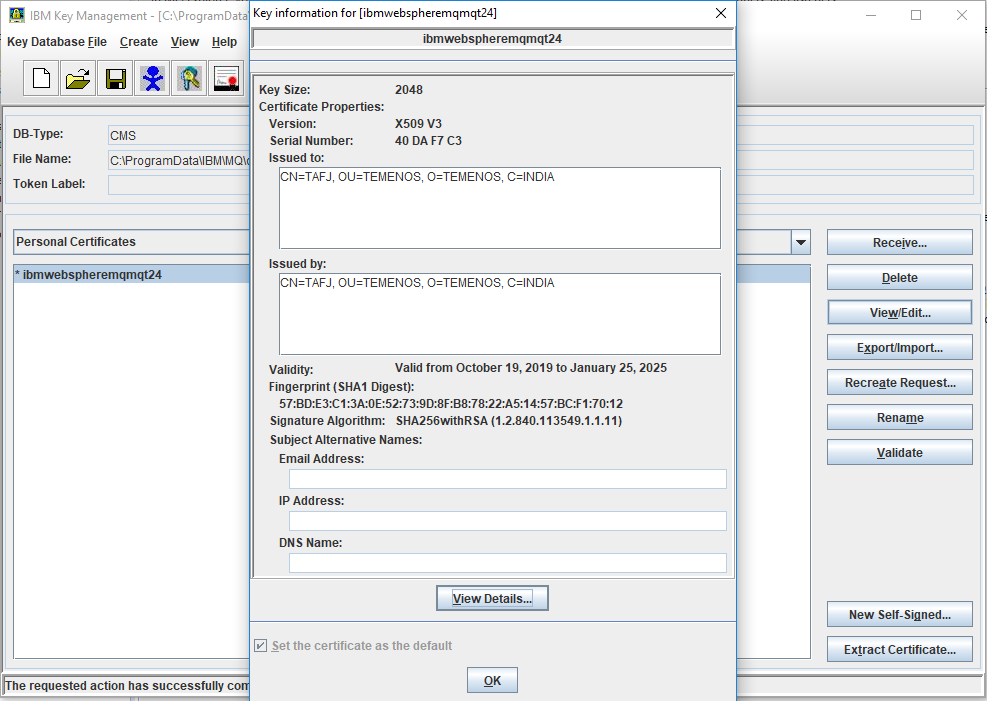
- Click View or Edit button and enable the Set the certificate as the default check box.

Weblogic Level
To manage SSL certificates at the Weblogic level, you need to do the following.
Procedure
- Set the following JAVA properties.
JAVA_PROPERTIES=-Dwls.home=%WLS_HOME% -Dweblogic.home=%WLS_HOME% - Djavax.net.ssl.keyStore=C:\keystore\temntafj.jks -Djavax.net.ssl.keyStorePassword=temenos -Djavax.net.ssl.trustStore=C:\keystore\temntafjtrust.jks -Djavax.net.ssl.trustStorePassword=temenos -Doracle.net.ssl_cipher_suites=TLS_RSA_WITH_AES_128_CBC_SHA -Dcom.ibm.mq.cfg.useIBMCipherMappings=false -Dcom.ibm.mq.cfg.preferTLS=true
- Set the following paths:
DOM_HOME=C:\\Oracle\\Middleware\\Oracle_Home\\user_projects\\domains\\base_domain\\lib
CLASSPATH=%DOM_HOME%\\com.ibm.mq.jar;%DOM_HOME%\\com.ibm.mqjms.jar;%DOM_HOME%\\com.ibm.mq.commonservices.jar;%DOM_HOME%\\com.ibm.mqetclient;%DOM_HOME%\\fscontext.jar;%DOM_HOME%\\dhbcore.jar;%DOM_HOME%\\com.ibm.mq.headers.jar;%DOM_HOME%\\com.ibm.mq.jmqi.jar;%CLASSPATH%
- Copy the JARs from the MQ lib to the created domain server lib (<<Oracle_home>> user_projects\domains\base_domain\lib).
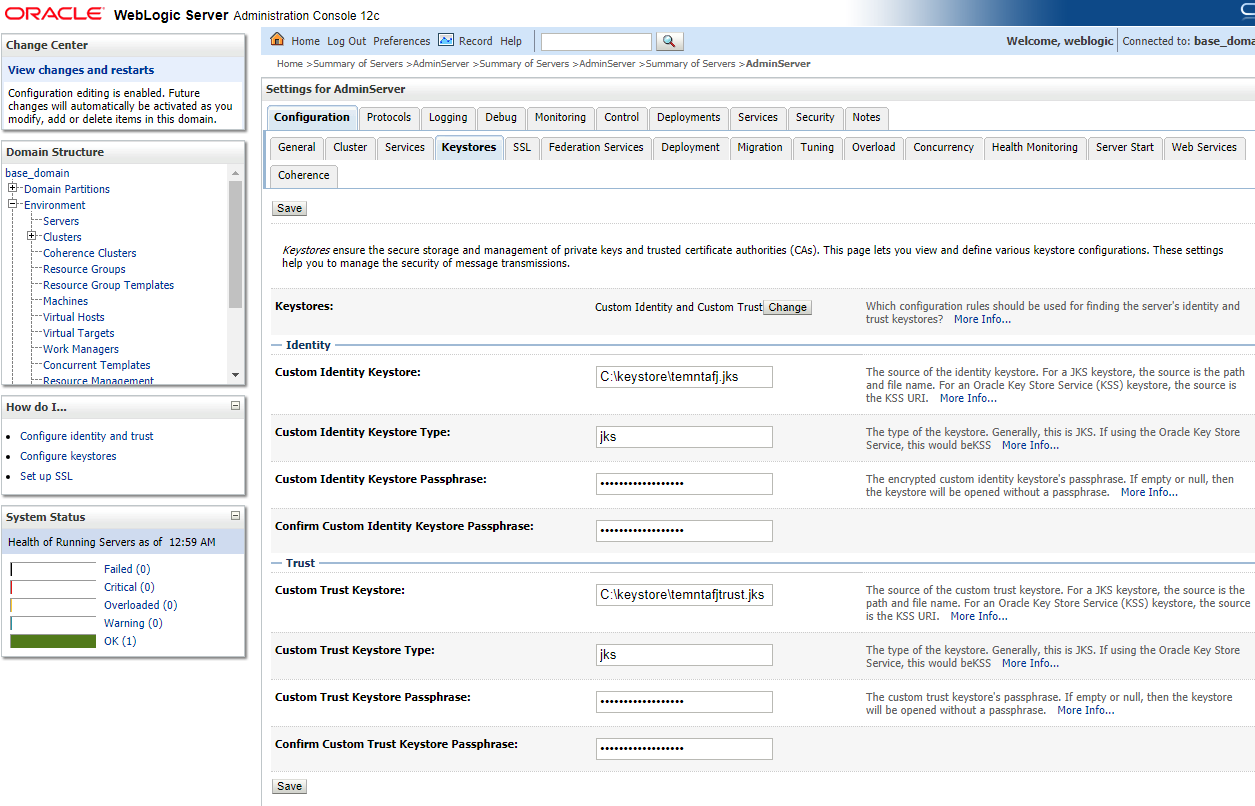
- Map the generated keystore and trust keystore files in the Keystore tab.
- Open Weblogic Server
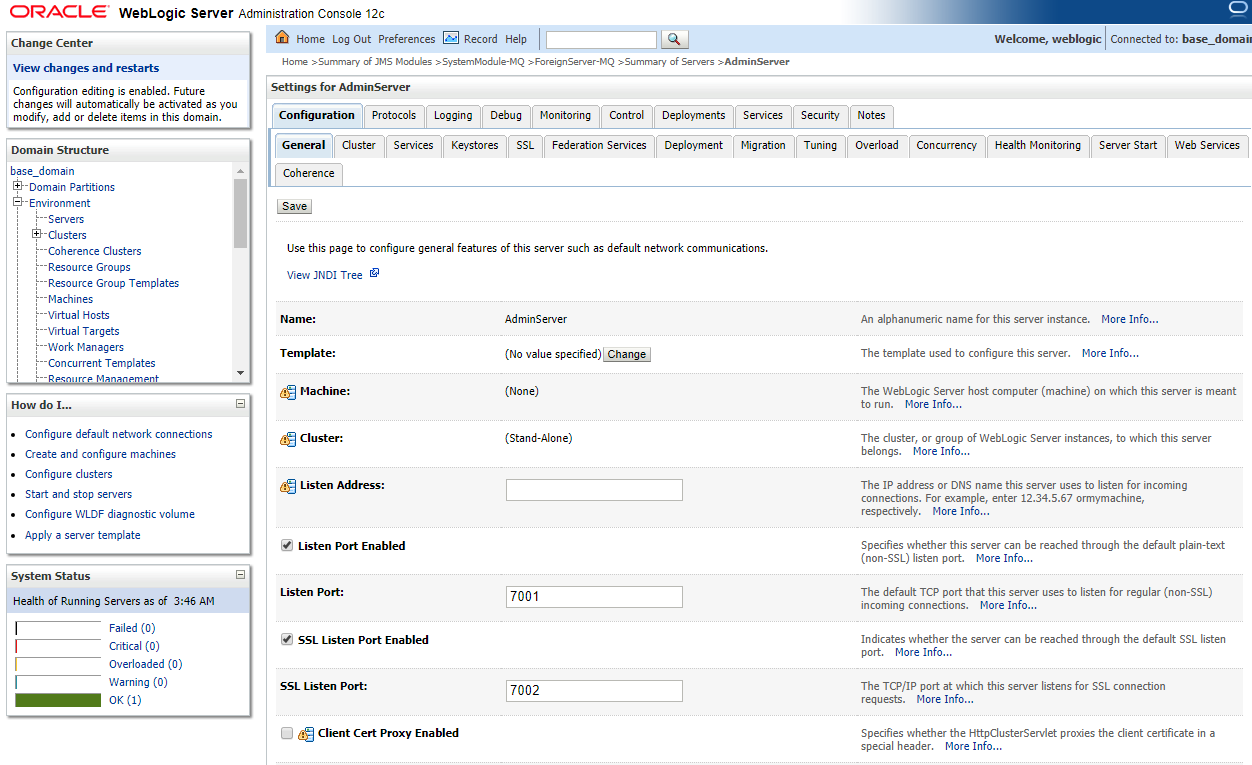
- Select Environment > Servers > Adminserver from the home page.

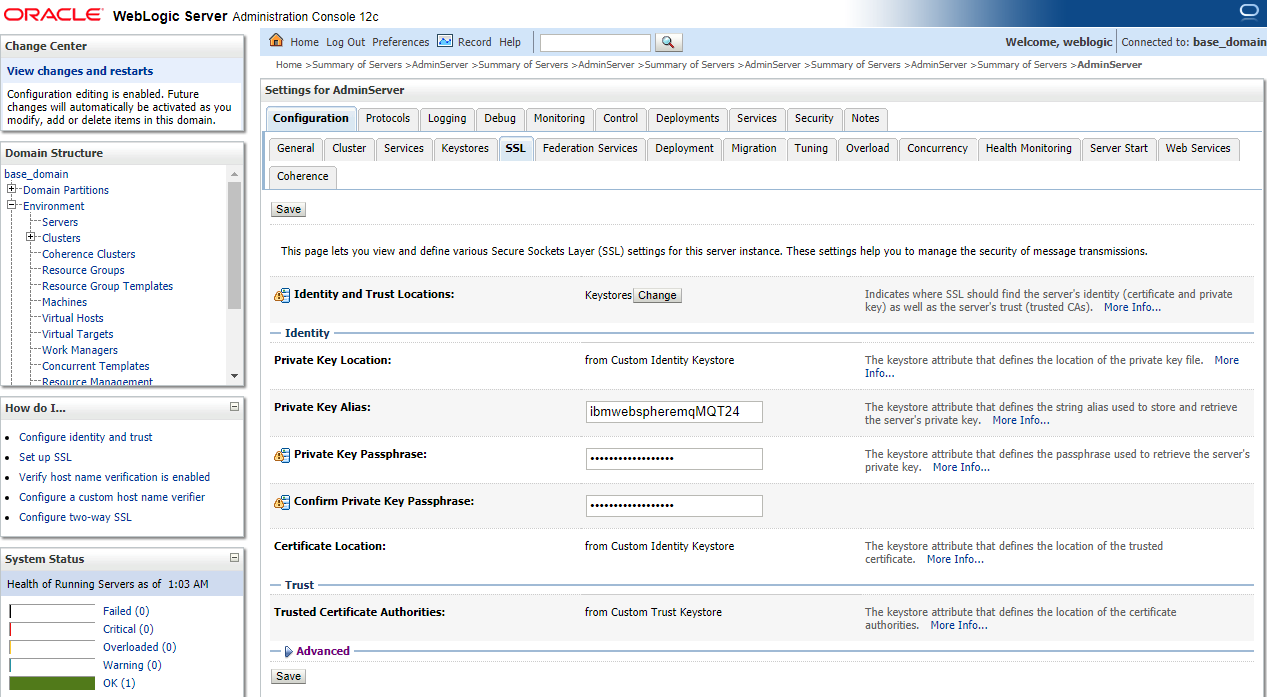
- Enter Private Key Alias and the respective credentials of the keystore in the Configuration > SSL tab.

- Enable the SSL Listen Port Enabled checkbox to indicate whether the server can be reached through the default SSL listen port and click Save.

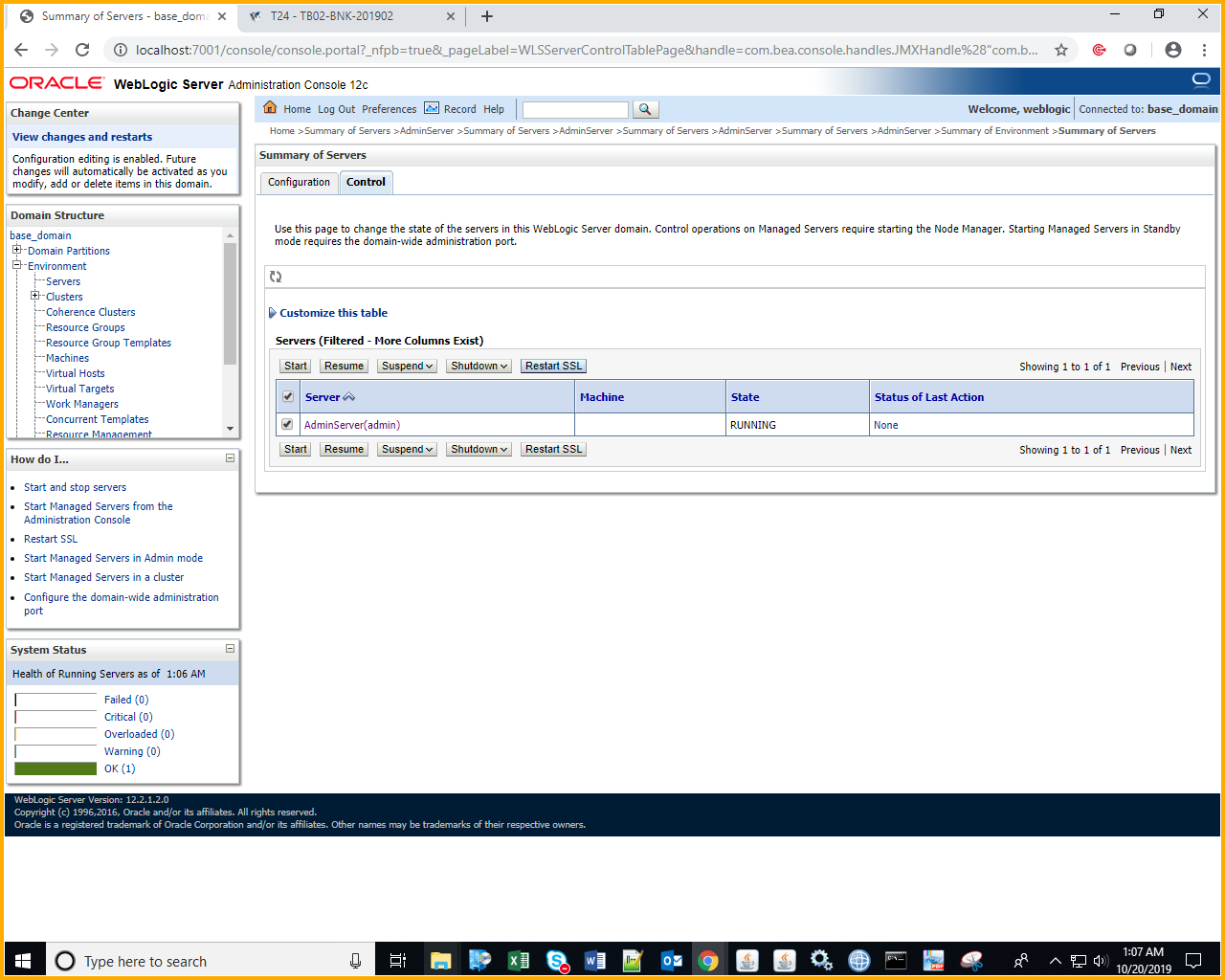
- Click Restart SSL from the Control tab of the home page to activate the SSL.

In this topic
