Working with Jed Eclipse Plugin
This section explains you about the Jed eclipse plugin and how to edit a record and data file by using the Jed wizard.
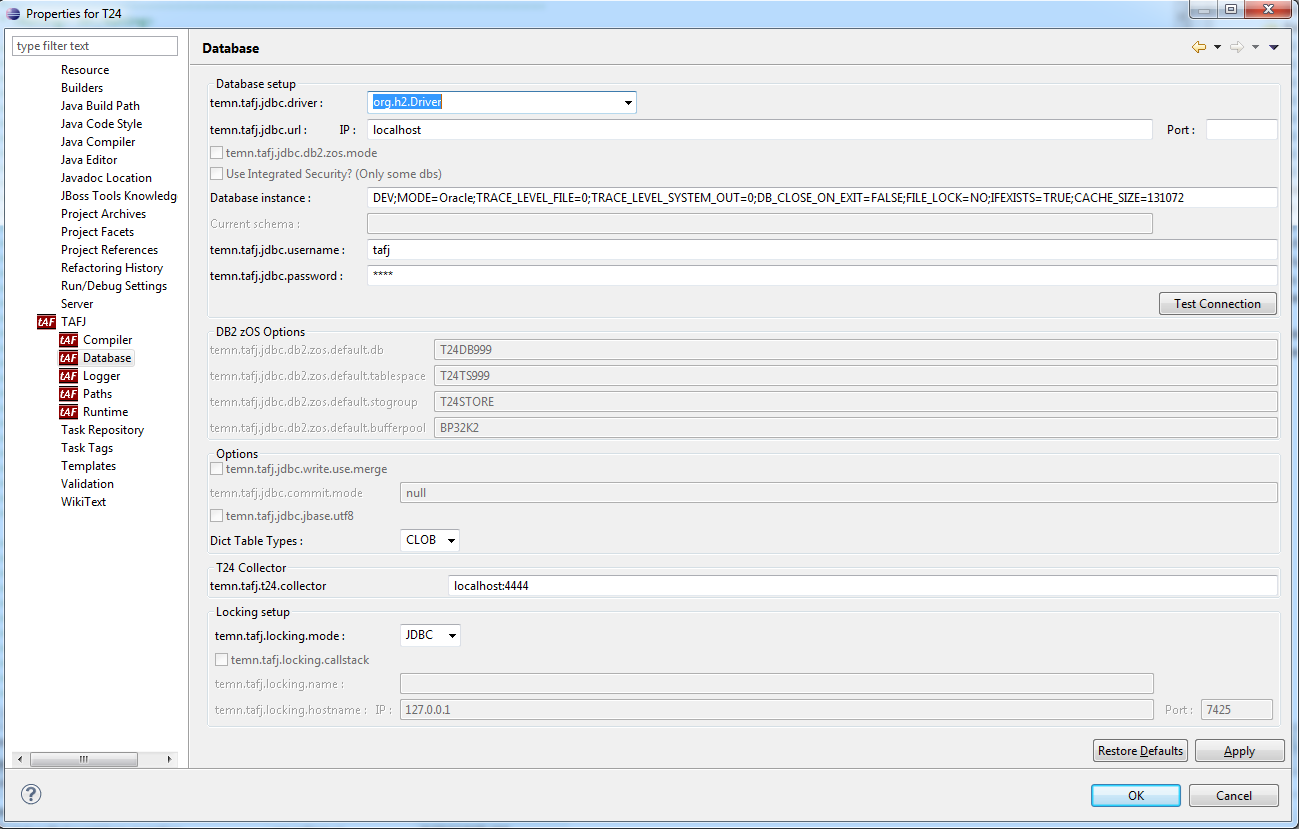
The Jed Eclipse plugin is a table viewer of a record in the database. When you have a TAFJ project enabled, you can use the Jed plugin. Make sure your database settings are correct in the TAFJ project.
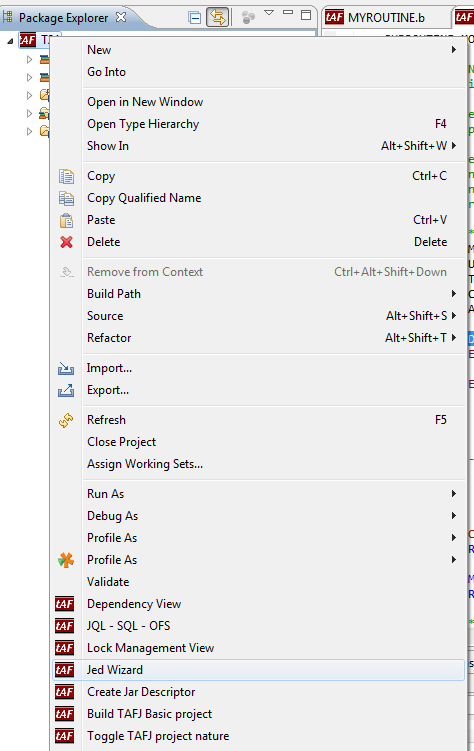
Invoking the Jed Wizard
Procedure
- Right-click the TAFJ project and click Jed Wizard.

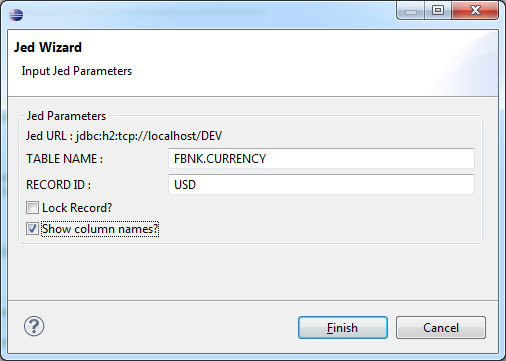
- In the Jed wizard, specify a table name and a record that you want to view (for example, FBNK.CURRENCY and USD), and select the Show column names? check box.

- Click Finish.
This will open a Jed data editor for the requested record.
Edit a Record
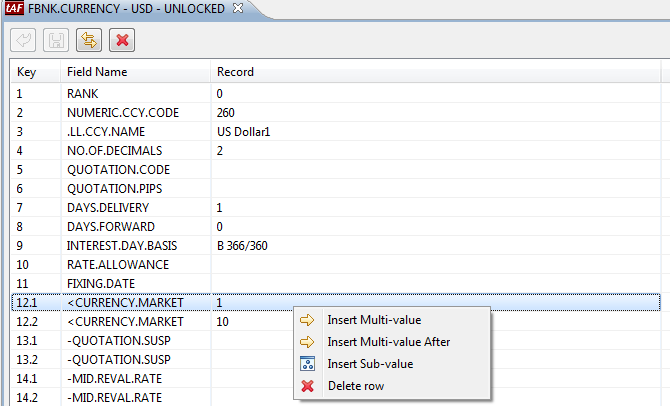
The below screen capture shows the Jed editor view.
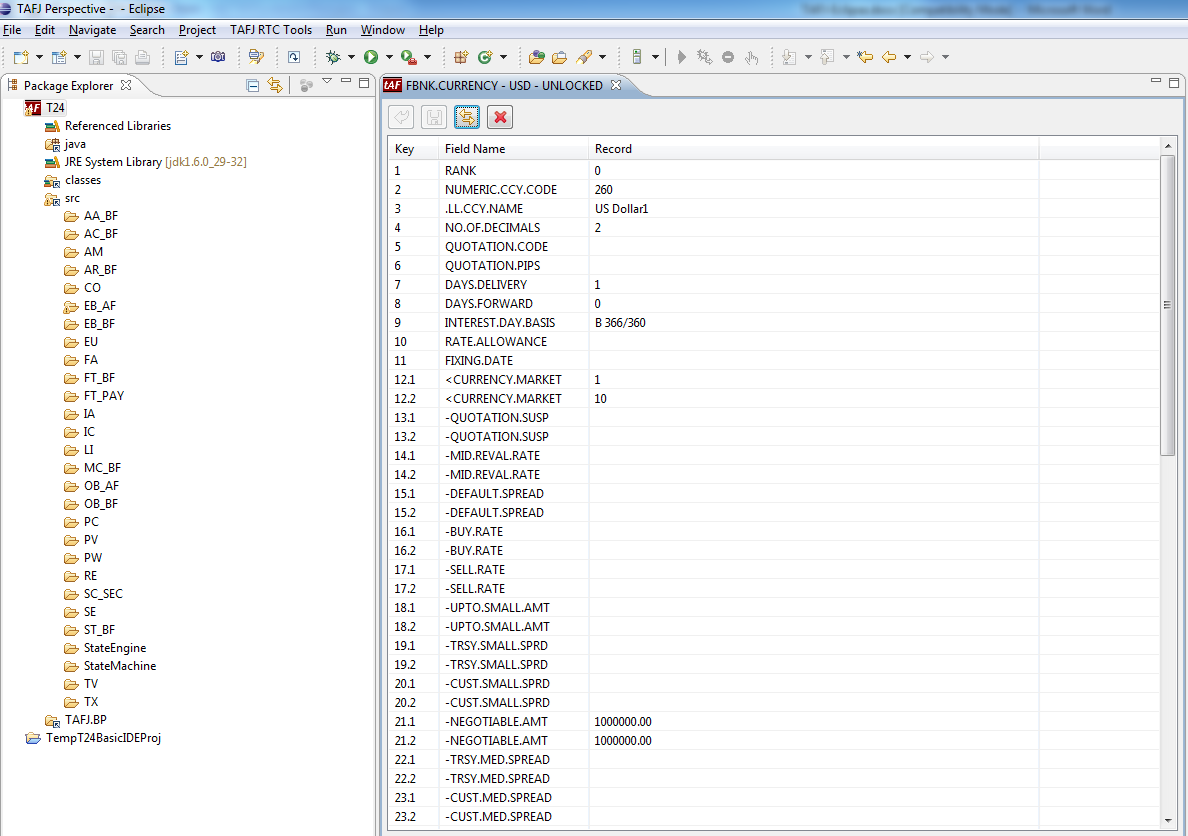
You can edit a record in the Jed wizard in the following ways:
- Double-click within a cell to edit it.

- Right-clicking on a field will give you the options to Insert Field, Insert Field After, Insert Multi-value, Insert Sub-value and Delete row.
- The contextual menu changes based on the field type.

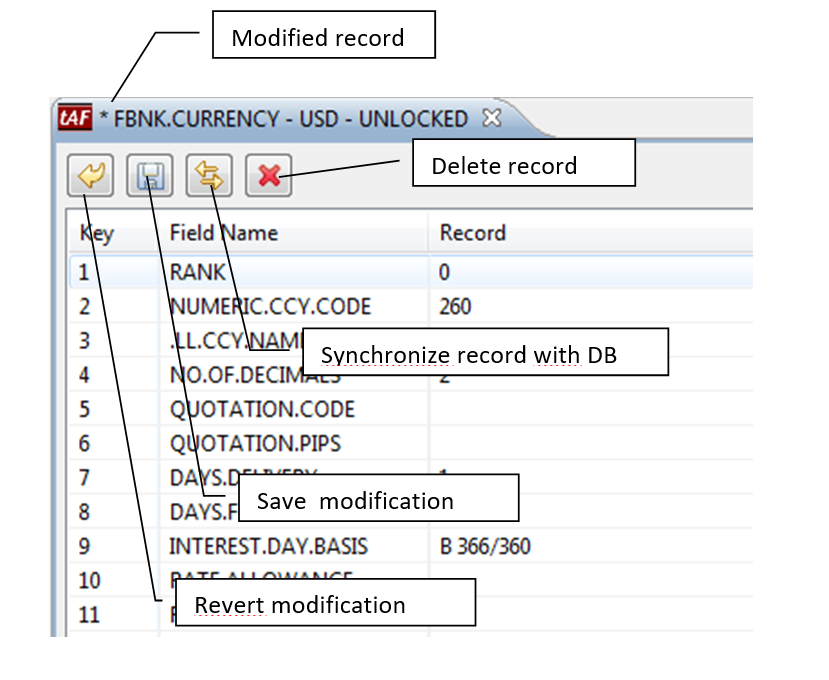
- There are two actions available in the toolbar irrespective of the status of the record:
- Synchronize the editor with the record in the database.
- Delete the record (you will be prompt for confirmation, after confirmation the record gets deleted permanently).
- Once the record is modified all actions become available in the toolbar. You can:
- Revert the modification
- Save the modification


Edit a Data File
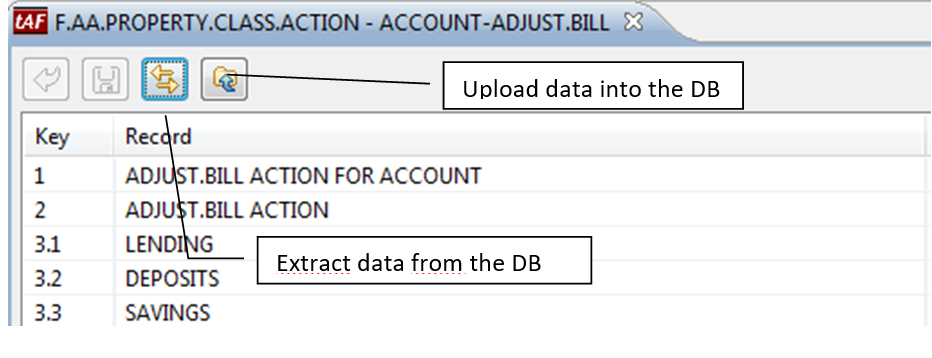
You can edit a data file in the Jed editor in a similar way as described in the previous section. The only difference is the toolbar, which has a different purpose.
It is possible to synchronize the file content with the database and to upload the file content into the database.
In this topic
