Pay a Person
Use the feature to initiate a P2P (person to person) transfer (for example, to send money to a friend) by using the recipient's mobile number or email ID. You can also view the list of registered P2P payees, add a new P2P payee, view the list of your completed and scheduled P2P transfers, and modify a pending P2P payment.
Menu path: Online Banking > Transfers
Menu path: Mobile Banking > Transfers
Online Banking
To perform a person-to-person transfer, you must activate the person-to-person feature. To activate person-to-person, perform the following steps:
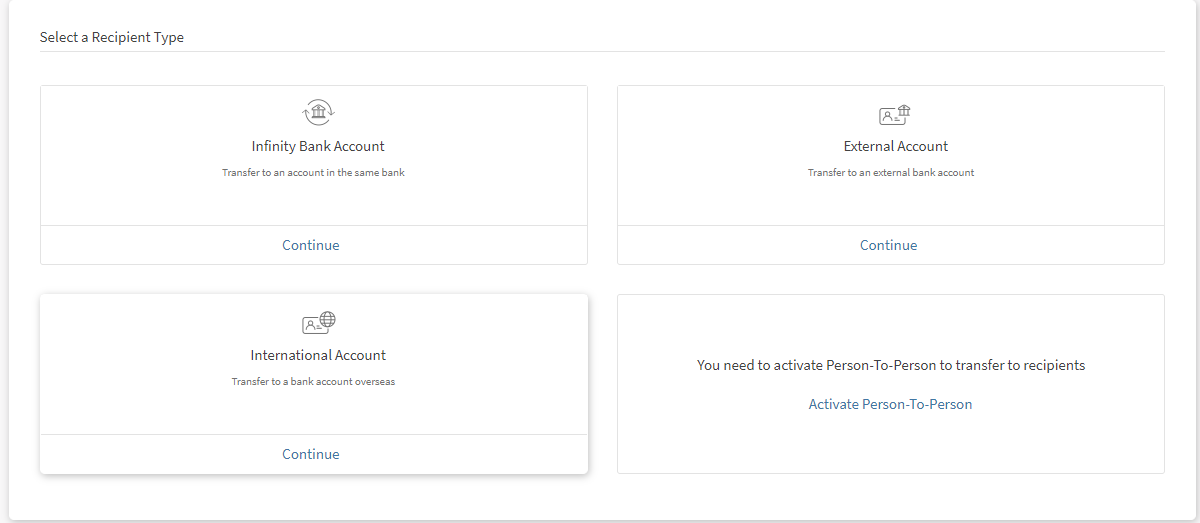
- Click Add Person-to-person recipient from the right pane of the transfers screen. You can also click Add Recipient from Transfers menu. The Add Recipient screen appears with an option to select the recipient type.
- Under Person-to-person, click Activate Person-to-Person.
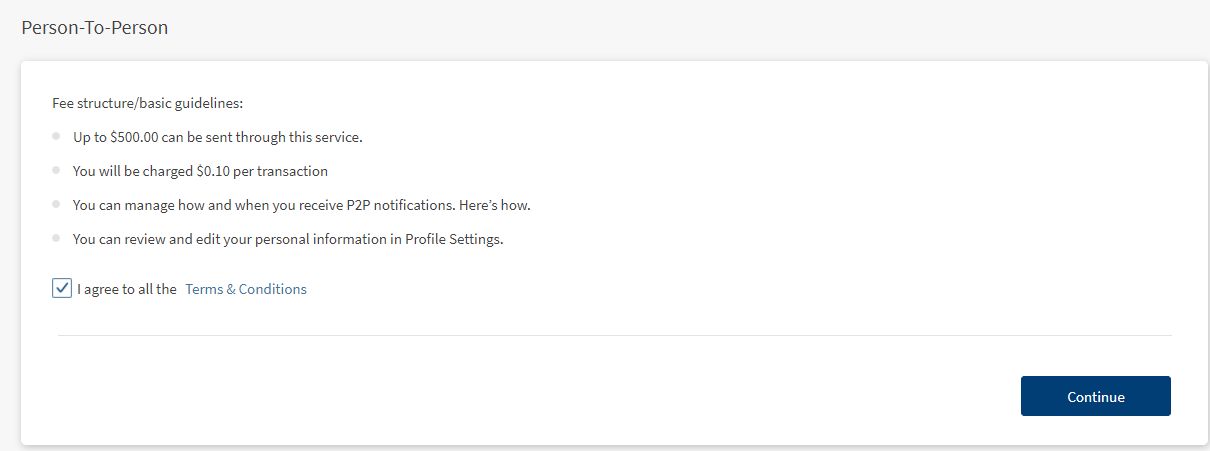
- When you open the Pay a Person screen for the first time, the app displays the terms and conditions for you to activate the P2P payment service.
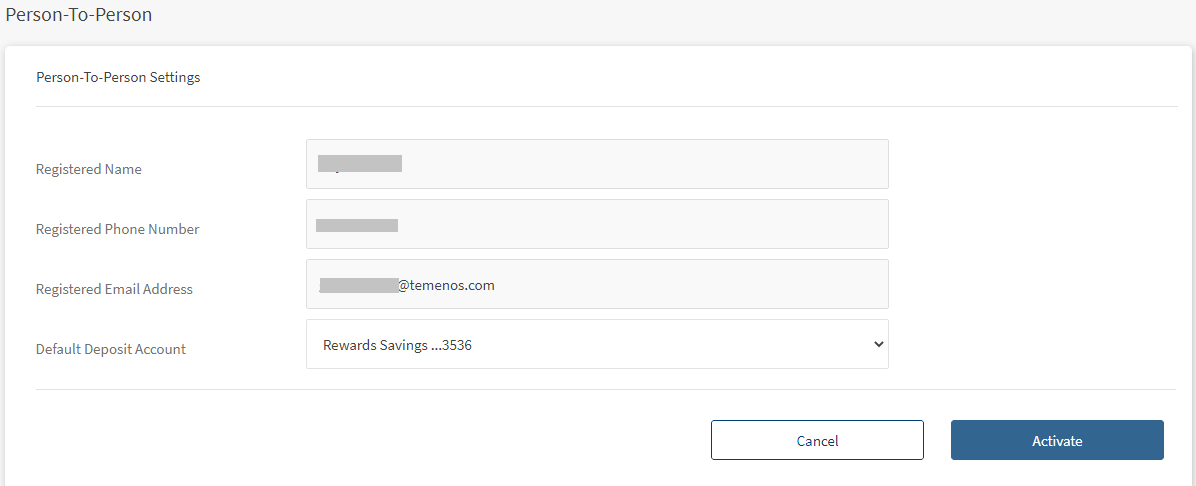
- Click Proceed. The Pay a Person screen appears with your account details.
- The app displays the following details:
- Your name
- Registered Phone
- Registered Email
- Default account for sending the amount
- Confirm the details to activate P2P payments, but you can also edit them if required.
If you have multiple eligible accounts, you can select the preferred account for using the P2P payment service (for sending and receiving money).
Once P2P is activated, a confirmation message is displayed with your details. You can send and receive money via your email ID and mobile number.
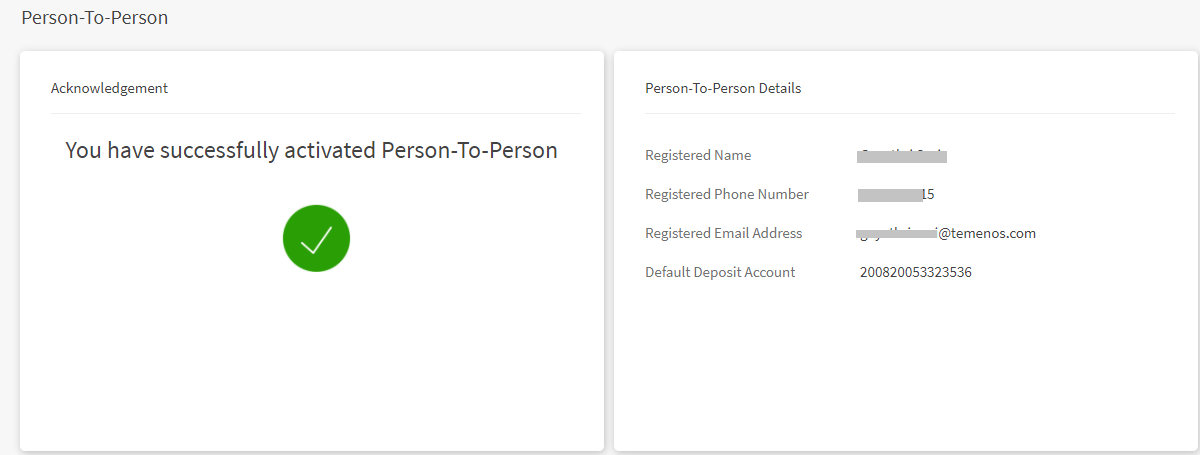
NOTE: You can perform the following actions in this screen.
- Navigate to Accounts dashboard screen
- Make a New Transfer
NOTE: In case you do not have an account eligible for P2P payments, you will not be able to activate the P2P payment service and the same will be conveyed to you with an appropriate message.
You can do the following:
- View Recipient Details. Click any recipient to perform the required action, such as send money, view activity, edit the recipient details, and delete the recipient.
- Add Recipient. Add a new P2P recipient to transfer the amount.
- Transfer. Select any P2P recipient to transfer money from your account.
- View/Edit Pay a Person Settings
Other Actions you can do
Deactivate Pay a Person
Use the feature to deactivate pay a person.
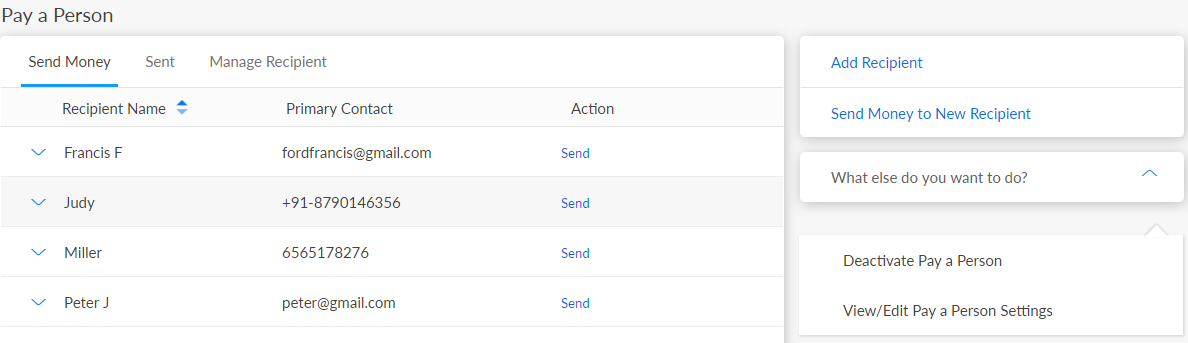
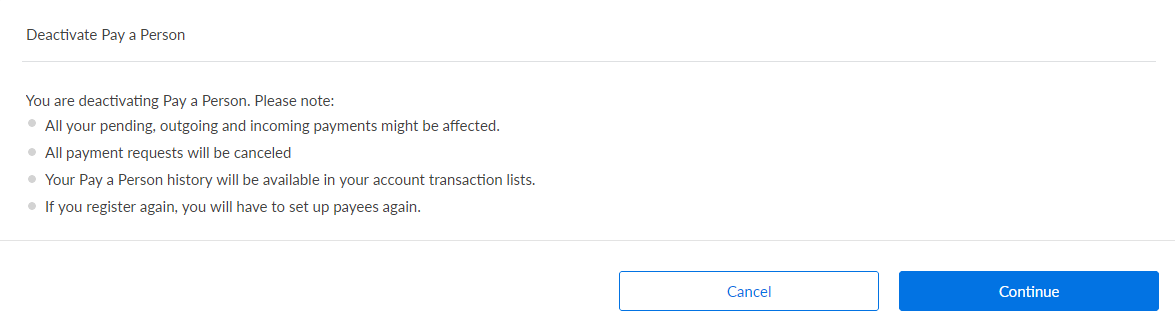
- Click Deactivate Pay a Person. The application displays a few instructions before deactivating Pay a Person.
- Click Continue to proceed further.
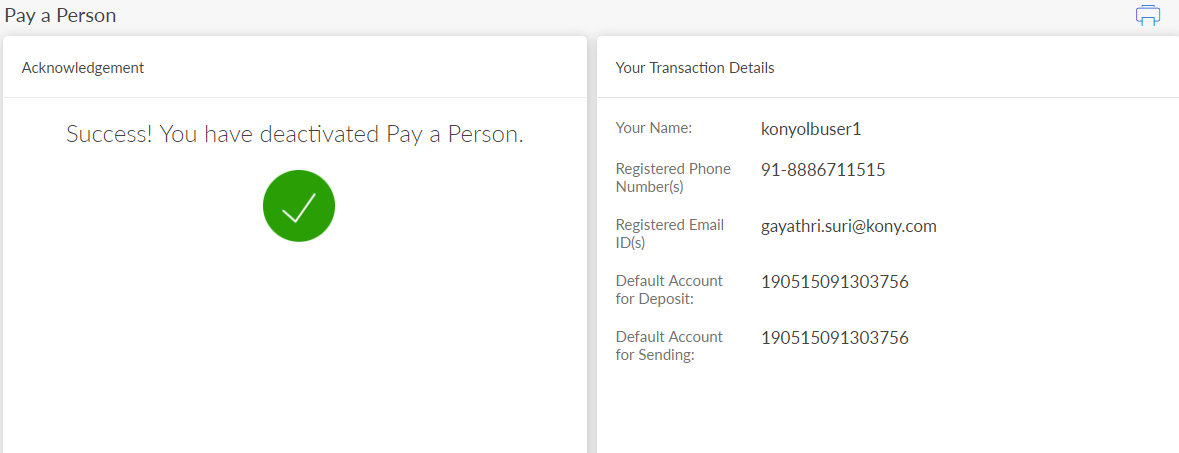
- An acknowledgment screen is displayed that pay a person is deactivated. Click
 to print the acknowledgment.
View/Edit Pay a Person Settings
Use the feature to view or edit the pay a person settings.
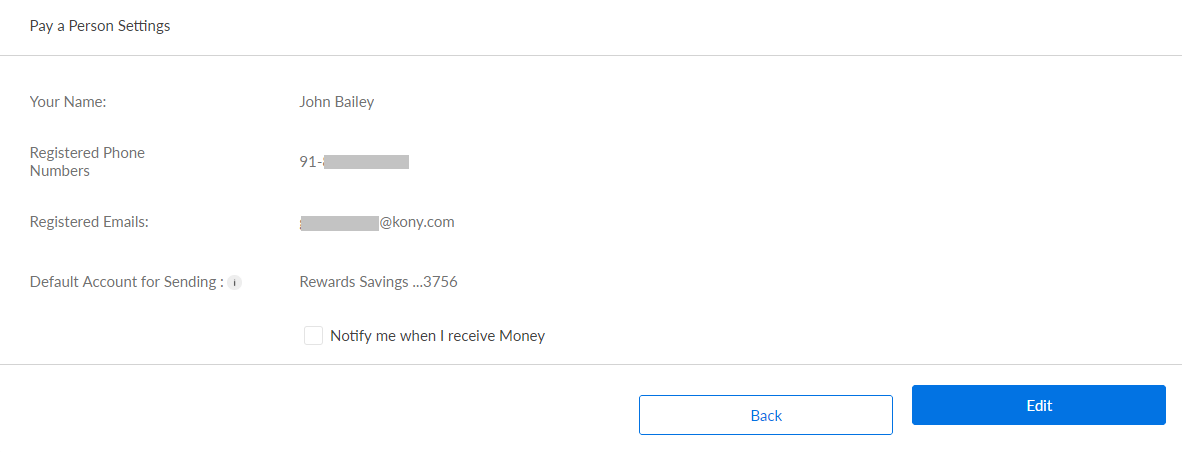
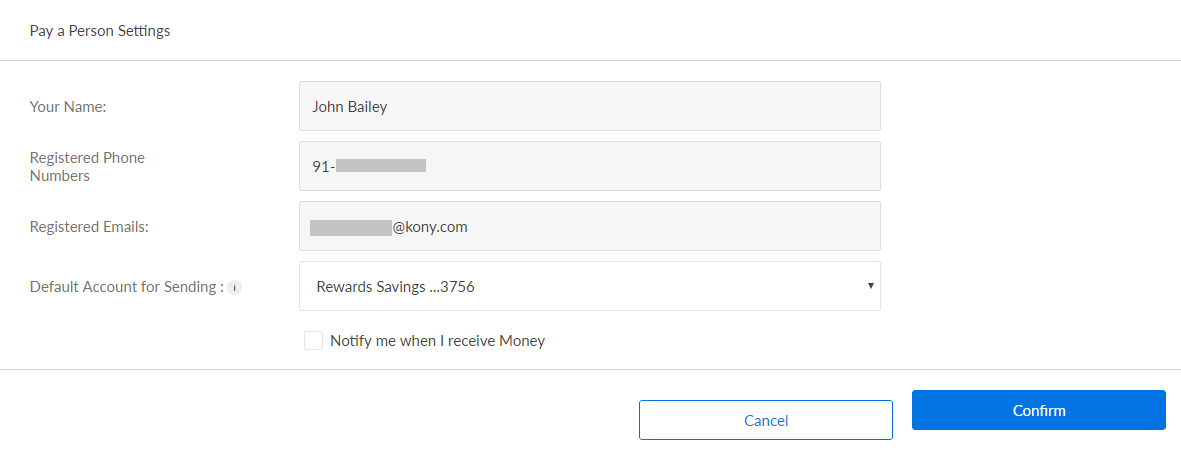
Click View/Edit Pay a Person settings from the right pane of the Pay a Person screen. Pay a Person settings screen is displayed.
The following details are displayed:
- Your Name
- Registered Phone Numbers
- Registered Emails
- Default Account for Sending
Click Edit to modify the details and click Confirm.
NOTE: Cancel the process at any time. The changes are not saved.
Mobile Banking
Use the feature to initiate a P2P (peer to peer) transfer (for example, to send money to a friend) by using the recipients mobile number or email id.
- You can view the list of registered P2P payees from Manage Recipients screen.
- Create a new P2P payee manually or choose from the list of your device contacts from Add Recipient screen.
- View a list of the recent P2P payments and scheduled P2P payments from Transfer Activites screen.
- Modify or cancel a pending P2P payment.
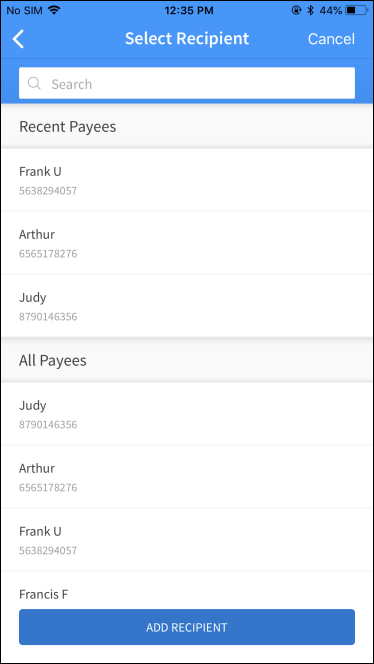
NOTE: P2P transfer in mobile banking is performed from Make Transfers screen. When you click the To account the P2P recipients are also displayed in the list. Select a P2P recipient to perform a P2P transfer.
Integration with Spotlight (Customer 360)
The different options available under Transfers and Pay, that is, Transfer Money, Pay Bills, Send Money and Wire Transfers are displayed based on the user's entitlements. In case the user does not have access to any of these, that option is not available here and in the corresponding menu in the navigation pane.
In this topic
