Enroll/Activate
You can Self Enroll or Activate your digital banking profile to use the retail banking application (Desktop, Mobile, and Tablet).
Menu path: Online Banking
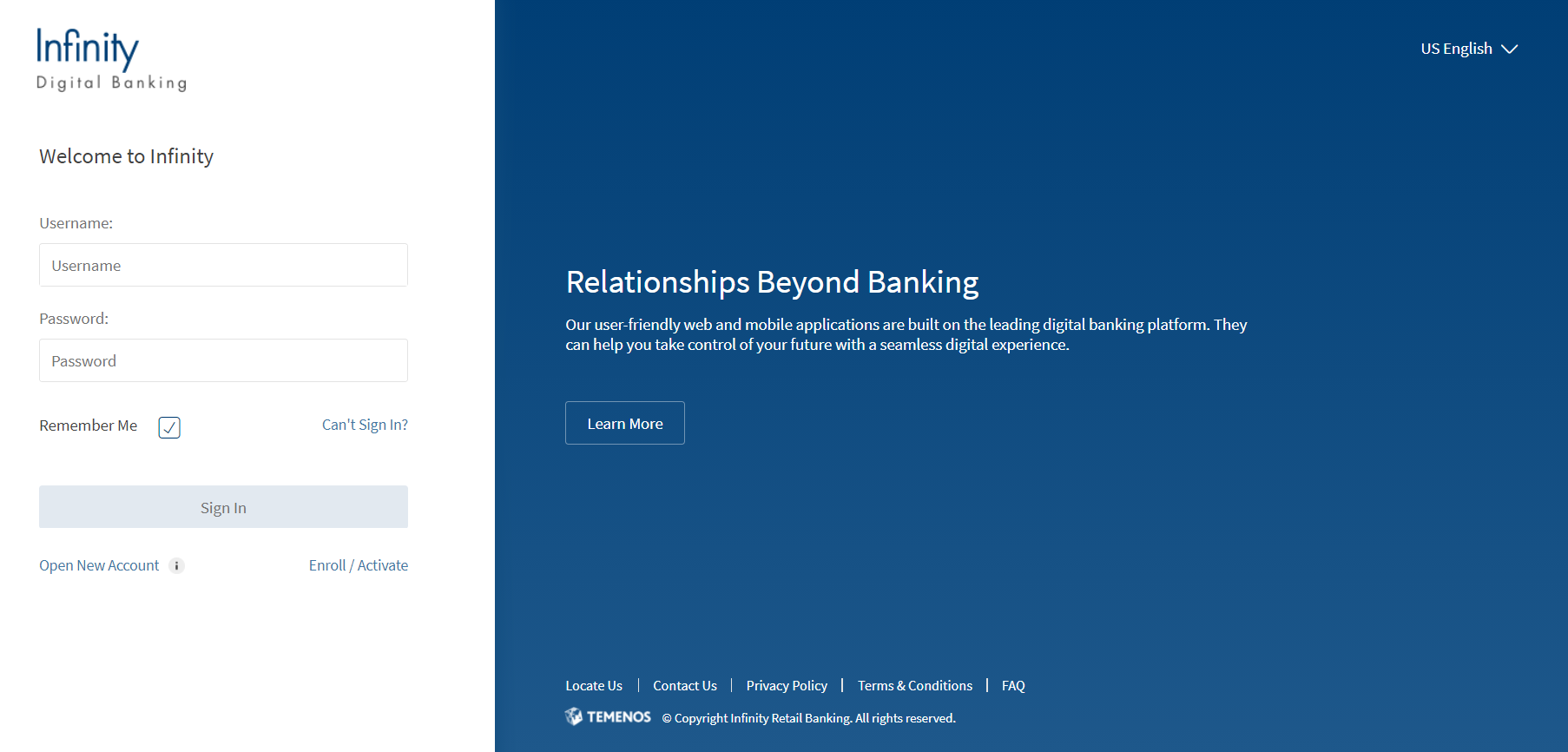
On the sign in screen, click Enroll/Activate
Menu path: Mobile Banking
On the sign-in screen, tap Enroll/Activate.
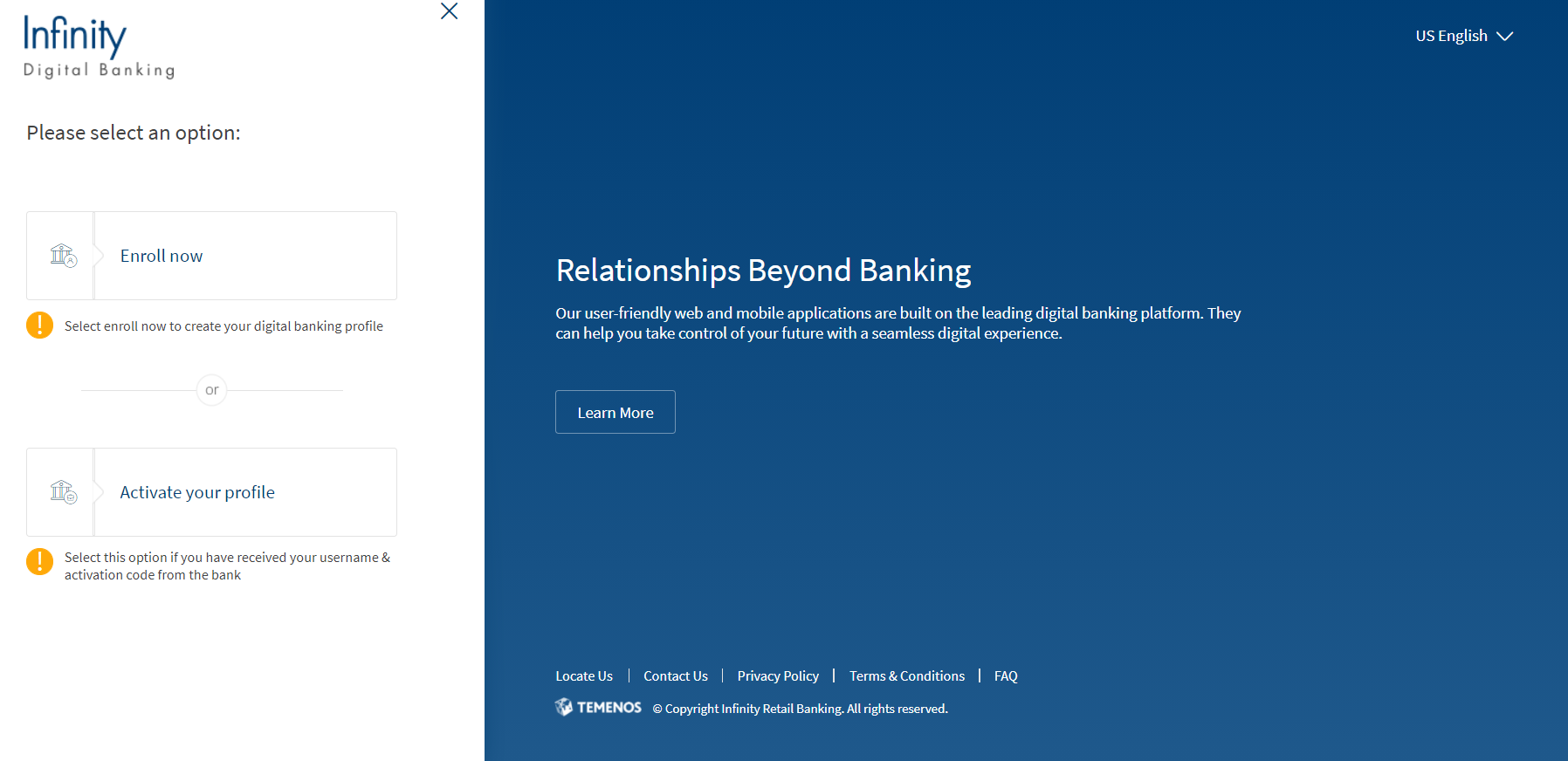
- Select Enroll to enroll an existing customer to online/mobile banking.
- Select Activate to activate the online or mobile banking credentials to an enrolled customer.
On the sign-in screen, tap Enroll.
In the online banking application, if the bank wants to provide the business banking capability to its customers, then the app displays a selection screen where you can select between Retail Banking and Business Banking options depending on the customer type and enroll. If the bank does not want to provide business banking capability, the online banking application will have only personal banking capability. This configuration can be done within the Spotlight application. Online banking application with business banking capabilities allows business customers to perform business transactions, add other business users to transact on their behalf, and manage the business users.
After you have created a username and password combination, you can sign in to the banking application from a computer, mobile device, or a tablet to access all your eligible accounts.
Enroll
Self Enrollment allows you to view and manage your accounts digitally, anywhere or anytime you have internet access by using digital banking. The enrollment feature is for the existing customers of the bank, but do not have any mobile or online banking credentials. Use the Enroll feature to enroll and use the digital banking application (Desktop, Mobile, and Tablet). .
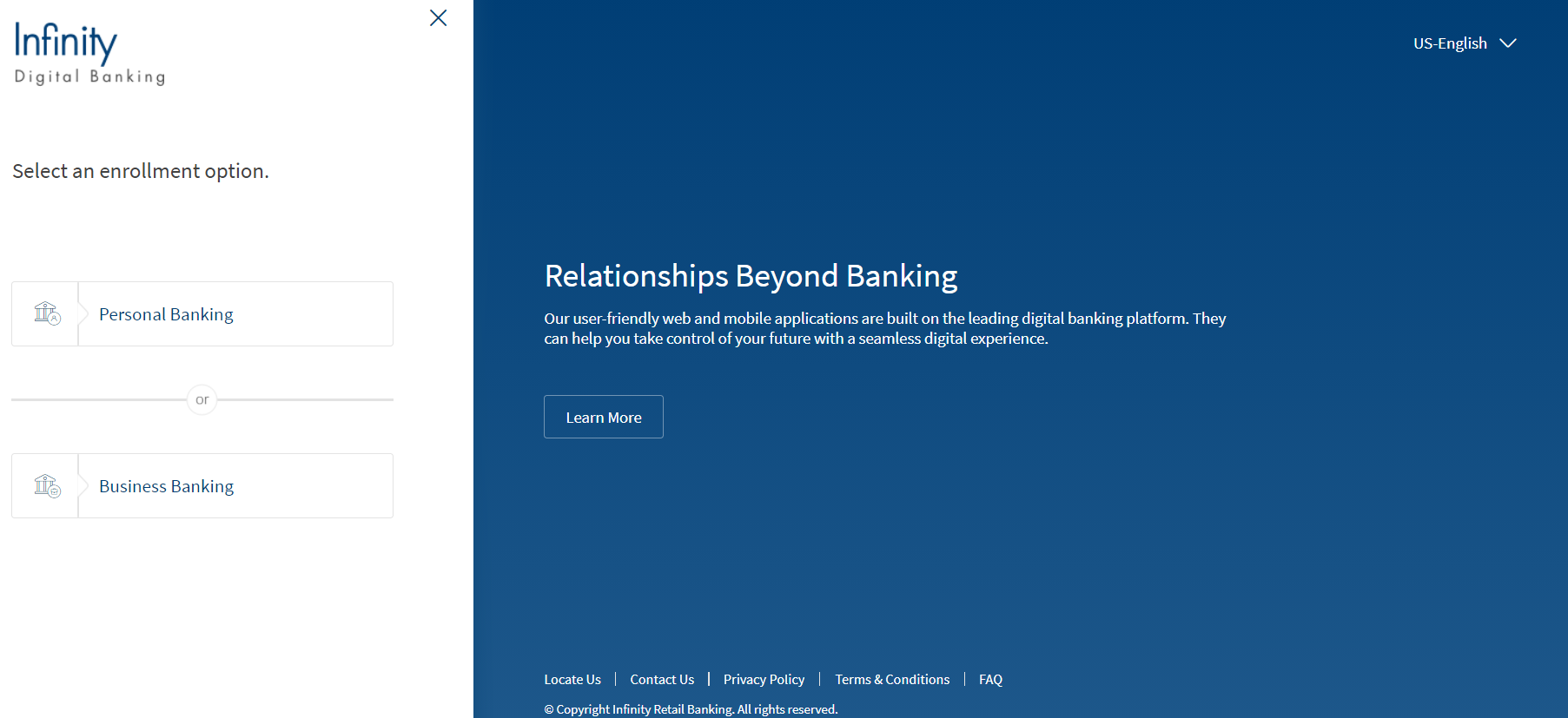
- Select Personal Banking if you want to enroll in the online banking application which suits a retail user for personal banking.
- Select Business Banking if you want to enroll in the online banking application which suits a business customer. For information on Business Banking enrollment, refer Business Banking User Guide.
Personal Banking
The personal Banking enrollment process is common in online and mobile banking applications.
Do the following:
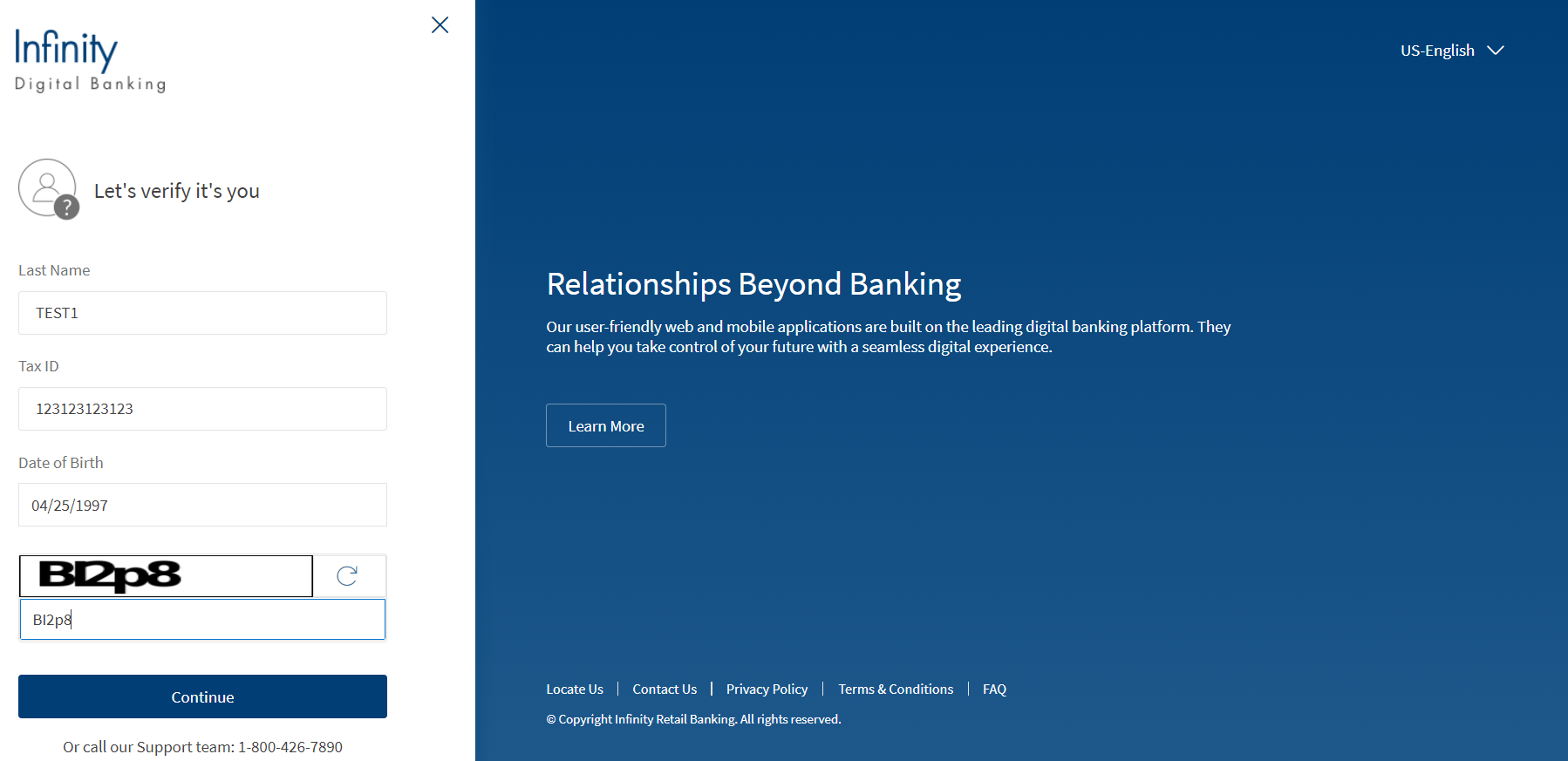
- Enter the following details on the verification screen, in which all fields are mandatory. Enter the following details as this information is required for proof of identification:
- Type your last name in the Last Name field.
- Type your nine-digit Social Security Number (SSN).
- Select your Date of Birth from the calendar or enter if you are using mobile banking.
- Click Continue. If you are using mobile banking, tap Continue.
- For security reasons, you must complete the second factor of authentication. Depending on the bank configuration, you must provide a secure access code sent to your registered mobile number or email ID.
- Select the mode of contacts such as the registered phone or the registered email ID. You can either select both or any one mode of contact to receive the secure access code.
- The secure access code is sent to your registered mobile number and email ID or anyone based on your selection.
- Enter the secure access code and click Verify. If the provided code is correct, the app displays the Sign In screen.
In case you have not received the OTP, you can use the OTP resend option to receive the OTP again. - If you enter an incorrect OTP or do not provide any OTP response, the app requests you enter the correct OTP. If you enter an incorrect response more than five times (configurable), the app displays an error message and navigates you back to the Sign In screen.
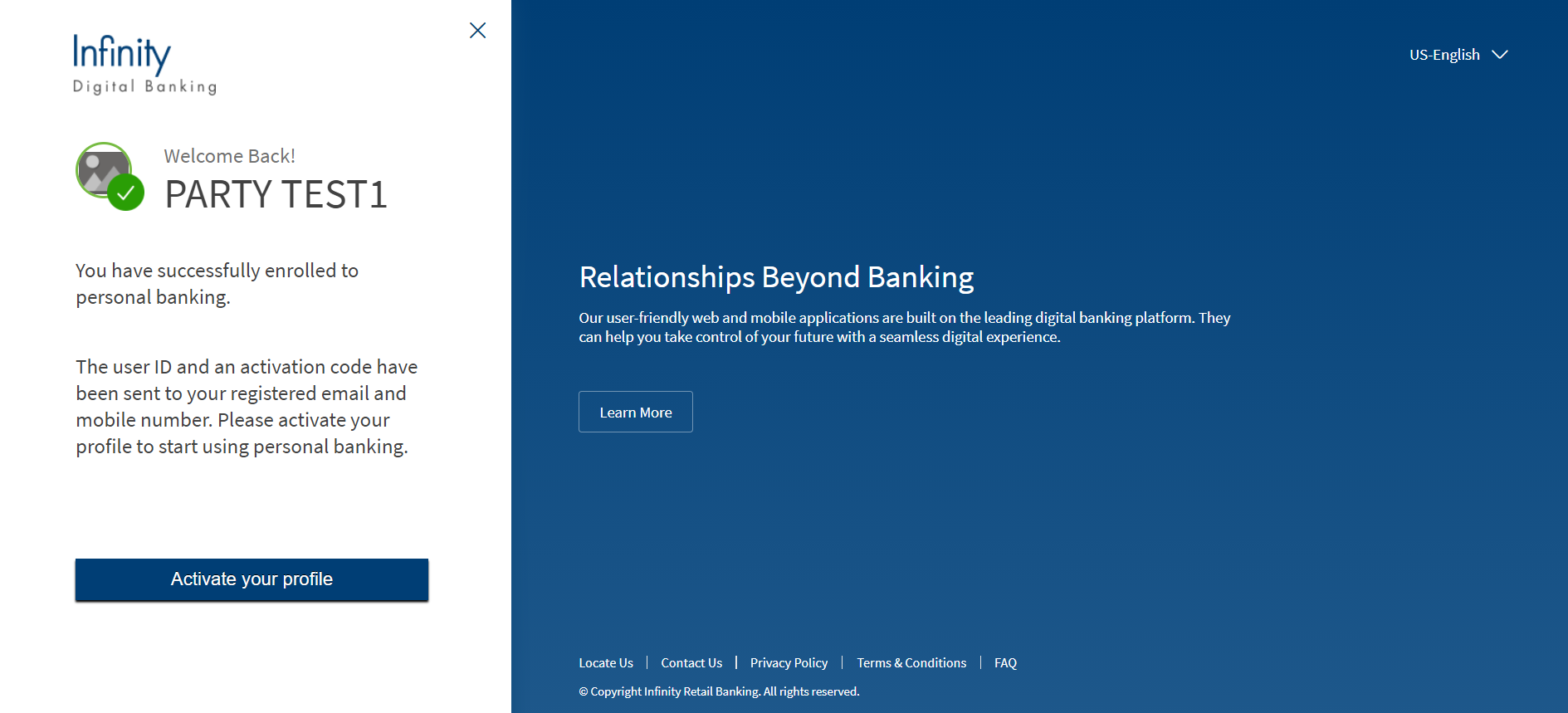
- Click Next/Continue. The app displays an alert if any information is incorrect and prompts you to enter the correct information. Once the code is successfully verified, the app displays a message as "You have successfully enrolled to personal banking".
- Click Activate your Profile to activate you digital banking profile.
Activate
Bank staff can provide digital banking access to the enrolled customers (in the core banking system). Using the activate feature, customers can create online/mobile banking credentials using their user ID and activation code which are generated and sent to the customer's email and mobile number by the Infinity system.
To activate your digital banking profile, do the following:
- Click Activate your Profile on the Sign In screen.
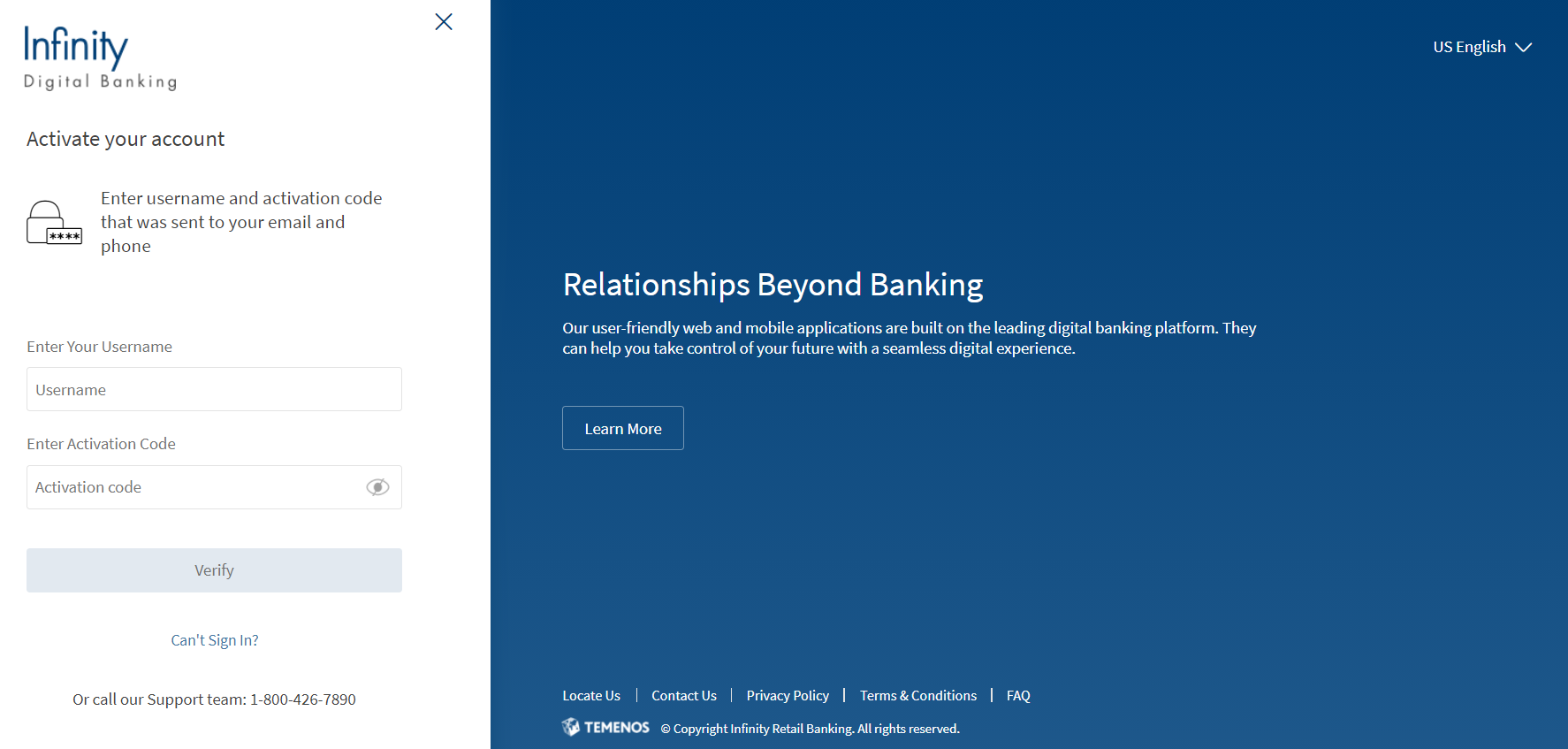
- Enter the user name and activation code sent to your registered email ID and mobile number.
- Enter a user name of your choice. The user name must be unique. Make sure that the user name adheres to the rules and validations available on the screen.
- Enter the activation code received to your mobile number.
- Click Verify.
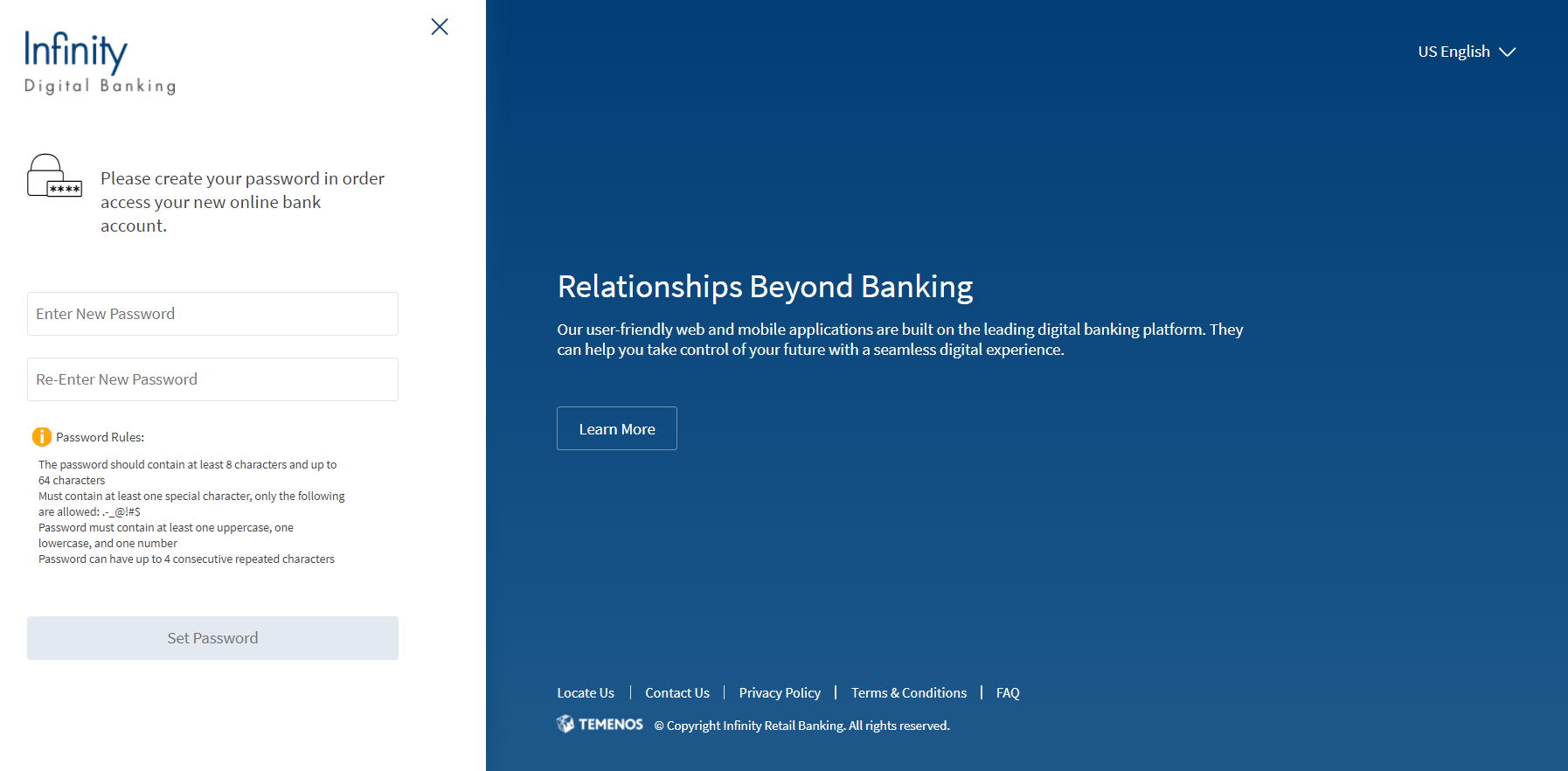
- After successful verification, enter a password of your choice. Make sure that the password adheres to the rules and validations available on the screen.
- Enter your password again for confirmation. The re-entered password must match with that entered earlier.
The rules disappear once the text matches with the defined rules.
NOTE: The user name and the password rules are configured within the Spotlight (Customer 360) application.
- After successful authentication, you setup a new password for your digital profile. For subsequent sign ins, you can use the newly set password.
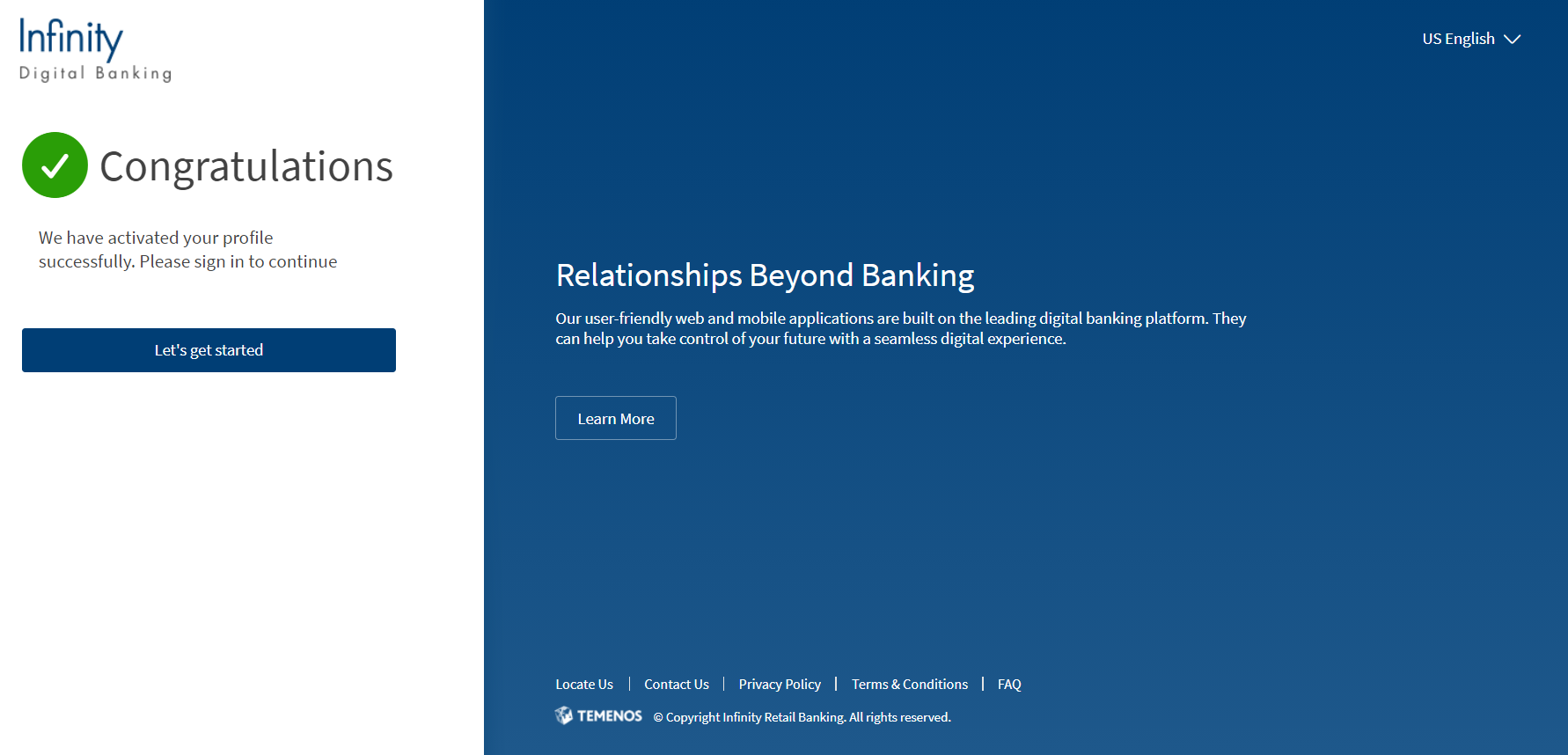
- Click Set Password. The app displays an alert if any information is incorrect and prompts you to enter the correct information. Once you are successfully activated, the app displays a message that "We have successfully activated your profile. Please sign in to continue."
- Click Let's get started to redirect to the Sign In screen.
Error Scenarios
- The activation code sent to your registered email or phone is valid only for one month by default. If you enter the expired activation code, the application displays an error message as "Your activation code has expired. Please select “Can’t Sign In” to regenerate a new activation code".
- Maximum invalid attempts to activate the digital banking profile is five. This configuration is maintained in Spotlight under System Configurations. If the invalid attempts exceeds than the allowed value an error message is displayed as "Your activation code is blocked. Please select “Can’t Sign In” to regenerate a new activation code".
Regenerate Activation Code
If you have forgotten/expired/blocked the activation code or forgotten the user name, you must regenerate the activation code.
Do the following:
- Enter the following PII information in the Can't Sign In screen. For more details on entering the information, click here.
- Upon entering the valid details, your user name is retrieved and displayed on the application. As you have not activated your profile, an option to request regeneration of activation code is displayed.
- A confirmation message is displayed as “If you regenerate an activation code, the old code will be invalidated and a new code will be shared with you”.
- Click confirm to regenerate the activation code. The new activation code is synced with the SCA provider and delivered to the user’s email.
- Once the request is placed successfully, a message is displayed as “The new activation code will be delivered to your registered email/phone number.
NOTE: The Retail and Business enrollment flows are for demo purposes.
Integration with Spotlight (Customer 360)
- A user's enrollment status is visible in Spotlight. In case the user has not enrolled yet, the administrator has an option to send an enrollment link to the user. A bank employee using Spotlight cannot enroll a customer on their behalf.
- The list of security questions that a user can choose from is sourced from Spotlight.
In this topic
