Profile Settings
Use the feature to manage various settings of your profile.
Menu path: Web channel
Click Profile Picture to navigate to profile settings page.
Alternatively, click side menu > select Settings to navigate to profile settings.
On the Settings screen, click to expand Profile Settings. By default, the app displays the Personal Details section.
Menu path: Mobile Native
From the bottom menu, tap Menu > Settings and tap the required option from the Profile section.
Limitations
- You cannot add or modify or delete primary phone number, primary email and primary address.
UX Overview
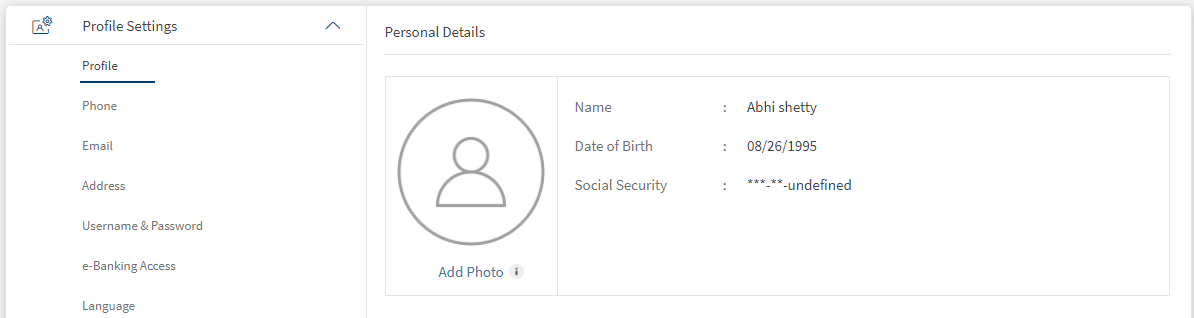
You can add or modify any of the following details. Few features are not applicable for Mobile Native.
- Personal details
- Phone number
- Email ID
- Address
- Password
- e-banking access
- Language
Business Process Diagram - Manage Profile
Web Channel (Online Banking)
You can add or modify any of the following details:
- Personal details
- Phone number
- Email ID
- Address
- Password
- e-banking access
- Language
Personal Details
Use the feature add or modify your personal details.
Under the Profile Settings section, click Profile.
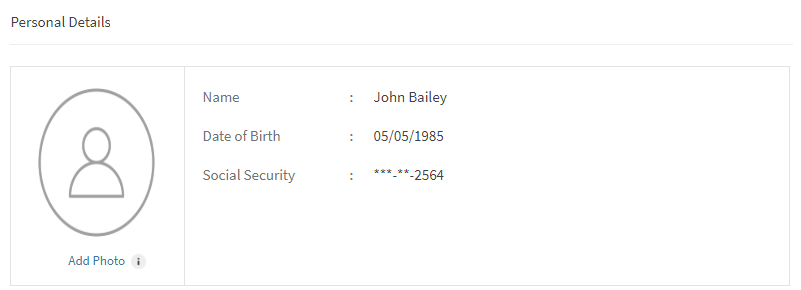
The app displays the Personal Details section, with your name, date of birth, social security number (SSN), and profile picture. The app displays only the last four digits of your SSN and masks the other digits.
Add Photo
Click Add Photo to add your profile picture. You can browse for a picture from your local system and upload it.
If your profile picture is already existing and you want to modify the image, click Edit.
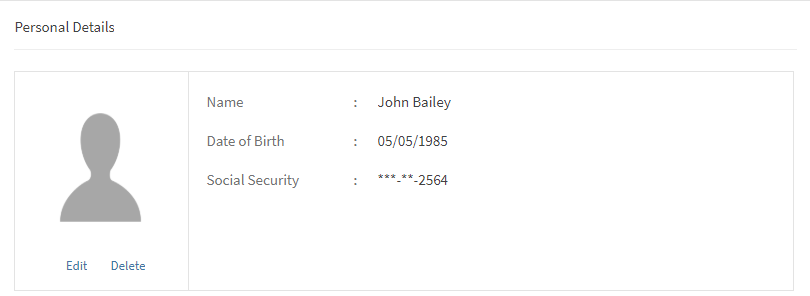
The uploaded profile picture is stored in the Infinity database.
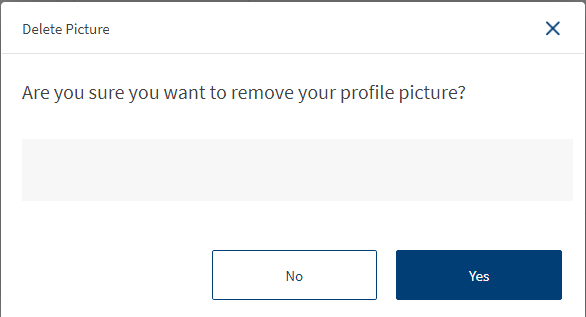
You can delete the uploaded profile picture by clicking Delete. The following pop-up is displayed.
Limitations
- The maximum size of the image to be uploaded is 2MB.
- If you upload an image greater than the maximum size allowed, an error is displayed and you must reupload the image.
- The image will be cropped as per the design (circular) to display.
- If an image is already uploaded and if you reupload another image, the existing image will be replaced with the new image.
- This feature can be configured at the bank level to enable/disable the ability to upload the profile picture.
- If no image is uploaded, a default image is displayed.
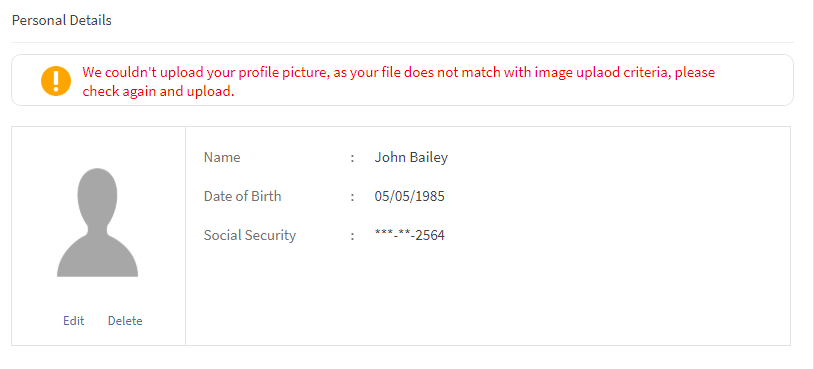
- Recommended file formats to upload the image is .png and .jpg. If you upload an image other than the recommended file formats, the following error message is displayed. You must reupload the image.
Phone Number
Use the feature to add a new phone number or modify the services linked to a saved phone number.
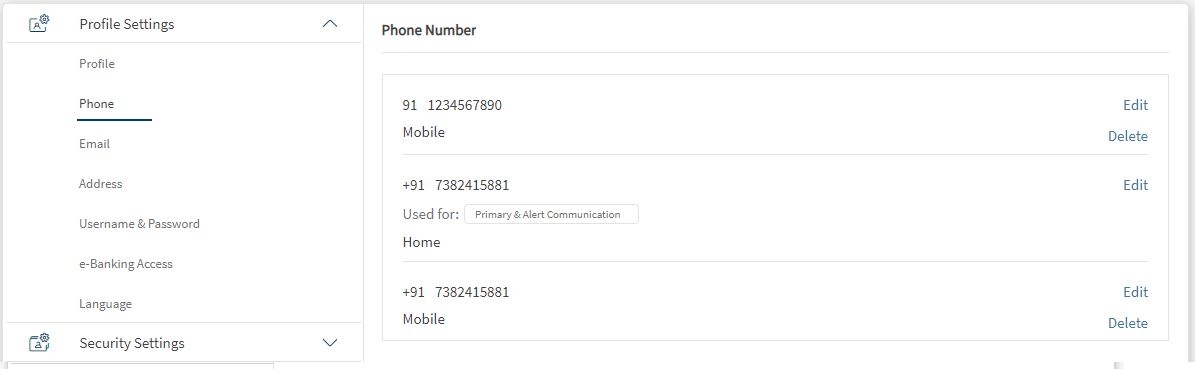
Under the Profile Settings section, click Phone. The app displays the Phone Number section, with the details of your previously added phone numbers. The app indicates the phone number which you have selected as your primary phone number. You can only select one phone number as the primary.
Limitations
- You cannot add or edit or delete primary phone number.
Add a New Phone Number
Click Add New Phone Number. The app displays the Add phone Number screen.
You must specify the following details:
- Type. Select the type of phone number, whether mobile, work phone, or home phone.
- Phone Number. Type the phone with an extension, if any.
- Select the option if you want to save the number as your primary phone number. If you had selected another phone number as primary, the app displays a message that choosing the new phone number as primary will replace the earlier selection.
- Click the check box Mark for alert communication to select the phone number for receiving alerts.
- Click Save. The app adds the new phone number and displays it on the Phone Number screen
You can add up to three phone numbers. If you have already added three phone numbers, the Add New Phone Number button is disabled.
Edit a Phone Number
The app displays the Phone Number Detail screen, with various details that you had previously saved for the phone number.
Click Edit. The app displays the Edit Phone Number screen.
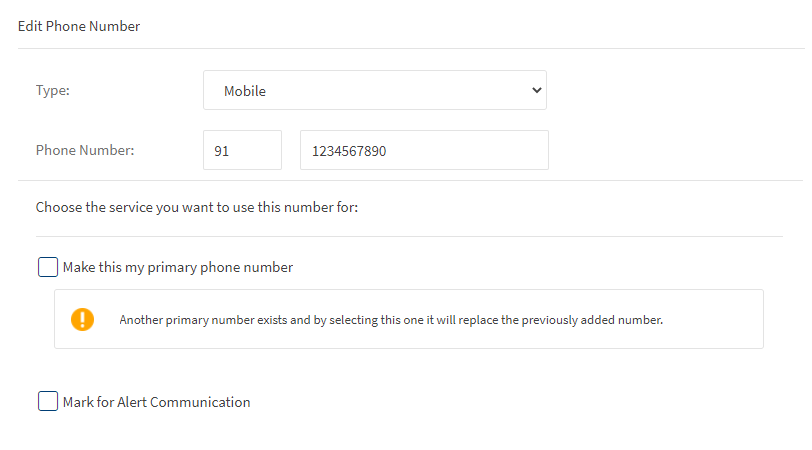
You can modify the details of all the fields: Extension code, Type, Phone Number.
In addition, you can choose to select the phone number as your primary phone number. If you had selected another phone number as primary, the app displays a message that choosing the new phone number as primary will replace the earlier selection. You can choose to mark the phone number for alert communication.
Click Save. The app updates the phone number details and displays it on the Phone Number screen.
Delete Phone Number
You can delete a selected phone number if you do not wish to have the phone number associated to your account.
Click Delete to delete the phone number. A pop-up is displayed asking for a confirmation.
Email ID
Use the feature to add a new email ID. You can also modify the details of a saved email ID or delete an email ID.
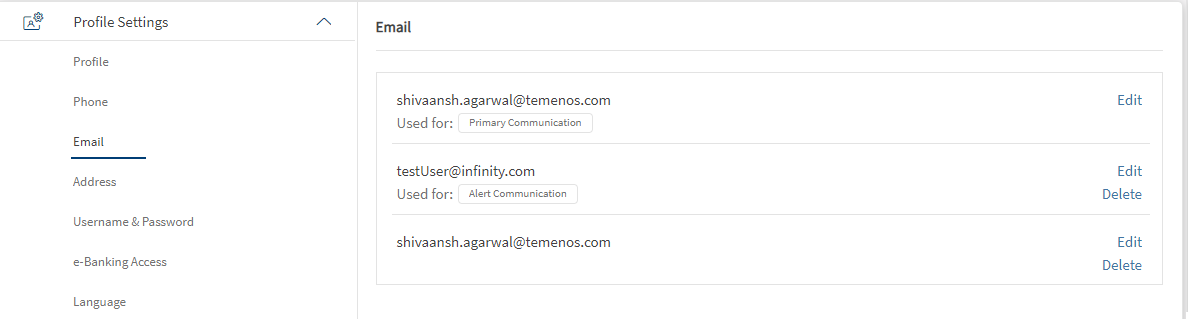
Under the Profile Settings section, click E-Mail. The app displays the Email section, with the details of your previously added email IDs. The app indicates the email ID which you have selected as your primary email address. You can only select one email ID as primary.
Limitations
- You cannot add or edit or delete primary email.
Add a new Email ID
Click Add New Email. The app displays the Add New Email screen.
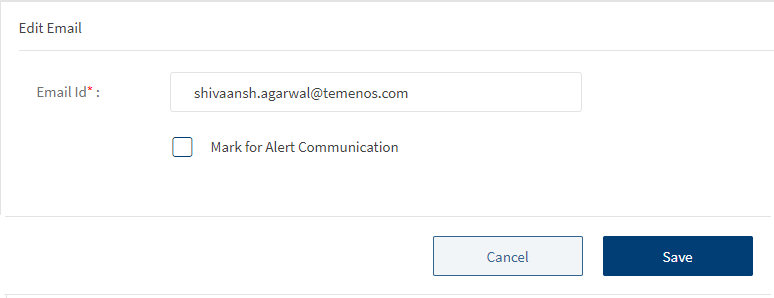
To add a new email ID, follow these steps:
- Type the email address in the Email ID field.
- Select the option if you want to choose the email ID as your primary email address. If you had selected another email ID as primary, the app displays a message that choosing the new email ID as primary will replace the earlier selection.
- Click the checkbox Mark for alert communication to set the preferred email ID for receiving alerts.
- Click Add. The app adds the new email ID and displays it on the Email screen.
You can add up to three email ids. If you have already added three email IDs, the Add email ID button is disabled.
Edit an Email ID
For the required email ID, click Edit. The app displays the Edit Email screen.
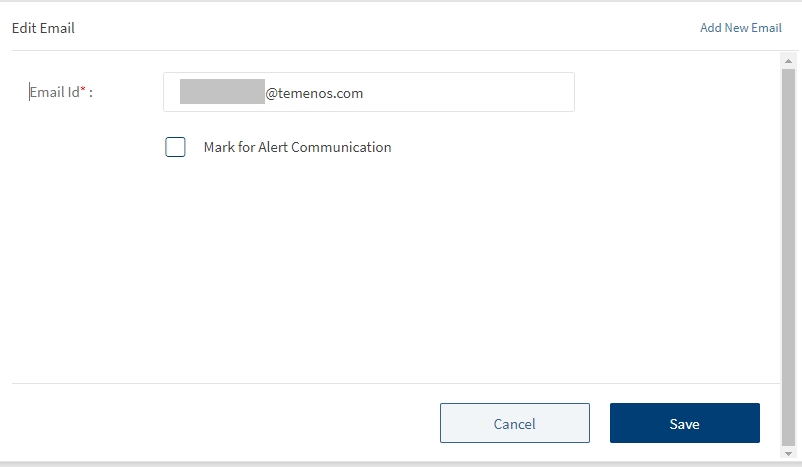
Modify the email address in the Email ID field.
Select the option if you want to choose the email ID as your primary email address. If you had selected another email ID as primary, the app displays a message that choosing the new email ID as primary will replace the earlier selection.
Click Save. The app updates the email ID details and displays it on the Email screen.
Delete an Email ID
For the required email ID, click Delete. The app displays a pop-up message asking if you want to delete the email ID. You cannot delete a primary email ID.
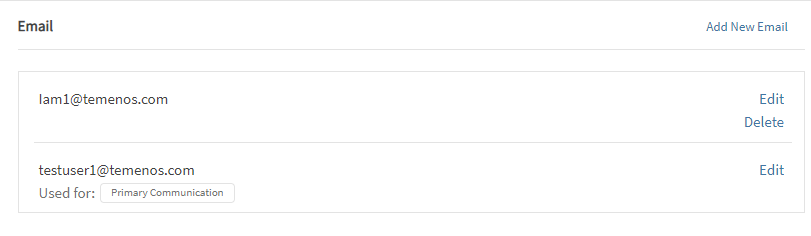
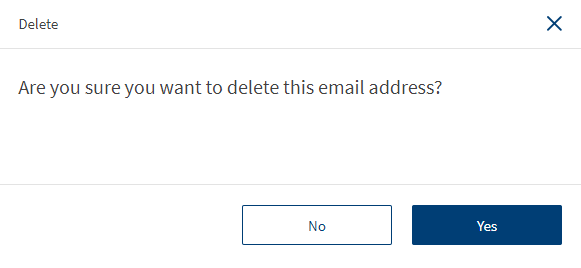
Click Yes. The app deletes the email ID and removes it from the Email screen.
Address
Use the feature to add a new address. You can also modify the details of a saved address or delete an address.
Under the Profile Settings section, click Address. The app displays the Address section, with the details of your previously added addresses.
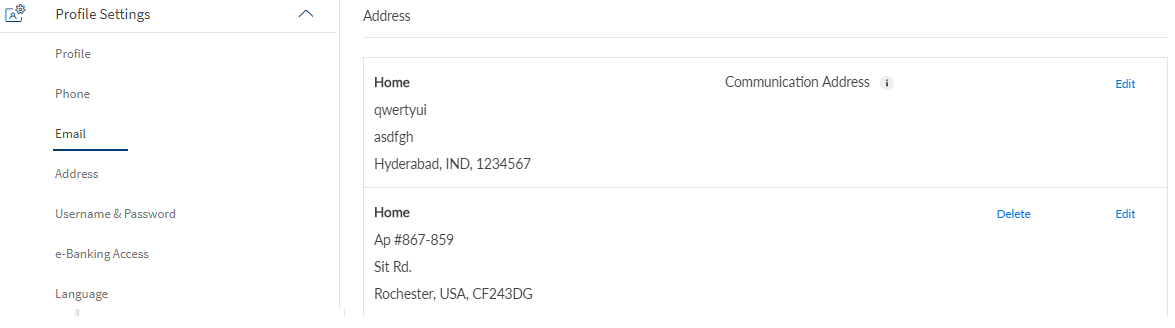
Limitations
- You cannot add or edit or delete primary.
Add a new Address
Click Add New Address. The app displays the Add New Address screen.
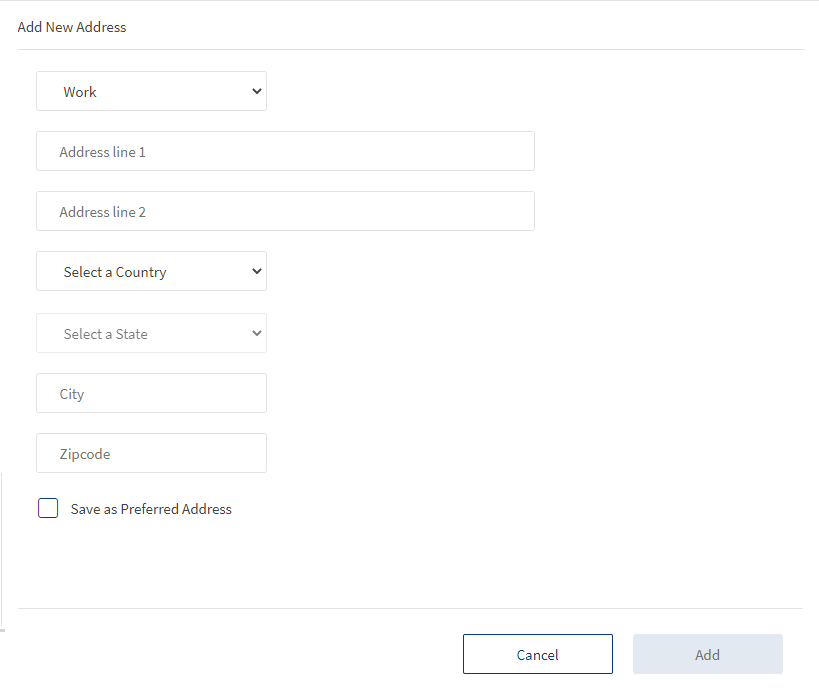
To add a new postal address, follow these steps:
- Enter the following details:
- Type of address. Select if it is a work or home address.
- Address lines 1 and 2.
- Country
- State
- Zip code
- Select the option if you want to choose the address as your preferred address. If you had selected another address as primary, the app displays a message that choosing the new address as the preferred address will replace the earlier selection.
- Click Add. The app adds the new address and displays it on the Address screen.
NOTE: You can add more than one postal address to your profile and select a preferred address as default delivery address. A maximum of three addresses can only be added in the application.
Edit an Address
For the required address, click Edit. The app displays the Edit Address screen.
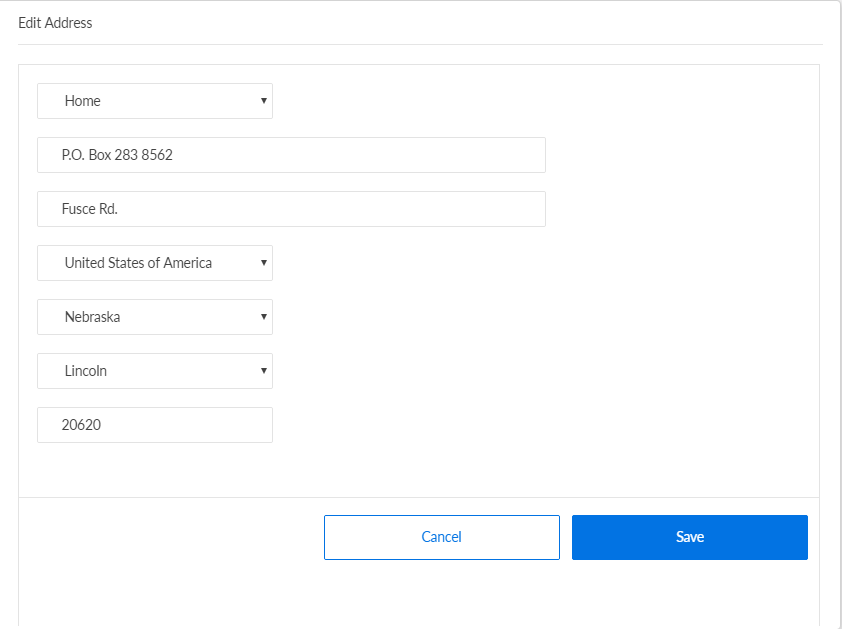
You can modify the details of all the fields: Type of address, Address lines 1 and 2, Country, State, State, and Zipcode.
Click Save. The app updates the address details and displays it on the Address screen.
Delete an Address
For the required address, click Delete. The app displays a pop-up message asking if you want to delete the address. You cannot delete a preferred communication address.
Click Yes. The app deletes the address details and removes it from the Address screen.
Password
Use the feature to modify your OLB password details.
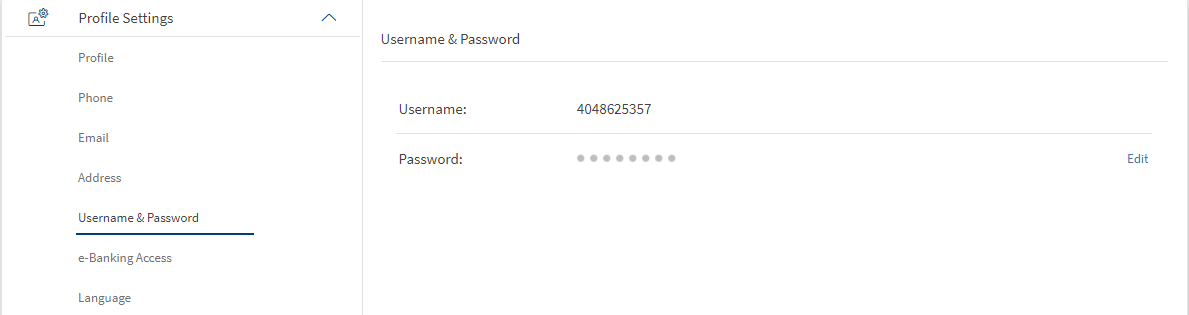
Under Profile Settings, click Username and Password. The app displays the Username and Password screen.
Edit Password
Click Edit beside the Password field. The app displays the Edit Password screen.
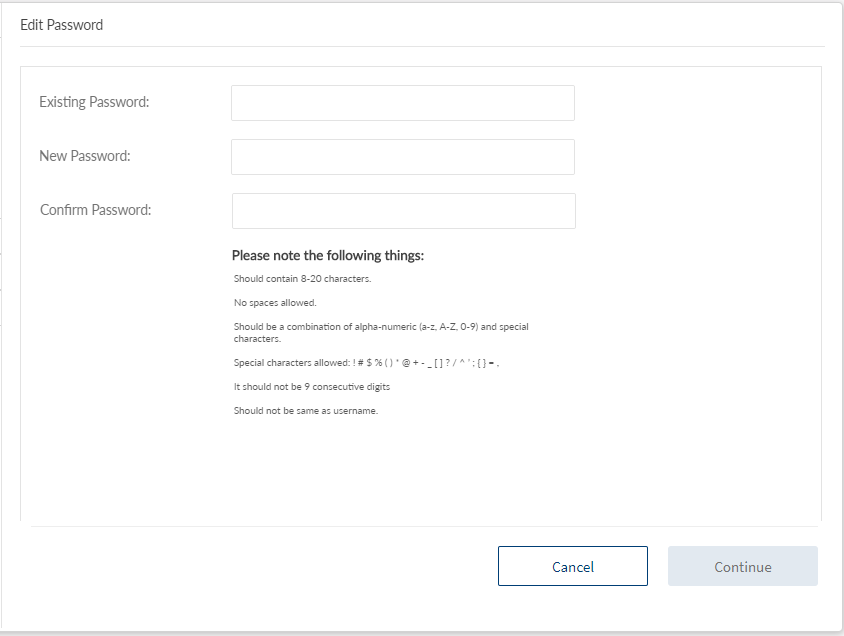
You must enter the current and new passwords in the appropriate fields. The new password must be different from the current password. You must follow these validation criteria while changing the password:
- It must be between 8-24 characters.
- You must not add any spaces.
- You can use these special characters: # $ % ( ) * @ + - _ [ ? ] / ^ ' ; = ,
- It can be a combination of alpha-numeric (a-z, A-Z, 0-9) and special characters.
- It must not be nine consecutive digits.
- It must not be the same as the previous password.
The password rules are displayed once you start typing the password in the respective field. The rules disappear once the user's entry matches with the defined rules.
Click Continue. The app displays the Password Verification screen.
You must validate your identity by any one of the following methods:
- By entering a one-time passcode.
- Select the Using Code option. Click Proceed. The app displays the Security Settings Verification screen.
- Click Send. The app sends the six-digit verification code to your registered mobile number.
- Type the code in the provided field. If you did not receive any code, click Re-Send Code.
- Click Verify, and then click Done. The app updates the password and navigates you back to the Username and Password screen.
- By answering security questions. If you have not set up your security questions, the app navigates you to the Security Settings Verification screen to enter the OTP.
- Select the Answer Security Questions option. Click Proceed. The app displays the Answer Security Questions screen with two random security questions.
- Type the answers for both the questions.
- Click Verify, and then click Done. The app updates the password and navigates you back to the Username and Password screen.
Language
Use the feature to select the required language. Under the Profile Settings section, click Language. The app displays the Language screen. By default, English is selected in the Select Language list.
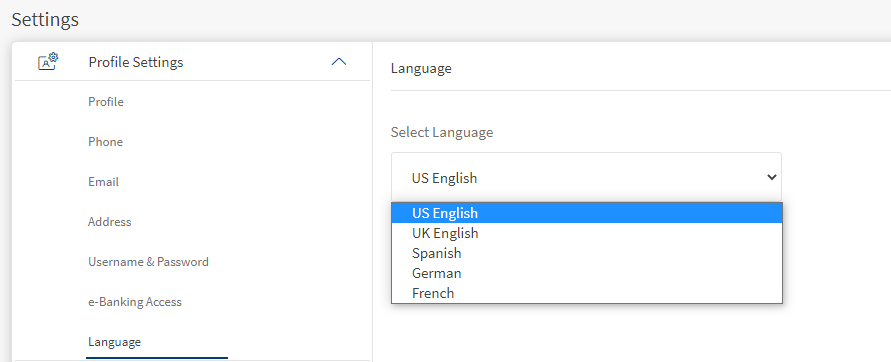
Do the following to change the language:
- Click the Select Language list, the app displays the list of languages available.
- Select the required language, and click Save. The app displays a confirmation screen.
- Click Yes. The language is updated accordingly throughout the application.
When you change the language, the app also changes the Date format, Currency format, and Number format as per the geo-location of the selected language. You can also change the language from the login screen.
E-banking Access
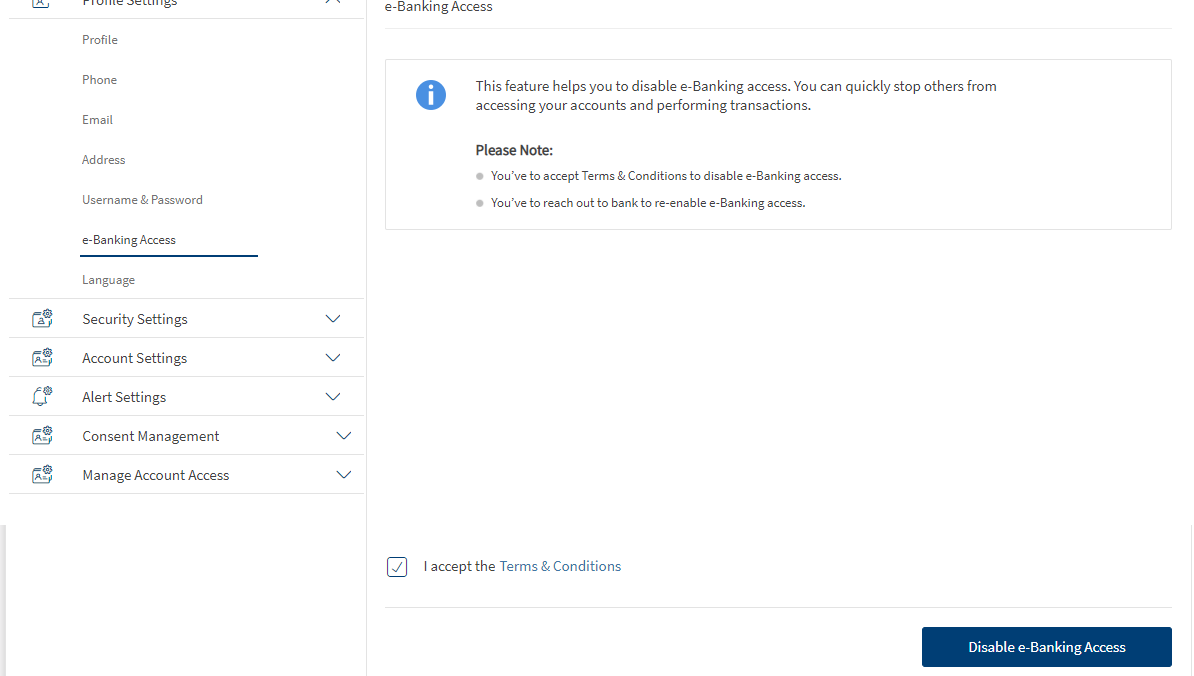
You can disable your online banking access from your responsive web or mobile applications. You can use this feature in case your password or ipin is compromised and you can quickly stop others from accessing your account and performing transactions.
To disable your e-banking access, follow these steps:
- Under Settings > Profile Settings > Click e-banking access. The e-Banking access page appears with a few important points.
- Click the checkbox to accept terms and conditions.
You can click the Terms and Conditions link to view the terms and conditions in disabling the e-banking access.
- Click Disable e-Banking access. This button is enabled only after the terms and conditions checkbox is selected.
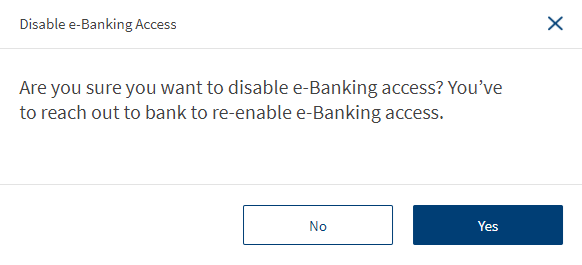
- A pop-up appears asking for the confirmation on disabling e-banking access. Click Yes to confirm and No to abort the process.
- Clicking on Yes will disable the e-banking access and you will sign out of the application with the following message as "e-Banking access disabled successfully". An alert will be sent once your e-banking access is disabled and you will be restricted from accessing your online banking profile.
- To re-enable e-Banking access, you must contact your bank.
Configuration in Spotlight
The following configurations can be made in Spotlight to re-enable your e-banking access.
- Banks can configure the terms and conditions for disabling online banking access.
- Notify the customer with an alert whenever the online banking profile of that particular customer is suspended.
- Log an event when the bank agent suspends the online banking profile from Spotlight.
- Activate or enable the online banking access from the Spotlight application upon consent from the customer.
Mobile Banking
You can add or modify any of the following details:
- Password
- Personal details
- Language
Change Password
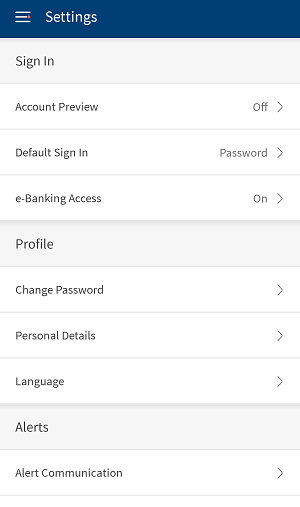
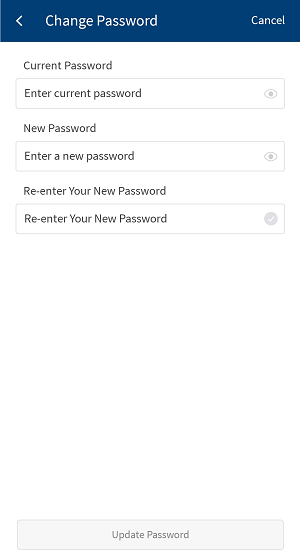
Tap Change Password in the Profile section. The app displays the Change Password screen. Do the following to update the password:
- Tap Send Security Code link to verify your identity. The app sends a six-digit security code to the registered mobile number as per the bank records. If you did not receive any security code from the bank, tap Resend. Enter the six-digit security code and tap continue.
- The app displays the Change Password screen with a provision to enter the password if the security code is verified successfully. If not verified, the app displays an error message.
- Enter the old password, new password, and enter the new password again in the respective fields as per the security requirements, and tap Update Password.
The password rules are displayed once you start typing the password in the respective field. The rules disappear once the text matches with the defined rules. - The app displays an acknowledgment message that your password is changed successfully .
You can tap cancel on any screen to cancel the changes.
Personal Details
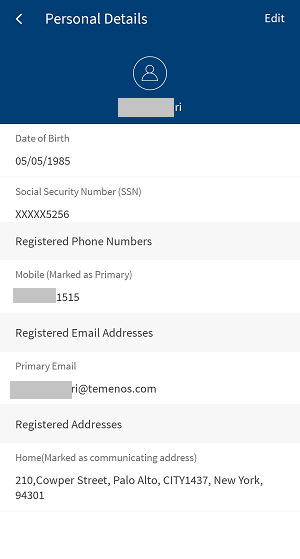
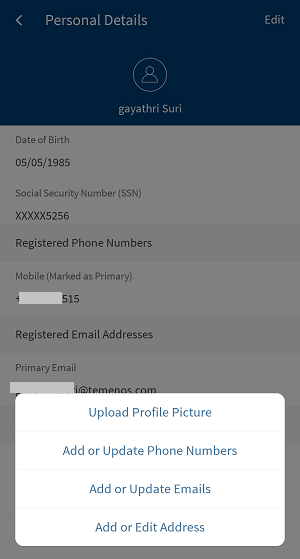
Tap Personal Details in the Profile section. The app displays the Personal Details screen. Tap Edit. The app displays options to upload or change the profile picture, Remove Profile Picture add or update phone numbers, edit email IDs, and edit address details. You can add up to three contact details for every contact type. Do the following to update the required details:
Upload or Change Profile Picture
To add a profile picture, tap Upload Profile Picture.
If the profile picture is already existing and to update the existing profile picture, tap Change Profile Picture. The app displays options to take a picture, or choose from the gallery.
You can take a new photo by using your device camera, or you can select a photo from your device gallery as your new profile picture.
Remove Profile Picture
To remove the profile picture, tap Remove Profile Picture. A message is displayed asking for the confirmation to remove the profile picture. Tap Yes to remove the profile picture.
Limitations
- This feature can be configured at the bank level to enable/disable the ability to upload the profile picture.
- There is no maximum limit in size to upload the profile picture.
Add or Update Phone Number
To manage phone numbers, tap Add or Update Phone Numbers. The app displays the Edit Phone Numbers screen. You can update the existing number or add a new number.
Do the following to update the existing number:
- Tap on the required phone number. The app displays the Enter Phone Numbers screen.
- Make the required updates and select the alerts check box if you want to receive the alerts on this number. Tap Update Changes. The app displays an acknowledgment message that your phone number is successfully changed. Tap Delete Phone Number if you want to remove the saved phone number. The delete option is not available for primary phone number. You can also swipe left on the required number, and tap Delete to remove from the saved numbers list.
Do the following to add a new number:
- Tap Add New Phone Number. The app displays the Select Contact Location screen.
- Select the required location (Domestic or International). The app displays the Select Contact Type screen.
- Select the required contact type from the list such as home, mobile, work and more. The app displays the Enter Phone Number screen.
- Enter the new phone number and select the check boxes if this number is your primary phone number and also if the number is your international number. If a primary number already exists, the app will prompt you to confirm if you want to replace the primary number.
- Tap Continue. The app displays the Confirm Details screen.
- Tap Confirm and Add. The app displays an acknowledgment that your phone number is successfully added.
You can tap cancel on any screen to cancel the changes.
Add or Update Email
To manage email address, tap Add or Update Email IDs. The app displays the Edit Email IDs screen. You can update the existing email address or add a new email address.
Do the following to update the existing email address:
- Tap on the required email address. The app displays the Enter Email IDs screen.
- Make the required updates and select primary email check box if you want to make the updated email as the primary email. Tap Update Changes. The app displays an acknowledgment message that your email ID is successfully changed. Tap Delete Email ID if you want to remove the saved email ID. The delete option is not available for primary email ID. You can also swipe left on the required email ID and tap Delete to remove from the saved email IDs list.
Do the following to add a new email ID:
- Tap Add New Email ID. The app displays the Enter Email IDs screen. If you are using a tablet, on the Personal Details screen, tap the plus sign placed against Registered Email IDs.
- Enter the new email address.
- Select the primary email check box if you want to make the new email as primary email, and tap Continue. If you are using a tablet, tap Add Email ID.
- The app displays an acknowledgment message that your email ID is successfully added.
You can tap cancel on any screen to cancel the changes.
Add or Edit Address
To manage address details, tap Add or Edit Address. The app displays the Edit Address screen. You can update the existing address or add a new address.
Do the following to update the existing address:
- Tap on the required address. The app displays the Select Address Type screen.
- Select the required type from the list. The app displays the Edit Address screen.
- Make the required changes and tap Continue. The app displays the Confirm Details screen.
- Tap Confirm and Add. The app displays an acknowledgment message that your address is successfully changed. Tap Delete Address if you want to delete the saved address. You can also swipe left on the required address, and tap Delete to remove it from the saved addresses list.
Do the following to add a new address:
- Tap Add New Address. The app displays the Add Address screen. If you are using a tablet, on the Personal Details screen, tap the plus sign placed against Registered Addresses.
- You can either search for the required address using Search or add the address manually. All fields are mandatory. Tap Continue. The app displays the Select Address Type screen.
- Select the required type from the list. The app displays the Confirm Details screen.
- Confirm the details and select the Communicating Address check box if you want to make this address as your communication address for the future.
- Tap Confirm and Add. The app displays an acknowledgment message that your address is added successfully.
Language
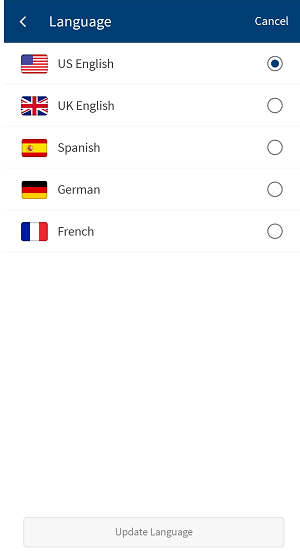
Use the feature to select the required language. Tap Language. The app displays the Language screen with the list of available languages. By default, English is selected. Tap the required language from the list and tap Update Language. The language is updated accordingly throughout the application. When you change the language, the app also changes the Date format, Currency format, and Number format as per the geo-location of the selected language.
You can also change the language from the login screen.
Configuration
- The credential policies for updating password is managed within Spotlight application.
- All profile information updates are stored in the Spotlight DB.
APIs
| Service Name | URL |
|---|---|
| updateUserProfileImage | /services/data/v1/RBObjects/operations/DbxUser/updateUserProfileImage |
| deleteUserProfileImage | /services/data/v1/RBObjects/operations/DbxUser/deleteUserProfileImage |
| getUser ProfileImage | /services/data/v1/RBObjects/operations/DbxUser/getUserProfileImage |
| Application | /services/data/v1/RBObjects/objects/Application |
| getUserDetails | services/data/v1/RBObjects/objects/User |
Extending Profile Pic Update
The extension scenario for Profile pic update is about modifying the maximum image size that can be uploaded. Currently, by default 2 MB is the maximum size a customer can upload their profile picture. we can increase or decrease the size in the code based on our requirement.
In responsive web, the default image size is hardcoded in the code. A customer cannot upload an image more than 2 MB. In native, there is no limitation on the size. After uploading the image using image compression code the size will be reduced to 2MB.
Profile Management feature code is maintained in frmProfileManagementController.js java script file. selectedFileCallback method is called for uploading the image in the Profile management system.
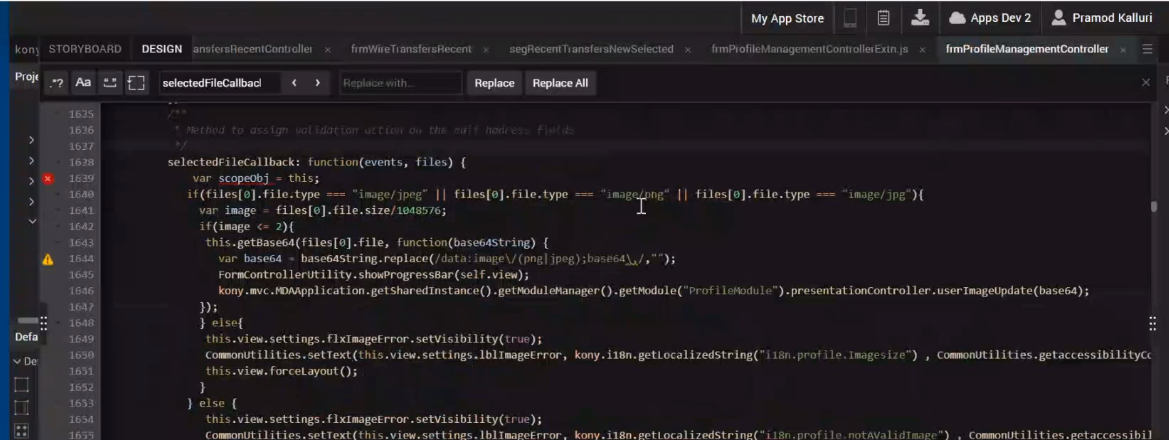
NOTE: For Profile pic update feature, the code level changes can be performed only at form controller level that is frmController.js. There are no changes at the Presentation Controller and Business Controller level.
Responsive Web
Scenario: When the customer clicks Add Photo button in the application, btnAddPhoto.onClick function calls selectedFileCallback method in frmProfileMangementController.js. In the existing scenario, the maximum size to upload the profile photo is defaulted to 2 MB. Customer can extend the functionality by modifying the default image size.
To change the default image size to upload the profile photo in the system. Follow these steps:
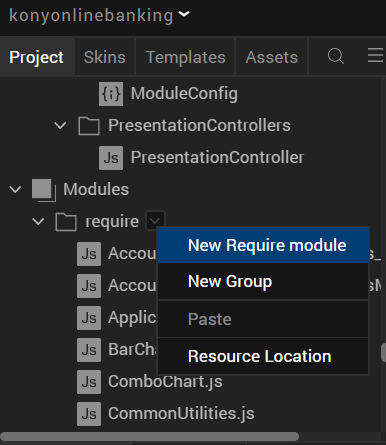
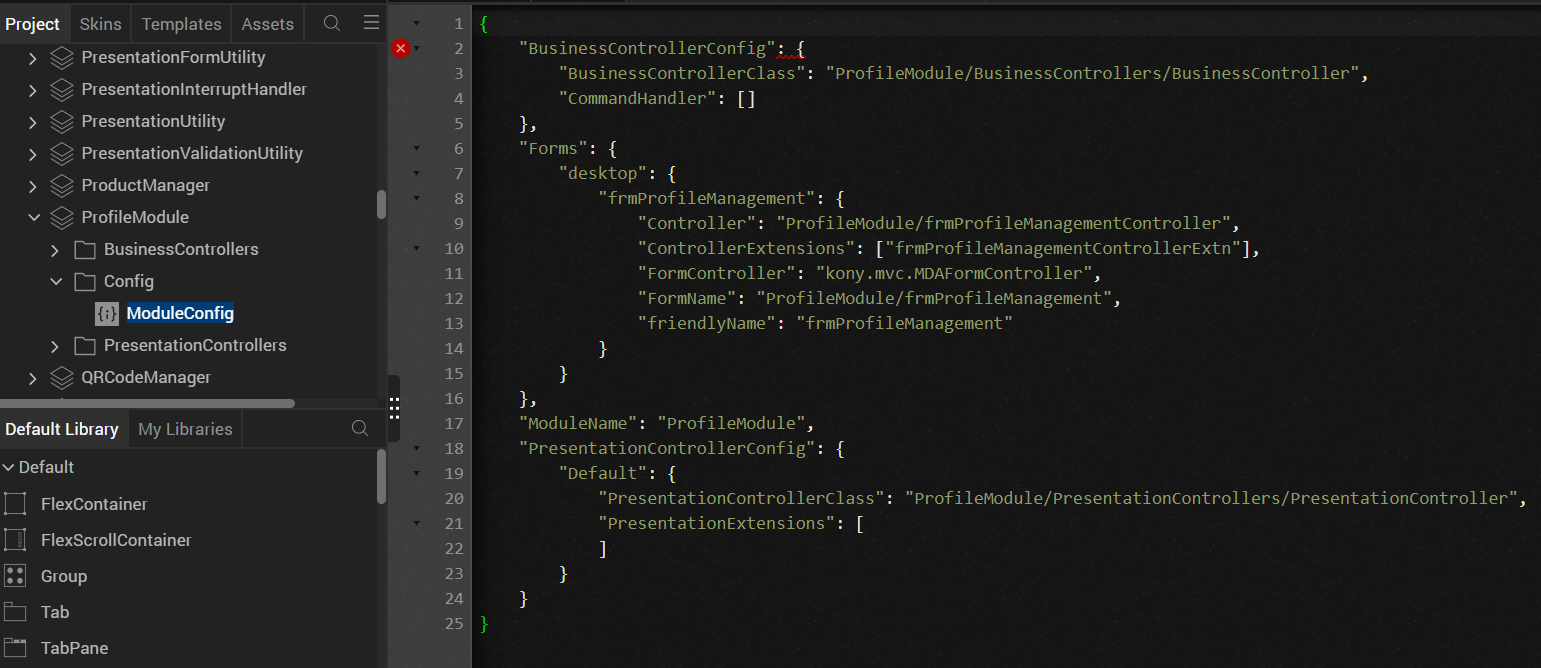
- Create a new extension JS file in Modules and rename the file
frmProfileMangementControllerExtension.
- From the Project Explorer, go to Reference Architecture Extensions > ProfileModule > Config and update the path in module config.

- To redefine the
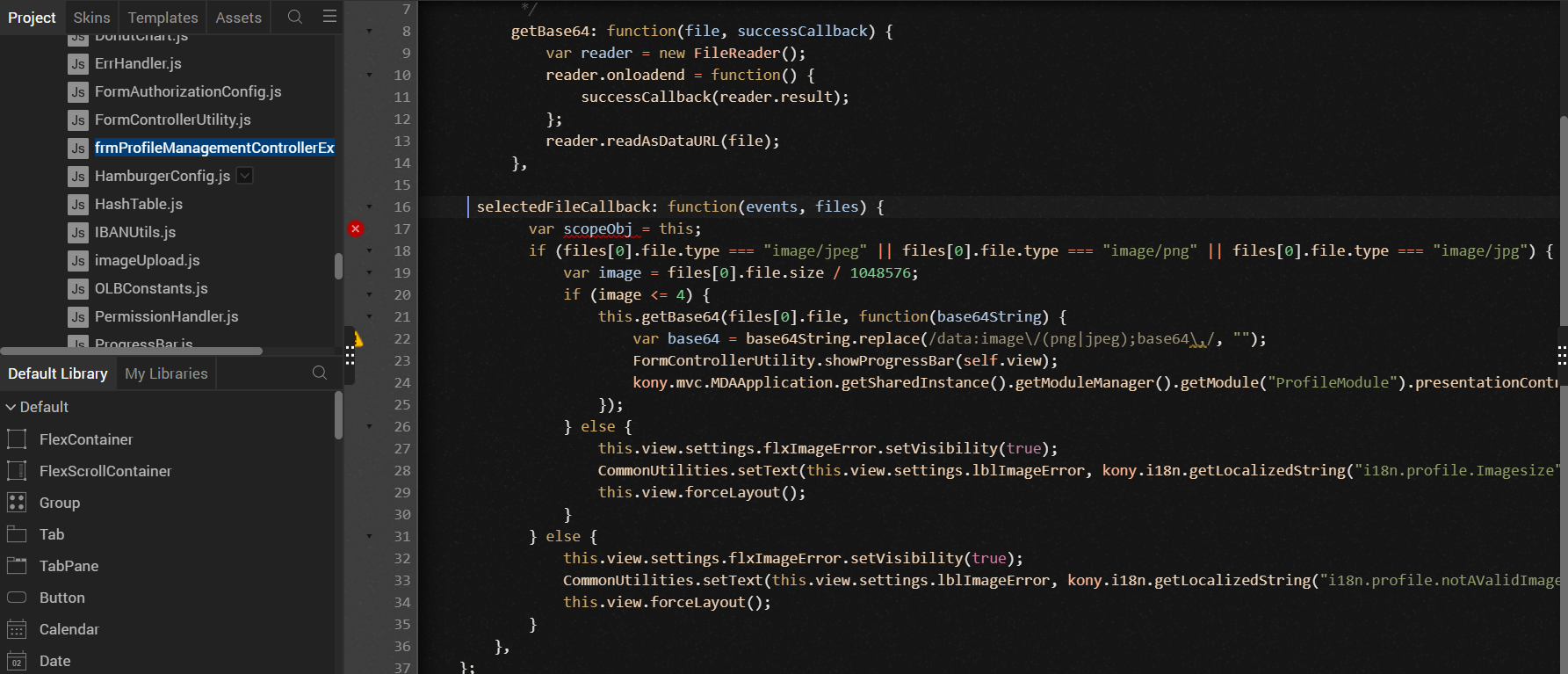
selectedFileCallbackmethod in the extension file, infrmProfileManagementController.jssearch forselectedFileCallbackmethod and paste the code infrmProfileMangementControllerExtension.js. -
You can make the required validation changes in the
selectedFileCallbackmethod.Here the default image size 2 MB is extended to 4MB by modifying the code as below:
if (image < = 2) is modified to if (image <=4)

selectedFileCallback: function(events, files) {
            var scopeObj = this;
            if (files[0].file.type === "image/jpeg" || files[0].file.type === "image/png" || files[0].file.type === "image/jpg") {
                var image = files[0].file.size / 1048576;
                if (image <= 4) {
                    this.getBase64(files[0].file, function(base64String) {
                        var base64 = base64String.replace(/data:image\/(png|jpeg);base64\,/, "");
                        FormControllerUtility.showProgressBar(self.view);
                        kony.mvc.MDAApplication.getSharedInstance().getModuleManager().getModule("ProfileModule").presentationController.userImageUpdate(base64);
                    });
                } else {
                    this.view.settings.flxImageError.setVisibility(true);
                    CommonUtilities.setText(this.view.settings.lblImageError, kony.i18n.getLocalizedString("i18n.profile.Imagesize"), CommonUtilities.getaccessibilityConfig());
                    this.view.forceLayout();
                }
            } else {
                this.view.settings.flxImageError.setVisibility(true);
                CommonUtilities.setText(this.view.settings.lblImageError, kony.i18n.getLocalizedString("i18n.profile.notAValidImage"), CommonUtilities.getaccessibilityConfig());
                this.view.forceLayout();
            }
        },
Native
For mobile native, we do not have any maximum size limit for uploading the image in the application. Customer can upload the image of any size. After uploading, using the image compression code the image will resized to maximum 2 MB.
Unlike responsive web, native has two options to upload the image.
- Take a pic
- Choose from gallery
Scenario: Profile Management feature code is maintained in frmProfilePersonalDetails.js java script file. When the customer clicks Add Photo link in the application, btnAddPhoto.onClick function calls onClickTakePicture (Take a pic) or onClickChooseFromGallery (choose from gallery) methods in frmProfilePersonalDetails.js depending on the user selection. In the existing scenario, using the image compression code the uploaded image is resized to 2 MB. Customer can extend the functionality by modifying the image size in the compression code.
To extend the functionality, follow these steps:
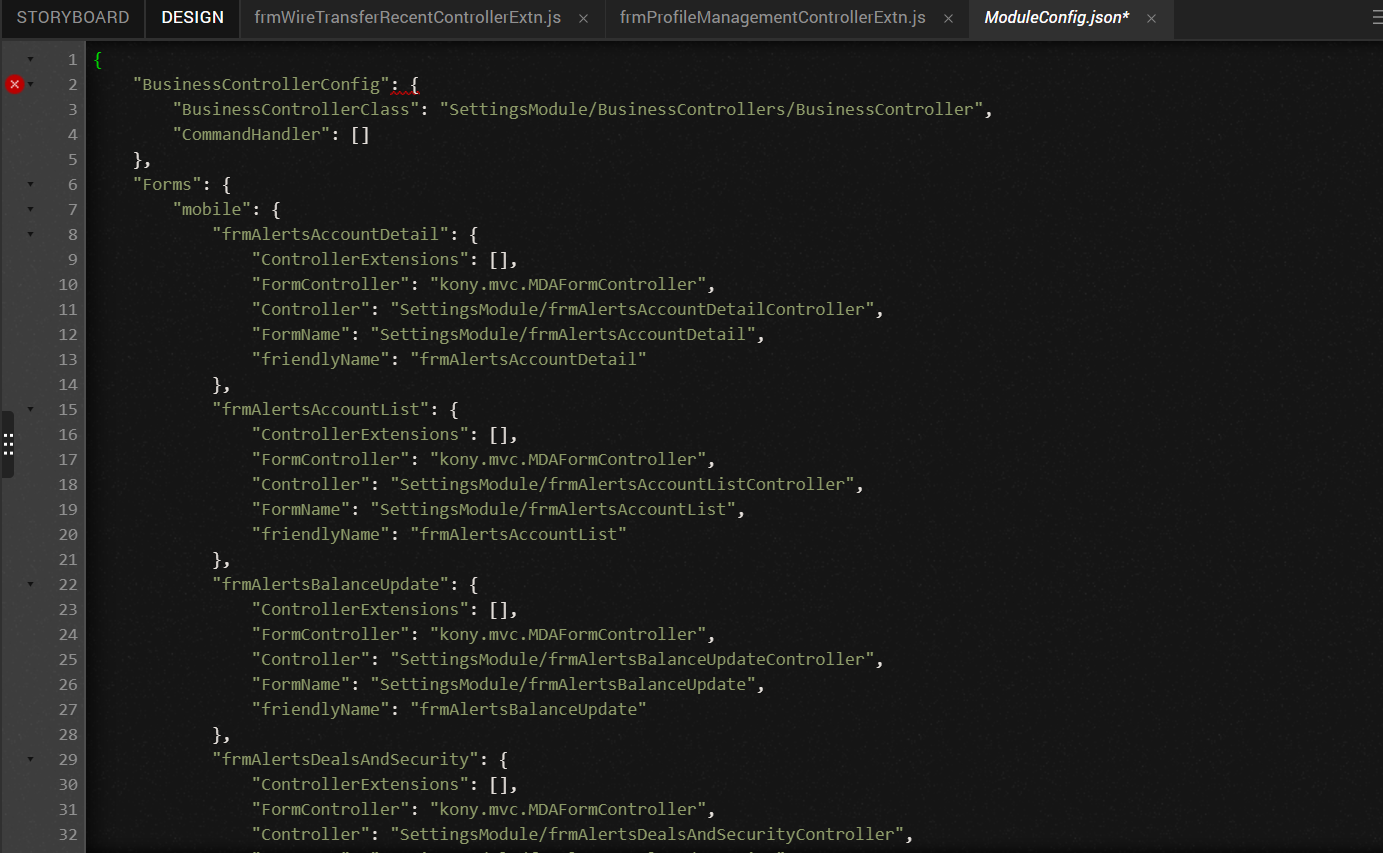
- Create a new extension file in Modules and rename the
frmProfilePersonDetailsControllerExtension.jsfile. - From the Project Explorer, go to Reference Architecture Extensions > SettingsModule > Config and update the path in module config.

- In the
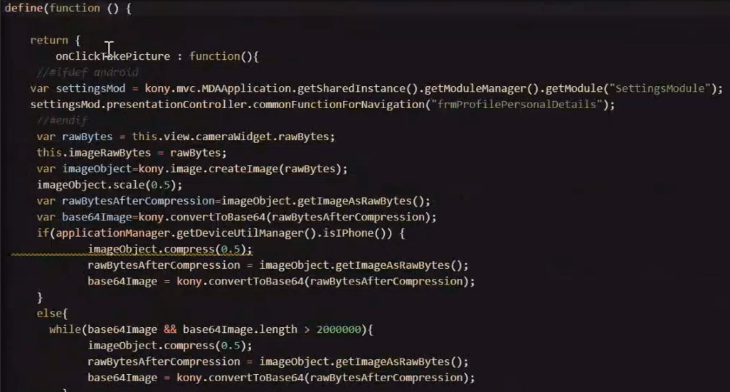
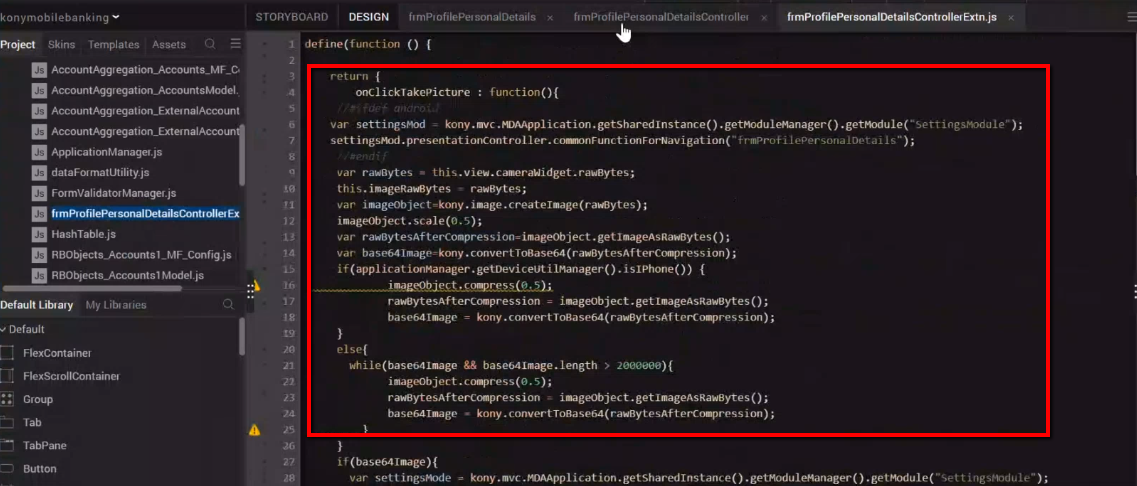
frmProfilePersonDetailsControllerExtensionfile override the form by defining the two methods based on the user action (To take a picture or Choose from gallery).Defining the Take picture method

onClickTakePicture : function(){
     //#ifdef android
    var settingsMod = kony.mvc.MDAApplication.getSharedInstance().getModuleManager().getModule("SettingsModule");
    settingsMod.presentationController.commonFunctionForNavigation("frmProfilePersonalDetails");
     //#endif
     var rawBytes = this.view.cameraWidget.rawBytes;
     this.imageRawBytes = rawBytes;
     var imageObject=kony.image.createImage(rawBytes);
     imageObject.scale(0.5);
     var rawBytesAfterCompression=imageObject.getImageAsRawBytes();
     var base64Image=kony.convertToBase64(rawBytesAfterCompression);
     if(applicationManager.getDeviceUtilManager().isIPhone()) {
        	 imageObject.compress(0.5);
             rawBytesAfterCompression = imageObject.getImageAsRawBytes();
             base64Image = kony.convertToBase64(rawBytesAfterCompression);
     }
     else{
       while(base64Image && base64Image.length > 2000000){
             imageObject.compress(0.5);
             rawBytesAfterCompression = imageObject.getImageAsRawBytes();
             base64Image = kony.convertToBase64(rawBytesAfterCompression);
     	 }
     }
     if(base64Image){
       var settingsMode = kony.mvc.MDAApplication.getSharedInstance().getModuleManager().getModule("SettingsModule");
           settingsMode.presentationController.uploadProfilePicture(base64Image);
     }
   },
Defining the choose from gallery method

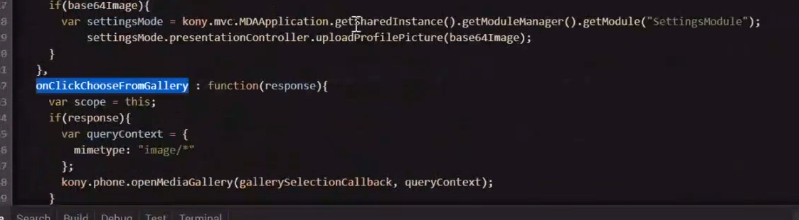
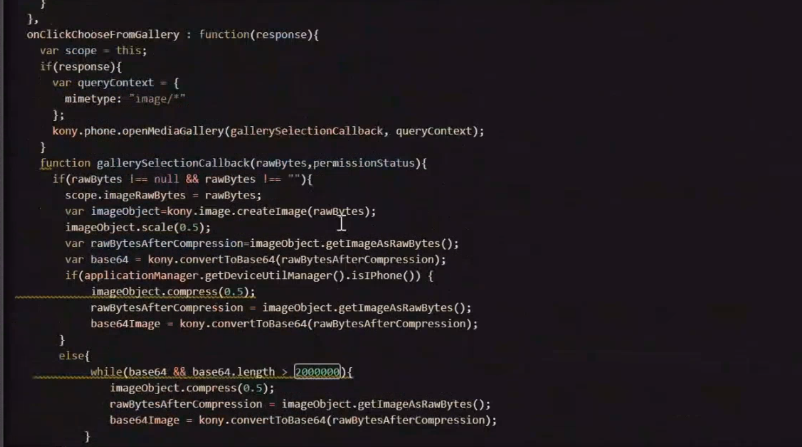
onClickChooseFromGallery : function(response){ var scope = this; if(response){ var queryContext = { mimetype: "image/*" }; kony.phone.openMediaGallery(gallerySelectionCallback, queryContext); } - Make the required extension modifications similar to the responsive web.
- Use the following code to compress the image size, after uploading the image.
The following client code is used to compress the profile picture uploaded from the mobile.
var rawBytesAfterCompression=imageObject.getImageAsRawBytes();
     var base64Image=kony.convertToBase64(rawBytesAfterCompression);
     while(base64Image && base64Image.length > 2000000){
             imageObject.compress(0.5);
             rawBytesAfterCompression = imageObject.getImageAsRawBytes();
             base64Image = kony.convertToBase64(rawBytesAfterCompression);
     }
Code changes to compress the image size for Take a pic

Code changes for image compression when uploaded from the gallery

NOTE: Follow the same steps as in Responsive web for changing the image size.
In this topic
