Data Aggregation
Overview
The Data Aggregation component helps group data per a specific criterion and then display as a sub-data. The Data Aggregation component provides the following features.
- Set a title with or without an icon.
- Expand or collapse the sub-data section in the component.
- Configure the action such as navigation when the user clicks a row.
- Provides the option for the user to select single or multiple values.
- Customize the UI of each row of the component.
- Provides search functionality to find data based on a criterion.
The Data Aggregation component uses the MenuGroup Utility file from the modules/require folder to configure the dynamic App Menu items. This file configures the Text and Menu item info properties of the container of the Data Aggregation component at the application level. For more information on the MenuGroup Utility and its use, refer to our document for MenuGroup Utility.
NOTE: The Data Aggregation component is used inside the Mobile Banking application.
Data Aggregation Contracts
The Data Aggregation component provides the contracts given below.
- Service Parameters
- Data Mapping
- Data Formatting
- Conditional Mapping Key
- Conditional Mapping
- Data Aggregation
- Row Selection Configuration
- onError Event
- mapCustomData Event
- onRowClick Event
- setContext Method
- performSearch Method
- setConfigsFromParent Method
- appendDataInSegment Method
- updateContext Method
Service Parameters
The Service Parameters contract of the Data Aggregation component helps set the service details required to configure the APIs required in a component.
Here is a sample of the JSON object provided in the Service Parameter of the Data Aggregation component.
{
	"Accounts": {
		"ServiceType": "customVerb",
		"Service": "UserAccounts",
		"Object": "Accounts",
		"Verb": "getList",
		"Criteria": {}
	}
}
The Service Parameter contract provides the following key-value pairs for customization.
| Property | Description |
|---|---|
| ServiceType
Type: |
Defines the type of service to be performed. For example: |
|
Service Name: |
Name of the object service mentioned in the Quantum Fabric layer to fetch the data and metadata required for the component. For example: |
|
Object Type: |
Name of the object linked to the object service mentioned above in the Quantum Fabric layer to fetch the data required for the component. For example: |
|
Verb Type: |
Name of the operation or custom verb linked to the specified objects in the Quantum Fabric layer to fetch the data required for the component. For example: |
|
Criteria Type: |
The request payload as defined and configured in the Quantum Fabric Object service and operation. |
Data Mapping
The Data Mapping contract of the Data Aggregation component maps the widget IDs with the data to be displayed. The component retrieves the data for mapping from Context Data Object or Service response.
Here is a sample of the JSON object provided in the Data Mapping of the Data Aggregation component.
{
	"segList": {
		"segmentMasterData": "${Collection.Accounts}",
		"segmentUI": {
			"headerTemplate": {
				"lblAccountType": "${segmentMasterData.accountType}",
				"rtxTotalAmount": "${segmentMasterData.principalBalance}",
				"lblTotalBalance": "Total Available Balance",
				"imgAccountTypeIcon": "${segmentMasterData.accountLogo}",
				"lblChevronImg": "up_icon.png",
				"flxImgChevron": "flxImgChevron",
				"flxHeaderSeparator": "flxHeaderSeparator",
				"lblTotalAccounts": ""
			},
			"rowTemplate": {
				"lblBank": "${segmentMasterData.bankName}",
				"lblAccountName": "${segmentMasterData.accountName}",
				"rtxAmount": "${segmentMasterData.formattedAvailableBalance}",
				"lblAvailableBalance": "Available Balance",
				"imgLogo": "${segmentMasterData.bankLogo}",
				"flxContainer": "flxContainer",
				"flxContent": "flxContent",
				"flxSeparator": "flxSeparator",
				"flxHeaderSeparator": "flxHeaderSeparator",
				"flxBottomHeader": "flxBottomHeader",
				"flxTopHeader": "flxTopHeader"
			}
		}
	}
}
The Data Mapping contract is assigned a JSON object with the following key-value pairs.
| Key | Description |
|---|---|
| segList |
This section maps the data with the widgets in a key-value format. This parameter accepts a JSON object with the following key-value pairs.
|
Important Considerations
To map data with the widgets inside the segmentUI key, a developer must follow any of these formats.
- To map a plain string, provide the text in the String format. For example, follow this format to map an image with
lblChevronImgLabel."lblChevronImg": "up_icon.png"
- To map a context or a collection object, provide the value in a String format. For example, follow the format given below to map the
lblAccountTypeLabel to the Account Type data retrieved from the Context Data Object."lblAccountType": "${segmentMasterData.accountType}" - To map the FlexContainer widget with the template widget, provide the FlexContainer widget ID in a String format as value. In the following example, the
flxContentFlexContainer is mapped to theflxContentFlexContainer in the template."flxContent": "flxContent"
- While designing a new template, follow proper widget naming conventions. For example, the name of a Label widget must start with lbl, the name of a RichText widget must start with rtx, and the name of a FlexContainer widget must start with flx.
Data Formatting
Data formatting property adds a new formatting type or overrides the existing formatting type in the default format JSON.
{}
Conditional Mapping Key
The Conditional Mapping Key defines mapping based on a criterion. The property specifies the value on which the conditional data mapping check should happen.
""
Conditional Mapping
The Conditional Mapping property maps a widget with a data from Collection Object or service response as per the Conditional Mapping key.
{}
Data Aggregation
The Data Aggregation group contains the following contracts.
- Row Template Config
- Header Template Config
- Rounded Flex Config
- Grouping Param
- Preferred Ordering
- Header Visibility
- Title Icon Visibility
- Chip Indicator Config
- Widgets for Dynamic Data Mapping
- Dynamic Formatting
- Records Per Batch
- Search Parameters
Row Template Config
The Row Template contract sets the Segment row template for the drop-down lists in the component. If this contract does not have a value, the segment is not visible.
A developer can set the value for this contract in two formats.
- String Format: The dynamic row template ID is provided in a String format. For example:
flxTempDataAggregation4, whereflxTempDataAggregation4is the row template ID. - JSON Format: This format supports inter-app access while using composite apps. The developer must provide both the Microapp Name and the template ID as a JSON object in this format.
| Parameter | Value |
|---|---|
|
Syntax |
The row template ID as a String or a JSON object containing the following keys.
|
| Programmatic Name | rowTemplateId
|
|
Default Value |
{
	"templateID": "flxTempDataAggregation4",
	"microAppName": "ResourcesMA"
}
|
|
Type |
String/JSON |
Header Template Config
The Header Template contract sets the section header template for the drop-down lists in the component. If this contract does not have a value, the segment appears without header.
A developer can set the value for this contract in two formats.
- String Format: The dynamic row template ID is provided in a String format. For example:
flxTempDataAggregation2, whereflxTempDataAggregation2is the template ID. - JSON Format: This format supports inter-app access while using composite apps. The developer must provide both the Microapp Name and the template ID as a JSON object in this format.
| Parameter | Value |
|---|---|
|
Syntax |
The row template ID as a String or a JSON object containing the following keys.
|
| Programmatic Name | headerTemplateId
|
|
Default Value |
{
	"templateID": "flxTempDataAggregation2",
	"microAppName": "ResourcesMA"
}
|
|
Type |
String/JSON |
Rounded Flex Config
This contract sets the rounded corners for the FlexContainer widgets inside the component.
| Parameter | Value |
|---|---|
|
Syntax |
JSON object containing the following keys.
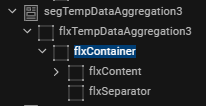
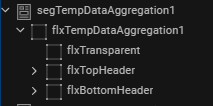
To achieve the rounded corners of the FlexContainers, the widget structure of the header template must be as per the image below. |
| Programmatic Name | roundedFlx
|
|
Default Value |
{
	"SingleSelect": {
		"bottomRoundedFlxSkn": "flxWhiteMSShadowBottomHalf",
		"topRoundedFlxSkn": "flxWhiteMSShadowTopHalf",
		"fullRoundedSkn": "flxWhiteMShadow",
		"normalFlxSkn": "flxWhite"
	},
	"MultiSelect": {
		"bottomRoundedFlxSkn": "flxGrey100BottomHalf",
		"topRoundedFlxSkn": "flxWhiteMSShadowTopHalf",
		"fullRoundedSkn": "flxWhiteMShadow",
		"normalFlxSkn": "flxGrey100"
	},
	"rowTemplateWidgetId": "flxContainer",
	"seperatorWidgetId": "flxSeparator",
	"headerSeparatorWidgetId": "flxHeaderSeparator",
	"bottomHeaderWidgetId": "flxBottomHeader",
	"topHeaderWidgetId": "flxTopHeader"
}
|
|
Type |
JSON |
Grouping Param
This contract specifies the specific criterion that groups the service response data.
| Parameter | Value |
|---|---|
|
Syntax |
The grouping parameter in a String format. |
| Programmatic Name | paramToGroup
|
|
Default Value |
accountType |
|
Type |
String |
Preferred Ordering
This contract helps the Component consumer configure the group's order on the screen. The value provided in this contract depends on the value in the Grouping Param contract. For example, if the value in the Grouping Param is accountType, then the value of JSON can be Savings or Checkings.
| Parameter | Value |
|---|---|
|
Syntax |
A JSON object with Order as key and an array of Strings as value. |
| Programmatic Name | preferredOrder
|
|
Default Value |
{
	"Order": [
		"Savings",
		"Checking",
		"Deposits",
		"Mortage"
	]
}
|
|
Type |
JSON |
Header Visibility
The header template structure must have a top header flex, bottom header flex and transparent flex. This contract configures the visibility of the Bottom header.
To configure the visibility of the Bottom header, follow any of these methods.
- Enable or disable the visibility of the bottom headers of all the sections. The sample code below shows how to disable the bottom header of all sections.
{ "visibility": false, "bottomHeaderWidgetId": "flxBottomHeader" } - Enable or disable the visibility of the bottom header of the section with a single record. The component hides the expand-collapse feature in this scenario when the record visibility is disabled. This is the default behavior of the Data Aggregation component. The sample code below shows how to enable the bottom header of a single record.
{
	"visibility": true,
	"bottomHeaderWidgetId": "flxBottomHeader",
	"expColWidgetId": "flxImgChevron"
}
| Parameter | Value |
|---|---|
|
Syntax |
JSON object containing the following keys.
|
| Programmatic Name | headerVisibility
|
|
Default Value |
{
	"visibility": true,
	"bottomHeaderWidgetId": "flxBottomHeader",
	"expColWidgetId": "flxImgChevron"
}
|
|
Type |
JSON |
Title Icon Visibility
This contract configures the visibility of the icon present in the header. If this contract does not contain a value, the header appears without any icon.
| Parameter | Value |
|---|---|
|
Syntax |
JSON object containing the following keys.
|
| Programmatic Name | titleIconConfig
|
|
Default Value |
{
	"visibility": true,
	"iconWidgetId": "imgAccountTypeIcon"
}
|
|
Type |
JSON |
Chip Indicator Config
This contract configures the visibility of the Chip Indicator. If this contract does not contain any value, then the chip indicator does not appear.
| Parameter | Value |
|---|---|
|
Syntax |
JSON object containing the following keys.
|
| Programmatic Name | chipConfig
|
|
Default Value |
{
	"visibility": true,
	"widgetId": "lblAccountChip",
	"skinIndicator": "accountType",
	"Skin": {
		"Savings": "lblTag1Grey500FS10",
		"Checking": "lblTag2Grey500FS10"
	}
}
|
|
Type |
JSON |
Widgets for Dynamic Data Mapping
This contract configures the feasibility of the component consumer to customize the Segment Template widget data or properties.
| Parameter | Value |
|---|---|
|
Syntax |
A JSON object with NOTE: If none of the widgets require dynamic data mapping, provide an empty array as given below. {
"Widgets": []
}
|
| Programmatic Name | dynamicData
|
|
Default Value |
{
	"Widgets": [
		"lblAccountType",
		"lblAccountChip"
	]
}
|
|
Type |
JSON |
Dynamic Formatting
This contract performs dynamic formatting for the component using the values defined in the Format Utils file.
| Parameter | Value |
|---|---|
|
Syntax |
A JSON object with the following key.
|
| Programmatic Name | dynamicFormatting
|
|
Default Value |
{
	"formattingField": {
		"AMOUNT_WITH_SUP": {
			"inputMapping": "${Collection.Accounts.availableBalance}",
			"outputMapping": "${Collection.Accounts.formattedAvailableBalance}",
			"formatDependency": "${Collection.Accounts.transactionCurrency}"
		}
	}
}
|
|
Type |
JSON |
Records Per Batch
This contract configures the number of the records that appends the Segment widget to achieve lazy loading. The Segment widget contains the number of records set in this contract when the component appears. When the user scrolls to the end of the screen, the Segment widget appends the next batch of records.
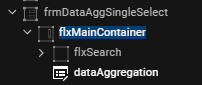
To achieve lazy loading, the parent FlexContainer (in the component consumer) of the Data Aggregation component must have a fixed height and the layout type as Flow Vertical.
| Parameter | Value |
|---|---|
|
Syntax |
The number of the records in a String format. |
| Programmatic Name | recordsPerPage
|
|
Default Value |
5 |
|
Type |
String |
Search Parameters
This contract configures the specific widgets that require the search functionality.
| Parameter | Value |
|---|---|
|
Syntax |
JSON object with |
| Programmatic Name | searchParams
|
|
Default Value |
{
	"Widgets": [
		"lblAccountType",
		"lblAccountName",
		"lblBank",
		"lblAvailableBalance",
		"rtxAmount"
	]
}
|
|
Type |
JSON |
Row Selection Configuration
The Row Selection Configuration group provides contracts to configure the UI for a selected row.
- Single Row Selection Key
- Selected Row Config
- Row Expand Collapse Config
- Row Multi Selection Key
- Row Multiple Select Config
- Disable Expand Config
Single Row Selection Key
The Data Aggregation component provides the Component consumer to enable or disable the row selection. If the component consumer enables the row selection, the Single Row Selection Key contract configures how to display a user-selected row.
| Parameter | Value |
|---|---|
|
Syntax |
A list with the following values.
|
| Programmatic Name | singleRowSelectionKey
|
|
Default Value |
Skin |
|
Type |
List Selector |
Selected Row Config
This contract configures the UI for the selected row. The configuration of this property depends on the value in the Single Row Selection Key contract.
There are three manners to configure the Selected Row Config contract.
- Case 1: When the value of the Single Row Selection Key is
Skin, theselectedRowIndicatorkey contains the normal and Rounded Flex skin values, and thedeselectedRowIndicatorkey contains a FlexContainer skin as a value. - Case 2: When the value of the Single Row Selection Key is
Icon, theselectedRowIndicatoranddeselectedRowIndicatorkeys are assigned the UNICODE value of icons. - Case 3: When the value of the Single Row Selection Key is
Skin and Icon, the Selected Row Config contract is assigned two separate JSON objects withSkinandIconas keys.
| Parameter | Value |
|---|---|
|
Syntax |
A JSON object with the following keys.
|
|
Programmatic Name |
selectedRowConfig
|
|
Default Value (Case 1): IfSkin is selected in the Single Row Selection Key list. |
{
	"widgetId": "flxContent",
	"selectedRowIndicator": {
		"normalFlx": "flxSecondary",
		"roundedFlx": "flxSecondarySelectedBottomHalf"
	},
	"deselectedRowIndicator": "slFbox"
}
|
|
Default Value (Case 2): IfIcon is selected in the Single Row Selection Key list. |
{
	"widgetId": "flxContent",
	"selectedRowIndicator": "\ue980”,
	"deselectedRowIndicator ": "\ue981 "
}
|
|
Default Value (Case 3): If |
{
	"Skin": {
		"widgetId": "flxContent",
		"selectedRowIndicator": {
			"normalFlx": "flxSecondary",
			"roundedFlx": "flxSecondarySelectedBottomHalf"
		},
		"deselectedRowIndicator": "slFbox"
	},
	"Icon": {
		"widgetId": "lblCheckbox",
		"selectedRowIndicator": "\ue980",
		"deselectedRowIndicator": "\ue981",
		"selectedSkin": "lblIconPrimary500FS30",
		"unSelectedSkin": "lblIconGrey400FS30"
	}
}
|
|
Type |
JSON |
Row Expand Collapse Config
This contract configures the row expand and collapse functionality.
| Parameter | Value |
|---|---|
|
Syntax |
A JSON object with the following keys.
|
| Programmatic Name | rowExpCol
|
|
Default Value |
{
	"visibility": true,
	"flxWidgetId": "flxImgChevron",
	"lblWidgetId": "lblChevronImg",
	"expandImg": "up_icon.png",
	"collapseImg": "down_icon.png",
	"isCollapsed": false,
	"isSingleExpand": false
}
|
|
Type |
JSON |
Row Multi Selection Key
This contract enables or disables the Multi Selection feature in the component.
| Parameter | Value |
|---|---|
|
Syntax |
Boolean value |
|
Programmatic Name |
multiSelectKey
|
|
Default Value |
False |
|
Type |
Boolean |
Row Multiple Select Config
This contract configures the UI for the selected rows. This contract is considered only if the value of the Row Multi Selection Key contract is true.
| Parameter | Value |
|---|---|
|
Syntax |
A JSON object with the following keys.
|
| Programmatic Name | multiSelectProp
|
|
Default Value |
{
	"widgetId": "lblCheckbox",
	"selectAllWidgetId": "flxSelectAll",
	"totalAccountsWidgetId": "lblTotalAccounts",
	"selectedSkin": "lblIconPrimary500FS30",
	"unSelectedSkin": " lblIconGrey400FS30",
	"selectedRowIcon": "\ue926",
	"unselectedRowIcon": "\ue924"
}
|
|
Type |
JSON |
Disable Expand Config
This contract disables the expand-collapse functionality for the specific sections inside the component. If this contract does not contain any value, this feature is disabled.
| Parameter | Value |
|---|---|
|
Syntax |
A JSON object with the following keys.
|
|
Programmatic Name |
disableExpandConfig
|
|
Default Value |
{
	"sections": ["Settings", "Profile"],
	"chevronSrcLbl": "lblChevronImg",
	"chevronImg": "chevron_right.png",
	"headerTextLbl": "lblMenuItemType"
}
|
|
Type |
JSON |
onError Event
The OnError event handles any error that occurs during the user journey. The onError passes an error object to the parent widget containing the information about the error and where it had happened.
| Parameter | Value |
|---|---|
| Input parameter | JSON object |
|
Object Description |
The JSON object contains the following keys:
|
|
Sample Input |
var errordata = {
	"level": "ComponentViewController",
	"method": "methodName",
	"error": errorMsg
};
this.onError(errordata);
|
mapCustomData Event
This event handles the feasibility for the Segment template widget data or properties that the component consumer can customize.
| Parameter | Value |
|---|---|
| Input parameter |
|
| Programmatic Name | mapCustomData
|
|
Sample Code |
this.mapCustomData(segmentData,dynamicData); |
|
Return Type |
None |
onRowClick Event
This event handles the row click of the segment and passes the information of the selected row to the component consumer as an input parameter.
| Parameter | Value |
|---|---|
| Input parameter |
|
| Programmatic Name | onRowClick
|
|
Sample Code |
this.onRowClick(rowData); |
|
Return Type |
None |
setContext Method
This method is invoked inside the parent component or form controller. This method sets the data from the component consumer in the Data Aggregation component.
| Parameter | Value |
|---|---|
|
Syntax |
|
| Input parameter | JSON object containing the context variable. For more information on the context object, click here. |
|
Sample Input |
this.view.dataaggregation.setContext(contextData); |
|
Return Type |
None |
performSearch Method
This method performs a keyword search based on the search query provided by the end-user.
| Parameter | Value |
|---|---|
|
Syntax |
|
| Input parameter |
|
|
Sample Input |
var searchQuery = "Loan"; this.view.dataggregation.performSearch(searchQuery); |
|
Return Type |
None |
setConfigsFromParent Method
A developer must invoke this method when the Data Aggregation component is a child of another component. The setConfigsFromParent method sets the configurations from the parent component to the Data Aggregation component.
| Parameter | Value |
|---|---|
|
Syntax |
|
| Input parameter |
|
|
Sample Input |
var configParams = {
	"serviceParameters": "this._serviceParameters",
	"dataMapping": "this._dataMapping",
	"dataFormatting": "this._dataFormatting"
};
this.view.dataaggregation.setConfigsFromParent(configParams);
|
|
Return Type |
None |
appendDataInSegment Method
This method appends the next batch of records when the user scrolls to the end of the container containing the Data Aggregation component.
| Parameter | Value |
|---|---|
|
Syntax |
|
| Input parameter |
NA |
|
Sample Input |
this.view.dataaggregation.appendDataInSegment(); |
|
Return Type |
None |
updateContext Method
This method updates the context data that is already set in the Data Aggregation component.
| Parameter | Value |
|---|---|
|
Syntax |
|
| Input parameter | JSON object containing the context variable. For more information on the context object, click here. |
|
Sample Input |
this.view.dataaggregation.updateContext(contextData); |
|
Return Type |
None |
Context Object
A context object is a JSON object used to pass the data required for the component. The Context Data Object in the Data Aggregation component sets the data from the component consumer in the component.
The Context Data object passes the following information of the Data Aggregation component.
- accountID
- accountName
- accountType
- availableBalance
- bankName
- principalBalance
- transactionCurrency
- bankLogo
- accountLogo
Here is a sample of the Context JSON Object used inside the component.
var context = {
	"accountID": "118664",
	"accountName": "Michael's checking account",
	"accountType": "Checking",
	"availableBalance": "27376.65",
	"bankName": "Citi Bank",
	"principalBalance": "27376.65",
	"transactionCurrency": "USD",
	"bankLogo": "citi_bank.png",
	"accountLogo": "checking_accounts.png"
};
In this topic
