Manage Transactions
Use the feature to manage past and scheduled payments and transfers.
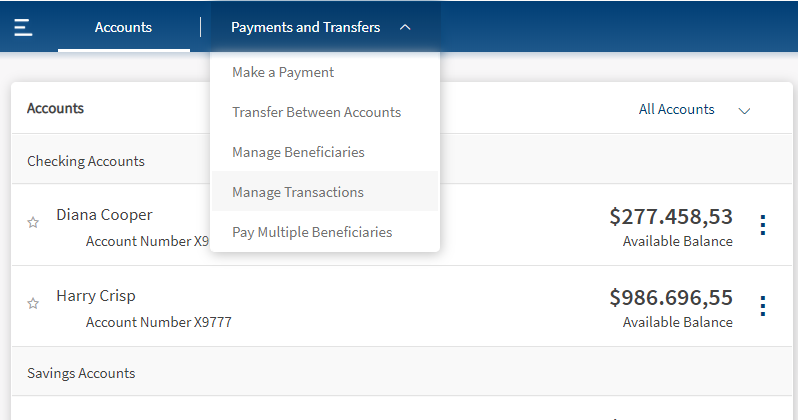
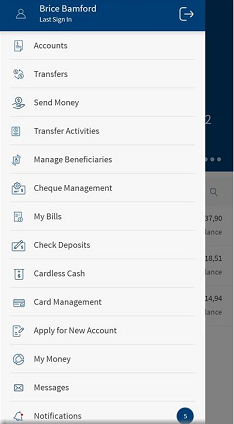
Menu path:
- OLB: On the Accounts Dashboard screen > Click Payments and Transfers > Click Manage Transactions.
Alternatively, you can also access the Manage Transactions feature from the side menu under Payments and Transfers.
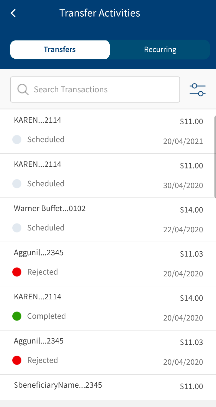
- MB: Hamburger menu > Payments and Transfers > Transfer Activities
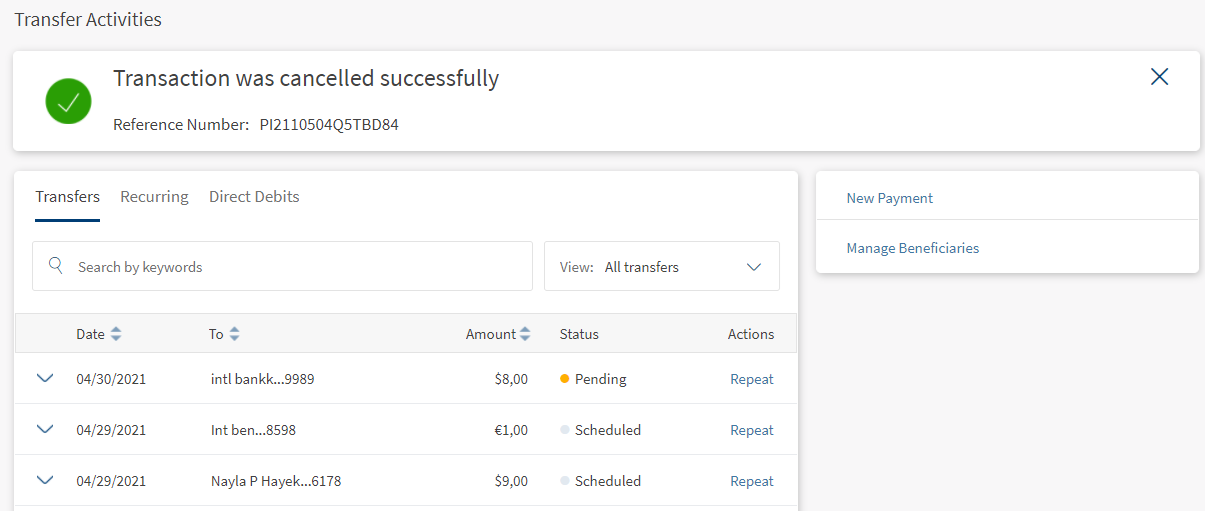
The Manage Payments and Transfers screen is displayed with Transfer tab selected by default. The app displays the list of one-time transactions as determined by the service response (10 transactions by default).
Transfers
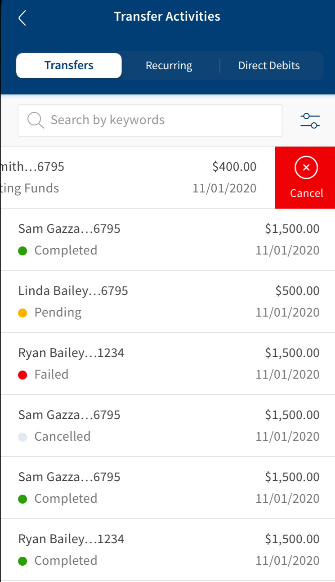
The Transfers tab displays the list of all past and future dated one-time transactions.
If no transactions are retrieved from the banking service, the app displays a relevant message. The following details are displayed in the transfers list:
- Date
- To Account details
- Amount
- Status
- Actions that you can perform on a transaction - Edit
You can select any transaction to view further details such as
- Transaction Reference number
- Source account
- Attachments (if available)
- Frequency of the transaction
- Notes
You can perform the following actions in this screen:
- Cancel Transfer
- Download attachments
- Repeat a recent transaction
- Download Report
Cancel a Transfer
Use the feature to cancel a scheduled transaction.
To cancel the transaction, follow these steps:
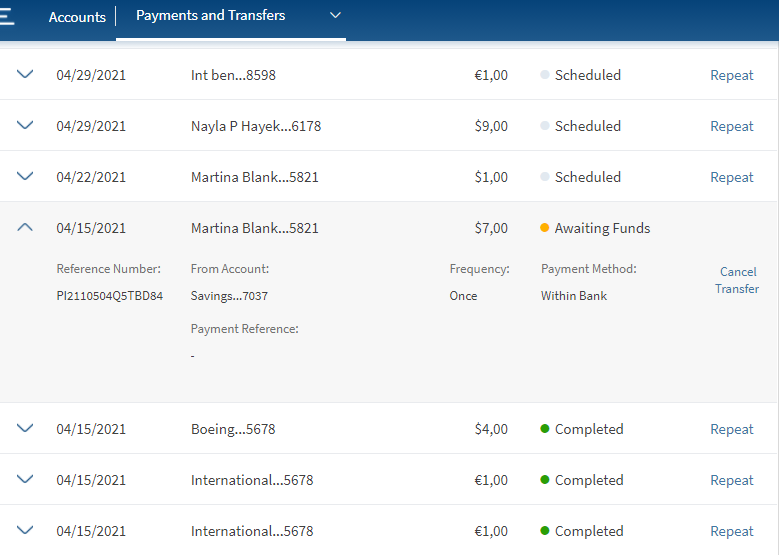
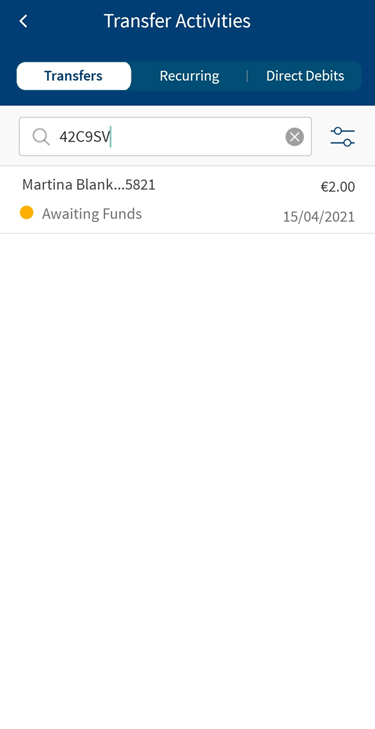
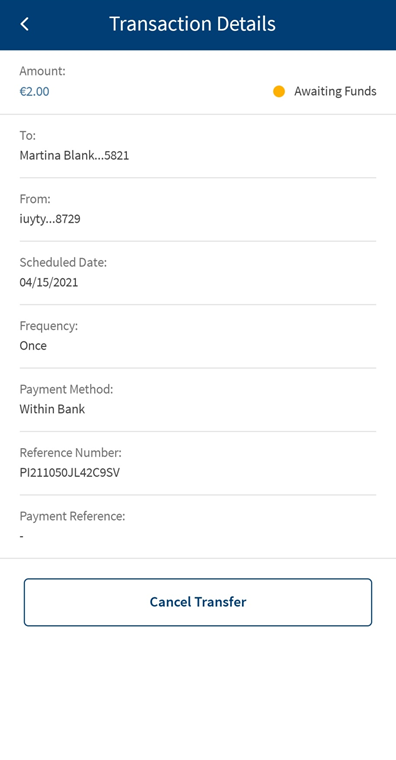
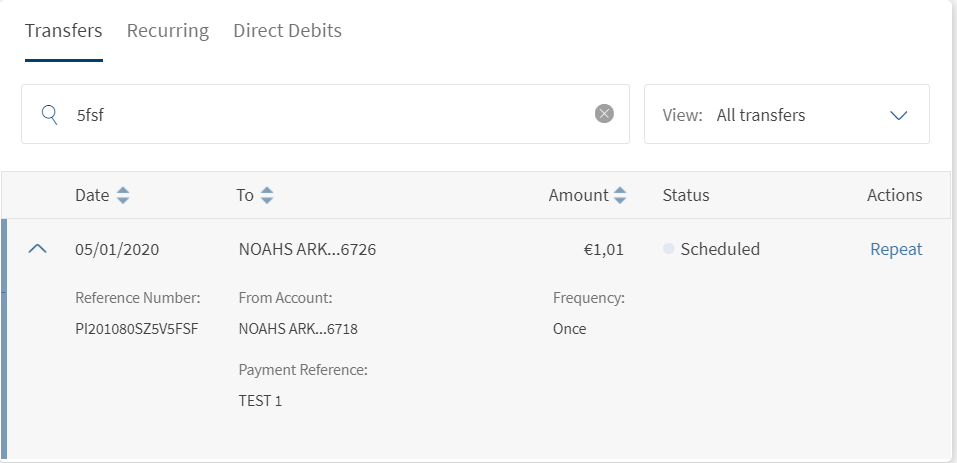
- Select a transaction and click the down arrow to view the additional details.
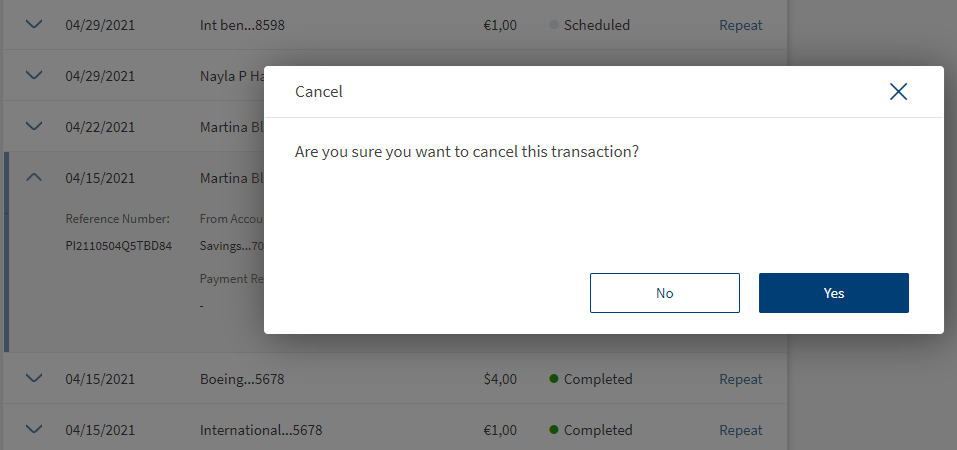
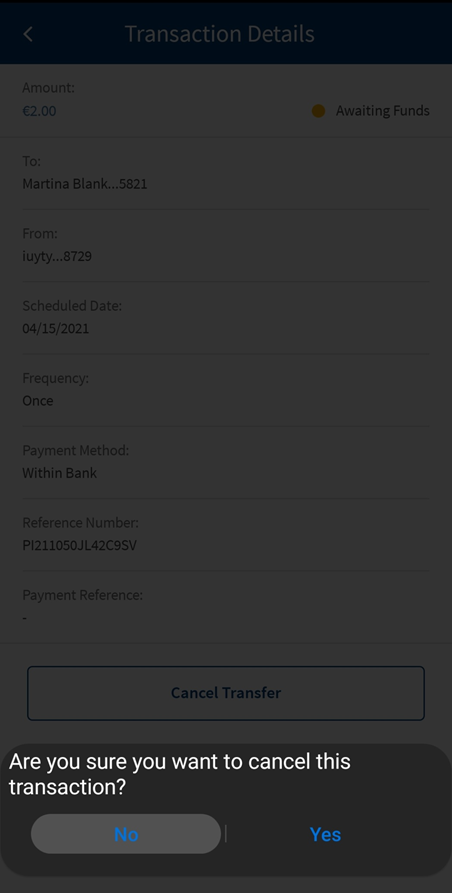
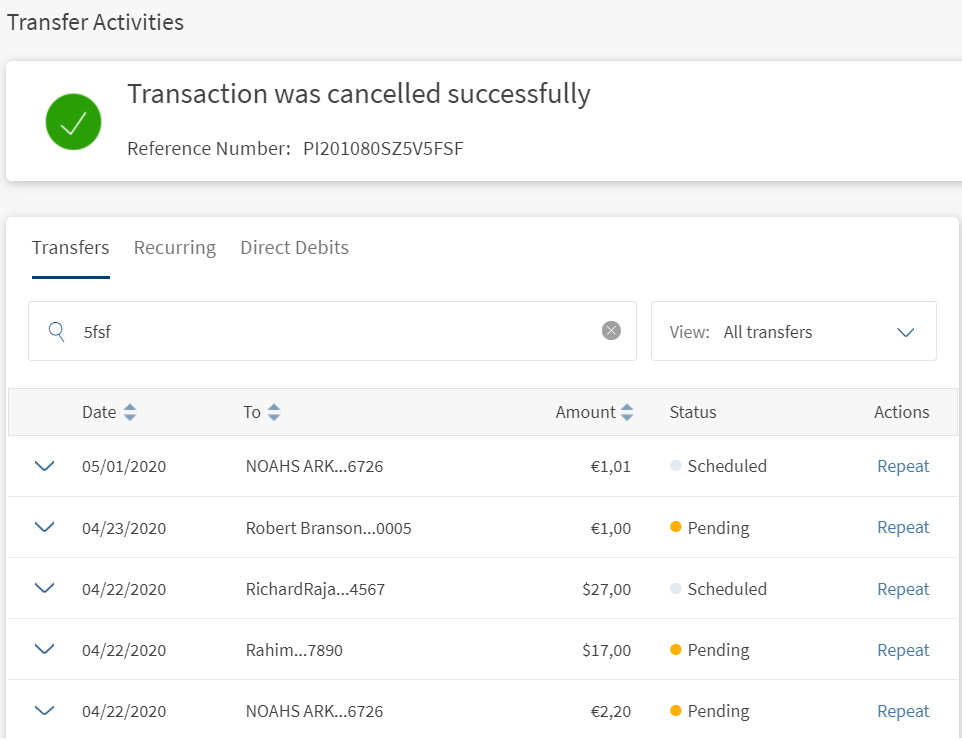
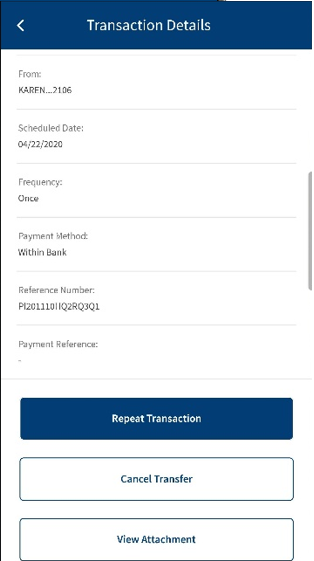
- Click Cancel to cancel the upcoming scheduled transaction. The application displays a pop-up asking for your confirmation.
- Select Yes to cancel the transaction, else click No.
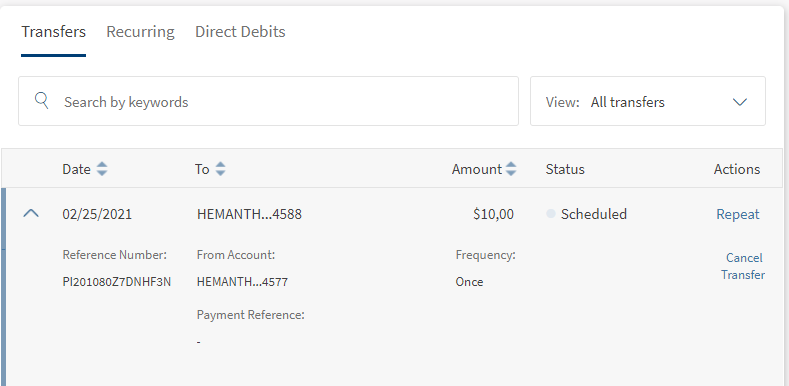
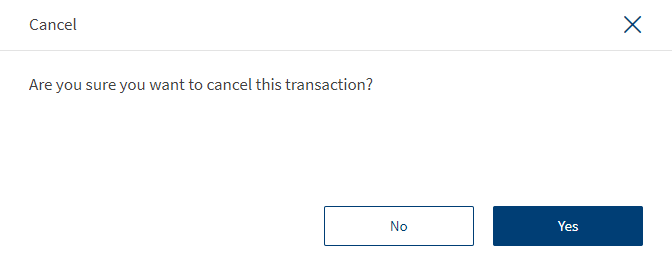
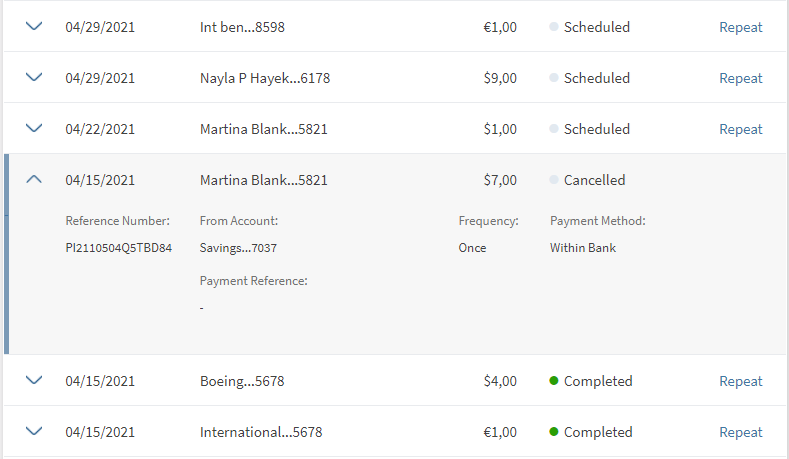
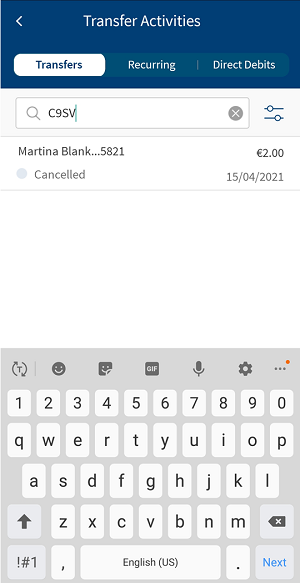
NOTE: You can also cancel a transaction that is initiated with insufficient funds. To do so, select a transaction with the status as 'Awaiting Funds'. Click the down arrow to view additional details and click Cancel Transfer. The transaction will be stopped with the status as 'Canceled'. On mobile native, you can also swipe left to cancel a transaction.
Responsive Web
Mobile Screens
Download Report
Use the feature to download the report of a completed transaction.
To download the report, follow these steps:
- Click
 icon beside a transaction to view the transaction details.
The transaction details appears for the selected transaction.
- Click Download Report to download the transaction report.
A PDF is generated with the transaction details.
The following details are displayed:
- Reference Number
- Transferred From account
- Date of Transaction
- Transferred To Recipient account
- Transferred Amount
- Note
- Frequency
- Recurrence (For a recurring transaction)
- Start Date and End Date (For a recurring transaction)
Download Attachments
You can download the attachments used while performing a payment/transaction for future reference.
To download an attachment, follow these steps:
- Select a transaction and click the down arrow to view the additional details. You can find the attachments option with the number of attachments available.
- Click attachments. A pop-up is displayed with the list of attachments available for a transaction.
- Click download icon (beside each attachment) to download an attachment.
- Click Download All to download all the attachments.
- Click Close to close the pop-up window.
Repeat a Transaction
You can repeat a completed transaction from your Transfers screen.
To repeat a completed payment, follow these steps:
- Click Repeat beside a transaction from the list to recreate the same transaction. The application navigates to Make Payments screen.
- The application auto-fills the field descriptions for the new transaction as the original transaction. You can modify any of the fields and confirm the transaction.
Recurring
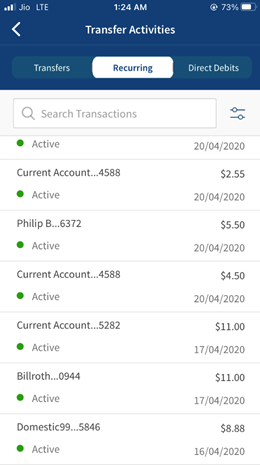
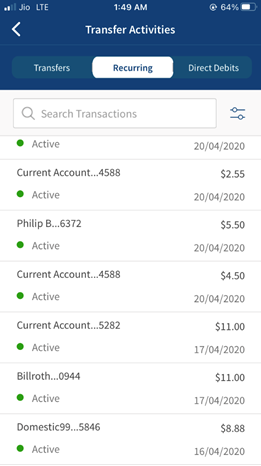
The Recurring tab displays the list of transactions scheduled for the future date.
If no transactions are retrieved from the banking service, the app displays a relevant message.
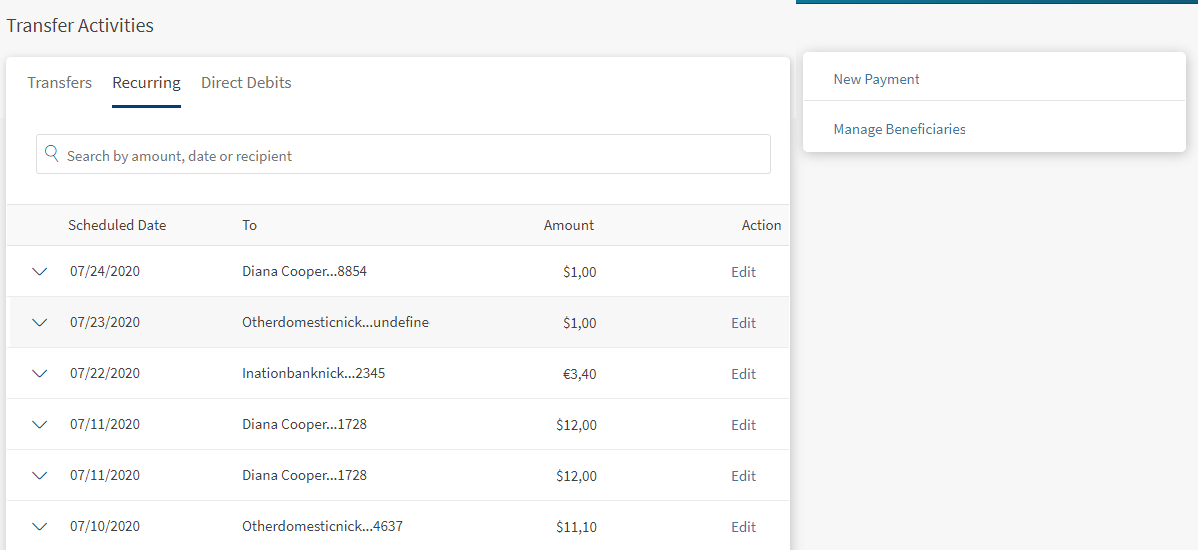
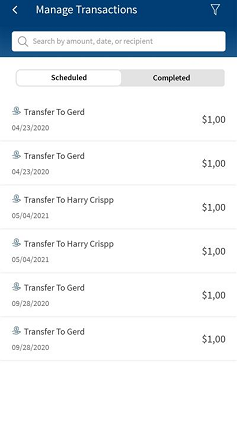
You can perform the following actions in this screen:
View a Recurring Transfer
You can view the transfer details of a recurring transfer. The following details are displayed in the scheduled transaction list:
- Scheduled Date
- To Account details
- Amount
- Status
- Actions that you can perform on a transaction - Edit
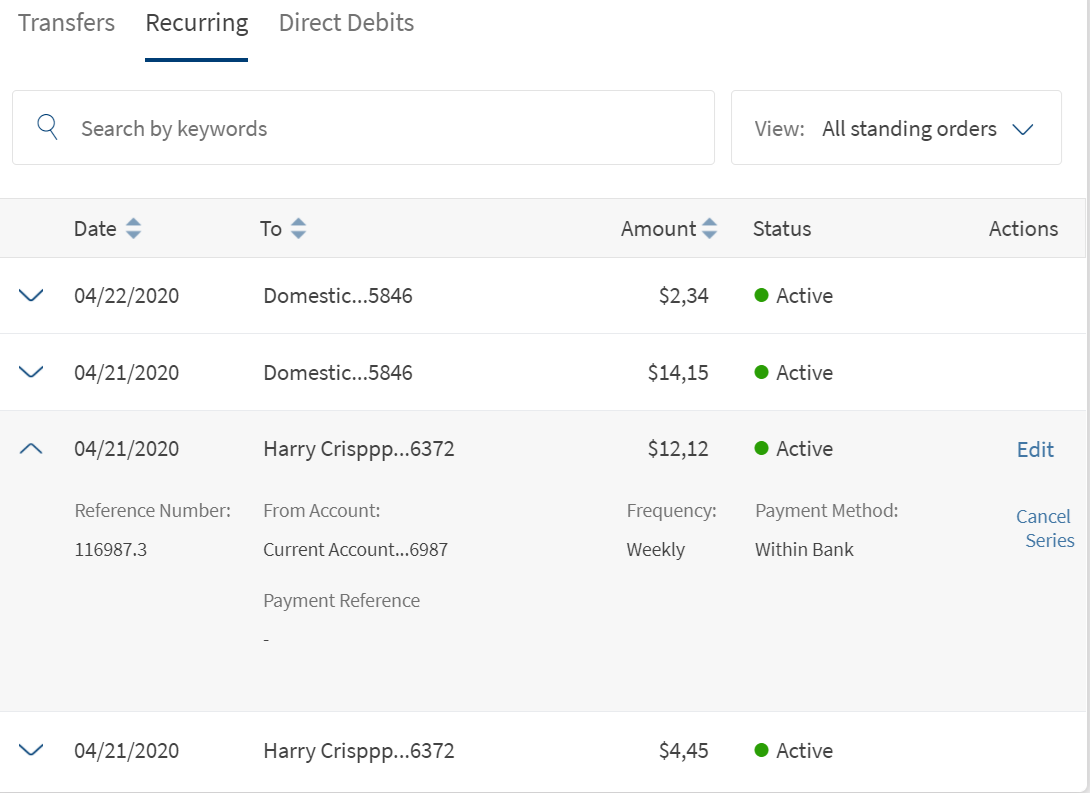
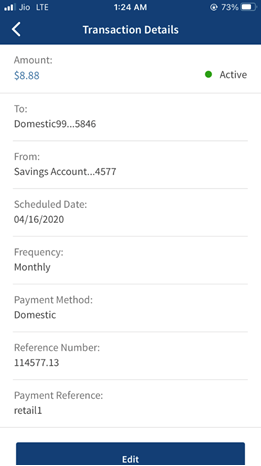
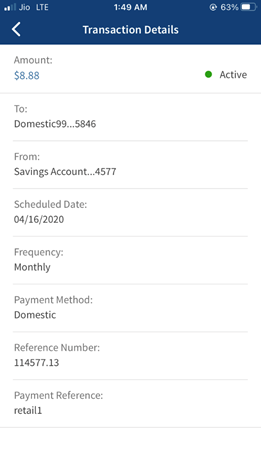
You can select any transaction to view further details such as:
- Reference number
- From account
- Attachments (if available)
- Frequency of the transaction.
- Notes
Edit a Recurring Transfer
Select the required transaction and click edit to edit the details. The app navigates to the Make Payment screen. By default, the app auto-fills the same fields for the new transaction as the original transaction.
You can modify any of the fields for the new transaction, and confirm the transaction. The transaction details are updated accordingly.
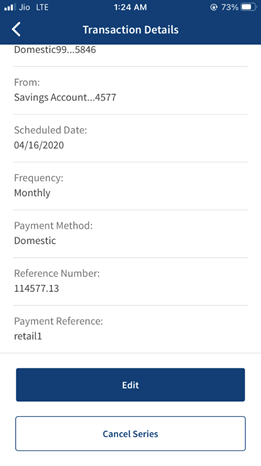
Cancel Series
Select the required transaction from the list to cancel the transaction. If the frequency of the scheduled transaction is set to any value other than once, the app displays the following option to cancel the transaction:
- Select Cancel Series if you want to cancel the complete scheduled transaction.
- The app displays a pop-up asking for your confirmation if you want to cancel the transaction.
- Click Yes, the app cancels the scheduled transaction and removes the record from the recurring transactions list, else click No.
Pending Signatory Approvals
If cancel transfer/cancel series actions requires approvals, then the transaction appears in transfer activities screen with the status as Scheduled/Active.
Cancel Transfer
If the Cancel Transfer action is pending for approval, the transaction appears in Transfer Activities screen with the status Scheduled. Once the Cancel transfer button is clicked, the transaction appears in Approvals and Requests page pending for the approval.
While the transaction is pending for approval, the Cancel action will not be displayed. Once the signatory request is approved, then the transaction will be canceled.
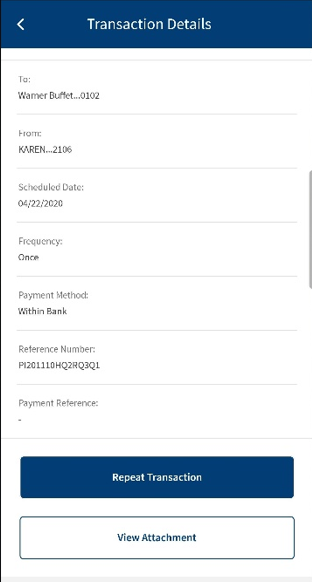
Cancel Series
If the Cancel Series action is pending for approval, the transaction appears in Transfer Activities screen with the status Active. Once the Cancel Series is clicked, the transaction appears in Approvals and Requests page pending for the approval.
While the transaction is pending for approval, the Edit and Cancel action buttons will not be displayed. Once the signatory request is approved, then the transaction will be canceled.
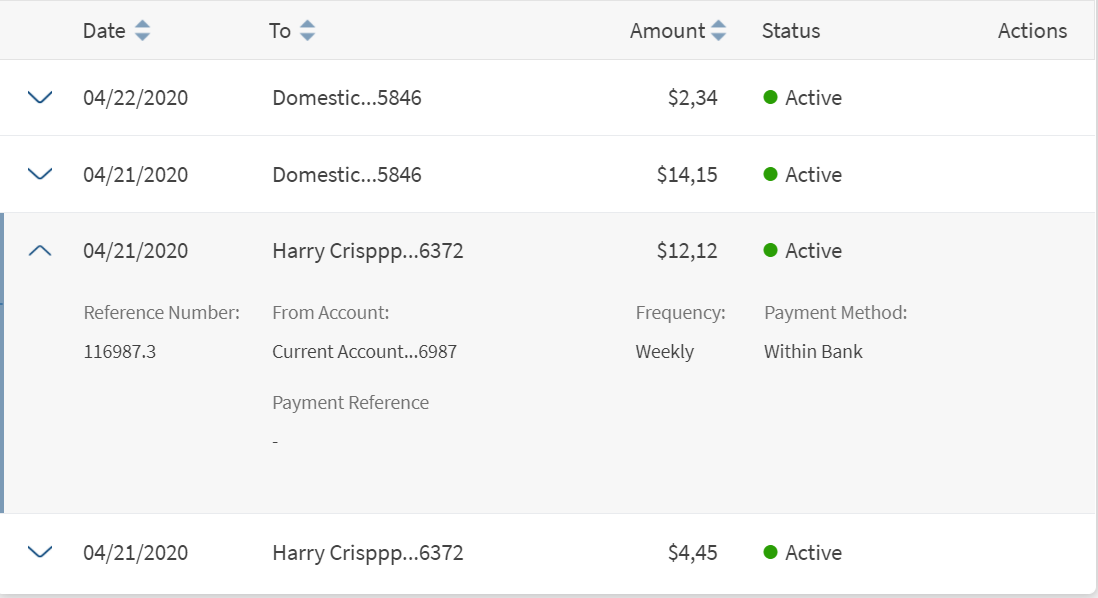
NOTE: Until all the approvals are complete, the cancel action will not performed.
For the process of approving a request, refer Approvals and Requests section.
Filter Transactions
Use the feature to filter the transactions from the list.
Click the list option from the top right to filter the transactions. The available options are:
| Type | Filter Options |
|---|---|
| Transfers |
|
| Recurring |
|
The transactions list is filtered based on the selected option.
Direct Debits
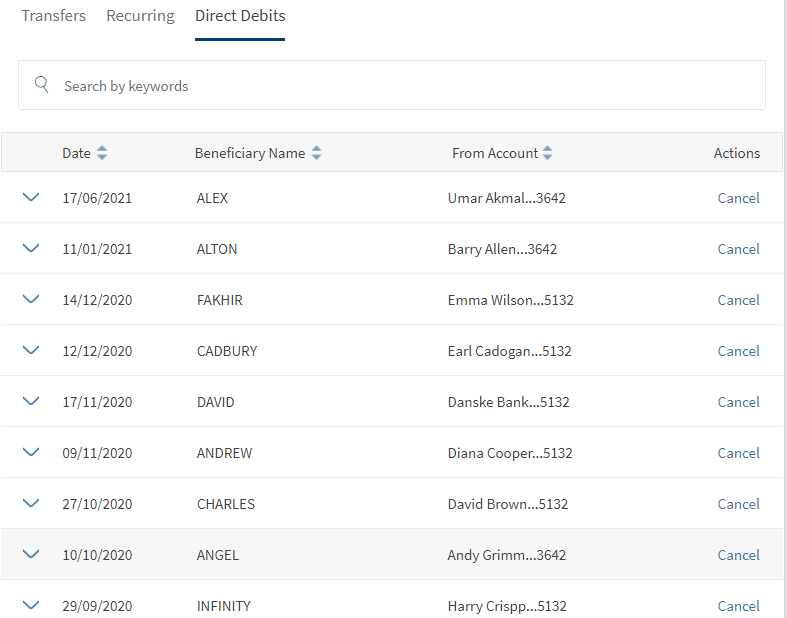
Use the feature to view all the direct debits list. All the individual direct debits for the logged in customer are displayed.
Business Process Diagram - Transfer
This page displays the following details:
- Date
- Beneficiary Name
- From Account
- Actions that you can perform on a transaction - Cancel
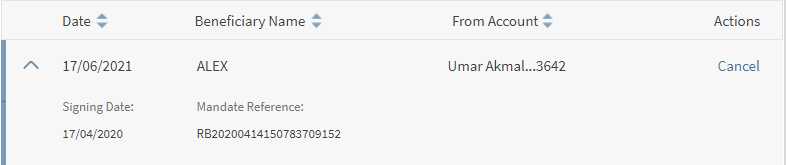
You can select a transaction to view the additional details such as
- Signing Date
- Mandate Reference
You can perform the following actions on this screen:
- Sort the transactions based on Date, Beneficiary name, and From Account.
- Search for a mandate by providing the keywords in the Search bar
- Pagination - You can navigate to first, last, next, and previous pages.
- Cancel
- Stop Next Payment
Cancel a Direct Debit
Use the feature to cancel the a direct debit.
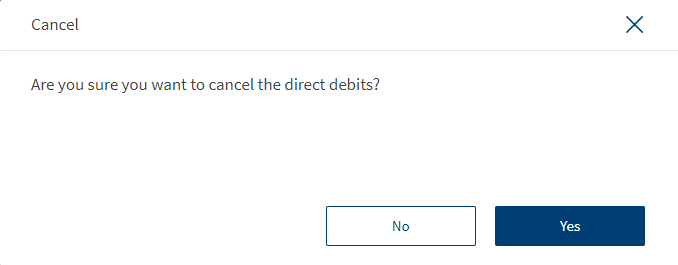
To cancel a direct debit, follow these steps:
- Select a transaction and click the down arrow to view the additional details.
- Click Cancel to cancel the transaction.
- Select Yes to cancel the transaction, else click No.
Stop Next Payment
Use the feature to stop a payment for direct debit.
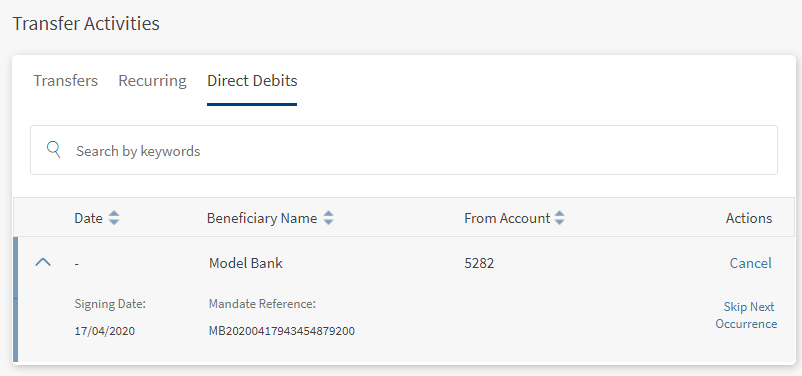
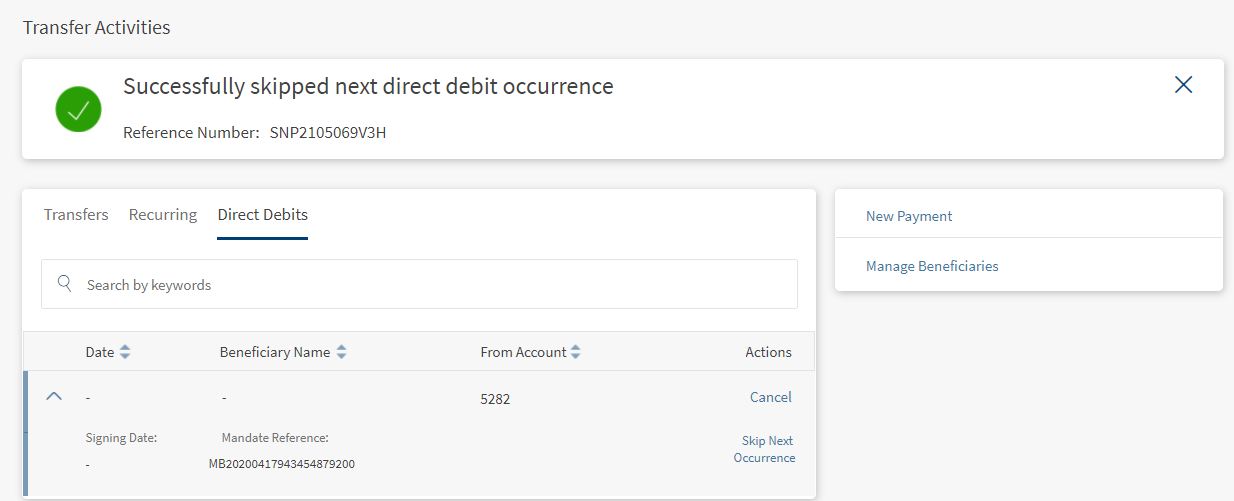
To stop next payment, follow these steps:
- Select a transaction and click the drown arrow to view to view the additional details.
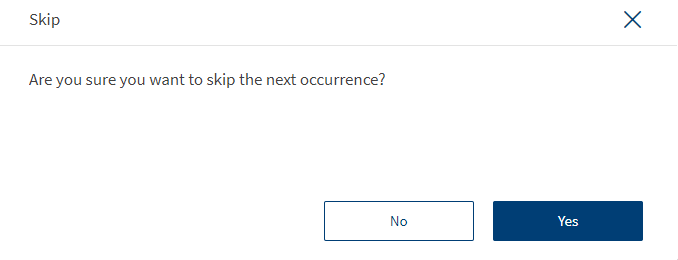
- Click Stop next payment. A warning message is displayed stating the next payment request from the payee will be denied with the options Yes/ No.
- Select Yes to stop the next payment else, click No. A confirmation is displayed.
NOTE: Cancel Direct Debit cancels the complete DD mandate whereas Skip Next Occurrence stops the next due payment transaction.
Search for a Transaction
Use the feature to search for transactions that match specific criteria such as date, amount, keywords, type, and more, for any of your accounts.
For Direct Debit, you can search for transactions by providing the following keywords:
- Beneficiary Name
- From Account
- Date
- Signing Date
- Mandate Reference
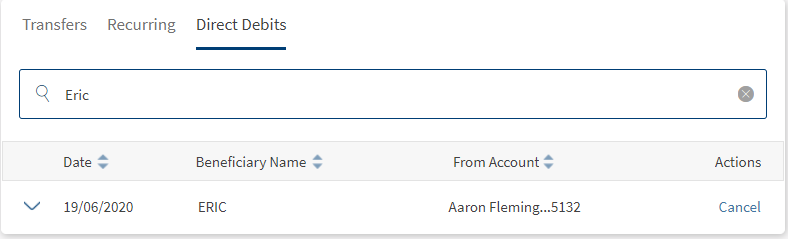
In the Manage Transactions screen, click the search bar and enter the appropriate keyword such as amount, date, or the beneficiary details.
The app displays the all the transactions based on the specified search criteria.
Configuration
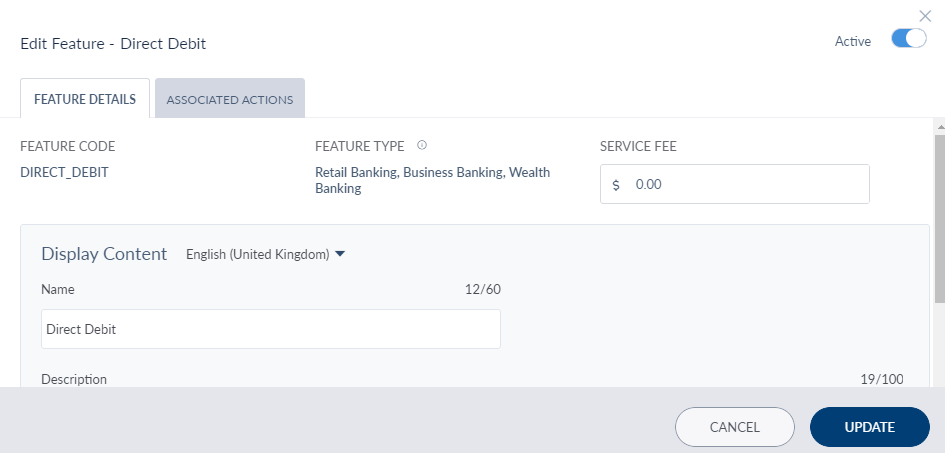
Enabling Direct Debit from Spotlight
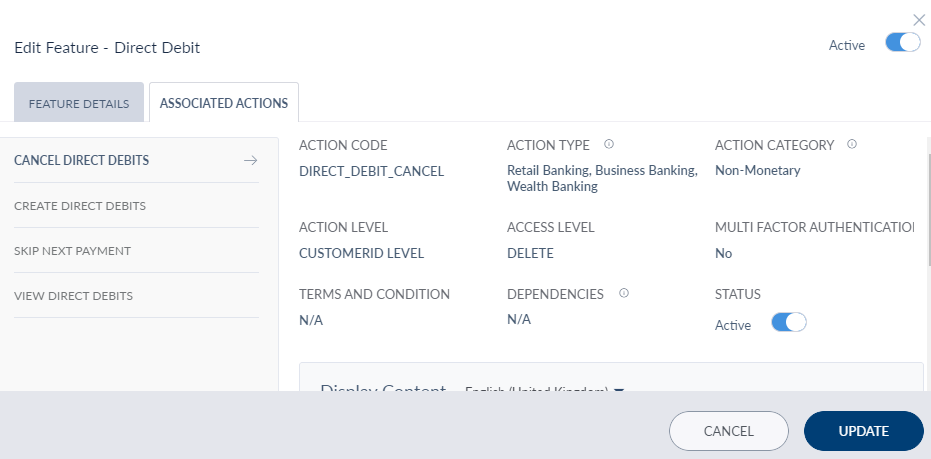
A few user permissions at the system level must be configured in Spotlight. The following configurations must be performed in Spotlight under Master Data Management to access Direct Debits in OLB or MB. Only the features and actions that are enabled and assigned to customer roles by the bank user in Spotlight are accessed by the customers in the Retail Banking application.
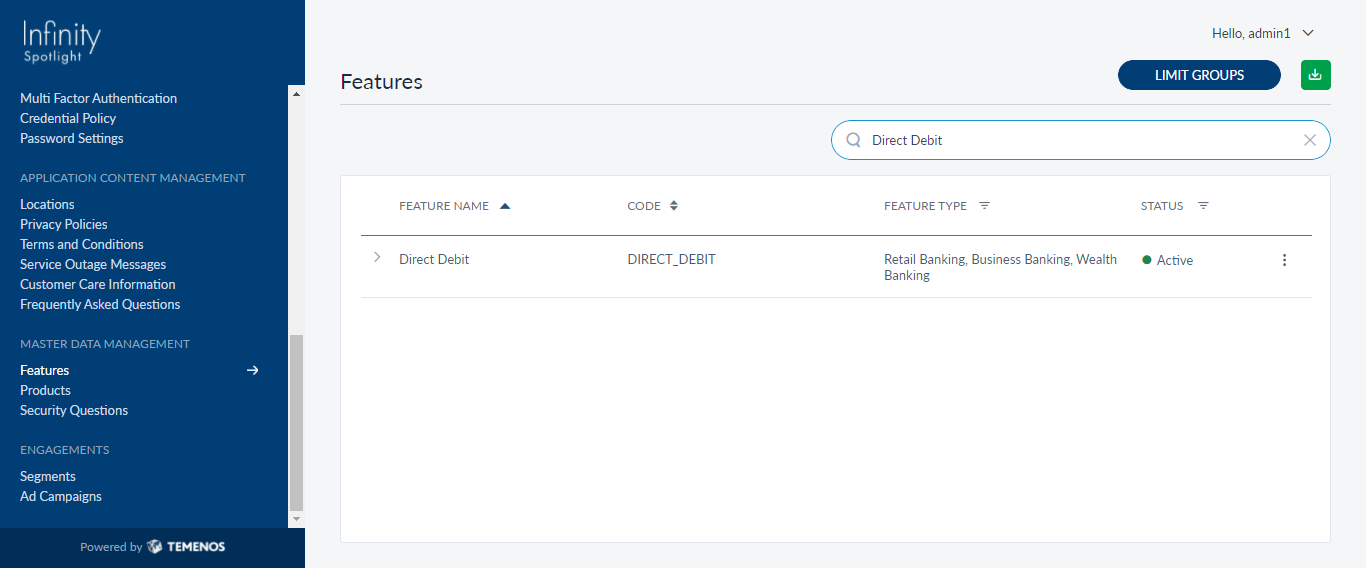
NOTE: The features and actions can be made active/inactive from the master data management of Spotlight at FI level. The features and actions that are enabled can only be accessed in Retail Banking application.
To activate/inactivate Direct Debits, follow these steps:
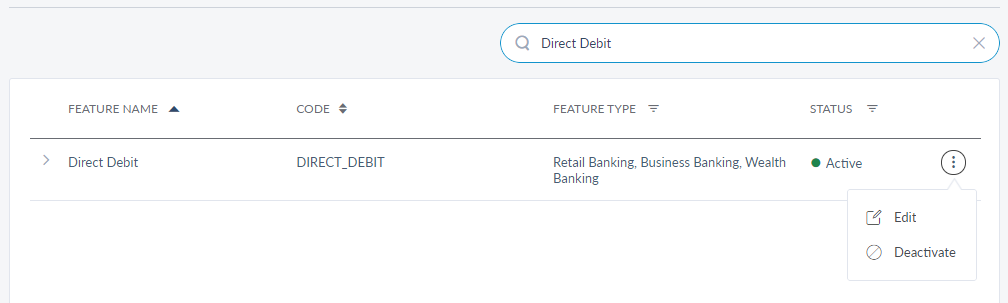
- In Master Data Management > Features > Search for Direct Debit. The direct debit feature must be active to access the feature in Retail Banking application.
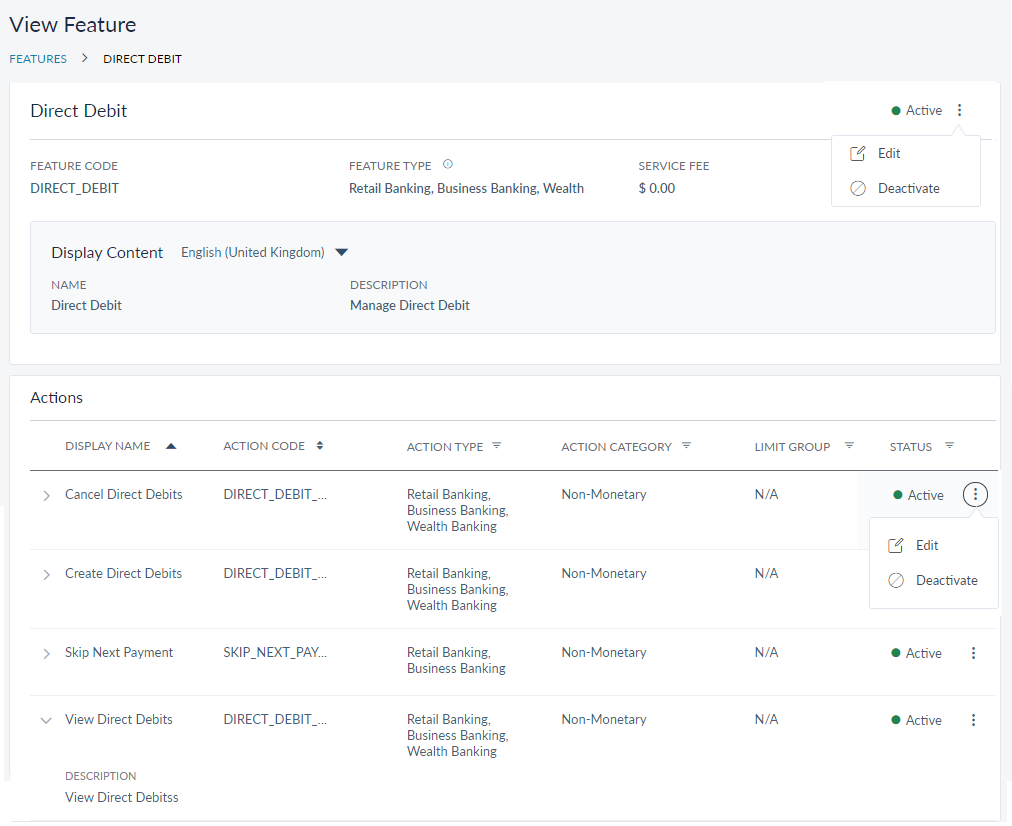
- Click the feature to view the feature details and associated actions.

- Click the Contextual menu (three dots) on the right corner to activate/deactivate the feature. You can also edit the feature and activate/deactivate the feature.
- You can activate/deactivate the associated actions by clicking the contextual menu available besides each action. You can also edit the associated actions.

In this topic
